Share
Embed
Transcript
37 slides
-
What are we building this week? How to create, and
navigate to, additional Activities? 02 Project Demo Using Multiple Activities 01 How to use SharedPreferences to store simple data? Saving Data With SharedPreferences 04 Displaying Menus & Dialogs How to add menus and display dialogs for user interaction? 03 -
Week 4 Project Updates • Create a ForecastDetailsActivity • Pass
clicked forecast data to ForecastDetailsActivity and dislpay it • Create a menu with a single item to control our temp display units • Show an AlertDialog when settings item is clicked to select display setting • Update UI formatting based on selected setting -
• Create a new Activity class • Declare the new
Activity in our AndroidManifest.xml • Navigate to the new Activity using an Intent How do we navigate to a new screen? -
Create a new Activity class class NewActivity : Activity {
... } NewActivity.kt -
Declare new Activity in AndroidManifest.xml <manifest … > <activity android:name=”.NewActivity”/>
</manifest> AndroidManifest.xml -
Navigate to new Activity using an Intent enterButton.setOnClickHandler { val
intent = Intent(this, NewActivity::class.java) startActivity(intent) } MainActivity.kt -
• Communicates to the system that some action should be
carried out • Start an Activity, send message to a BroadcastReciver, send a tweet or an email, make a phone call • Primarily includes an ACTION and DATA What is an Intent? -
• ACTION_VIEW -> content://contacts/people/1 • ACTION_DIAL -> content://contacts/people/1 • ACTION_SEND
-> EXTRA_EMAIL, EXTRA_SUBJECT What is an Intent? -
Implicit vs Explicit Intents Choosing a generic actions vs specifying
a specific app component -
• Implicit intents describe an action like ACTION_SEND for sending
an email ◦ Implicit intents can be handled by an component in the system registered to handle that intent type • Explicit intents describe a specific app component to interact with ◦ Can open a specific Activity using an explicit intent Implicit vs Explicit Intents -
Intent Filters <!-- Intent filter for launcher Activity --> <intent-filter>
<action android:name="android.intent.action.MAIN" /> <category android:name="android.intent.category.LAUNCHER" /> </intent-filter> AndroidManifest.xml -
Intent Filters <!-- Intent filter for possible email app -->
<intent-filter> <action android:name="android.intent.action.VIEW"/> <action android:name="android.intent.action.SENDTO"/> <data android:scheme="mailto"/> </intent-filter> AndroidManifest.xml -
Passing Data With Intents // Pass student ID and student
name with Intent so it can be used // by NewActivity when it’s started // val intent = Intent(this, NewActivity::class.java) intent.putExtra("key_id", “student616”) intent.putExtra("key_name", “Peter Parker”) startActivity(intent) MainActivity.kt -
Displaying Menus & Dialogs How to add menus and display
dialogs for user interaction? -
• Define a menu resource • Add individual menu items
to the menu • Add text & icons to each menu item • Respond to item clicks How To Display A Menu? -
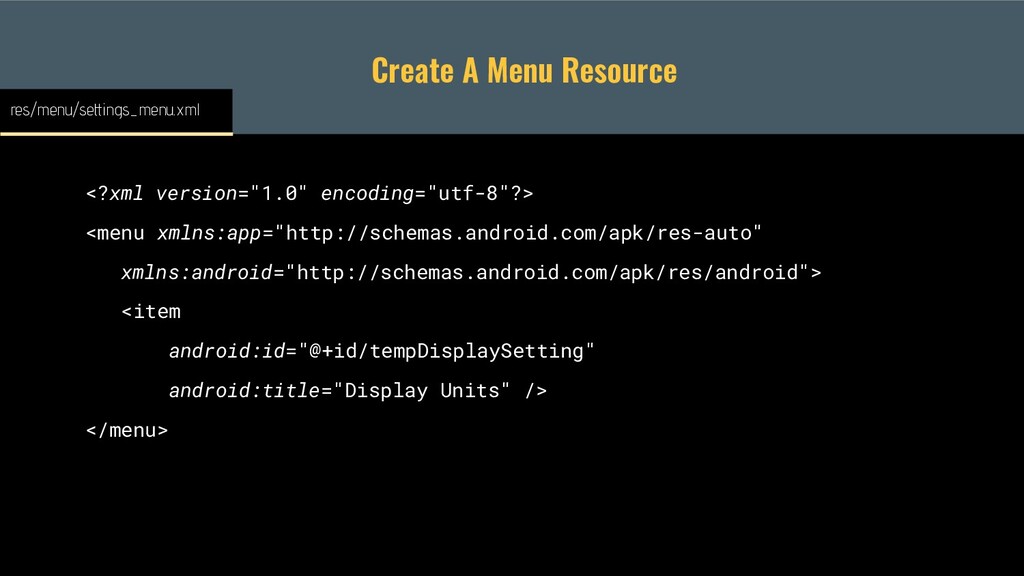
Create A Menu Resource <?xml version="1.0" encoding="utf-8"?> <menu xmlns:app="http://schemas.android.com/apk/res-auto" xmlns:android="http://schemas.android.com/apk/res/android">
<item android:id="@+id/tempDisplaySetting" android:title="Display Units" /> </menu> res/menu/settings_menu.xml -
Create A Menu Resource override fun onCreateOptionsMenu(menu: Menu?): Boolean {
val inflater: MenuInflater = menuInflater inflater.inflate(R.menu.settings_menu, menu) return true } MainActivity.kt -
Create A Menu Resource override fun onOptionsItemSelected(item: MenuItem): Boolean {
return when (item.itemId) { R.id.tempDisplaySetting -> { // Respond to item click true } else -> super.onOptionsItemSelected(item) } } MainActivity.kt -
• Create and show an AlertDialog • Use AlertDialog.Builder to
customize the dialog • Update title, message, and buttons • Respond to button clicks and dialog dismissal How To Display A Dialog? -
Show An AlertDialog // Build/customize the dialog val dialogBuilder =
AlertDialog.Builder(this) .setTitle("Choose Display Units") .setMessage("Choose which temperature unit to display") .setPositiveButton("F°") { _, _ -> } .setNeutralButton("C°") { _,_ -> } // Show the dialog dialogBuilder.show() MainActivity.kt -
Database • Store large, complex data sets • Supports complex
queries, paging, reactive updates • Go to option for caching network data -
Files • Images, vides, maps, books, audio, etc • Can
be used for custom storage of other data types like settings or network responses -
SharedPreferences • Default solution for saving simple data • Works
off of key/value pairs • Great for simple, local users settings • Saved to disk under the hood -
Working With SharedPreferences val preferences = context.getSharedPreferences("settings", Context.MODE_PRIVATE) // Save
a key/value pair to SharedPreferences preferences.edit().putString("key_temp_display", setting.name).commit() // Retrieve a key/value pair from SharedPreferences val settingValue = preferences.getString("key_temp_display", default) MainActivity.kt