Share
Embed
Android UI : Tips and tricks.
Slides for a presentation given at forLoop 2, an event where software developers come around to interact and share knowledge on different technologies.
Efeturi Money
June 18, 2016
Transcript
25 slides
-
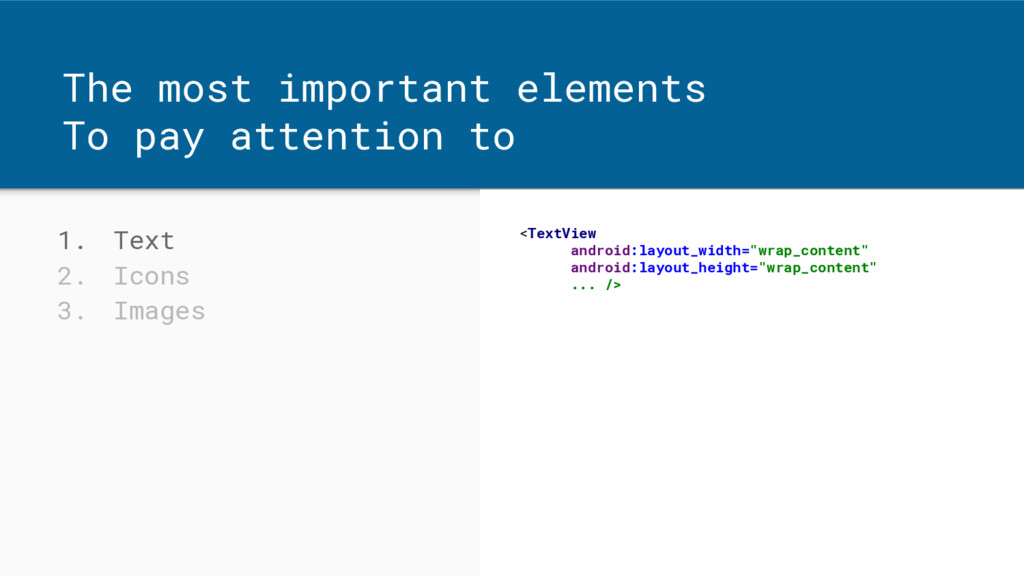
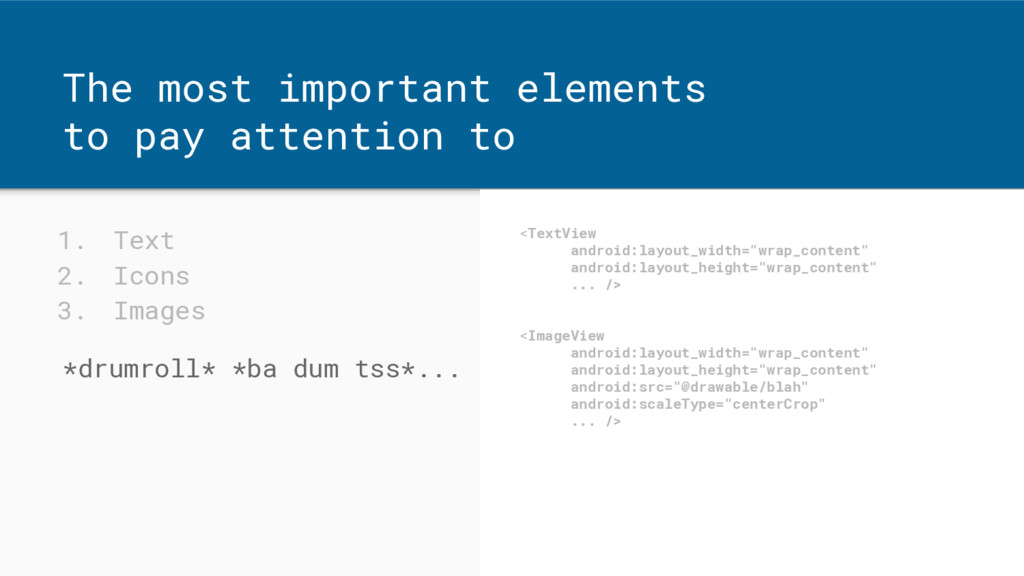
The most important elements To pay attention to 1. Text
2. Icons 3. Images <TextView android:layout_width="wrap_content" android:layout_height="wrap_content" ... /> -
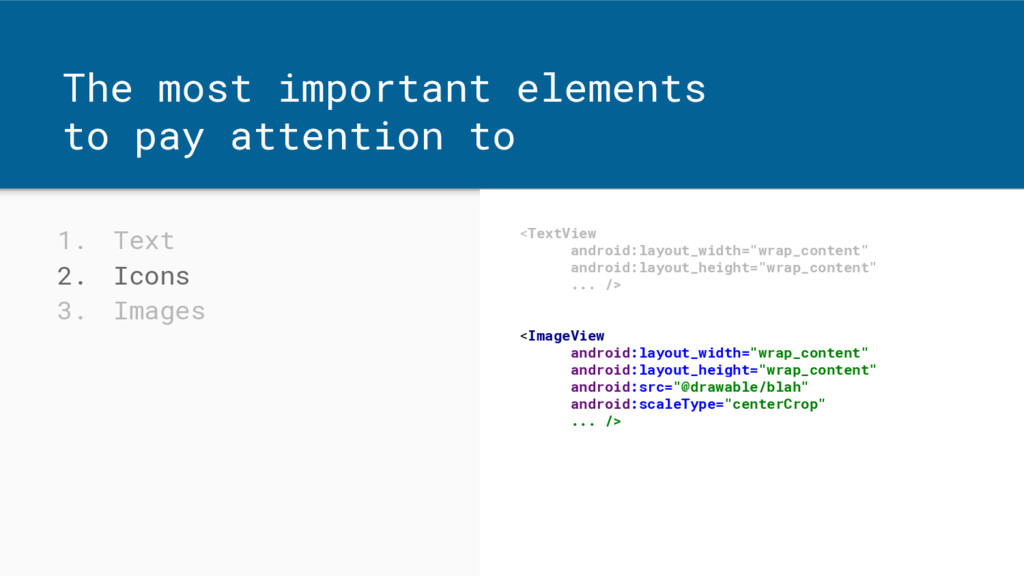
1. Text 2. Icons 3. Images The most important elements
to pay attention to <TextView android:layout_width="wrap_content" android:layout_height="wrap_content" ... /> <ImageView android:layout_width="wrap_content" android:layout_height="wrap_content" android:src="@drawable/blah" android:scaleType="centerCrop" ... /> -
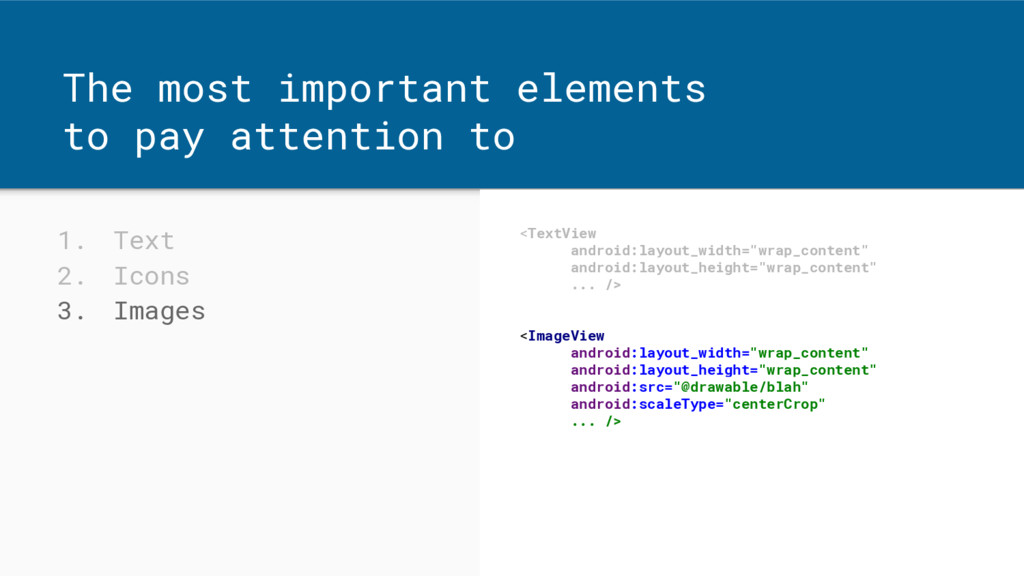
1. Text 2. Icons 3. Images *drumroll* *ba dum tss*...
The most important elements to pay attention to <TextView android:layout_width="wrap_content" android:layout_height="wrap_content" ... /> <ImageView android:layout_width="wrap_content" android:layout_height="wrap_content" android:src="@drawable/blah" android:scaleType="centerCrop" ... /> -
1. Text 2. Icons 3. Images *drumroll* *ba dum tss*...
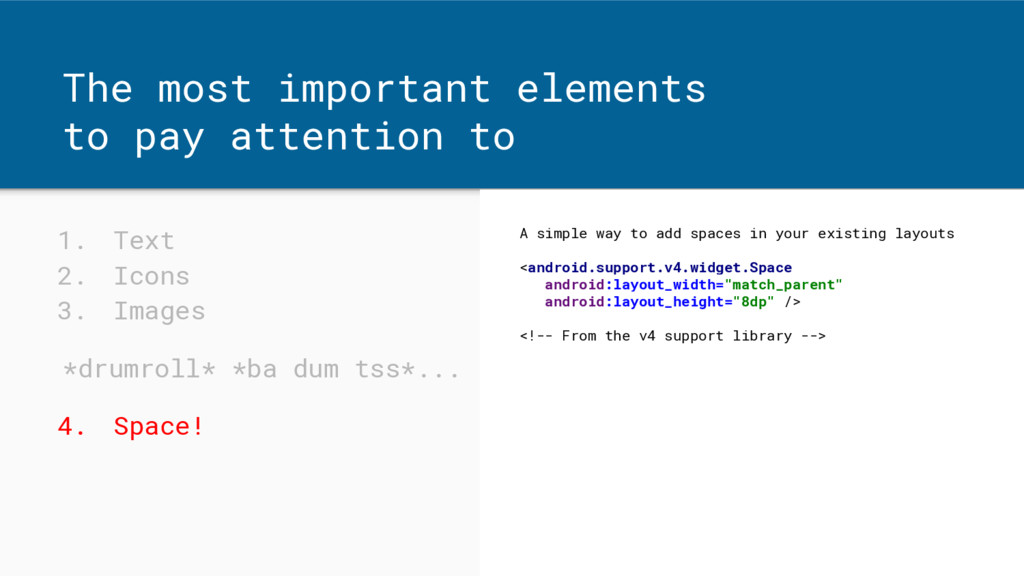
4. Space! The most important elements to pay attention to A simple way to add spaces in your existing layouts <android.support.v4.widget.Space android:layout_width="match_parent" android:layout_height="8dp" /> <!-- From the v4 support library --> -
1. Text 2. Icons 3. Images *drumroll* *ba dum tss*...
4. Space! The most important elements to pay attention to Also set via view padding and layout_margins. <TextView ... android:paddingLeft="16dp" android:paddingRight="16dp" android:layout_margin="@dimen/text_margin"... /> -
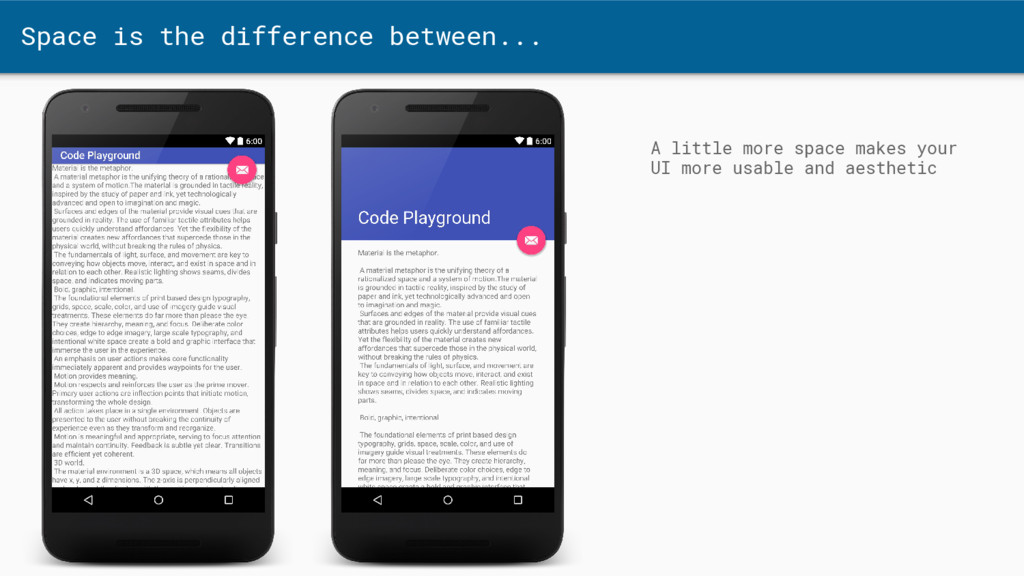
Space is the difference between... A little more space makes
your UI more usable and aesthetic -
1. Text 2. Icons 3. Images *drumroll* *ba dum tss*...
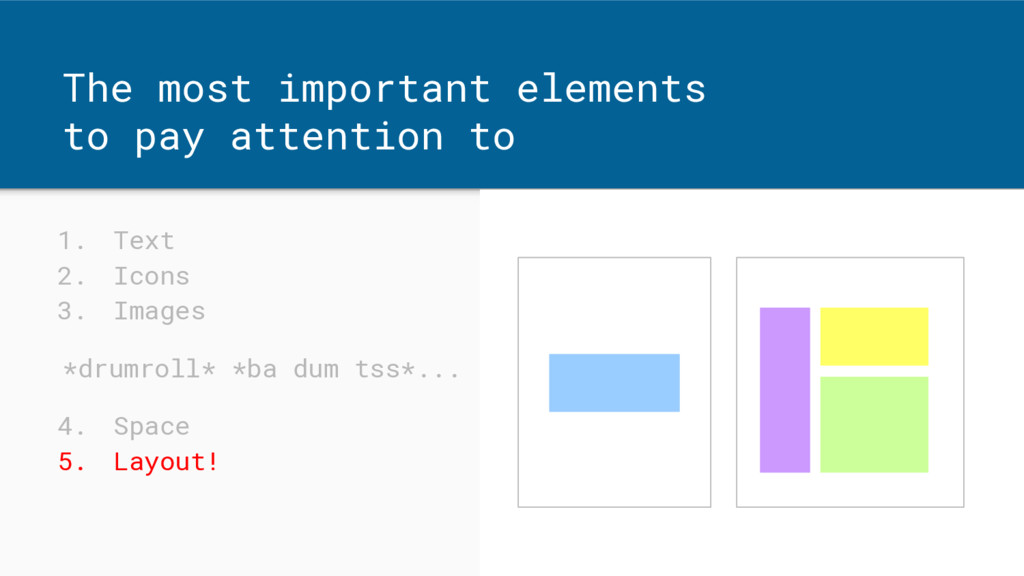
4. Space 5. Layout! The most important elements to pay attention to -
1. Text 2. Icons 3. Images *drumroll* *ba dum tss*...
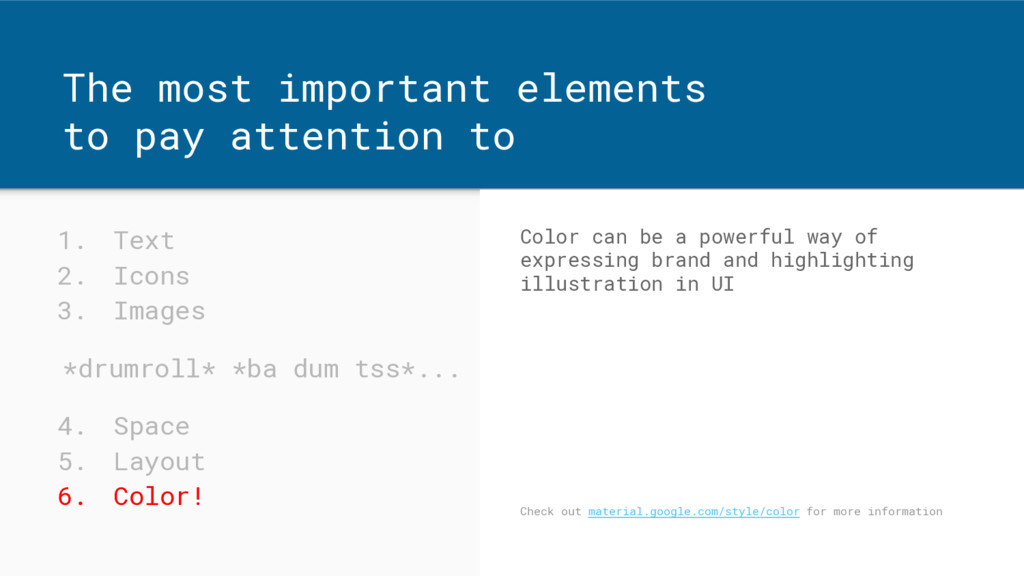
4. Space 5. Layout 6. Color! The most important elements to pay attention to Color can be a powerful way of expressing brand and highlighting illustration in UI Check out material.google.com/style/color for more information -
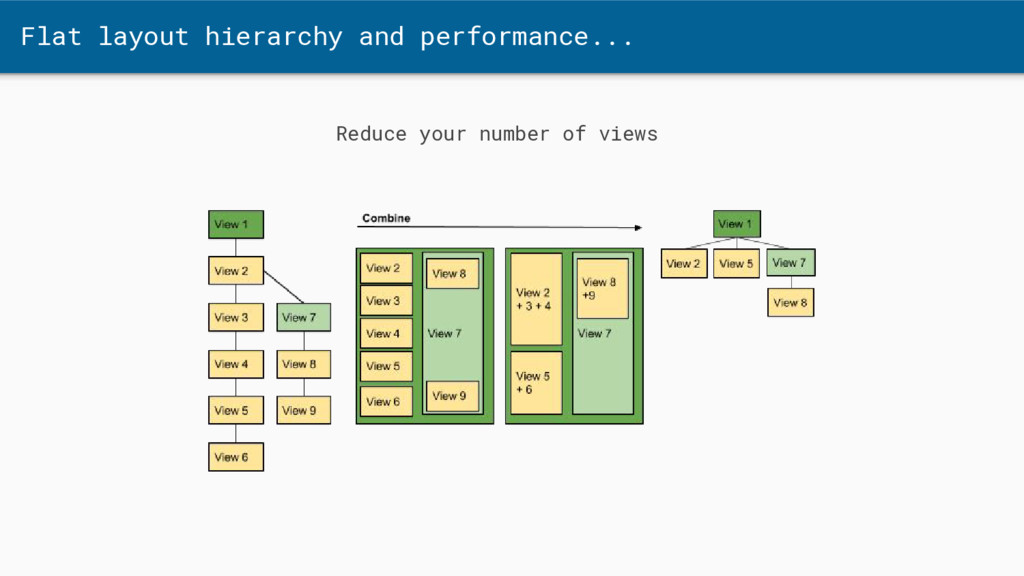
Flat layout hierarchy and performance... Always aim for the flattest
layout hierarchy to avoid heavy layout passes. -
Flat layout hierarchy and performance... Choose the right “Layout’ view
subclass Especially apparent in adapterviews that can have thousands of items For example, a view inside a grid view inside a list view inside a relative layout could get laid out 8 times(!) -
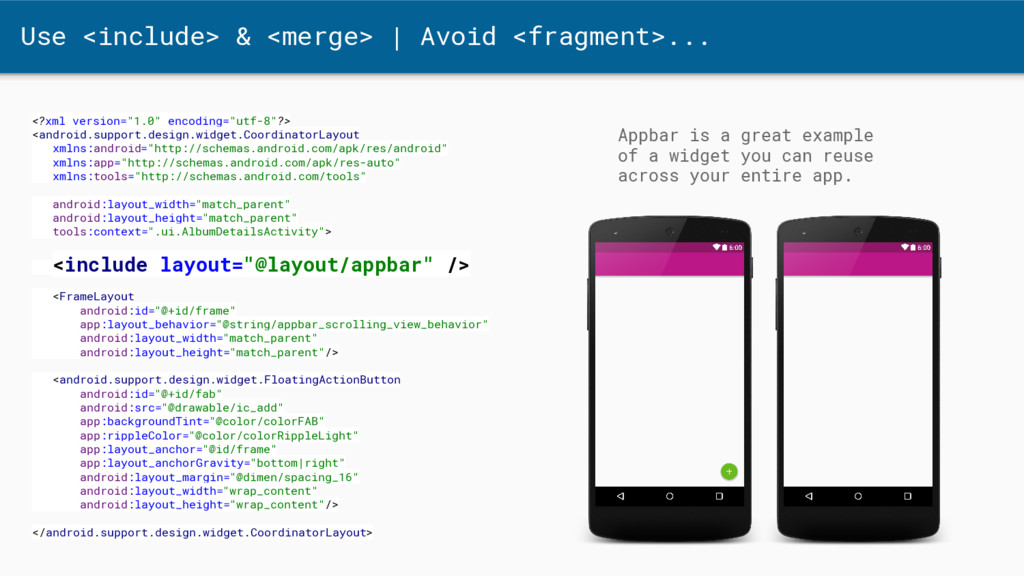
Use <include> & <merge> | Avoid <fragment>... <?xml version="1.0" encoding="utf-8"?>
<android.support.design.widget.CoordinatorLayout xmlns:android="http://schemas.android.com/apk/res/android" xmlns:app="http://schemas.android.com/apk/res-auto" xmlns:tools="http://schemas.android.com/tools" android:layout_width="match_parent" android:layout_height="match_parent" tools:context=".ui.AlbumDetailsActivity"> <include layout="@layout/appbar" /> <FrameLayout android:id="@+id/frame" app:layout_behavior="@string/appbar_scrolling_view_behavior" android:layout_width="match_parent" android:layout_height="match_parent"/> <android.support.design.widget.FloatingActionButton android:id="@+id/fab" android:src="@drawable/ic_add" app:backgroundTint="@color/colorFAB" app:rippleColor="@color/colorRippleLight" app:layout_anchor="@id/frame" app:layout_anchorGravity="bottom|right" android:layout_margin="@dimen/spacing_16" android:layout_width="wrap_content" android:layout_height="wrap_content"/> </android.support.design.widget.CoordinatorLayout> Appbar is a great example of a widget you can reuse across your entire app. -
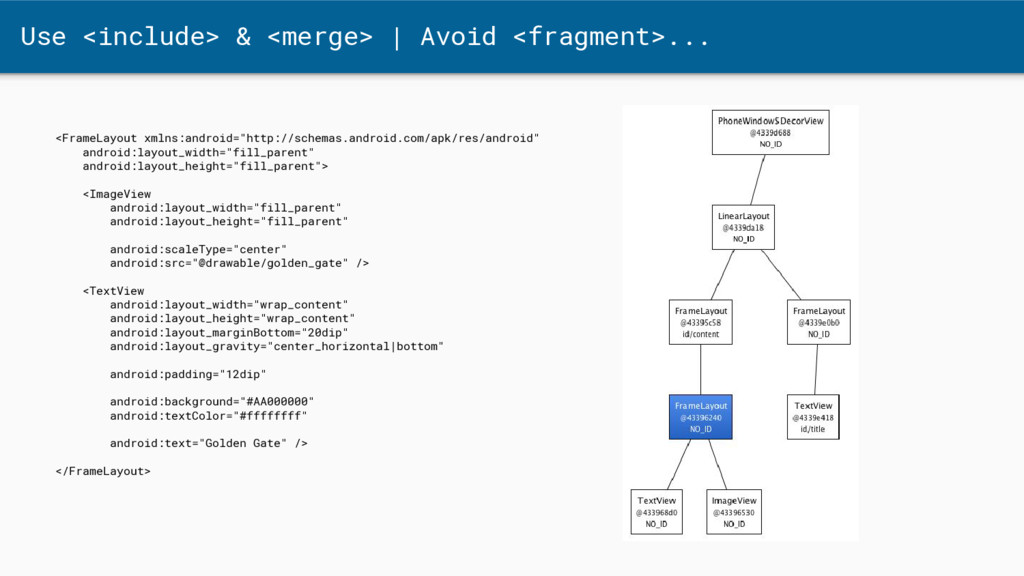
Use <include> & <merge> | Avoid <fragment>... <FrameLayout xmlns:android="http://schemas.android.com/apk/res/android" android:layout_width="fill_parent"
android:layout_height="fill_parent"> <ImageView android:layout_width="fill_parent" android:layout_height="fill_parent" android:scaleType="center" android:src="@drawable/golden_gate" /> <TextView android:layout_width="wrap_content" android:layout_height="wrap_content" android:layout_marginBottom="20dip" android:layout_gravity="center_horizontal|bottom" android:padding="12dip" android:background="#AA000000" android:textColor="#ffffffff" android:text="Golden Gate" /> </FrameLayout> -
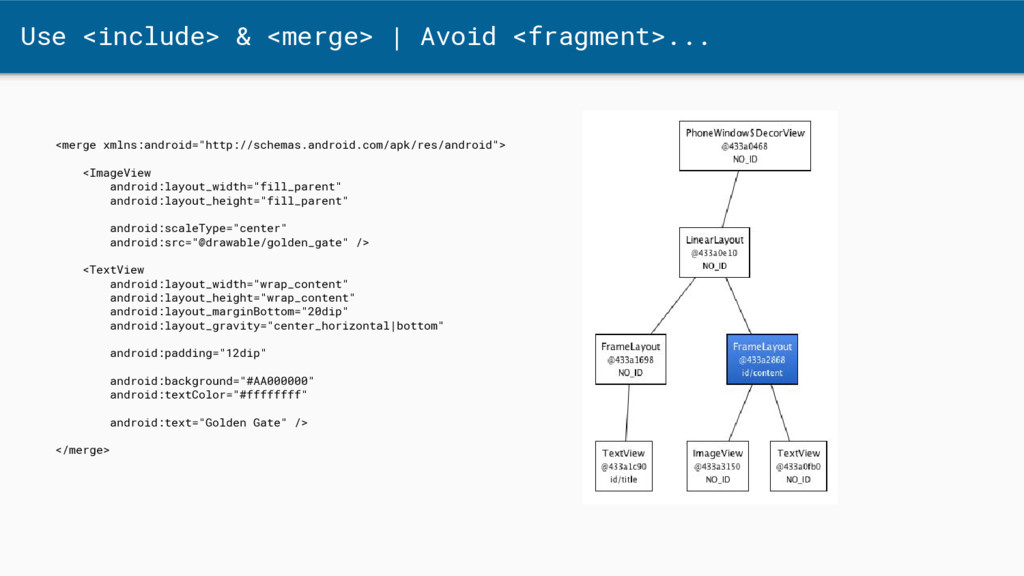
Use <include> & <merge> | Avoid <fragment>... <merge xmlns:android="http://schemas.android.com/apk/res/android"> <ImageView
android:layout_width="fill_parent" android:layout_height="fill_parent" android:scaleType="center" android:src="@drawable/golden_gate" /> <TextView android:layout_width="wrap_content" android:layout_height="wrap_content" android:layout_marginBottom="20dip" android:layout_gravity="center_horizontal|bottom" android:padding="12dip" android:background="#AA000000" android:textColor="#ffffffff" android:text="Golden Gate" /> </merge> -
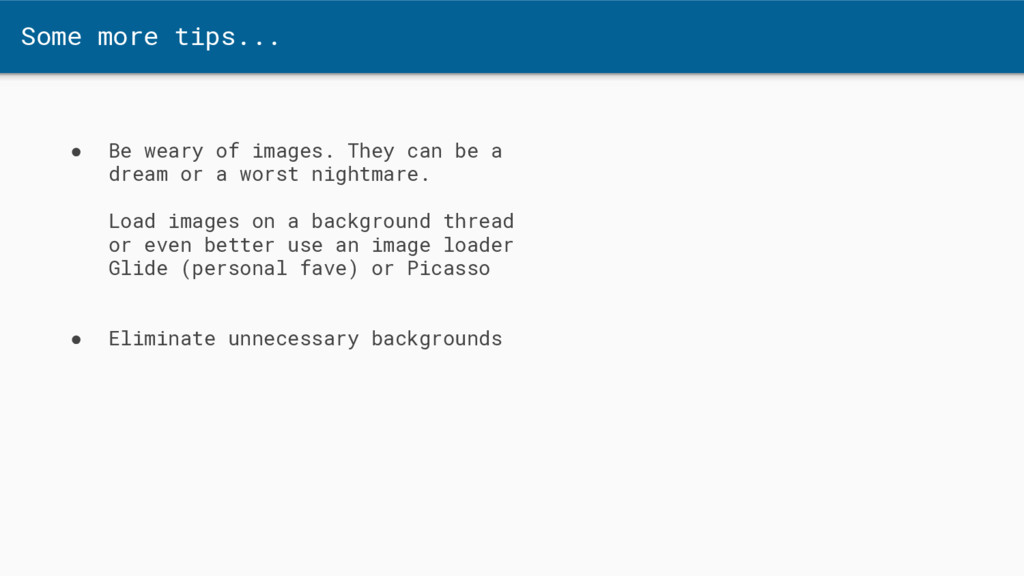
Some more tips... • Be weary of images. They can
be a dream or a worst nightmare. Load images on a background thread or even better use an image loader Glide (personal fave) or Picasso • Eliminate unnecessary backgrounds -
Stick to android patterns... Don’t try to port designs or
UI components from iOS -
Tools and libraries that help Some tools that help: •
Use an image loading library (Glide/Picasso) • Hierarchy viewer • Lint warnings • Support library, compatible up to v7 (recently v9) • Butterknife -
Thank you! Feel free to contact me. Also join the
Android Developer G+ group plus.google. com/communities/1051 53134372062985968