Share
Agents and skills (Give agents roles and procedures, plus memory) | AWS Quick: Zero to Hero 06
Level 200. How to give agents in AWS Quick their roles and procedures, for business users who already use AWS Quick on the web. It explains what an agent is (a worker with set instructions, materials, and tools), the built-in Quick and custom chat agents, and whether to set the materials or leave them open. It walks through building a chat agent on the web (describing its purpose, the settings screen, reference documents and knowledge sources) and sharing it with the Owner or Viewer role, with screens captured in English. It then covers skills in the desktop app: what a skill is, the two stages in which agents load skills, building a skill from chat, a file, or a folder, drafts, Try it, publishing and sharing, and official skills in Add to Quick. It ends with memory: viewing and deleting it on the web, and editing it on desktop. The running scenario is a team's monthly learning session. The appendix has agent and skill limits, a glossary, and sources. Based on public documentation and screens as of November 2026. Deck 06 (Go deeper) of the series AWS Quick: Zero to Hero.
Riku INADA PRO
Annual Pro sale · Save $30
Have presentations of your own?
Share with private links, password protection, and more control over your work.
Transcript
30 slides
-
AWS Quick: Zero to Hero Go deeper Agents and skills
Give agents roles and procedures, plus memory 06 Level 200 / As of November 2026 November 2026 Riku Inada Amazon Web Services Japan © 2026, Amazon Web © 2026, Services, Amazon Inc. or Web its Services, affiliates.Inc. All or rights its affiliates. reserved.All rights reserved. 1 -
Introduction About me Riku Inada Amazon Web Services Japan G.K.
Solutions Architect Works mainly with manufacturing customers Recent work Promoting the AI-Driven Development Life Cycle (AI-DLC) Writing and speaking about Kiro and AWS Amplify © 2026, Amazon Web Services, Inc. or its affiliates. All rights reserved. X @inada_riku Speaker Deck speakerdeck.com/inariku Zenn zenn.dev/inariku GitHub github.com/inariku 2 -
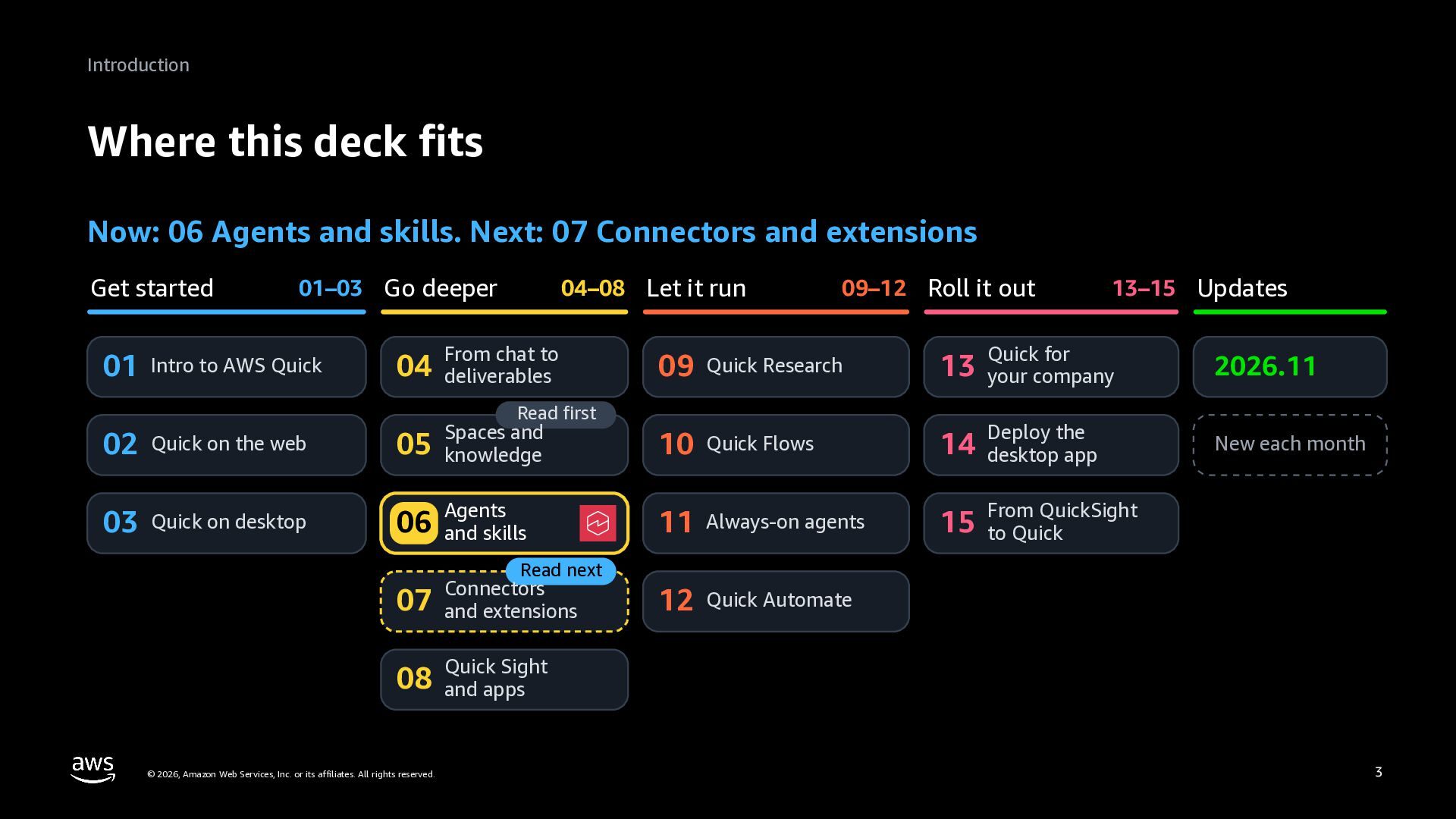
Introduction Where this deck fits Now: 06 Agents and skills.
Next: 07 Connectors and extensions Get started 01–03 Go deeper 04–08 Let it run From chat to 01 Intro to AWS Quick 04 deliverables 09–12 Roll it out 13–15 Updates Quick for 09 Quick Research 13 your company 02 Quick on the web Spaces and 05 knowledge 10 Quick Flows 14 desktop app 03 Quick on desktop 06 Agents and skills 11 Always-on agents QuickSight 15 From to Quick Read first Deploy the 2026.11 New each month Read next 07 Connectors and extensions 12 Quick Automate Sight 08 Quick and apps © 2026, Amazon Web Services, Inc. or its affiliates. All rights reserved. 3 -
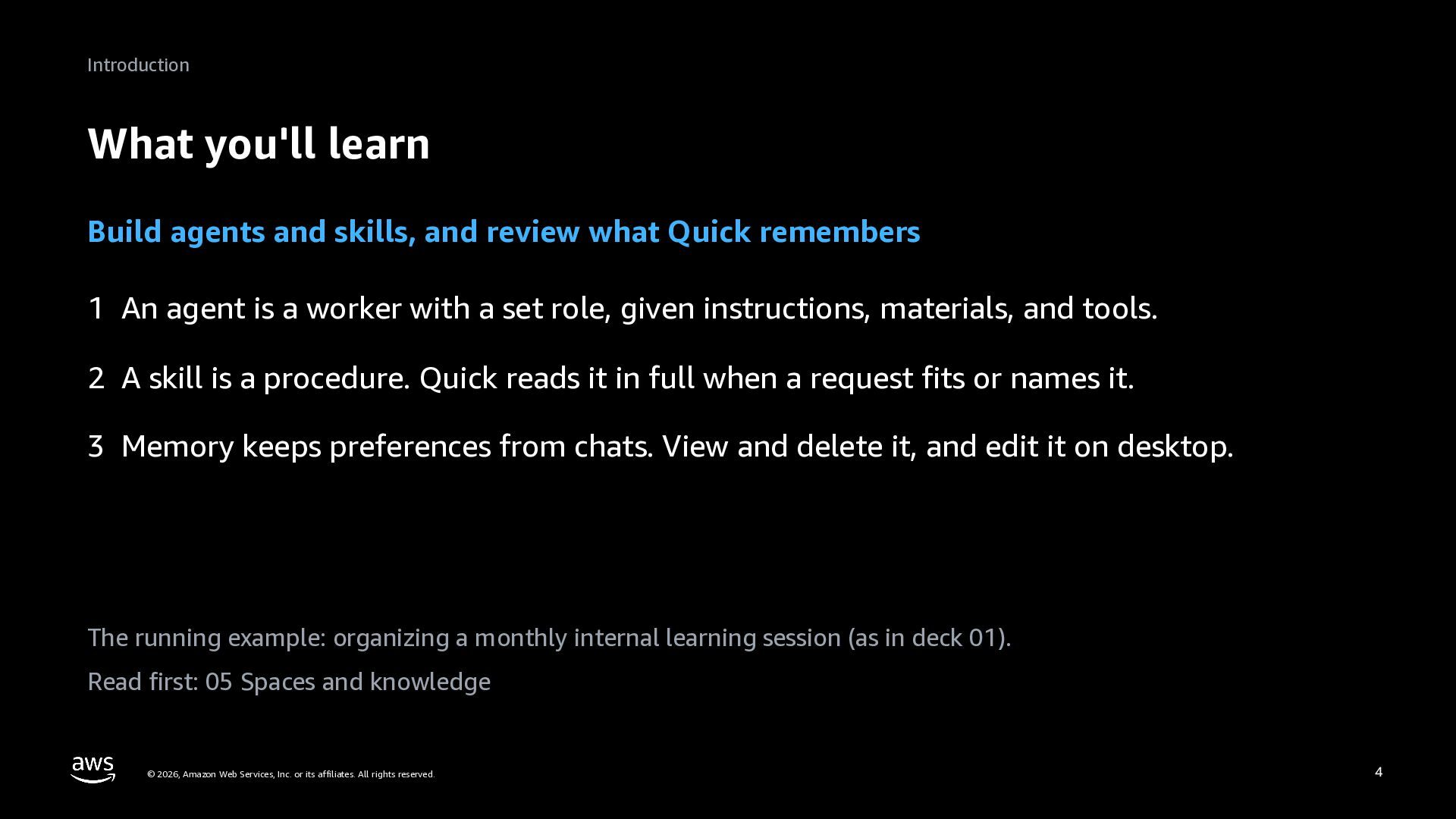
Introduction What you'll learn Build agents and skills, and review
what Quick remembers 1 An agent is a worker with a set role, given instructions, materials, and tools. 2 A skill is a procedure. Quick reads it in full when a request fits or names it. 3 Memory keeps preferences from chats. View and delete it, and edit it on desktop. The running example: organizing a monthly internal learning session (as in deck 01). Read first: 05 Spaces and knowledge © 2026, Amazon Web Services, Inc. or its affiliates. All rights reserved. 4 -
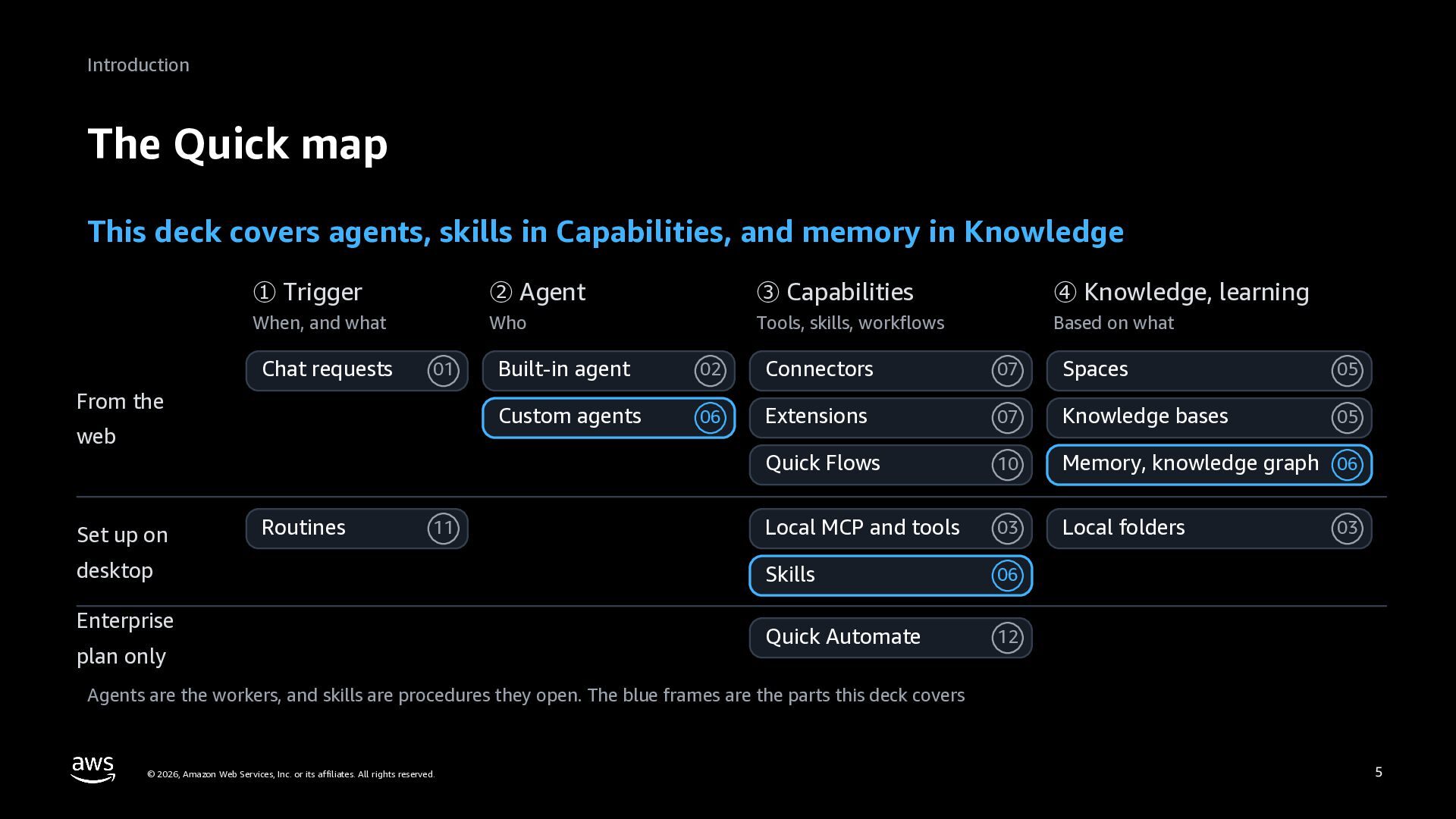
Introduction The Quick map This deck covers agents, skills in
Capabilities, and memory in Knowledge ① Trigger ② Agent ③ Capabilities ④ Knowledge, learning When, and what Who Tools, skills, workflows Based on what Chat requests 01 From the web Set up on Routines 11 desktop Enterprise plan only Built-in agent 02 Connectors 07 Spaces 05 Custom agents 06 Extensions 07 Knowledge bases 05 Quick Flows 10 Memory, knowledge graph 06 Local MCP and tools 03 Local folders Skills 06 Quick Automate 12 03 Agents are the workers, and skills are procedures they open. The blue frames are the parts this deck covers © 2026, Amazon Web Services, Inc. or its affiliates. All rights reserved. 5 -
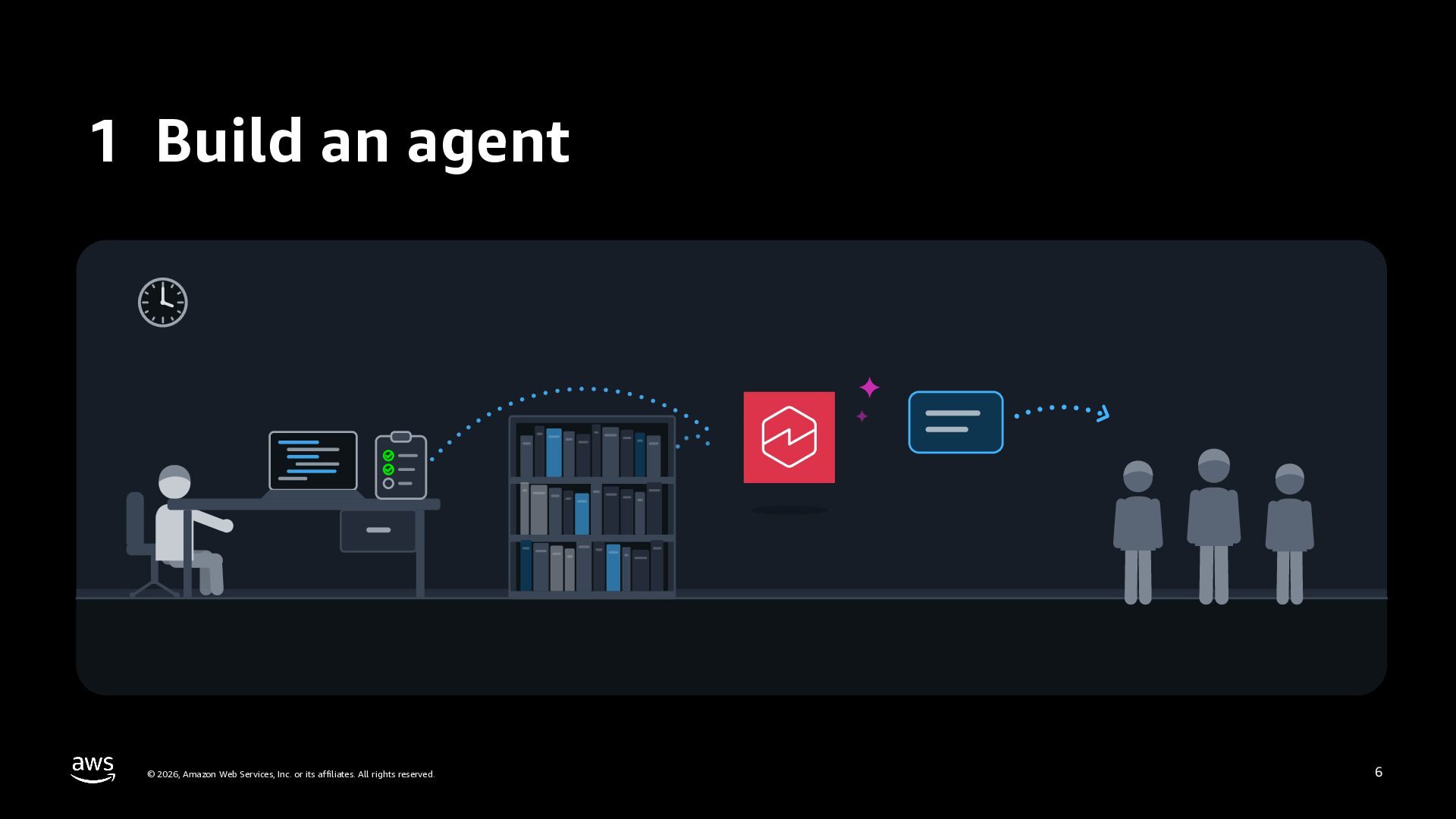
1 Build an agent © 2026, Amazon Web Services, Inc.
or its affiliates. All rights reserved. 6 -
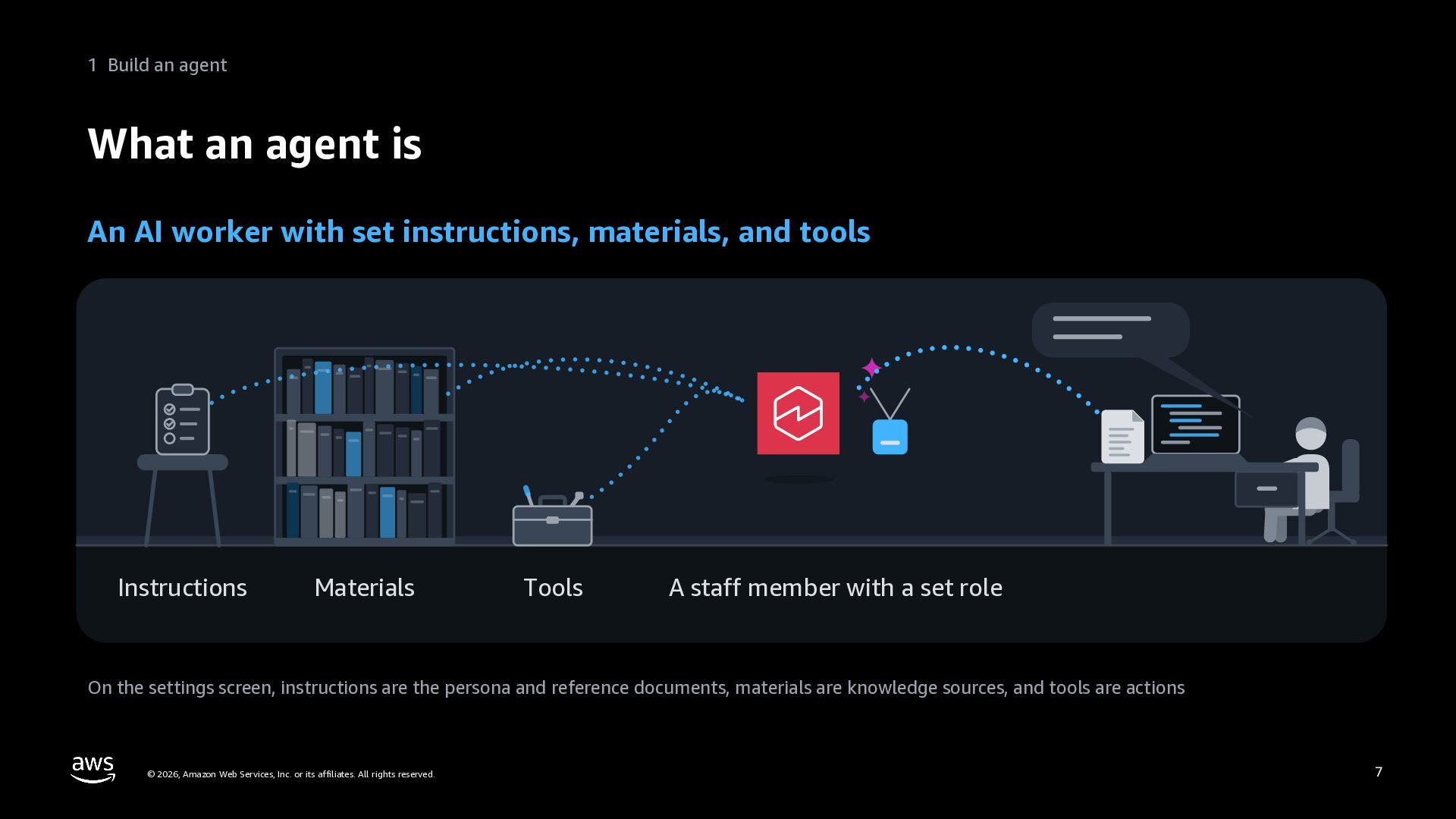
1 Build an agent What an agent is An AI
worker with set instructions, materials, and tools Instructions Materials Tools A staff member with a set role On the settings screen, instructions are the persona and reference documents, materials are knowledge sources, and tools are actions © 2026, Amazon Web Services, Inc. or its affiliates. All rights reserved. 7 -
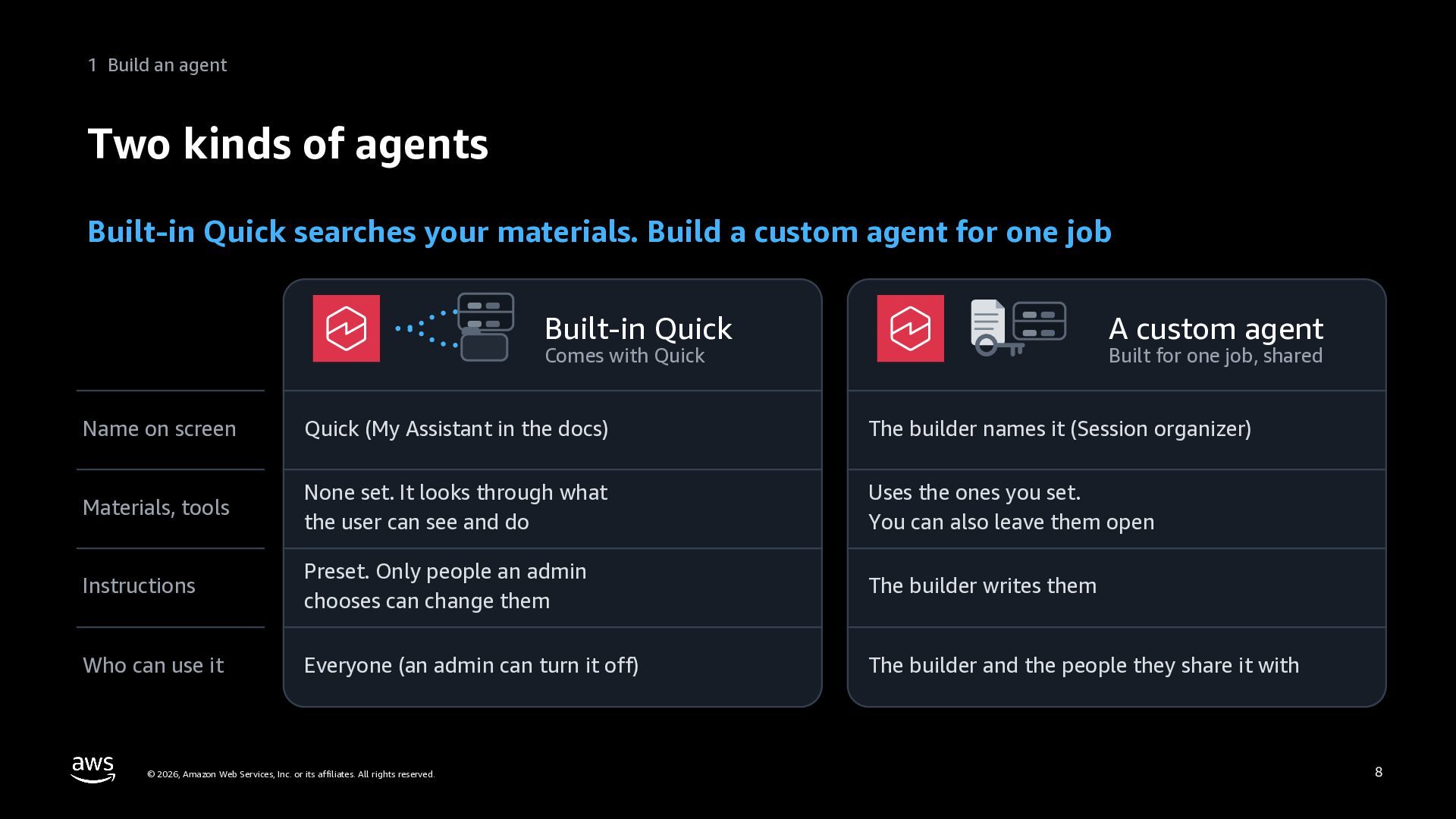
1 Build an agent Two kinds of agents Built-in Quick
searches your materials. Build a custom agent for one job Built-in Quick A custom agent Comes with Quick Built for one job, shared Name on screen Quick (My Assistant in the docs) The builder names it (Session organizer) Materials, tools None set. It looks through what the user can see and do Uses the ones you set. You can also leave them open Instructions Preset. Only people an admin chooses can change them The builder writes them Who can use it Everyone (an admin can turn it off) The builder and the people they share it with © 2026, Amazon Web Services, Inc. or its affiliates. All rights reserved. 8 -
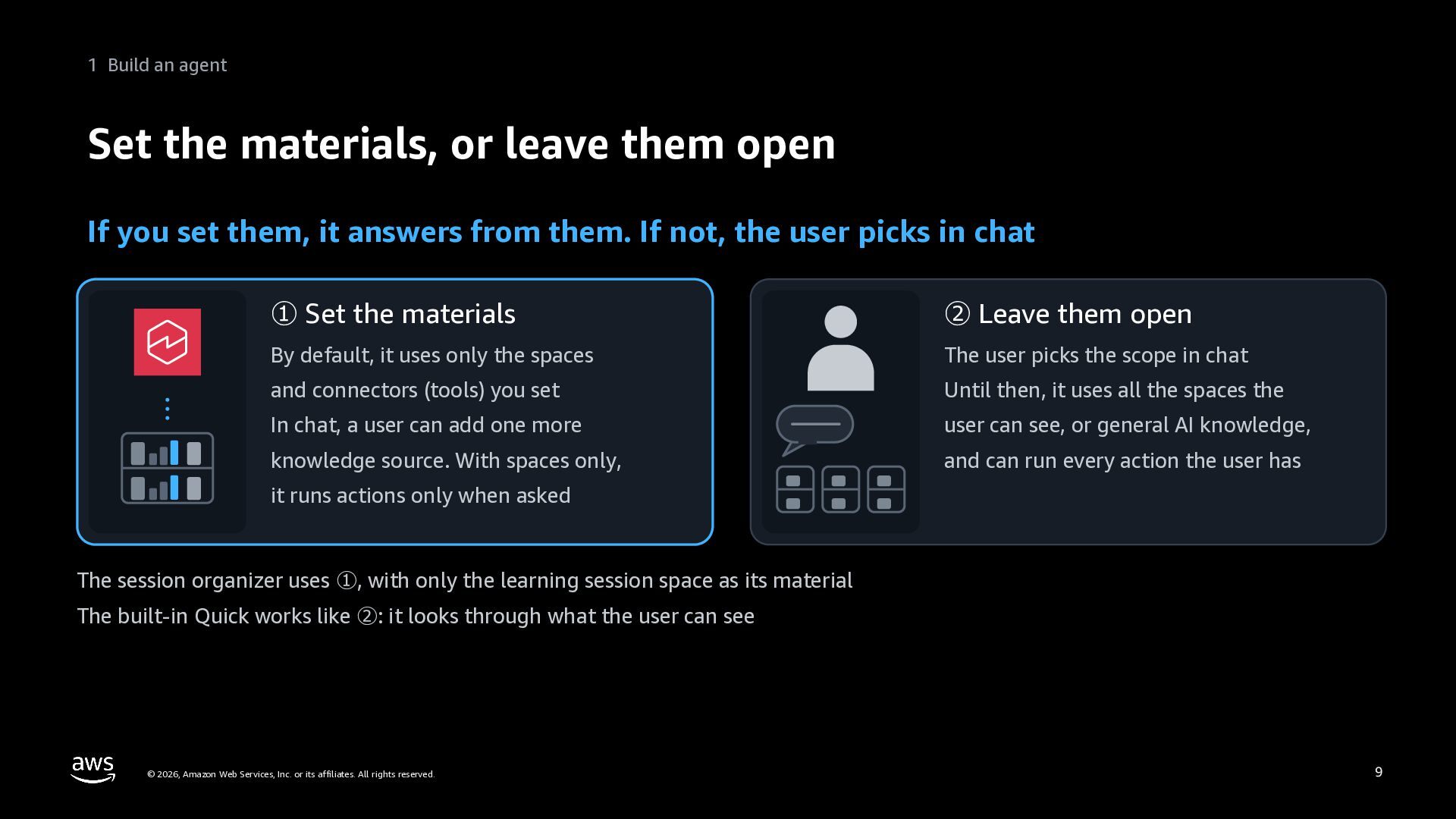
1 Build an agent Set the materials, or leave them
open If you set them, it answers from them. If not, the user picks in chat ① Set the materials ② Leave them open By default, it uses only the spaces The user picks the scope in chat and connectors (tools) you set Until then, it uses all the spaces the In chat, a user can add one more user can see, or general AI knowledge, knowledge source. With spaces only, and can run every action the user has it runs actions only when asked The session organizer uses ①, with only the learning session space as its material The built-in Quick works like ②: it looks through what the user can see © 2026, Amazon Web Services, Inc. or its affiliates. All rights reserved. 9 -
1 Build an agent Building on the web Open Chat
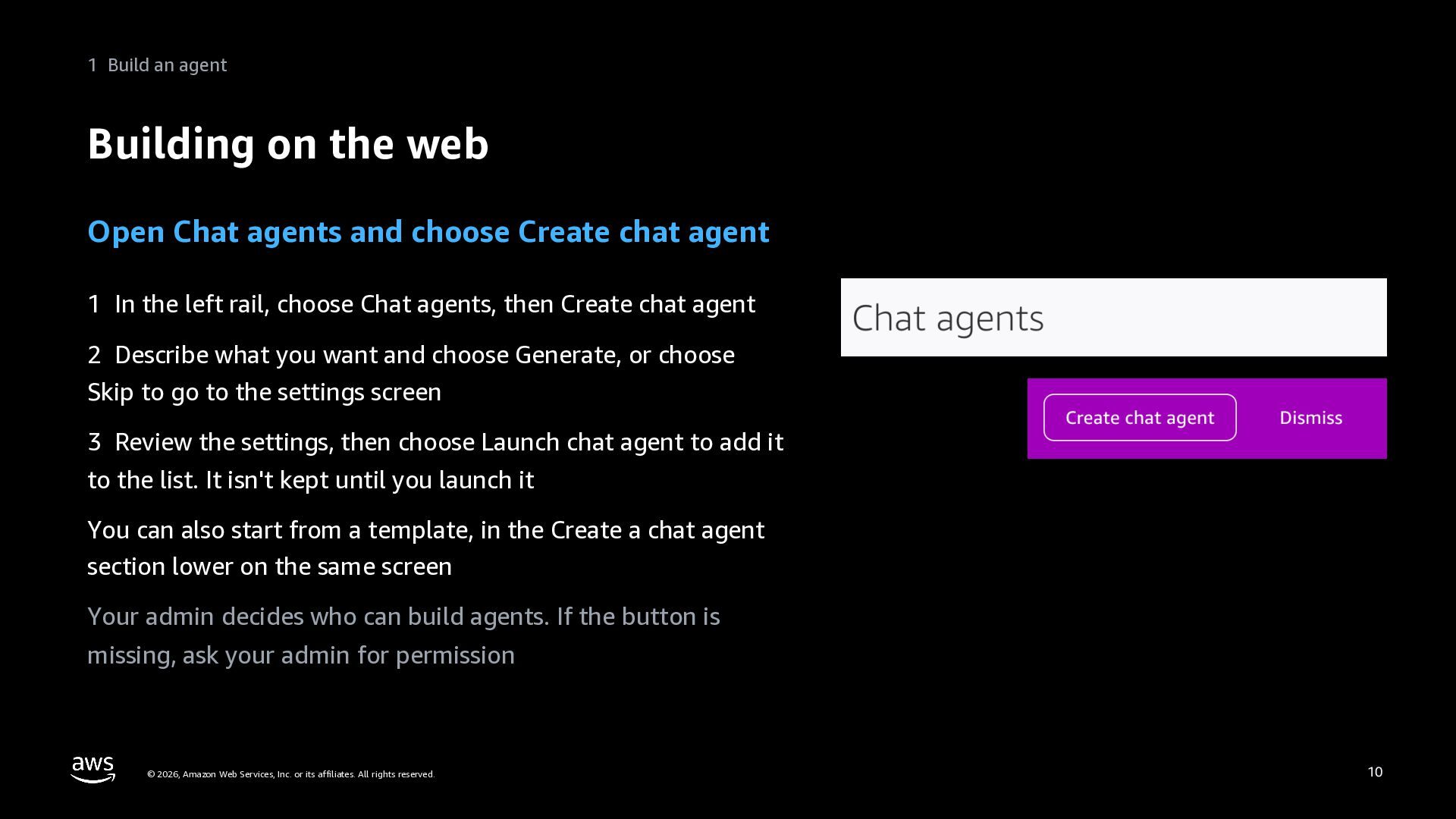
agents and choose Create chat agent 1 In the left rail, choose Chat agents, then Create chat agent 2 Describe what you want and choose Generate, or choose Skip to go to the settings screen 3 Review the settings, then choose Launch chat agent to add it to the list. It isn't kept until you launch it You can also start from a template, in the Create a chat agent section lower on the same screen Your admin decides who can build agents. If the button is missing, ask your admin for permission © 2026, Amazon Web Services, Inc. or its affiliates. All rights reserved. 10 -
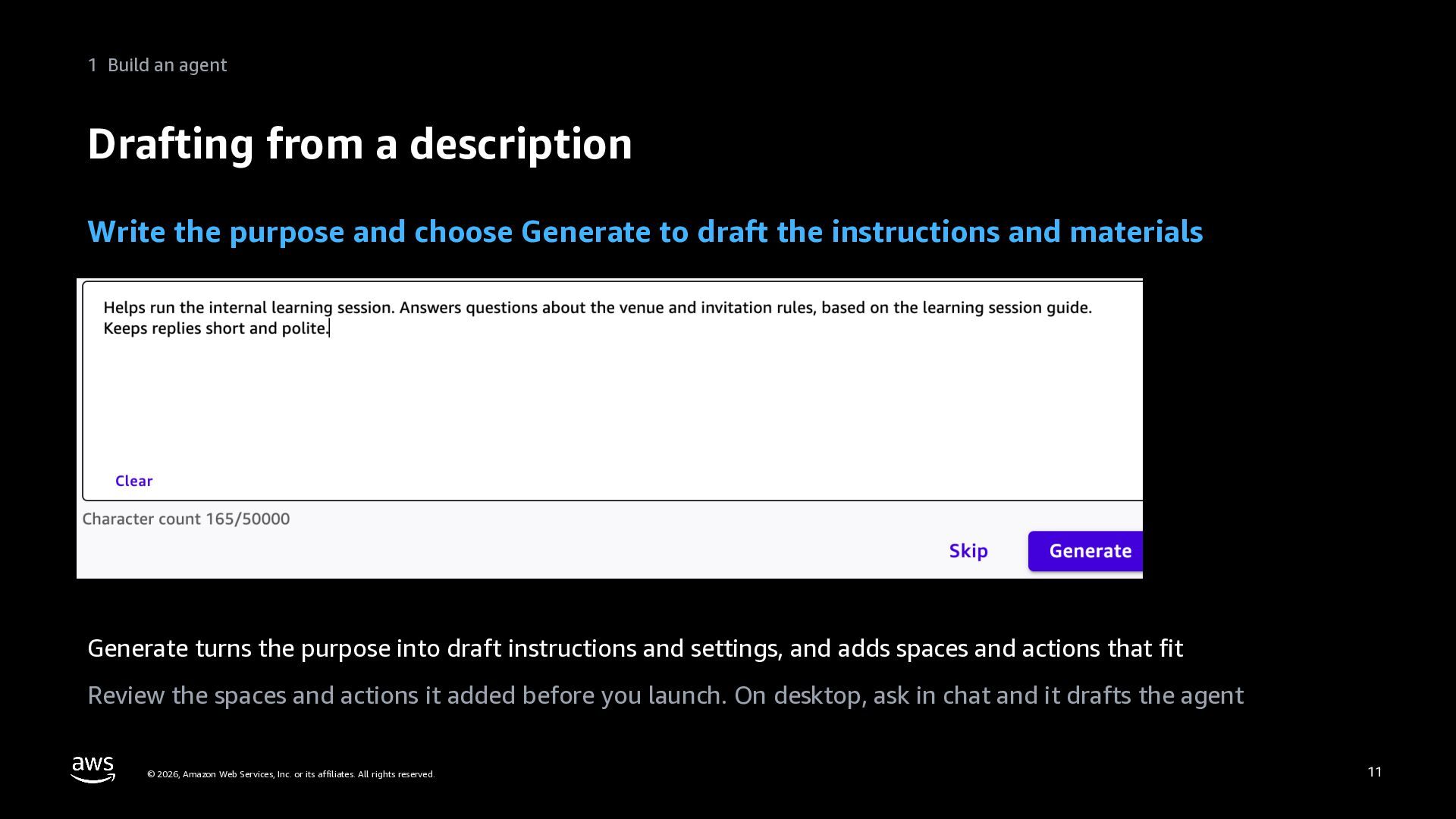
1 Build an agent Drafting from a description Write the
purpose and choose Generate to draft the instructions and materials Generate turns the purpose into draft instructions and settings, and adds spaces and actions that fit Review the spaces and actions it added before you launch. On desktop, ask in chat and it drafts the agent © 2026, Amazon Web Services, Inc. or its affiliates. All rights reserved. 11 -
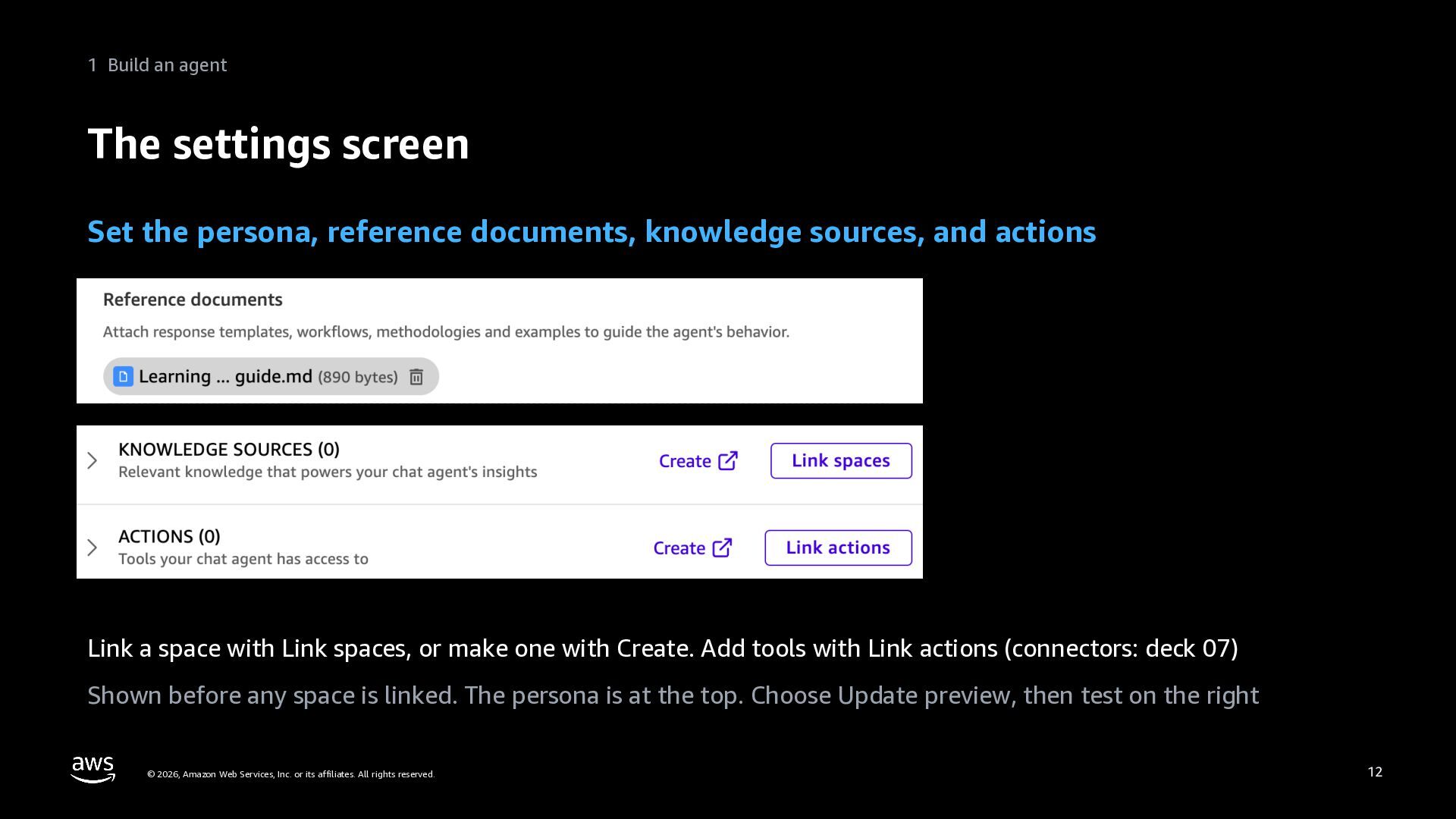
1 Build an agent The settings screen Set the persona,
reference documents, knowledge sources, and actions Link a space with Link spaces, or make one with Create. Add tools with Link actions (connectors: deck 07) Shown before any space is linked. The persona is at the top. Choose Update preview, then test on the right © 2026, Amazon Web Services, Inc. or its affiliates. All rights reserved. 12 -
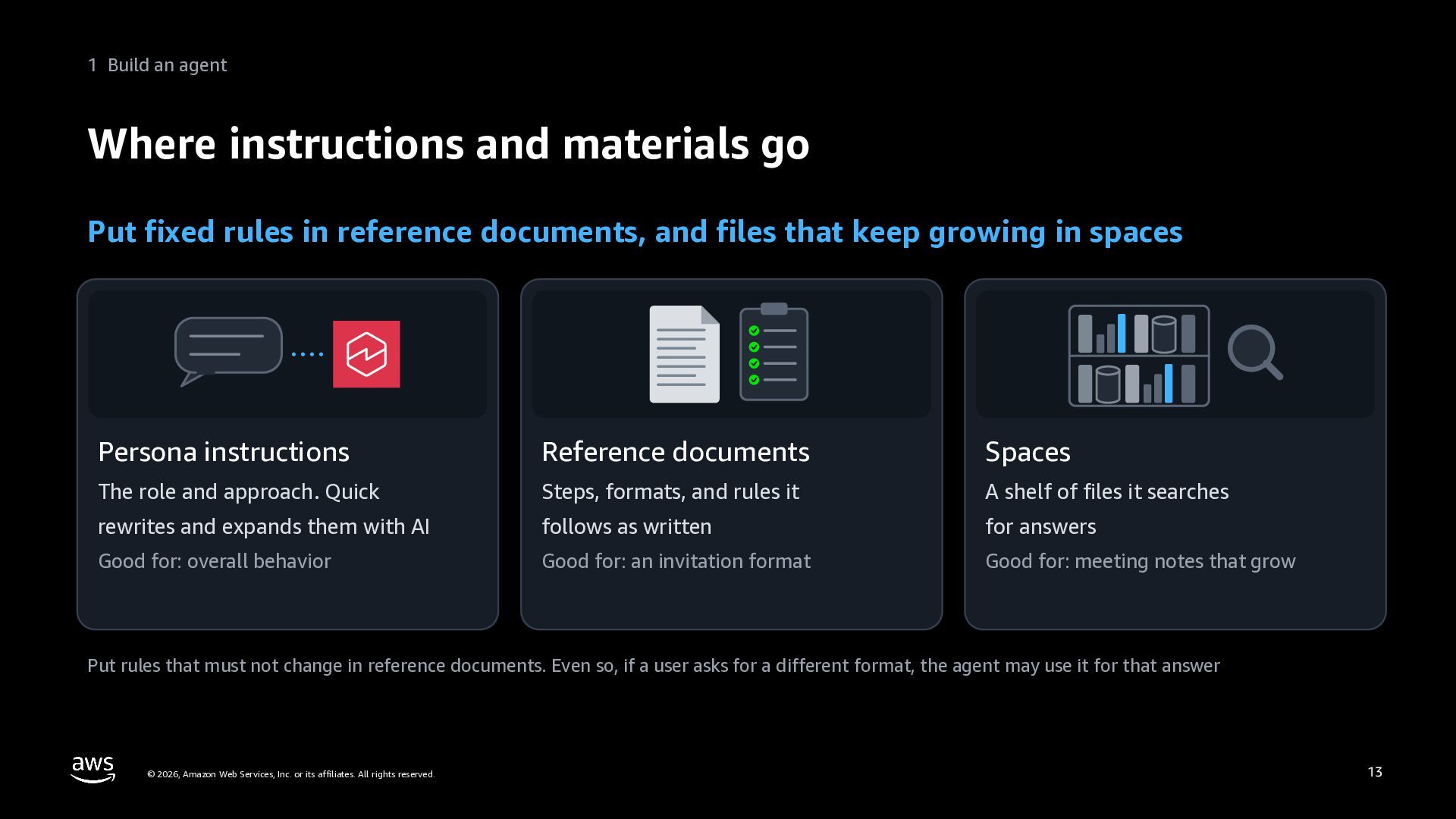
1 Build an agent Where instructions and materials go Put
fixed rules in reference documents, and files that keep growing in spaces Persona instructions Reference documents Spaces The role and approach. Quick Steps, formats, and rules it A shelf of files it searches rewrites and expands them with AI follows as written for answers Good for: overall behavior Good for: an invitation format Good for: meeting notes that grow Put rules that must not change in reference documents. Even so, if a user asks for a different format, the agent may use it for that answer © 2026, Amazon Web Services, Inc. or its affiliates. All rights reserved. 13 -
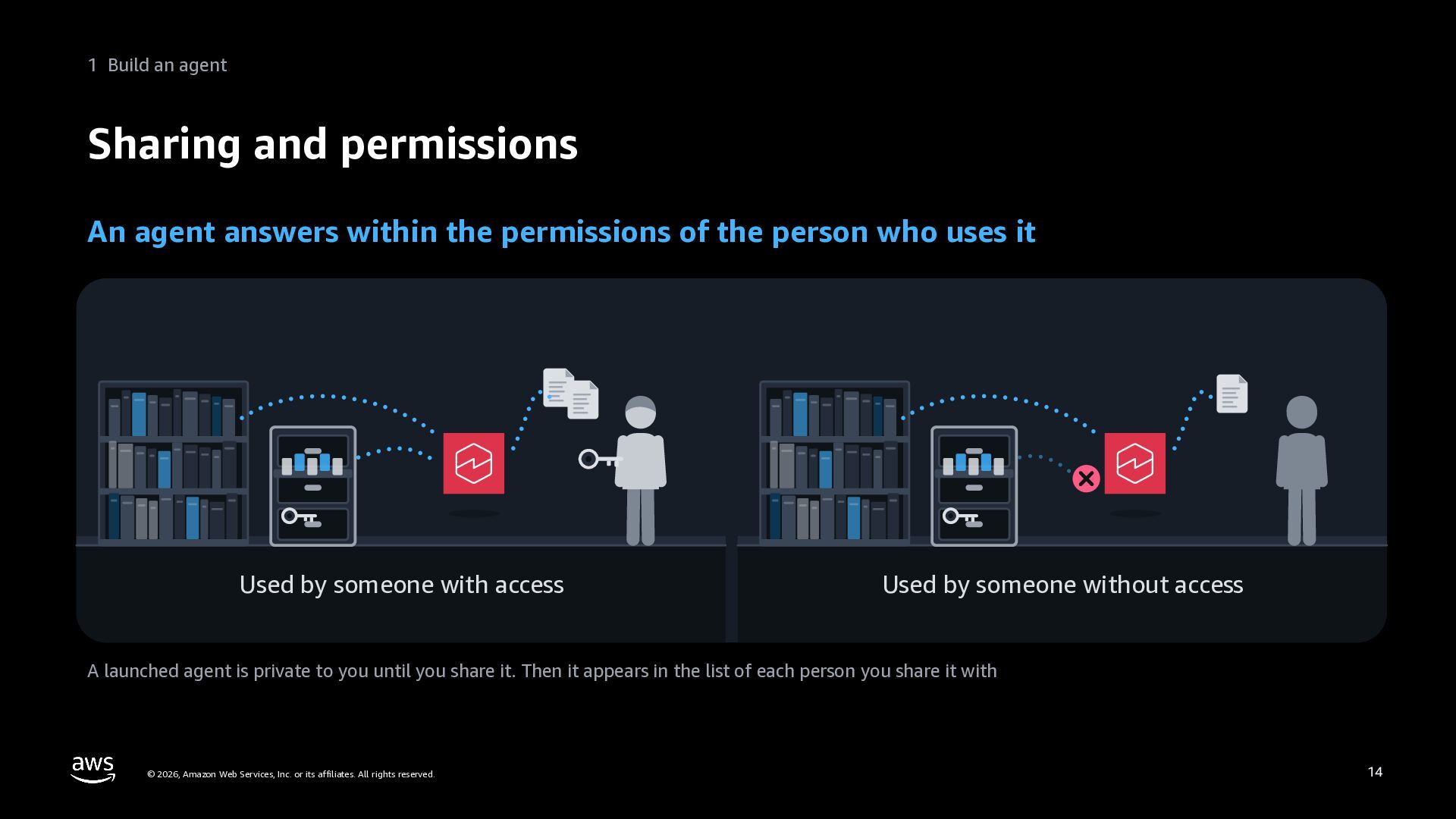
1 Build an agent Sharing and permissions An agent answers
within the permissions of the person who uses it Used by someone with access Used by someone without access A launched agent is private to you until you share it. Then it appears in the list of each person you share it with © 2026, Amazon Web Services, Inc. or its affiliates. All rights reserved. 14 -
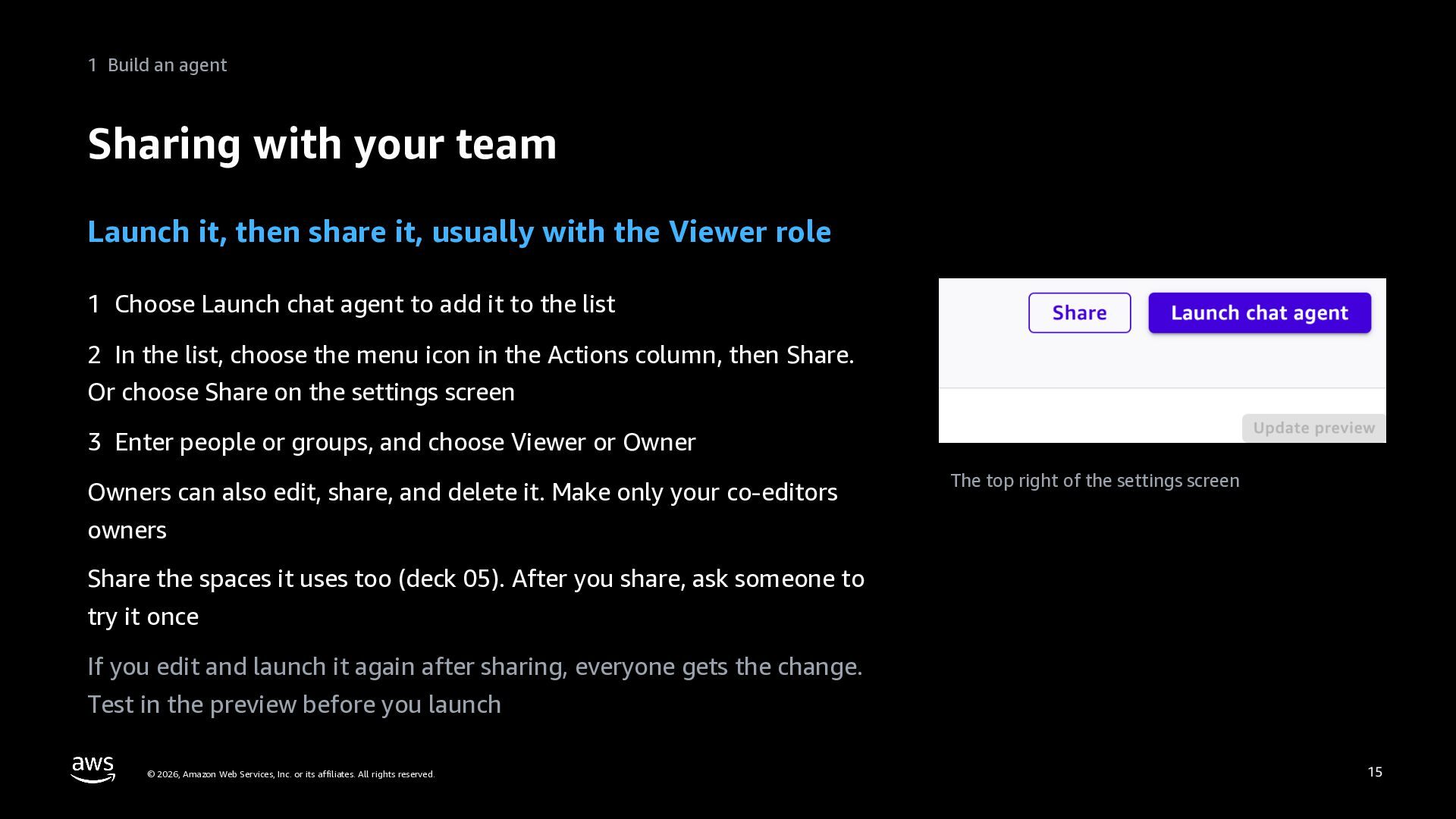
1 Build an agent Sharing with your team Launch it,
then share it, usually with the Viewer role 1 Choose Launch chat agent to add it to the list 2 In the list, choose the menu icon in the Actions column, then Share. Or choose Share on the settings screen 3 Enter people or groups, and choose Viewer or Owner Owners can also edit, share, and delete it. Make only your co-editors The top right of the settings screen owners Share the spaces it uses too (deck 05). After you share, ask someone to try it once If you edit and launch it again after sharing, everyone gets the change. Test in the preview before you launch © 2026, Amazon Web Services, Inc. or its affiliates. All rights reserved. 15 -
2 Build a skill (desktop) © 2026, Amazon Web Services,
Inc. or its affiliates. All rights reserved. 16 -
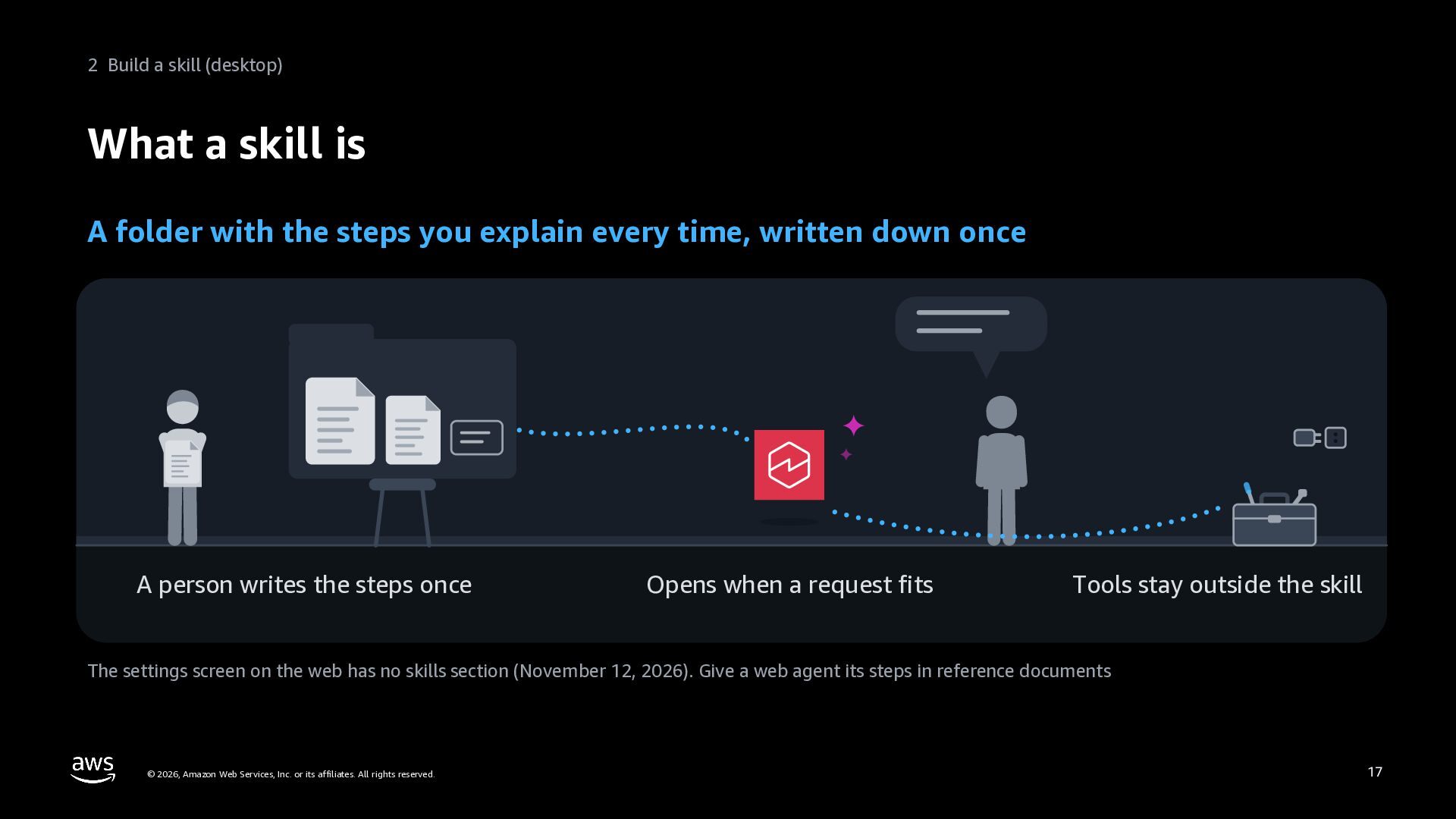
2 Build a skill (desktop) What a skill is A
folder with the steps you explain every time, written down once A person writes the steps once Opens when a request fits Tools stay outside the skill The settings screen on the web has no skills section (November 12, 2026). Give a web agent its steps in reference documents © 2026, Amazon Web Services, Inc. or its affiliates. All rights reserved. 17 -
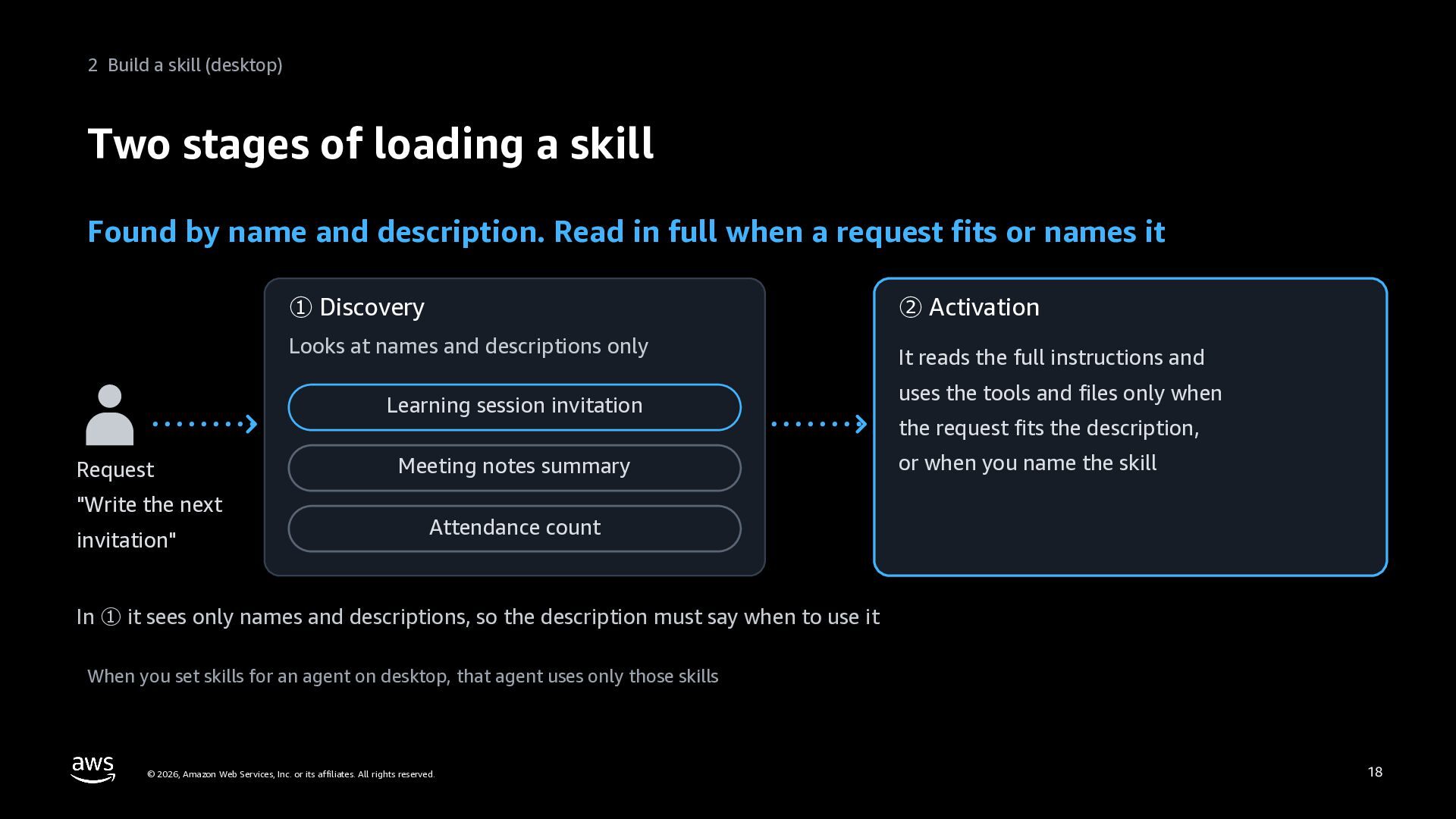
2 Build a skill (desktop) Two stages of loading a
skill Found by name and description. Read in full when a request fits or names it ① Discovery ② Activation Looks at names and descriptions only Learning session invitation Request "Write the next invitation" Meeting notes summary It reads the full instructions and uses the tools and files only when the request fits the description, or when you name the skill Attendance count In ① it sees only names and descriptions, so the description must say when to use it When you set skills for an agent on desktop, that agent uses only those skills © 2026, Amazon Web Services, Inc. or its affiliates. All rights reserved. 18 -
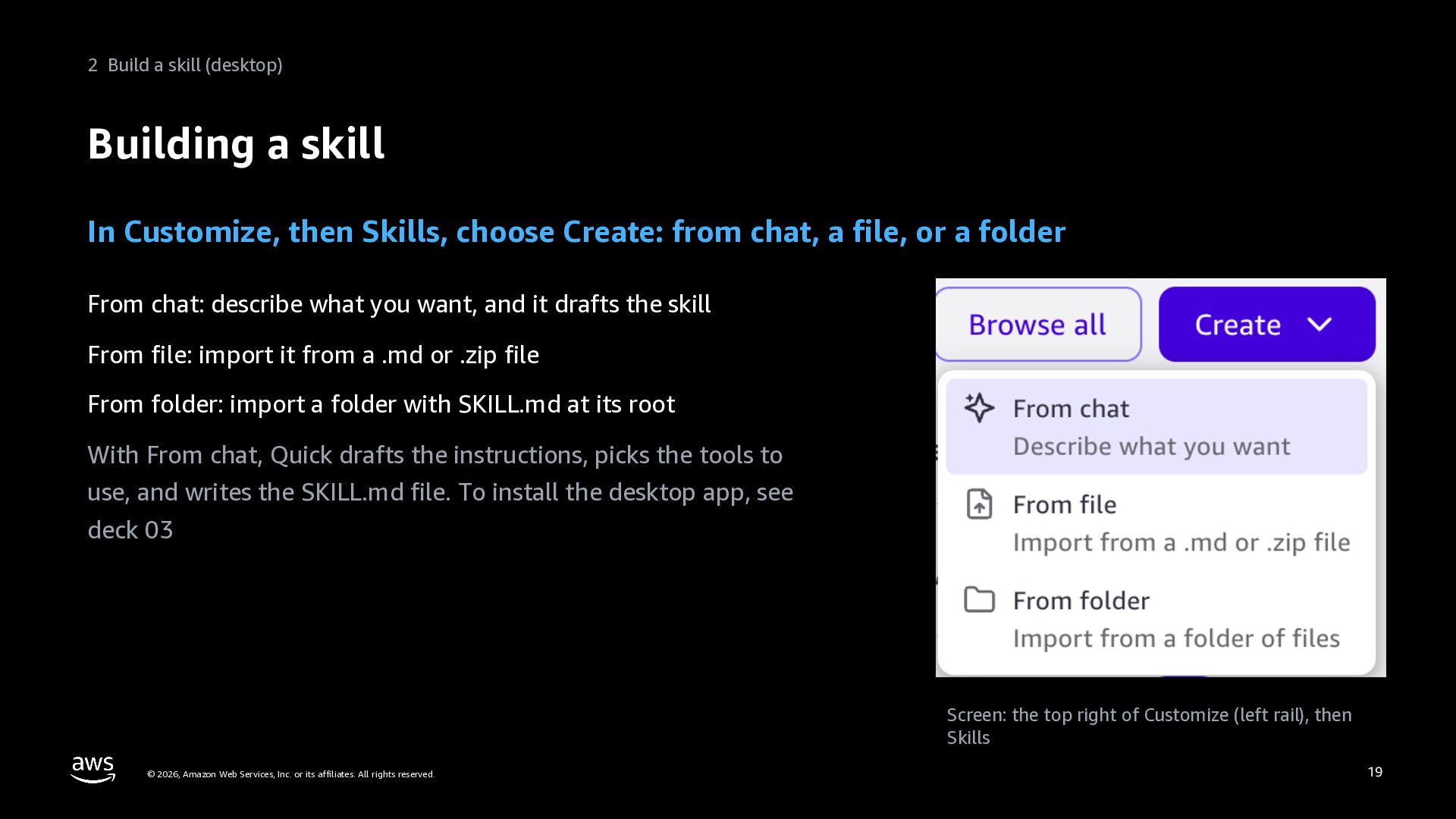
2 Build a skill (desktop) Building a skill In Customize,
then Skills, choose Create: from chat, a file, or a folder From chat: describe what you want, and it drafts the skill From file: import it from a .md or .zip file From folder: import a folder with SKILL.md at its root With From chat, Quick drafts the instructions, picks the tools to use, and writes the SKILL.md file. To install the desktop app, see deck 03 Screen: the top right of Customize (left rail), then Skills © 2026, Amazon Web Services, Inc. or its affiliates. All rights reserved. 19 -
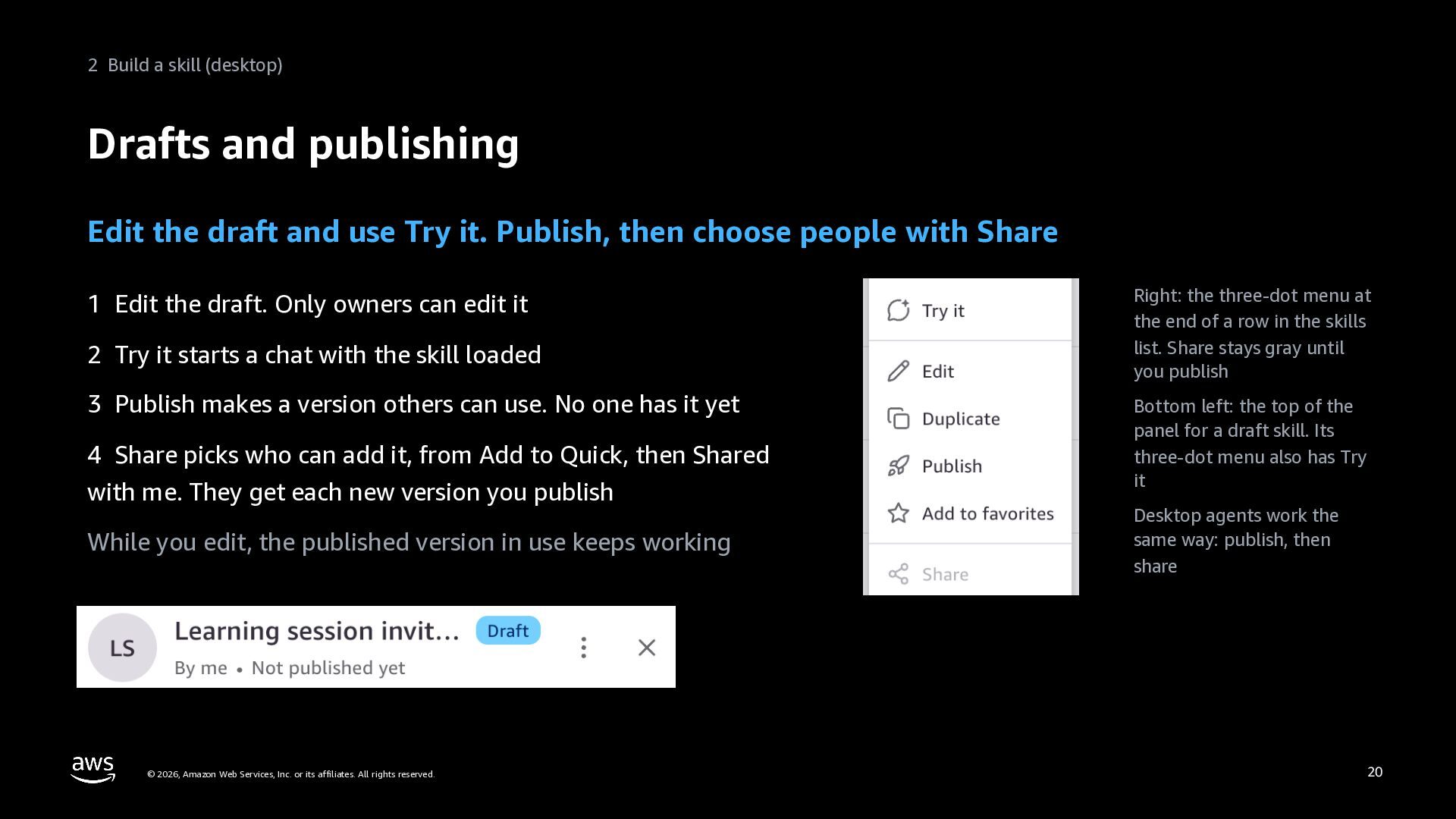
2 Build a skill (desktop) Drafts and publishing Edit the
draft and use Try it. Publish, then choose people with Share 1 Edit the draft. Only owners can edit it 2 Try it starts a chat with the skill loaded 3 Publish makes a version others can use. No one has it yet 4 Share picks who can add it, from Add to Quick, then Shared with me. They get each new version you publish While you edit, the published version in use keeps working © 2026, Amazon Web Services, Inc. or its affiliates. All rights reserved. Right: the three-dot menu at the end of a row in the skills list. Share stays gray until you publish Bottom left: the top of the panel for a draft skill. Its three-dot menu also has Try it Desktop agents work the same way: publish, then share 20 -
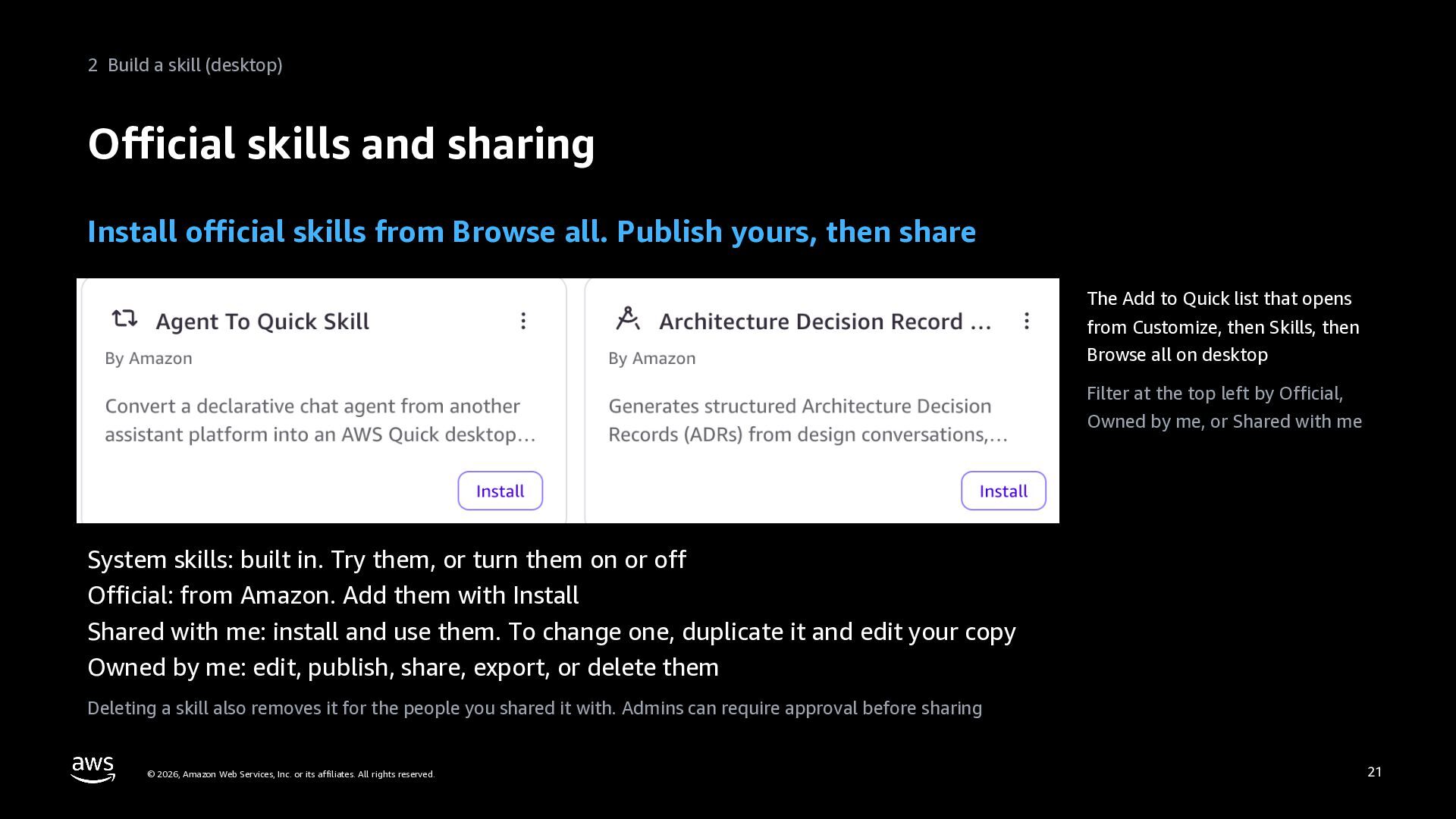
2 Build a skill (desktop) Official skills and sharing Install
official skills from Browse all. Publish yours, then share The Add to Quick list that opens from Customize, then Skills, then Browse all on desktop Filter at the top left by Official, Owned by me, or Shared with me System skills: built in. Try them, or turn them on or off Official: from Amazon. Add them with Install Shared with me: install and use them. To change one, duplicate it and edit your copy Owned by me: edit, publish, share, export, or delete them Deleting a skill also removes it for the people you shared it with. Admins can require approval before sharing © 2026, Amazon Web Services, Inc. or its affiliates. All rights reserved. 21 -
3 Memory © 2026, Amazon Web Services, Inc. or its
affiliates. All rights reserved. 22 -
3 Memory Memory Quick remembers what you prefer. View and
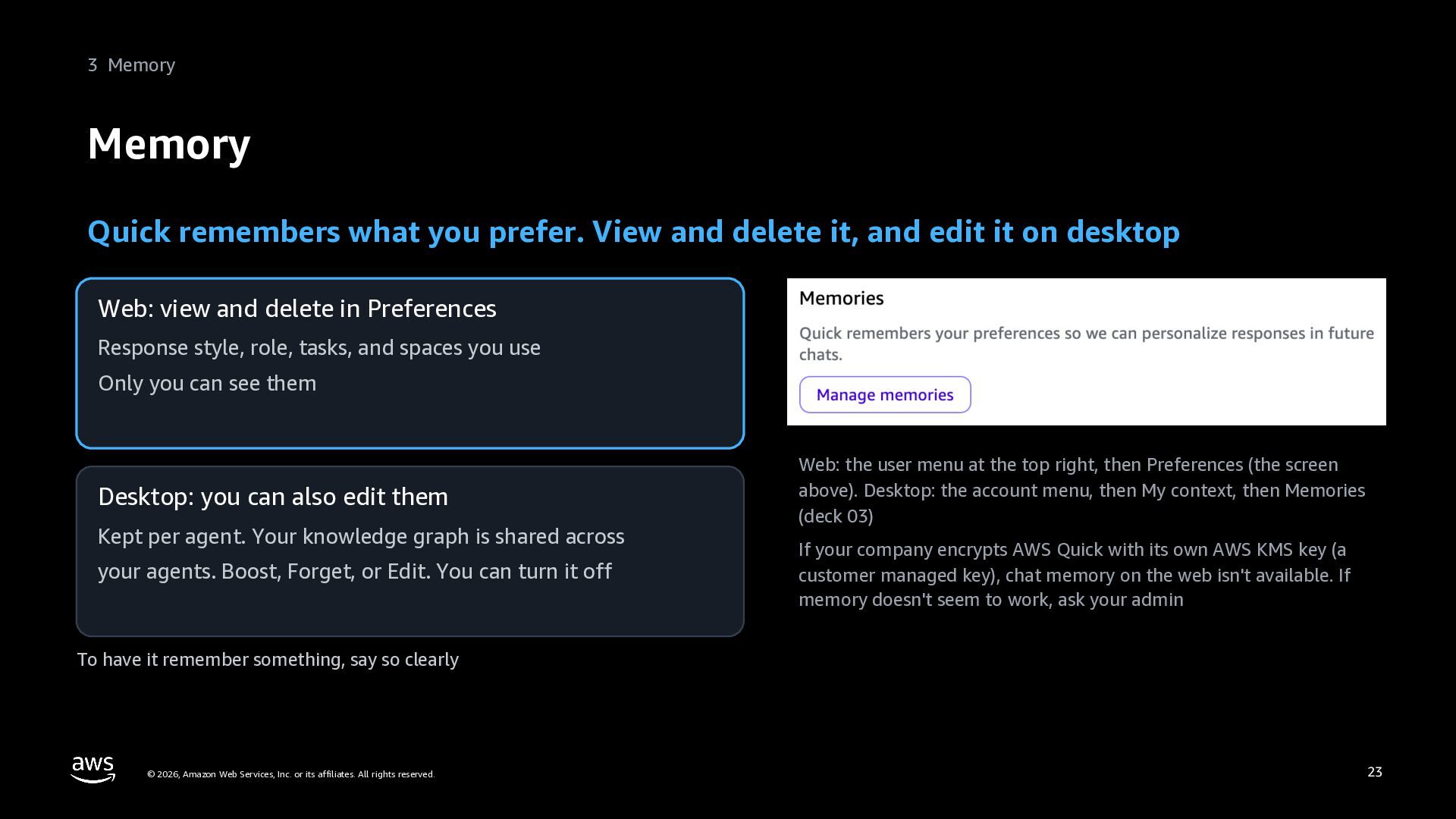
delete it, and edit it on desktop Web: view and delete in Preferences Response style, role, tasks, and spaces you use Only you can see them Desktop: you can also edit them Kept per agent. Your knowledge graph is shared across your agents. Boost, Forget, or Edit. You can turn it off Web: the user menu at the top right, then Preferences (the screen above). Desktop: the account menu, then My context, then Memories (deck 03) If your company encrypts AWS Quick with its own AWS KMS key (a customer managed key), chat memory on the web isn't available. If memory doesn't seem to work, ask your admin To have it remember something, say so clearly © 2026, Amazon Web Services, Inc. or its affiliates. All rights reserved. 23 -
Summary © 2026, Amazon Web Services, Inc. or its affiliates.
All rights reserved. 24 -
Summary Summary Give agents instructions, materials, and tools. Give skills
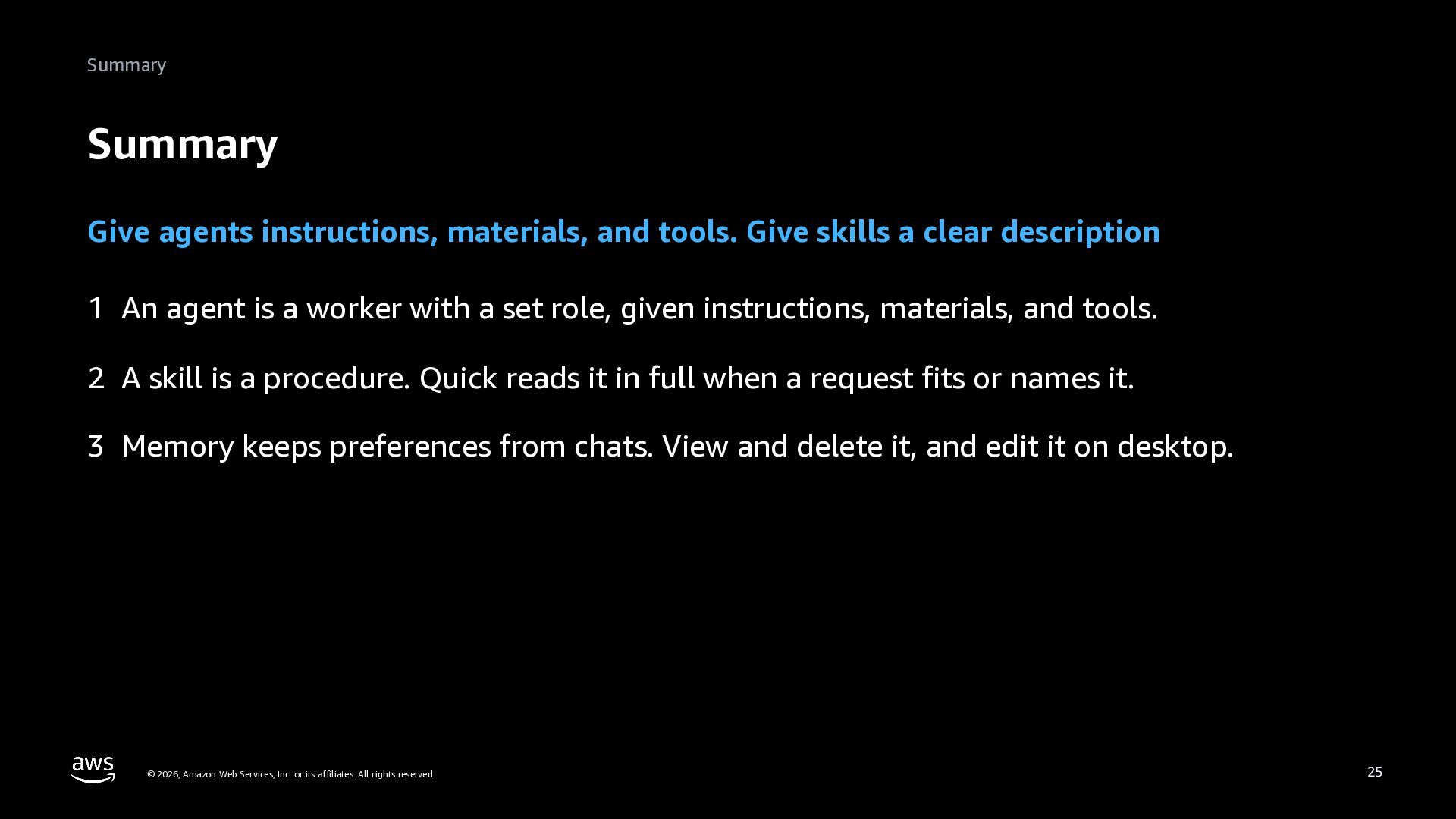
a clear description 1 An agent is a worker with a set role, given instructions, materials, and tools. 2 A skill is a procedure. Quick reads it in full when a request fits or names it. 3 Memory keeps preferences from chats. View and delete it, and edit it on desktop. © 2026, Amazon Web Services, Inc. or its affiliates. All rights reserved. 25 -
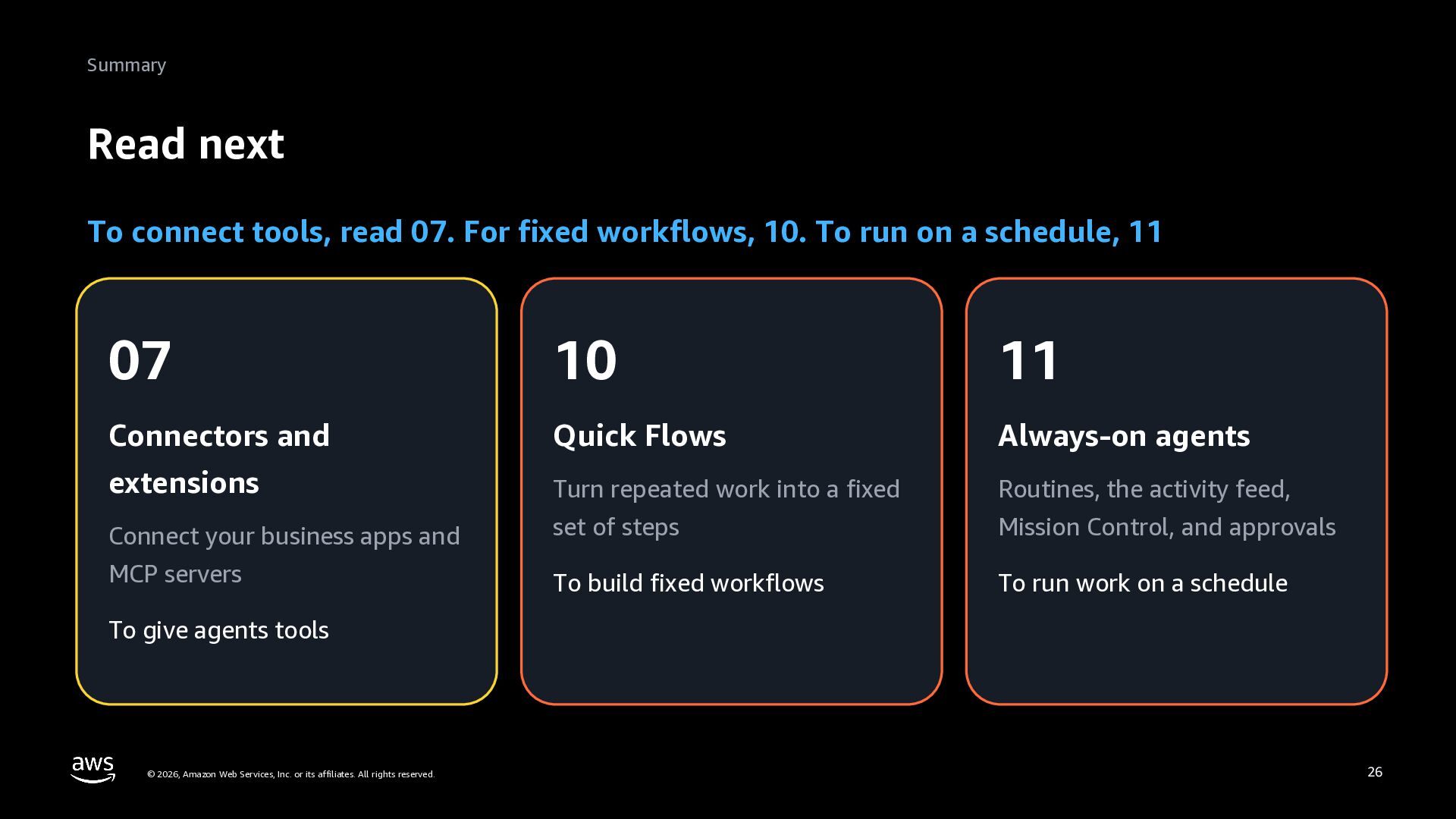
Summary Read next To connect tools, read 07. For fixed
workflows, 10. To run on a schedule, 11 07 10 11 Connectors and Quick Flows Always-on agents extensions Turn repeated work into a fixed Routines, the activity feed, Connect your business apps and set of steps Mission Control, and approvals MCP servers To build fixed workflows To run work on a schedule To give agents tools © 2026, Amazon Web Services, Inc. or its affiliates. All rights reserved. 26 -
Appendix © 2026, Amazon Web Services, Inc. or its affiliates.
All rights reserved. 27 -
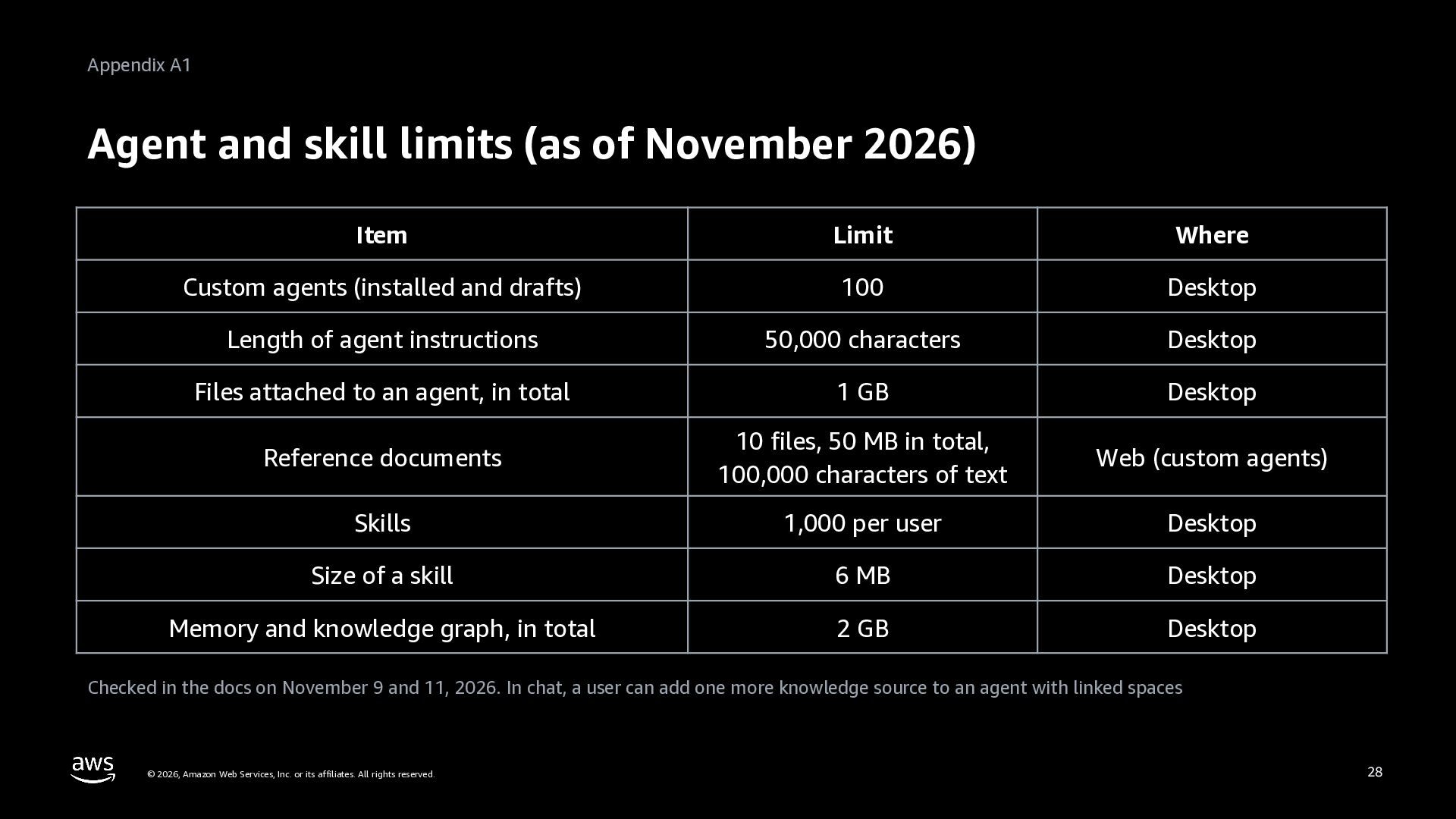
Appendix A1 Agent and skill limits (as of November 2026)
Item Limit Where Custom agents (installed and drafts) 100 Desktop Length of agent instructions 50,000 characters Desktop Files attached to an agent, in total 1 GB Desktop Reference documents 10 files, 50 MB in total, 100,000 characters of text Web (custom agents) Skills 1,000 per user Desktop Size of a skill 6 MB Desktop Memory and knowledge graph, in total 2 GB Desktop Checked in the docs on November 9 and 11, 2026. In chat, a user can add one more knowledge source to an agent with linked spaces © 2026, Amazon Web Services, Inc. or its affiliates. All rights reserved. 28 -
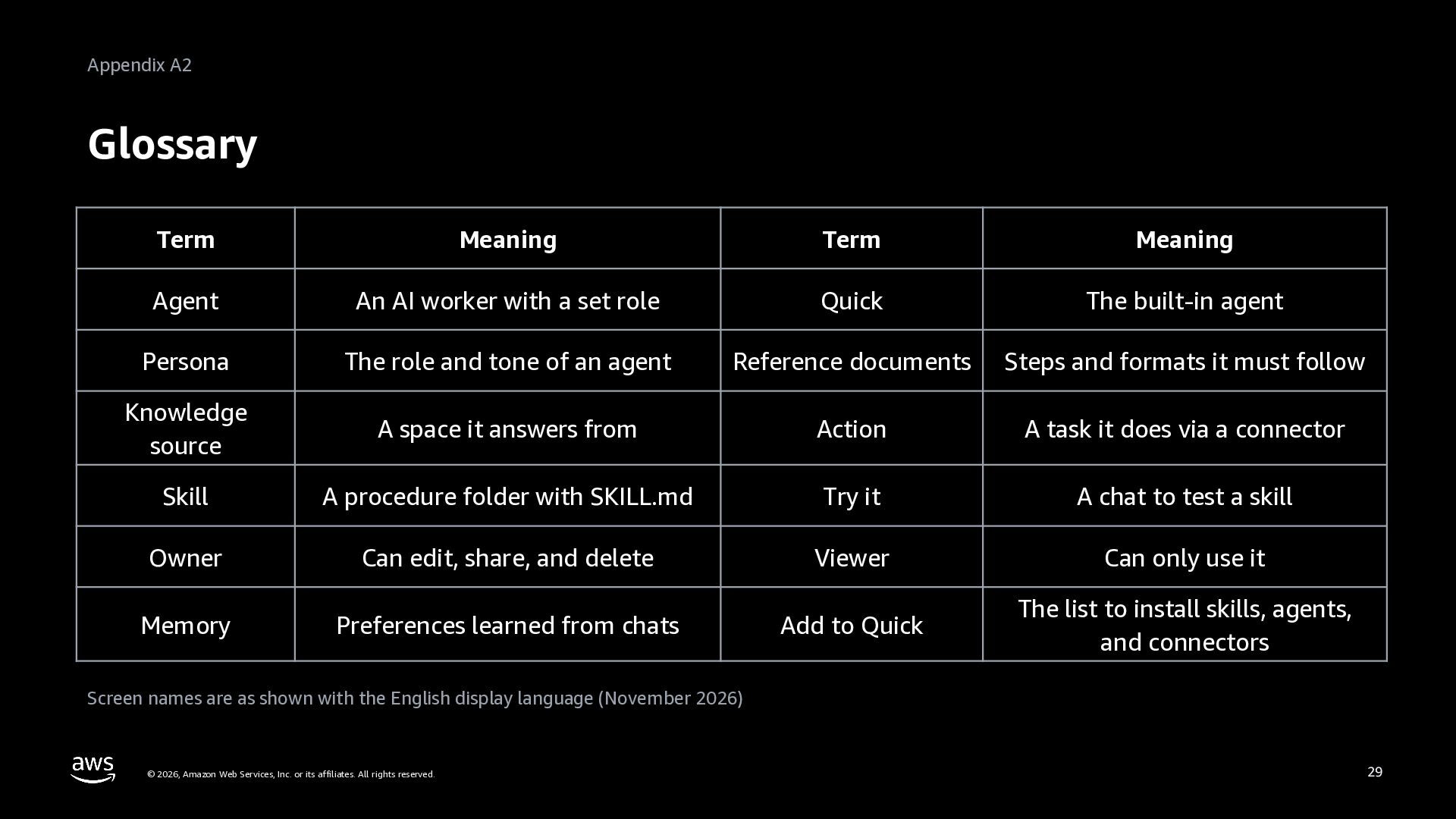
Appendix A2 Glossary Term Meaning Term Meaning Agent An AI
worker with a set role Quick The built-in agent Persona The role and tone of an agent Reference documents Steps and formats it must follow Knowledge source A space it answers from Action A task it does via a connector Skill A procedure folder with SKILL.md Try it A chat to test a skill Owner Can edit, share, and delete Viewer Can only use it Memory Preferences learned from chats Add to Quick The list to install skills, agents, and connectors Screen names are as shown with the English display language (November 2026) © 2026, Amazon Web Services, Inc. or its affiliates. All rights reserved. 29 -
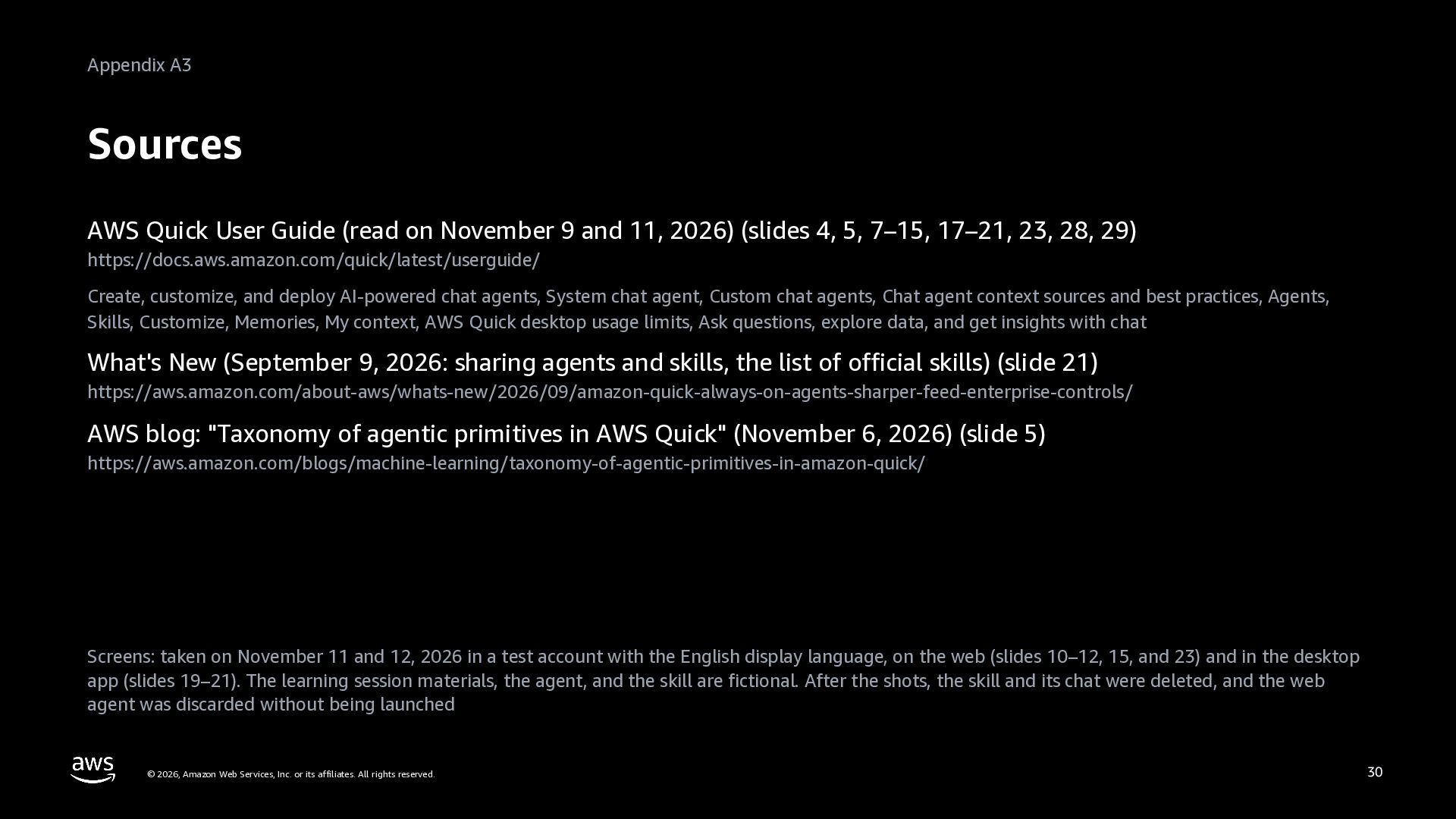
Appendix A3 Sources AWS Quick User Guide (read on November
9 and 11, 2026) (slides 4, 5, 7–15, 17–21, 23, 28, 29) https://docs.aws.amazon.com/quick/latest/userguide/ Create, customize, and deploy AI-powered chat agents, System chat agent, Custom chat agents, Chat agent context sources and best practices, Agents, Skills, Customize, Memories, My context, AWS Quick desktop usage limits, Ask questions, explore data, and get insights with chat What's New (September 9, 2026: sharing agents and skills, the list of official skills) (slide 21) https://aws.amazon.com/about-aws/whats-new/2026/09/amazon-quick-always-on-agents-sharper-feed-enterprise-controls/ AWS blog: "Taxonomy of agentic primitives in AWS Quick" (November 6, 2026) (slide 5) https://aws.amazon.com/blogs/machine-learning/taxonomy-of-agentic-primitives-in-amazon-quick/ Screens: taken on November 11 and 12, 2026 in a test account with the English display language, on the web (slides 10–12, 15, and 23) and in the desktop app (slides 19–21). The learning session materials, the agent, and the skill are fictional. After the shots, the skill and its chat were deleted, and the web agent was discarded without being launched © 2026, Amazon Web Services, Inc. or its affiliates. All rights reserved. 30