Always-on agents (Routines, the activity feed, ...

Sponsored · Ship Features Fearlessly Turn features on and off without deploys. Used by thousands of Ruby developers. →
Riku INADA PRO
November 11, 2026

Always-on agents (Routines, the activity feed, Mission Control, and approvals) | AWS Quick: Zero to Hero 11

Level 200. A handout for people who use the AWS Quick desktop app (AWS Quick on desktop) and want agents to keep working while they are away. Runs on its own: an agent with a routine runs in the cloud on a schedule and delivers results to the feed, even with your laptop closed (runs that use local tools need the computer on); choosing, action by action, what goes ahead without asking; and setting up a routine, with the example Outstanding RSVPs (every Monday at 8:30 AM). Get the results: the activity feed (notices, the briefing, and no agent hours for viewing), clearing the feed, Mission Control (all runs, Needs input, routines, and numbers), and agents waiting for input. Approvals and usage: tool permissions apply to routine runs too; Smart Approvals lets low-impact actions through and sends high-impact ones to you, grants no new access, is logged in AWS CloudTrail, and works on desktop and mobile only; and a routine uses agent hours every time it runs. Screens of the desktop app show the routine fields, a routine card, a feed notice, and the Mission Control popover. The appendix has routine limits, a glossary, and sources. Based on public documentation as of November 2026. Deck 11 (Let it run) of the series AWS Quick: Zero to Hero.

Riku INADA PRO

November 11, 2026

Annual Pro sale · Save $30

Have presentations of your own?

Share with private links, password protection, and more control over your work.

Transcript

28 slides
  1. AWS Quick: Zero to Hero Let it run Always-on agents

    Routines, the activity feed, Mission Control, and approvals 11 Level 200 / As of November 2026 November 2026 Riku Inada Amazon Web Services Japan © 2026, Amazon Web © 2026, Services, Amazon Inc. or Web its Services, affiliates.Inc. All or rights its affiliates. reserved.All rights reserved. 1
  2. Introduction About me Riku Inada Amazon Web Services Japan G.K.

    Solutions Architect Works mainly with manufacturing customers Recent work Promoting the AI-Driven Development Life Cycle (AI-DLC) Writing and speaking about Kiro and AWS Amplify © 2026, Amazon Web Services, Inc. or its affiliates. All rights reserved. X @inada_riku Speaker Deck speakerdeck.com/inariku Zenn zenn.dev/inariku GitHub github.com/inariku 2
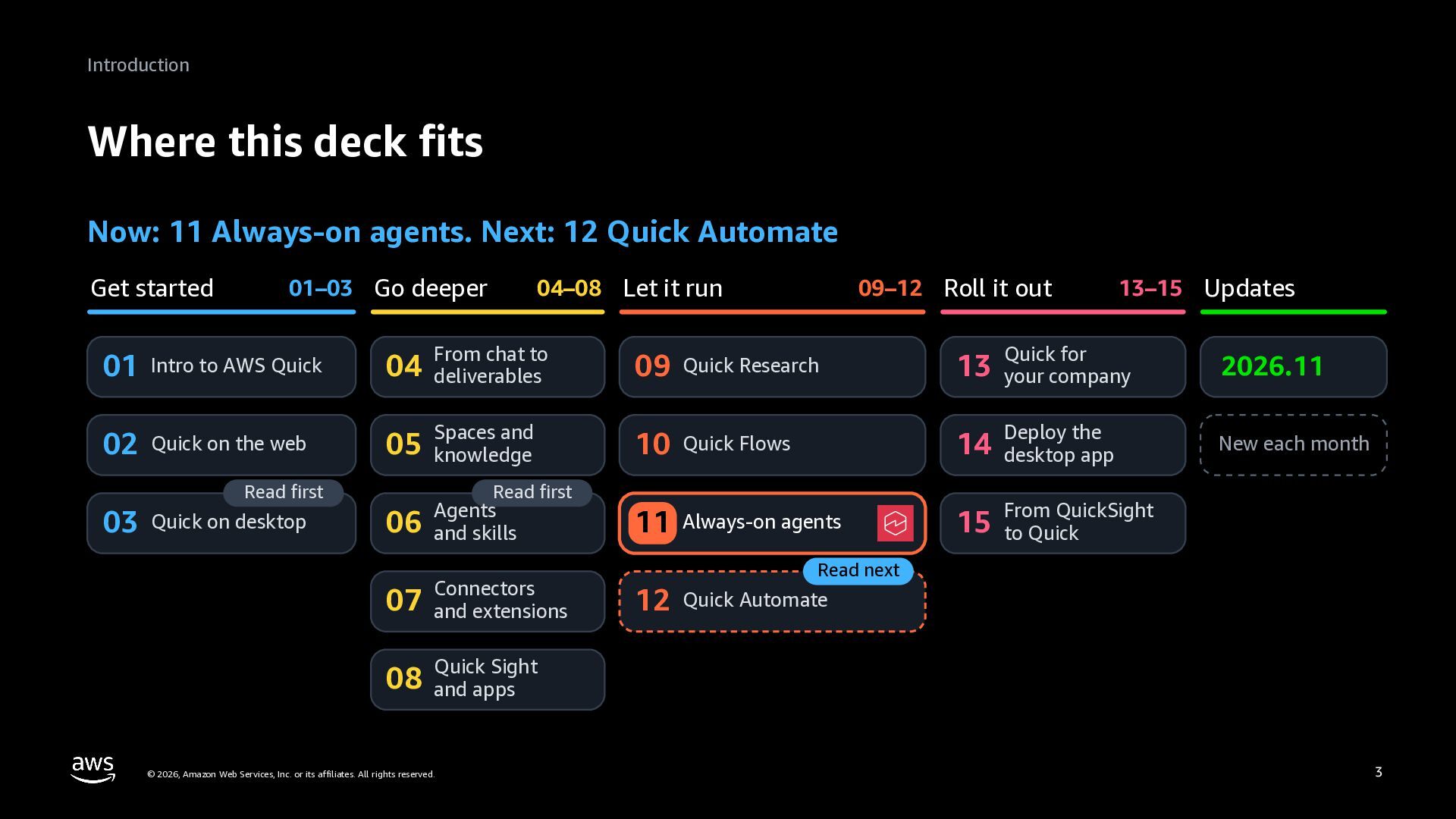
  3. Introduction Where this deck fits Now: 11 Always-on agents. Next:

    12 Quick Automate Get started 01–03 Go deeper 04–08 Let it run 09 Quick Research 13 your company Spaces and 10 Quick Flows 14 desktop app 11 Always-on agents QuickSight 15 From to Quick 04 deliverables 02 Quick on the web 05 knowledge 03 Quick on desktop 13–15 Updates From chat to 01 Intro to AWS Quick Read first 09–12 Roll it out Deploy the Read first 06 Agents and skills 07 Connectors and extensions Quick for 2026.11 New each month Read next 12 Quick Automate Sight 08 Quick and apps © 2026, Amazon Web Services, Inc. or its affiliates. All rights reserved. 3
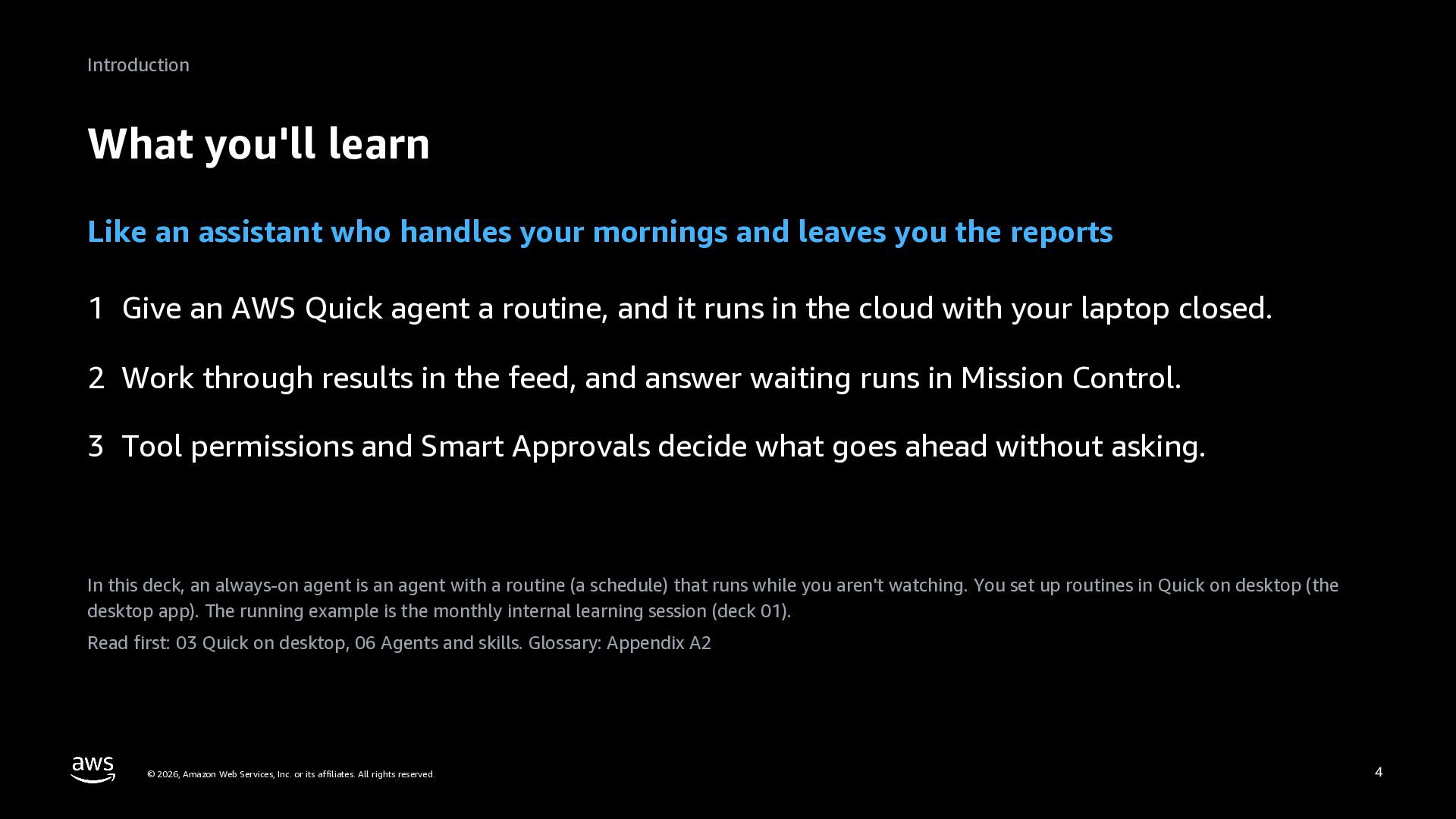
  4. Introduction What you'll learn Like an assistant who handles your

    mornings and leaves you the reports 1 Give an AWS Quick agent a routine, and it runs in the cloud with your laptop closed. 2 Work through results in the feed, and answer waiting runs in Mission Control. 3 Tool permissions and Smart Approvals decide what goes ahead without asking. In this deck, an always-on agent is an agent with a routine (a schedule) that runs while you aren't watching. You set up routines in Quick on desktop (the desktop app). The running example is the monthly internal learning session (deck 01). Read first: 03 Quick on desktop, 06 Agents and skills. Glossary: Appendix A2 © 2026, Amazon Web Services, Inc. or its affiliates. All rights reserved. 4
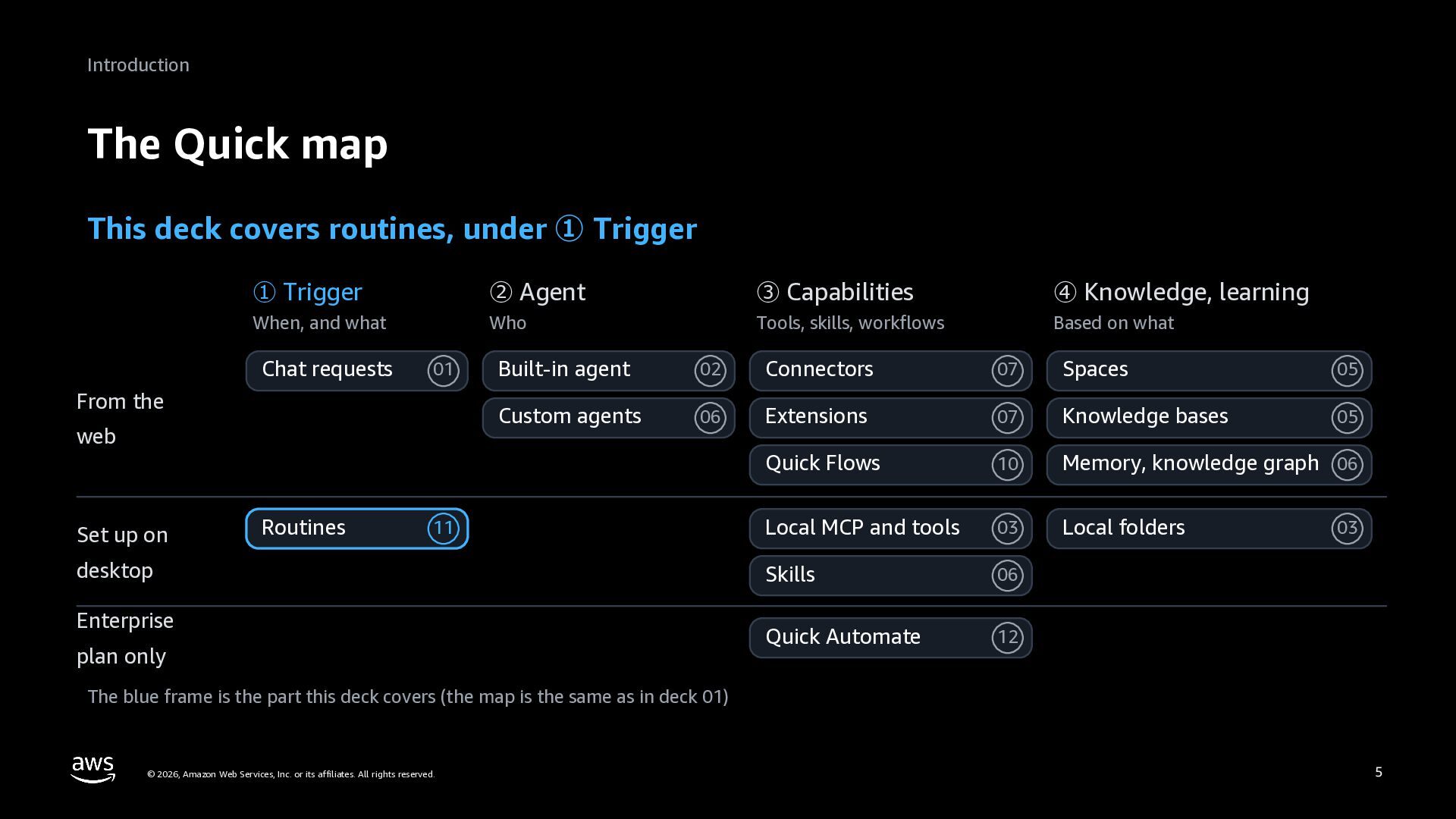
  5. Introduction The Quick map This deck covers routines, under ①

    Trigger ① Trigger ② Agent ③ Capabilities ④ Knowledge, learning When, and what Who Tools, skills, workflows Based on what Chat requests 01 From the web Set up on Routines Built-in agent 02 Connectors 07 Spaces 05 Custom agents 06 Extensions 07 Knowledge bases 05 Quick Flows 10 Memory, knowledge graph 06 Local MCP and tools 03 Local folders Skills 06 Quick Automate 12 11 desktop Enterprise plan only 03 The blue frame is the part this deck covers (the map is the same as in deck 01) © 2026, Amazon Web Services, Inc. or its affiliates. All rights reserved. 5
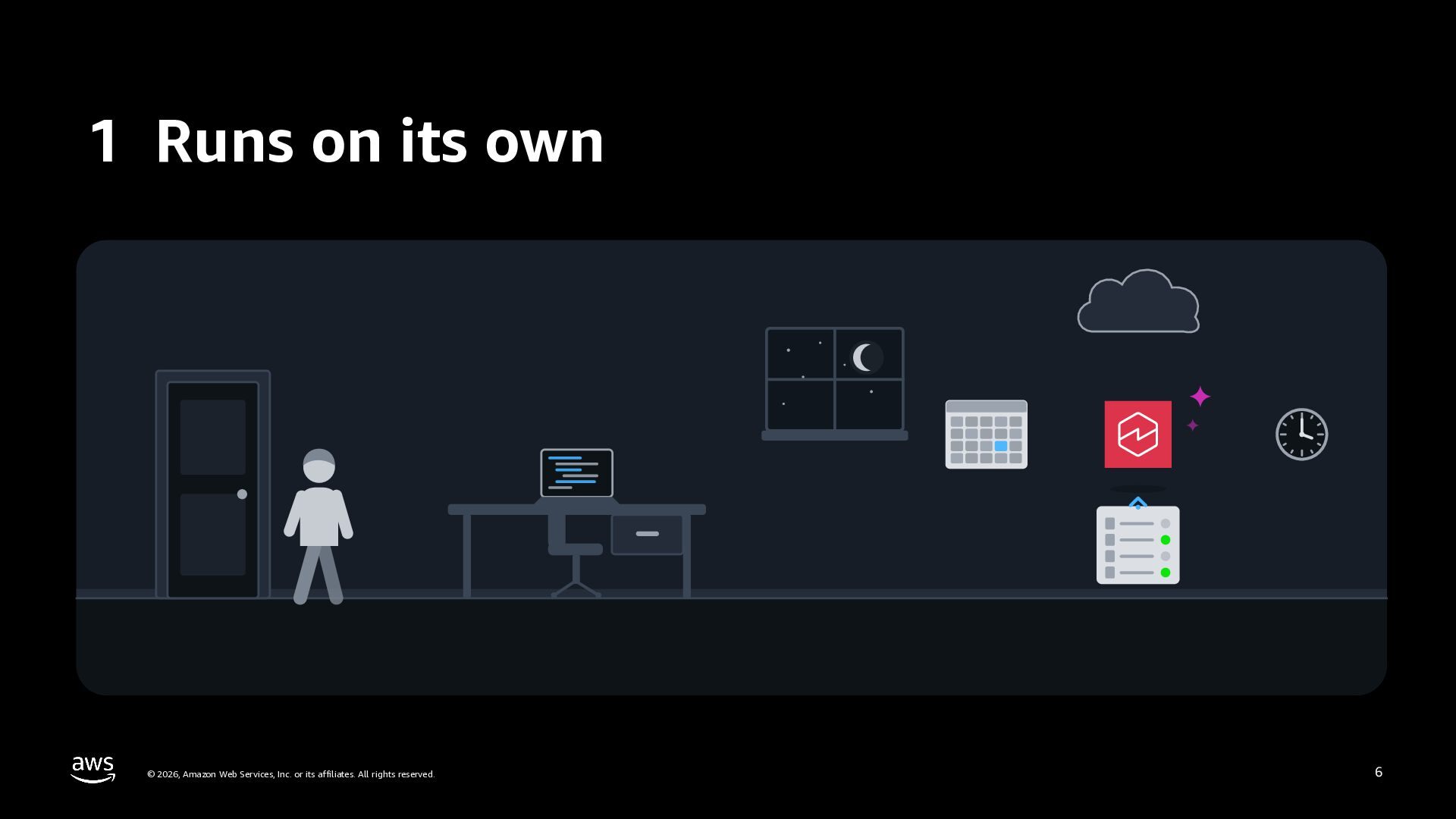
  6. 1 Runs on its own © 2026, Amazon Web Services,

    Inc. or its affiliates. All rights reserved. 6
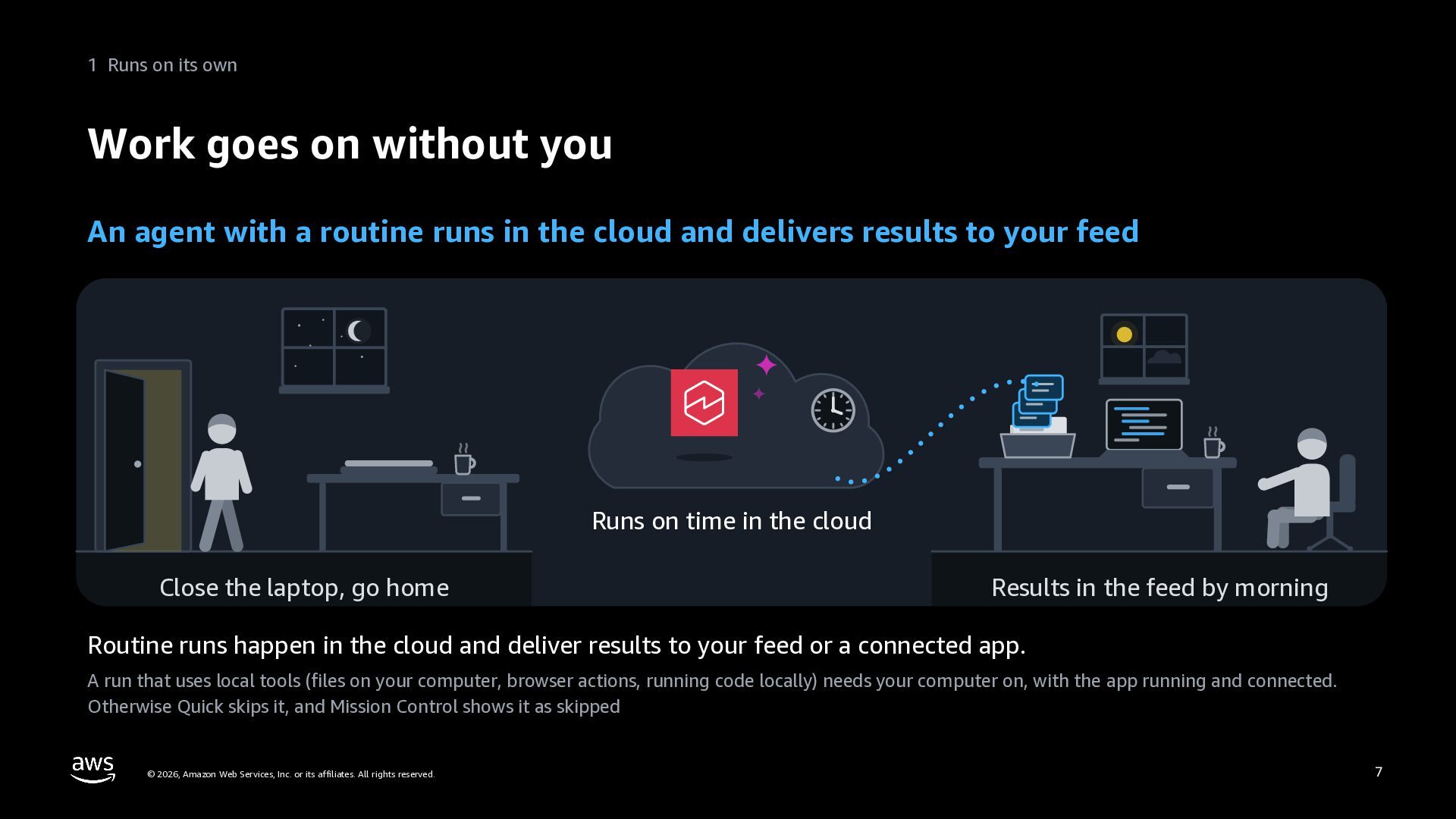
  7. 1 Runs on its own Work goes on without you

    An agent with a routine runs in the cloud and delivers results to your feed Runs on time in the cloud Close the laptop, go home Results in the feed by morning Routine runs happen in the cloud and deliver results to your feed or a connected app. A run that uses local tools (files on your computer, browser actions, running code locally) needs your computer on, with the app running and connected. Otherwise Quick skips it, and Mission Control shows it as skipped © 2026, Amazon Web Services, Inc. or its affiliates. All rights reserved. 7
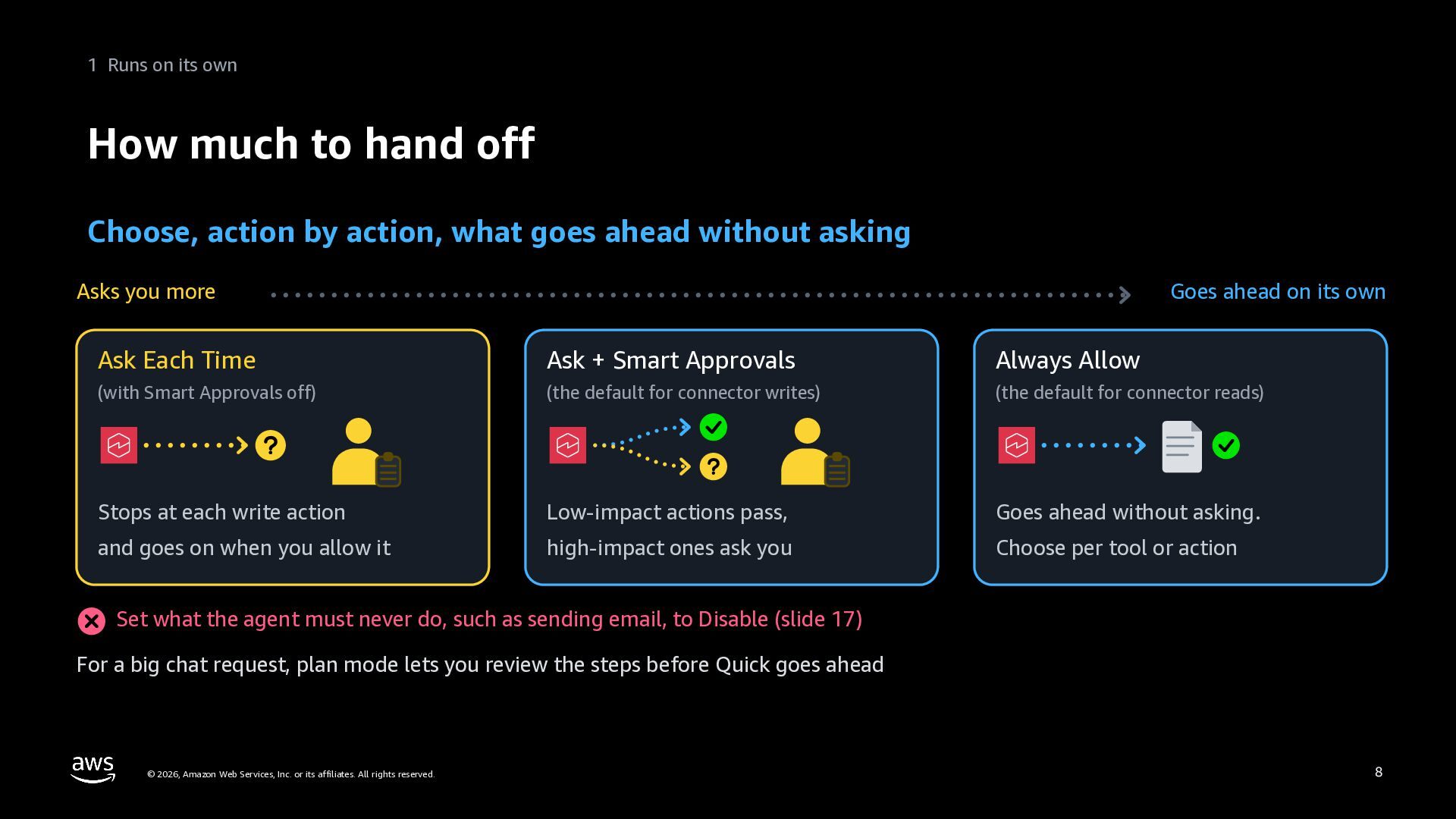
  8. 1 Runs on its own How much to hand off

    Choose, action by action, what goes ahead without asking Asks you more Goes ahead on its own Ask Each Time Ask + Smart Approvals Always Allow (with Smart Approvals off) (the default for connector writes) (the default for connector reads) Stops at each write action Low-impact actions pass, Goes ahead without asking. and goes on when you allow it high-impact ones ask you Choose per tool or action Set what the agent must never do, such as sending email, to Disable (slide 17) For a big chat request, plan mode lets you review the steps before Quick goes ahead © 2026, Amazon Web Services, Inc. or its affiliates. All rights reserved. 8
  9. 1 Runs on its own Set up a routine Give

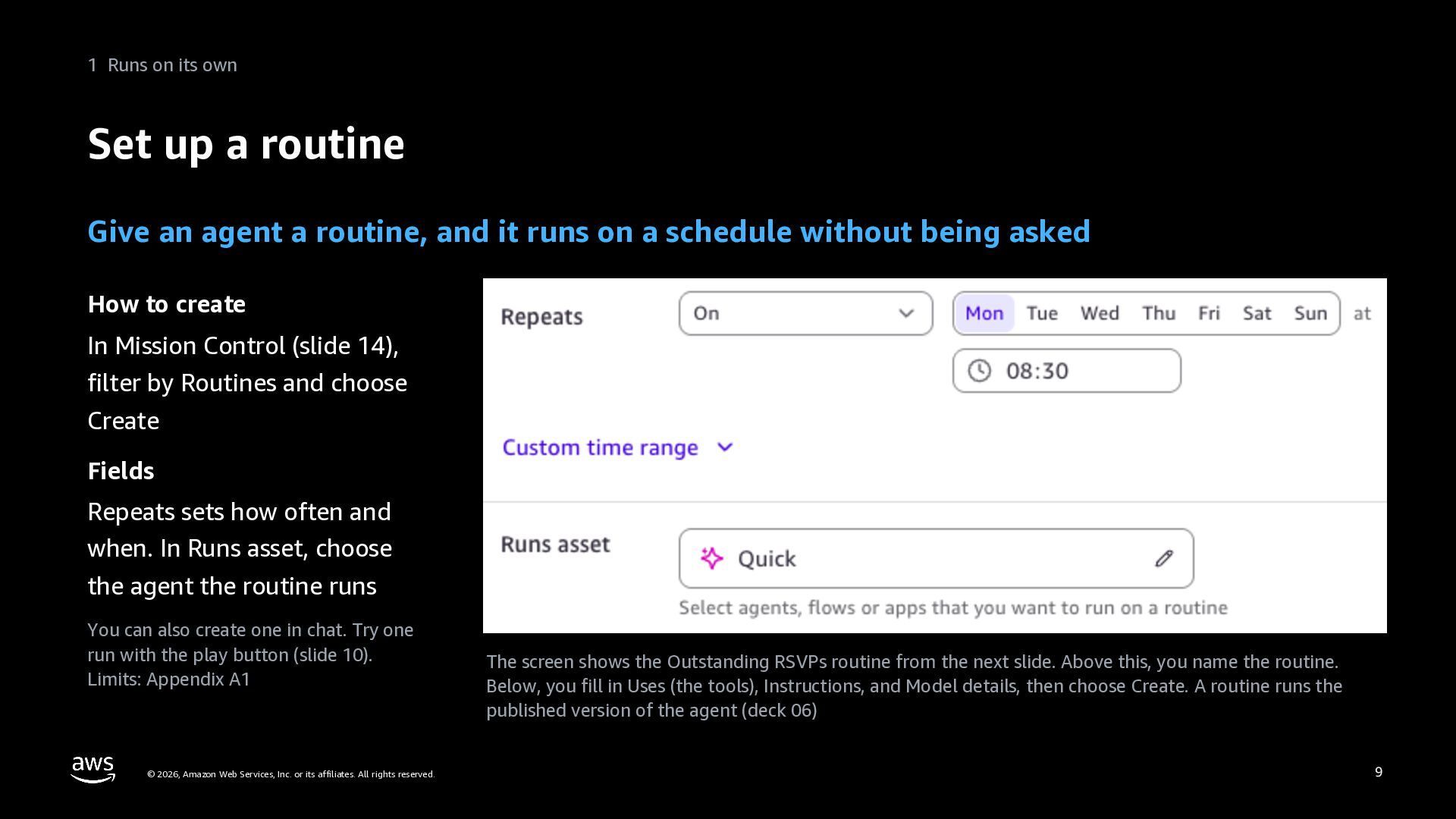
    an agent a routine, and it runs on a schedule without being asked How to create In Mission Control (slide 14), filter by Routines and choose Create Fields Repeats sets how often and when. In Runs asset, choose the agent the routine runs You can also create one in chat. Try one run with the play button (slide 10). Limits: Appendix A1 © 2026, Amazon Web Services, Inc. or its affiliates. All rights reserved. The screen shows the Outstanding RSVPs routine from the next slide. Above this, you name the routine. Below, you fill in Uses (the tools), Instructions, and Model details, then choose Create. A routine runs the published version of the agent (deck 06) 9
  10. 1 Runs on its own Outstanding RSVPs Every Monday morning,

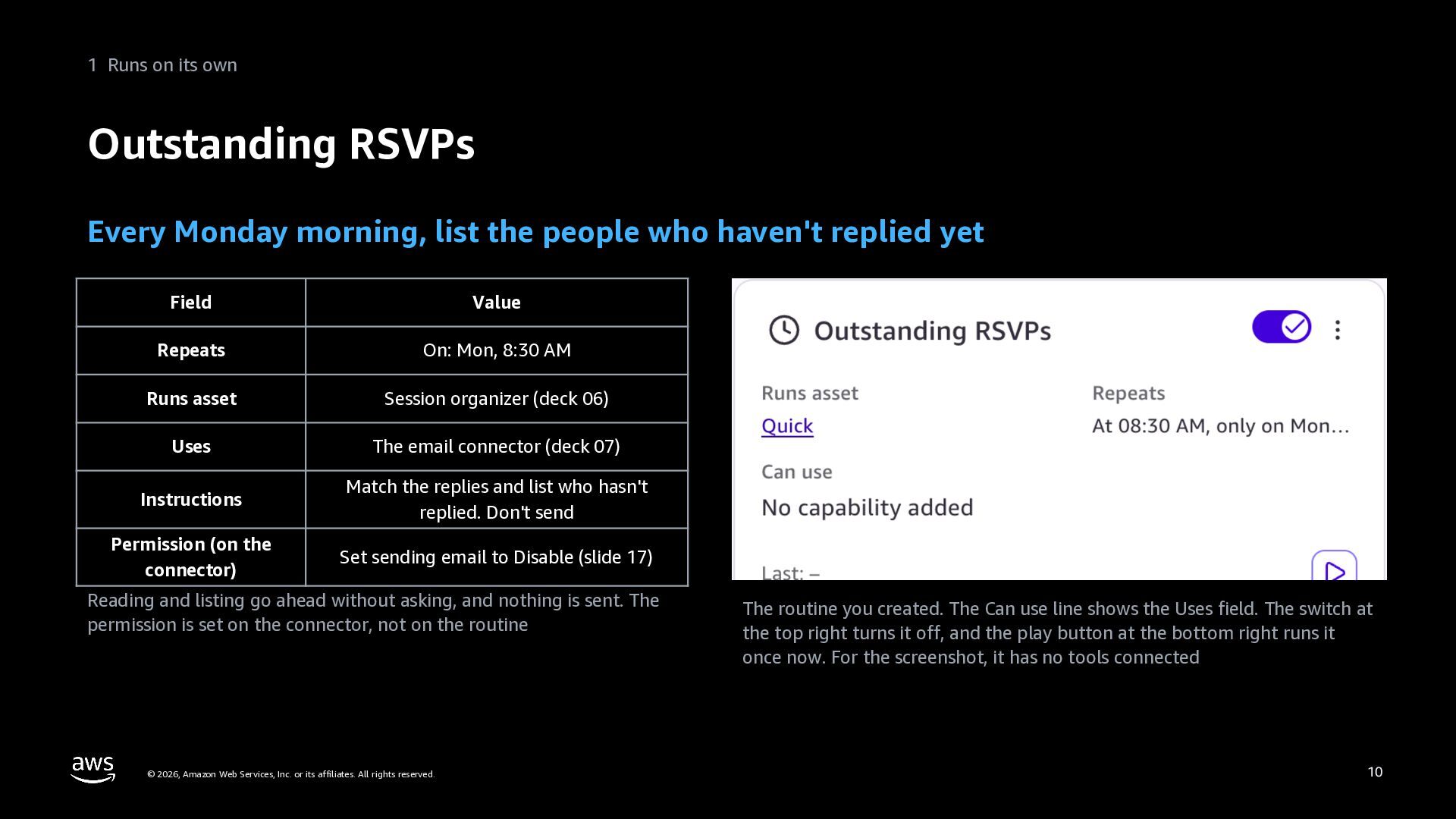
    list the people who haven't replied yet Field Value Repeats On: Mon, 8:30 AM Runs asset Session organizer (deck 06) Uses The email connector (deck 07) Instructions Match the replies and list who hasn't replied. Don't send Permission (on the connector) Set sending email to Disable (slide 17) Reading and listing go ahead without asking, and nothing is sent. The permission is set on the connector, not on the routine © 2026, Amazon Web Services, Inc. or its affiliates. All rights reserved. The routine you created. The Can use line shows the Uses field. The switch at the top right turns it off, and the play button at the bottom right runs it once now. For the screenshot, it has no tools connected 10
  11. 2 Get the results © 2026, Amazon Web Services, Inc.

    or its affiliates. All rights reserved. 11
  12. 2 Get the results The activity feed From your messages,

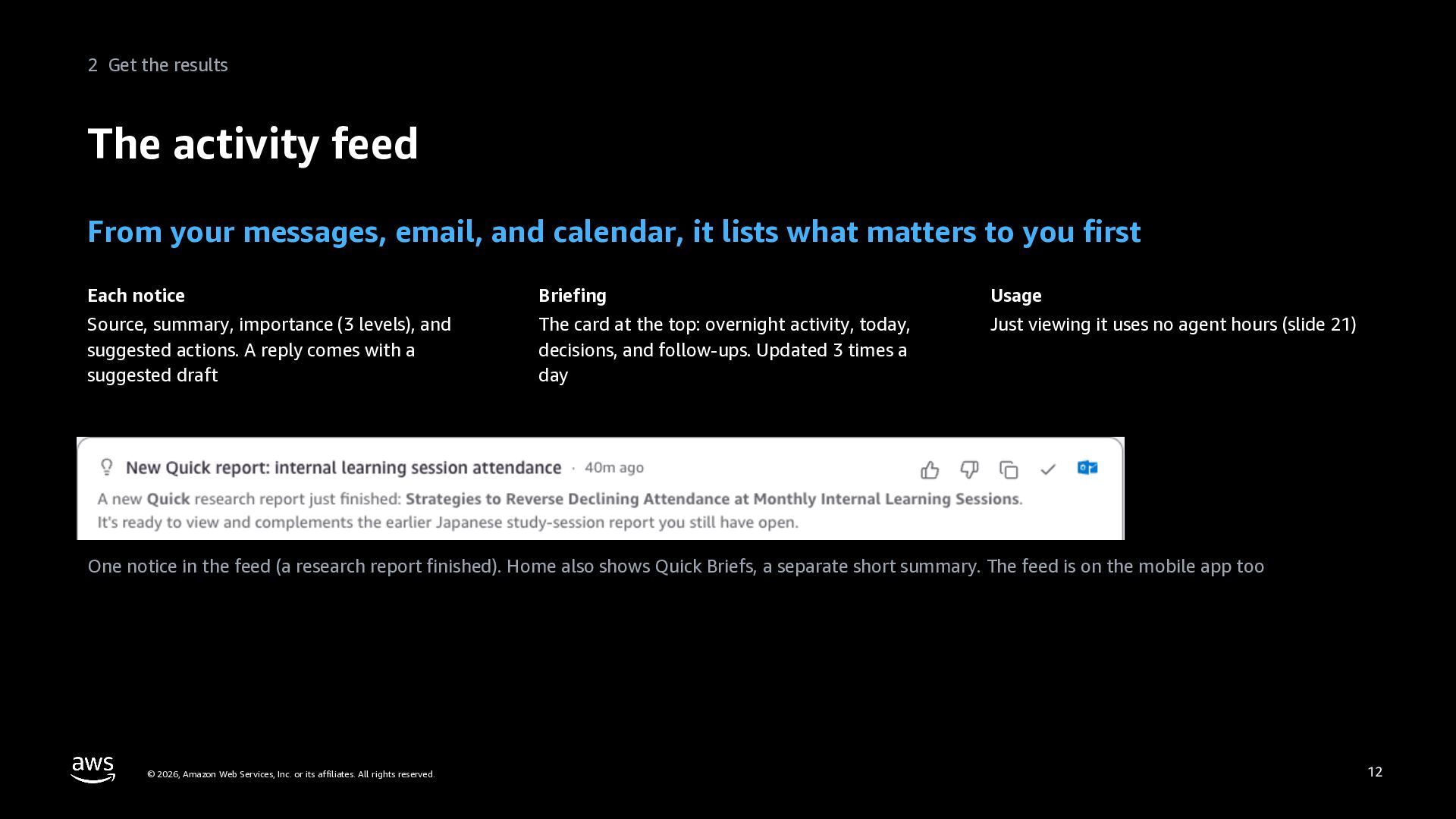
    email, and calendar, it lists what matters to you first Each notice Briefing Usage Source, summary, importance (3 levels), and suggested actions. A reply comes with a suggested draft The card at the top: overnight activity, today, decisions, and follow-ups. Updated 3 times a day Just viewing it uses no agent hours (slide 21) One notice in the feed (a research report finished). Home also shows Quick Briefs, a separate short summary. The feed is on the mobile app too © 2026, Amazon Web Services, Inc. or its affiliates. All rights reserved. 12
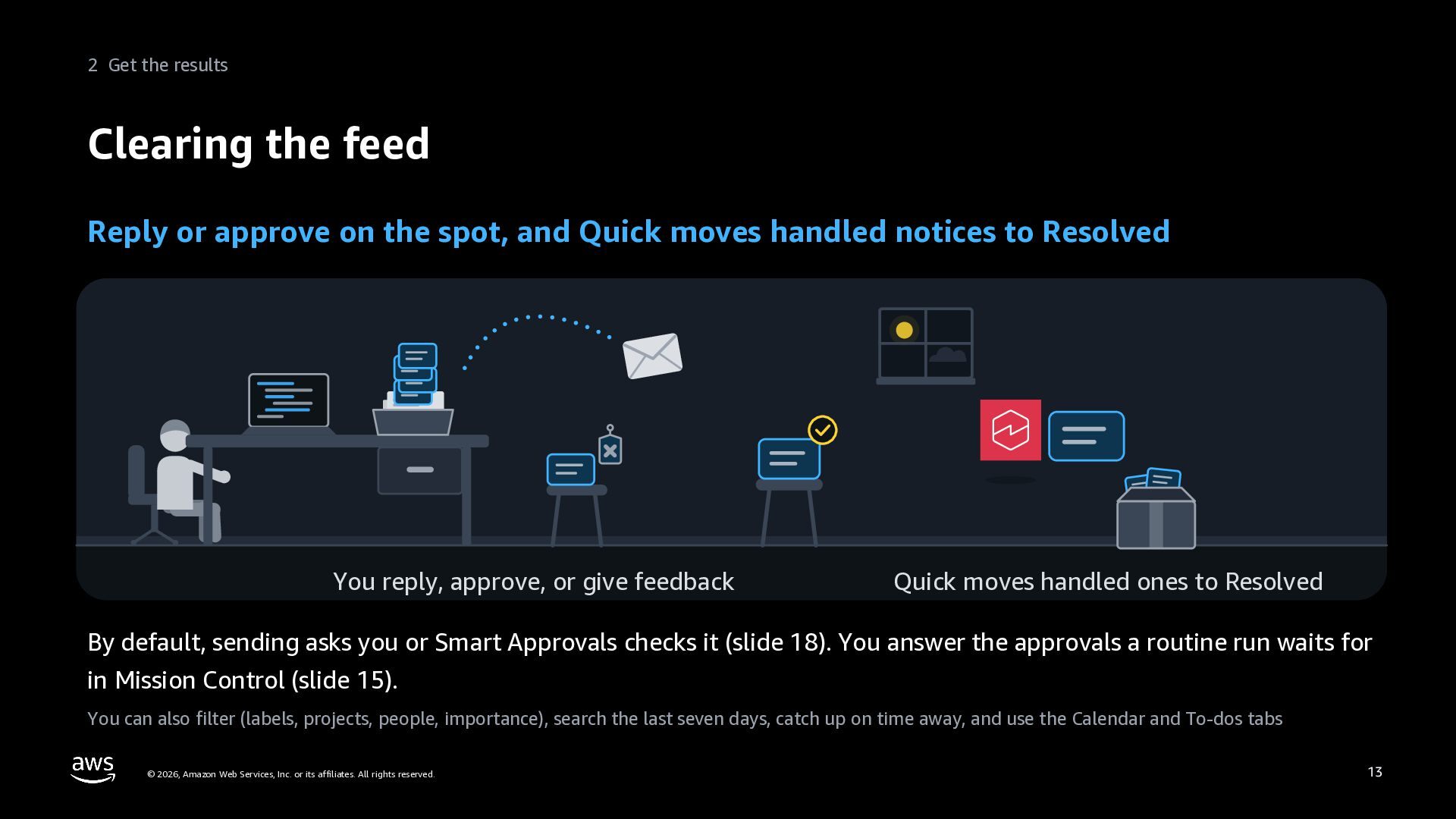
  13. 2 Get the results Clearing the feed Reply or approve

    on the spot, and Quick moves handled notices to Resolved You reply, approve, or give feedback Quick moves handled ones to Resolved By default, sending asks you or Smart Approvals checks it (slide 18). You answer the approvals a routine run waits for in Mission Control (slide 15). You can also filter (labels, projects, people, importance), search the last seven days, catch up on time away, and use the Calendar and To-dos tabs © 2026, Amazon Web Services, Inc. or its affiliates. All rights reserved. 13
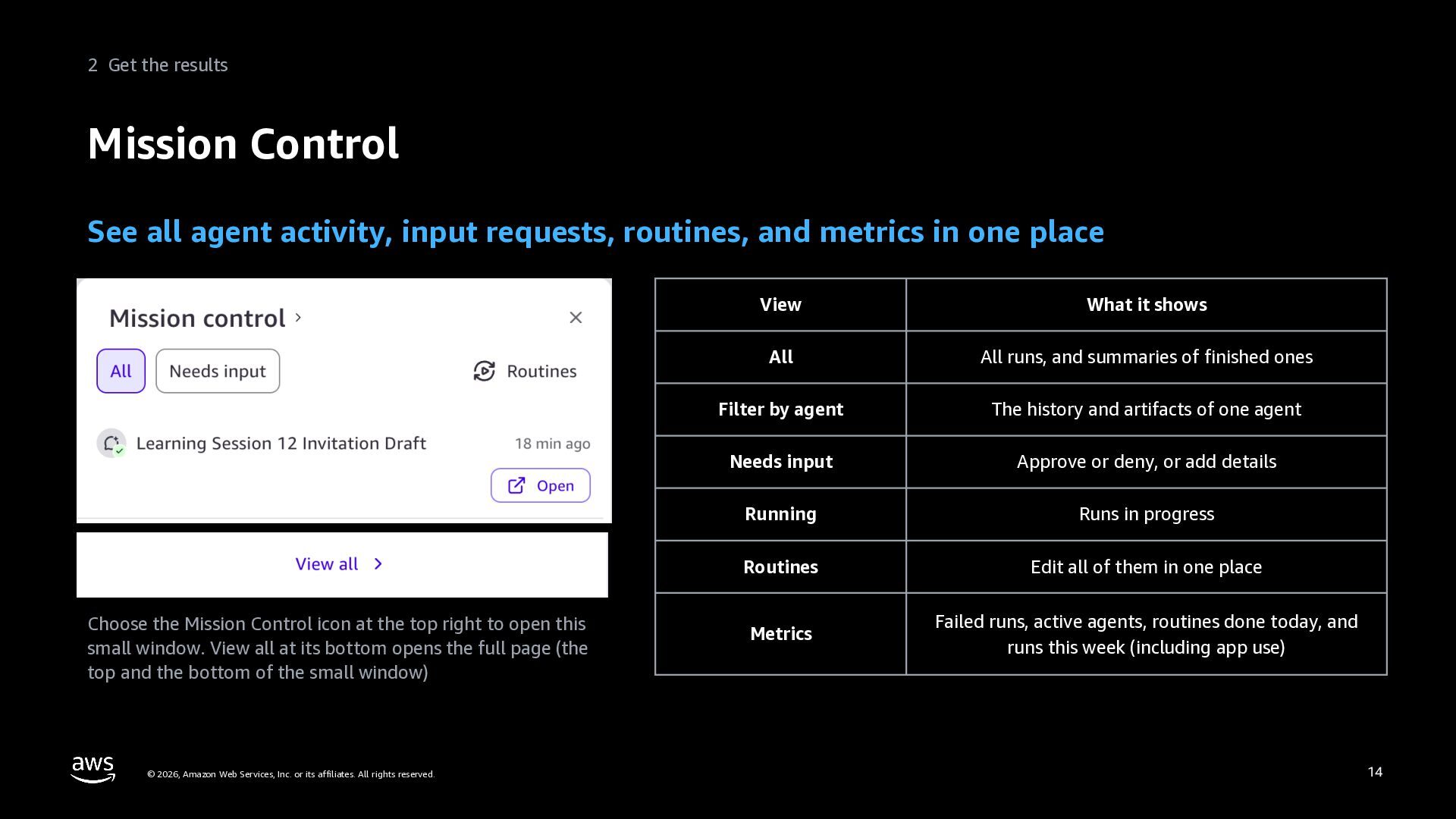
  14. 2 Get the results Mission Control See all agent activity,

    input requests, routines, and metrics in one place Choose the Mission Control icon at the top right to open this small window. View all at its bottom opens the full page (the top and the bottom of the small window) © 2026, Amazon Web Services, Inc. or its affiliates. All rights reserved. View What it shows All All runs, and summaries of finished ones Filter by agent The history and artifacts of one agent Needs input Approve or deny, or add details Running Runs in progress Routines Edit all of them in one place Metrics Failed runs, active agents, routines done today, and runs this week (including app use) 14
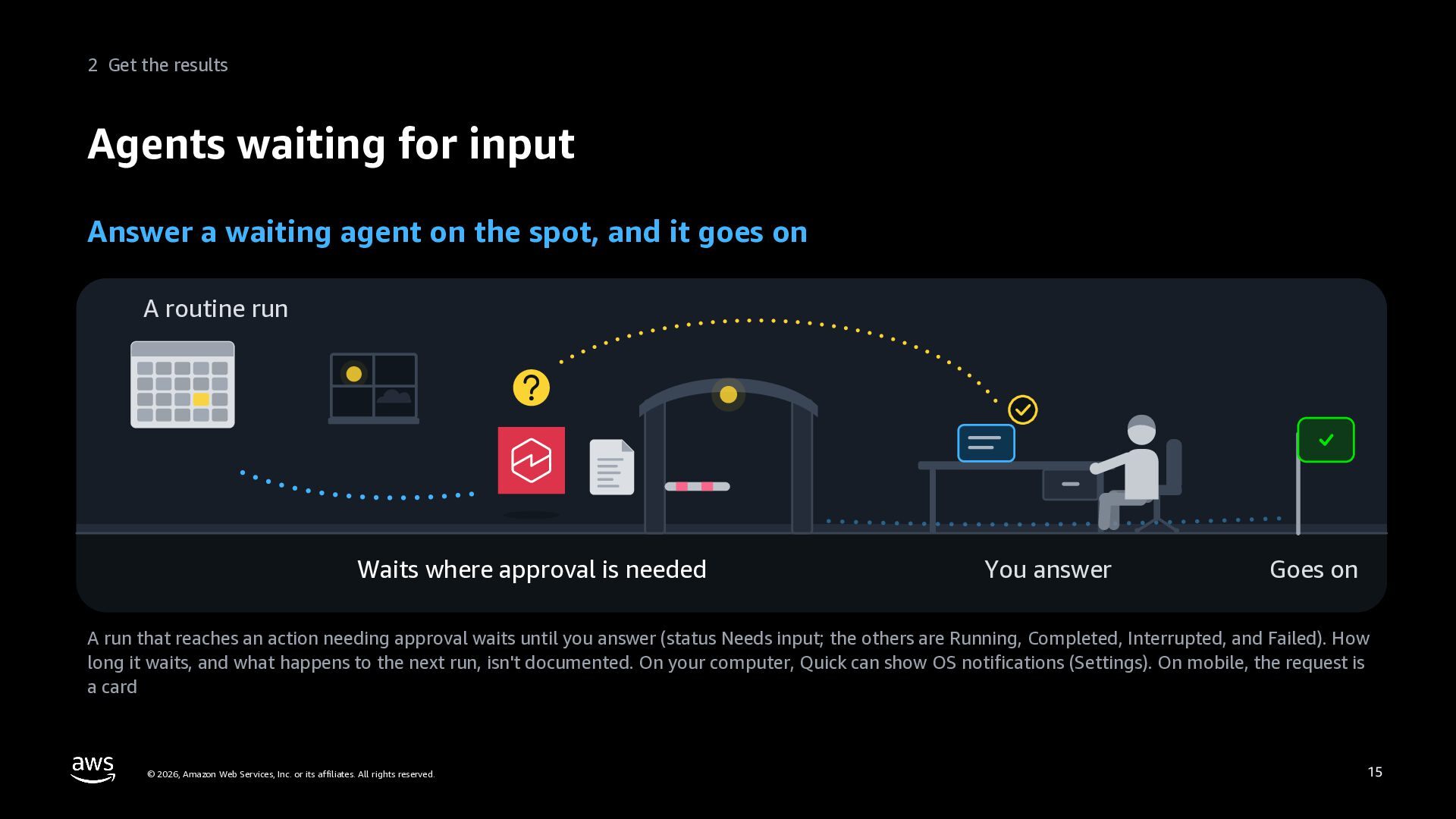
  15. 2 Get the results Agents waiting for input Answer a

    waiting agent on the spot, and it goes on A routine run Waits where approval is needed You answer Goes on A run that reaches an action needing approval waits until you answer (status Needs input; the others are Running, Completed, Interrupted, and Failed). How long it waits, and what happens to the next run, isn't documented. On your computer, Quick can show OS notifications (Settings). On mobile, the request is a card © 2026, Amazon Web Services, Inc. or its affiliates. All rights reserved. 15
  16. 3 Approvals and usage © 2026, Amazon Web Services, Inc.

    or its affiliates. All rights reserved. 16
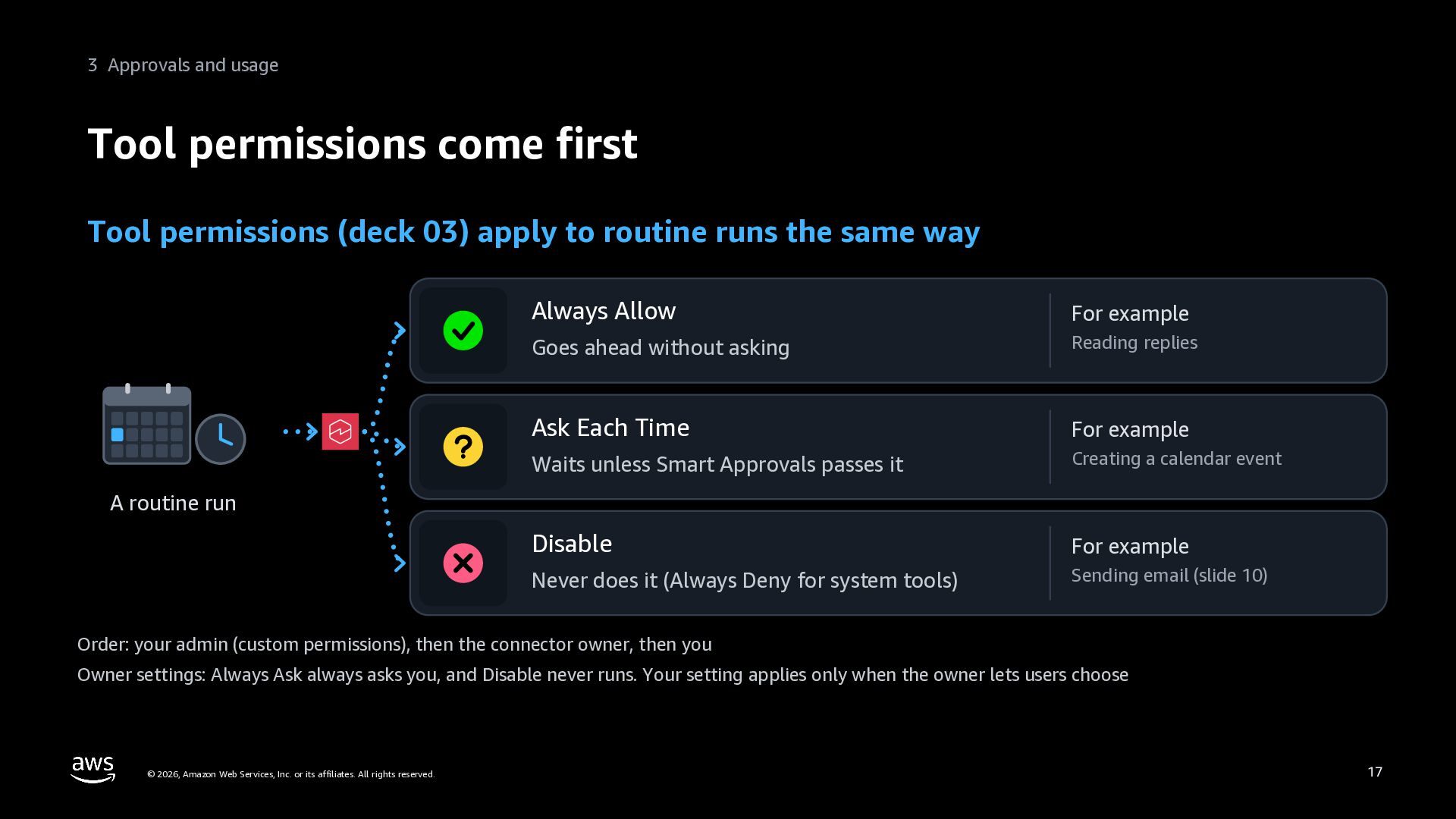
  17. 3 Approvals and usage Tool permissions come first Tool permissions

    (deck 03) apply to routine runs the same way Always Allow For example Goes ahead without asking Reading replies Ask Each Time For example Waits unless Smart Approvals passes it Creating a calendar event Disable For example Never does it (Always Deny for system tools) Sending email (slide 10) A routine run Order: your admin (custom permissions), then the connector owner, then you Owner settings: Always Ask always asks you, and Disable never runs. Your setting applies only when the owner lets users choose © 2026, Amazon Web Services, Inc. or its affiliates. All rights reserved. 17
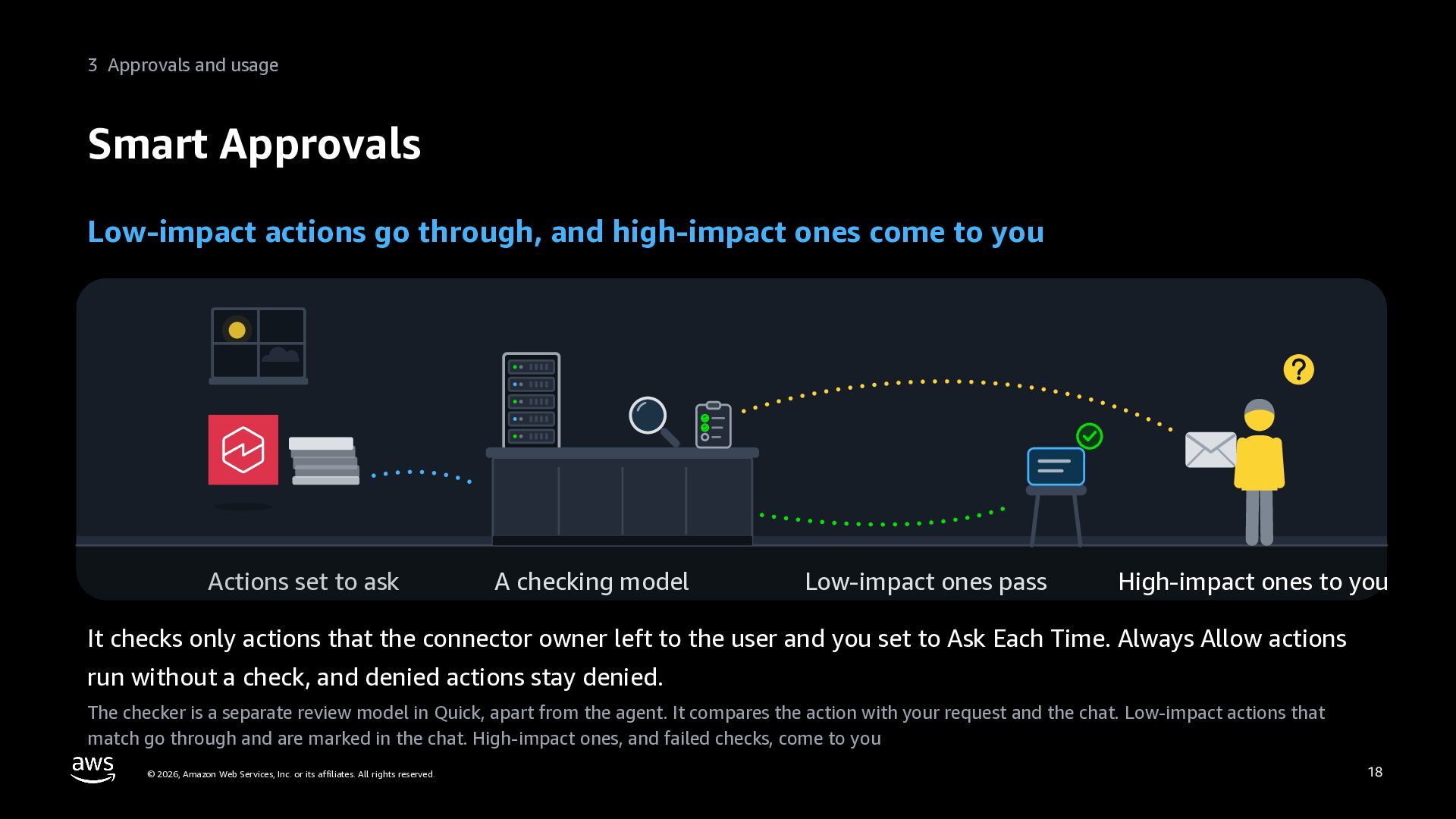
  18. 3 Approvals and usage Smart Approvals Low-impact actions go through,

    and high-impact ones come to you Actions set to ask A checking model Low-impact ones pass High-impact ones to you It checks only actions that the connector owner left to the user and you set to Ask Each Time. Always Allow actions run without a check, and denied actions stay denied. The checker is a separate review model in Quick, apart from the agent. It compares the action with your request and the chat. Low-impact actions that match go through and are marked in the chat. High-impact ones, and failed checks, come to you © 2026, Amazon Web Services, Inc. or its affiliates. All rights reserved. 18
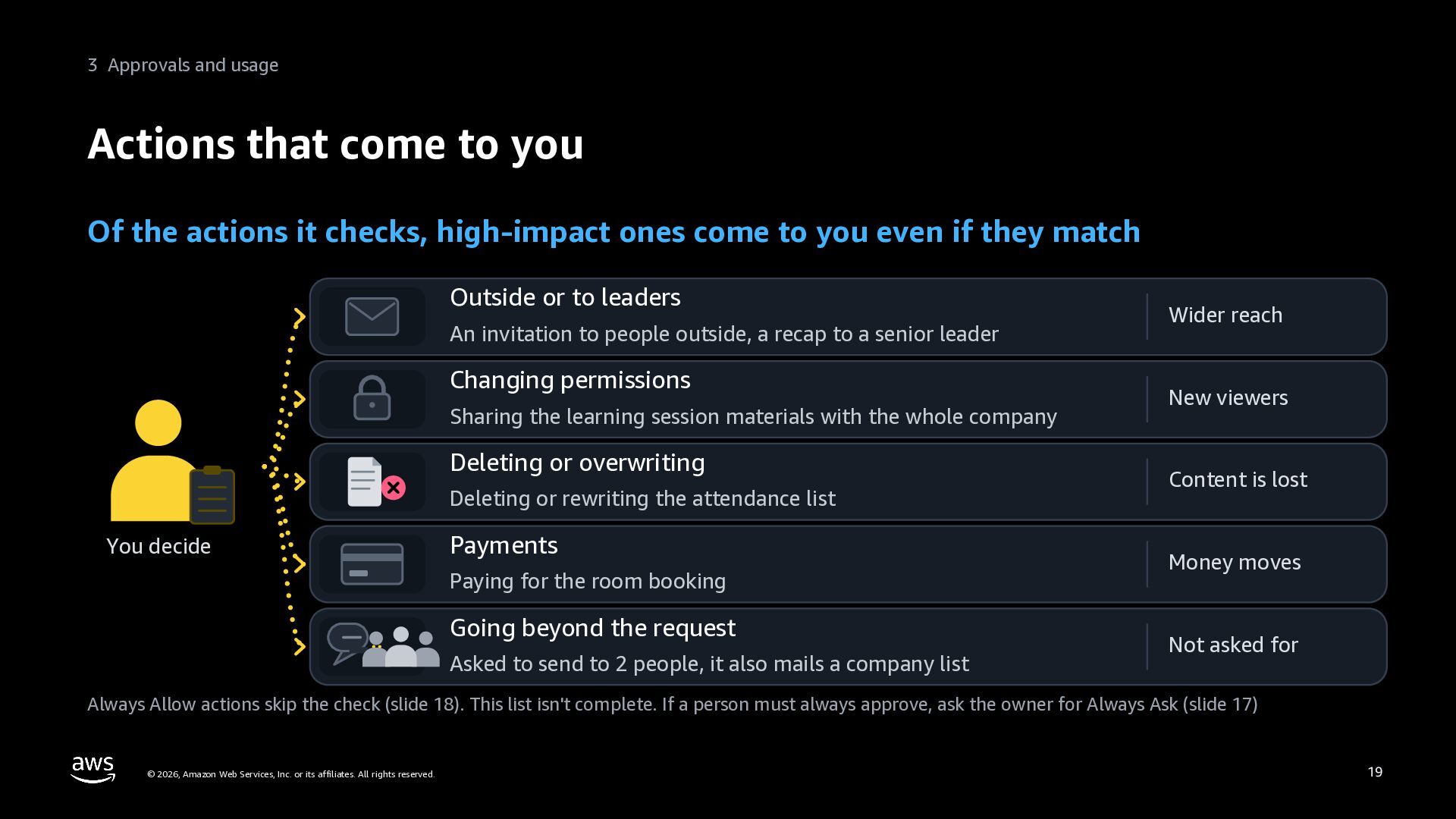
  19. 3 Approvals and usage Actions that come to you Of

    the actions it checks, high-impact ones come to you even if they match Outside or to leaders An invitation to people outside, a recap to a senior leader Changing permissions Sharing the learning session materials with the whole company Deleting or overwriting Deleting or rewriting the attendance list You decide Payments Paying for the room booking Going beyond the request Asked to send to 2 people, it also mails a company list Wider reach New viewers Content is lost Money moves Not asked for Always Allow actions skip the check (slide 18). This list isn't complete. If a person must always approve, ask the owner for Always Ask (slide 17) © 2026, Amazon Web Services, Inc. or its affiliates. All rights reserved. 19
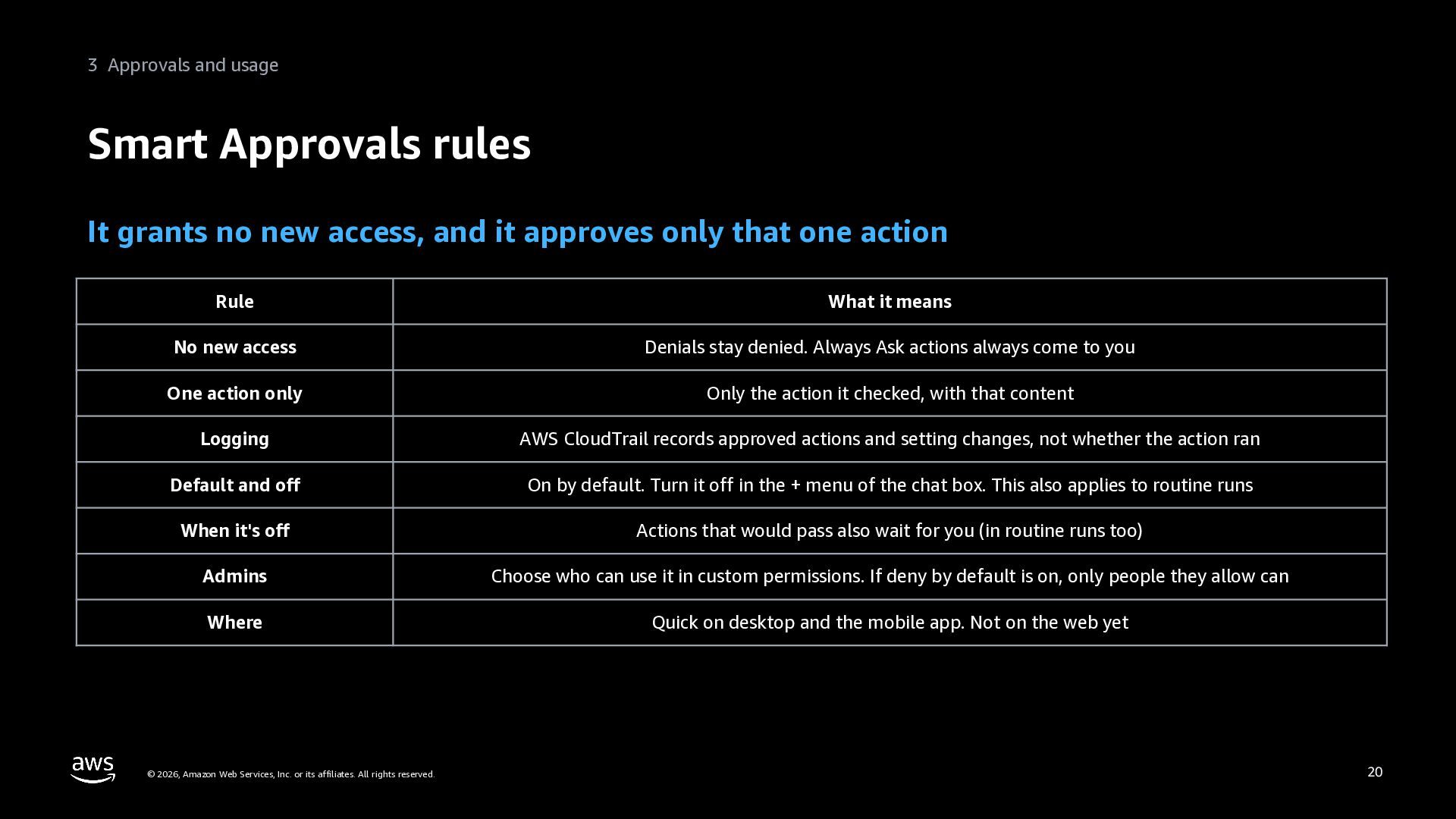
  20. 3 Approvals and usage Smart Approvals rules It grants no

    new access, and it approves only that one action Rule What it means No new access Denials stay denied. Always Ask actions always come to you One action only Only the action it checked, with that content Logging AWS CloudTrail records approved actions and setting changes, not whether the action ran Default and off On by default. Turn it off in the + menu of the chat box. This also applies to routine runs When it's off Actions that would pass also wait for you (in routine runs too) Admins Choose who can use it in custom permissions. If deny by default is on, only people they allow can Where Quick on desktop and the mobile app. Not on the web yet © 2026, Amazon Web Services, Inc. or its affiliates. All rights reserved. 20
  21. 3 Approvals and usage Usage A routine uses agent hours

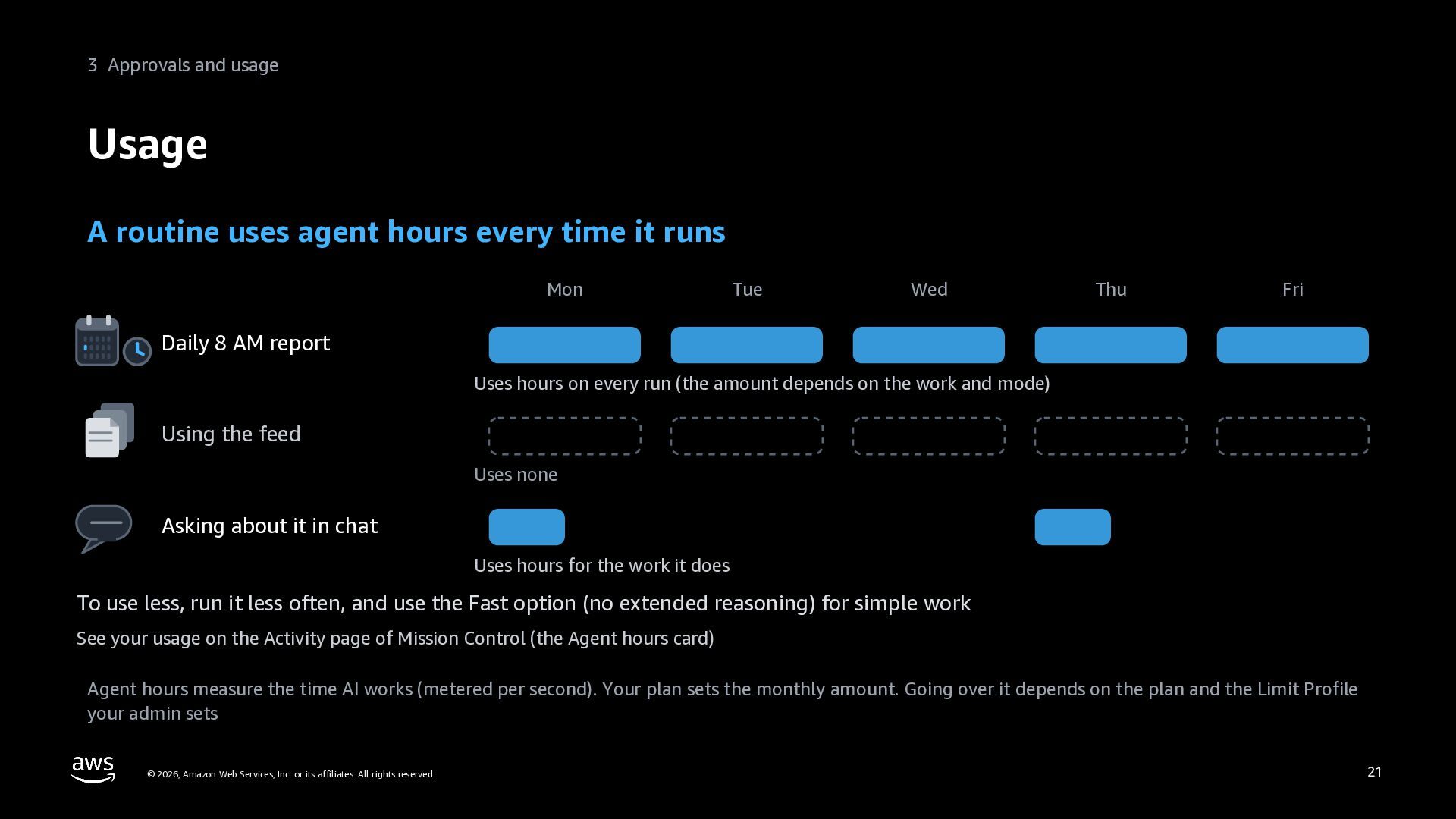
    every time it runs Mon Tue Wed Thu Fri Daily 8 AM report Uses hours on every run (the amount depends on the work and mode) Using the feed Uses none Asking about it in chat Uses hours for the work it does To use less, run it less often, and use the Fast option (no extended reasoning) for simple work See your usage on the Activity page of Mission Control (the Agent hours card) Agent hours measure the time AI works (metered per second). Your plan sets the monthly amount. Going over it depends on the plan and the Limit Profile your admin sets © 2026, Amazon Web Services, Inc. or its affiliates. All rights reserved. 21
  22. Summary Summary Set up routines, get results in the feed,

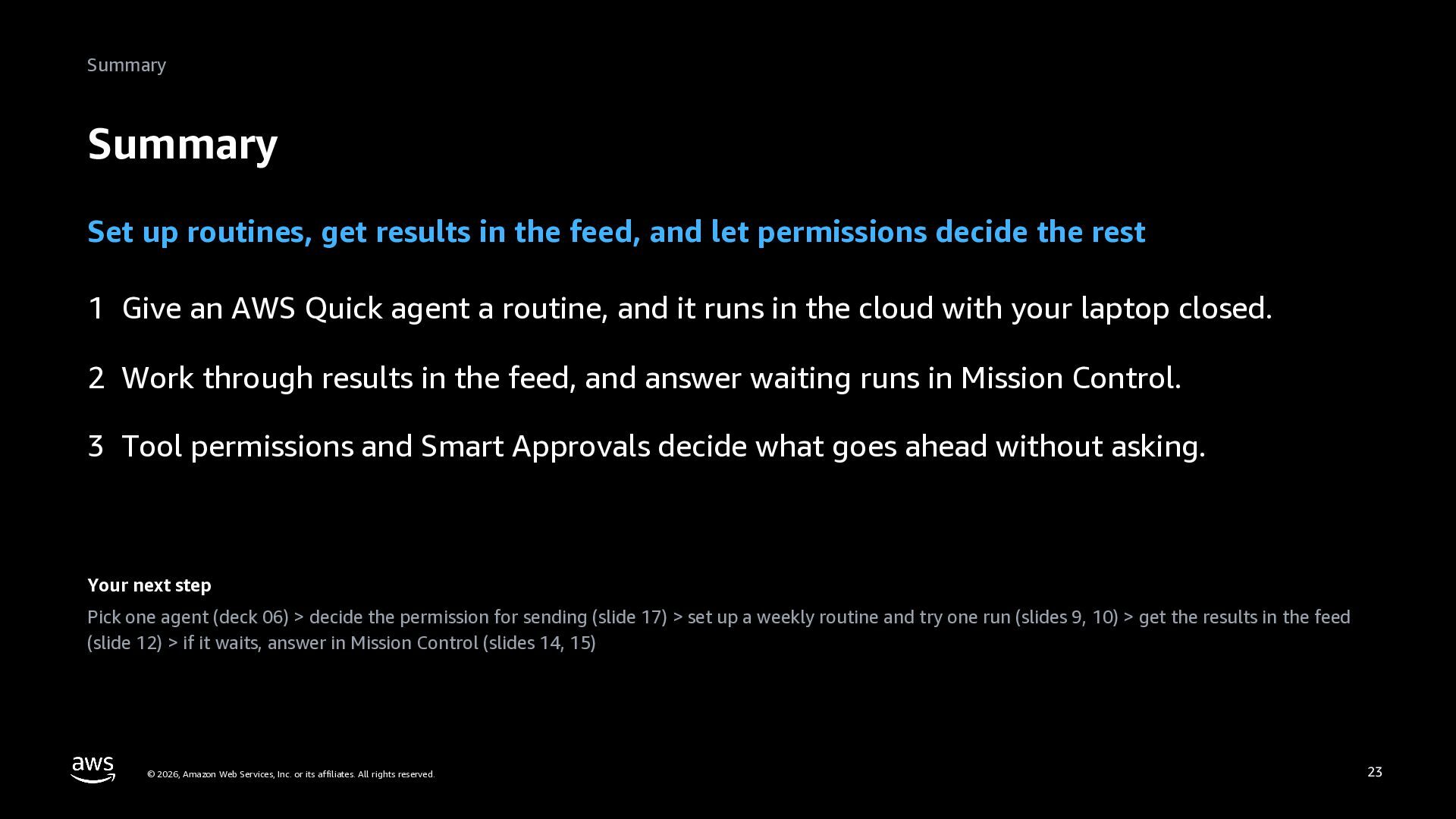
    and let permissions decide the rest 1 Give an AWS Quick agent a routine, and it runs in the cloud with your laptop closed. 2 Work through results in the feed, and answer waiting runs in Mission Control. 3 Tool permissions and Smart Approvals decide what goes ahead without asking. Your next step Pick one agent (deck 06) > decide the permission for sending (slide 17) > set up a weekly routine and try one run (slides 9, 10) > get the results in the feed (slide 12) > if it waits, answer in Mission Control (slides 14, 15) © 2026, Amazon Web Services, Inc. or its affiliates. All rights reserved. 23
  23. Summary Read next To automate processes, read deck 12. To

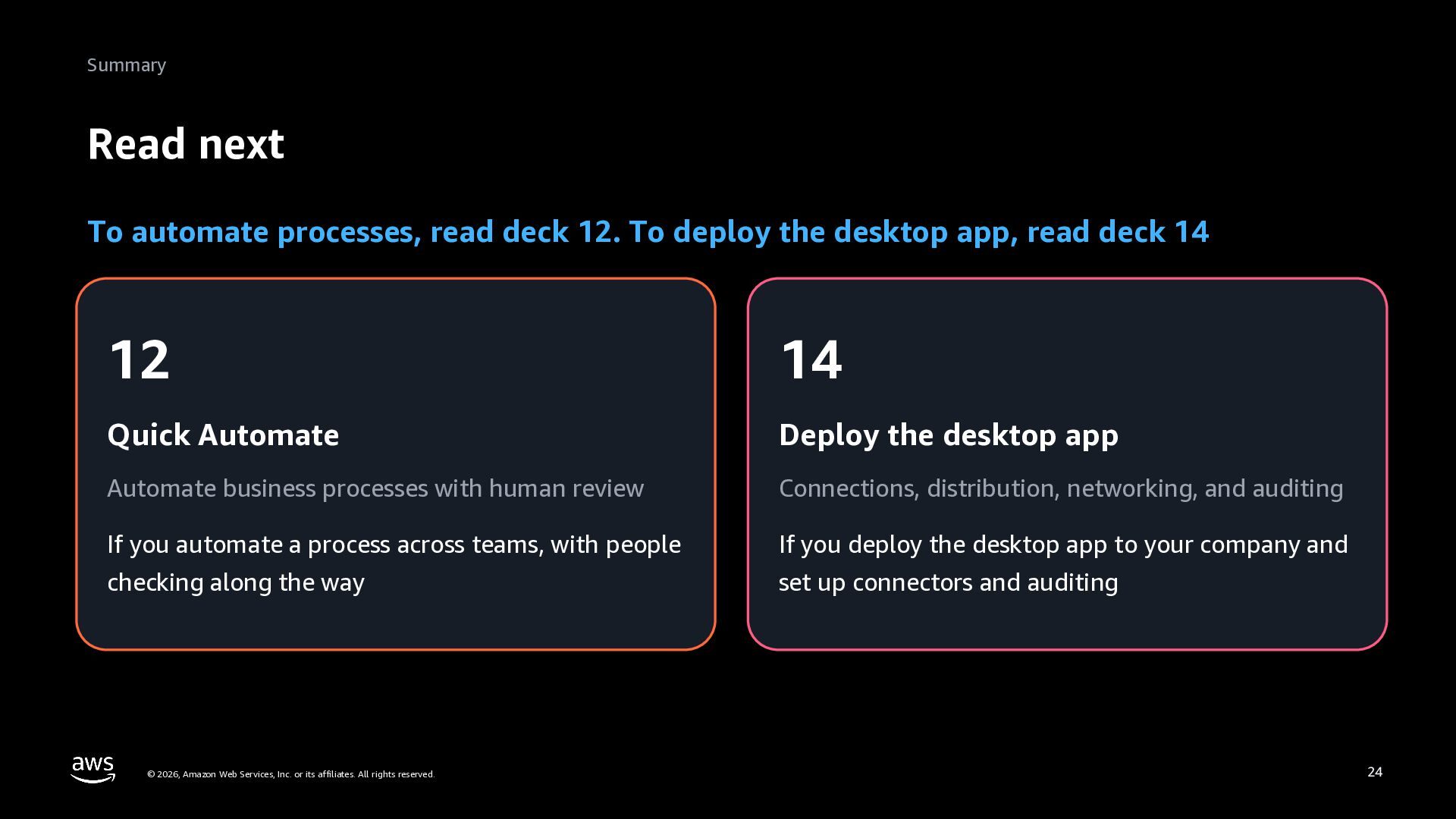
    deploy the desktop app, read deck 14 12 14 Quick Automate Deploy the desktop app Automate business processes with human review Connections, distribution, networking, and auditing If you automate a process across teams, with people If you deploy the desktop app to your company and checking along the way set up connectors and auditing © 2026, Amazon Web Services, Inc. or its affiliates. All rights reserved. 24
  24. Appendix A1 Routine limits Limit (per user) Value Tasks at

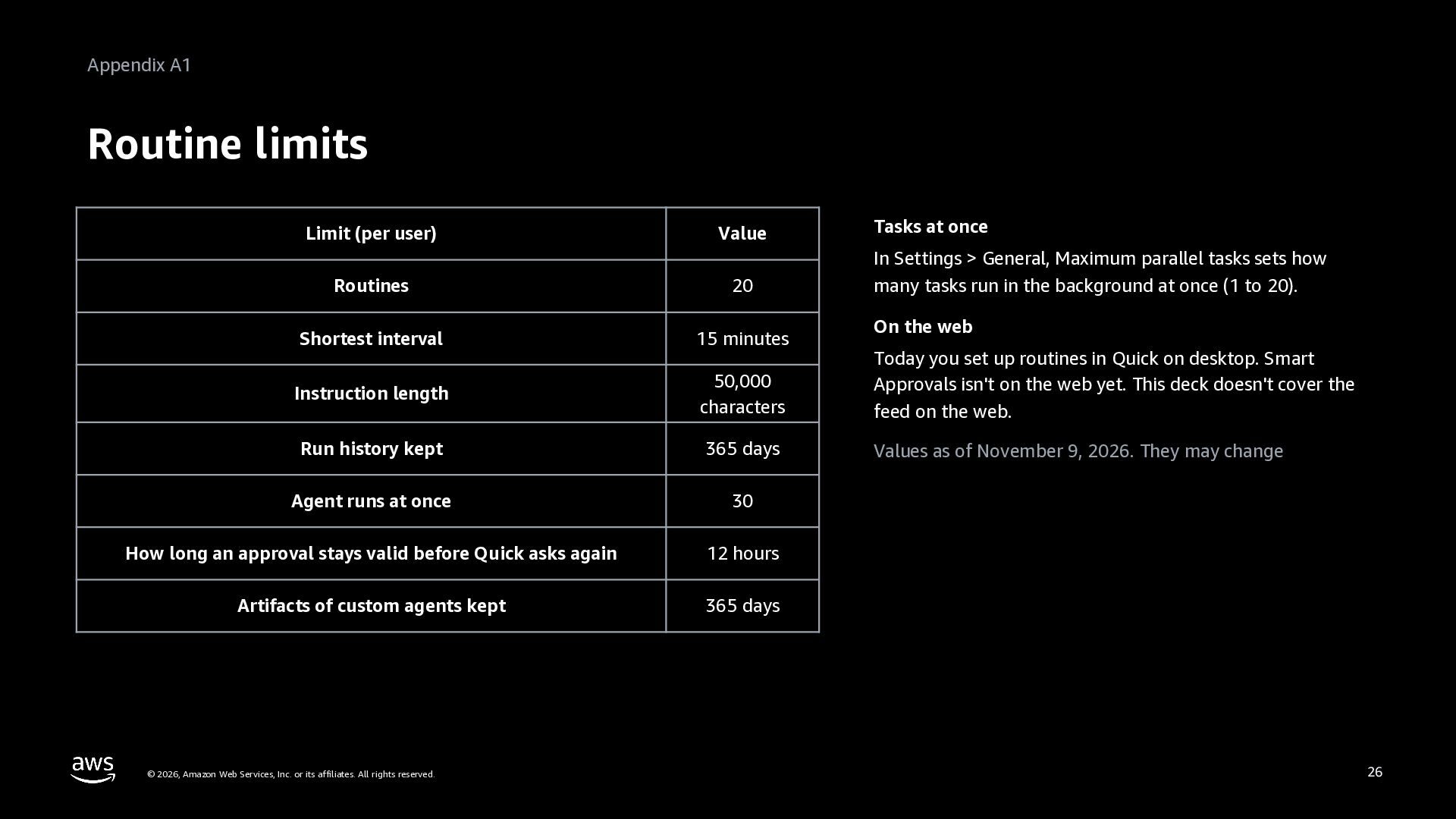
    once In Settings > General, Maximum parallel tasks sets how many tasks run in the background at once (1 to 20). Routines 20 Shortest interval 15 minutes Instruction length 50,000 characters Today you set up routines in Quick on desktop. Smart Approvals isn't on the web yet. This deck doesn't cover the feed on the web. Run history kept 365 days Values as of November 9, 2026. They may change Agent runs at once 30 How long an approval stays valid before Quick asks again 12 hours Artifacts of custom agents kept 365 days © 2026, Amazon Web Services, Inc. or its affiliates. All rights reserved. On the web 26
  25. Appendix A2 Glossary Term Meaning Term Meaning Routine A schedule

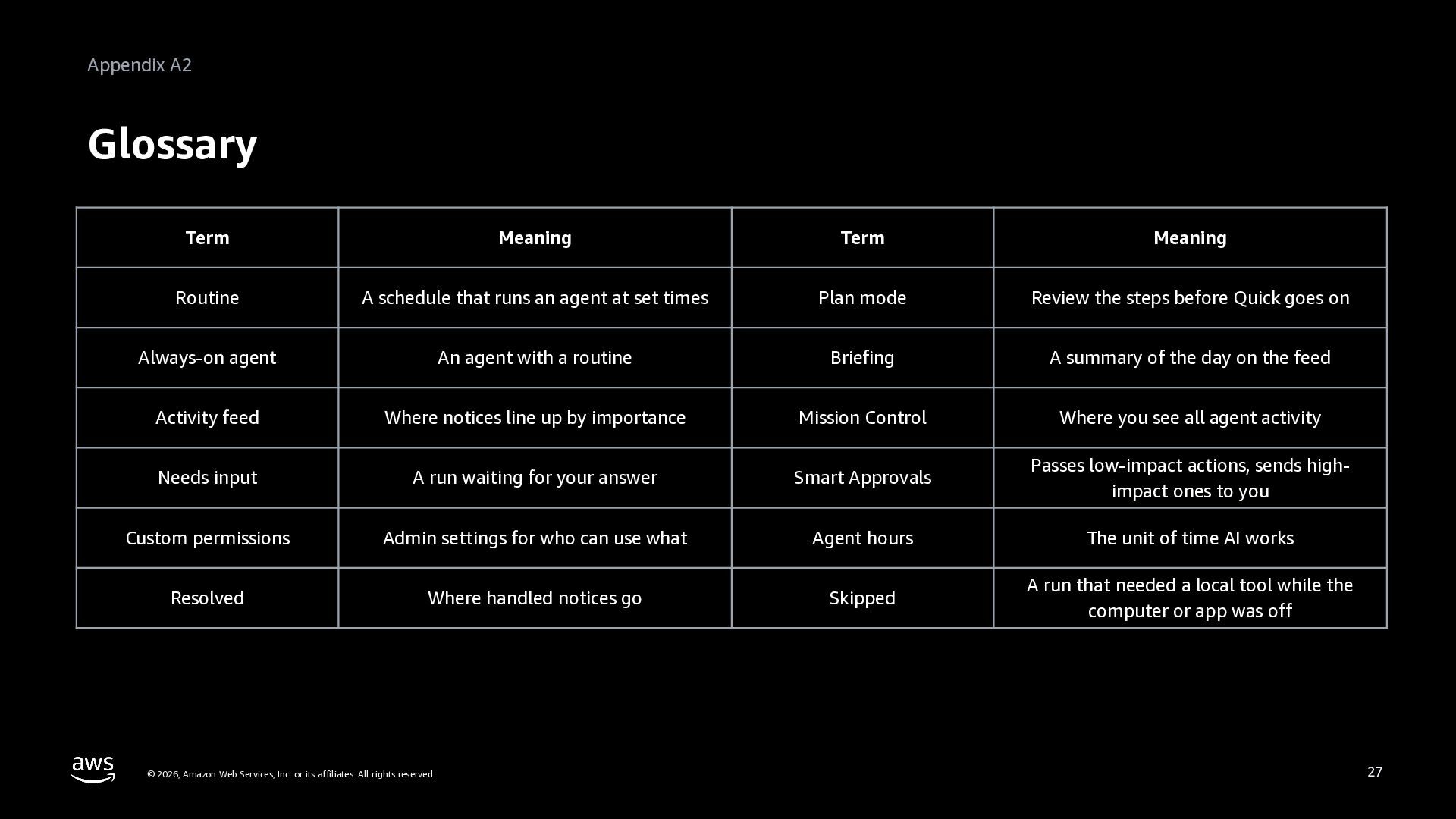
    that runs an agent at set times Plan mode Review the steps before Quick goes on Always-on agent An agent with a routine Briefing A summary of the day on the feed Activity feed Where notices line up by importance Mission Control Where you see all agent activity Needs input A run waiting for your answer Smart Approvals Passes low-impact actions, sends highimpact ones to you Custom permissions Admin settings for who can use what Agent hours The unit of time AI works Resolved Where handled notices go Skipped A run that needed a local tool while the computer or app was off © 2026, Amazon Web Services, Inc. or its affiliates. All rights reserved. 27
  26. Appendix A3 Sources AWS Quick User Guide, the chapter on

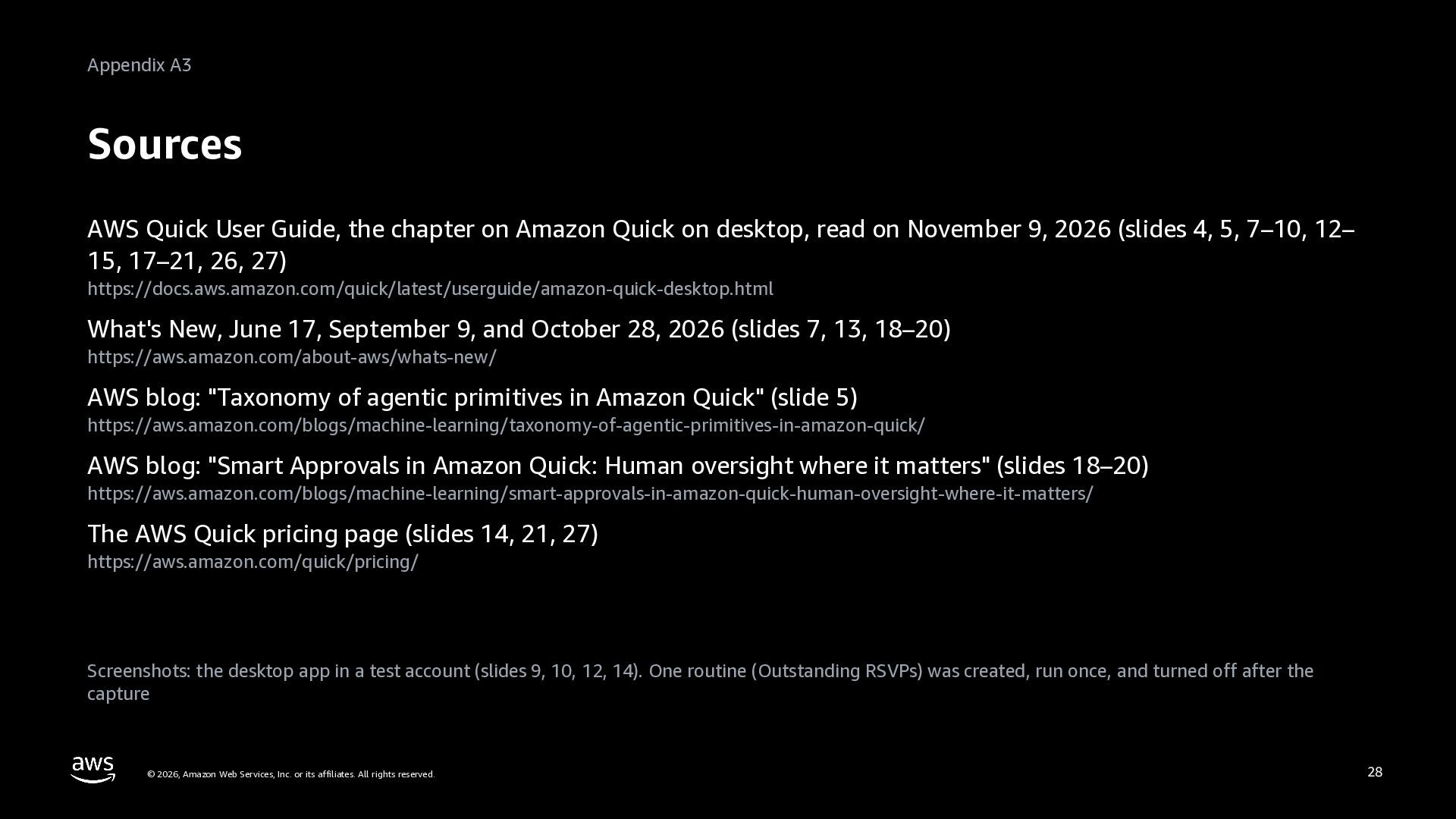
    Amazon Quick on desktop, read on November 9, 2026 (slides 4, 5, 7–10, 12– 15, 17–21, 26, 27) https://docs.aws.amazon.com/quick/latest/userguide/amazon-quick-desktop.html What's New, June 17, September 9, and October 28, 2026 (slides 7, 13, 18–20) https://aws.amazon.com/about-aws/whats-new/ AWS blog: "Taxonomy of agentic primitives in Amazon Quick" (slide 5) https://aws.amazon.com/blogs/machine-learning/taxonomy-of-agentic-primitives-in-amazon-quick/ AWS blog: "Smart Approvals in Amazon Quick: Human oversight where it matters" (slides 18–20) https://aws.amazon.com/blogs/machine-learning/smart-approvals-in-amazon-quick-human-oversight-where-it-matters/ The AWS Quick pricing page (slides 14, 21, 27) https://aws.amazon.com/quick/pricing/ Screenshots: the desktop app in a test account (slides 9, 10, 12, 14). One routine (Outstanding RSVPs) was created, run once, and turned off after the capture © 2026, Amazon Web Services, Inc. or its affiliates. All rights reserved. 28

More Decks by Riku INADA

Other Decks in Technology