Quick Research (Delegate research and get a cit...

Sponsored · Your Podcast. Everywhere. Effortlessly. Share. Educate. Inspire. Entertain. You do you. We'll handle the rest. →
Riku INADA PRO
November 11, 2026

Quick Research (Delegate research and get a cited report) | AWS Quick: Zero to Hero 09

Level 200. A handout on delegating research to AWS Quick Research and getting back a report with sources, for people who have started using AWS Quick. It covers what Research is and what it is for; the four steps (write the research objective, choose the research materials such as web search, uploaded files, and Quick assets, review and revise the plan, and read the report); using the report (following the numbered citations back to the files and web articles, adding comments and making a new version, summary styles, sharing and downloading as PDF or Word); running research on a schedule with the Research step in Quick Flows; and third-party data from Premium and Public providers. The running example researches ways to keep a monthly internal learning session going. The screens were taken on the web in English from one research run on fictional material. The appendix lists the statuses and admin settings, a glossary, and sources. Based on public documentation as of November 2026. Deck 09 (Let it run) of the series AWS Quick: Zero to Hero.

Riku INADA PRO

November 11, 2026

Annual Pro sale · Save $30

Have presentations of your own?

Share with private links, password protection, and more control over your work.

Transcript

26 slides
  1. AWS Quick: Zero to Hero Let it run Quick Research

    Delegate research and get a cited report 09 Level 200 / As of November 2026 November 2026 Riku Inada Amazon Web Services Japan © 2026, Amazon Web © 2026, Services, Amazon Inc. or Web its Services, affiliates.Inc. All or rights its affiliates. reserved.All rights reserved. 1
  2. Introduction About me Riku Inada Amazon Web Services Japan G.K.

    Solutions Architect Works mainly with manufacturing customers Recent work Promoting the AI-Driven Development Life Cycle (AI-DLC) Writing and speaking about Kiro and AWS Amplify © 2026, Amazon Web Services, Inc. or its affiliates. All rights reserved. X @inada_riku Speaker Deck speakerdeck.com/inariku Zenn zenn.dev/inariku GitHub github.com/inariku 2
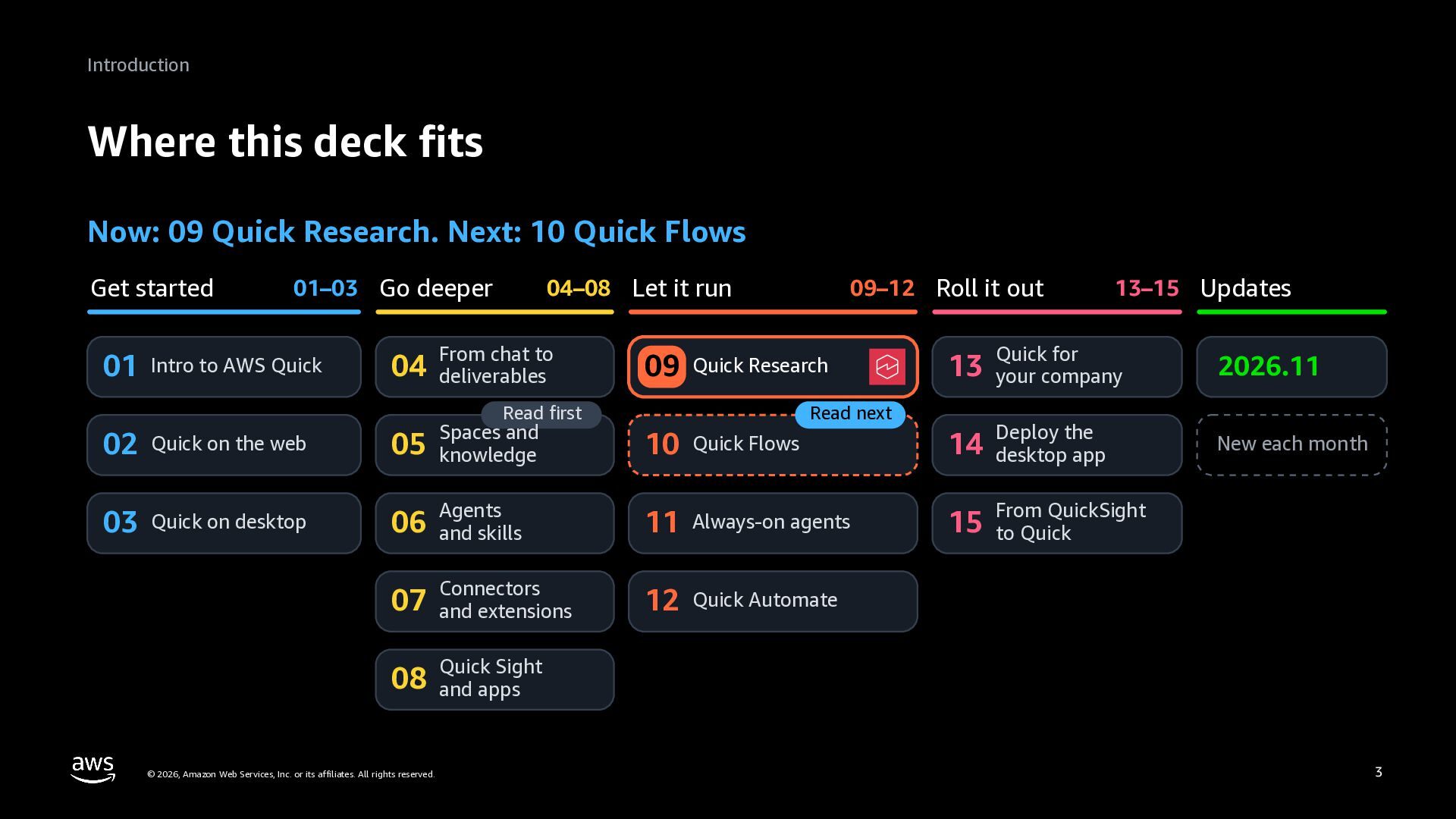
  3. Introduction Where this deck fits Now: 09 Quick Research. Next:

    10 Quick Flows Get started 01–03 Go deeper 04–08 Let it run From chat to 09–12 Roll it out 09 Quick Research 13–15 Updates Quick for 01 Intro to AWS Quick 04 deliverables 02 Quick on the web Spaces and 05 knowledge 10 Quick Flows 14 desktop app 03 Quick on desktop 06 Agents and skills 11 Always-on agents QuickSight 15 From to Quick 07 Connectors and extensions 12 Quick Automate Read first Read next 13 your company Deploy the 2026.11 New each month Sight 08 Quick and apps © 2026, Amazon Web Services, Inc. or its affiliates. All rights reserved. 3
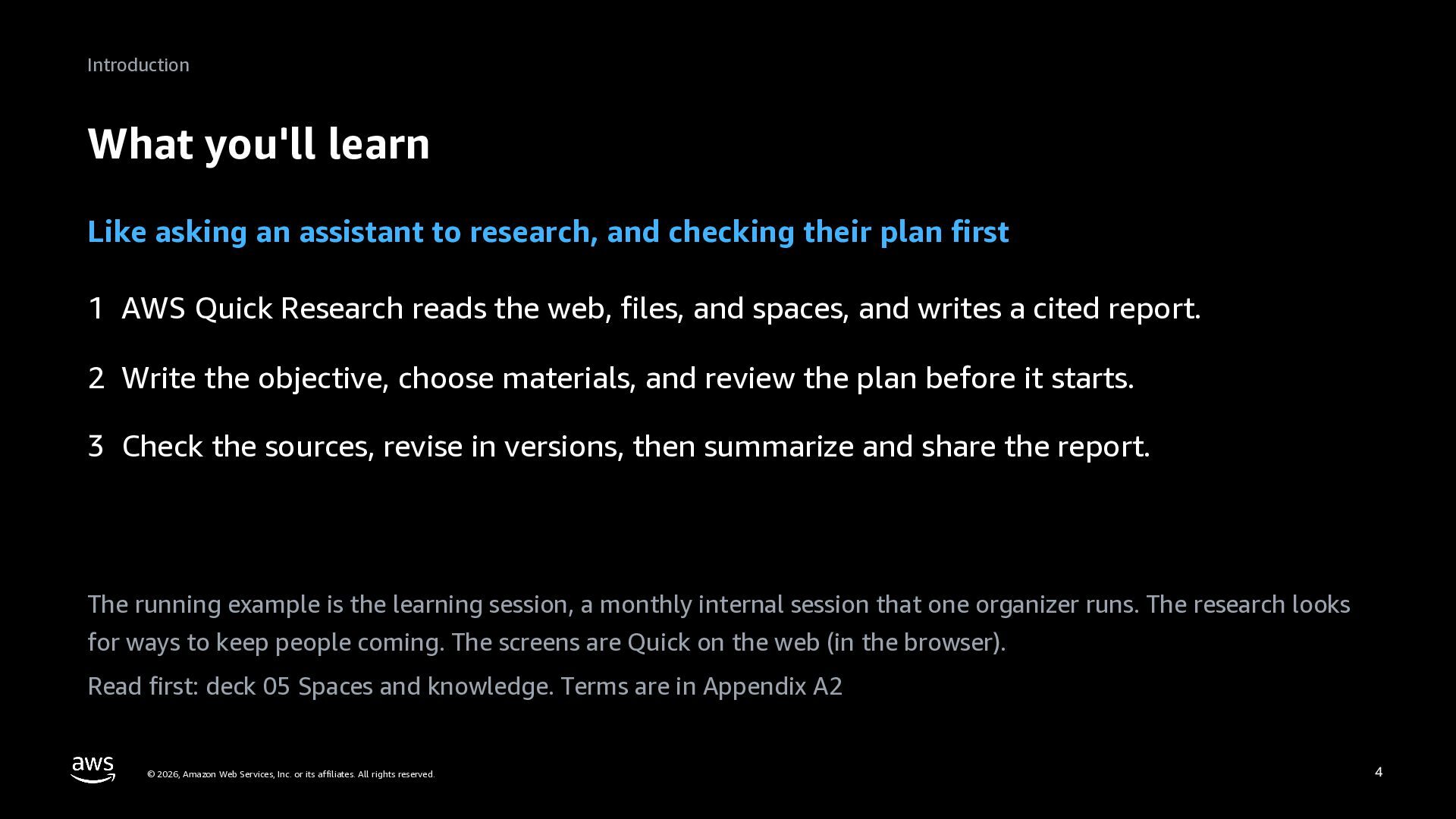
  4. Introduction What you'll learn Like asking an assistant to research,

    and checking their plan first 1 AWS Quick Research reads the web, files, and spaces, and writes a cited report. 2 Write the objective, choose materials, and review the plan before it starts. 3 Check the sources, revise in versions, then summarize and share the report. The running example is the learning session, a monthly internal session that one organizer runs. The research looks for ways to keep people coming. The screens are Quick on the web (in the browser). Read first: deck 05 Spaces and knowledge. Terms are in Appendix A2 © 2026, Amazon Web Services, Inc. or its affiliates. All rights reserved. 4
  5. 1 What Research is © 2026, Amazon Web Services, Inc.

    or its affiliates. All rights reserved. 5
  6. 1 What Research is What Research is It researches the

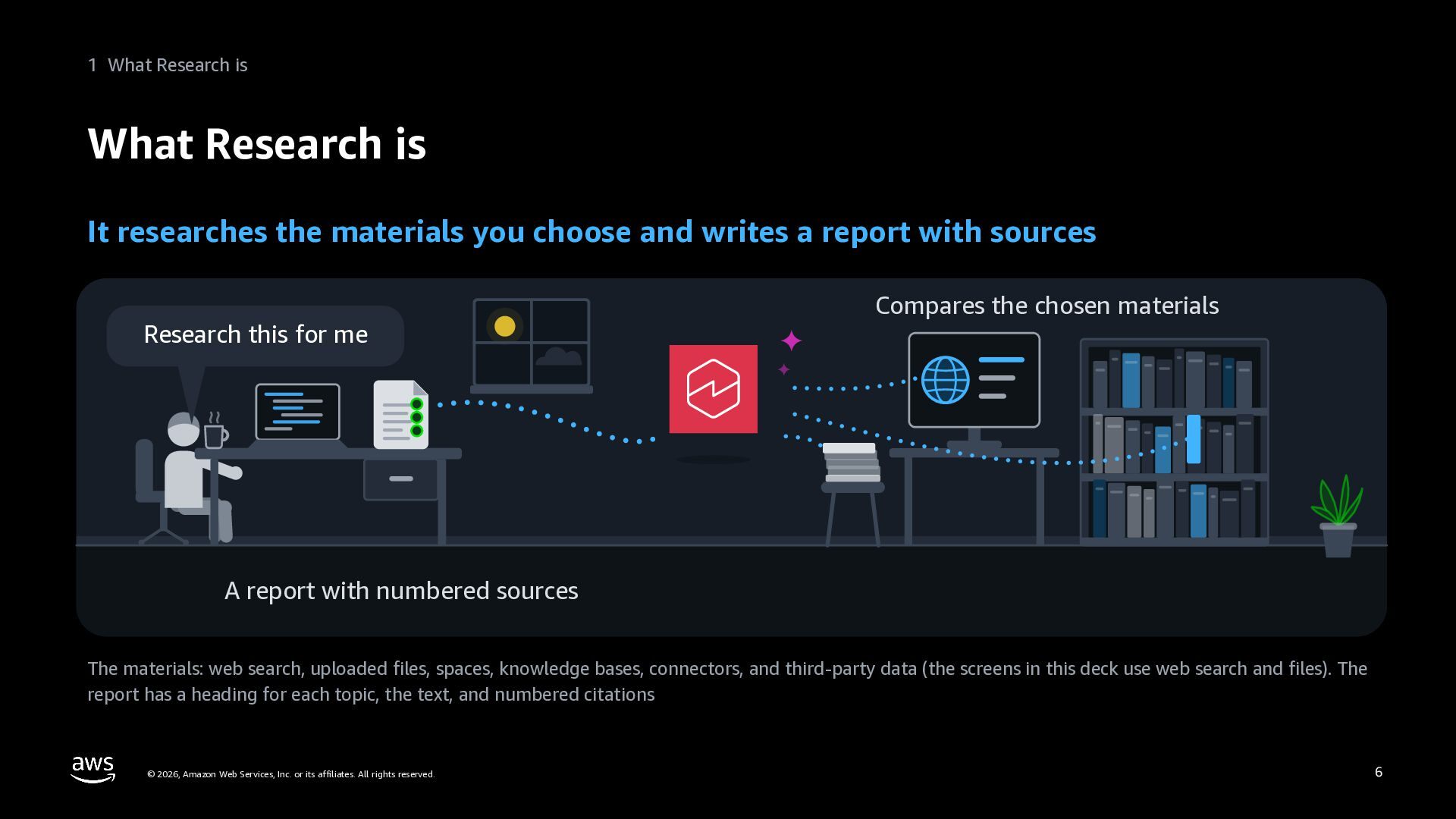
    materials you choose and writes a report with sources Compares the chosen materials Research this for me A report with numbered sources The materials: web search, uploaded files, spaces, knowledge bases, connectors, and third-party data (the screens in this deck use web search and files). The report has a heading for each topic, the text, and numbered citations © 2026, Amazon Web Services, Inc. or its affiliates. All rights reserved. 6
  7. 1 What Research is What it is for Hand over

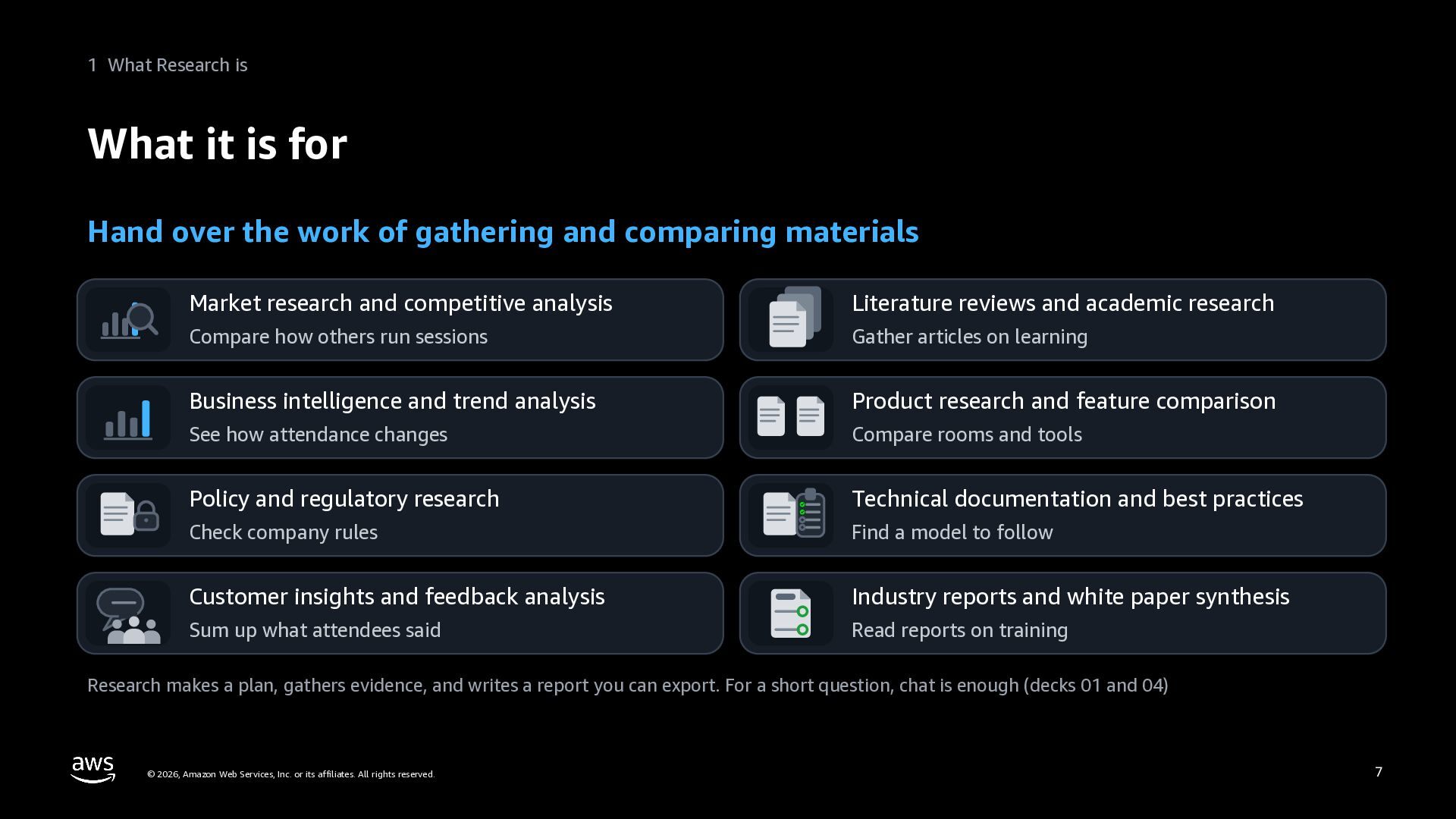
    the work of gathering and comparing materials Market research and competitive analysis Literature reviews and academic research Compare how others run sessions Gather articles on learning Business intelligence and trend analysis Product research and feature comparison See how attendance changes Compare rooms and tools Policy and regulatory research Technical documentation and best practices Check company rules Find a model to follow Customer insights and feedback analysis Industry reports and white paper synthesis Sum up what attendees said Read reports on training Research makes a plan, gathers evidence, and writes a report you can export. For a short question, chat is enough (decks 01 and 04) © 2026, Amazon Web Services, Inc. or its affiliates. All rights reserved. 7
  8. 2 How research goes © 2026, Amazon Web Services, Inc.

    or its affiliates. All rights reserved. 8
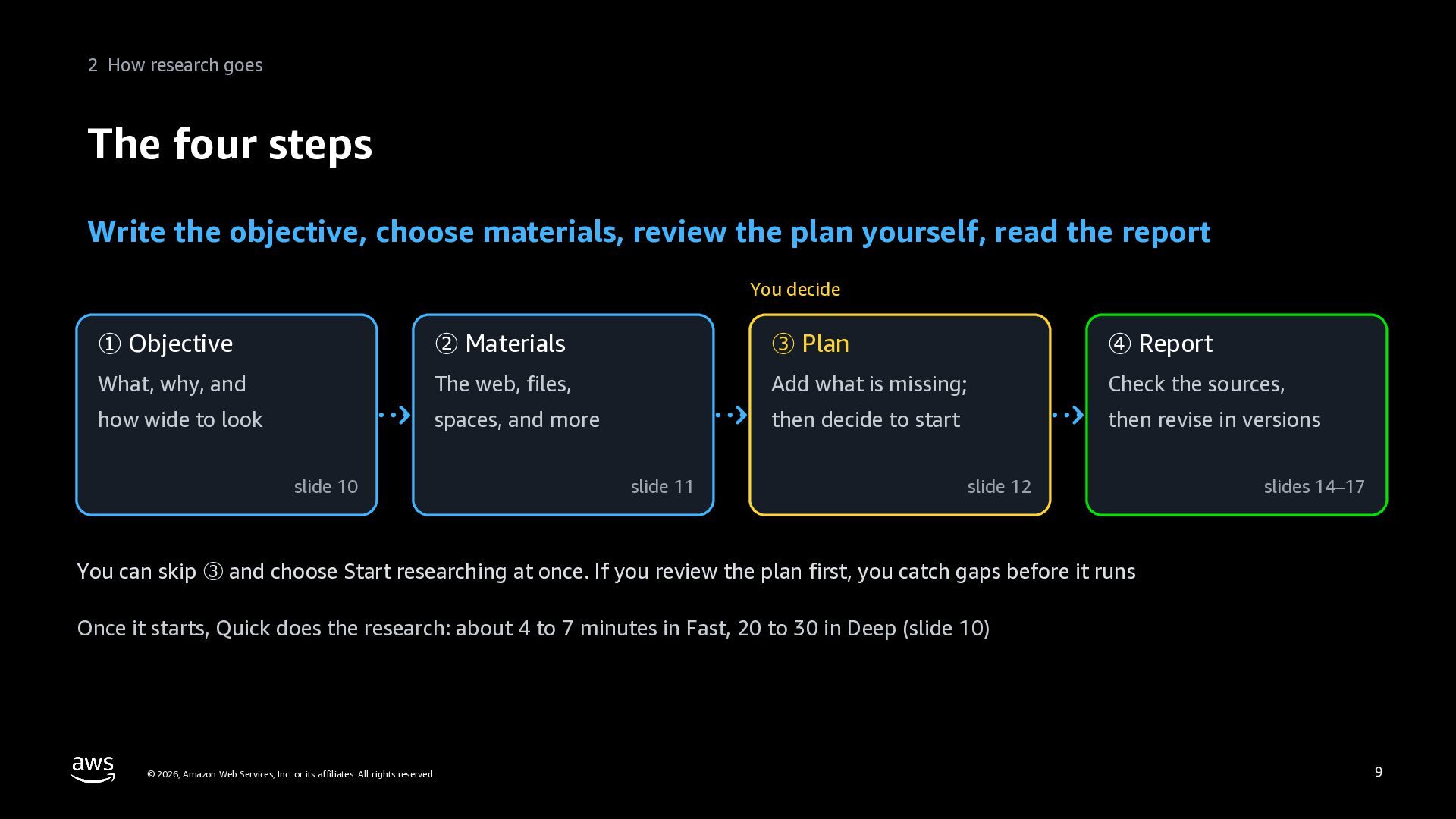
  9. 2 How research goes The four steps Write the objective,

    choose materials, review the plan yourself, read the report You decide ① Objective ② Materials ③ Plan ④ Report What, why, and The web, files, Add what is missing; Check the sources, how wide to look spaces, and more then decide to start then revise in versions slide 10 slide 11 slide 12 slides 14–17 You can skip ③ and choose Start researching at once. If you review the plan first, you catch gaps before it runs Once it starts, Quick does the research: about 4 to 7 minutes in Fast, 20 to 30 in Deep (slide 10) © 2026, Amazon Web Services, Inc. or its affiliates. All rights reserved. 9
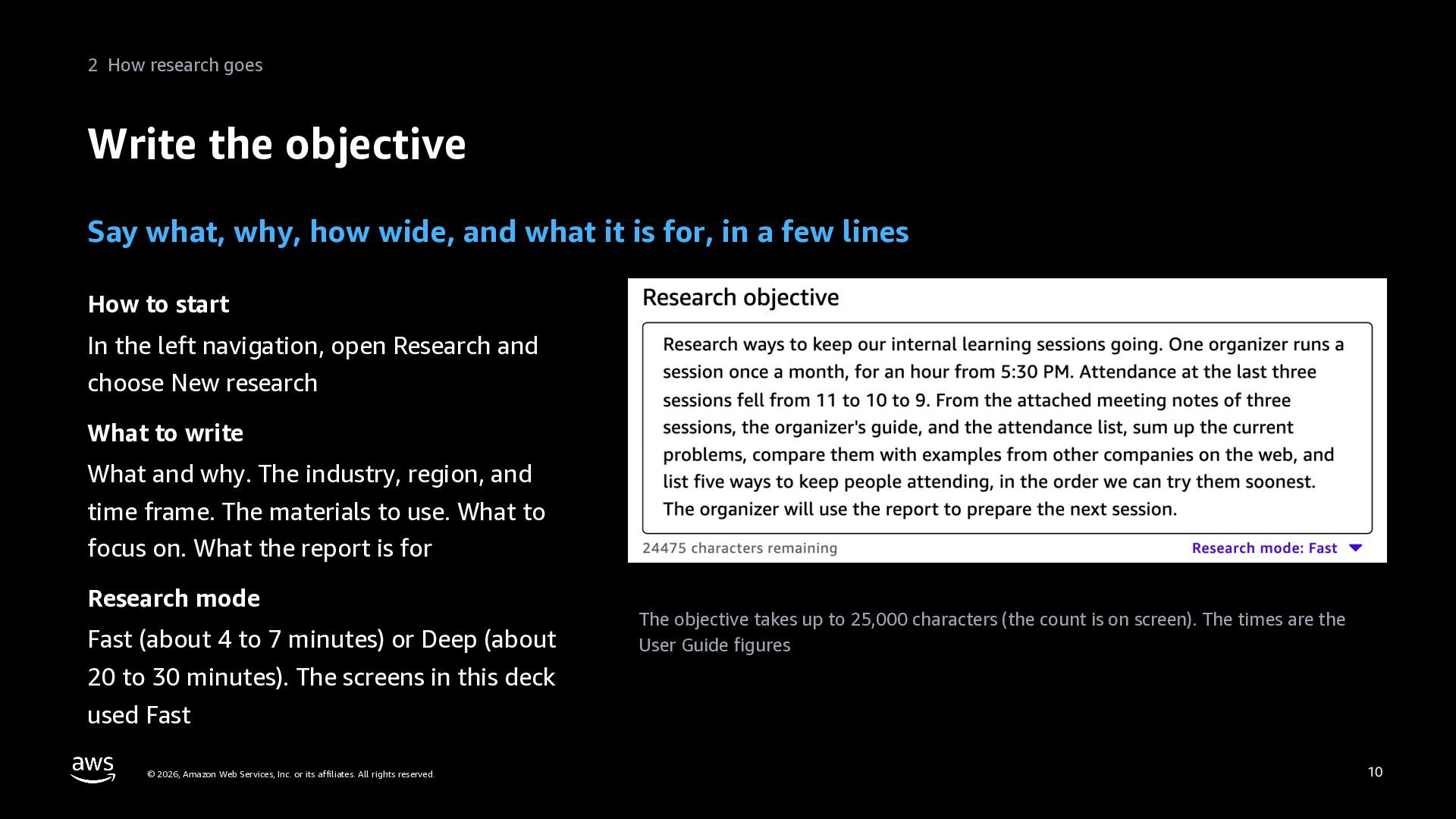
  10. 2 How research goes Write the objective Say what, why,

    how wide, and what it is for, in a few lines How to start In the left navigation, open Research and choose New research What to write What and why. The industry, region, and time frame. The materials to use. What to focus on. What the report is for Research mode Fast (about 4 to 7 minutes) or Deep (about The objective takes up to 25,000 characters (the count is on screen). The times are the User Guide figures 20 to 30 minutes). The screens in this deck used Fast © 2026, Amazon Web Services, Inc. or its affiliates. All rights reserved. 10
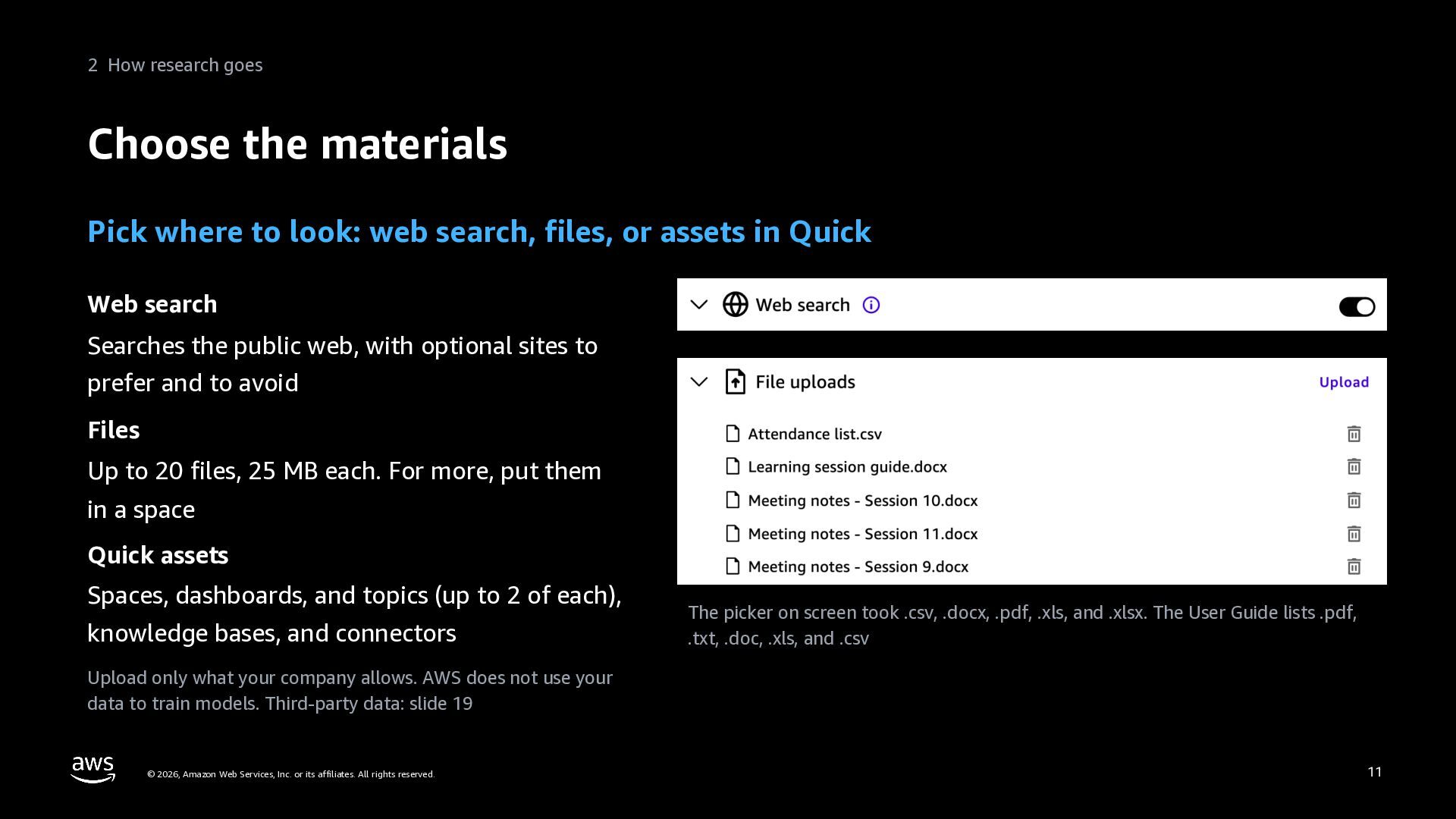
  11. 2 How research goes Choose the materials Pick where to

    look: web search, files, or assets in Quick Web search Searches the public web, with optional sites to prefer and to avoid Files Up to 20 files, 25 MB each. For more, put them in a space Quick assets Spaces, dashboards, and topics (up to 2 of each), knowledge bases, and connectors The picker on screen took .csv, .docx, .pdf, .xls, and .xlsx. The User Guide lists .pdf, .txt, .doc, .xls, and .csv Upload only what your company allows. AWS does not use your data to train models. Third-party data: slide 19 © 2026, Amazon Web Services, Inc. or its affiliates. All rights reserved. 11
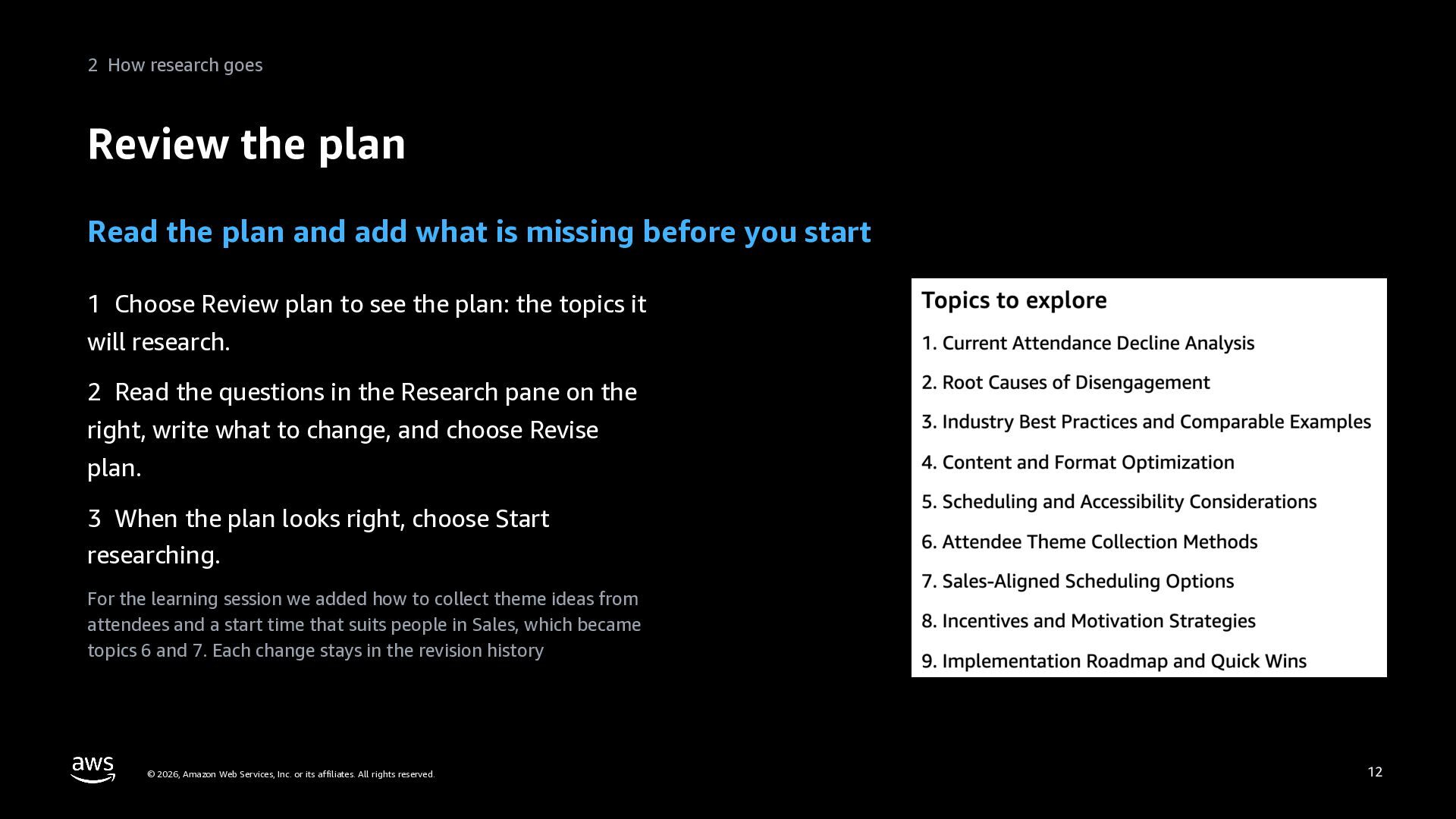
  12. 2 How research goes Review the plan Read the plan

    and add what is missing before you start 1 Choose Review plan to see the plan: the topics it will research. 2 Read the questions in the Research pane on the right, write what to change, and choose Revise plan. 3 When the plan looks right, choose Start researching. For the learning session we added how to collect theme ideas from attendees and a start time that suits people in Sales, which became topics 6 and 7. Each change stays in the revision history © 2026, Amazon Web Services, Inc. or its affiliates. All rights reserved. 12
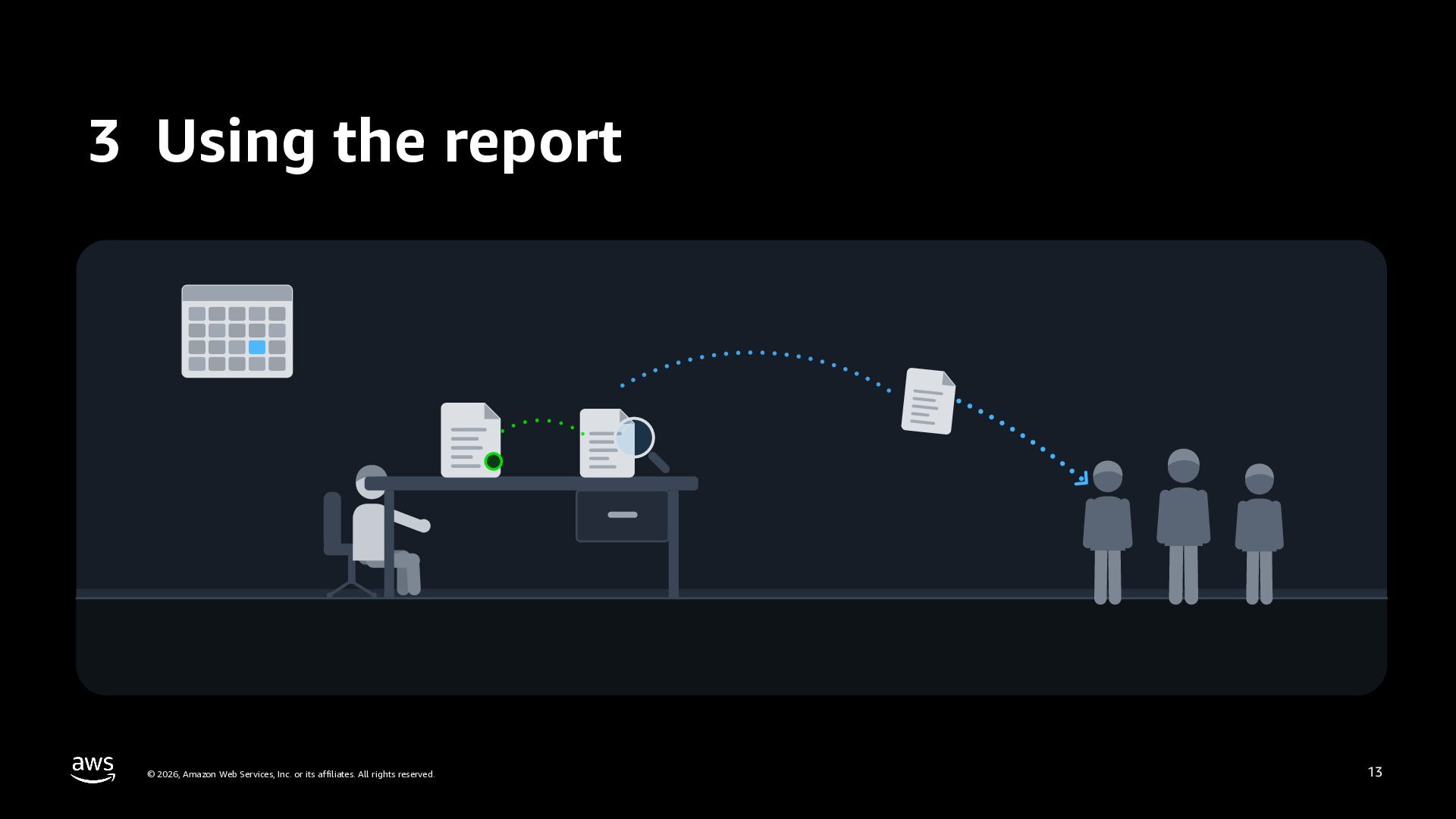
  13. 3 Using the report © 2026, Amazon Web Services, Inc.

    or its affiliates. All rights reserved. 13
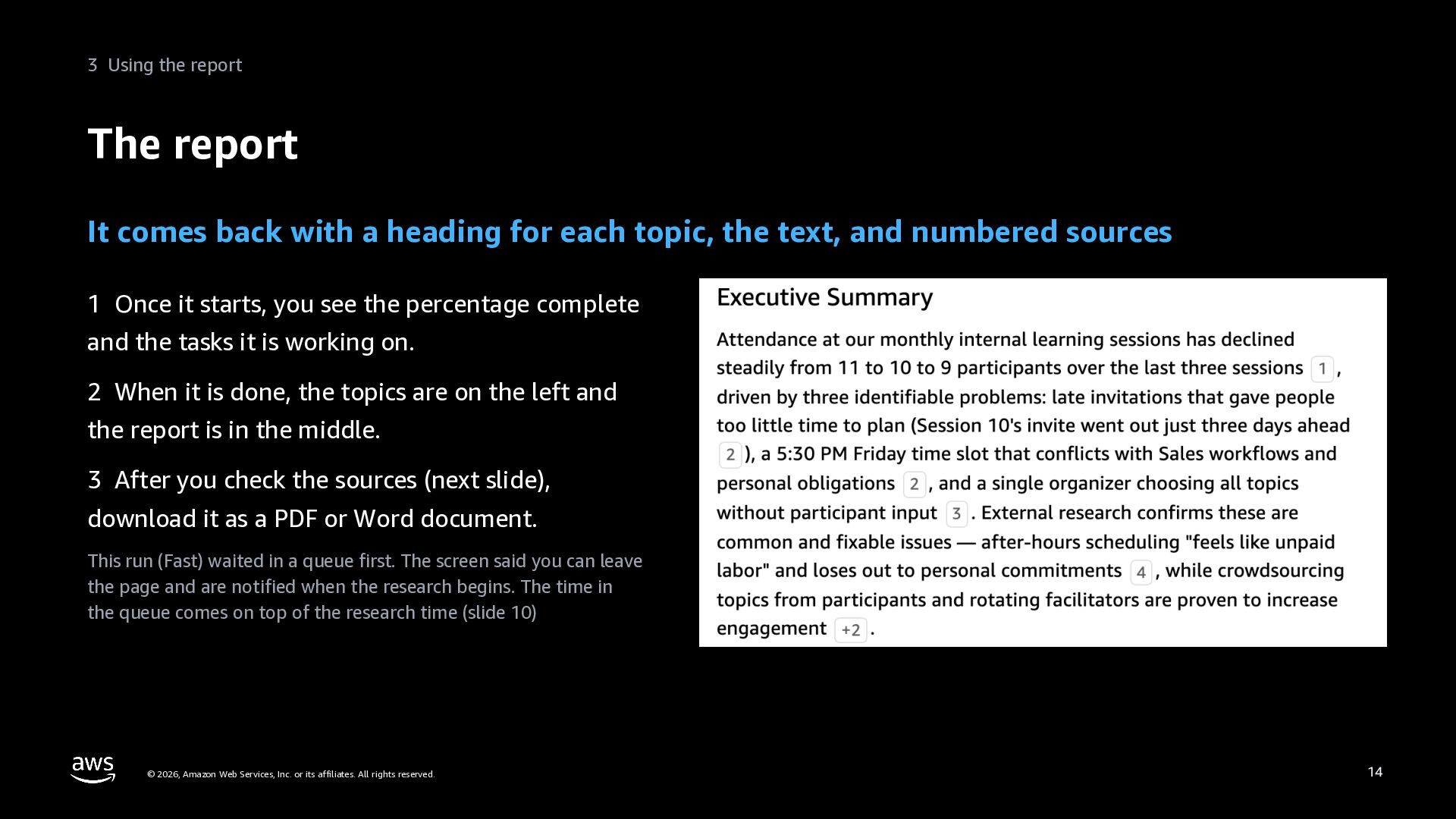
  14. 3 Using the report The report It comes back with

    a heading for each topic, the text, and numbered sources 1 Once it starts, you see the percentage complete and the tasks it is working on. 2 When it is done, the topics are on the left and the report is in the middle. 3 After you check the sources (next slide), download it as a PDF or Word document. This run (Fast) waited in a queue first. The screen said you can leave the page and are notified when the research begins. The time in the queue comes on top of the research time (slide 10) © 2026, Amazon Web Services, Inc. or its affiliates. All rights reserved. 14
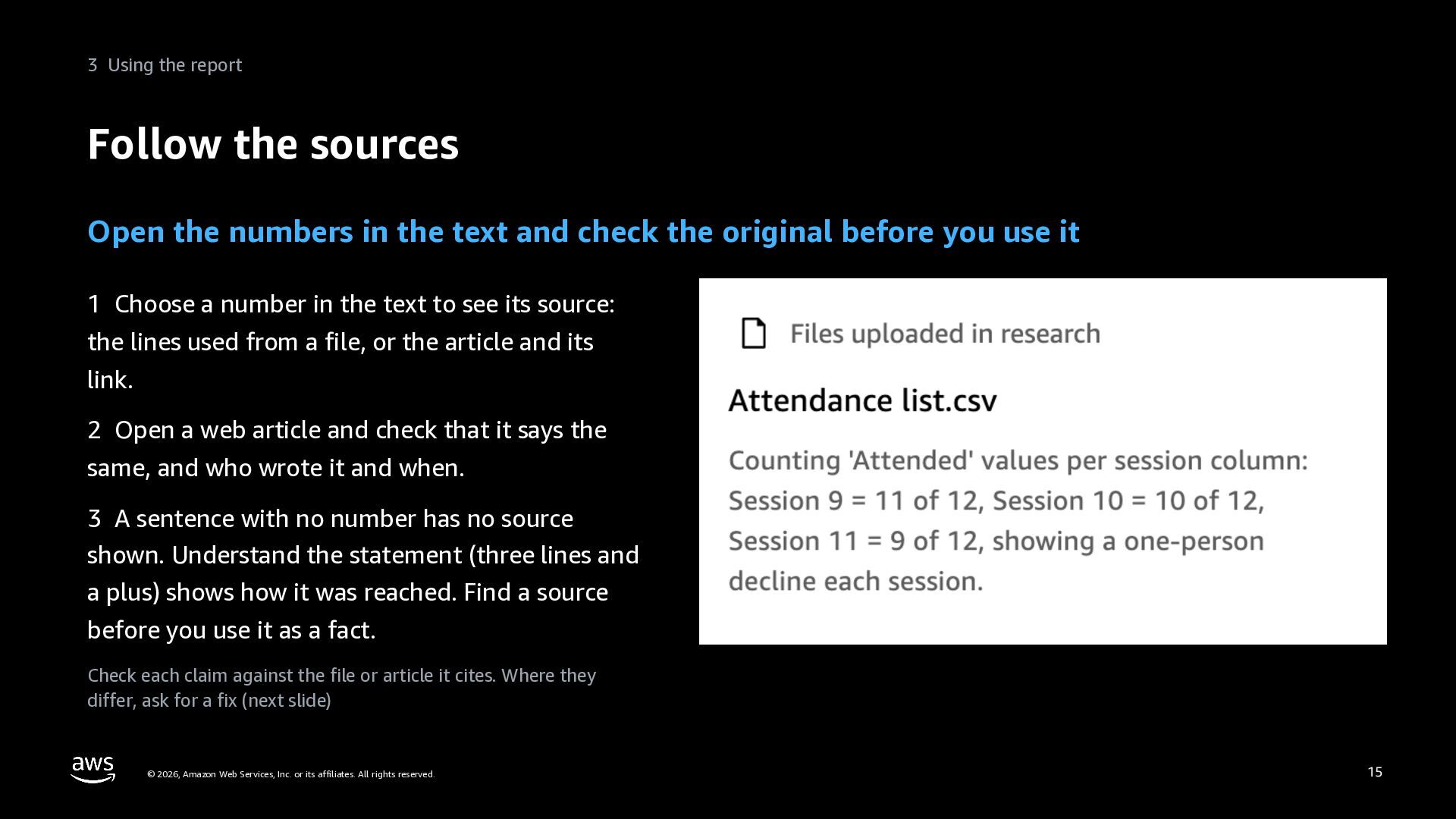
  15. 3 Using the report Follow the sources Open the numbers

    in the text and check the original before you use it 1 Choose a number in the text to see its source: the lines used from a file, or the article and its link. 2 Open a web article and check that it says the same, and who wrote it and when. 3 A sentence with no number has no source shown. Understand the statement (three lines and a plus) shows how it was reached. Find a source before you use it as a fact. Check each claim against the file or article it cites. Where they differ, ask for a fix (next slide) © 2026, Amazon Web Services, Inc. or its affiliates. All rights reserved. 15
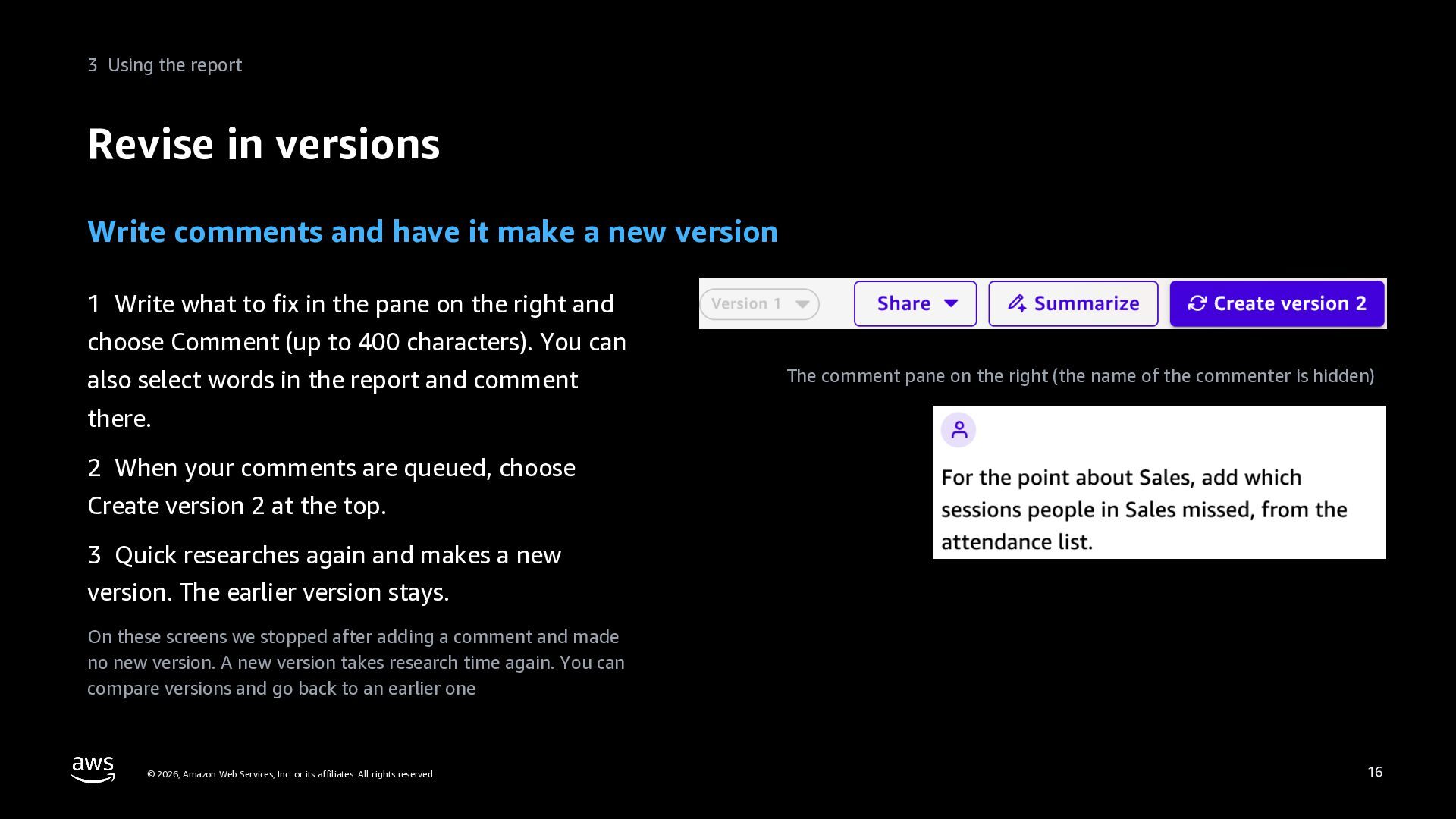
  16. 3 Using the report Revise in versions Write comments and

    have it make a new version 1 Write what to fix in the pane on the right and choose Comment (up to 400 characters). You can also select words in the report and comment The comment pane on the right (the name of the commenter is hidden) there. 2 When your comments are queued, choose Create version 2 at the top. 3 Quick researches again and makes a new version. The earlier version stays. On these screens we stopped after adding a comment and made no new version. A new version takes research time again. You can compare versions and go back to an earlier one © 2026, Amazon Web Services, Inc. or its affiliates. All rights reserved. 16
  17. 3 Using the report Summarize and share Make a summary

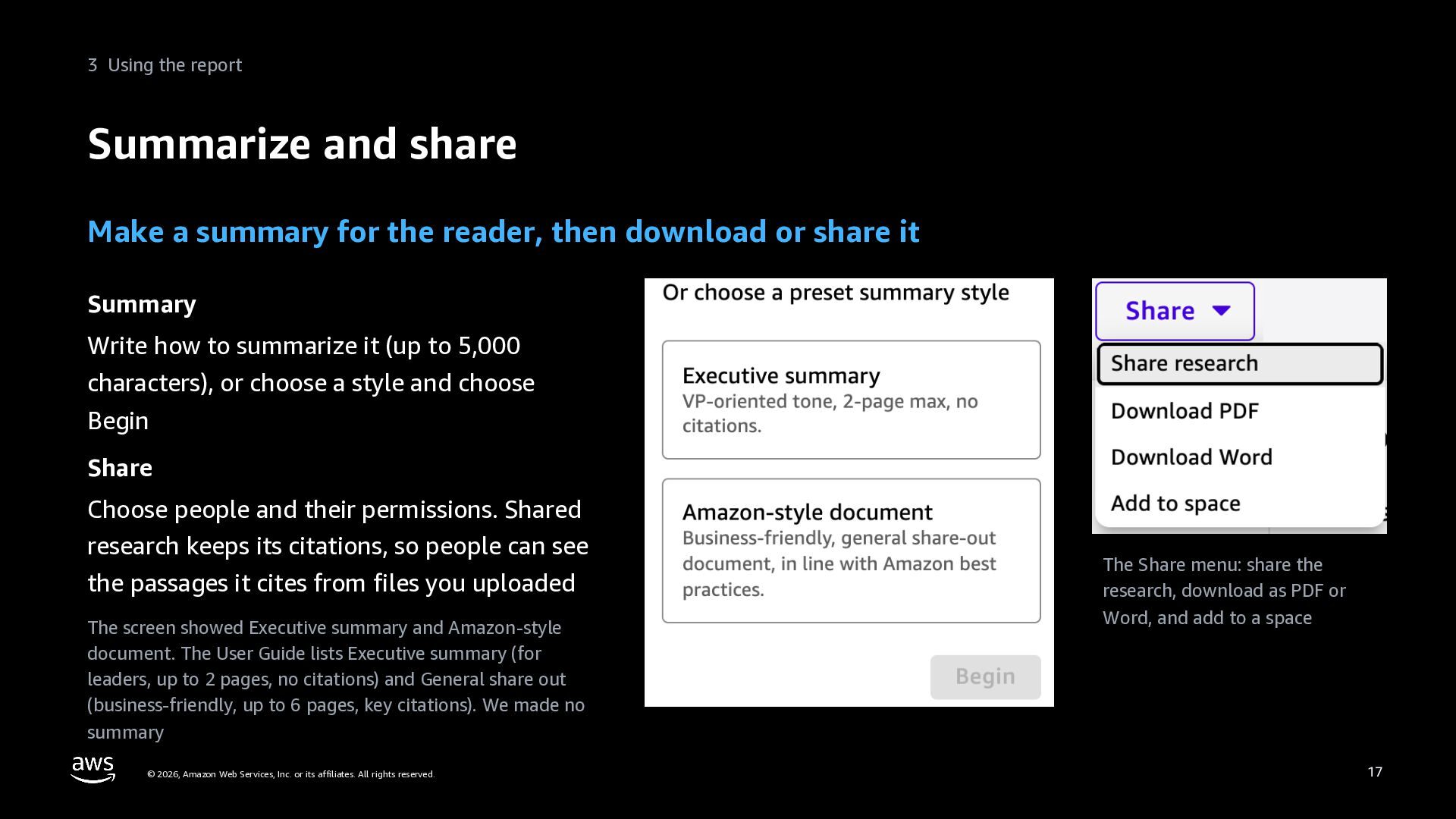
    for the reader, then download or share it Summary Write how to summarize it (up to 5,000 characters), or choose a style and choose Begin Share Choose people and their permissions. Shared research keeps its citations, so people can see the passages it cites from files you uploaded The screen showed Executive summary and Amazon-style document. The User Guide lists Executive summary (for leaders, up to 2 pages, no citations) and General share out (business-friendly, up to 6 pages, key citations). We made no summary © 2026, Amazon Web Services, Inc. or its affiliates. All rights reserved. The Share menu: share the research, download as PDF or Word, and add to a space 17
  18. 3 Using the report Run it on a schedule With

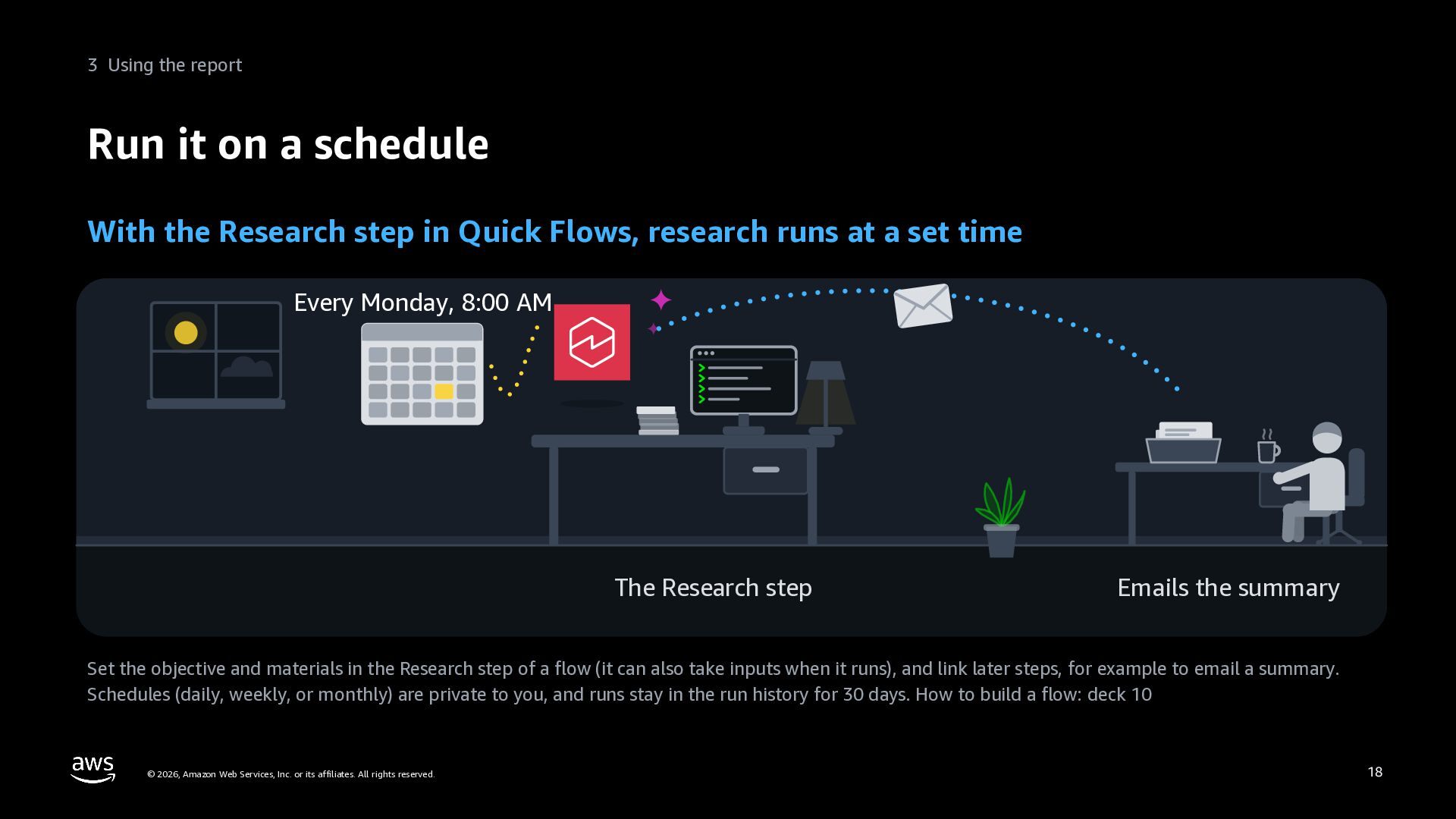
    the Research step in Quick Flows, research runs at a set time Every Monday, 8:00 AM The Research step Emails the summary Set the objective and materials in the Research step of a flow (it can also take inputs when it runs), and link later steps, for example to email a summary. Schedules (daily, weekly, or monthly) are private to you, and runs stay in the run history for 30 days. How to build a flow: deck 10 © 2026, Amazon Web Services, Inc. or its affiliates. All rights reserved. 18
  19. 3 Using the report Third-party data Where your account shows

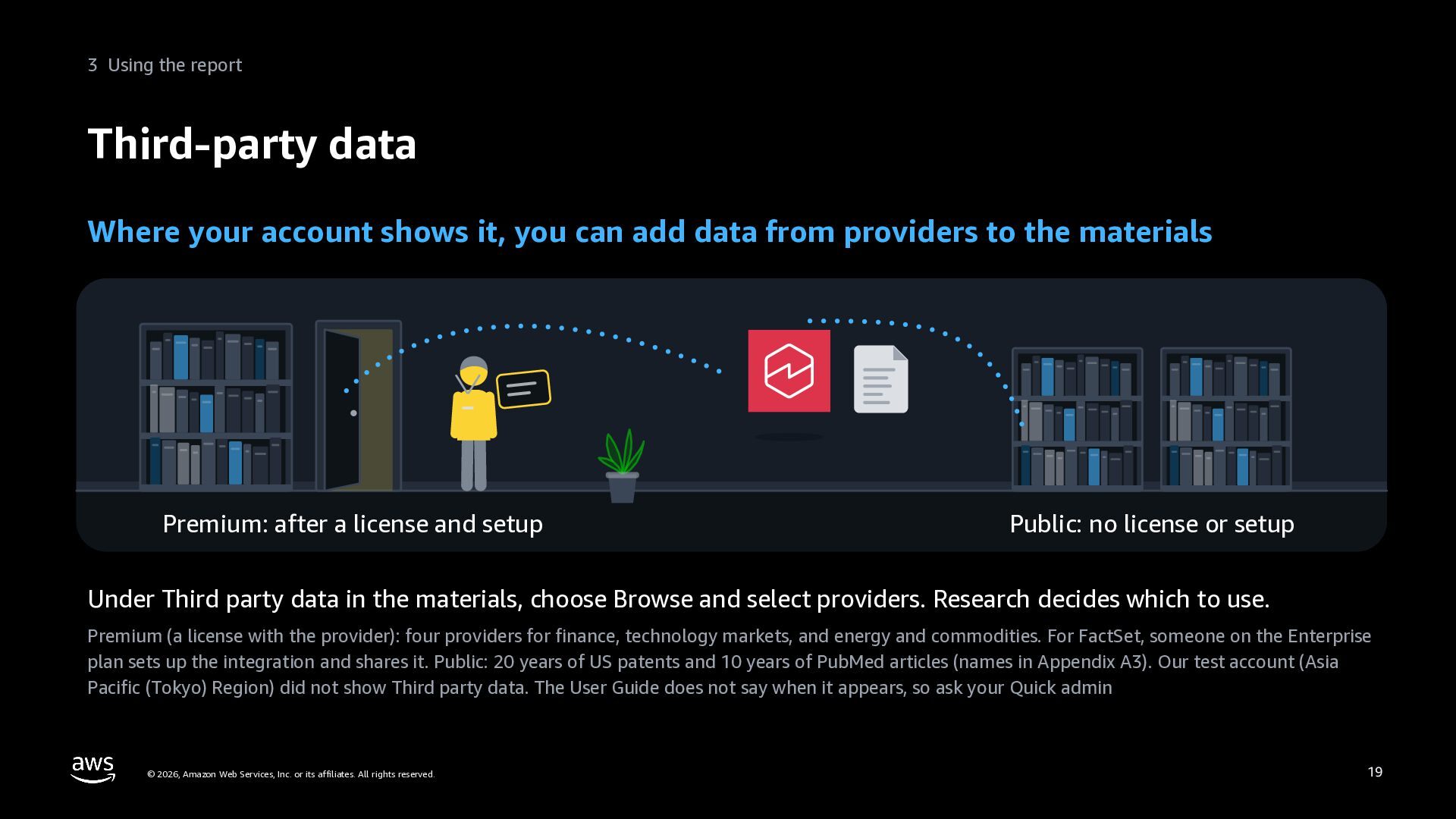
    it, you can add data from providers to the materials Premium: after a license and setup Public: no license or setup Under Third party data in the materials, choose Browse and select providers. Research decides which to use. Premium (a license with the provider): four providers for finance, technology markets, and energy and commodities. For FactSet, someone on the Enterprise plan sets up the integration and shares it. Public: 20 years of US patents and 10 years of PubMed articles (names in Appendix A3). Our test account (Asia Pacific (Tokyo) Region) did not show Third party data. The User Guide does not say when it appears, so ask your Quick admin © 2026, Amazon Web Services, Inc. or its affiliates. All rights reserved. 19
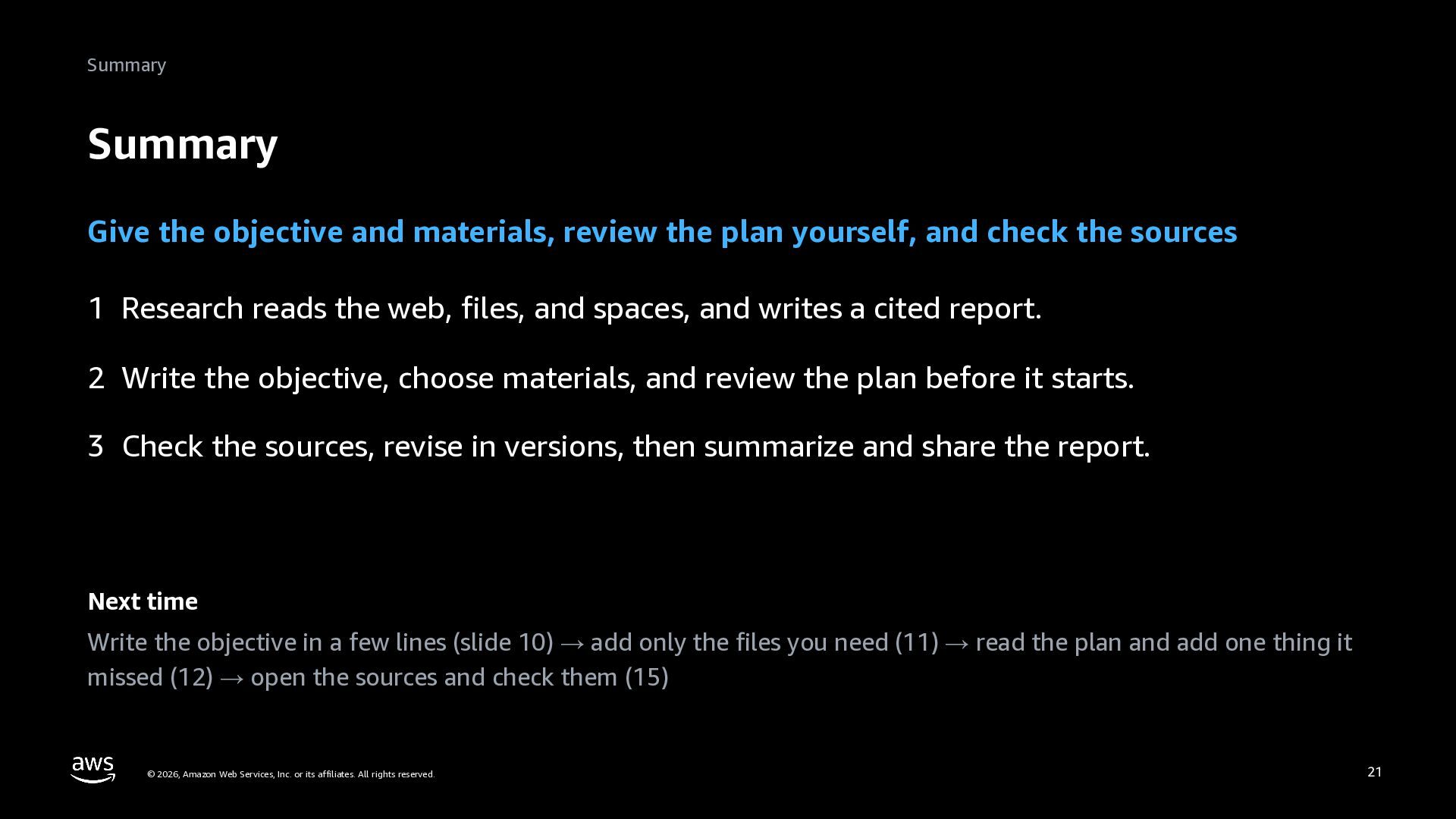
  20. Summary Summary Give the objective and materials, review the plan

    yourself, and check the sources 1 Research reads the web, files, and spaces, and writes a cited report. 2 Write the objective, choose materials, and review the plan before it starts. 3 Check the sources, revise in versions, then summarize and share the report. Next time Write the objective in a few lines (slide 10) → add only the files you need (11) → read the plan and add one thing it missed (12) → open the sources and check them (15) © 2026, Amazon Web Services, Inc. or its affiliates. All rights reserved. 21
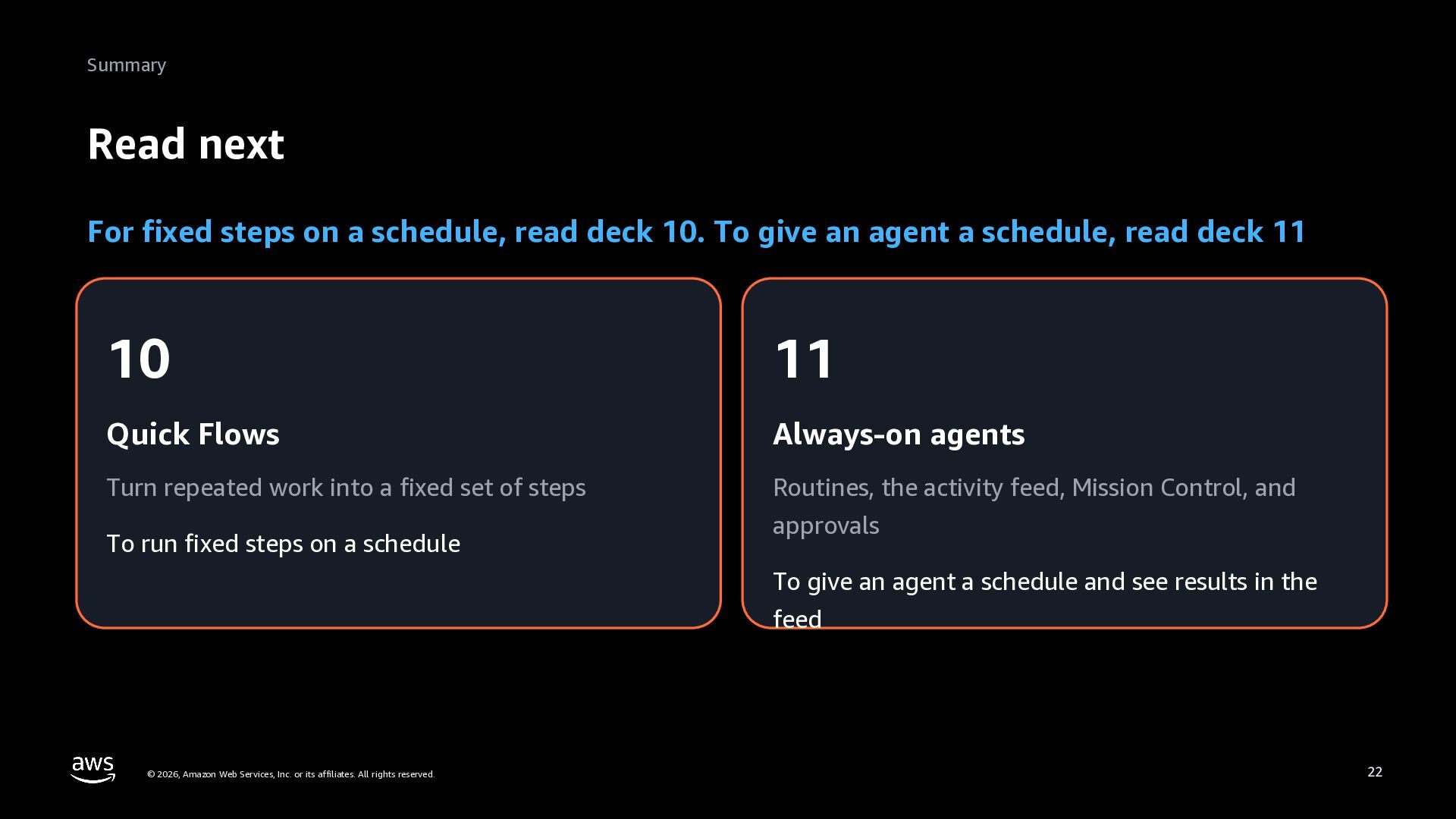
  21. Summary Read next For fixed steps on a schedule, read

    deck 10. To give an agent a schedule, read deck 11 10 11 Quick Flows Always-on agents Turn repeated work into a fixed set of steps Routines, the activity feed, Mission Control, and To run fixed steps on a schedule approvals To give an agent a schedule and see results in the feed © 2026, Amazon Web Services, Inc. or its affiliates. All rights reserved. 22
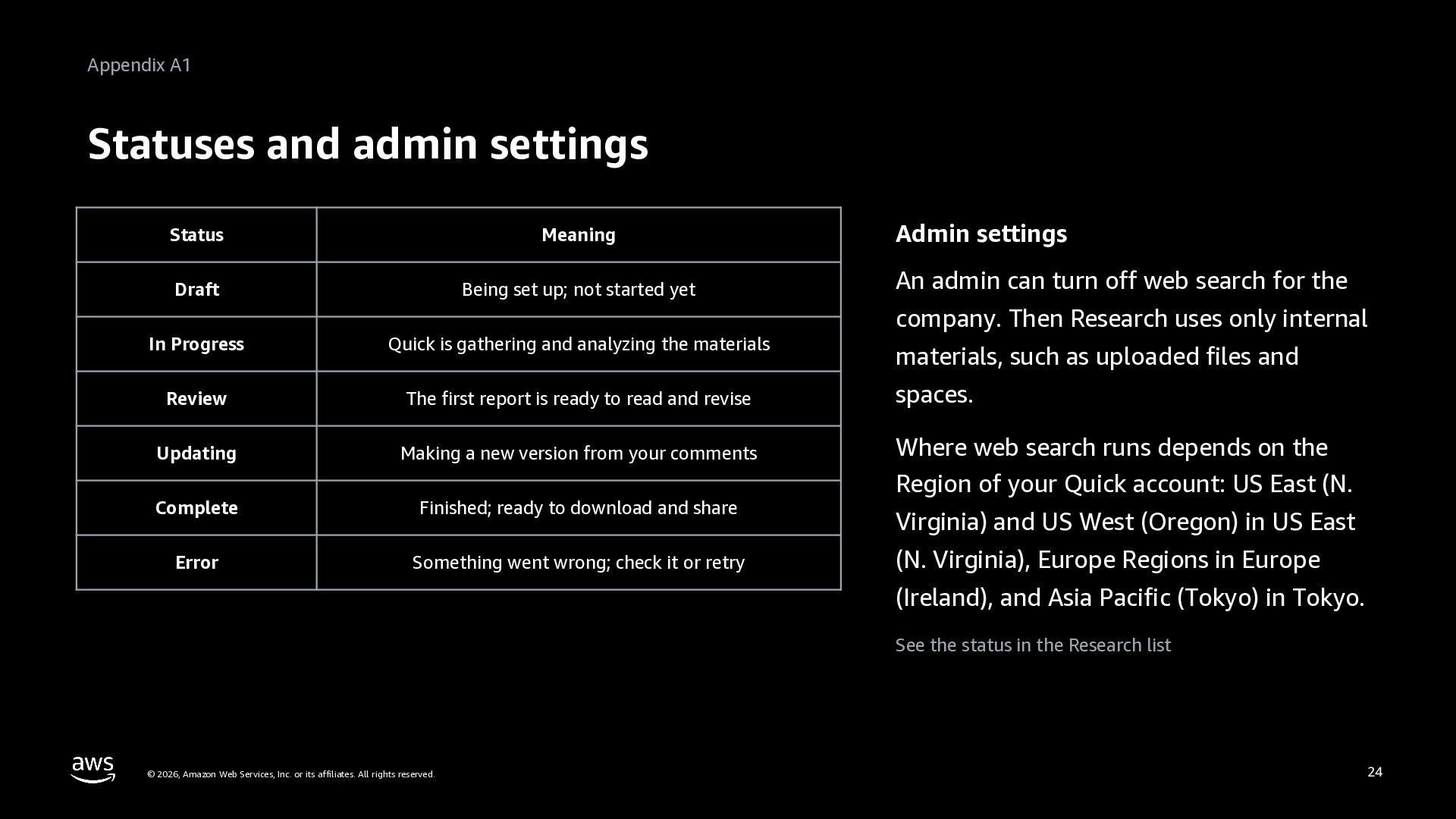
  22. Appendix A1 Statuses and admin settings Status Meaning Draft Being

    set up; not started yet Admin settings An admin can turn off web search for the company. Then Research uses only internal In Progress Quick is gathering and analyzing the materials Review The first report is ready to read and revise spaces. Updating Making a new version from your comments Where web search runs depends on the Complete Finished; ready to download and share Error Something went wrong; check it or retry materials, such as uploaded files and Region of your Quick account: US East (N. Virginia) and US West (Oregon) in US East (N. Virginia), Europe Regions in Europe (Ireland), and Asia Pacific (Tokyo) in Tokyo. See the status in the Research list © 2026, Amazon Web Services, Inc. or its affiliates. All rights reserved. 24
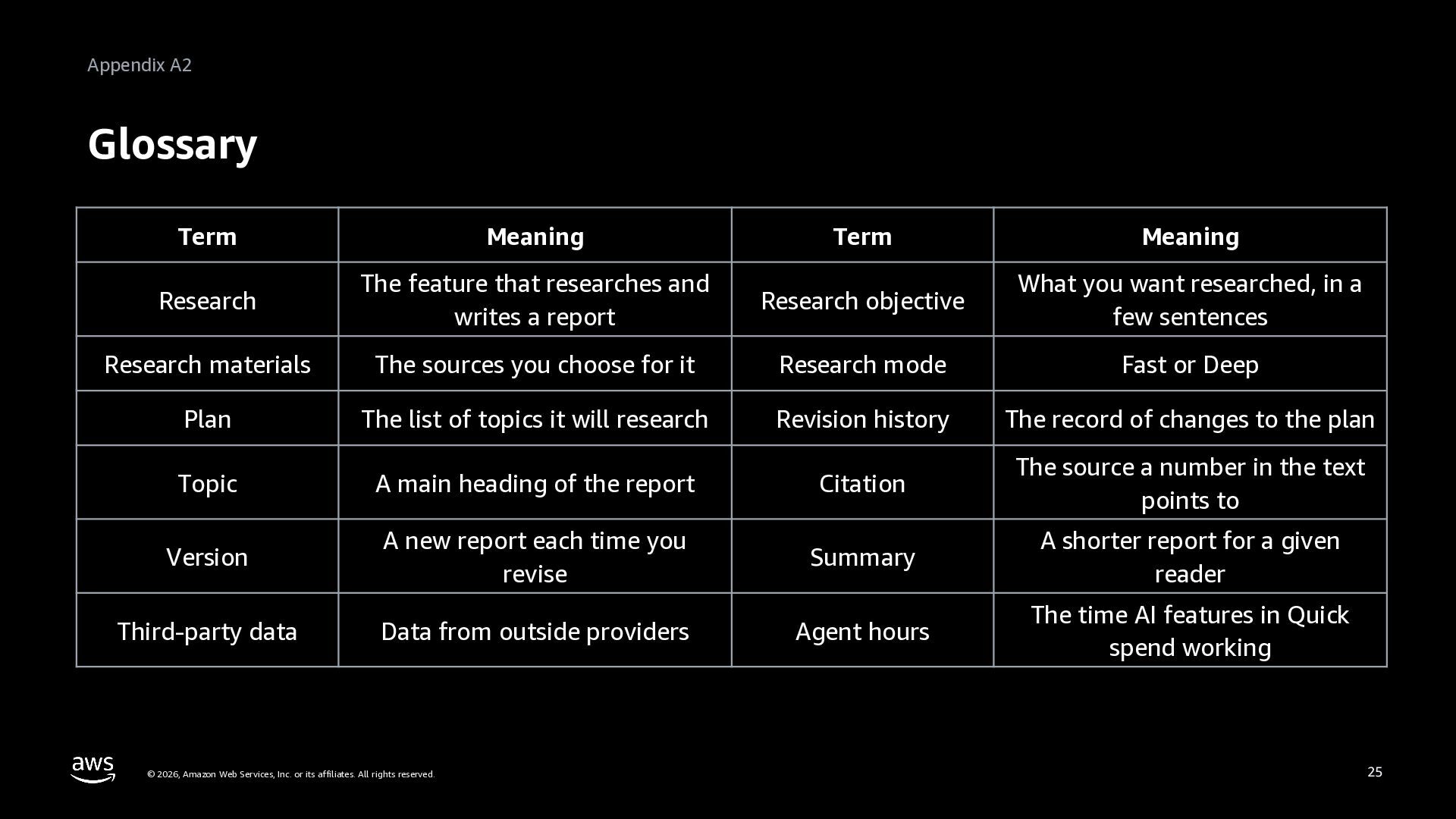
  23. Appendix A2 Glossary Term Meaning Term Meaning Research The feature

    that researches and writes a report Research objective What you want researched, in a few sentences Research materials The sources you choose for it Research mode Fast or Deep Plan The list of topics it will research Revision history The record of changes to the plan Topic A main heading of the report Citation The source a number in the text points to Version A new report each time you revise Summary A shorter report for a given reader Third-party data Data from outside providers Agent hours The time AI features in Quick spend working © 2026, Amazon Web Services, Inc. or its affiliates. All rights reserved. 25
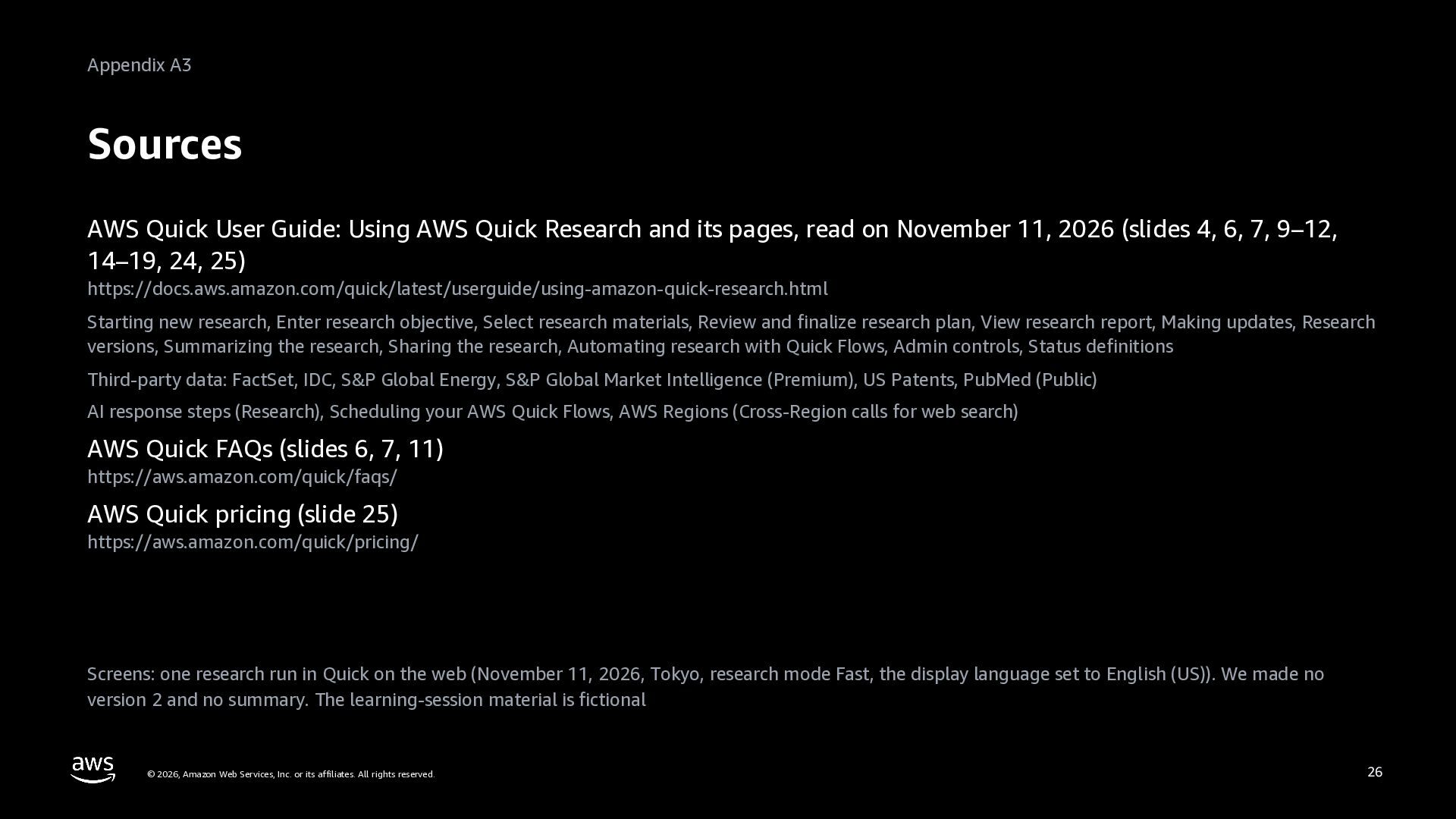
  24. Appendix A3 Sources AWS Quick User Guide: Using AWS Quick

    Research and its pages, read on November 11, 2026 (slides 4, 6, 7, 9–12, 14–19, 24, 25) https://docs.aws.amazon.com/quick/latest/userguide/using-amazon-quick-research.html Starting new research, Enter research objective, Select research materials, Review and finalize research plan, View research report, Making updates, Research versions, Summarizing the research, Sharing the research, Automating research with Quick Flows, Admin controls, Status definitions Third-party data: FactSet, IDC, S&P Global Energy, S&P Global Market Intelligence (Premium), US Patents, PubMed (Public) AI response steps (Research), Scheduling your AWS Quick Flows, AWS Regions (Cross-Region calls for web search) AWS Quick FAQs (slides 6, 7, 11) https://aws.amazon.com/quick/faqs/ AWS Quick pricing (slide 25) https://aws.amazon.com/quick/pricing/ Screens: one research run in Quick on the web (November 11, 2026, Tokyo, research mode Fast, the display language set to English (US)). We made no version 2 and no summary. The learning-session material is fictional © 2026, Amazon Web Services, Inc. or its affiliates. All rights reserved. 26

More Decks by Riku INADA

Other Decks in Technology