Share
Embed
SwiftUI Christmas 交換禮物 App
SwiftUI
EnvironmentObject
@Published
UIViewRepresentable
SheetDB
AVPlayerLooper
CAEmitterLayer
愛瘋一切為蘋果的彼得潘
December 27, 2019
Transcript
71 slides
-
彼得潘簡介 App程式設計入⾨:iPhone.iPad 彼得潘的 Swift 程式設計入⾨ 正職: 作家 副業: 專欄作家,⼯程師,講師,顧問,家教,App評審, App接案,企業包班,創業家,iOS
APP ⾦牌擺渡⼈, iOS App⼯程師/外包廠商的⾯試鑑賞師 http://apppeterpan.strikingly.com -
定義畫⾯的型別 struct ContentView: View { var body: some View {
Text("Hello World") } } struct ContentView_Previews: PreviewProvider { static var previews: some View { ContentView() } } 預覽呈現的畫⾯,在此我們⽣成型別 ContentView 的元件當 預覽畫⾯ SwiftUI 的 UI 元件以 struct 定義, 遵從 protocol View -
SwiftUI 的 UI 元件以 struct 定義, 遵從 protocol View struct
Button<Label> : View where Label : View struct Text : Equatable extension Text : View struct Image : Equatable extension Image : View -
變數 body 的內容決定畫⾯顯⽰ 的東⻄ var body: some View { return
Text("Hello World") } var body: some View { Text("Hello World") } 只有⼀⾏程式時可以省略 return 沒有省略 return 遵從 protocol View 要定義 computed property body,在 body 裡回傳畫⾯顯⽰的內容。 省略 return http://bit.ly/2FuvcTA -
var body: some View struct ContentView: View { var body:
some View { Text("Hello World") } } • 回傳的元件的型別須遵從 protocol View,必須是 某⼀種 view,畫⾯才能顯⽰,比⽅⽂字,圖片等 • some 跟 Swift 的 Opaque Types 有關, https://docs.swift.org/swift-book/LanguageGuide/OpaqueTypes.html -
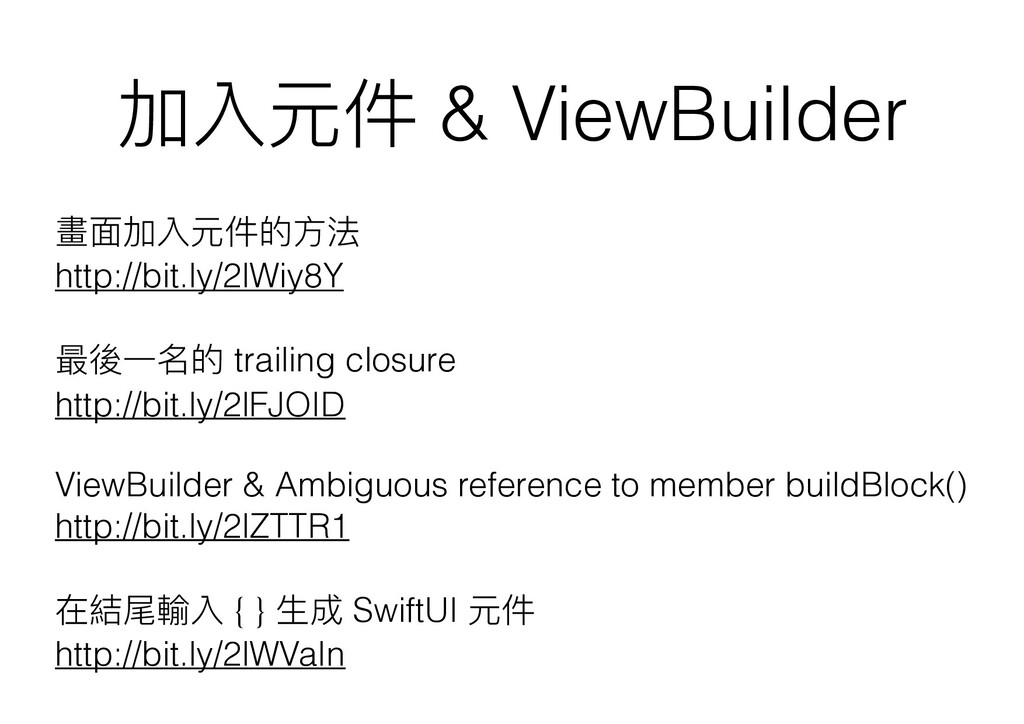
加入元件 & ViewBuilder 畫⾯加入元件的⽅法 http://bit.ly/2lWiy8Y 最後⼀名的 trailing closure http://bit.ly/2lFJOID ViewBuilder
& Ambiguous reference to member buildBlock() http://bit.ly/2lZTTR1 在結尾輸入 { } ⽣成 SwiftUI 元件 http://bit.ly/2lWVaIn -
⽤ TabView 實現 tab ⾴⾯ 利⽤ tabItem(_:) 設定 tab 的圖片和⽂字
struct ContentView: View { var body: some View { TabView { FriendsList() .tabItem { Text("Friends") Image(systemName: "rectangle.stack.person.crop.fill") } MatchView() .tabItem { Text("Match") Image(systemName: "gift.fill") } GifteesList() .tabItem { Text("Giftees") Image(systemName: "person.2.fill") } } } } -
Tab Bar 顏⾊ accentColor: 設定 tab icon & ⽂字黃⾊ onAppear:
畫⾯出現時設定 tab bar 紅⾊ accentColor 說明 http://bit.ly/2kONtEf -
利⽤ environmentObject & @EnvironmentObject 共享資料 func scene(_ scene: UIScene, willConnectTo
session: UISceneSession, options connectionOptions: UIScene.ConnectionOptions) { // Create the SwiftUI view that provides the window contents. let contentView = ContentView() .environmentObject(FriendsData()) // Use a UIHostingController as window root view controller. if let windowScene = scene as? UIWindowScene { let window = UIWindow(windowScene: windowScene) window.rootViewController = UIHostingController(rootView: contentView) self.window = window window.makeKeyAndVisible() } } SceneDelegate.swift IOS 13 App 啟動後,⼀開始會觸發 function scene(_:willConnectTo:options:), 利⽤ UIHostingController 設定 SwiftUI 的 view 為第⼀個畫⾯ -
利⽤ environmentObject & @EnvironmentObject 共享資料 let contentView = ContentView() .environmentObject(FriendsData())
• 呼叫 environmentObject,傳入要共享的資料 • 型別遵從 protocol ObservableObject 的資料才能搭配 environmentObject • ContentView 呼叫 environmentObject 後,它的 child view 可宣告 @EnvironmentObject 變數讀取共享的資料 -
型別遵從 protocol ObservableObject 的資料才能搭配 environmentObject class FriendsData: ObservableObject { @Published
var friends = [Friend]() Observable: 可被觀察 ⽬標: 三個 tab 分⾴都能讀取 array friends @Published 等下說明 -
@EnvironmentObject 變數 • 讀取共享的資料 • 表⽰它想觀察共享的資料,想要共享資料在內容變動 時通知它畫⾯更新,比⽅ friendsData 的 array
friend 儲存網路上抓到的 JSON 資料後,觸發 FriendList 畫⾯更新 struct FriendsList: View { @EnvironmentObject var friendsData: FriendsData -
@EnvironmentObject 變數如何 存取資料 ContentView TabView FriendsList 以 @EnvironmentObject 宣告的變數會以型別找尋是否有⽤ function
environmentObject 設定的共享資料,比⽅ FriendsList 會先從它⾃⼰尋找型別 FriendsData 的資料,如果它 沒有呼叫 environmentObject 設定型別 FriendsData 的資料,它會再找 parent view,看 TabView 是否有設定共享資料,如果找不到再找 ContentView。 struct FriendsList: View { @EnvironmentObject var friendsData: FriendsData 從 Parent View ⼀層⼀層往上找 -
@EnvironmentObject 變數從⾃⼰和之前的 parent view 都讀取不到資料時程式會閃退 ContentView TabView FriendsList Fatal error:
No ObservableObject of type FriendsData found. A View.environmentObject(_:) for FriendsData may be missing as an ancestor of this view.: file /BuildRoot/Library/Caches/ com.apple.xbs/Sources/Monoceros_Sim/Monoceros-39.4.3/Core/ EnvironmentObject.swift, line 55 struct FriendsList: View { @EnvironmentObject var friendsData: FriendsData -
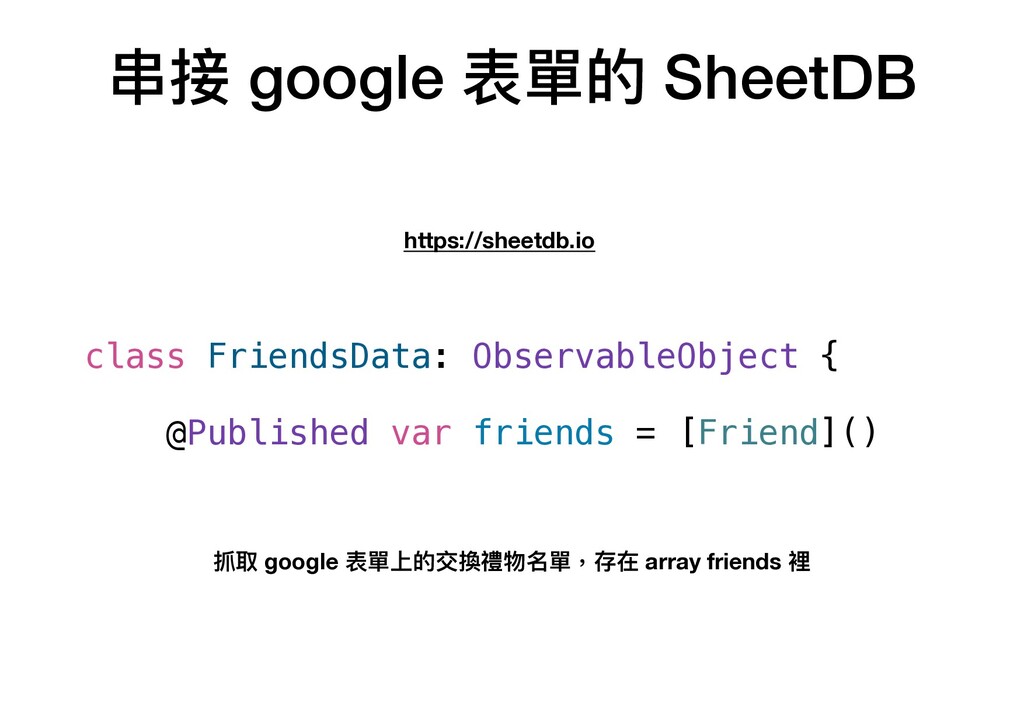
串接 google 表單的 SheetDB https://sheetdb.io 抓取 google 表單上的交換禮物名單,存在 array friends
裡 class FriendsData: ObservableObject { @Published var friends = [Friend]() -
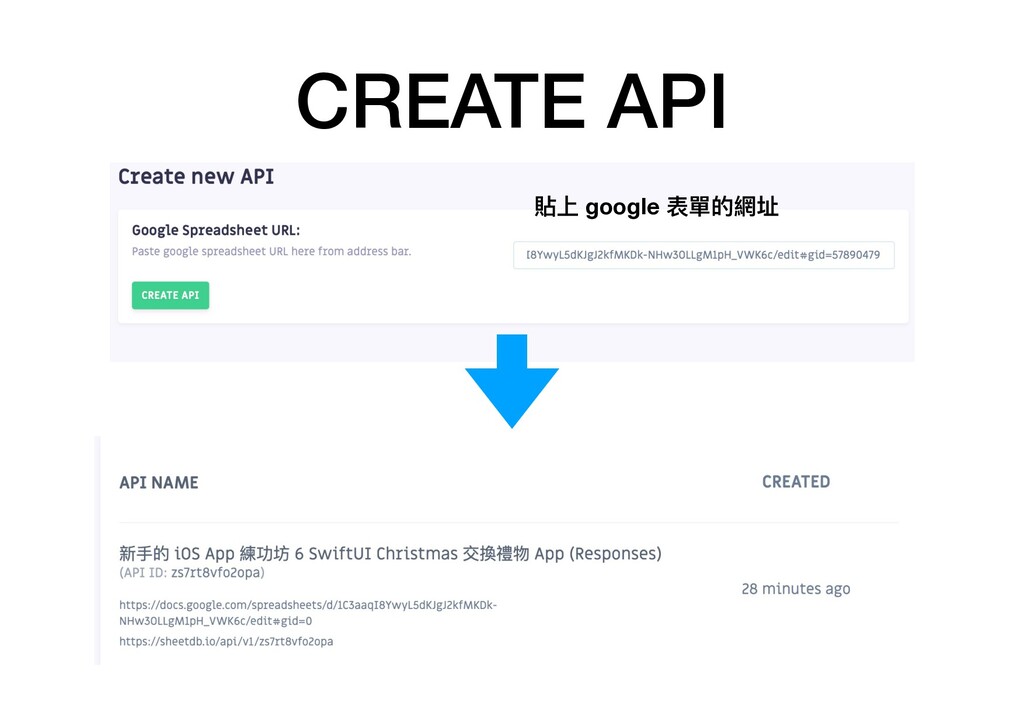
copy google 表單的網址 google form 產⽣的表單 將欄位名稱姓名 & 電⼦郵件改成 name
& email,讓 JSON 欄位變英⽂ -
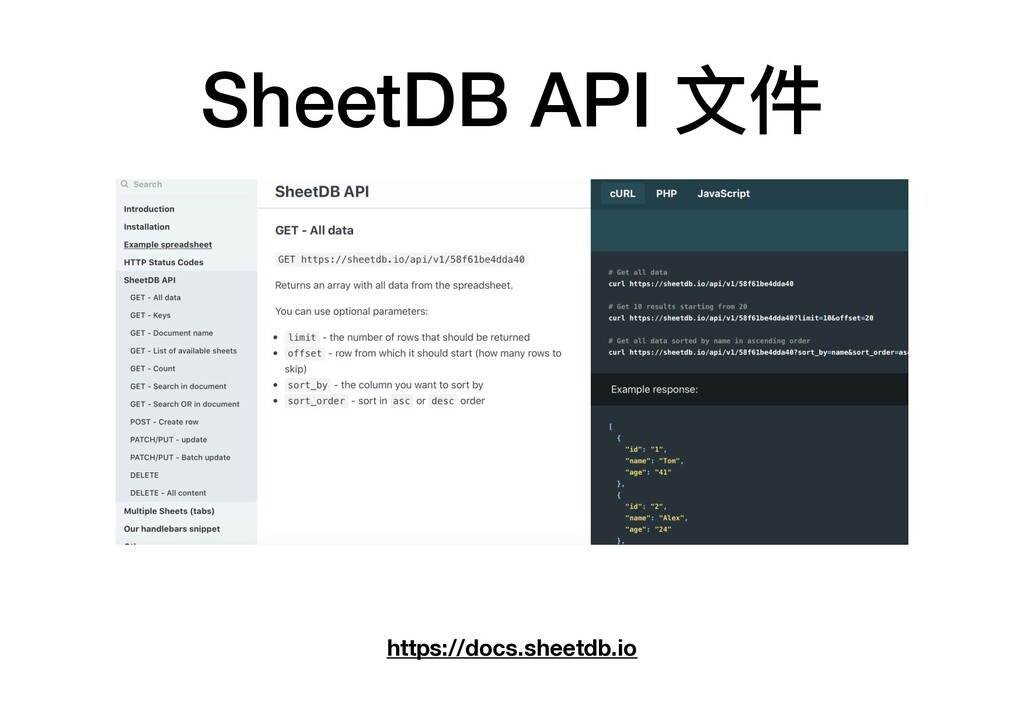
說明 class FriendsData & Friend init() { URLSession.shared.dataTask(with: URL(string: "https://
sheetdb.io/api/v1/zs7rt8vfo2opa")!) { data, response, error in guard let data = data, let array = try? JSONDecoder().decode([Friend].self, from: data) else { print(String(describing: error)) return } DispatchQueue.main.async { self.friends = array self.currentGifter = self.friends.randomElement() self.firstGifter = self.currentGifter } }.resume() } FriendsData 的 init 將抓到的名單存在 array friends -
class Friend: Codable, Identifiable { // JSON field let name:
String /* non JSON field, id 是宣告時就指定內容的常數, 因此不需要包含在 JSON 的欄位裡, 另外 App 將使⽤到 gifter & giftee, 它們都是 optional,跟 JSON 無關 */ let id = UUID() // 給禮物的⼈,從 gifter 得到禮物 var gifter: Friend? // 收到禮物的⼈,將禮物送給 giftee var giftee: Friend? // 是否已送出禮物 var gaveGift: Bool { giftee != nil } // 是否已得到禮物 var gotGift: Bool { gifter != nil } } Identifiable & id : 待會 SwiftUI 會⽤到 -
以 @Published 決定哪些 property 變化時要通知畫⾯更新 class FriendsData: ObservableObject { @Published
var friends = [Friend]() @Published var currentGifter: Friend? 宣告 friends & currentGifter 時加上 @Published, 代表 friends & currentGifter 有變化時會通知觀察 FriendsData 的對象 FriendsList,MatchView,GifteesList 都有以 @EnvironmentObject 宣告 friendsData, 因此我們抓到資料,存到 array friends 時,這三個畫⾯都會更新 @EnvironmentObject var friendsData: FriendsData -
demo 如果 friends & currentGifter 沒有加上 @Published class FriendsData: ObservableObject
{ var friends = [Friend]() var currentGifter: Friend? 抓到資料時,朋友列表不會更新 -
要從 main thread publish change init() { URLSession.shared.dataTask(with: URL(string: "https://
sheetdb.io/api/v1/zs7rt8vfo2opa")!) { data, response, error in guard let data = data, let array = try? JSONDecoder().decode([Friend].self, from: data) else { print(String(describing: error)) return } DispatchQueue.main.async { self.friends = array self.currentGifter = self.friends.randomElement() self.firstGifter = self.currentGifter } }.resume() } -
如果從 background thread publish change 更新會比較慢 Publishing changes from background
threads is not allowed -
SwiftUI 的表格: List 顯⽰朋友列表的 FriendsList List(friendsData.friends.indices, id: \.self, rowContent: {
(index) in FriendRow(friend: self.friendsData.friends[index], index: index) }) List 的資料數量會變化時,搭配 range 當參數要記得加 id http://bit.ly/31BIwxM ⽤ array 成員的編號當 id ,因此 0, 1, 2 會成為 id -
FriendRow struct FriendRow: View { var friend: Friend var index:
Int var body: some View { HStack { VStack(alignment: .leading) { Text(friend.name) .font(.title) .foregroundColor(.black) Text("giftee: \(friend.giftee?.name ?? "") gifter: \ (friend.gifter?.name ?? "")") .foregroundColor(.gray) } Spacer() } .padding() .background(Color.white) .cornerRadius(20) .shadow(radius: 5) .overlay(Image(index.isMultiple(of: 2) ? "sock" : "mistletoe"), alignment: .topTrailing) } } Spacer 說明 http://bit.ly/2kp9pFy -
preview 也要設定 environmentObject, 否則 preview 會找不到資料 struct FriendsList_Previews: PreviewProvider {
static var previews: some View { FriendsList() } } Generate Report -
FriendsData 下定義讀取 local JSON 的 init init(from file: String) {
guard let url = Bundle.main.url(forResource: file, withExtension: "json"), let data = try? Data(contentsOf: url), let array = try? JSONDecoder().decode([Friend].self, from: data) else { return } self.friends = array self.currentGifter = self.friends.randomElement() self.firstGifter = self.currentGifter } -
從 ContentView 的 preview 測試 struct ContentView_Previews: PreviewProvider { static
var previews: some View { ContentView().environmentObject(FriendsData(from: "gift")) } } FriendsList,MatchView,GifteesList 若要測試 preview, struct preview 型別裡都要加上 environmentObject(FriendsData(from: "gift")) -
播⾳樂的 MusicBar • 利⽤ background 設定背景圖 & 顏⾊ • http://bit.ly/2ZnWCTT
• 以 tile 排列圖片 • 以 AVPlayerLooper 重覆播放⾳樂 • http://bit.ly/2PV3GEn • 利⽤ @State 設定變數內容和更新畫⾯ • http://bit.ly/2kt3teE ps: 要執⾏ App 才能聽到⾳樂,從預覽聽不到 -
在 ContentView 加入 MusicBar struct ContentView: View { var body:
some View { TabView { FriendsList() .tabItem { Text("Friends") Image(systemName: "rectangle.stack.person.crop.fill") } .padding(.bottom, 49) MatchView() .tabItem { Text("Match") Image(systemName: "gift.fill") } GifteesList() .tabItem { Text("Giftees") Image(systemName: "person.2.fill") } } .edgesIgnoringSafeArea(.top) .overlay(MusicBar().offset(x: 0, y: -49), alignment: .bottom) } } padding 說明 http://bit.ly/2kp9pFy 讓表格內容不會被檔到 讓 MusicBar 不會檔到 Tab -
MatchView full screen 的 背景圖片 var body: some View {
NavigationView { ZStack { Image("xmasBackground") .resizable() .scaledToFill() .opacity(0.7) .edgesIgnoringSafeArea(.all) MatchView ContentView 的 TabView 要設定 edgesIgnoringSafeArea(.top), 否則圖片的上⽅會多出⼀塊 status bar edgesIgnoringSafeArea 說明 http://bit.ly/2msrLqr -
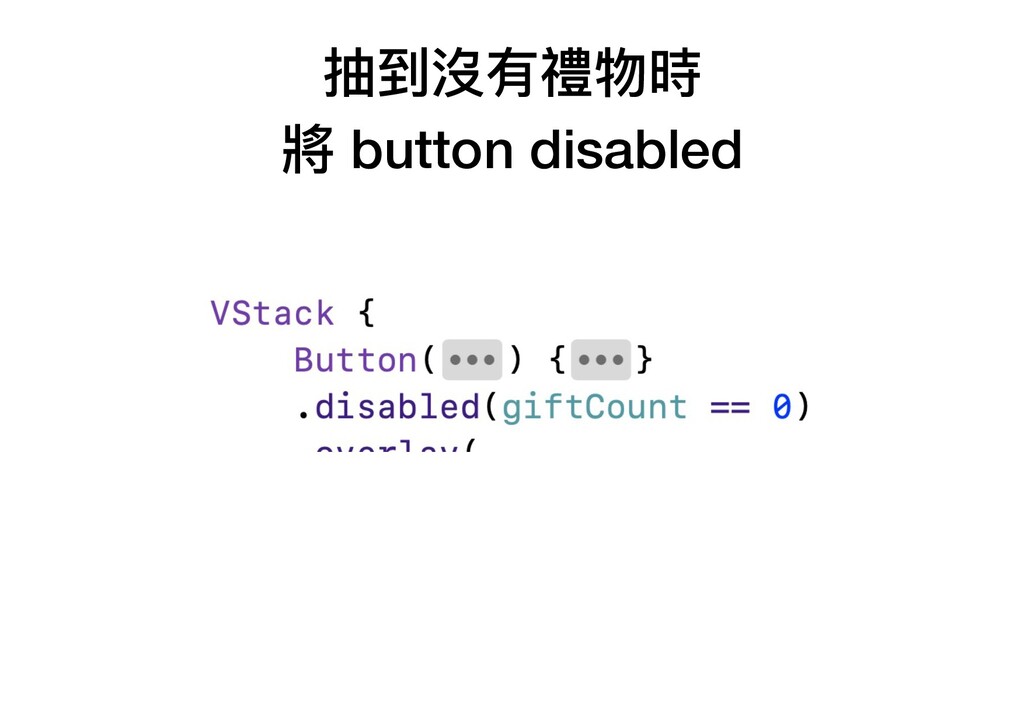
還沒抽出的禮物數量 SF Symbol 的數字圖片 .overlay( Image(systemName: "\(giftCount).circle.fill") .resizable() .frame(width: 50,
height: 50), alignment: .bottomTrailing) -
還沒抽出的禮物數量 var giftCount: Int { friendsData.friends.filter { !$0.gaveGift }.count }
$0: closure 參數的省略 http://bit.ly/2NBaoOW -
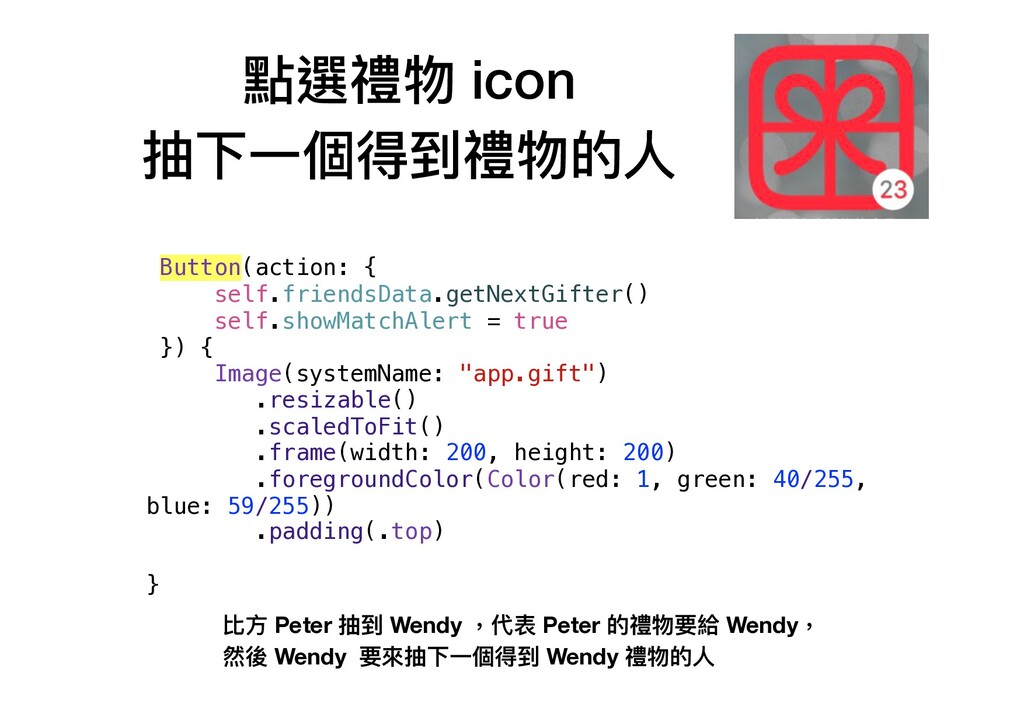
點選禮物 icon 抽下⼀個得到禮物的⼈ Button(action: { self.friendsData.getNextGifter() self.showMatchAlert = true })
{ Image(systemName: "app.gift") .resizable() .scaledToFit() .frame(width: 200, height: 200) .foregroundColor(Color(red: 1, green: 40/255, blue: 59/255)) .padding(.top) } 比⽅ Peter 抽到 Wendy ,代表 Peter 的禮物要給 Wendy, 然後 Wendy 要來抽下⼀個得到 Wendy 禮物的⼈ -
FriendsData 的 getNextGifter class FriendsData: ObservableObject { @Published var friends
= [Friend]() @Published var currentGifter: Friend? var nextGifter: Friend? var firstGifter: Friend? func getNextGifter() { nextGifter = friends.filter { !$0.gotGift && $0.id != firstGifter?.id }.randomElement() if nextGifter == nil { nextGifter = firstGifter } } 為什麼亂數時要排除 firstGifter ? 第⼀個送出禮物的⼈要變成最後⼀個得到禮物 -
firstGifter 第⼀個送出禮物的⼈ 第⼀個送出禮物的⼈要變成最後⼀個得到禮物 init() { URLSession.shared.dataTask(with: URL(string: "https:// sheetdb.io/api/v1/zs7rt8vfo2opa")!) {
data, response, error in guard let data = data, let array = try? JSONDecoder().decode([Friend].self, from: data) else { print(String(describing: error)) return } DispatchQueue.main.async { self.friends = array self.currentGifter = self.friends.randomElement() self.firstGifter = self.currentGifter } }.resume() } -
亂數時要排除 firstGifter func getNextGifter() { nextGifter = friends.filter { !$0.gotGift
&& $0.id != firstGifter?.id }.randomElement() if nextGifter == nil { nextGifter = firstGifter } } -
SwiftUI 的 alert .alert(isPresented: $showMatchAlert) { () -> Alert in
Alert(title: Text("Xmas 交換禮物"), message: Text("\ (friendsData.nextGifter?.name ?? "") 得到了\ (friendsData.currentGifter?.name ?? "")的禮物"), primaryButton: .default(Text("OK"), action: { self.friendsData.exchangeGift() }), secondaryButton: .cancel({ self.friendsData.friends = self.friendsData.friends.filter { $0.id != self.friendsData.nextGifter?.id } })) } http://bit.ly/2SqmD3F 如果抽到的⼈沒有來,按 Cancel 取消,將它從 array 移除 -
FriendsData 的 exchangeGift func exchangeGift() { // nextGifter 將得到 currentGifter
的禮物 currentGifter?.giftee = nextGifter nextGifter?.gifter = currentGifter // 抽到的⼈將成為下⼀個送出禮物的⼈ currentGifter = nextGifter } -
收到禮物的 GifteesList • ⽔平捲動的 ScrollView • rotation3DEffect • 利⽤ CAEmitterLayer
製作下雪背景 • http://bit.ly/2MtDfnd • 利⽤ UIViewRepresentable 將 UIKit 的 view 加入 SwiftUI -
currentGifter 加上 @Published,這樣抽籤後 currentGifter 改變時,GifteesList 才會更新畫⾯ class FriendsData: ObservableObject {
@Published var friends = [Friend]() @Published var currentGifter: Friend? -
preview GifteesList struct GifteesList_Previews: PreviewProvider { static var previews: some
View { let friendsData = FriendsData(from: "gift") for _ in 1...3 { friendsData.getNextGifter() friendsData.exchangeGift() } return GifteesList() .environmentObject(friendsData) } } 設定抽了三次禮物 -
亂數得到 nil 時 表⽰輪到第⼀個送出禮物的⼈得到剩下的禮物 func getNextGifter() { nextGifter = friends.filter
{ !$0.gotGift && $0.id != firstGifter?.id }.randomElement() if nextGifter == nil { nextGifter = firstGifter } }