Share
Embed
Automating DITA Builds (DITA North America 2014)
Expensive solutions are not necessary to automatically publish XML content to PDF or HTML-based formats. There are many ways to automate the process and a range of open source tools and scripting solutions can be used.
This presentation covers several approaches to automated XML publishing and provides simple examples for lightweight continuous integration from scheduled builds to watched folders and commit hooks to more complex hosted systems.
Presented April 28, 2014 in Seattle at DITA North America http://www.cm-strategies.com/2014/abstracts.htm#Sheen.

Roger Sheen
April 28, 2014
Transcript
29 slides
-
Automating DITA Builds Lightweight Continuous Integration for Documentation Projects infotexture
Information Architecture & Content Strategy Roger W. Fienhold Sheen -
Agenda Part I — Background & Concepts 1. Introduction 2.
Motivation & Benefits 3. Continuous Integration Principles 4. Prerequisites 5. Automation Approaches Part II — Automation Examples Q & A 2 -
Motivation & Benefits Why Automate? — Why Use XML if
You Don’t? Automated publishing is a major advantage of XML-based toolchains. If you’re pressing buttons when you need a PDF, there are easier ways… Let computers do what they do best so humans have more time for their part Latest drafts are available to all stakeholders for immediate verification Quicker time-to-market (even final docs can be published instantly) Why Use Continuous Integration? Avoid embarrassment: Authors find their own mistakes before others do Synchronize documentation release cycle with the software lifecycle (build the documentation whenever the software is built) Improve quality (can’t commit code that breaks build) 3 -
Continuous Integration Principles “…daily builds are a minimum. A fully
automated process that allows you to build several times a day is both achievable and well worth the effort.” – Martin Fowler Single repository with all documentation dependencies (check out & build) Automated build process (producing deliverables w/o manual intervention) Test before committing (rule out unintended side effects) Commit often (small chunks integrate better than monolithic pieces) Commit related changes (granular changes are easier to roll back) Visible results of latest build provide accountability (who’s to blame) Permanent access to the latest deliverables enables ongoing testing Automated deployment ensures customer access to the latest version 4 -
Prerequisites – What You’ll Need Version-control system (Subversion, Git, Mercurial,
etc.) Familiarity with: Ant DITA Open Toolkit Command-line scripting (UNIX shell scripts, Windows batch files) Build file that defines parameters for all target output formats DITA-OT packages include sample Ant build scripts in /samples/ant_sample/ . <?xml version="1.0" encoding="UTF-‐8" ?> <project name="@PROJECT.NAME@_xhtml" default="@DELIVERABLE.NAME@2xhtml" basedir="."> <property name="dita.dir" location="${basedir}${file.separator}..${file.separator}.."/> <target name="@DELIVERABLE.NAME@2xhtml"> <ant antfile="${dita.dir}${file.separator}build.xml"> <property name="args.input" location="@DITA.INPUT@"/> <property name="output.dir" location="@OUTPUT.DIR@"/> <property name="transtype" value="xhtml"/> </ant> </target> </project> 5 -
Automation Approaches — Overview 1. Scheduled Builds (build at certain
times) 2. Watched Folders (build when something happens) 3. Version Control Scripts: “hooks” (build on or before checkin) 4. Dedicated Continuous Integration Solutions (CI servers & services) 6 -
Scheduled Builds Automatically build output in regular intervals (daily/nightly/hourly, etc.)
with a system service or launch dæmon. Advantages Easy to set up using on-board utilities available with your operating system Minimum solution, “gateway drug” to more granular automation Makes sense when changes are infrequent, but regular Potential Issues Less useful when changes are sporadic, but occasionally high in volume Generated output may no longer reflect the actual state of source files May need to wait for the next build in order to see results Options Linux cron , Mac OS X launchd , Windows Task Scheduler 8 -
Mac OS X launchd Sample — Hourly Builds To run
your build every hour, save a file like this in ~/Library/LaunchAgents : <?xml version="1.0" encoding="UTF-‐8"?> <!DOCTYPE plist PUBLIC "-‐//Apple//DTD PLIST 1.0//EN" "http://www.apple.com/DTDs/PropertyList-‐1.0.dtd"> <plist version="1.0"> <dict> <key>Label</key> <string>net.infotexture.autobuild_hourly</string> <key>ProgramArguments</key> <array> <string>/bin/bash</string> <string>/Users/username/projectdir/scripts/run-‐dita-‐build.sh</string> </array> <key>RunAtLoad</key> <true/> <key>StartInterval</key> <!-‐-‐ ◄ Start job in regular intervals -‐-‐> <integer>3600</integer> <!-‐-‐ ◄ Start every 3600 seconds (1 h) -‐-‐> </dict> </plist> Adjust the path to your build script, use the StartInterval key and set the following integer value to 3600 (seconds). → Get the gist at https://gist.github.com/infotexture/8506117. 9 -
Mac OS X launchd Sample — Daily Builds For a
daily build that runs at midnight, replace the StartInterval key and following integer with a StartCalendarInterval and set the time to start the job: <key>StartCalendarInterval</key> <!-‐-‐ ◄ Start job at specified times -‐-‐> <dict> <key>Hour</key> <integer>0</integer> <!-‐-‐ ◄ Start at midnight (00:00) -‐-‐> <key>Minute</key> <integer>0</integer> </dict> → Get the gist at https://gist.github.com/infotexture/8506547 for a complete example. You can also combine these approaches to run your build once at a certain time (such as 9 AM) and in regular (hourly) intervals thereafter. → See the example at https://gist.github.com/infotexture/8506763. For an explanation of the available options, see the launchd man page or the tutorial at launchd.info. If you prefer a more guided approach, utilities like Lingon or LaunchControl provide a user interface and debugging tools for launch scripts. 10 -
Windows Task Scheduler On Windows, use Accessories > System Tools
> Task Scheduler to create a new scheduled task with a trigger that begins the task on a schedule and an action that starts a program (your build script): Creating a scheduled task 11 -
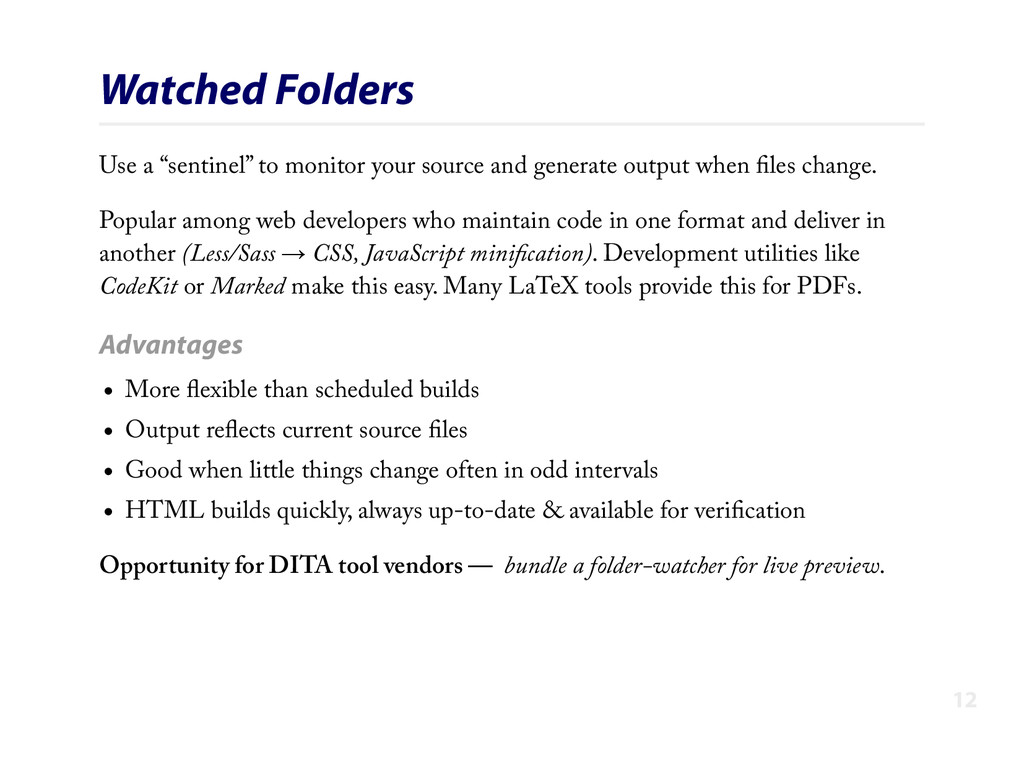
Watched Folders Use a “sentinel” to monitor your source and
generate output when files change. Popular among web developers who maintain code in one format and deliver in another (Less/Sass → CSS, JavaScript minification). Development utilities like CodeKit or Marked make this easy. Many LaTeX tools provide this for PDFs. Advantages More flexible than scheduled builds Output reflects current source files Good when little things change often in odd intervals HTML builds quickly, always up-to-date & available for verification Opportunity for DITA tool vendors — bundle a folder-watcher for live preview. 12 -
Potential Issues More difficult to set up, may require third-party
tools Can be performance intensive if many things change at once (quiet periods and throttling options are essential) Options OS X Folder Actions (works if files added/removed, not if existing change) Hazel — All-purpose automation utility & folder watcher for Mac Windows alternatives like Belvedere, etc. Our XML-based friend launchd Linux: incrond — inotify cron (incron) dæmon Dedicated folder watcher utilities such as entr, Guard, Watchr 13 -
Hazel Easy to set up basic rules (Date Last Modified
is after Date Last Matched) May match often with basic rules (requires adjustment to throttle) (Touching 10 files in a folder builds 10x — Git branch switching is deadly) Sample Hazel rule 14 -
Mac OS X launchd Sample A launch dæmon can also
be used to watch folders for changes and build output. The syntax is similar to the examples shown for scheduled builds. To watch a folder for changes, specify the path to a location in the file system in the array under WatchPaths and set a ThrottleInterval to limit build frequency if necessary: <key>ThrottleInterval</key> <integer>300</integer> <!-‐-‐ ◄ if at least 300 seconds (5m) have passed since last build, AND… -‐-‐> <key>WatchPaths</key> <array> <string>/Users/username/projectdir/dita-‐src</string> <!-‐-‐ ◄ …if any files here have changed -‐-‐> </array> → Get the gist at https://gist.github.com/infotexture/8635029 for a complete example. 15 -
Version Control Hooks Most version control systems offer a mechanism
to “hook” into a stage of the workflow and perform a pre-defined action like running a build script, either before you commit or after each checkin. This mechanism enables a more deliberate approach to automation, as output is only generated when users interact with the version control system, rather than on arbitrary intervals or file system events. Advantages Pre-commit hooks serve to verify the input and reject changes if the build fails. Post-commit actions can be used to generate output for every valid change and typically do not modify the contents of the repository. Hooks are typically enabled by modifying sample templates provided with the system. For our purposes, this means replacing the template content with the sequence of commands necessary to run a DITA build. 16 -
Potential Issues Can be tricky to set up, policies may
require system administator assistance Commits are slower, as version control system waits for build to finish Strict regime can prevent checkins if something’s wrong Options Subversion Some clients provide a user interface for client-side commit actions The hooks subdirectory of a Subversion repository contains templates such as pre-‐commit.tmpl and post-‐commit.tmpl . Remove .tmpl to enable. Git On UNIX-based systems, sample Git hooks are typically found in /usr/share/git-‐core/templates/hooks . Modify a copy of pre-‐commit.sample and save the result to your local repository as .git/hooks/pre-‐commit . 17 -
Git “pre-commit” Hook Example The sample hook below runs a
build script before each commit: #!/bin/sh # # Get the absolute path of the `.git/hooks` directory export GIT_HOOKS=`cd "\`dirname "\\\`readlink "$0" || echo $0\\\`"\`" && pwd` # Set the absolute path of the build directory export BUILD_FILES="$GIT_HOOKS/../../build-‐files/" # Set the absolute path of the DITA home directory export DITA_HOME="$BUILD_FILES/../bin/dita-‐ot/" # Set the absolute path of the DITA home directory again (weird, but necessary) export DITA_DIR="$BUILD_FILES/../bin/dita-‐ot/" # Execute the build script in the shell that is provided by the DITA start script echo "$BUILD_FILES/build_html.sh" | "$DITA_HOME/startcmd.sh" # Display OS X system notification via <https://github.com/alloy/terminal-‐notifier> echo 'HTML build succeeded. Committing…' | /usr/local/bin/terminal-‐notifier -‐sound default # Exit with status of last command exit $? → Get the gist at https://gist.github.com/infotexture/8635931. 18 -
Cornerstone Commit Actions The Cornerstone Subversion client for Mac includes
user interface options that allow users to associate their own scripts with commit actions, independent of the repository configuration (and without the assistance of a system administrator): Cornerstone Commit Actions 19 -
Bypassing Commit Hooks Commit hooks slow down the checkin process,
since the system waits for a build to finish before checking in the changes. Some clients and systems allow you to circumvent commit hooks if necessary: $ git commit -‐-‐no-‐verify Atlassian’s SourceTree provides an option to bypass hooks on the commit sheet: Bypassing hooks with SourceTree 20 -
Dedicated CI Solutions True continuous integration solutions combine the strengths
of each of the options outlined above and are intended for use in team environments. CI servers communicate with a version control system, using commit hooks as a foundation for additional process automation mechanisms. If your developers use continuous integration tools to run automated tests and build software binaries whenever they update their code, you may be able to use the same solution to build your DITA deliverables too. Advantages Leverage existing corporate infrastructure & developer expertise Offload performance-intensive build tasks to a dedicated server Automate other aspects of the publishing process, such as: providing access to drafts on intranet for internal review & signoff integrating documentation into the final software installers publishing to company web site for immediate public access 21 -
Potential Issues CI systems run actions after revisions are shared,
so bad commits can happen Culprit behind unstable builds or failed tests is held publicly accountable Dedicated server not necessarily required, but often advisable May require support from developers and/or IT staff Options While a broad range of commercial CI solutions are available, the open-source offerings are among the most mature, actively maintained, and widely adopted: CruiseControl – the original solution from ThoughtWorks (now open source) Jenkins (formerly known as Hudson) – cross-platform open source CI server Travis – hosted CI service used to build and test projects hosted at GitHub (including the DITA Open Toolkit) New solutions have been recently released by established players and hitherto unknown startups as continuous deployment and DevOps gain momentum 22 -
Jenkins Examples The examples below are based on Jenkins, one
of the most popular CI solutions. Like watched folders, Jenkins jobs combine various settings, including: access credentials and branches of the source code repository conditions or events that trigger a build, and actions to be performed when the conditions are fullfilled (build script & post-build actions, e-mail notifications, file transfers, etc.). 23 -
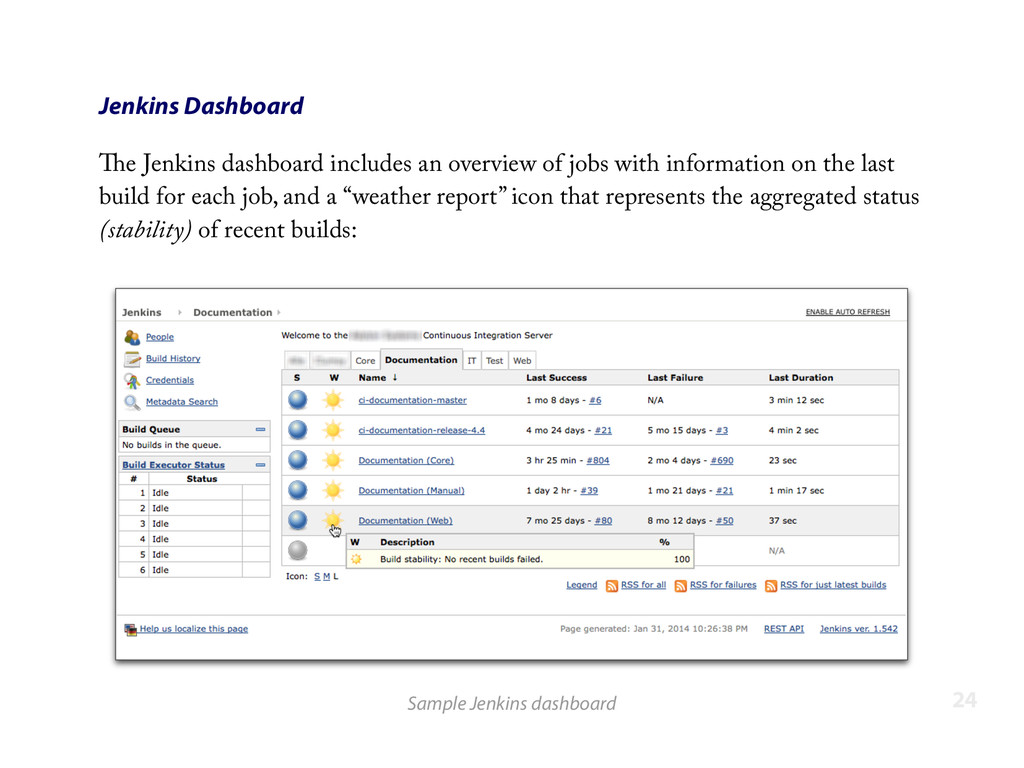
Jenkins Dashboard The Jenkins dashboard includes an overview of jobs
with information on the last build for each job, and a “weather report” icon that represents the aggregated status (stability) of recent builds: Sample Jenkins dashboard 24 -
Jenkins Job View The dashboard links to dedicated pages for
each job, with additional information on the build history, links to the workspace with the job output (build results), and recent changes (the commit log from the version control system). Sample Jenkins job view 25 -
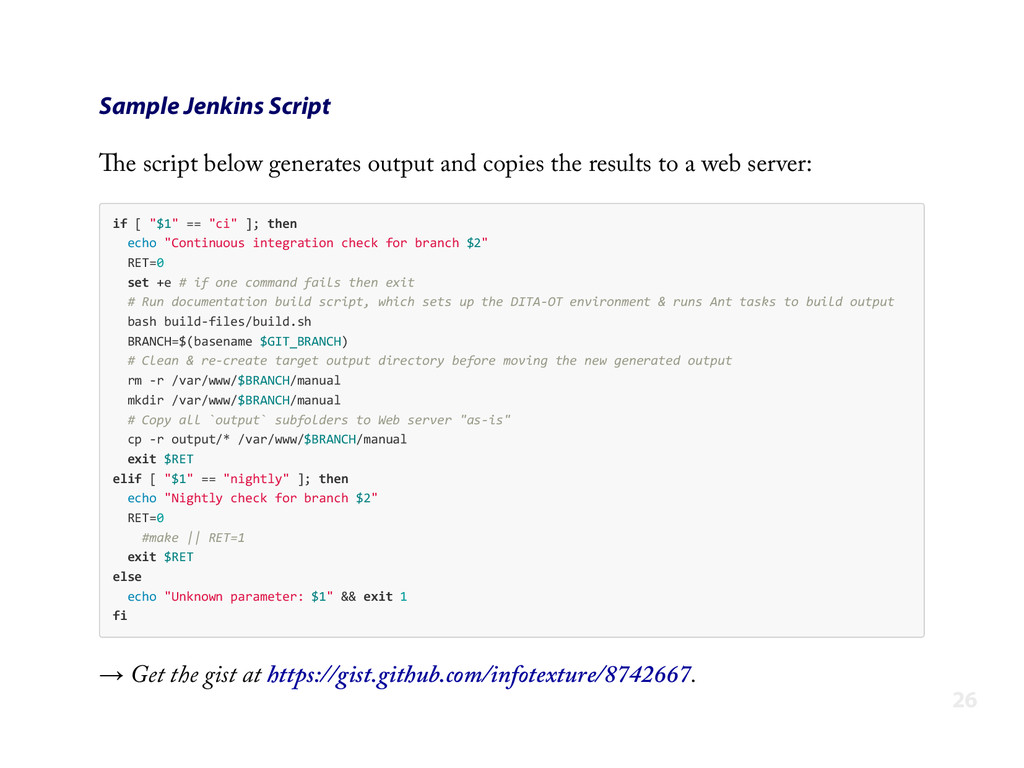
Sample Jenkins Script The script below generates output and copies
the results to a web server: if [ "$1" == "ci" ]; then echo "Continuous integration check for branch $2" RET=0 set +e # if one command fails then exit # Run documentation build script, which sets up the DITA-‐OT environment & runs Ant tasks to build output bash build-‐files/build.sh BRANCH=$(basename $GIT_BRANCH) # Clean & re-‐create target output directory before moving the new generated output rm -‐r /var/www/$BRANCH/manual mkdir /var/www/$BRANCH/manual # Copy all `output` subfolders to Web server "as-‐is" cp -‐r output/* /var/www/$BRANCH/manual exit $RET elif [ "$1" == "nightly" ]; then echo "Nightly check for branch $2" RET=0 #make || RET=1 exit $RET else echo "Unknown parameter: $1" && exit 1 fi → Get the gist at https://gist.github.com/infotexture/8742667. 26 -
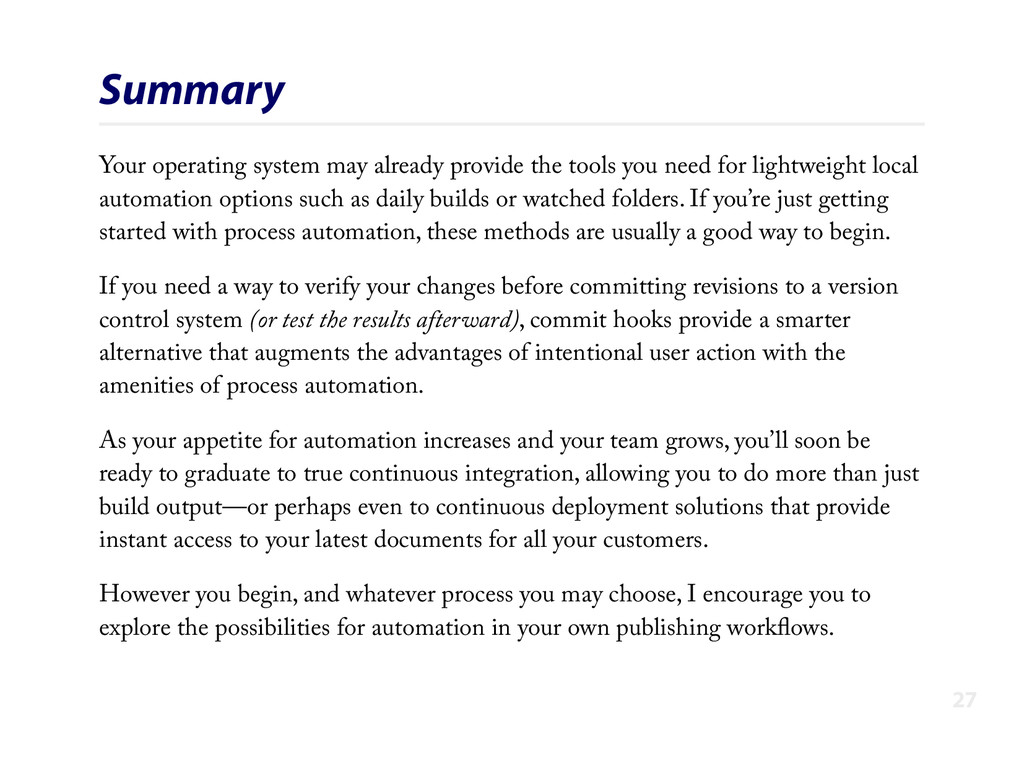
Summary Your operating system may already provide the tools you
need for lightweight local automation options such as daily builds or watched folders. If you’re just getting started with process automation, these methods are usually a good way to begin. If you need a way to verify your changes before committing revisions to a version control system (or test the results afterward), commit hooks provide a smarter alternative that augments the advantages of intentional user action with the amenities of process automation. As your appetite for automation increases and your team grows, you’ll soon be ready to graduate to true continuous integration, allowing you to do more than just build output—or perhaps even to continuous deployment solutions that provide instant access to your latest documents for all your customers. However you begin, and whatever process you may choose, I encourage you to explore the possibilities for automation in your own publishing workflows. 27 -
References & Resources Further Reading http://www.martinfowler.com/articles/continuousIntegration.html http://en.wikipedia.org/wiki/Continuous_integration Selected Tools 1.
launchd – http://launchd.info 2. Lingon (launchd GUI) – http://www.peterborgapps.com/lingon 3. LaunchControl (debugger) – http://www.soma-zone.com/LaunchControl 4. Hazel (folder watcher for Mac) – http://www.noodlesoft.com/hazel.php 5. CruiseControl (original CI server) – http://cruisecontrol.sourceforge.net 6. Jenkins (most popular CI server) – http://jenkins-ci.org 7. Travis (hosted CI for GitHub projects) – http://travis-ci.com 28 -
Thank You! Updates For updates, comments and the latest code
samples, visit http://infotexture.net/2014/04/automating-dita-builds-seattle/. A long-form version of this presentation is scheduled to appear as an article in the June issue of the CIDM Newsletter. Related Presentation For more information on the application of software development methodologies to DITA authoring, be sure to visit Frank Shipley’s DITA Release Management presentation tomorrow at 8:30. Contact E-mail [email protected] or connect on GitHub or Twitter @infotexture.
 infotexture
 takehaya
 ziobrando
 omatty198
 simas
 onozaty
 dayeon
 ryunakayama
 leegeunhyeok
 ooga04
 uwabami
 koukimiura
 mitohato14
 csswizardry
 samlambert
 tamaranovitovic
 szymonslowik
 khoart
 skipperchong
 kimpetersen
 moore
 mkilby
 rasmusluckow
 mfonobong