Share
Embed
Transcript
24 slides
-
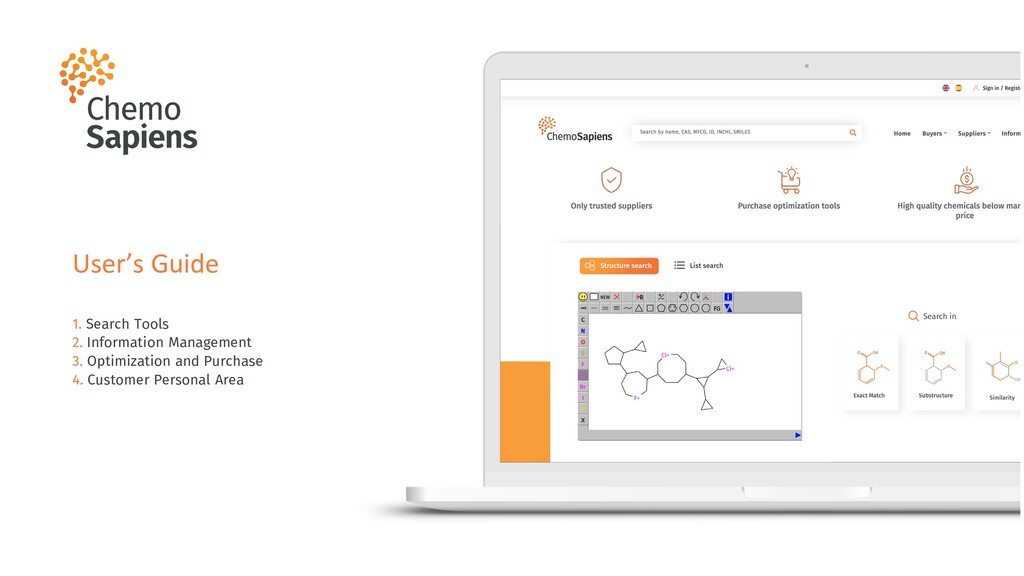
User’s Guide 1. Search Tools 2. Information Management 3. Optimization
and Purchase 4. Customer Personal Area -
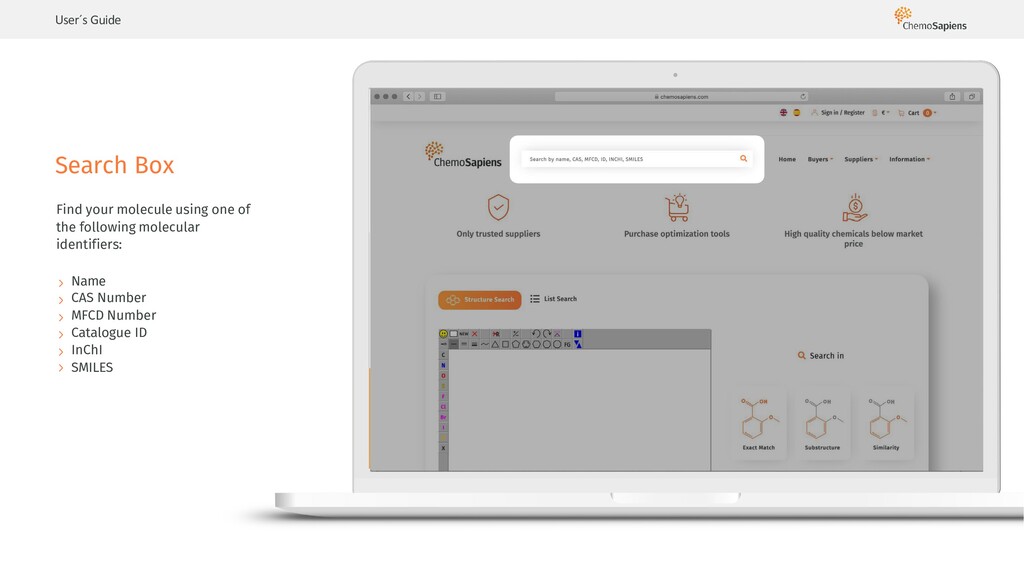
Search Box User´s Guide Find your molecule using one of
the following molecular identifiers: Name CAS Number MFCD Number Catalogue ID InChI SMILES -
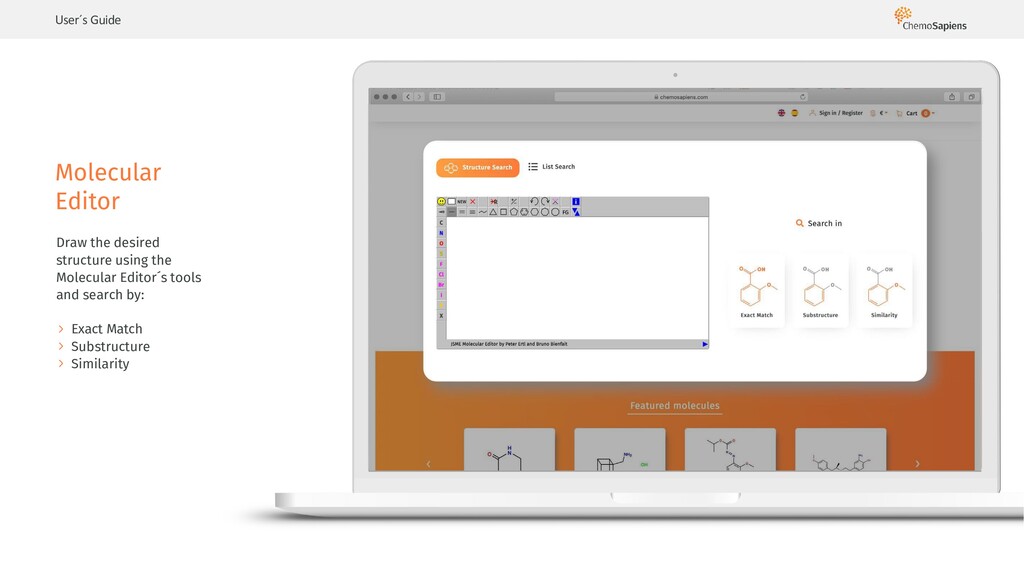
Molecular Editor User´s Guide Draw the desired structure using the
Molecular Editor´s tools and search by: Exact Match Substructure Similarity -
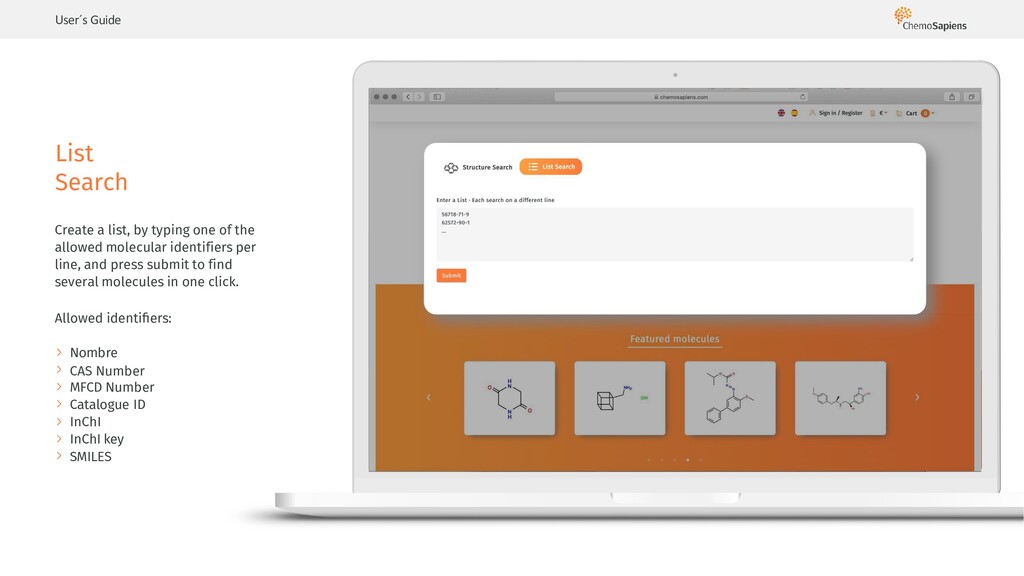
List Search User´s Guide Create a list, by typing one
of the allowed molecular identifiers per line, and press submit to find several molecules in one click. Allowed identifiers: Nombre CAS Number MFCD Number Catalogue ID InChI InChI key SMILES -
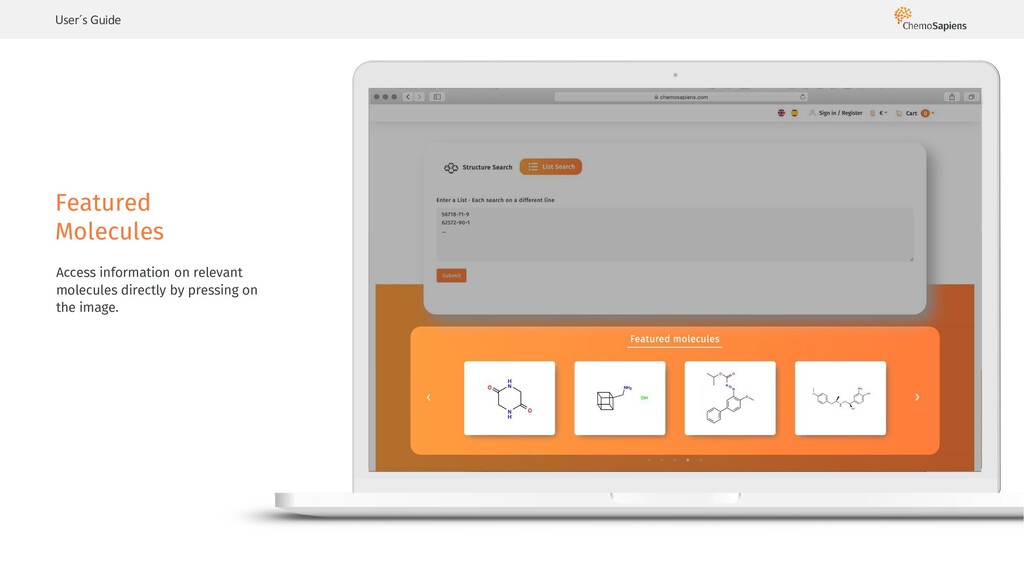
Featured Molecules User´s Guide Access information on relevant molecules directly
by pressing on the image. -
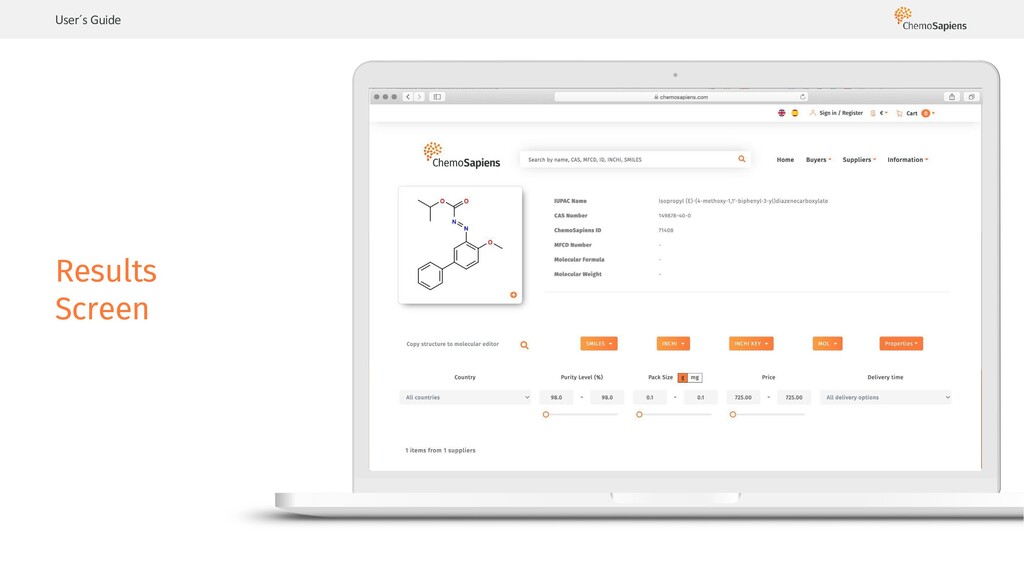
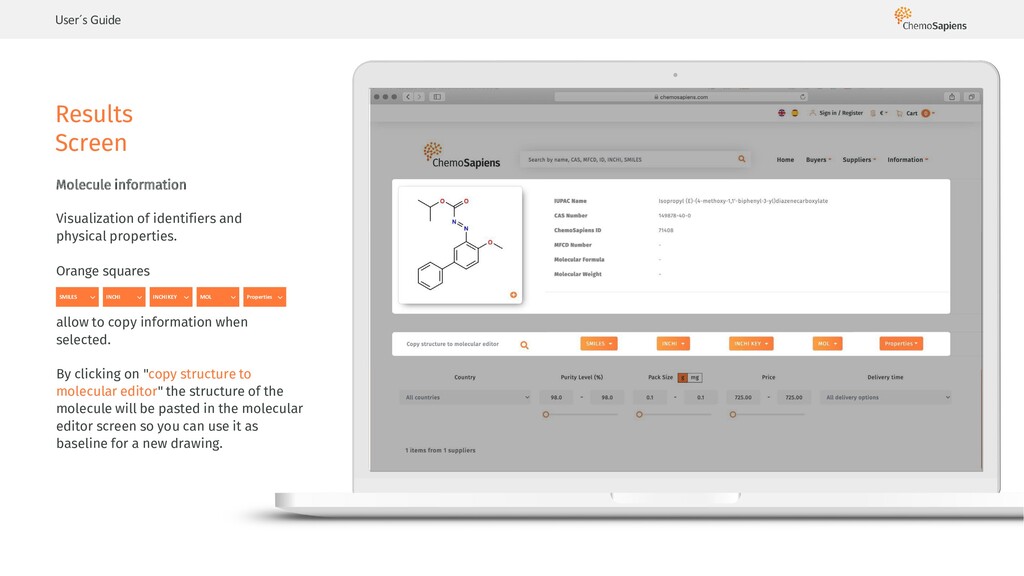
Results Screen User´s Guide Molecule information Visualization of identifiers and
physical properties. Orange squares allow to copy information when selected. By clicking on "copy structure to molecular editor" the structure of the molecule will be pasted in the molecular editor screen so you can use it as baseline for a new drawing. SMILES INCHI INCHIKEY MOL Properties -
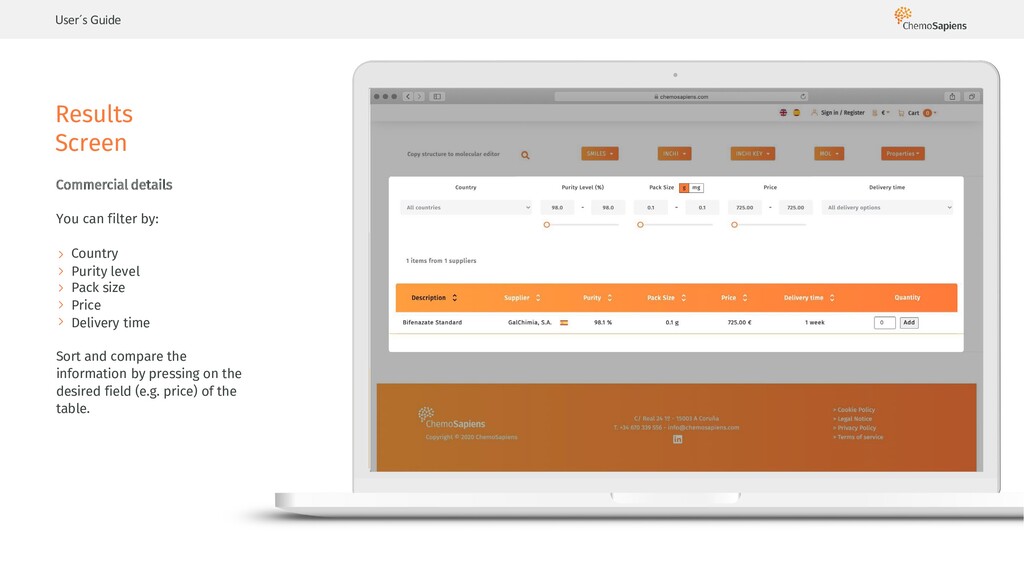
User´s Guide Results Screen Commercial details You can filter by:
Country Purity level Pack size Price Delivery time Sort and compare the information by pressing on the desired field (e.g. price) of the table. -
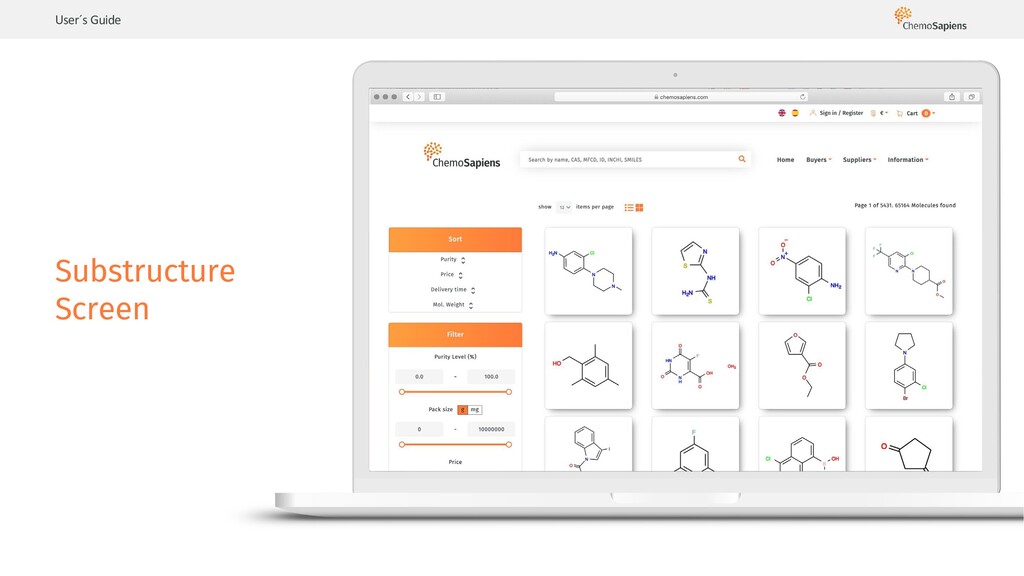
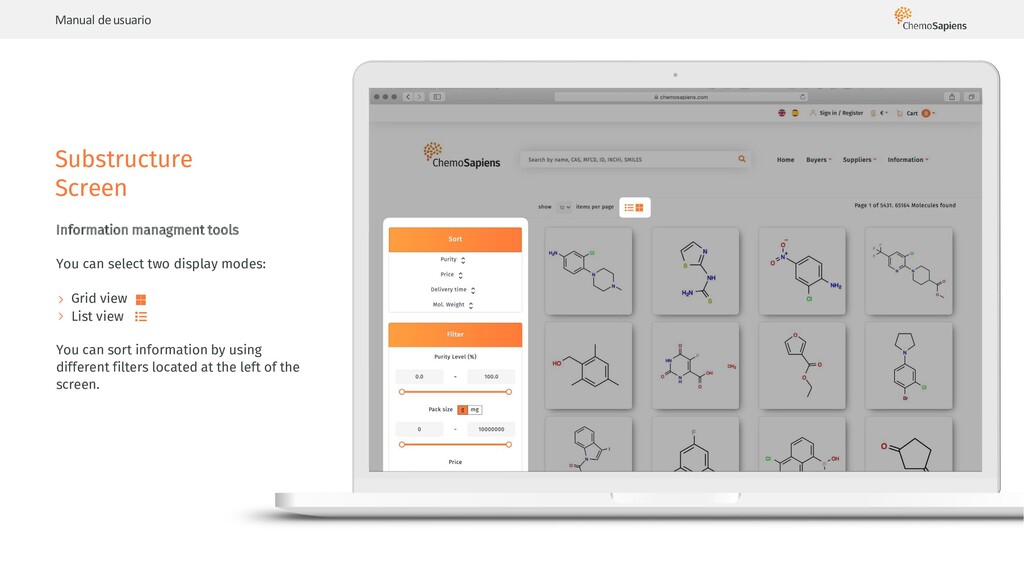
Manual deusuario Substructure Screen Information managment tools You can select
two display modes: Grid view List view You can sort information by using different filters located at the left of the screen. -
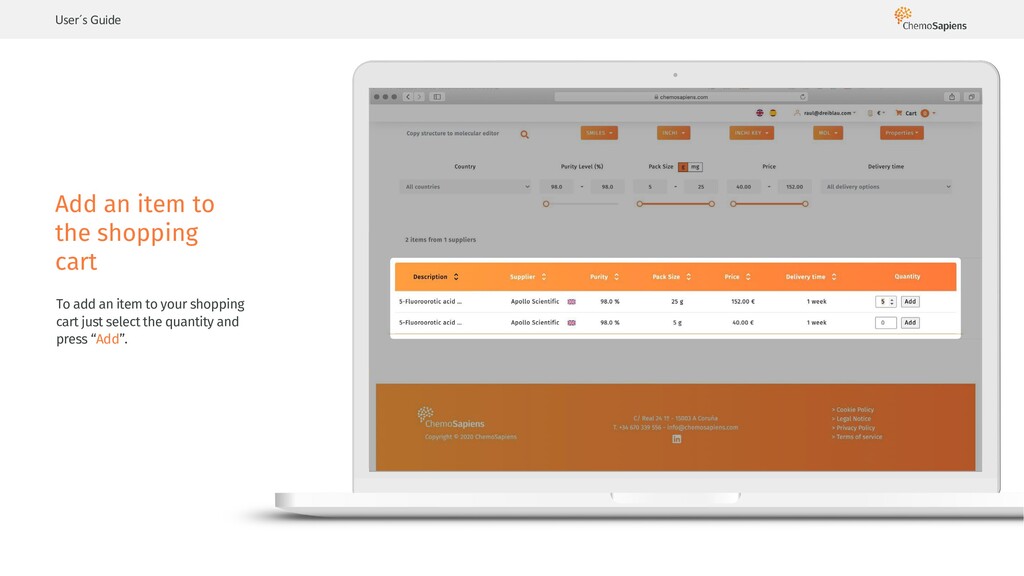
User´s Guide Add an item to the shopping cart To
add an item to your shopping cart just select the quantity and press “Add”. -
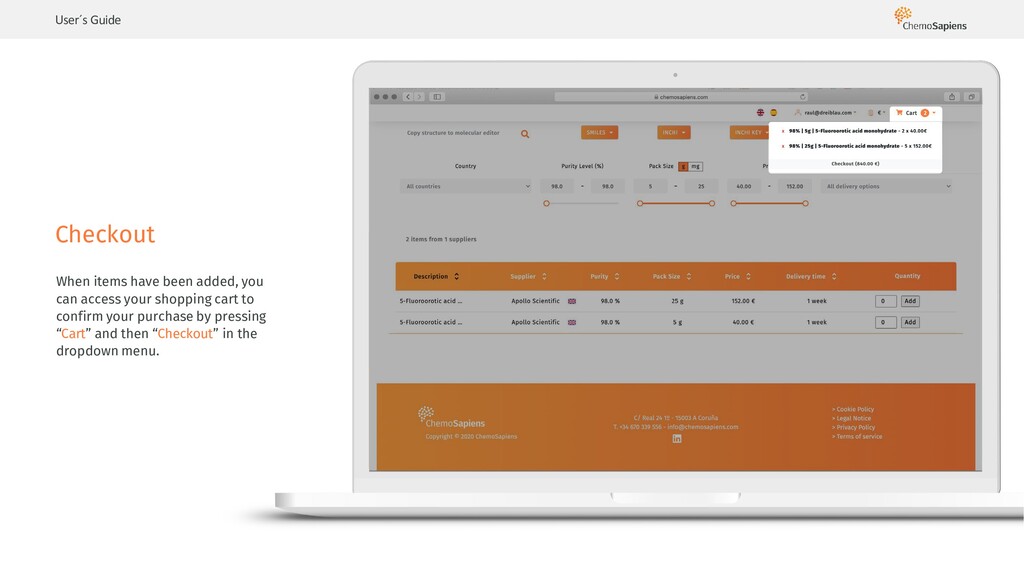
User´s Guide Checkout When items have been added, you can
access your shopping cart to confirm your purchase by pressing “Cart” and then “Checkout” in the dropdown menu. -
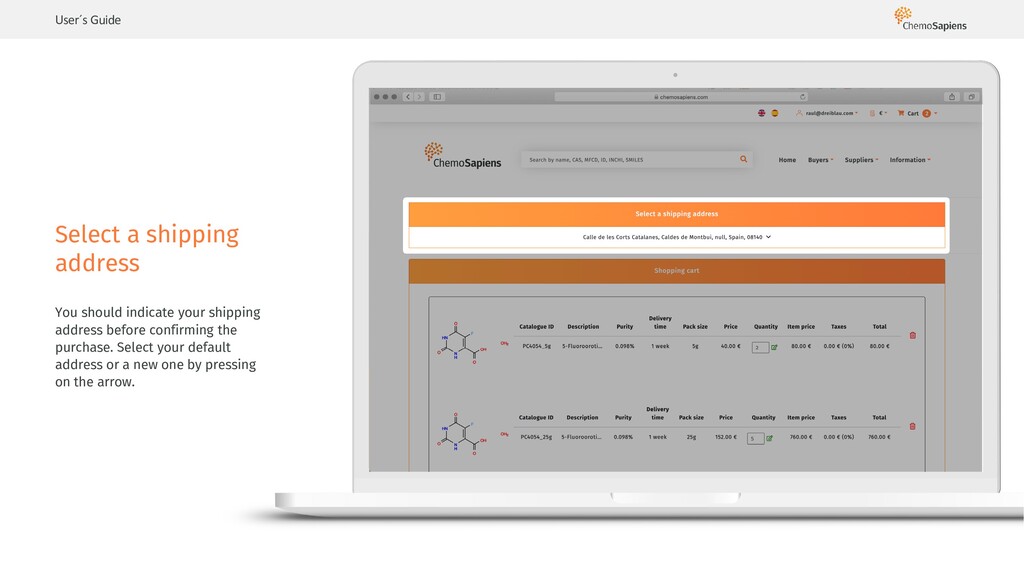
User´s Guide Select a shipping address You should indicate your
shipping address before confirming the purchase. Select your default address or a new one by pressing on the arrow. -
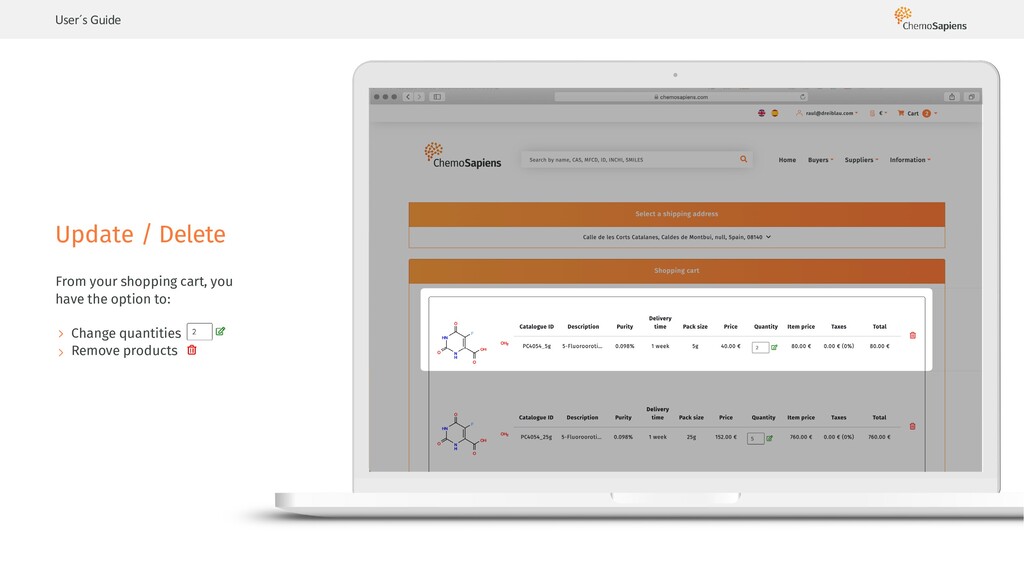
User´s Guide Update / Delete From your shopping cart, you
have the option to: Change quantities Remove products -
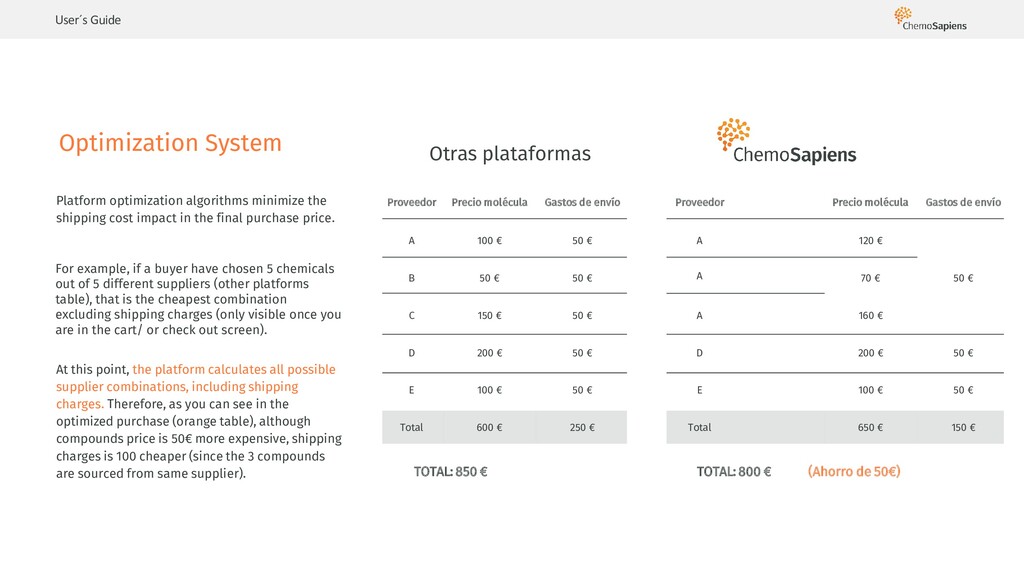
User´s Guide Proveedor Precio molécula Gastos de envío Proveedor Precio
molécula Gastos de envío A 100 € 50 € A 120 € B 50 € 50 € A 70 € 50 € C 150 € 50 € A 160 € D 200 € 50 € D 200 € 50 € E 100 € 50 € E 100 € 50 € Total 600 € 250 € Total 650 € 150 € Optimization System Otras plataformas TOTAL: 850 € TOTAL: 800 € (Ahorro de 50€) Platform optimization algorithms minimize the shipping cost impact in the final purchase price. For example, if a buyer have chosen 5 chemicals out of 5 different suppliers (other platforms table), that is the cheapest combination excluding shipping charges (only visible once you are in the cart/ or check out screen). At this point, the platform calculates all possible supplier combinations, including shipping charges. Therefore, as you can see in the optimized purchase (orange table), although compounds price is 50€ more expensive, shipping charges is 100 cheaper (since the 3 compounds are sourced from same supplier). -
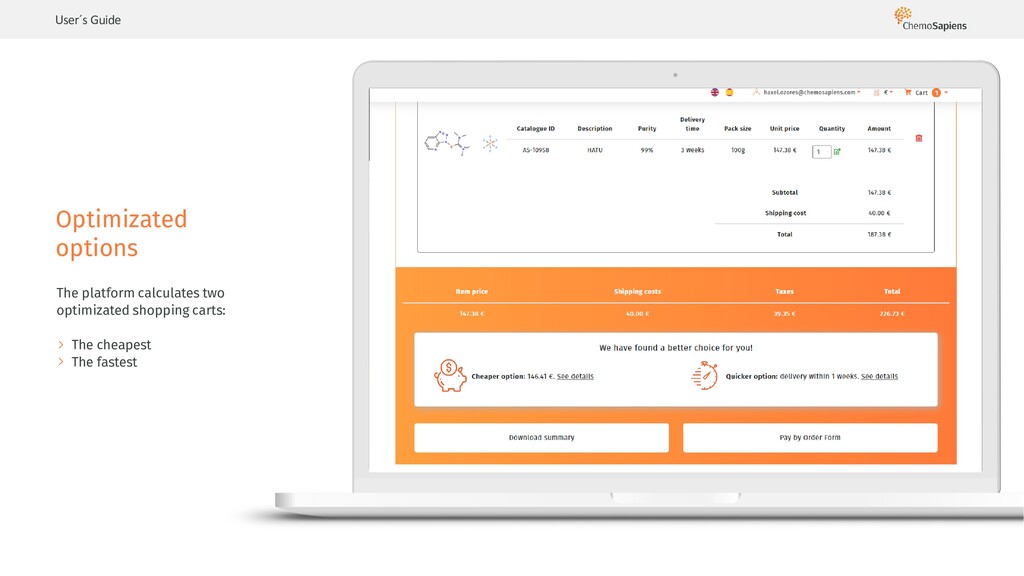
User´s Guide Optimizated options The platform calculates two optimizated shopping
carts: The cheapest The fastest Falta pantallazo -
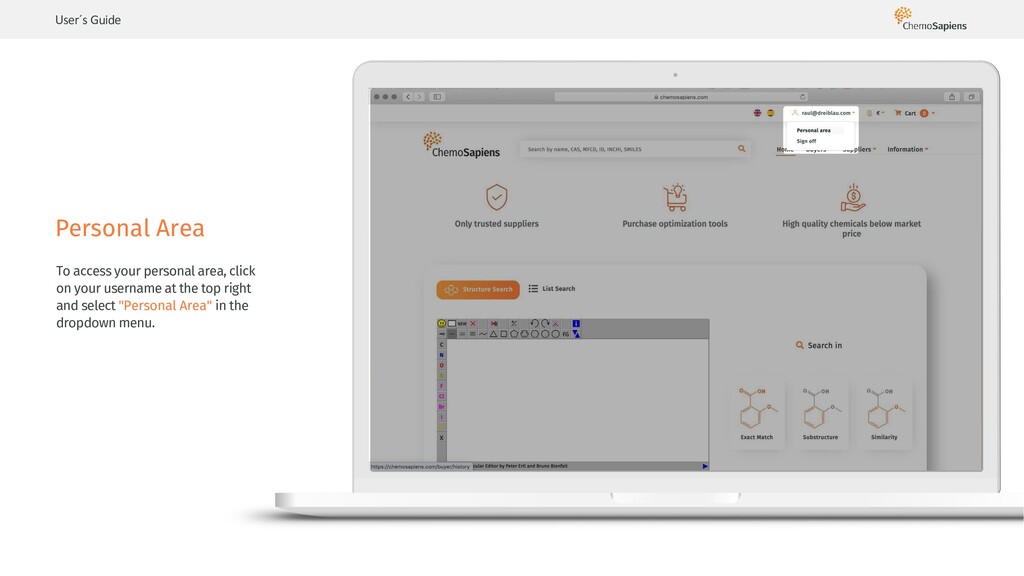
Personal Area User´s Guide To access your personal area, click
on your username at the top right and select "Personal Area" in the dropdown menu. -
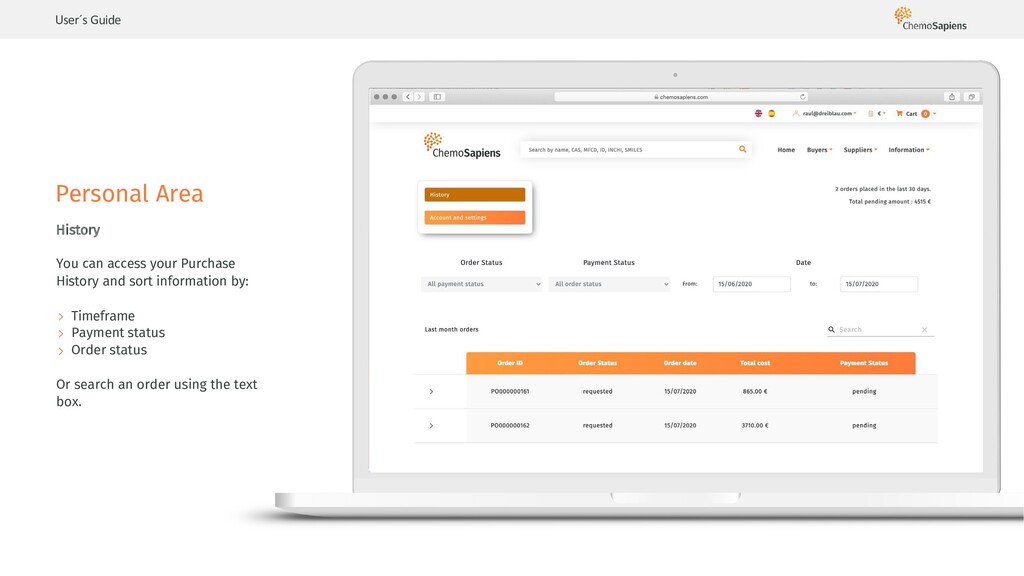
User´s Guide Personal Area History You can access your Purchase
History and sort information by: Timeframe Payment status Order status Or search an order using the text box. -
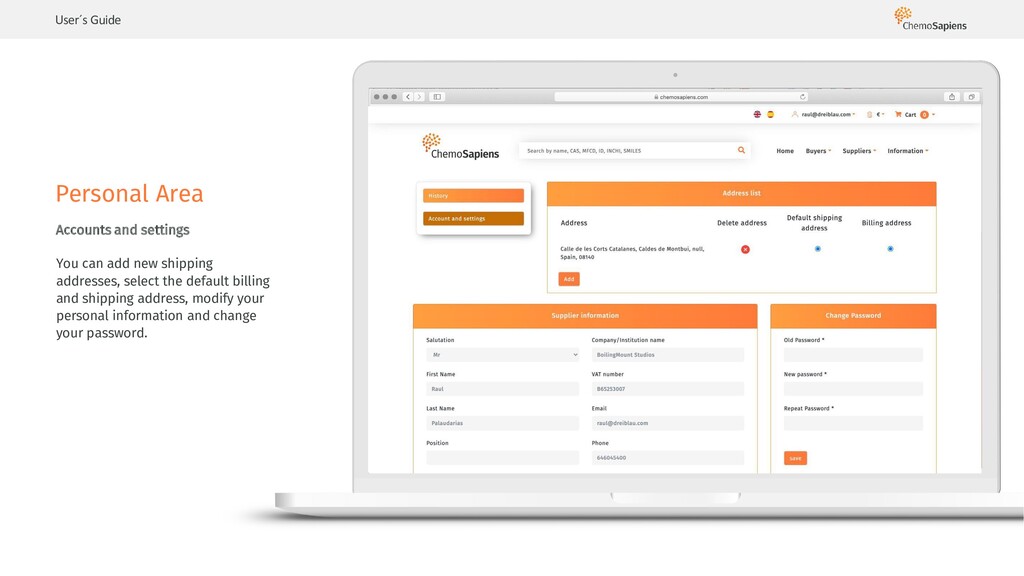
User´s Guide Personal Area Accounts and settings You can add
new shipping addresses, select the default billing and shipping address, modify your personal information and change your password.