Share
Embed

Transcript
56 slides
-
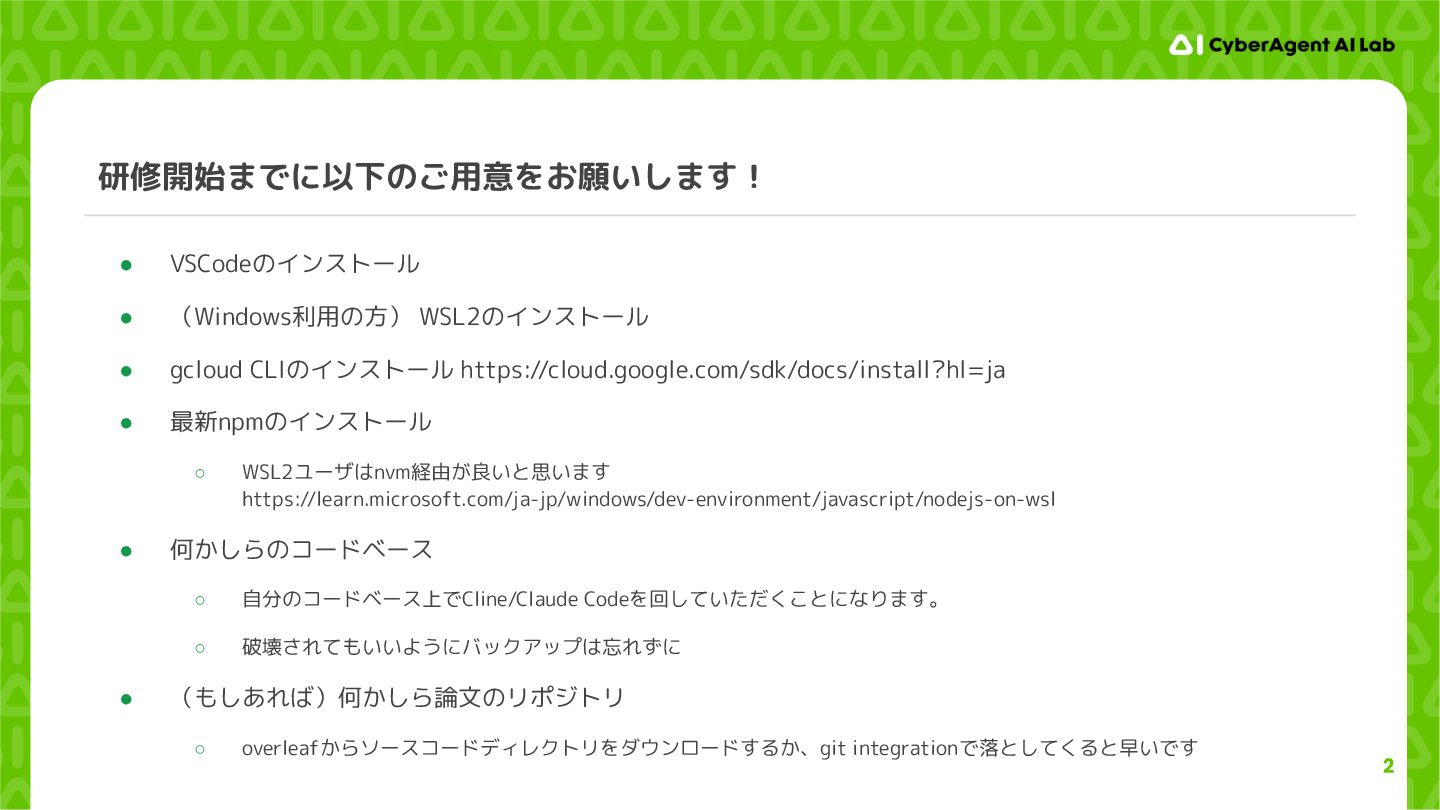
2 研修開始までに以下のご用意をお願いします! • VSCodeのインストール • (Windows利用の方) WSL2のインストール • gcloud CLIのインストール
https://cloud.google.com/sdk/docs/install?hl=ja • 最新npmのインストール ◦ WSL2ユーザはnvm経由が良いと思います https://learn.microsoft.com/ja-jp/windows/dev-environment/javascript/nodejs-on-wsl • 何かしらのコードベース ◦ 自分のコードベース上でCline/Claude Codeを回していただくことになります。 ◦ 破壊されてもいいようにバックアップは忘れずに • (もしあれば)何かしら論文のリポジトリ ◦ overleafからソースコードディレクトリをダウンロードするか、git integrationで落としてくると早いです -
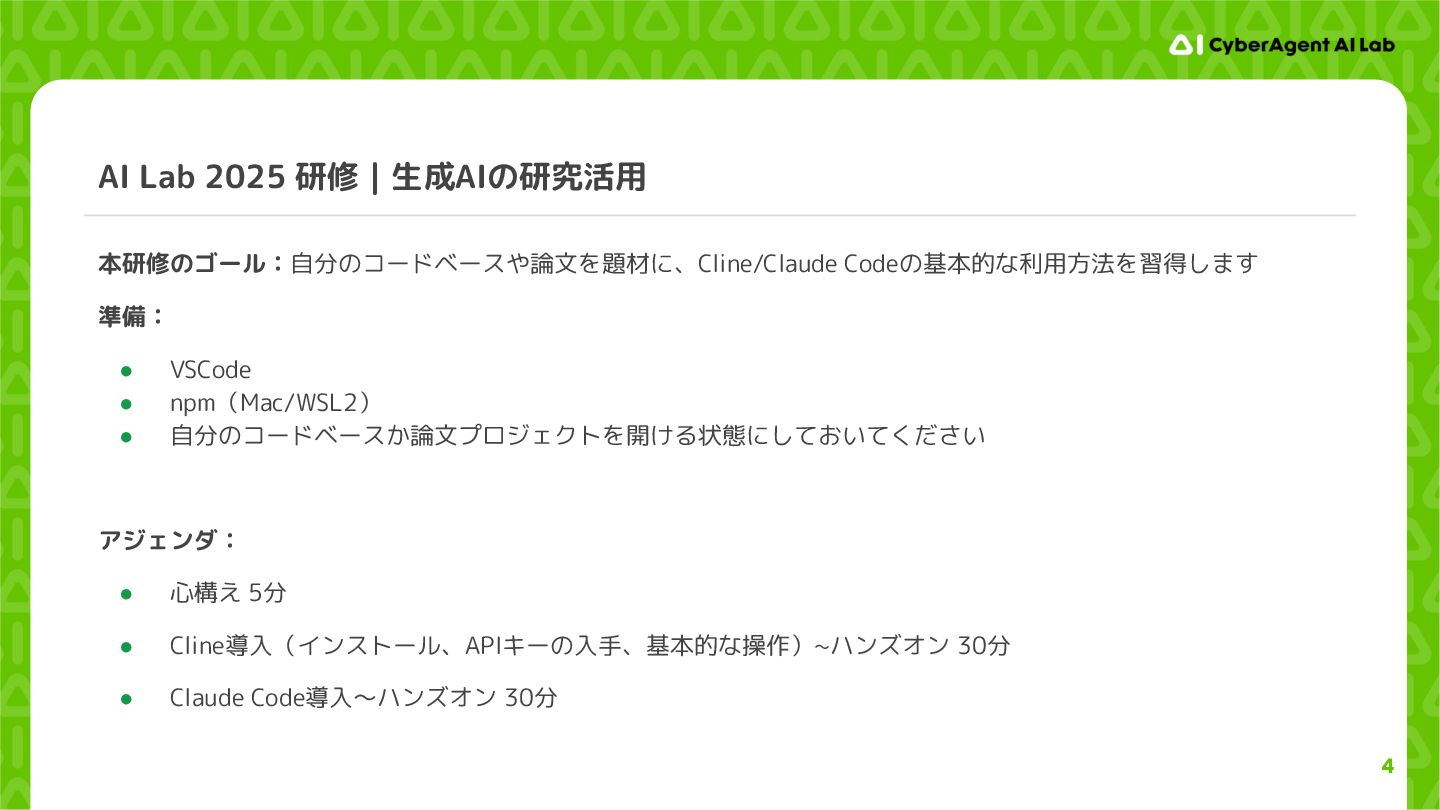
4 AI Lab 2025 研修|生成AIの研究活用 本研修のゴール:自分のコードベースや論文を題材に、Cline/Claude Codeの基本的な利用方法を習得します 準備: • VSCode
• npm(Mac/WSL2) • 自分のコードベースか論文プロジェクトを開ける状態にしておいてください アジェンダ: • 心構え 5分 • Cline導入(インストール、APIキーの入手、基本的な操作)~ハンズオン 30分 • Claude Code導入~ハンズオン 30分 -
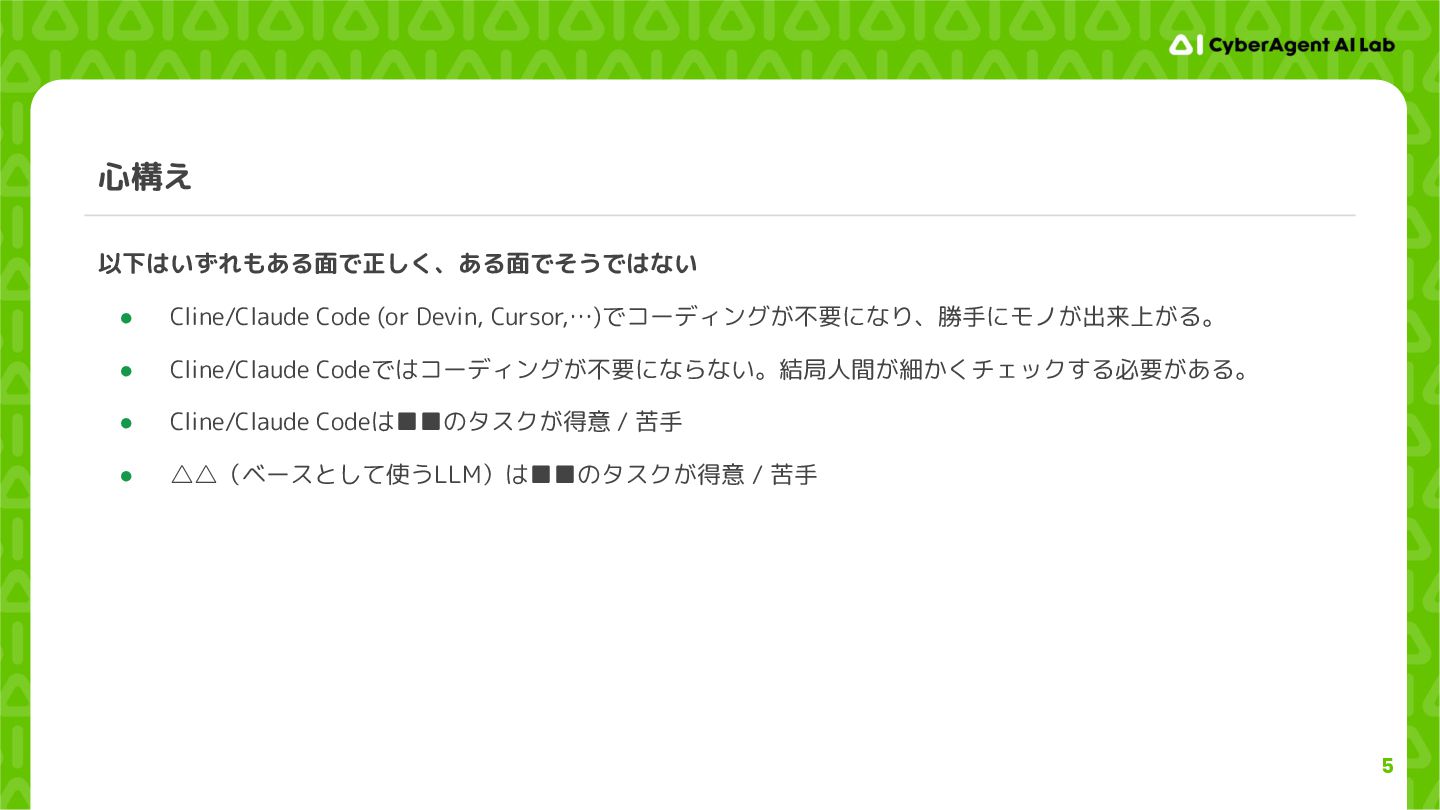
5 心構え 以下はいずれもある面で正しく、ある面でそうではない • Cline/Claude Code (or Devin, Cursor,…)でコーディングが不要になり、勝手にモノが出来上がる。 •
Cline/Claude Codeではコーディングが不要にならない。結局人間が細かくチェックする必要がある。 • Cline/Claude Codeは▪▪のタスクが得意 / 苦手 • △△(ベースとして使うLLM)は▪▪のタスクが得意 / 苦手 -
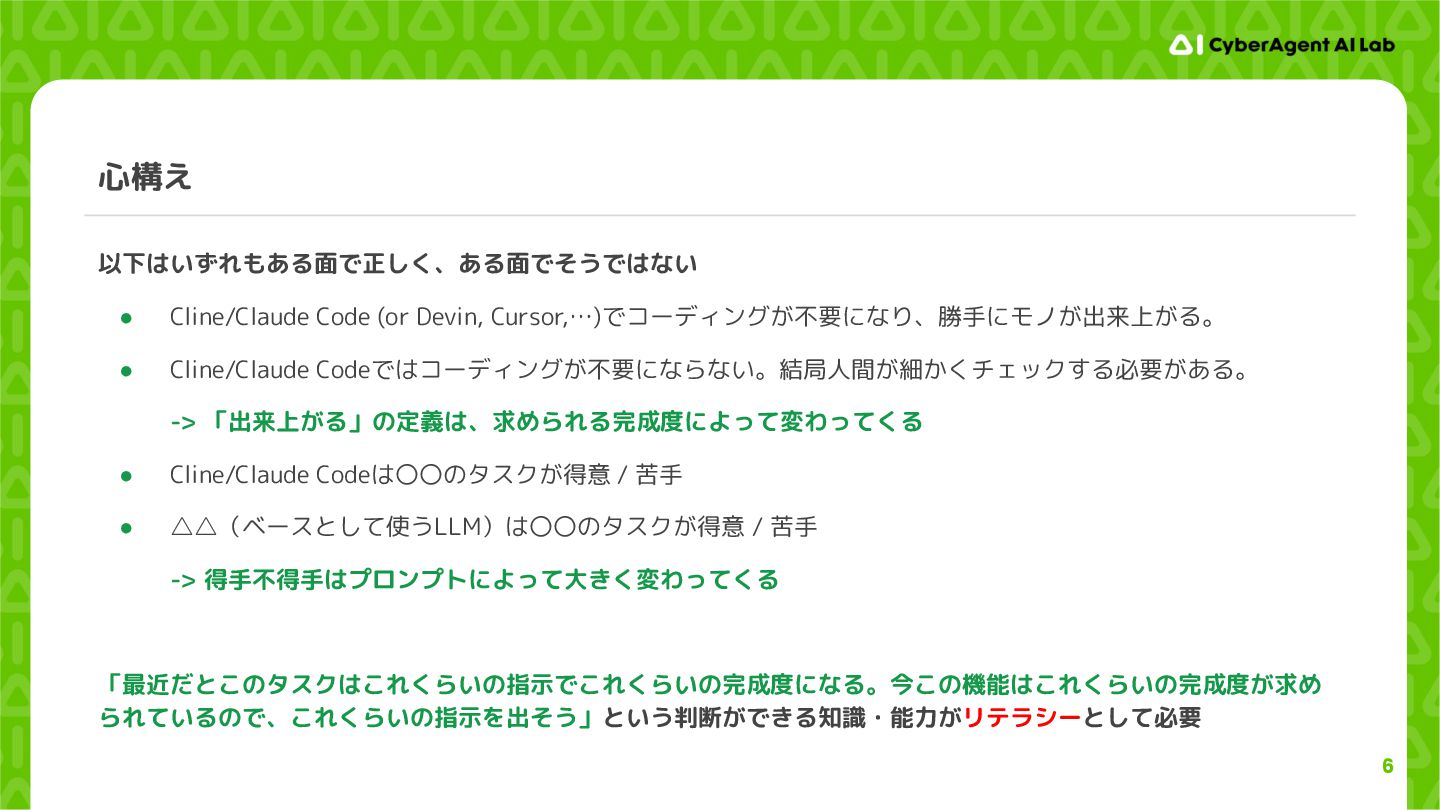
6 心構え 以下はいずれもある面で正しく、ある面でそうではない • Cline/Claude Code (or Devin, Cursor,…)でコーディングが不要になり、勝手にモノが出来上がる。 •
Cline/Claude Codeではコーディングが不要にならない。結局人間が細かくチェックする必要がある。 -> 「出来上がる」の定義は、求められる完成度によって変わってくる • Cline/Claude Codeは〇〇のタスクが得意 / 苦手 • △△(ベースとして使うLLM)は〇〇のタスクが得意 / 苦手 -> 得手不得手はプロンプトによって大きく変わってくる 「最近だとこのタスクはこれくらいの指示でこれくらいの完成度になる。今この機能はこれくらいの完成度が求め られているので、これくらいの指示を出そう」という判断ができる知識・能力がリテラシーとして必要 -
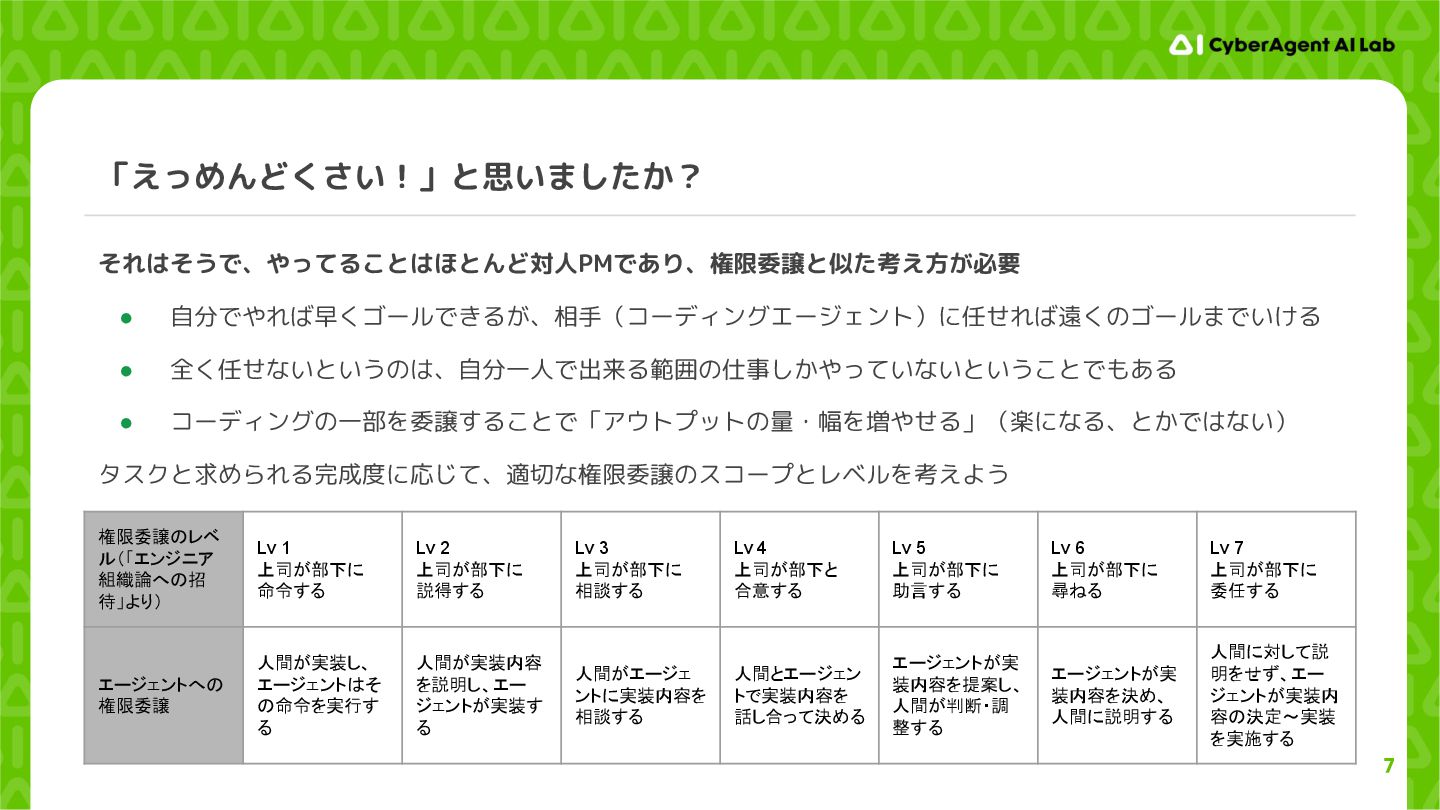
7 「えっめんどくさい!」と思いましたか? それはそうで、やってることはほとんど対人PMであり、権限委譲と似た考え方が必要 • 自分でやれば早くゴールできるが、相手(コーディングエージェント)に任せれば遠くのゴールまでいける • 全く任せないというのは、自分一人で出来る範囲の仕事しかやっていないということでもある • コーディングの一部を委譲することで「アウトプットの量・幅を増やせる」(楽になる、とかではない) タスクと求められる完成度に応じて、適切な権限委譲のスコープとレベルを考えよう
権限委譲のレベ ル(「エンジニア 組織論への招 待」より) Lv 1 上司が部下に 命令する Lv 2 上司が部下に 説得する Lv 3 上司が部下に 相談する Lv 4 上司が部下と 合意する Lv 5 上司が部下に 助言する Lv 6 上司が部下に 尋ねる Lv 7 上司が部下に 委任する エージェントへの 権限委譲 人間が実装し、 エージェントはそ の命令を実行す る 人間が実装内容 を説明し、エー ジェントが実装す る 人間がエージェ ントに実装内容を 相談する 人間とエージェン トで実装内容を 話し合って決める エージェントが実 装内容を提案し、 人間が判断・調 整する エージェントが実 装内容を決め、 人間に説明する 人間に対して説 明をせず、エー ジェントが実装内 容の決定~実装 を実施する -
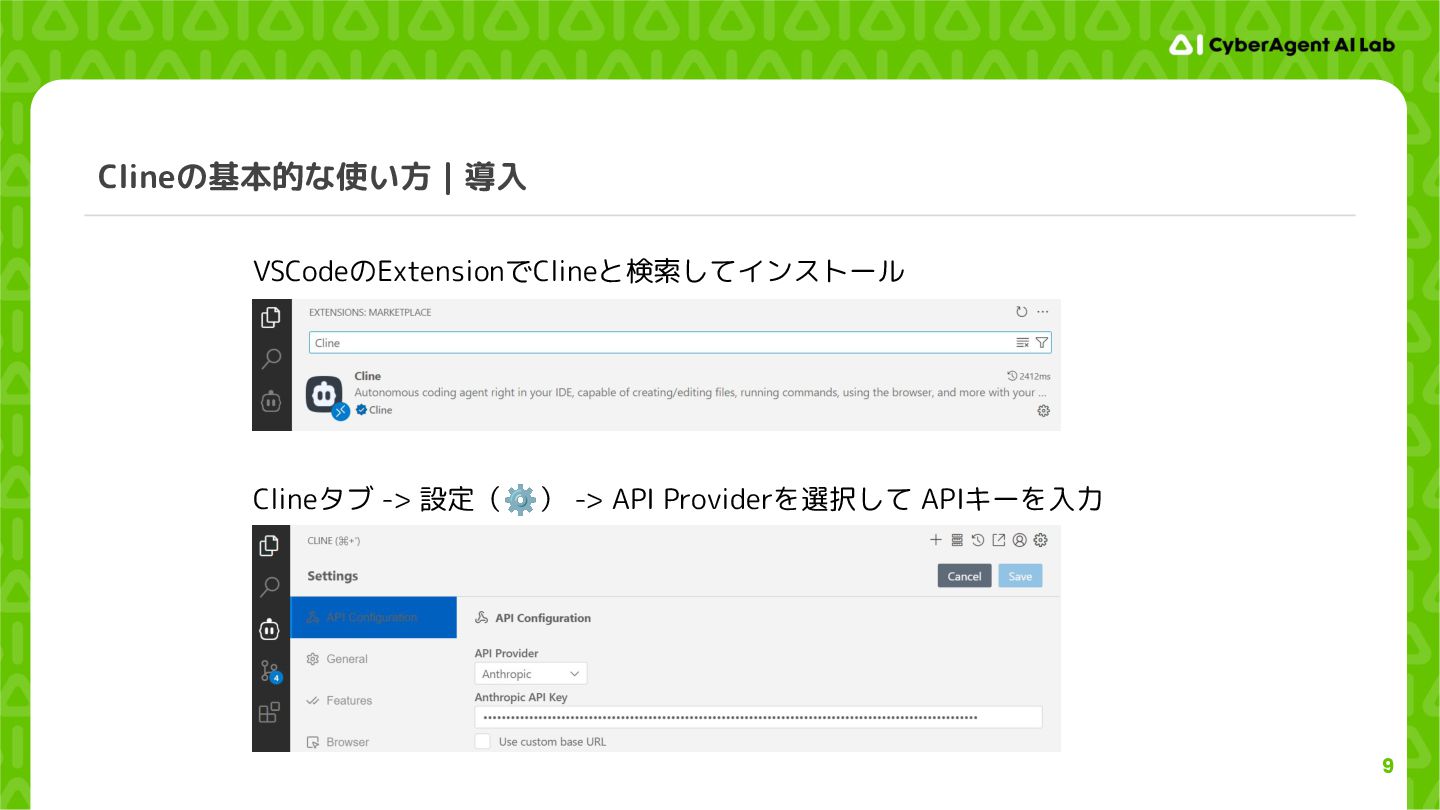
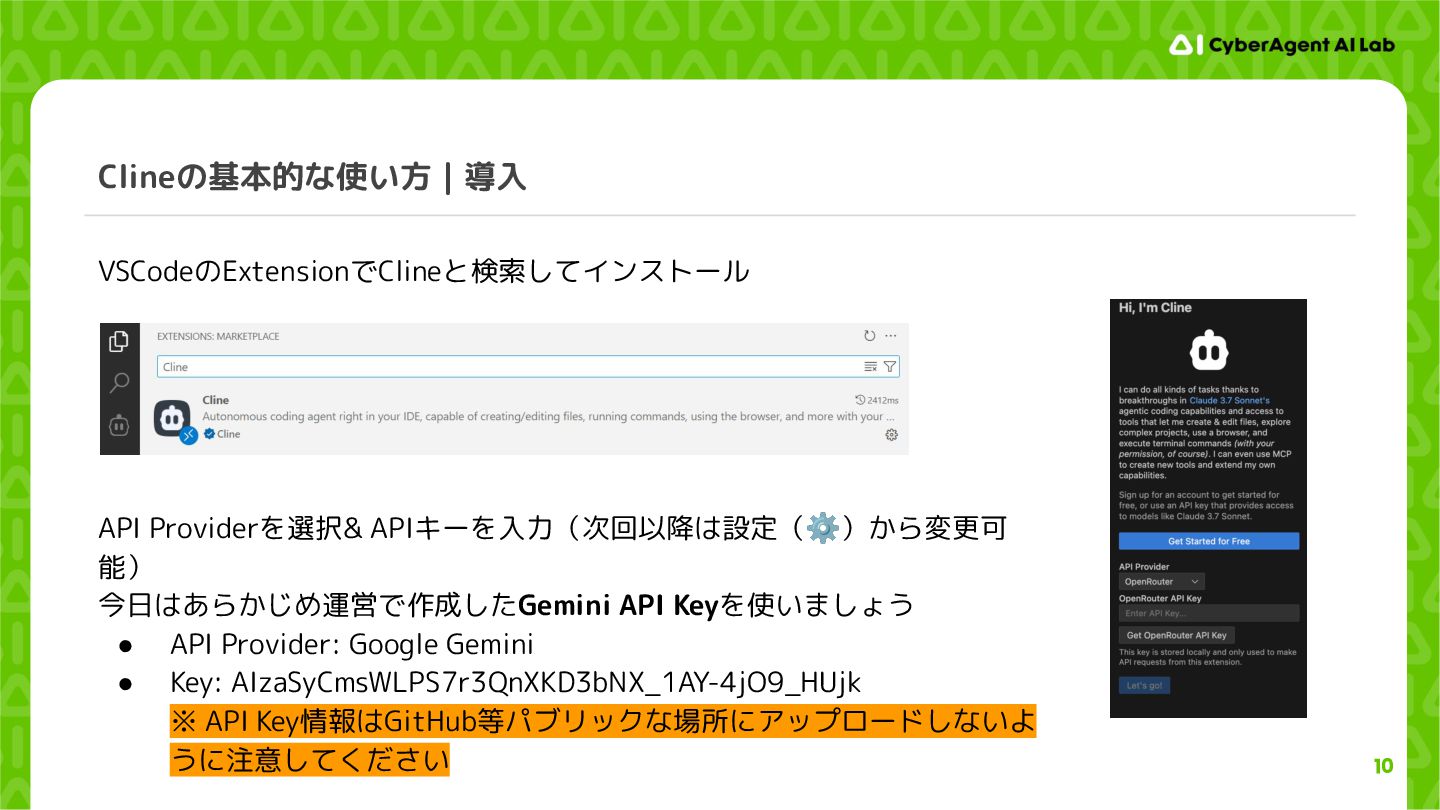
10 Clineの基本的な使い方|導入 VSCodeのExtensionでClineと検索してインストール API Providerを選択& APIキーを入力(次回以降は設定(⚙)から変更可 能) 今日はあらかじめ運営で作成したGemini API Keyを使いましょう
• API Provider: Google Gemini • Key: AIzaSyCmsWLPS7r3QnXKD3bNX_1AY-4jO9_HUjk ※ API Key情報はGitHub等パブリックな場所にアップロードしないよ うに注意してください -
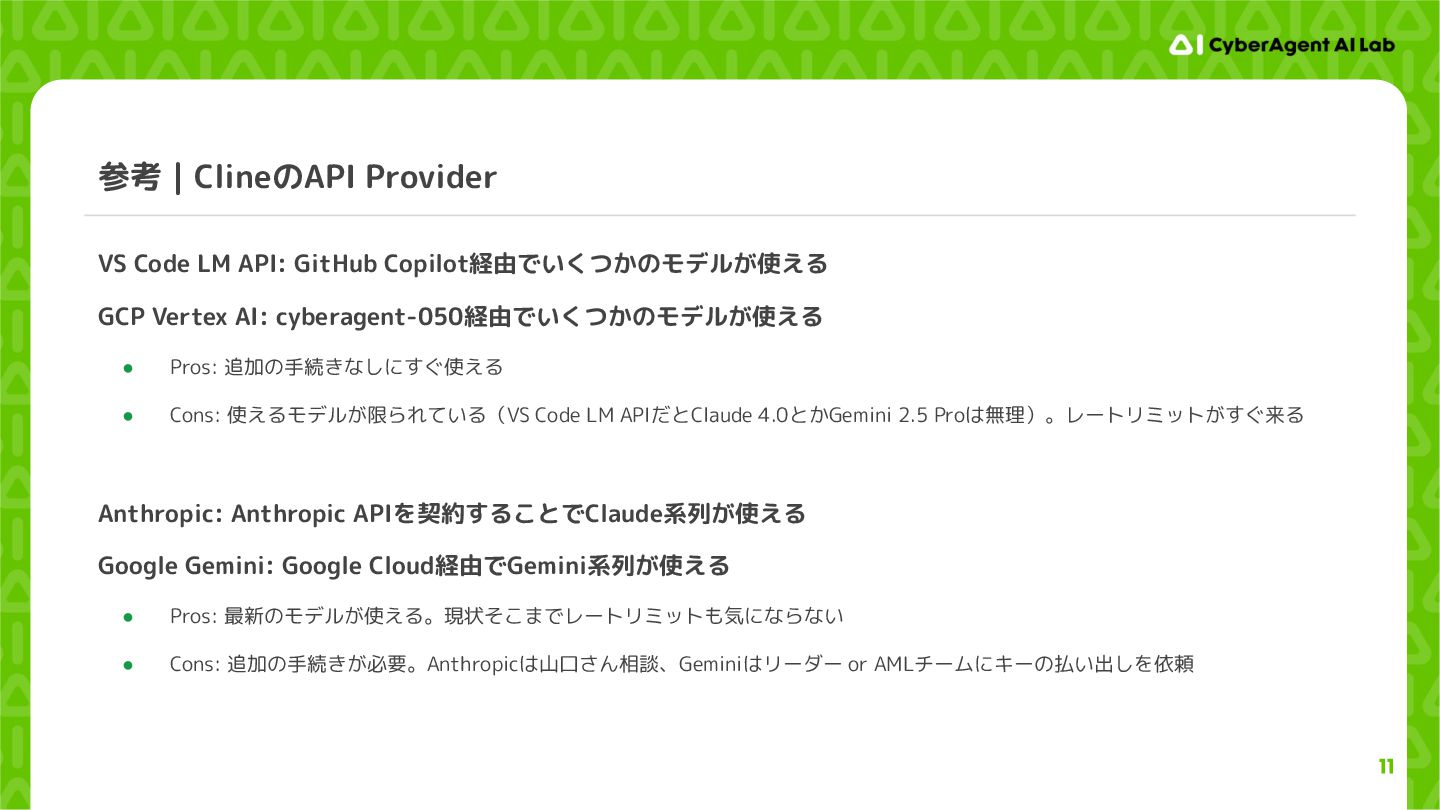
11 参考|ClineのAPI Provider VS Code LM API: GitHub Copilot経由でいくつかのモデルが使える GCP
Vertex AI: cyberagent-050経由でいくつかのモデルが使える • Pros: 追加の手続きなしにすぐ使える • Cons: 使えるモデルが限られている(VS Code LM APIだとClaude 4.0とかGemini 2.5 Proは無理)。レートリミットがすぐ来る Anthropic: Anthropic APIを契約することでClaude系列が使える Google Gemini: Google Cloud経由でGemini系列が使える • Pros: 最新のモデルが使える。現状そこまでレートリミットも気にならない • Cons: 追加の手続きが必要。Anthropicは山口さん相談、Geminiはリーダー or AMLチームにキーの払い出しを依頼 -
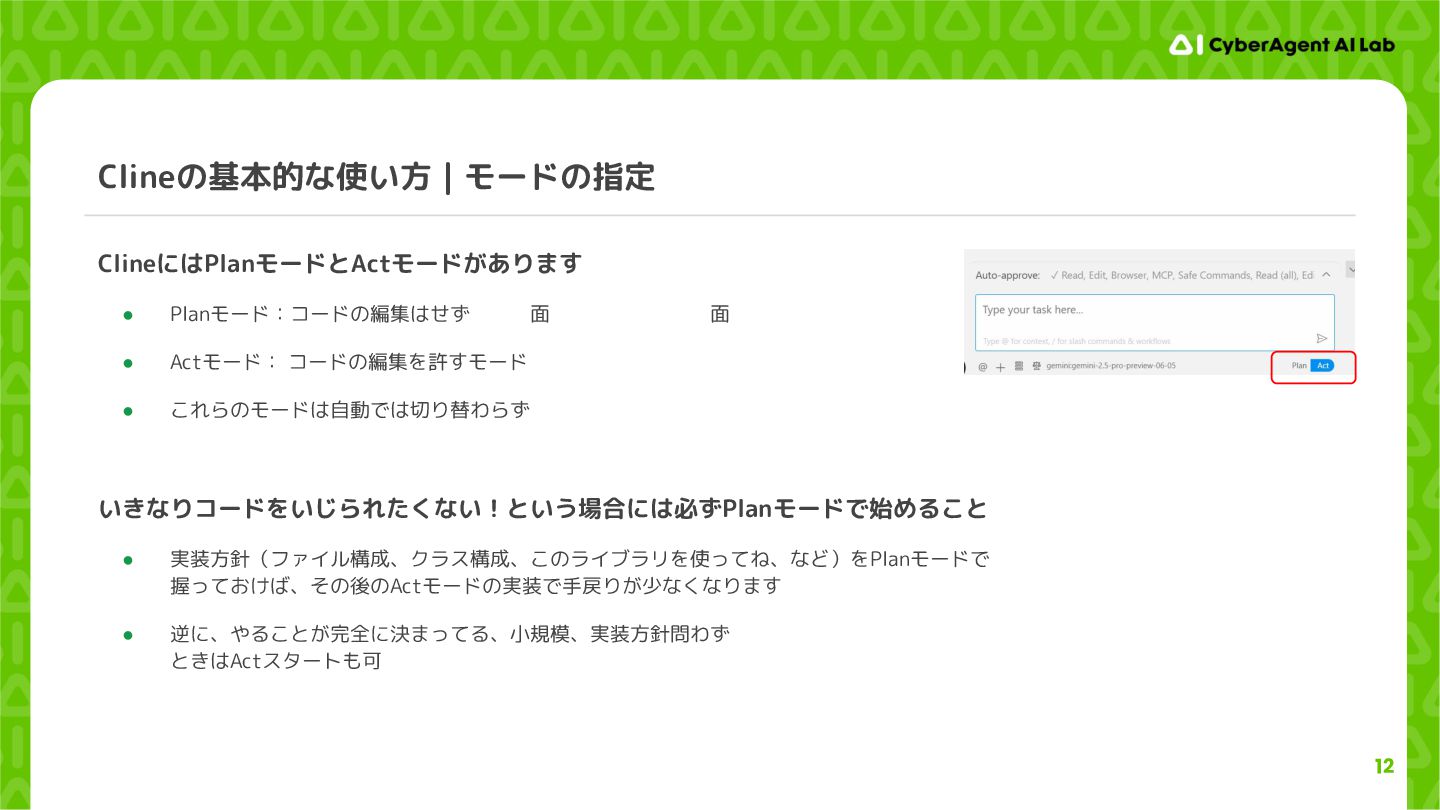
12 Clineの基本的な使い方|モードの指定 ClineにはPlanモードとActモードがあります • Planモード:コードの編集はせず、実装方針のディスカッションのみをするモード • Actモード: コードの編集を許すモード • これらのモードは自動では切り替わらず、ユーザが手動で切り替える必要がある
いきなりコードをいじられたくない!という場合には必ずPlanモードで始めること • 実装方針(ファイル構成、クラス構成、このライブラリを使ってね、など)をPlanモードで 握っておけば、その後のActモードの実装で手戻りが少なくなります • 逆に、やることが完全に決まってる、小規模、実装方針問わずいったん動けばいい、みたいな ときはActスタートも可 -
13 参考|Plan/Actモードの利用例 Plan/Actモードと組み合わせてうまく使う 1. 最初はplanモードで全体的な実装方針を詰め切る。新しく追加するクラス・関数・テストのモックくらいまで作らせる。 2. 方針が決まったら、いったん上記の内容をmemory bankに保存させる。以降の実装でコケてもいいように、このタイミングでいっ たんgit commit。
3. ↑で決まった方針に沿って、自分でレビューできるサイズのサブタスクだけ切り出してact mode で実行。 大きなタスクをやる場合でも、ステップ1ではモックだけ確認すればよく、また実装前で手戻りも容易なので、時間的にも精神的にも負担 が少ない。1で方針をしっかり決めておけば、ステップ3ほとんど放置でいけるし、実装量を適切に絞ればレビューの負担は少ない。さらに ステップ2でメモリーバンクをバックログにすることで、残りのサブタスクではステップ1を省略できる。 -
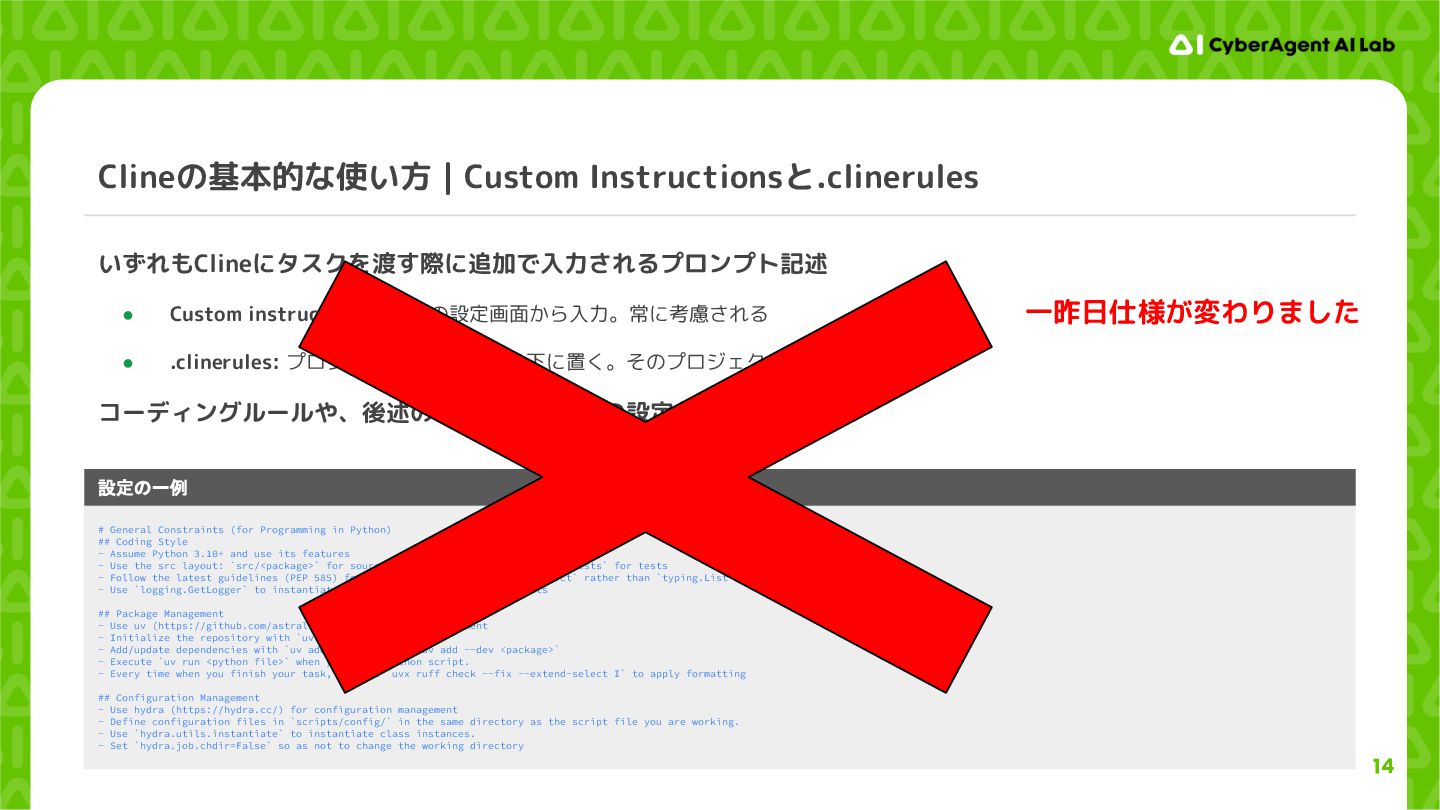
14 Clineの基本的な使い方|Custom Instructionsと.clinerules いずれもClineにタスクを渡す際に追加で入力されるプロンプト記述 • Custom instructions: Clineの設定画面から入力。常に考慮される • .clinerules:
プロジェクトディレクトリ下に置く。そのプロジェクトでのみ考慮される コーディングルールや、後述のメモリーバンクの設定などに利用します # General Constraints (for Programming in Python) ## Coding Style - Assume Python 3.10+ and use its features - Use the src layout: `src/<package>` for source code, `scripts` for scripts, `tests` for tests - Follow the latest guidelines (PEP 585) for type hints: e.g., use `list` `dict` rather than `typing.List`. - Use `logging.GetLogger` to instantiate logger and use it to print outputs ## Package Management - Use uv (https://github.com/astral-sh/uv) for package management - Initialize the repository with `uv init --lib` - Add/update dependencies with `uv add <package>` or `uv add --dev <package>` - Execute `uv run <python file>` when you run a python script. - Every time when you finish your task, execute `uvx ruff check --fix --extend-select I` to apply formatting ## Configuration Management - Use hydra (https://hydra.cc/) for configuration management - Define configuration files in `scripts/config/` in the same directory as the script file you are working. - Use `hydra.utils.instantiate` to instantiate class instances. - Set `hydra.job.chdir=False` so as not to change the working directory 設定の一例 一昨日仕様が変わりました -
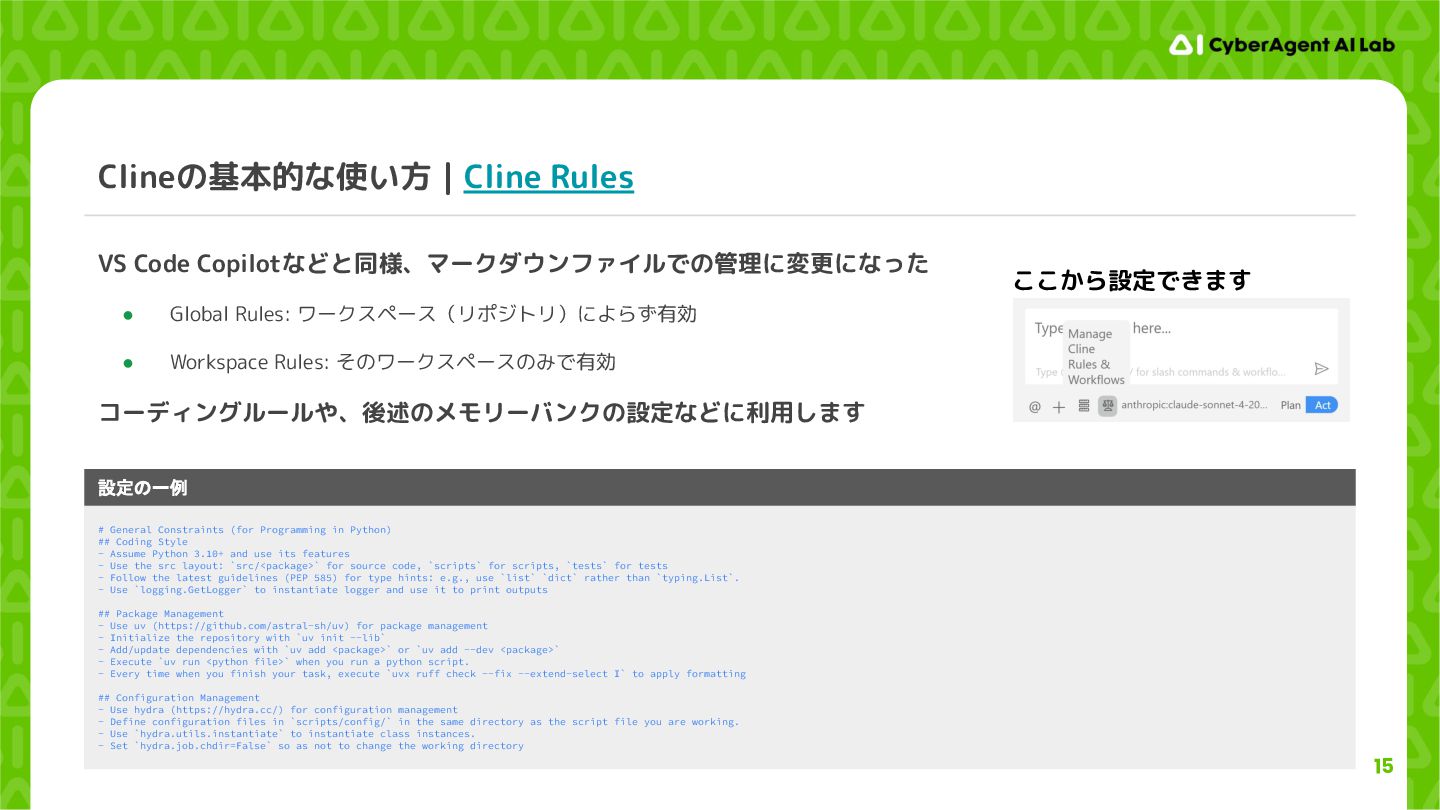
15 Clineの基本的な使い方|Cline Rules VS Code Copilotなどと同様、マークダウンファイルでの管理に変更になった • Global Rules: ワークスペース(リポジトリ)によらず有効
• Workspace Rules: そのワークスペースのみで有効 コーディングルールや、後述のメモリーバンクの設定などに利用します # General Constraints (for Programming in Python) ## Coding Style - Assume Python 3.10+ and use its features - Use the src layout: `src/<package>` for source code, `scripts` for scripts, `tests` for tests - Follow the latest guidelines (PEP 585) for type hints: e.g., use `list` `dict` rather than `typing.List`. - Use `logging.GetLogger` to instantiate logger and use it to print outputs ## Package Management - Use uv (https://github.com/astral-sh/uv) for package management - Initialize the repository with `uv init --lib` - Add/update dependencies with `uv add <package>` or `uv add --dev <package>` - Execute `uv run <python file>` when you run a python script. - Every time when you finish your task, execute `uvx ruff check --fix --extend-select I` to apply formatting ## Configuration Management - Use hydra (https://hydra.cc/) for configuration management - Define configuration files in `scripts/config/` in the same directory as the script file you are working. - Use `hydra.utils.instantiate` to instantiate class instances. - Set `hydra.job.chdir=False` so as not to change the working directory 設定の一例 ここから設定できます -
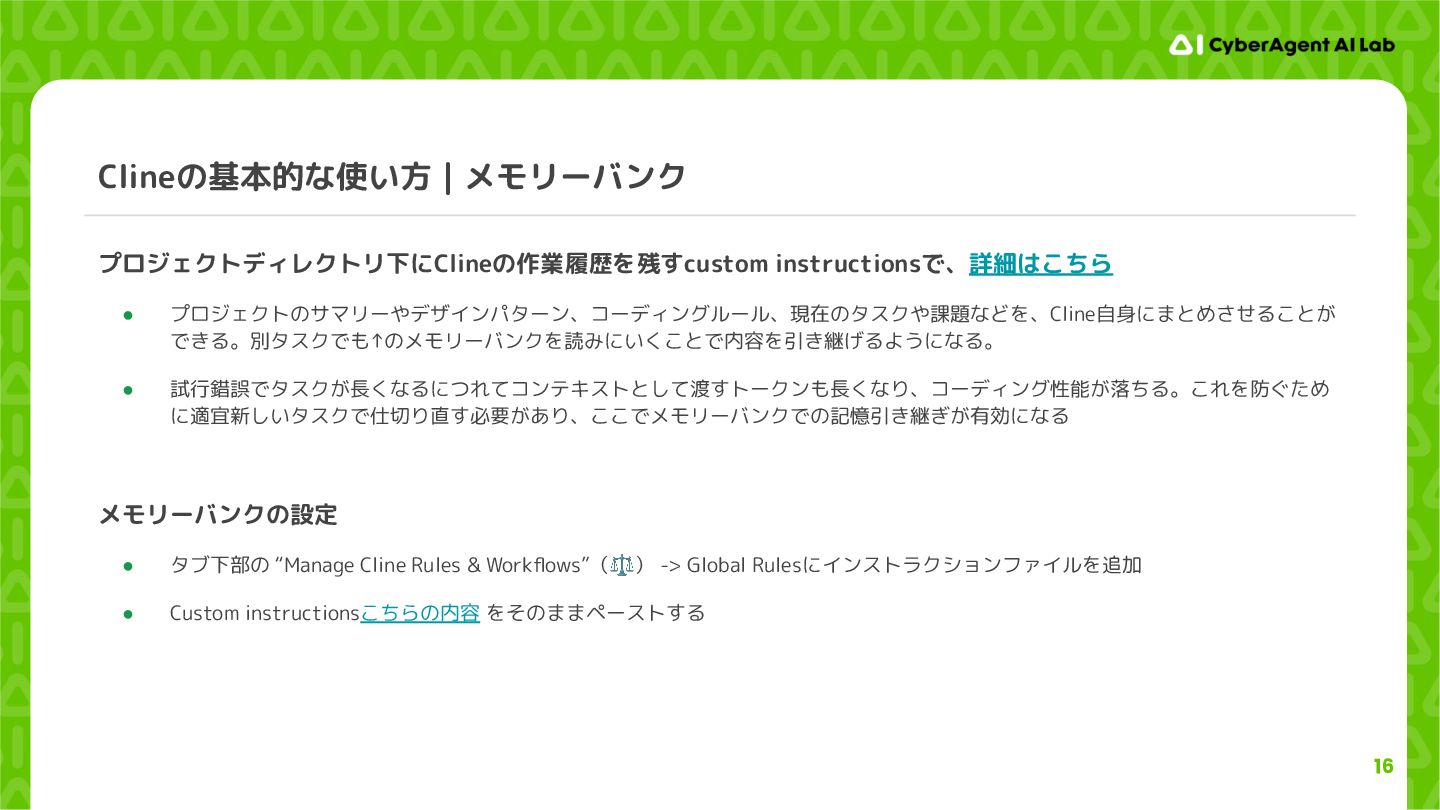
16 Clineの基本的な使い方|メモリーバンク プロジェクトディレクトリ下にClineの作業履歴を残すcustom instructionsで、詳細はこちら • プロジェクトのサマリーやデザインパターン、コーディングルール、現在のタスクや課題などを、Cline自身にまとめさせることが できる。別タスクでも↑のメモリーバンクを読みにいくことで内容を引き継げるようになる。 • 試行錯誤でタスクが長くなるにつれてコンテキストとして渡すトークンも長くなり、コーディング性能が落ちる。これを防ぐため に適宜新しいタスクで仕切り直す必要があり、ここでメモリーバンクでの記憶引き継ぎが有効になる
メモリーバンクの設定 • タブ下部の “Manage Cline Rules & Workflows”(⚖) -> Global Rulesにインストラクションファイルを追加 • Custom instructionsこちらの内容 をそのままペーストする -
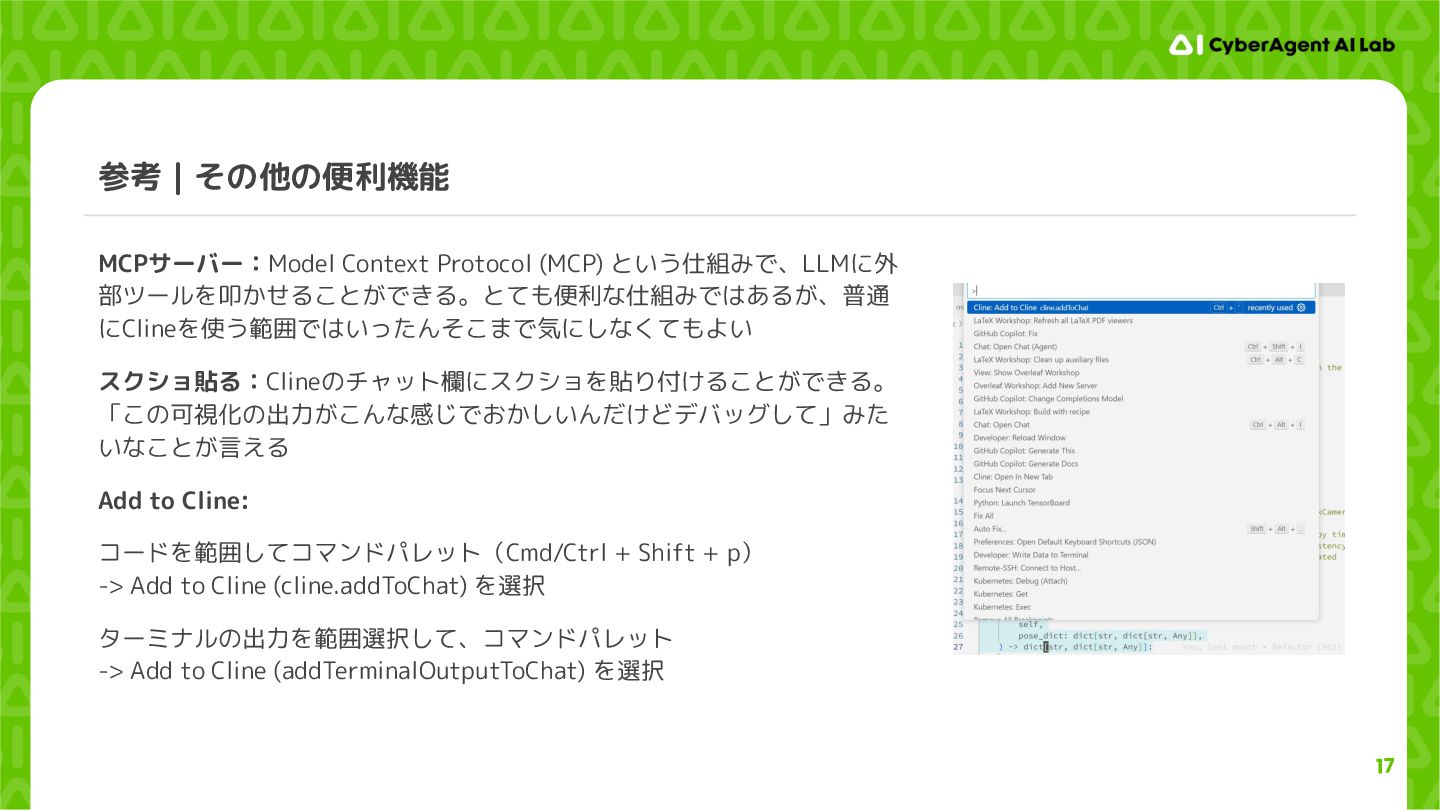
17 参考|その他の便利機能 MCPサーバー:Model Context Protocol (MCP) という仕組みで、LLMに外 部ツールを叩かせることができる。とても便利な仕組みではあるが、普通 にClineを使う範囲ではいったんそこまで気にしなくてもよい スクショ貼る:Clineのチャット欄にスクショを貼り付けることができる。
「この可視化の出力がこんな感じでおかしいんだけどデバッグして」みた いなことが言える Add to Cline: コードを範囲してコマンドパレット(Cmd/Ctrl + Shift + p) -> Add to Cline (cline.addToChat) を選択 ターミナルの出力を範囲選択して、コマンドパレット -> Add to Cline (addTerminalOutputToChat) を選択 -
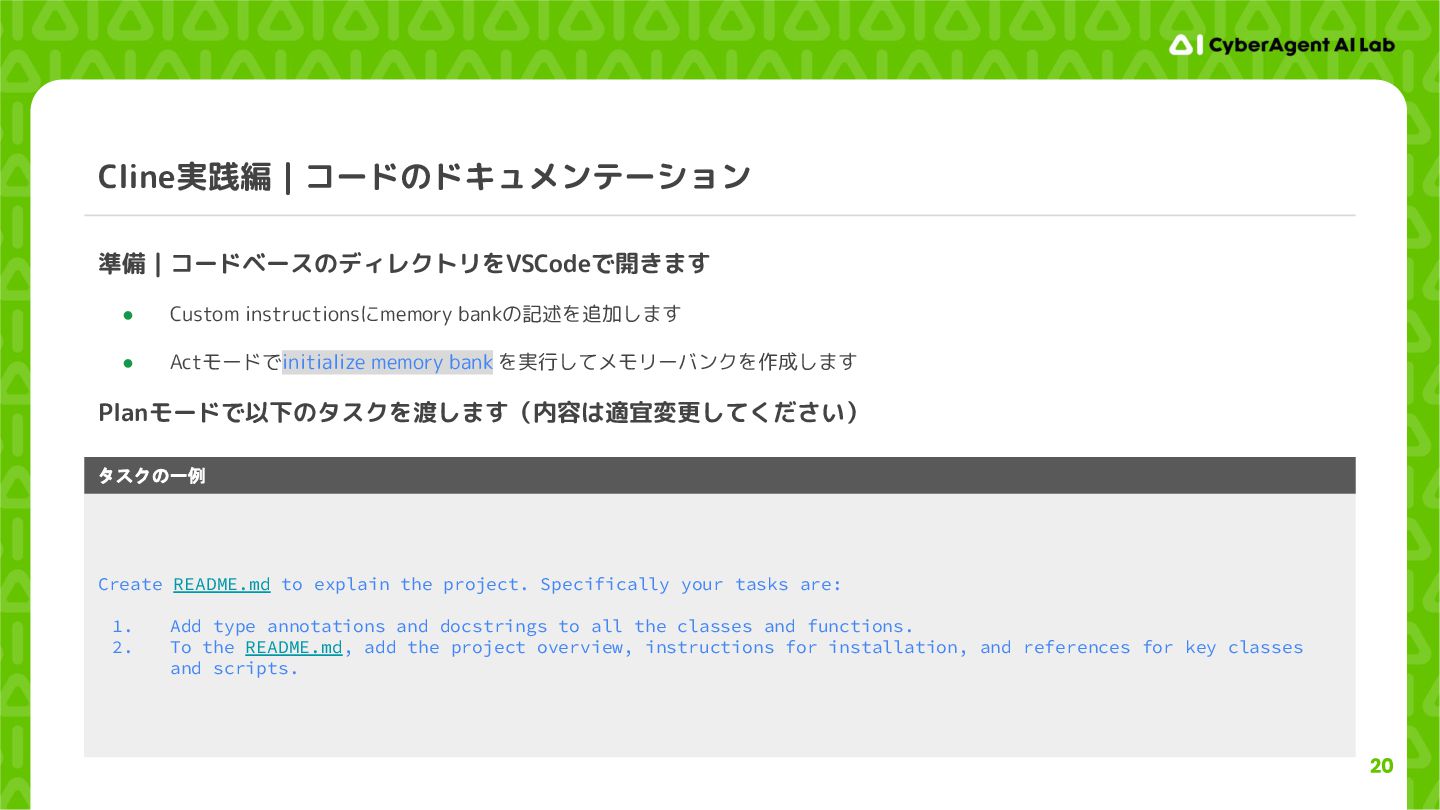
20 Cline実践編|コードのドキュメンテーション 準備|コードベースのディレクトリをVSCodeで開きます • Custom instructionsにmemory bankの記述を追加します • Actモードでinitialize memory
bank を実行してメモリーバンクを作成します Planモードで以下のタスクを渡します(内容は適宜変更してください) Create README.md to explain the project. Specifically your tasks are: 1. Add type annotations and docstrings to all the classes and functions. 2. To the README.md, add the project overview, instructions for installation, and references for key classes and scripts. タスクの一例 -
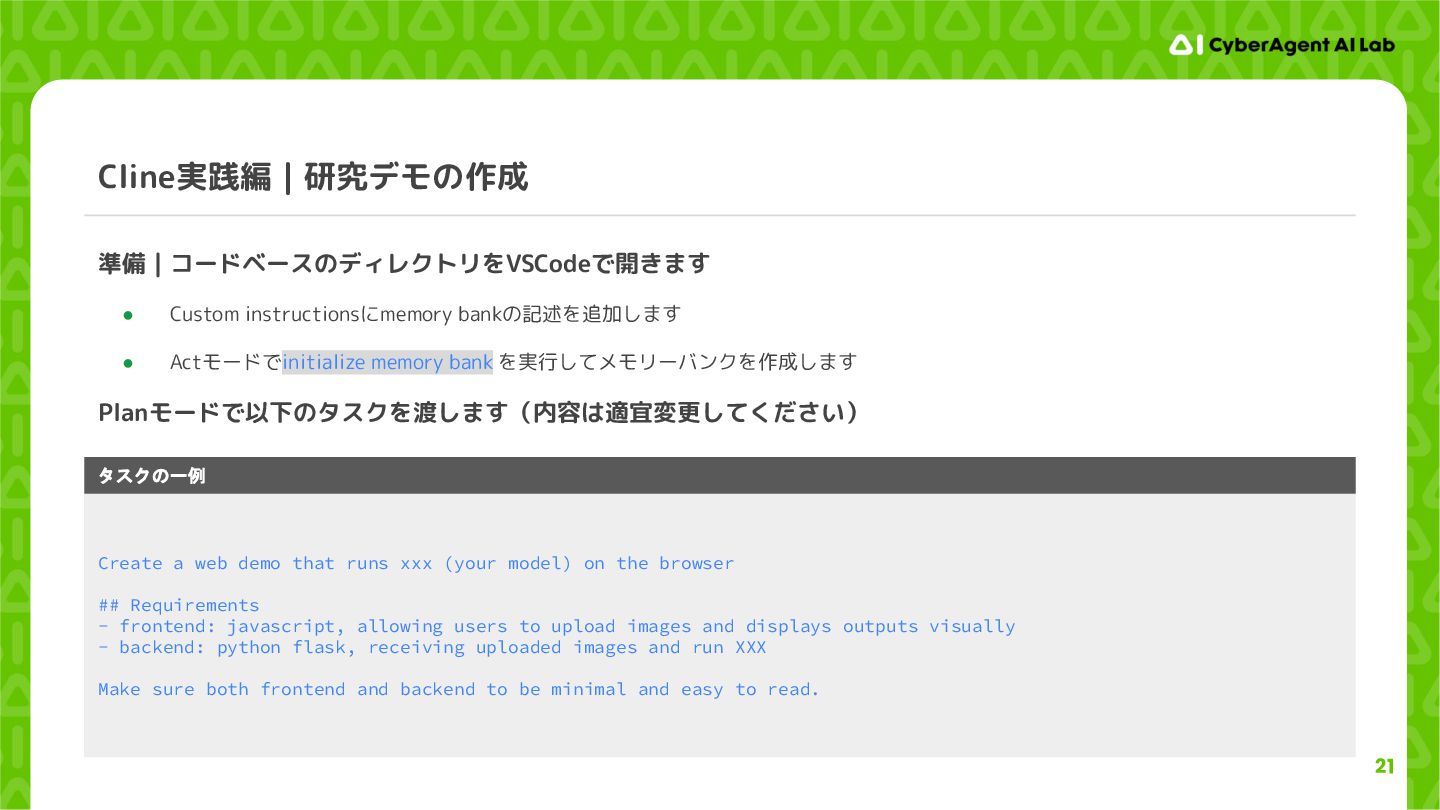
21 Cline実践編|研究デモの作成 準備|コードベースのディレクトリをVSCodeで開きます • Custom instructionsにmemory bankの記述を追加します • Actモードでinitialize memory
bank を実行してメモリーバンクを作成します Planモードで以下のタスクを渡します(内容は適宜変更してください) Create a web demo that runs xxx (your model) on the browser ## Requirements - frontend: javascript, allowing users to upload images and displays outputs visually - backend: python flask, receiving uploaded images and run XXX Make sure both frontend and backend to be minimal and easy to read. タスクの一例 -
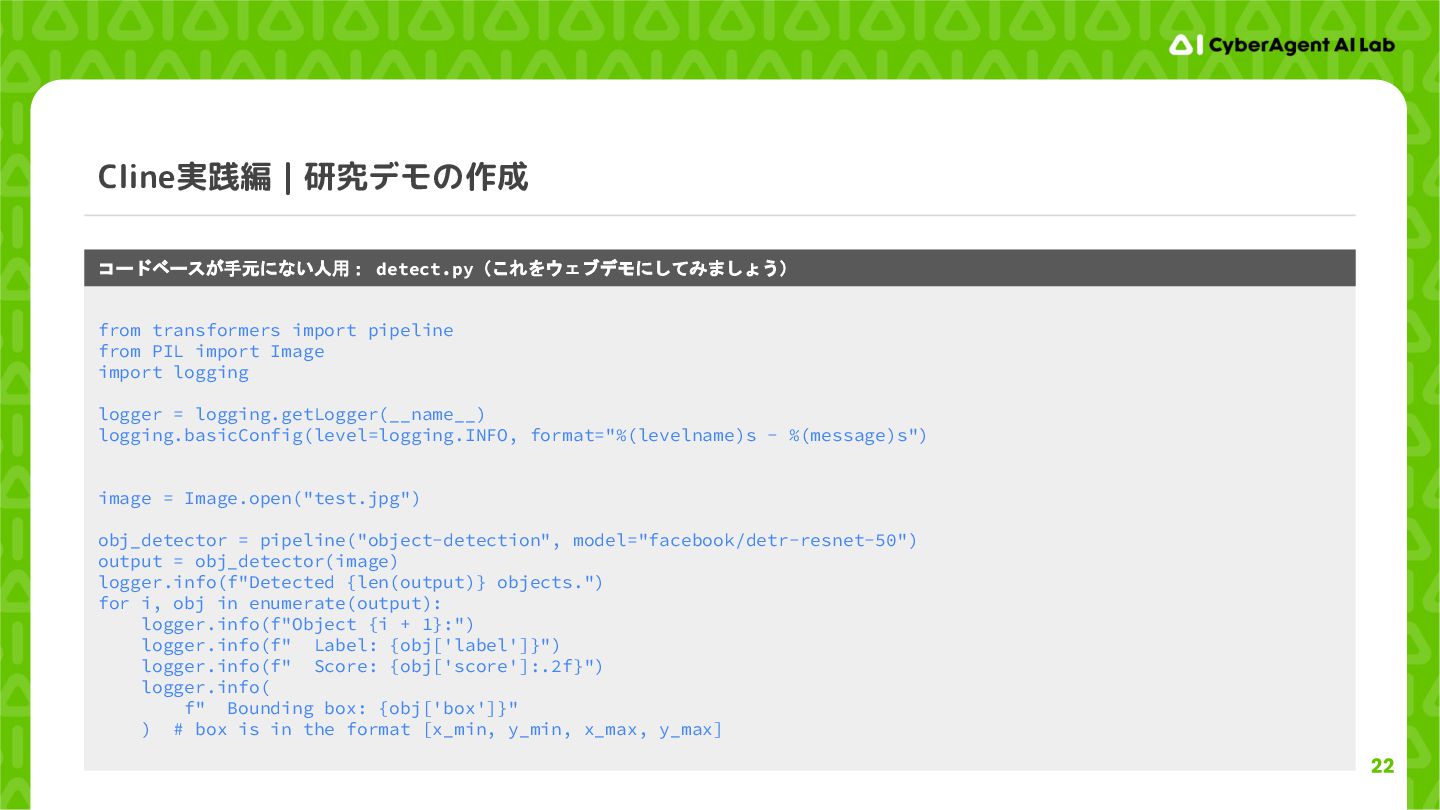
22 Cline実践編|研究デモの作成 from transformers import pipeline from PIL import Image
import logging logger = logging.getLogger(__name__) logging.basicConfig(level=logging.INFO, format="%(levelname)s - %(message)s") image = Image.open("test.jpg") obj_detector = pipeline("object-detection", model="facebook/detr-resnet-50") output = obj_detector(image) logger.info(f"Detected {len(output)} objects.") for i, obj in enumerate(output): logger.info(f"Object {i + 1}:") logger.info(f" Label: {obj['label']}") logger.info(f" Score: {obj['score']:.2f}") logger.info( f" Bounding box: {obj['box']}" ) # box is in the format [x_min, y_min, x_max, y_max] コードベースが手元にない人用: detect.py(これをウェブデモにしてみましょう) -
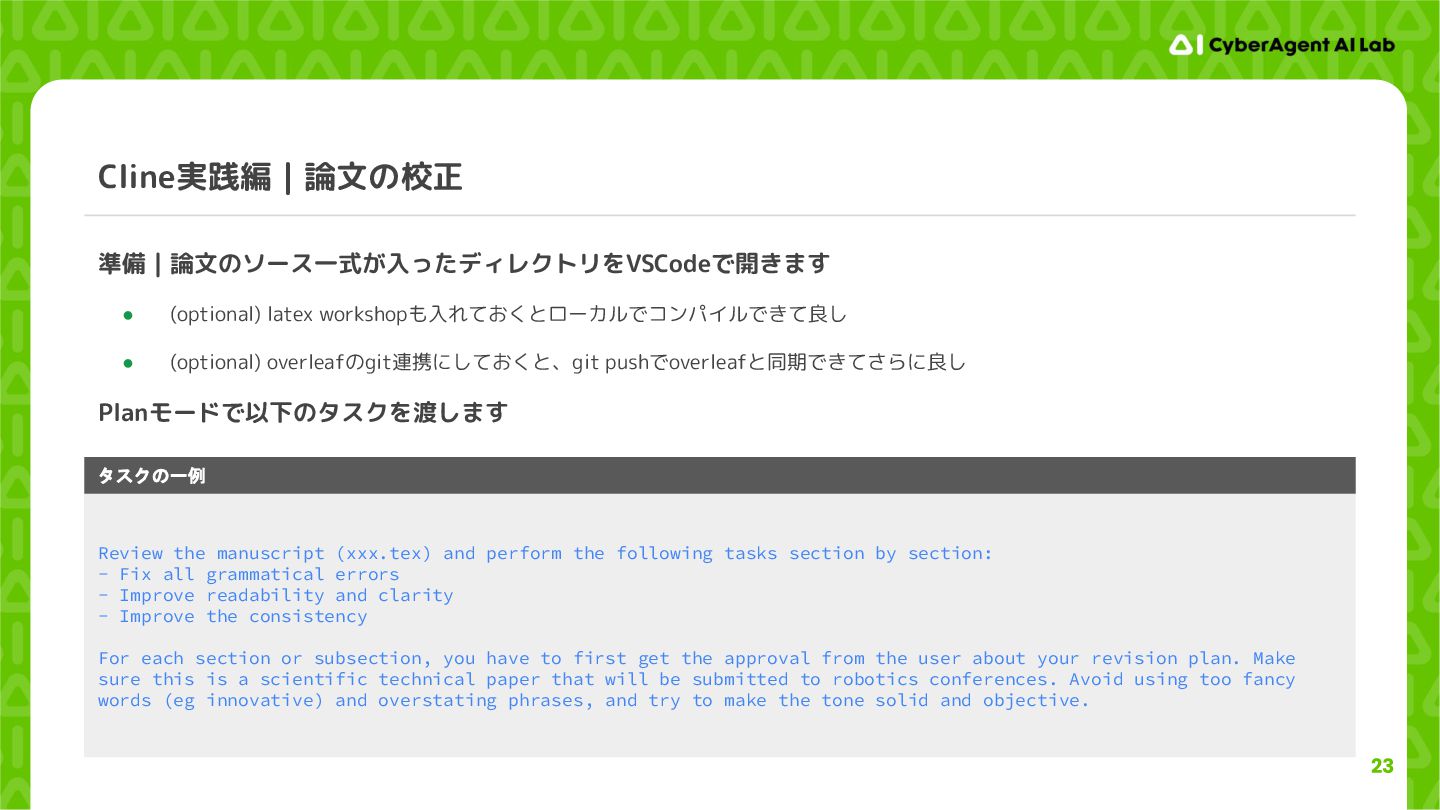
23 Cline実践編|論文の校正 準備|論文のソース一式が入ったディレクトリをVSCodeで開きます • (optional) latex workshopも入れておくとローカルでコンパイルできて良し • (optional) overleafのgit連携にしておくと、git
pushでoverleafと同期できてさらに良し Planモードで以下のタスクを渡します Review the manuscript (xxx.tex) and perform the following tasks section by section: - Fix all grammatical errors - Improve readability and clarity - Improve the consistency For each section or subsection, you have to first get the approval from the user about your revision plan. Make sure this is a scientific technical paper that will be submitted to robotics conferences. Avoid using too fancy words (eg innovative) and overstating phrases, and try to make the tone solid and objective. タスクの一例 -
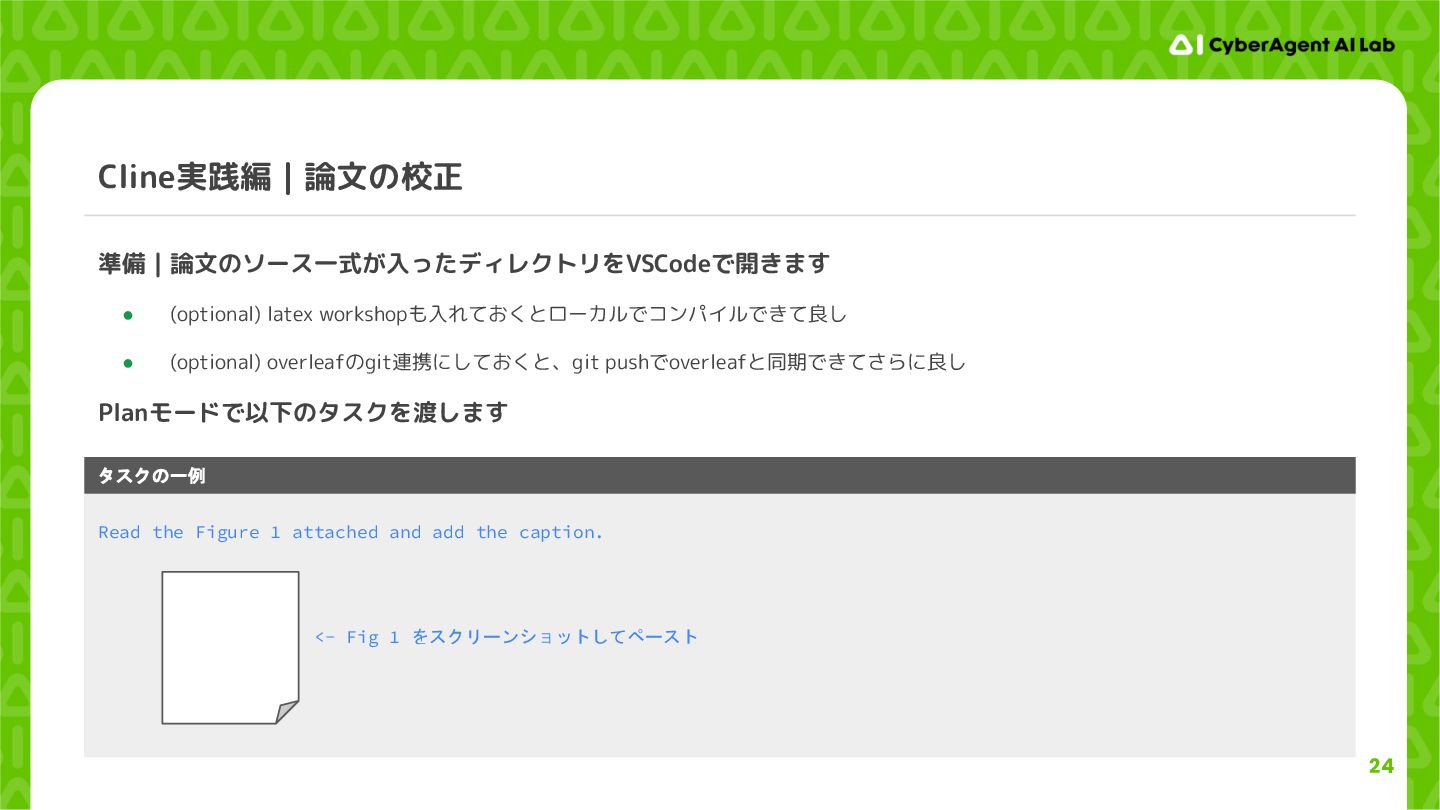
24 Cline実践編|論文の校正 準備|論文のソース一式が入ったディレクトリをVSCodeで開きます • (optional) latex workshopも入れておくとローカルでコンパイルできて良し • (optional) overleafのgit連携にしておくと、git
pushでoverleafと同期できてさらに良し Planモードで以下のタスクを渡します Read the Figure 1 attached and add the caption. <- Fig 1 をスクリーンショットしてペースト タスクの一例 -
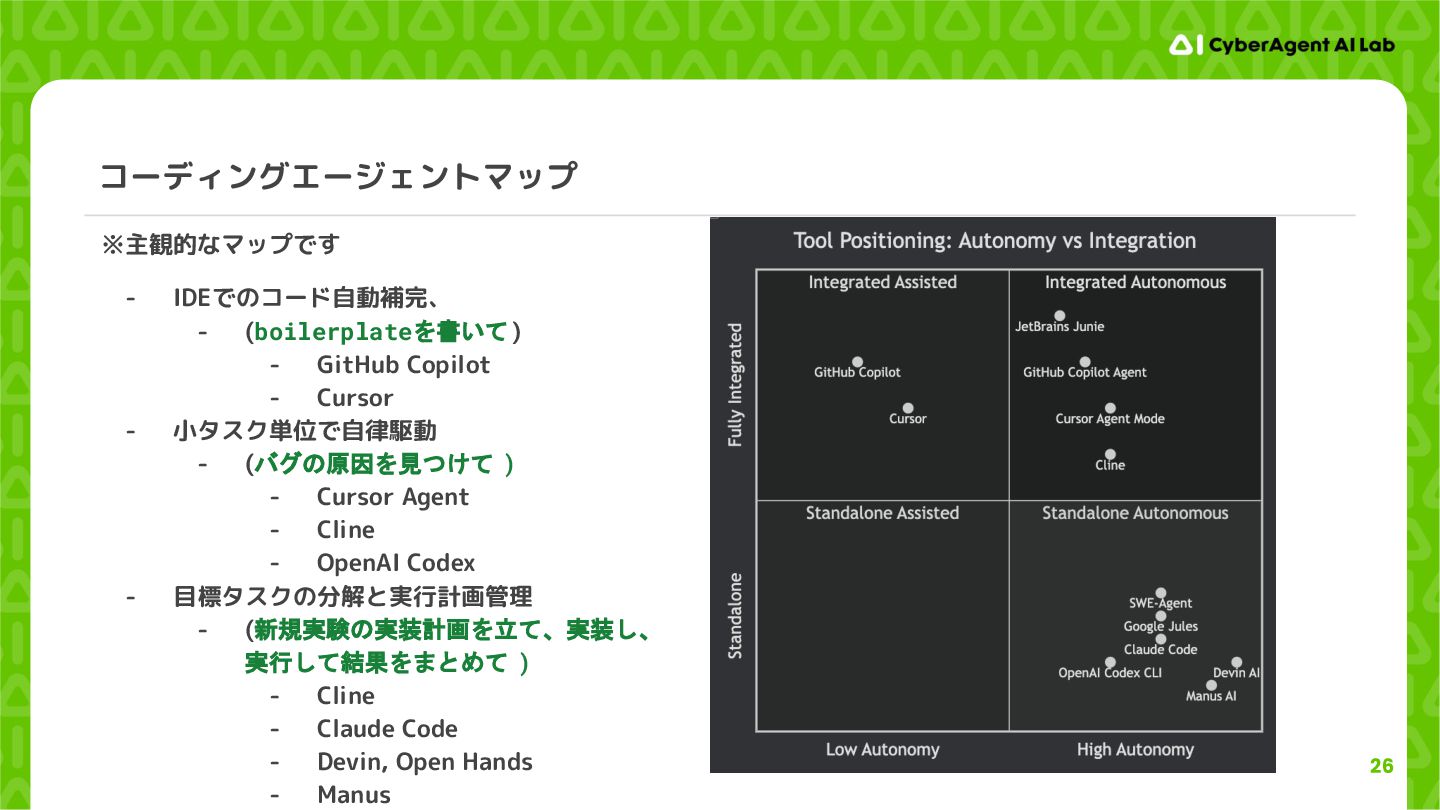
26 コーディングエージェントマップ ※主観的なマップです - IDEでのコード自動補完、 - (boilerplateを書いて) - GitHub Copilot
- Cursor - 小タスク単位で自律駆動 - (バグの原因を見つけて ) - Cursor Agent - Cline - OpenAI Codex - 目標タスクの分解と実行計画管理 - (新規実験の実装計画を立て、実装し、 実行して結果をまとめて ) - Cline - Claude Code - Devin, Open Hands - Manus -
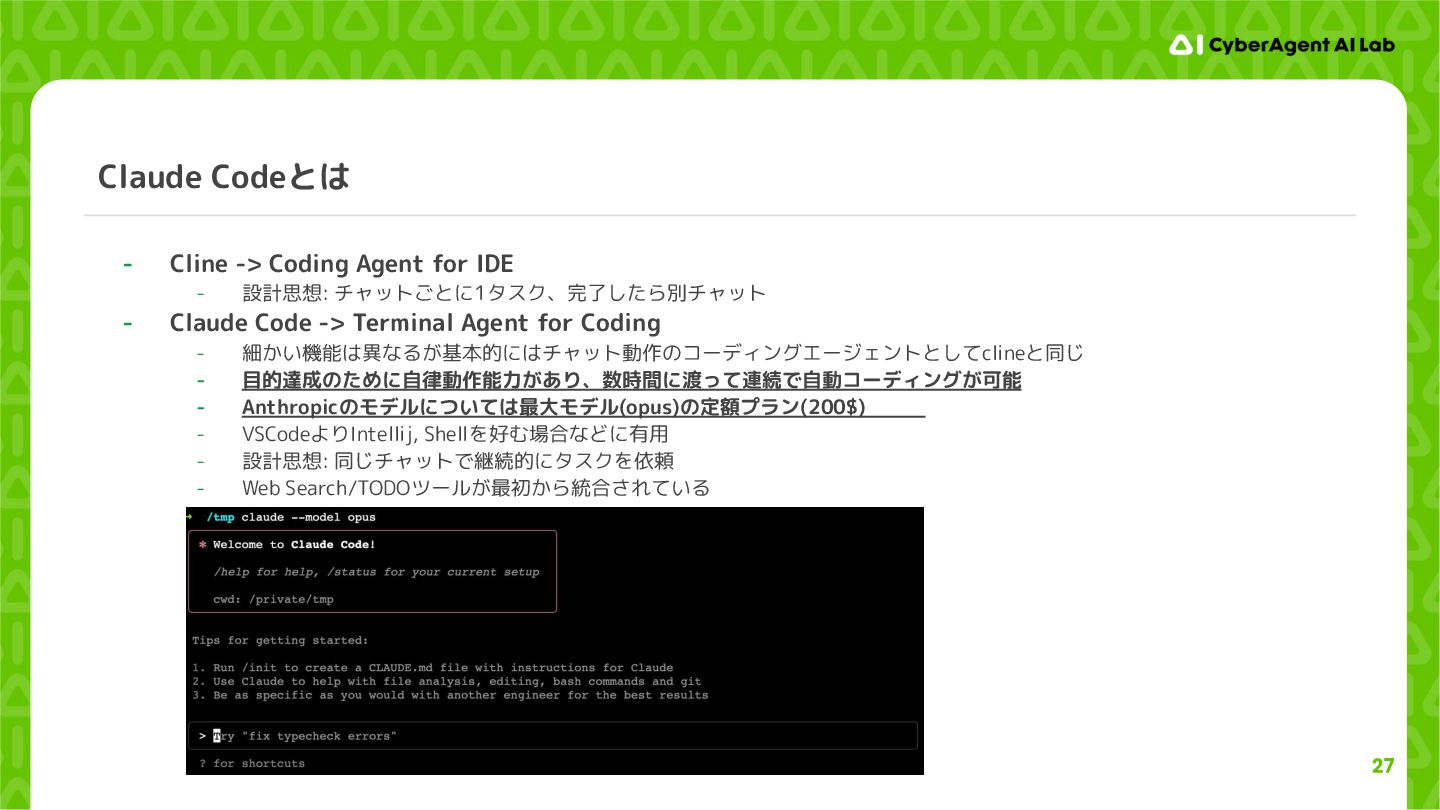
27 Claude Codeとは - Cline -> Coding Agent for IDE
- 設計思想: チャットごとに1タスク、完了したら別チャット - Claude Code -> Terminal Agent for Coding - 細かい機能は異なるが基本的にはチャット動作のコーディングエージェントとしてclineと同じ - 目的達成のために自律動作能力があり、数時間に渡って連続で自動コーディングが可能 - Anthropicのモデルについては最大モデル(opus)の定額プラン(200$)がある - VSCodeよりIntellij, Shellを好む場合などに有用 - 設計思想: 同じチャットで継続的にタスクを依頼 - Web Search/TODOツールが最初から統合されている -
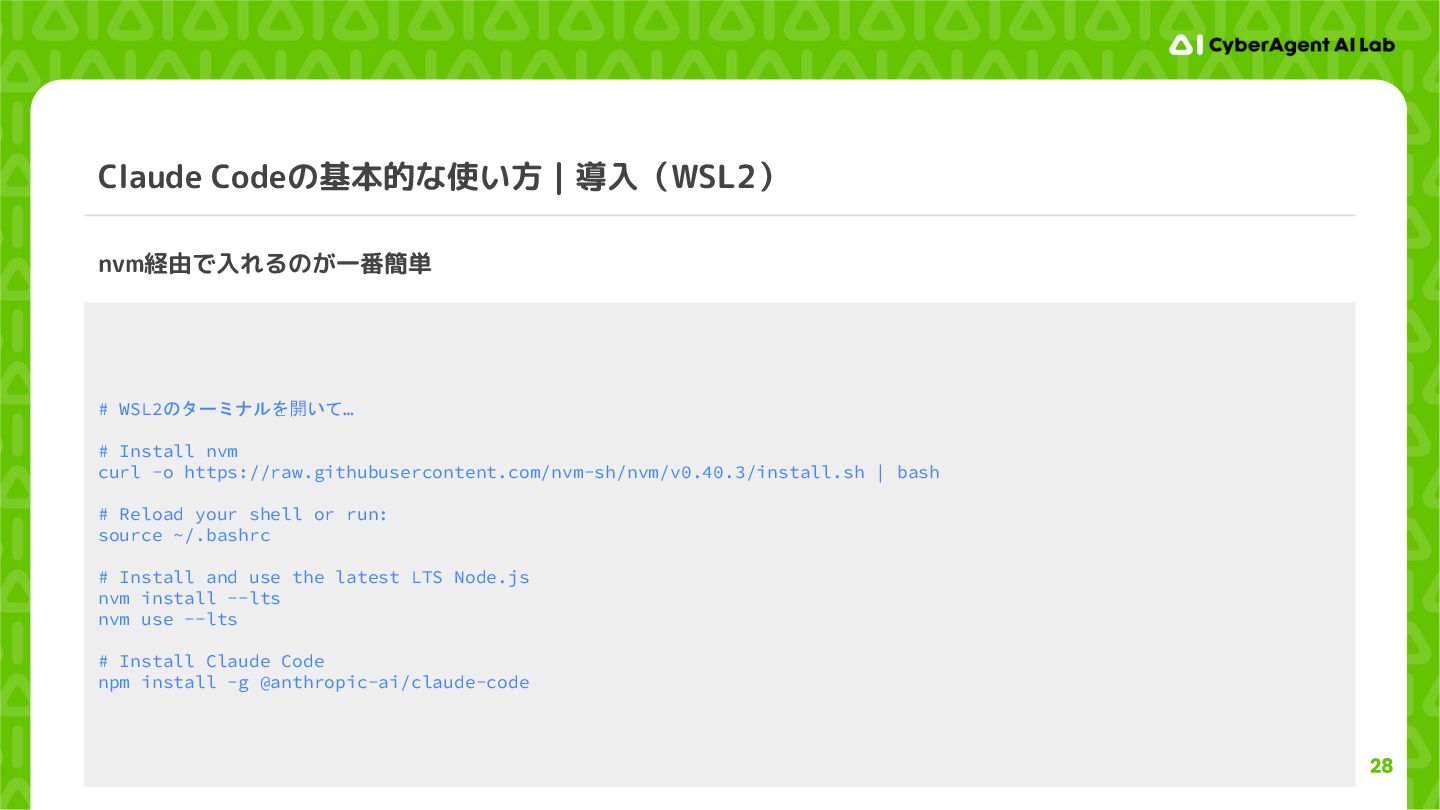
28 Claude Codeの基本的な使い方|導入(WSL2) nvm経由で入れるのが一番簡単 # WSL2のターミナルを開いて… # Install nvm curl
-o https://raw.githubusercontent.com/nvm-sh/nvm/v0.40.3/install.sh | bash # Reload your shell or run: source ~/.bashrc # Install and use the latest LTS Node.js nvm install --lts nvm use --lts # Install Claude Code npm install -g @anthropic-ai/claude-code -
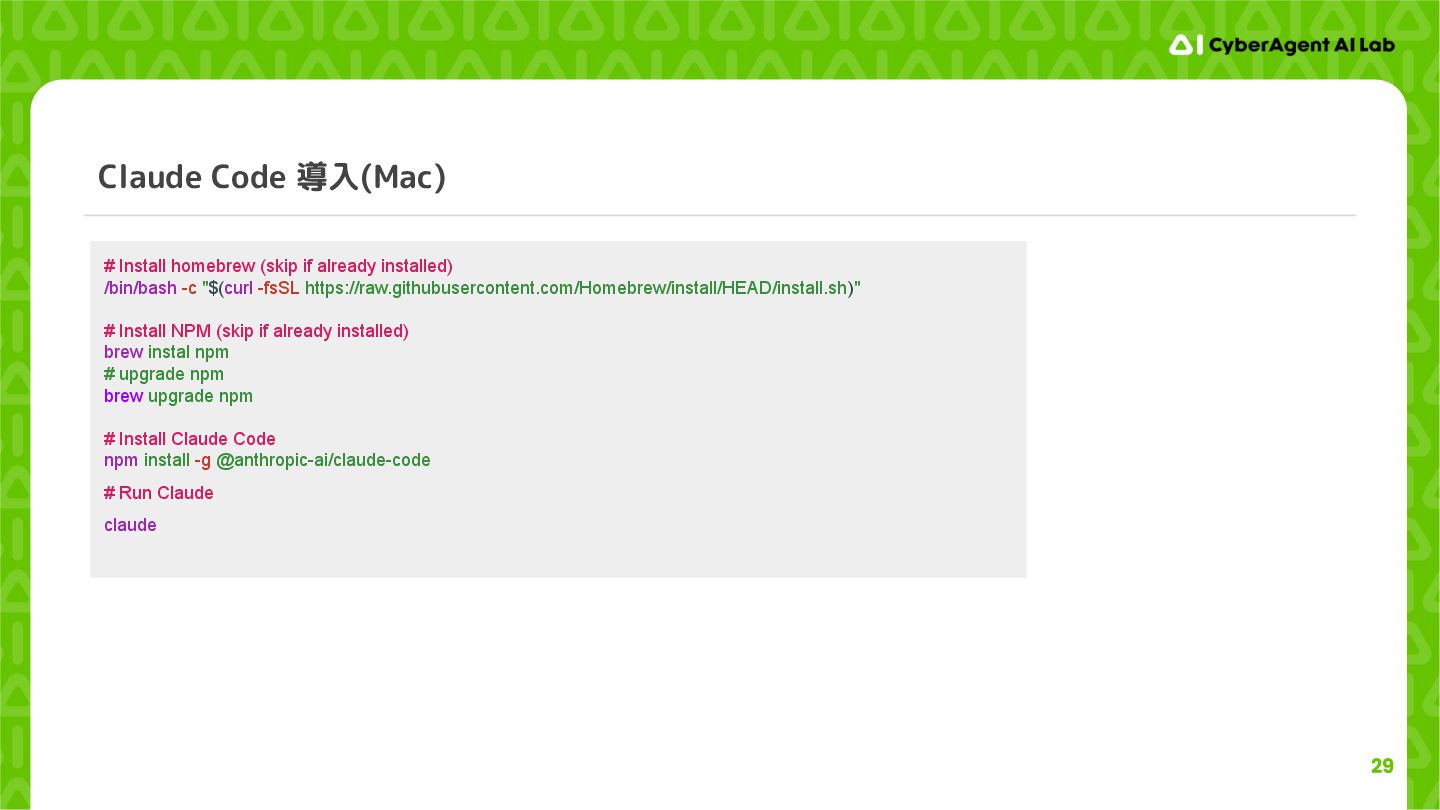
29 Claude Code 導入(Mac) # Install homebrew (skip if already
installed) /bin/bash -c "$(curl -fsSL https://raw.githubusercontent.com/Homebrew/install/HEAD/install.sh)" # Install NPM (skip if already installed) brew instal npm # upgrade npm brew upgrade npm # Install Claude Code npm install -g @anthropic-ai/claude-code # Run Claude claude -
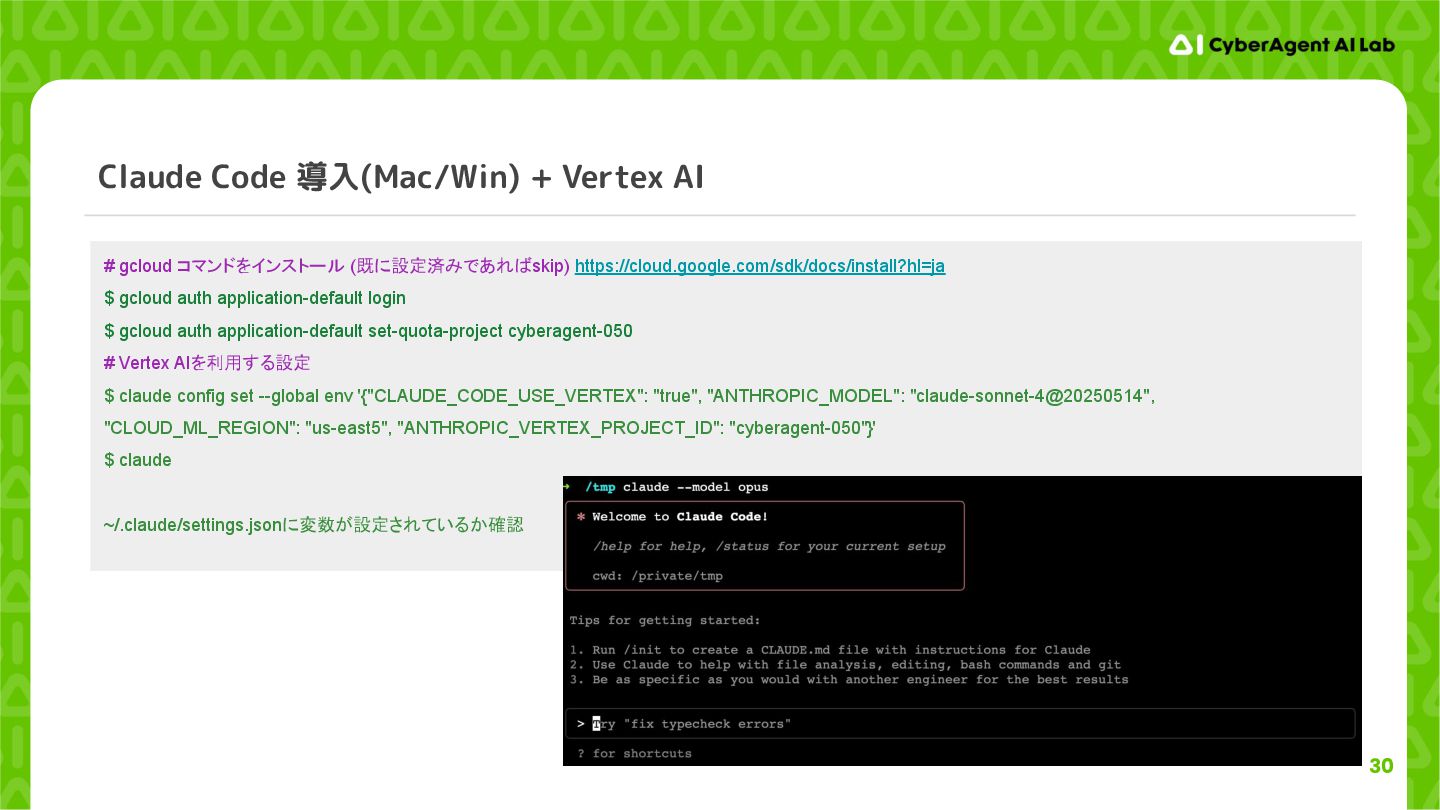
30 Claude Code 導入(Mac/Win) + Vertex AI # gcloud コマンドをインストール
(既に設定済みであればskip) https://cloud.google.com/sdk/docs/install?hl=ja $ gcloud auth application-default login $ gcloud auth application-default set-quota-project cyberagent-050 # Vertex AIを利用する設定 $ claude config set --global env '{"CLAUDE_CODE_USE_VERTEX": "true", "ANTHROPIC_MODEL": "claude-sonnet-4@20250514", "CLOUD_ML_REGION": "us-east5", "ANTHROPIC_VERTEX_PROJECT_ID": "cyberagent-050"}' $ claude ~/.claude/settings.jsonに変数が設定されているか確認 -
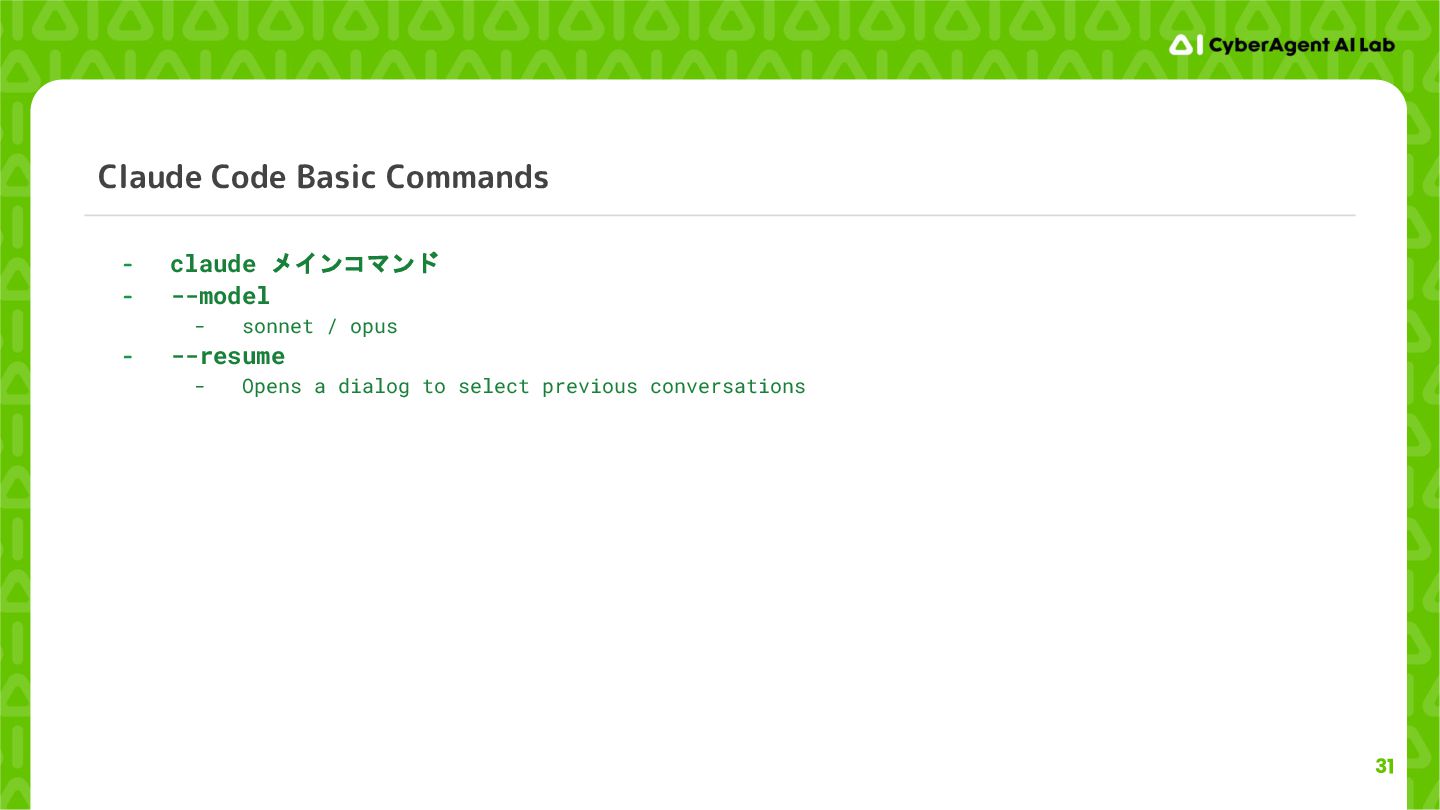
31 Claude Code Basic Commands - claude メインコマンド - --model
- sonnet / opus - --resume - Opens a dialog to select previous conversations -
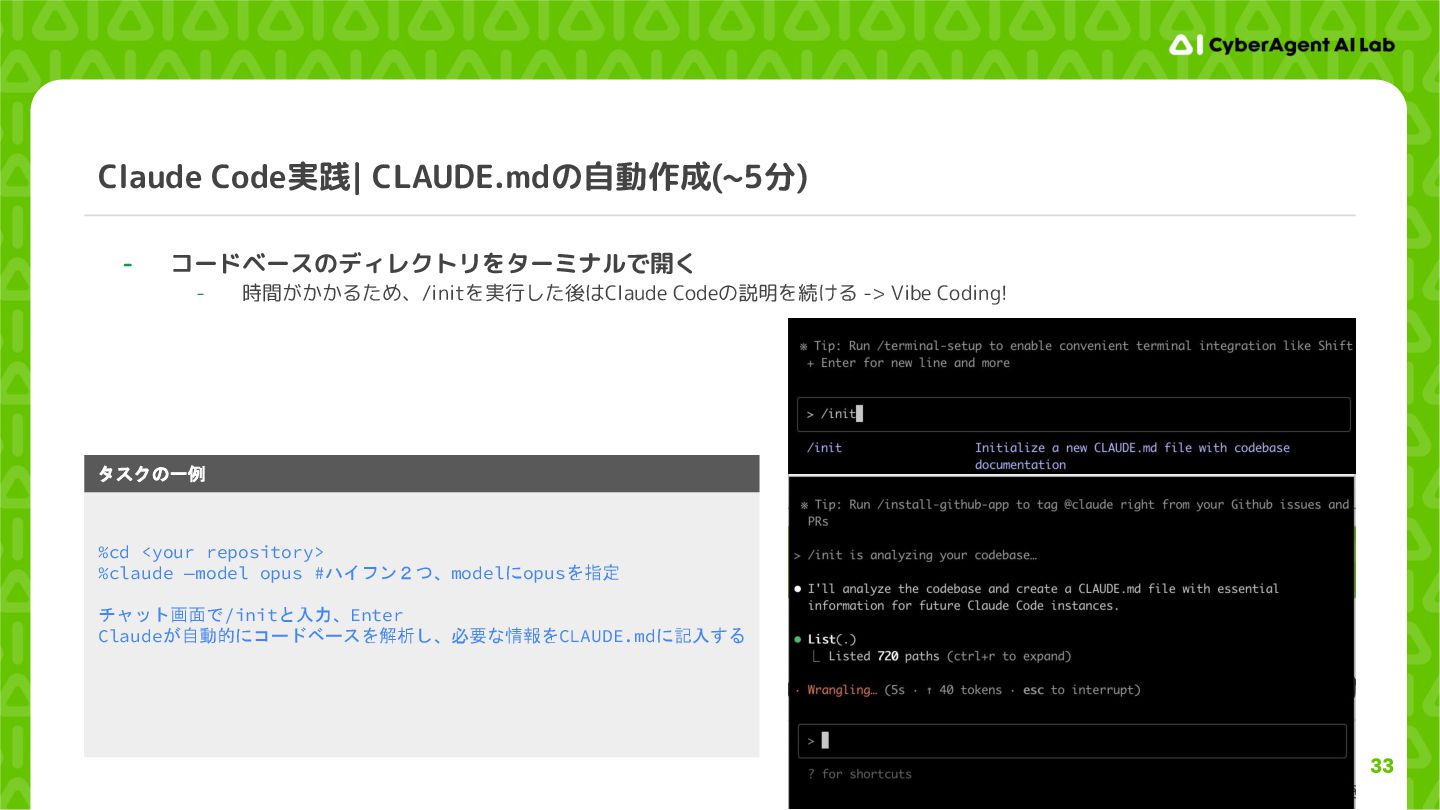
33 Claude Code実践| CLAUDE.mdの自動作成(~5分) - コードベースのディレクトリをターミナルで開く - 時間がかかるため、/initを実行した後はClaude Codeの説明を続ける ->
Vibe Coding! %cd <your repository> %claude —model opus #ハイフン2つ、modelにopusを指定 チャット画面で/initと入力、Enter Claudeが自動的にコードベースを解析し、必要な情報をCLAUDE.mdに記入する タスクの一例 -
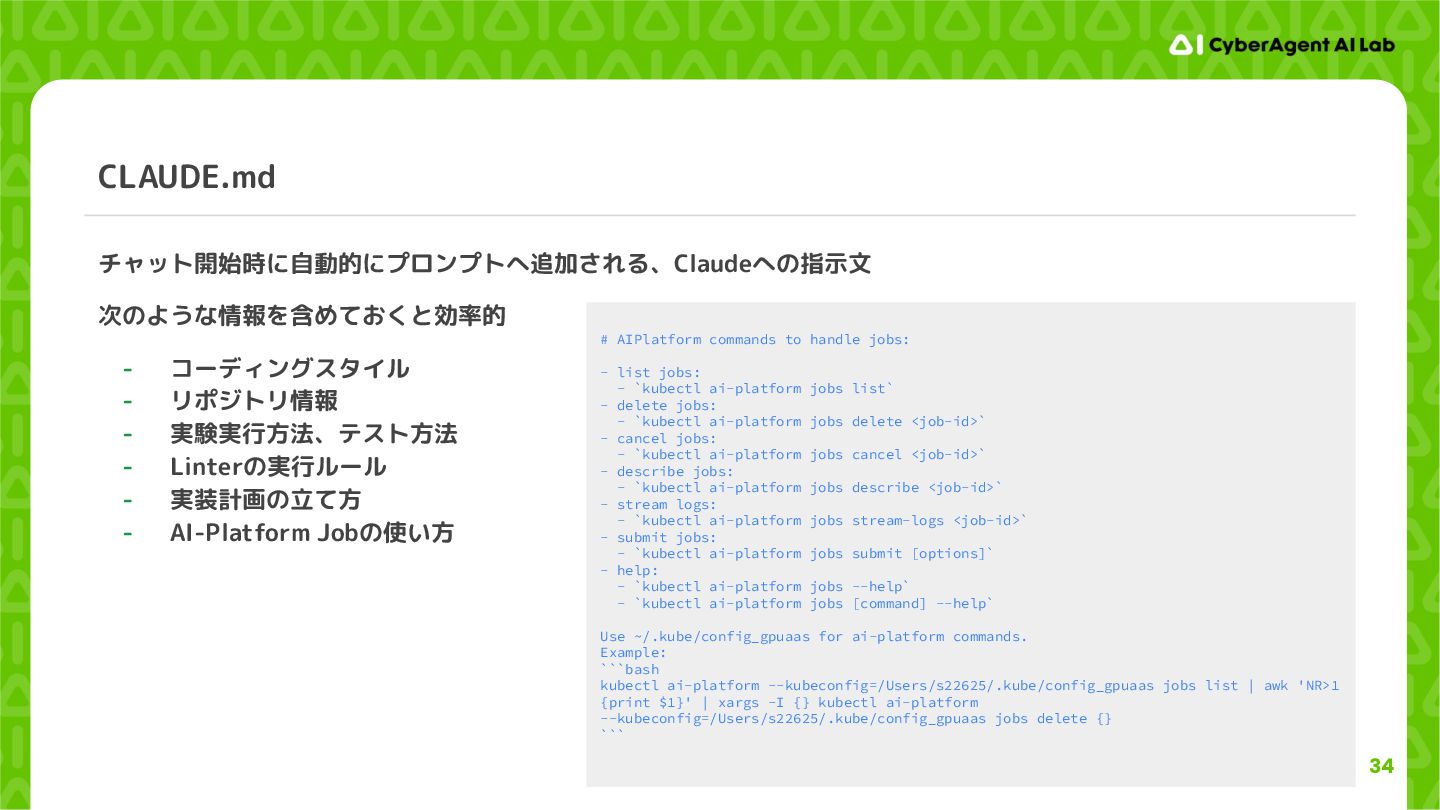
34 CLAUDE.md チャット開始時に自動的にプロンプトへ追加される、Claudeへの指示文 次のような情報を含めておくと効率的 - コーディングスタイル - リポジトリ情報 - 実験実行方法、テスト方法
- Linterの実行ルール - 実装計画の立て方 - AI-Platform Jobの使い方 # AIPlatform commands to handle jobs: - list jobs: - `kubectl ai-platform jobs list` - delete jobs: - `kubectl ai-platform jobs delete <job-id>` - cancel jobs: - `kubectl ai-platform jobs cancel <job-id>` - describe jobs: - `kubectl ai-platform jobs describe <job-id>` - stream logs: - `kubectl ai-platform jobs stream-logs <job-id>` - submit jobs: - `kubectl ai-platform jobs submit [options]` - help: - `kubectl ai-platform jobs --help` - `kubectl ai-platform jobs [command] --help` Use ~/.kube/config_gpuaas for ai-platform commands. Example: ```bash kubectl ai-platform --kubeconfig=/Users/s22625/.kube/config_gpuaas jobs list | awk 'NR>1 {print $1}' | xargs -I {} kubectl ai-platform --kubeconfig=/Users/s22625/.kube/config_gpuaas jobs delete {} ``` -
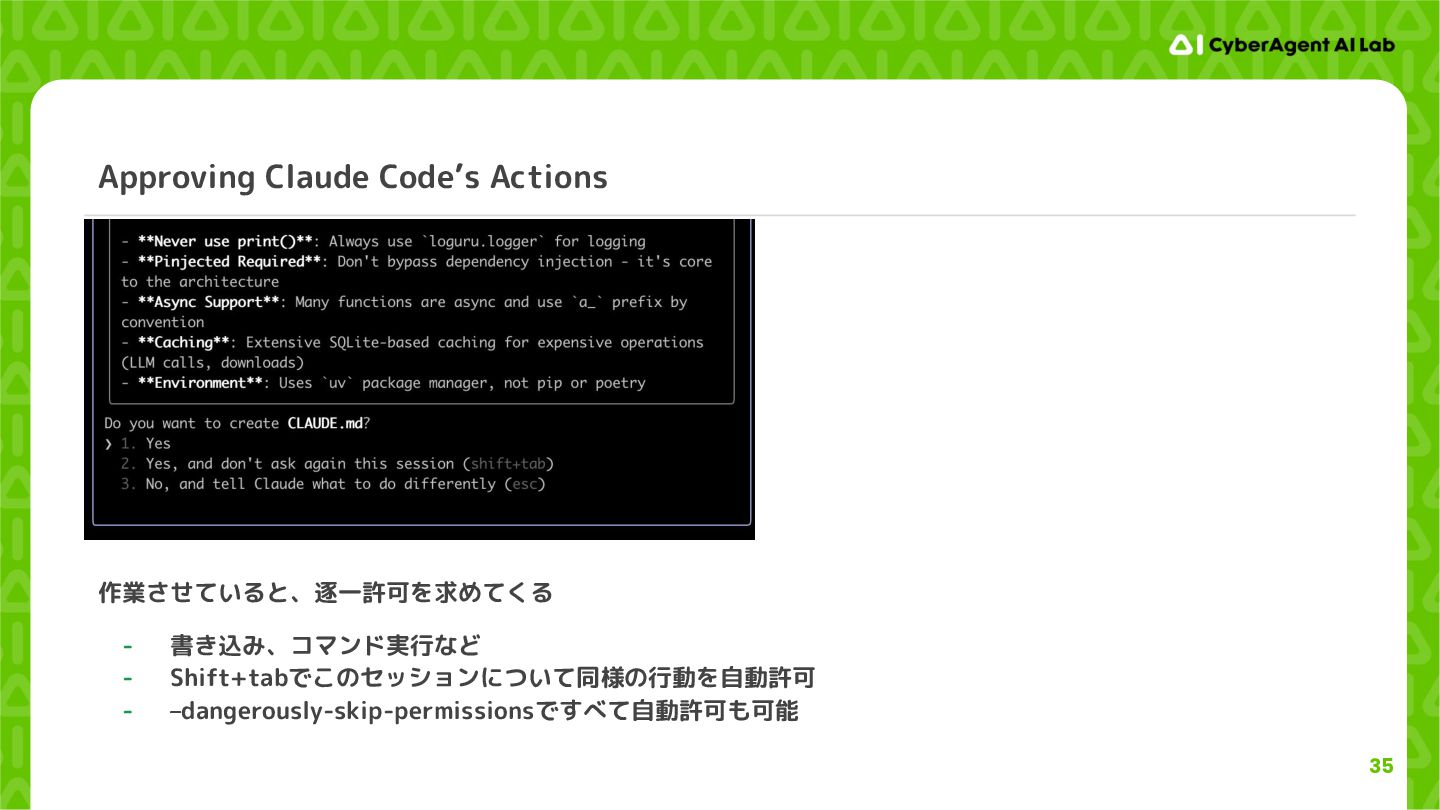
35 Approving Claude Code’s Actions 作業させていると、逐一許可を求めてくる - 書き込み、コマンド実行など - Shift+tabでこのセッションについて同様の行動を自動許可
- –dangerously-skip-permissionsですべて自動許可も可能 -
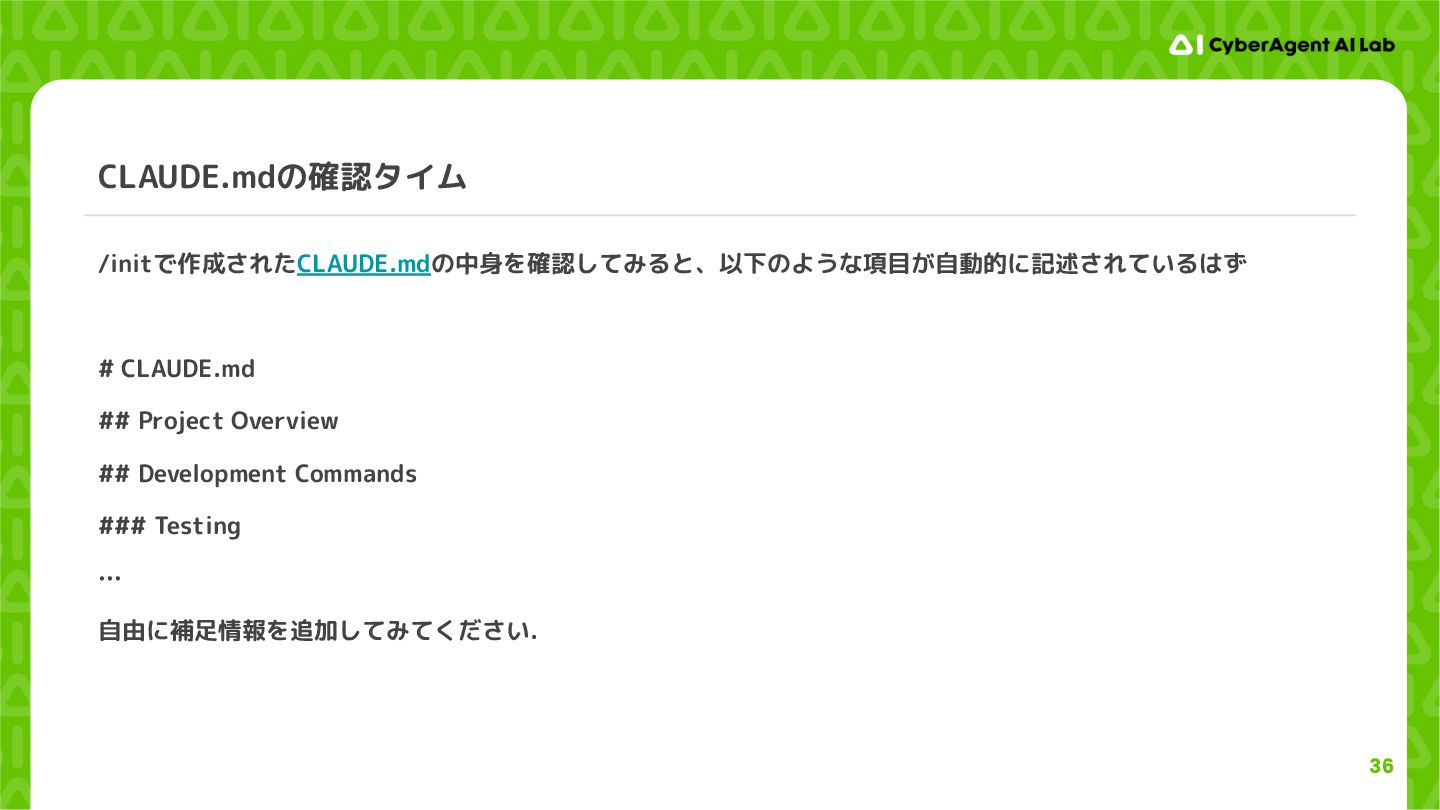
36 CLAUDE.mdの確認タイム /initで作成されたCLAUDE.mdの中身を確認してみると、以下のような項目が自動的に記述されているはず # CLAUDE.md ## Project Overview ## Development
Commands ### Testing … 自由に補足情報を追加してみてください. -
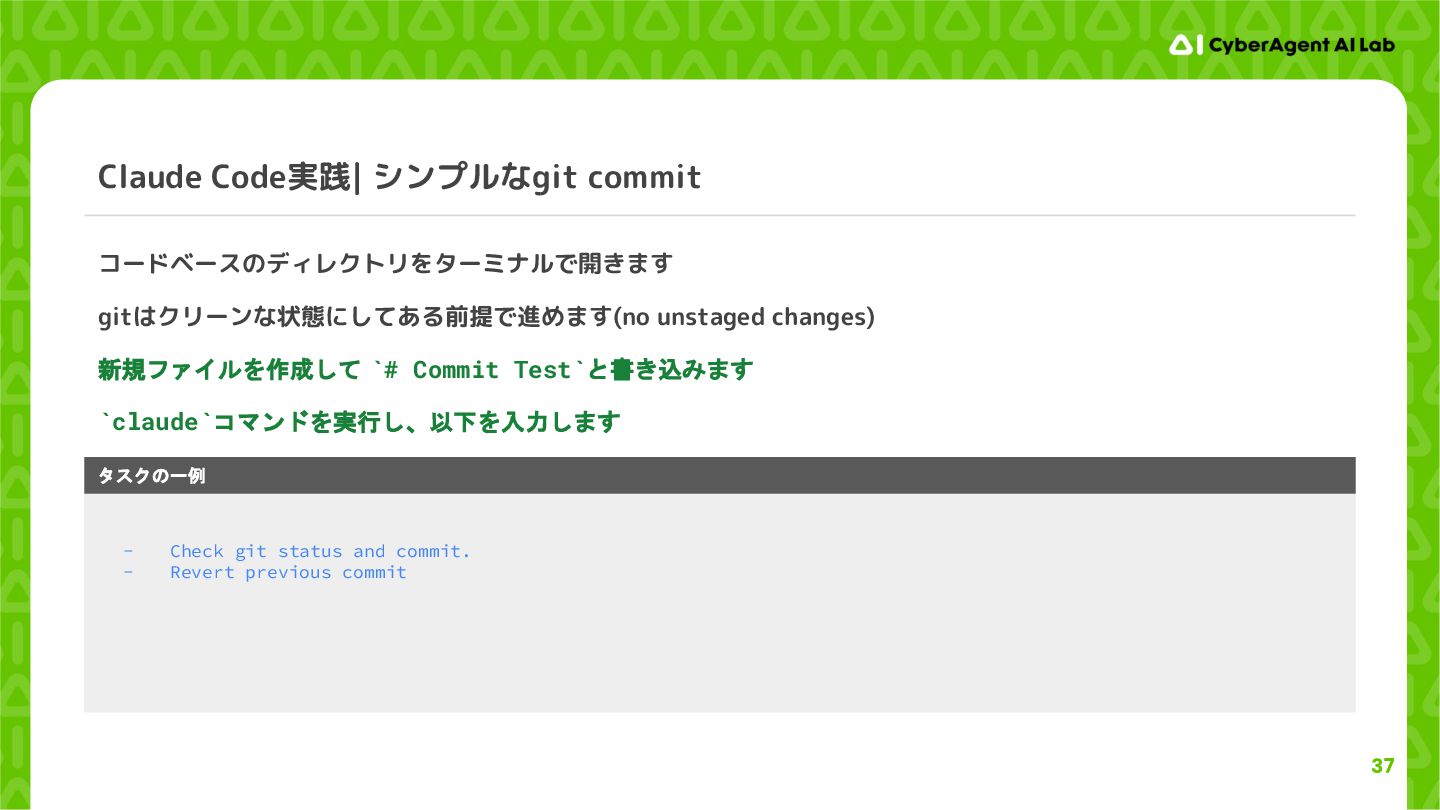
37 Claude Code実践| シンプルなgit commit コードベースのディレクトリをターミナルで開きます gitはクリーンな状態にしてある前提で進めます(no unstaged changes) 新規ファイルを作成して
`# Commit Test`と書き込みます `claude`コマンドを実行し、以下を入力します - Check git status and commit. - Revert previous commit タスクの一例 -
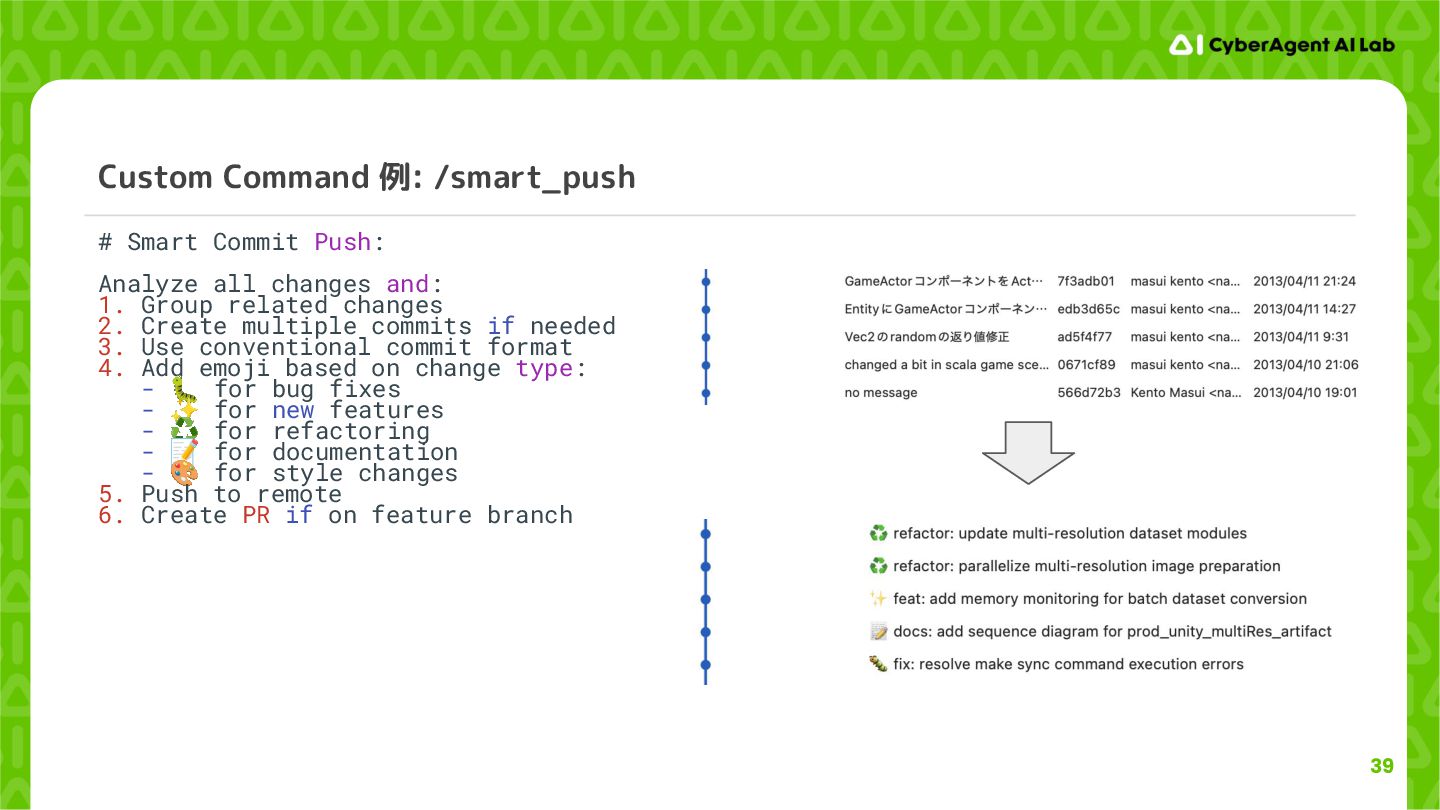
39 Custom Command 例: /smart_push # Smart Commit Push: Analyze
all changes and: 1. Group related changes 2. Create multiple commits if needed 3. Use conventional commit format 4. Add emoji based on change type: - 🐛 for bug fixes - ✨ for new features - ♻ for refactoring - 📝 for documentation - 🎨 for style changes 5. Push to remote 6. Create PR if on feature branch -
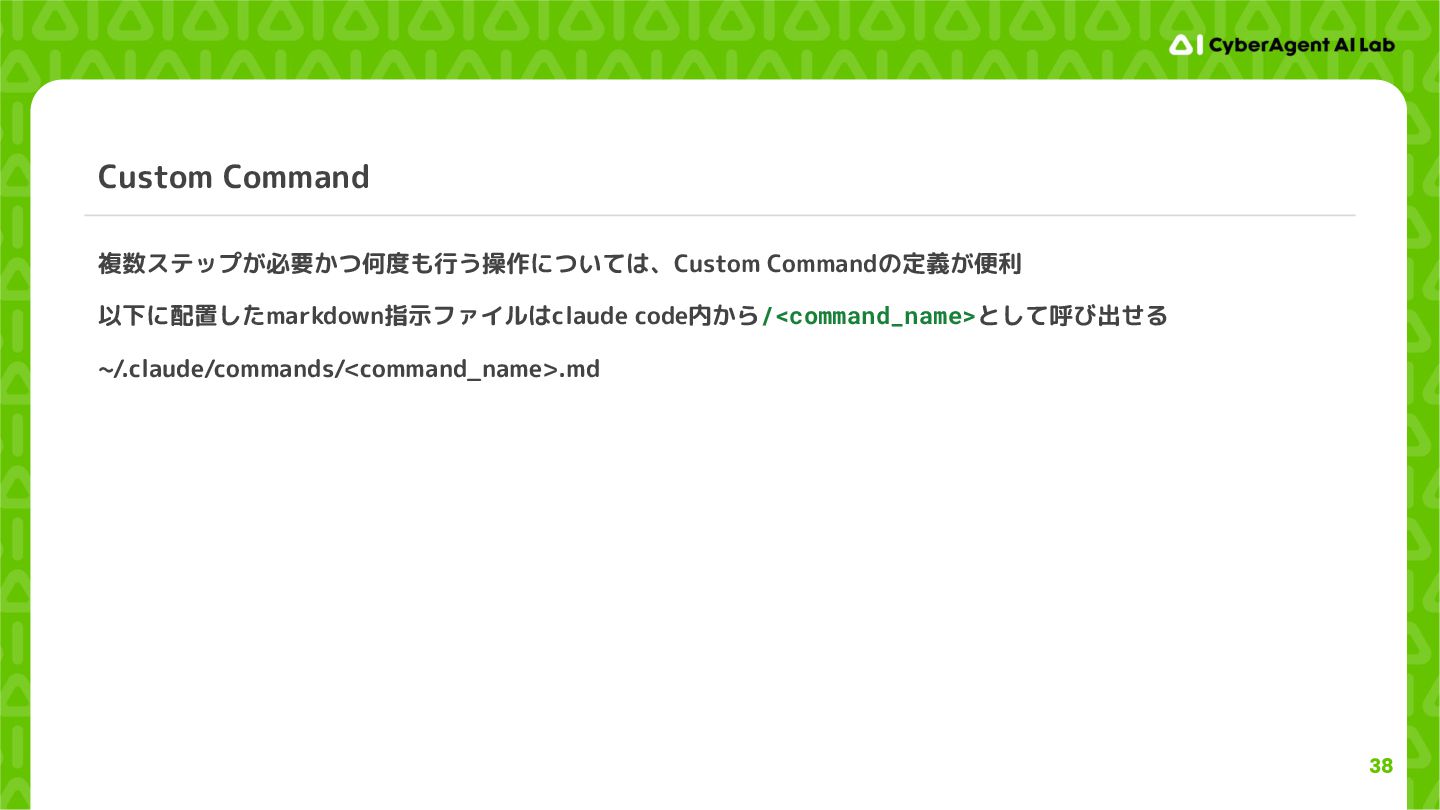
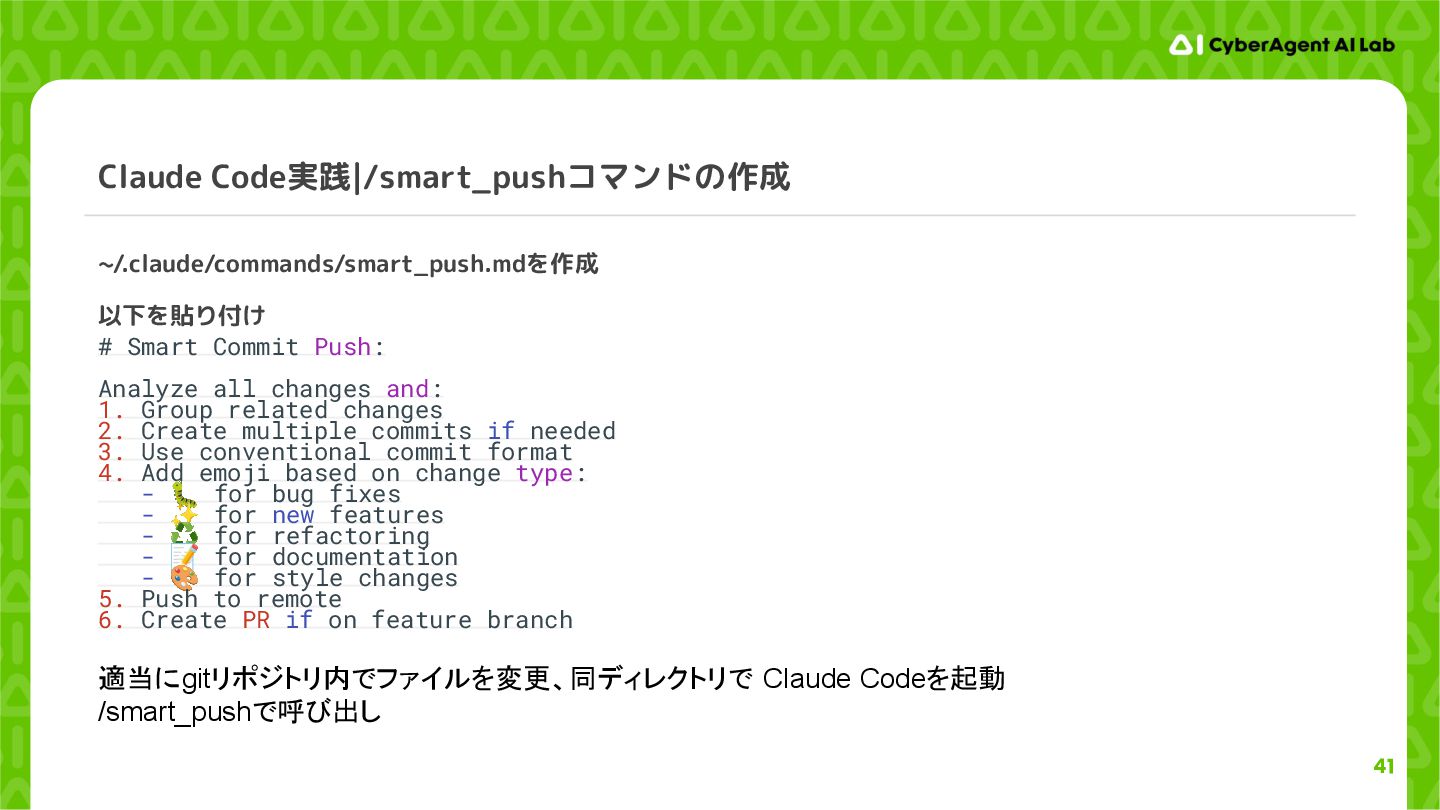
41 Claude Code実践|/smart_pushコマンドの作成 ~/.claude/commands/smart_push.mdを作成 以下を貼り付け # Smart Commit Push: Analyze
all changes and: 1. Group related changes 2. Create multiple commits if needed 3. Use conventional commit format 4. Add emoji based on change type: - 🐛 for bug fixes - ✨ for new features - ♻ for refactoring - 📝 for documentation - 🎨 for style changes 5. Push to remote 6. Create PR if on feature branch 適当にgitリポジトリ内でファイルを変更、同ディレクトリで Claude Codeを起動 /smart_pushで呼び出し -
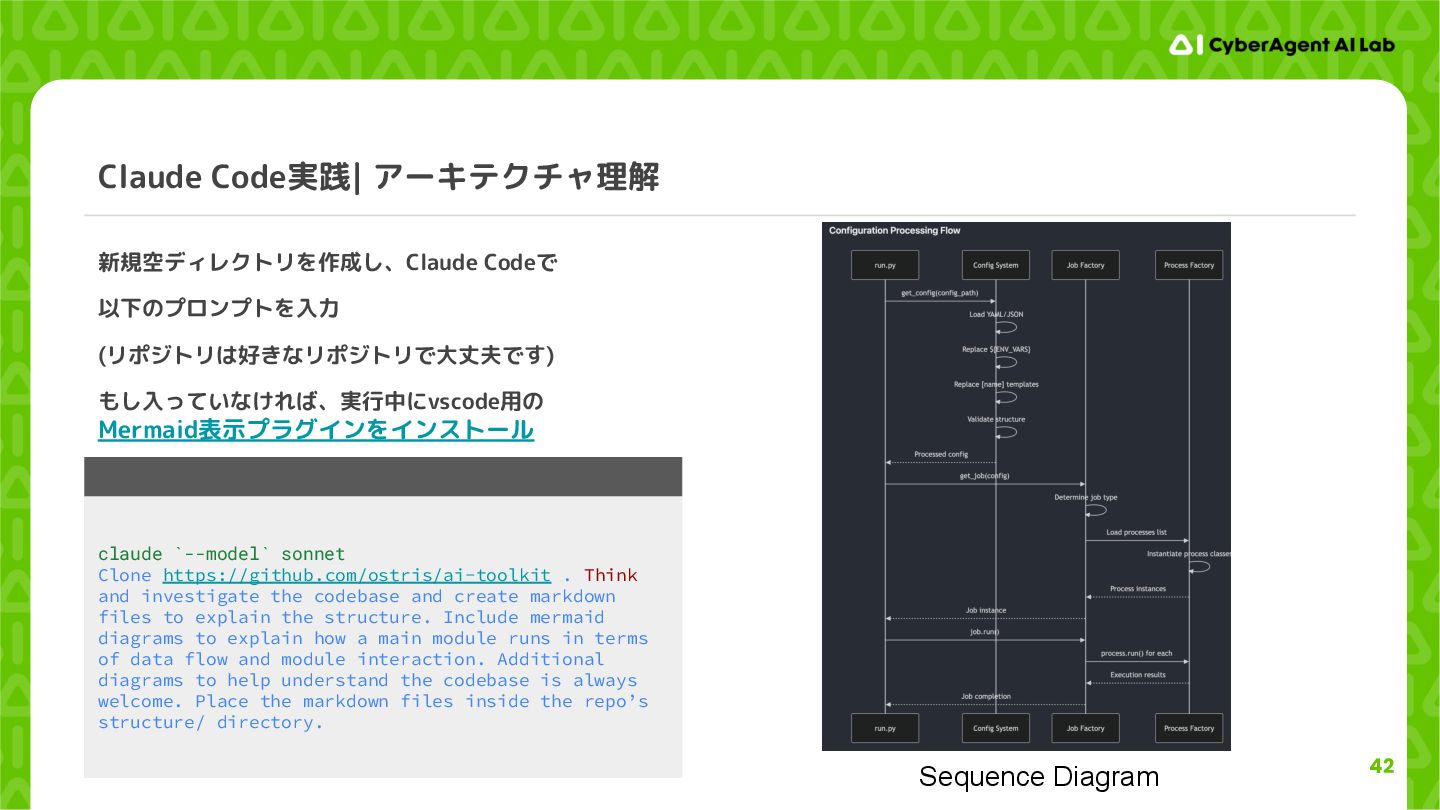
42 Claude Code実践| アーキテクチャ理解 新規空ディレクトリを作成し、Claude Codeで 以下のプロンプトを入力 (リポジトリは好きなリポジトリで大丈夫です) もし入っていなければ、実行中にvscode用の Mermaid表示プラグインをインストール
claude `--model` sonnet Clone https://github.com/ostris/ai-toolkit . Think and investigate the codebase and create markdown files to explain the structure. Include mermaid diagrams to explain how a main module runs in terms of data flow and module interaction. Additional diagrams to help understand the codebase is always welcome. Place the markdown files inside the repo’s structure/ directory. Sequence Diagram -
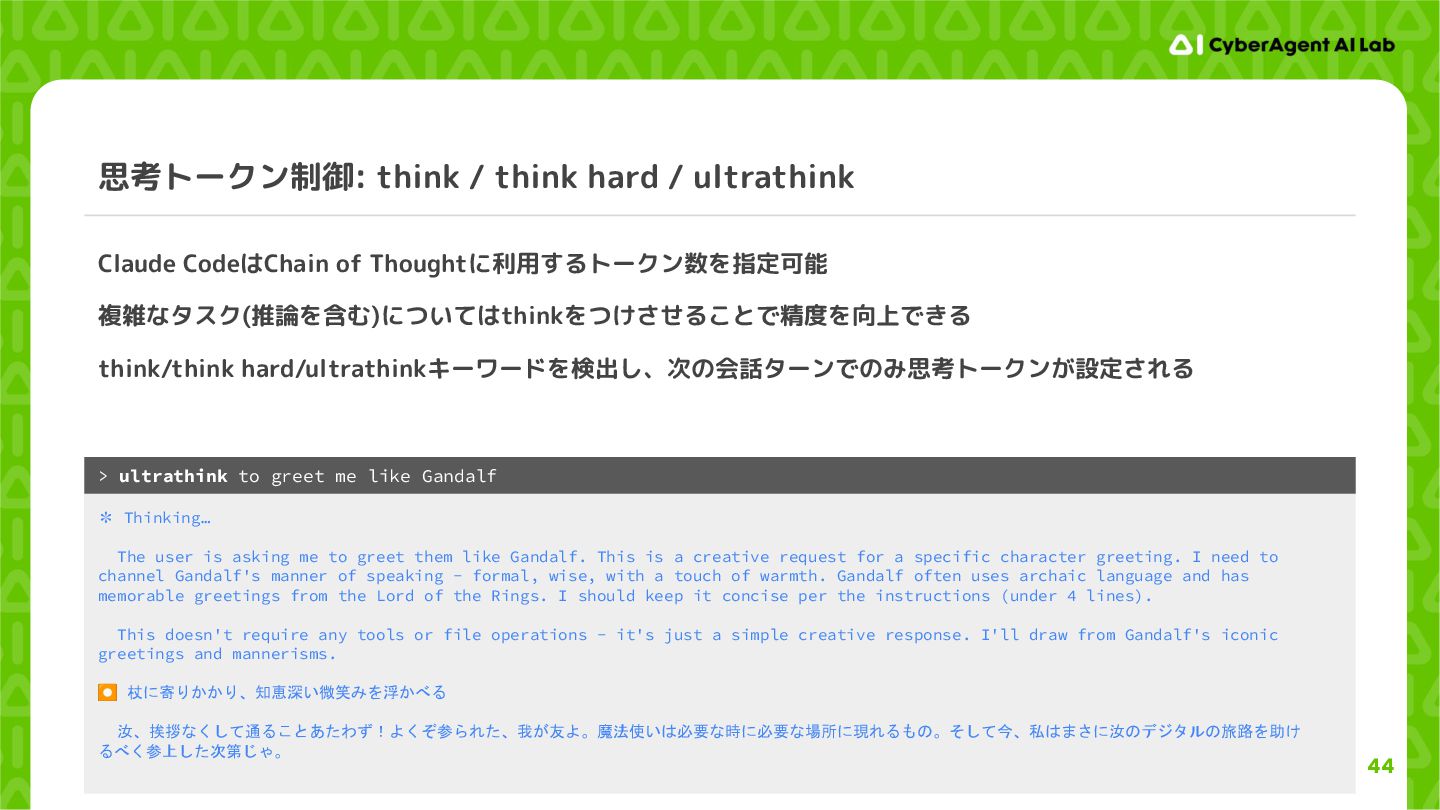
44 思考トークン制御: think / think hard / ultrathink Claude CodeはChain
of Thoughtに利用するトークン数を指定可能 複雑なタスク(推論を含む)についてはthinkをつけさせることで精度を向上できる think/think hard/ultrathinkキーワードを検出し、次の会話ターンでのみ思考トークンが設定される ✻ Thinking… The user is asking me to greet them like Gandalf. This is a creative request for a specific character greeting. I need to channel Gandalf's manner of speaking - formal, wise, with a touch of warmth. Gandalf often uses archaic language and has memorable greetings from the Lord of the Rings. I should keep it concise per the instructions (under 4 lines). This doesn't require any tools or file operations - it's just a simple creative response. I'll draw from Gandalf's iconic greetings and mannerisms. ⏺ 杖に寄りかかり、知恵深い微笑みを浮かべる 汝、挨拶なくして通ることあたわず!よくぞ参られた、我が友よ。魔法使いは必要な時に必要な場所に現れるもの。そして今、私はまさに汝のデジタルの旅路を助け るべく参上した次第じゃ。 > ultrathink to greet me like Gandalf -
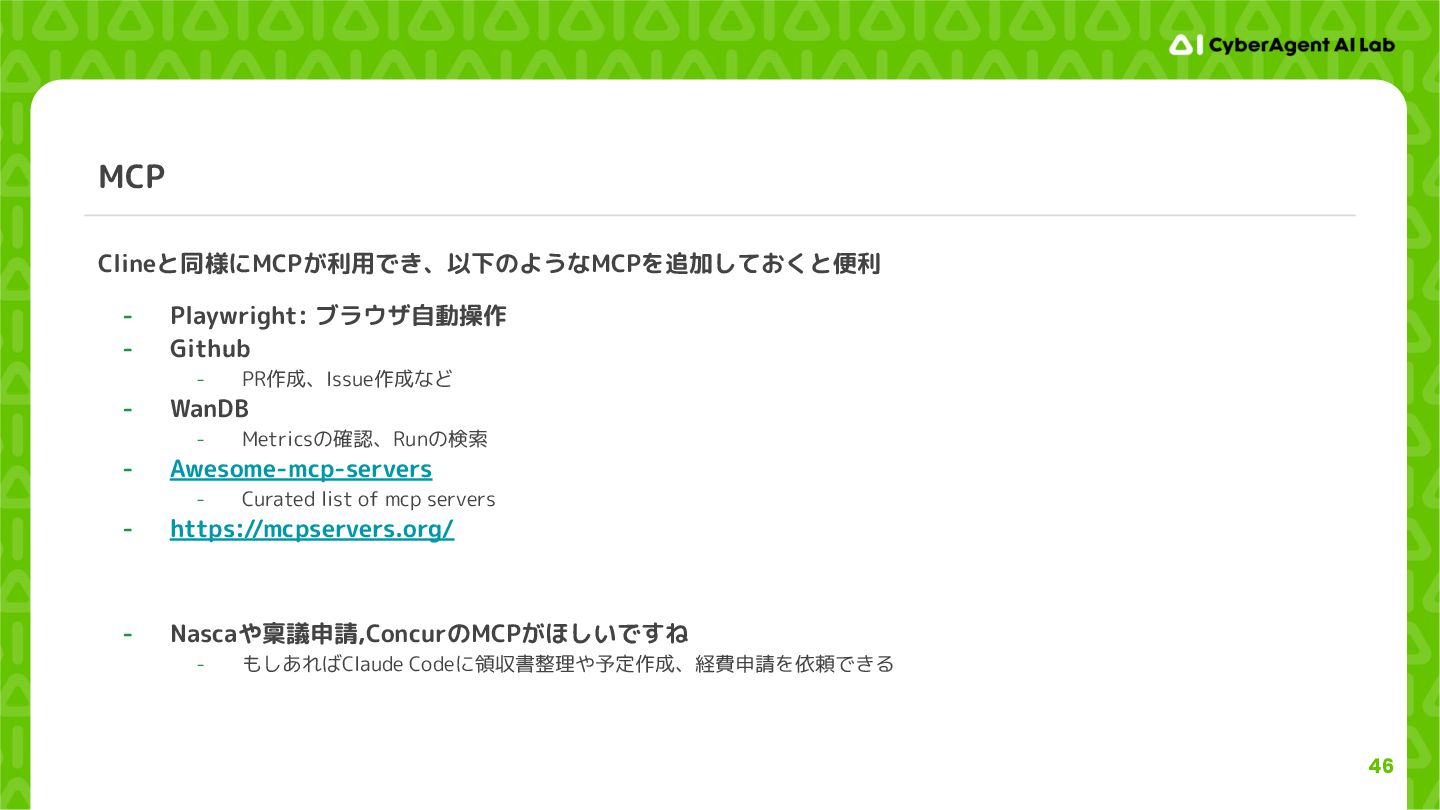
46 MCP Clineと同様にMCPが利用でき、以下のようなMCPを追加しておくと便利 - Playwright: ブラウザ自動操作 - Github - PR作成、Issue作成など
- WanDB - Metricsの確認、Runの検索 - Awesome-mcp-servers - Curated list of mcp servers - https://mcpservers.org/ - Nascaや稟議申請,ConcurのMCPがほしいですね - もしあればClaude Codeに領収書整理や予定作成、経費申請を依頼できる -
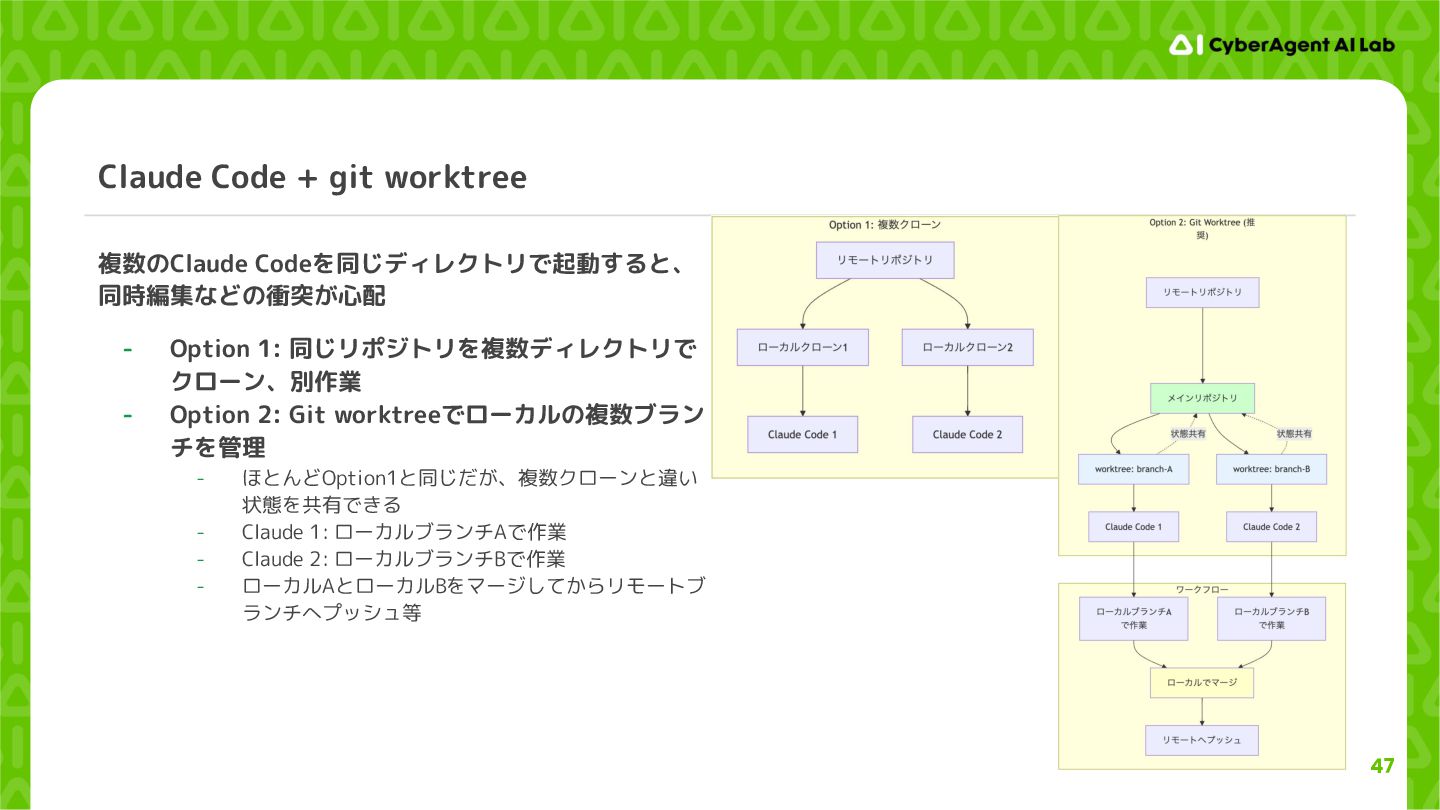
47 Claude Code + git worktree 複数のClaude Codeを同じディレクトリで起動すると、 同時編集などの衝突が心配 -
Option 1: 同じリポジトリを複数ディレクトリで クローン、別作業 - Option 2: Git worktreeでローカルの複数ブラン チを管理 - ほとんどOption1と同じだが、複数クローンと違い 状態を共有できる - Claude 1: ローカルブランチAで作業 - Claude 2: ローカルブランチBで作業 - ローカルAとローカルBをマージしてからリモートブ ランチへプッシュ等 -
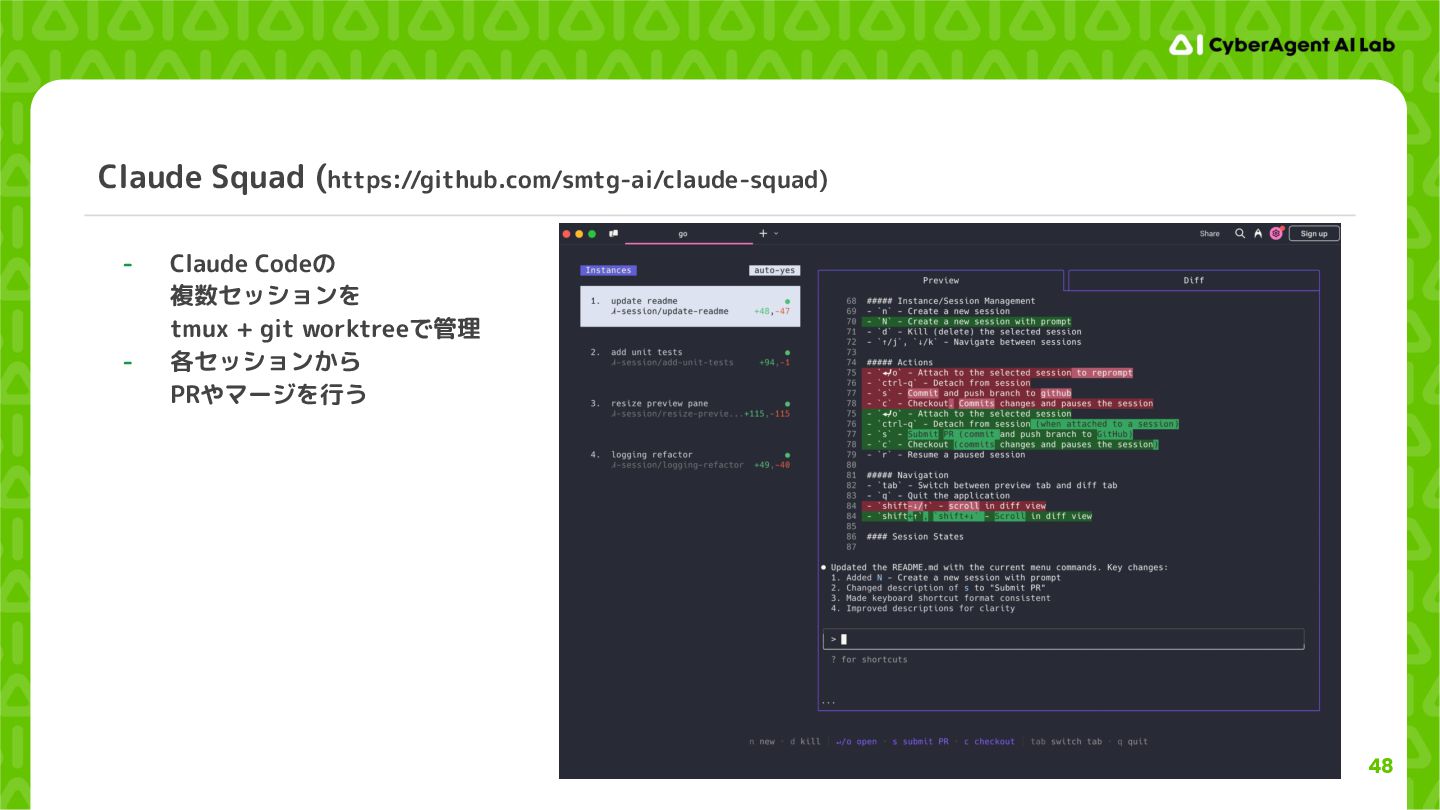
48 Claude Squad (https://github.com/smtg-ai/claude-squad) - Claude Codeの 複数セッションを tmux +
git worktreeで管理 - 各セッションから PRやマージを行う -
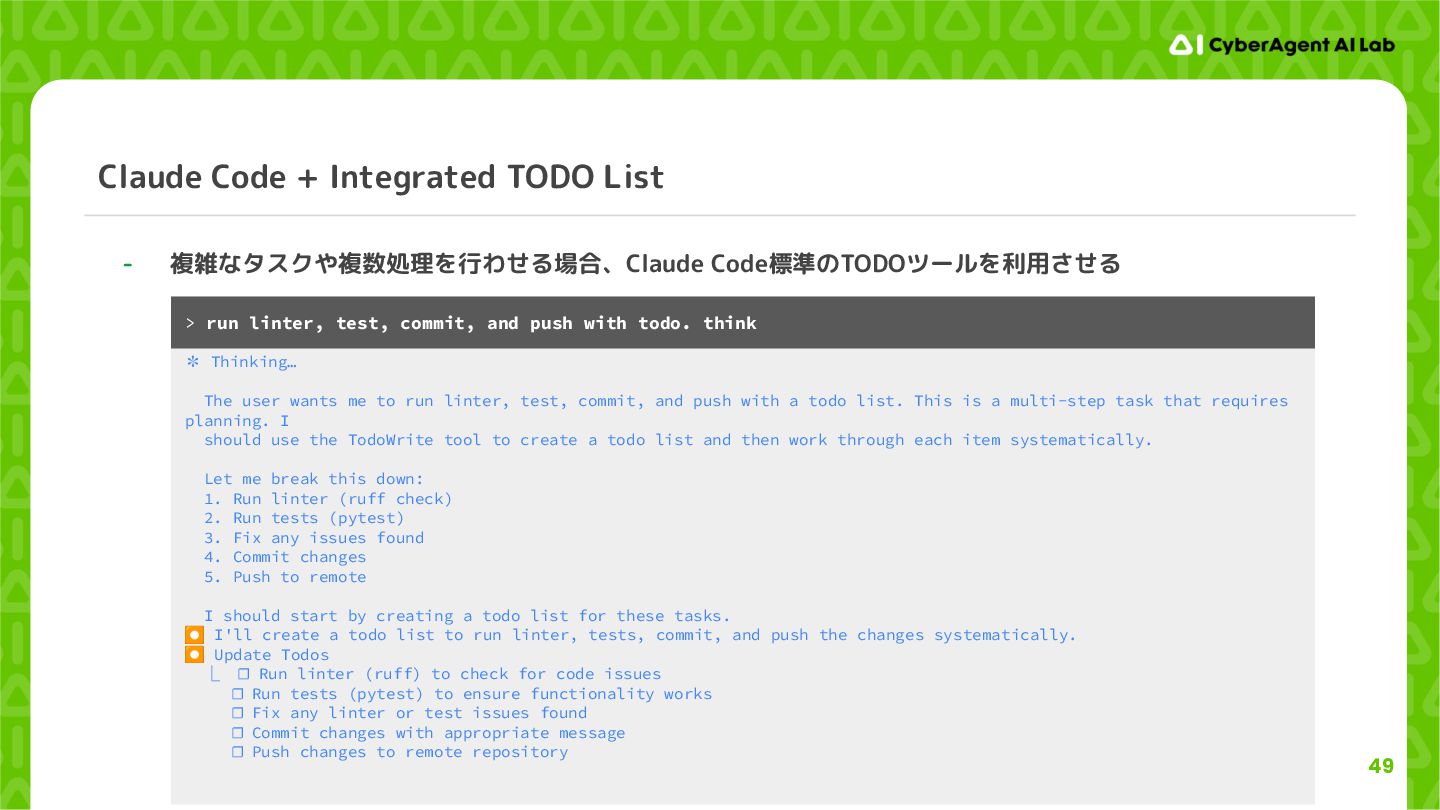
49 Claude Code + Integrated TODO List - 複雑なタスクや複数処理を行わせる場合、Claude Code標準のTODOツールを利用させる
✻ Thinking… The user wants me to run linter, test, commit, and push with a todo list. This is a multi-step task that requires planning. I should use the TodoWrite tool to create a todo list and then work through each item systematically. Let me break this down: 1. Run linter (ruff check) 2. Run tests (pytest) 3. Fix any issues found 4. Commit changes 5. Push to remote I should start by creating a todo list for these tasks. ⏺ I'll create a todo list to run linter, tests, commit, and push the changes systematically. ⏺ Update Todos ⎿ ☐ Run linter (ruff) to check for code issues ☐ Run tests (pytest) to ensure functionality works ☐ Fix any linter or test issues found ☐ Commit changes with appropriate message ☐ Push changes to remote repository > run linter, test, commit, and push with todo. think -
50 コーディングエージェントとのコーディングテクニック - Linterを使う - Complexityチェック - これがないと修正を重ねて5重ループな関数を作ったりしてしまう - Claude:
“Add ruff check to pyproject.toml. Use C901” - 最大引数制限 - Tuple型返り値の禁止 - Catch and forgetの禁止 - 型を使う - 実装ミスを素早く発見させる - テストを書かせる - 面倒なテストケース記述 - テストドリブンで開発する - テストが通るまで修正させる - CIを書かせる - Claude: “Please setup a CI for this repo. Use pytest” - SOLID原則を重視させる - God Classや巨大関数の作成を防ぐ - 急ぎのメインタスクではなく複数のサイドプロジェクトに取り組ませる -
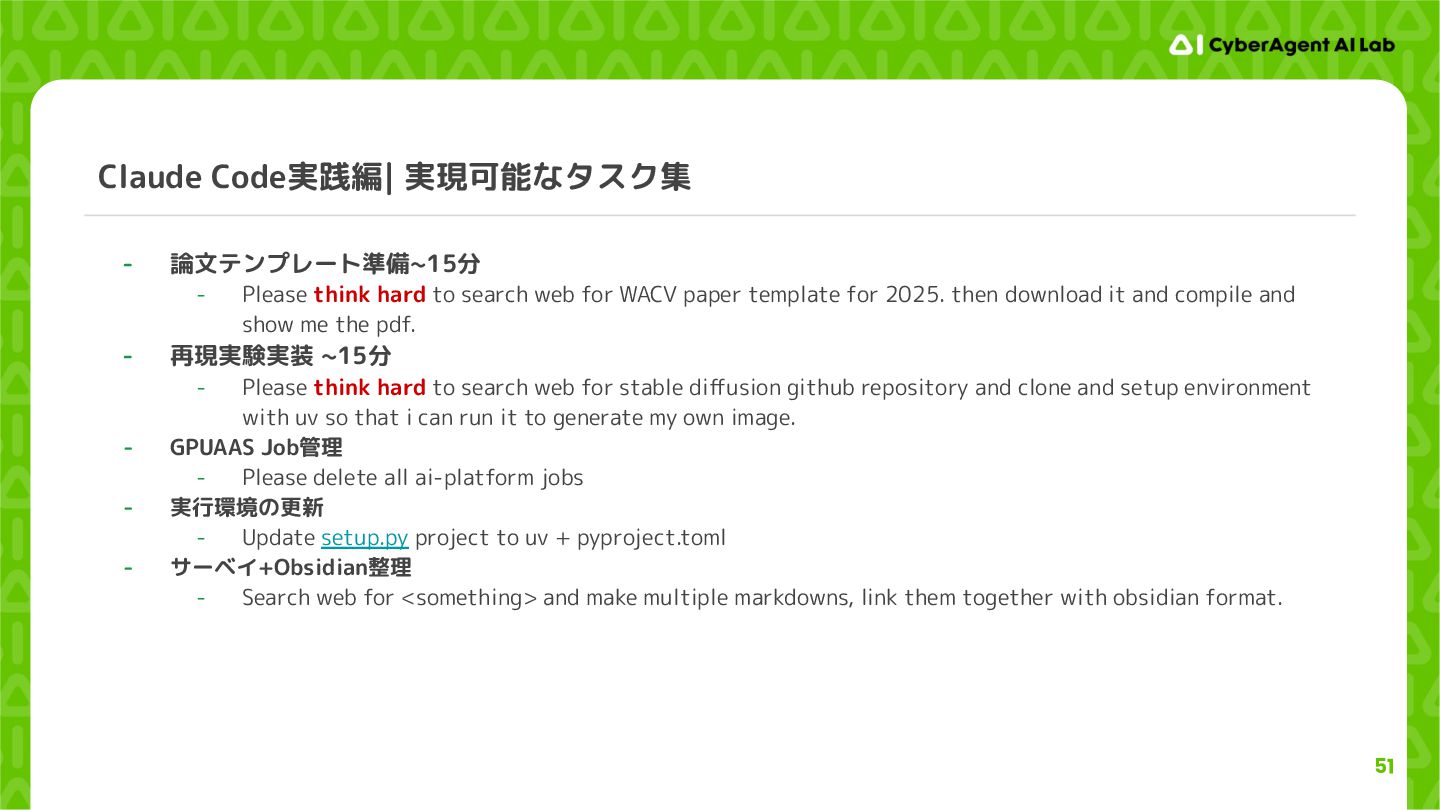
51 Claude Code実践編| 実現可能なタスク集 - 論文テンプレート準備~15分 - Please think hard
to search web for WACV paper template for 2025. then download it and compile and show me the pdf. - 再現実験実装 ~15分 - Please think hard to search web for stable diffusion github repository and clone and setup environment with uv so that i can run it to generate my own image. - GPUAAS Job管理 - Please delete all ai-platform jobs - 実行環境の更新 - Update setup.py project to uv + pyproject.toml - サーベイ+Obsidian整理 - Search web for <something> and make multiple markdowns, link them together with obsidian format. -
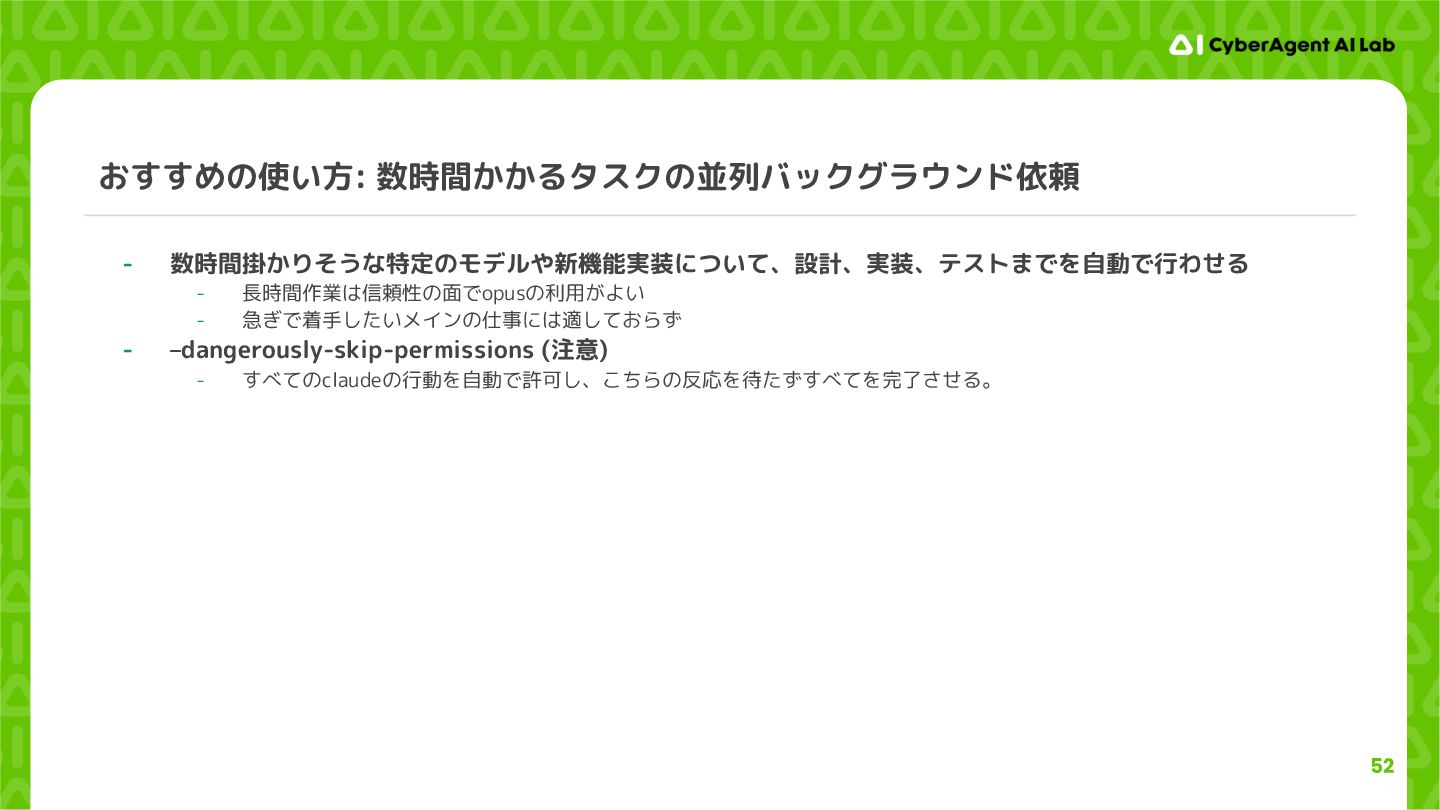
52 おすすめの使い方: 数時間かかるタスクの並列バックグラウンド依頼 - 数時間掛かりそうな特定のモデルや新機能実装について、設計、実装、テストまでを自動で行わせる - 長時間作業は信頼性の面でopusの利用がよい - 急ぎで着手したいメインの仕事には適しておらず、`やらなきゃ`リストの消化に適している -
–dangerously-skip-permissions (注意) - すべてのclaudeの行動を自動で許可し、こちらの反応を待たずすべてを完了させる。 -
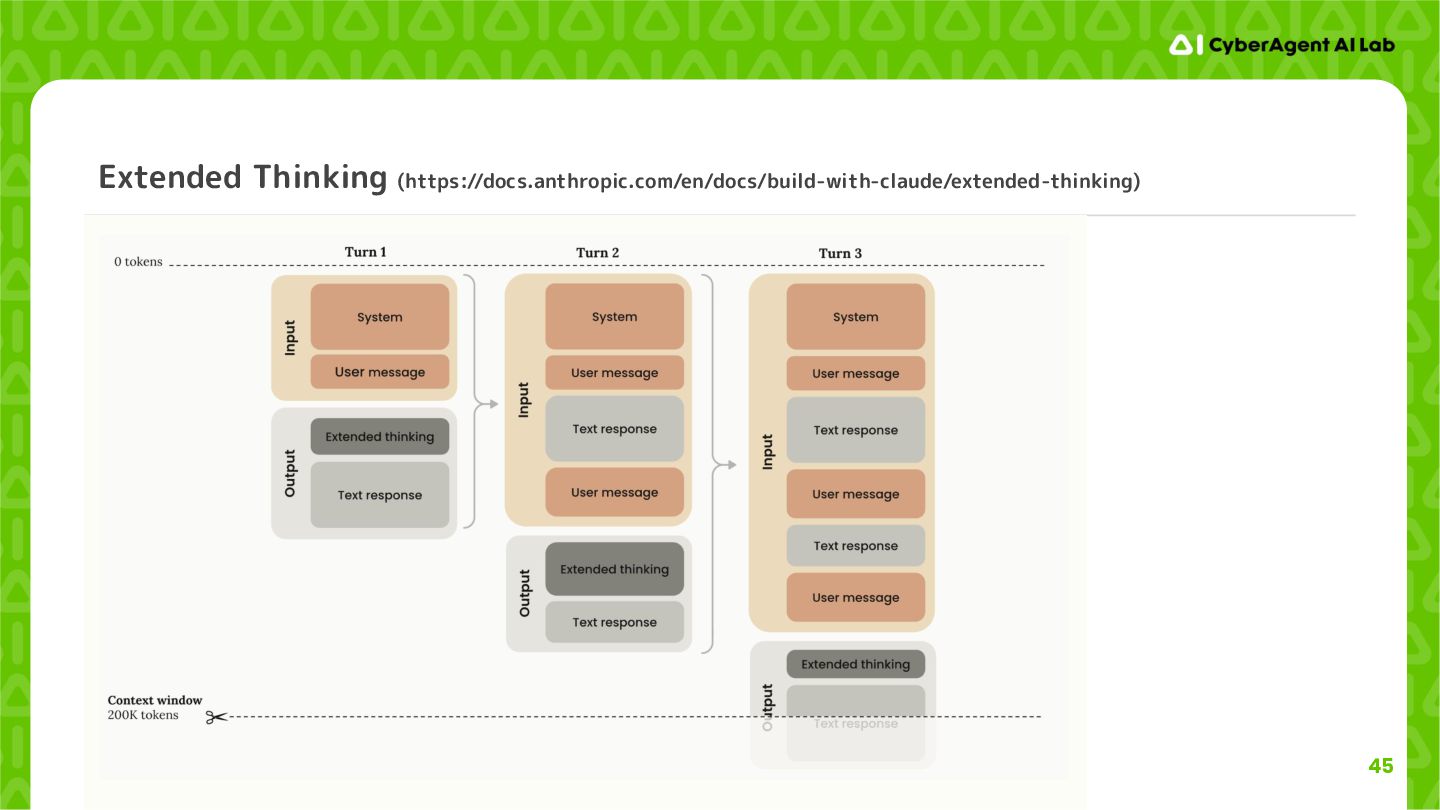
53 大規模作業を任せるコツ - 最初に仕様の策定を拡張思考モードで行い、仕様書を作成する - システムデザイン、アーキテクチャ、目標などの重要な情報を固める - 関数シグネチャ、クラス構造まで固める - 実装計画をたて、implementation_plan.mdなどとして保存させる
- 同時に実装計画と進捗を保存するチェックリストとしてprogress.mdを作成させる - 実装進捗ごとにprogress.mdを更新させ、最後まで実装を完了させる - Claude Codeから初回の完了報告が来た場合、完成度は8割程度 - 恐らくインフラの利用を勝手にmockにしていたり、testをスキップしている。 - 最初の指示でコンテキスト不足となり実装できなかった点について情報を補足し、最後まで詰めていく - 最終動作確認は手作業 - Job周りなど実装の難しい部分がmockになってしまっていないか等を確認する(これはClaudeに任せられる) Claude Code 元のコード Claudeによる改修v1 修正指示 修正指示後 -
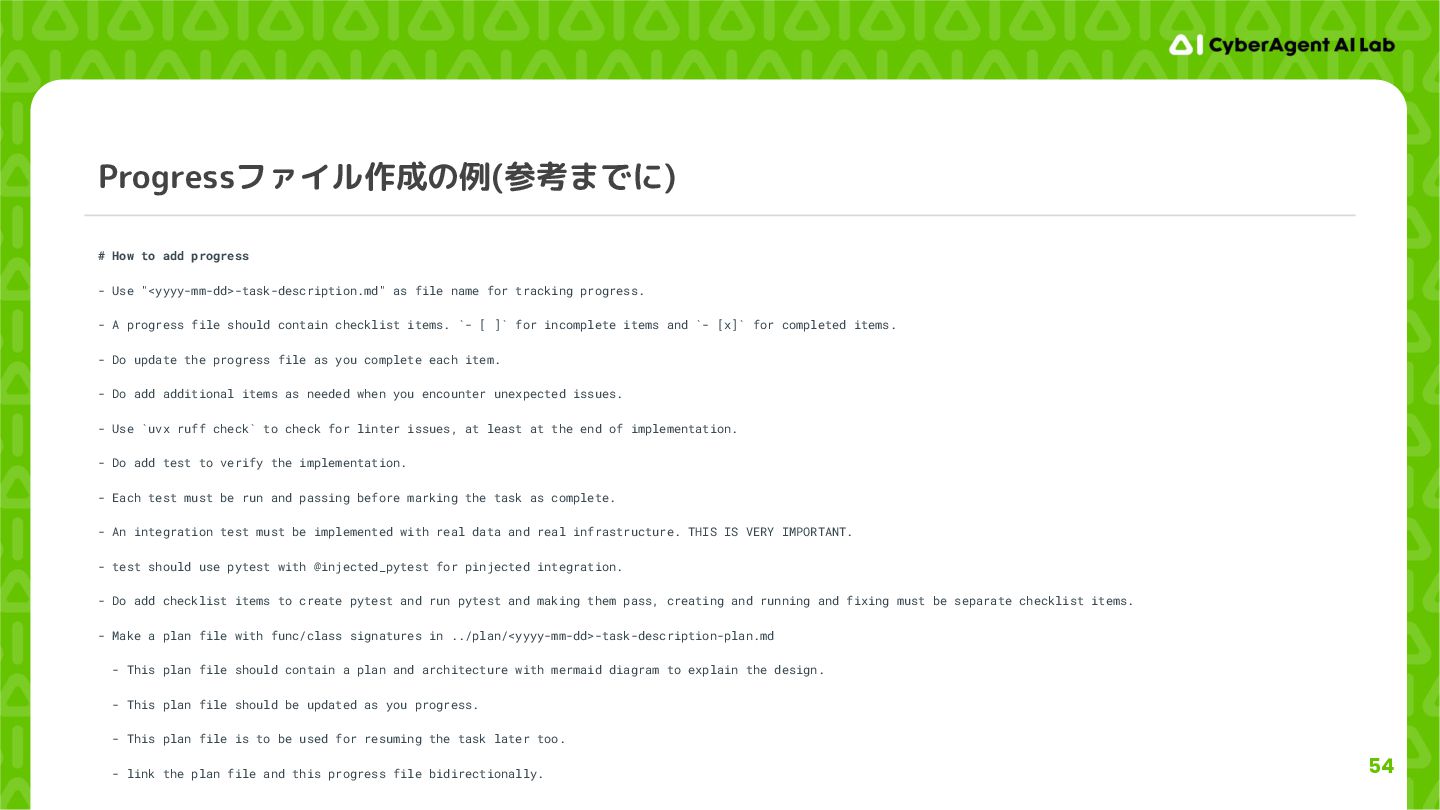
54 Progressファイル作成の例(参考までに) # How to add progress - Use "<yyyy-mm-dd>-task-description.md"
as file name for tracking progress. - A progress file should contain checklist items. `- [ ]` for incomplete items and `- [x]` for completed items. - Do update the progress file as you complete each item. - Do add additional items as needed when you encounter unexpected issues. - Use `uvx ruff check` to check for linter issues, at least at the end of implementation. - Do add test to verify the implementation. - Each test must be run and passing before marking the task as complete. - An integration test must be implemented with real data and real infrastructure. THIS IS VERY IMPORTANT. - test should use pytest with @injected_pytest for pinjected integration. - Do add checklist items to create pytest and run pytest and making them pass, creating and running and fixing must be separate checklist items. - Make a plan file with func/class signatures in ../plan/<yyyy-mm-dd>-task-description-plan.md - This plan file should contain a plan and architecture with mermaid diagram to explain the design. - This plan file should be updated as you progress. - This plan file is to be used for resuming the task later too. - link the plan file and this progress file bidirectionally. -
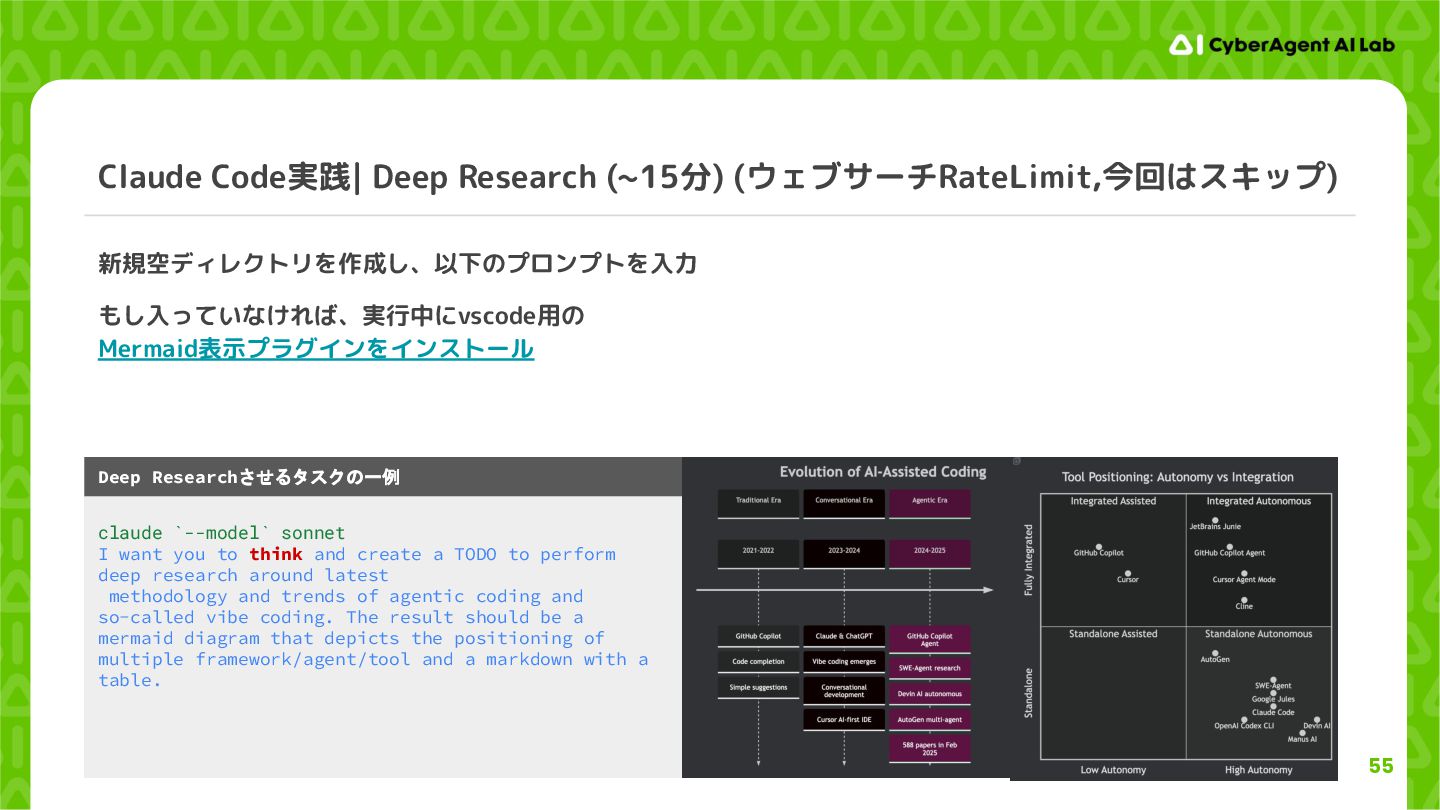
55 Claude Code実践| Deep Research (~15分) (ウェブサーチRateLimit,今回はスキップ) 新規空ディレクトリを作成し、以下のプロンプトを入力 もし入っていなければ、実行中にvscode用の Mermaid表示プラグインをインストール
claude `--model` sonnet I want you to think and create a TODO to perform deep research around latest methodology and trends of agentic coding and so-called vibe coding. The result should be a mermaid diagram that depicts the positioning of multiple framework/agent/tool and a markdown with a table. Deep Researchさせるタスクの一例 -
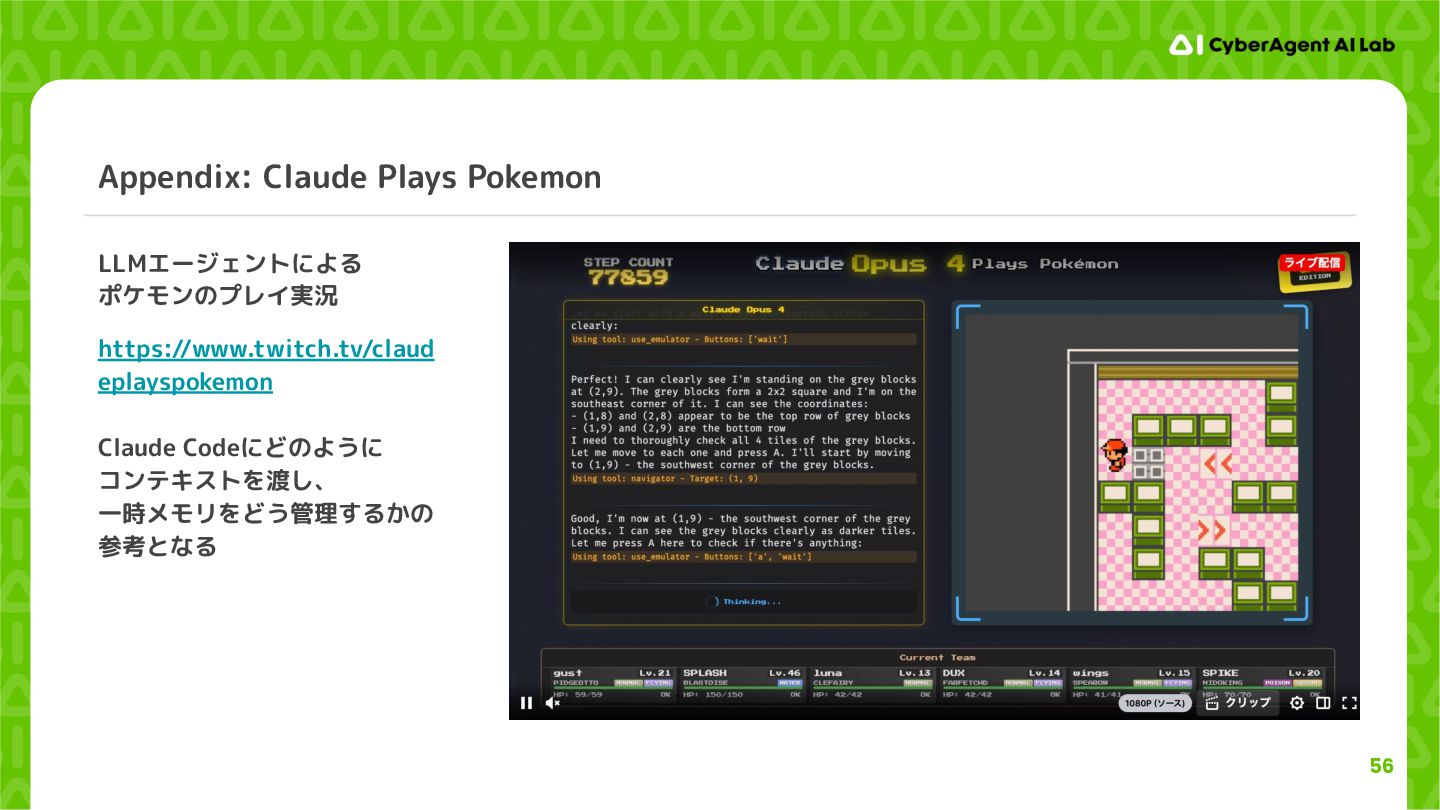
56 Appendix: Claude Plays Pokemon LLMエージェントによる ポケモンのプレイ実況 https://www.twitch.tv/claud eplayspokemon Claude
Codeにどのように コンテキストを渡し、 一時メモリをどう管理するかの 参考となる
 cyberagentdevelopers
 comi190327
 hagino3000
 puku0x
 miu_crescent
 smt7174
 biwashi
 vivion
 keitah
 minorun365
 jackojacko_
 harutiro
 jcabot
 joshbly
 aleyda
 garrettdimon
 mfonobong
 maltzj
 tammyeverts
 mclloyd
 inesmontani
 aarron
 orderedlist
 oripsolob
 jonyablonski