Upgrade to Pro — share decks privately, control downloads, hide ads and more …

Deckset Basics

Sponsored · Your Podcast. Everywhere. Effortlessly. Share. Educate. Inspire. Entertain. You do you. We'll handle the rest.
Avatar for Deckset Deckset
February 20, 2017

Deckset Basics

Everything you need to know to start making presentations in Deckset, a Mac app that turns simple Markdown files into beautiful presentations.

Find out more on http://www.decksetapp.com

Avatar for Deckset

Deckset

February 20, 2017
Tweet

More Decks by Deckset

Other Decks in How-to & DIY

Transcript

  1. Deckset Basics Everything you need to know to start making

    presentations © Unsigned Integer UG 1
  2. Built on Markdown Deckset uses standard Markdown syntax to transform

    your thoughts into a beautiful presentation. This slide is one of the simplest types of slides you can create, it contains two paragraphs of text and a header. © Unsigned Integer UG 2
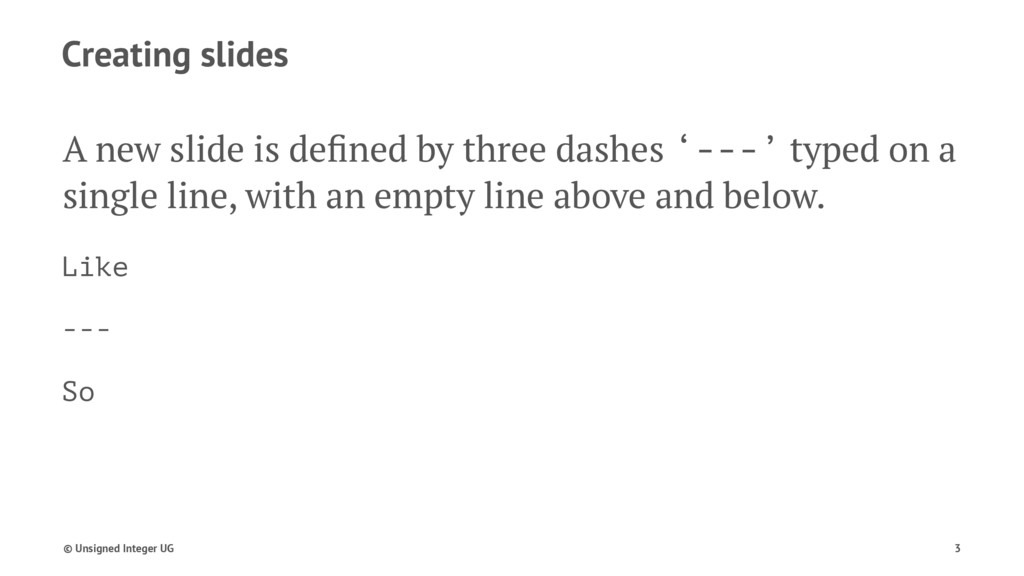
  3. Creating slides A new slide is defined by three dashes

    ‘---’ typed on a single line, with an empty line above and below. Like --- So © Unsigned Integer UG 3
  4. Paragraphs Creating paragraphs is simple, just type — no special

    syntax needed. You can include a paragraph break by leaving an empty line between the paragraphs. Otherwise lines will follow on directly like this. © Unsigned Integer UG 4
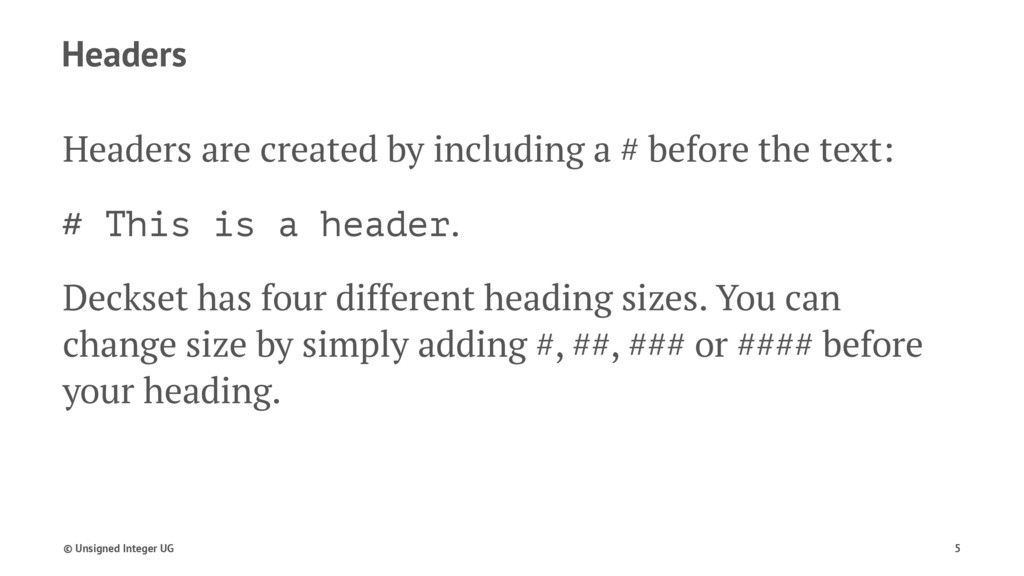
  5. Headers Headers are created by including a # before the

    text: # This is a header. Deckset has four different heading sizes. You can change size by simply adding #, ##, ### or #### before your heading. © Unsigned Integer UG 5
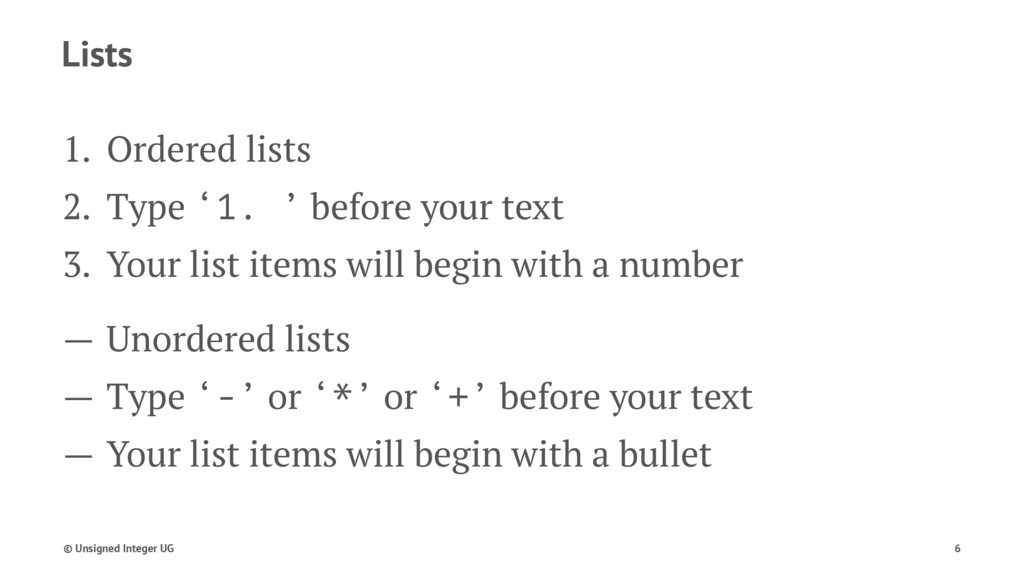
  6. Lists 1. Ordered lists 2. Type ‘1. ’ before your

    text 3. Your list items will begin with a number — Unordered lists — Type ‘-’ or ‘*’ or ‘+’ before your text — Your list items will begin with a bullet © Unsigned Integer UG 6
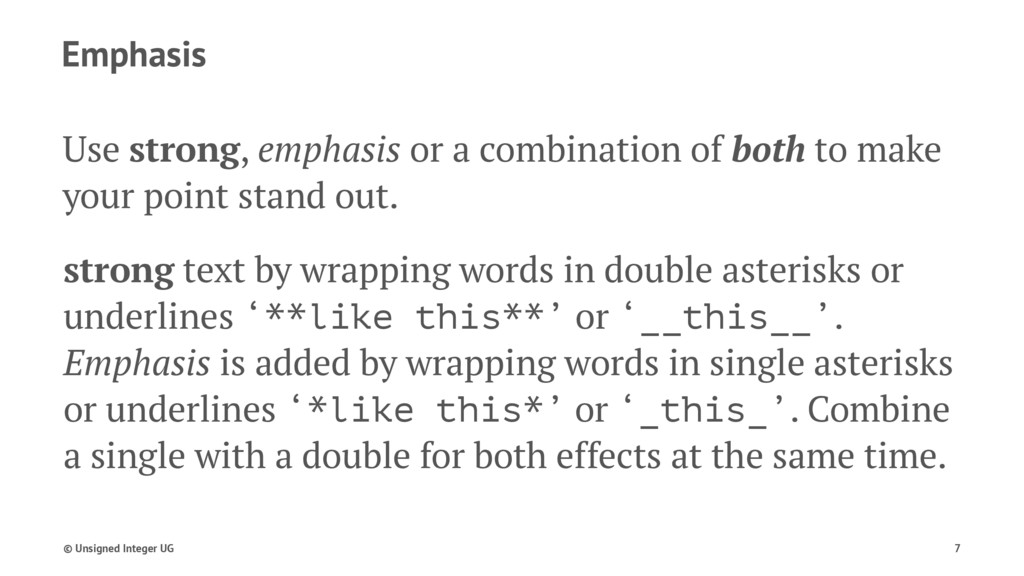
  7. Emphasis Use strong, emphasis or a combination of both to

    make your point stand out. strong text by wrapping words in double asterisks or underlines ‘**like this**’ or ‘__this__’. Emphasis is added by wrapping words in single asterisks or underlines ‘*like this*’ or ‘_this_’. Combine a single with a double for both effects at the same time. © Unsigned Integer UG 7
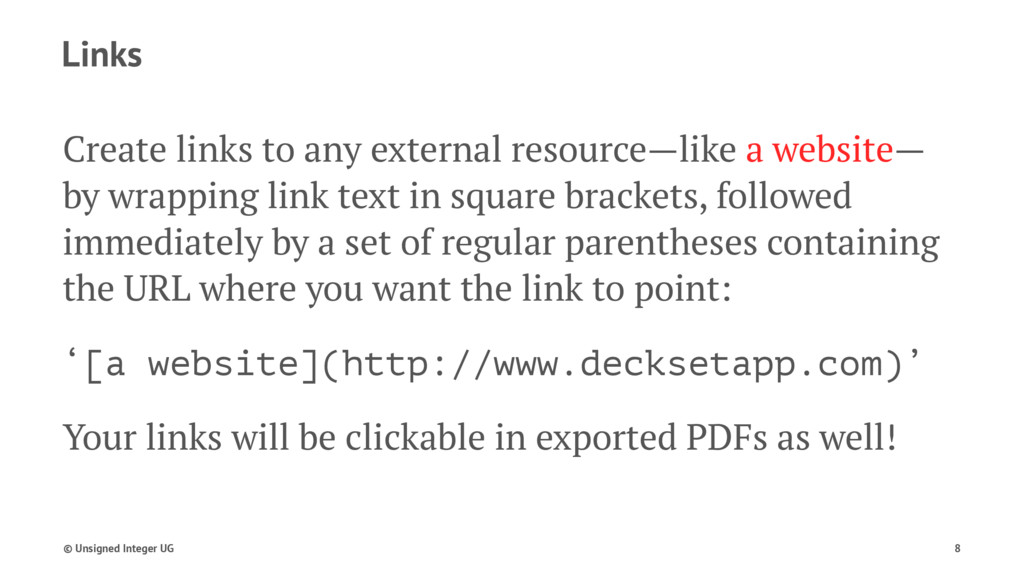
  8. Links Create links to any external resource—like a website— by

    wrapping link text in square brackets, followed immediately by a set of regular parentheses containing the URL where you want the link to point: ‘[a website](http://www.decksetapp.com)’ Your links will be clickable in exported PDFs as well! © Unsigned Integer UG 8
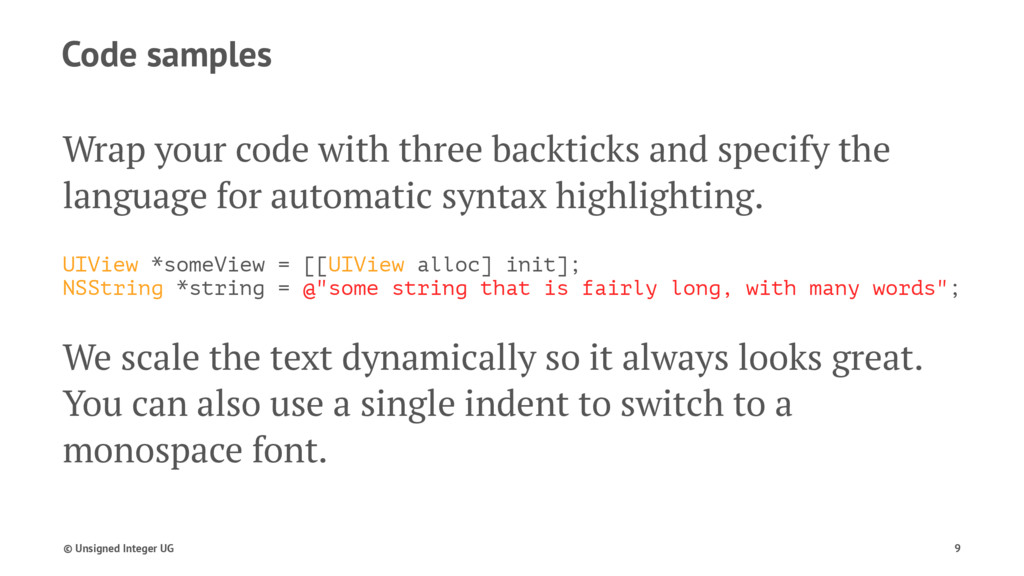
  9. Code samples Wrap your code with three backticks and specify

    the language for automatic syntax highlighting. UIView *someView = [[UIView alloc] init]; NSString *string = @"some string that is fairly long, with many words"; We scale the text dynamically so it always looks great. You can also use a single indent to switch to a monospace font. © Unsigned Integer UG 9
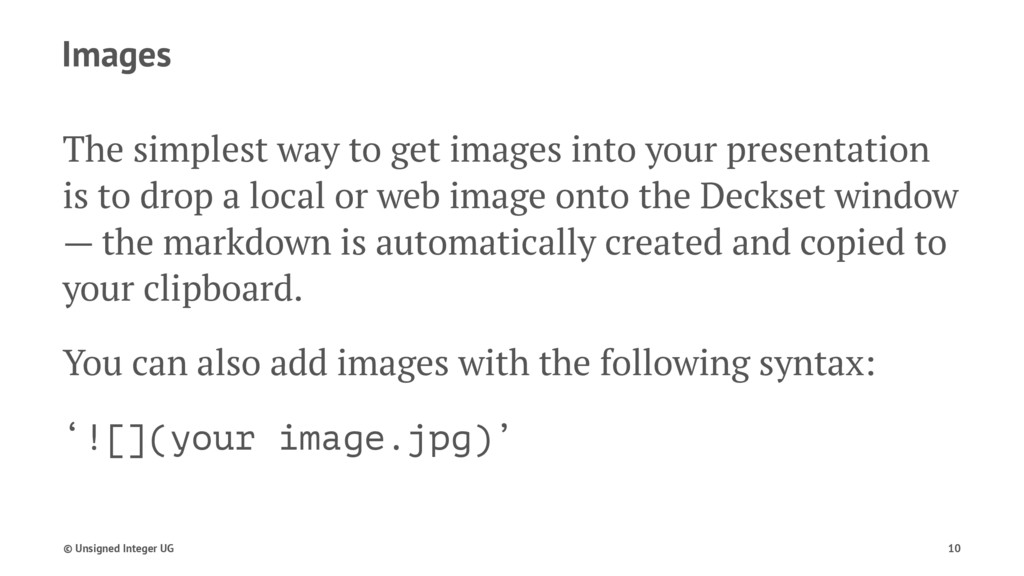
  10. Images The simplest way to get images into your presentation

    is to drop a local or web image onto the Deckset window — the markdown is automatically created and copied to your clipboard. You can also add images with the following syntax: ‘![](your image.jpg)’ © Unsigned Integer UG 10
  11. If you use text and images together, the image is

    filtered so the text is always readable. © Unsigned Integer UG 12
  12. Take a look at the ‘Working with images’ example presentation

    for a complete overview of what you can do with images in Deckset. © Unsigned Integer UG 13
  13. Videos can be included too, either as local files or

    YouTube links. © Unsigned Integer UG 14
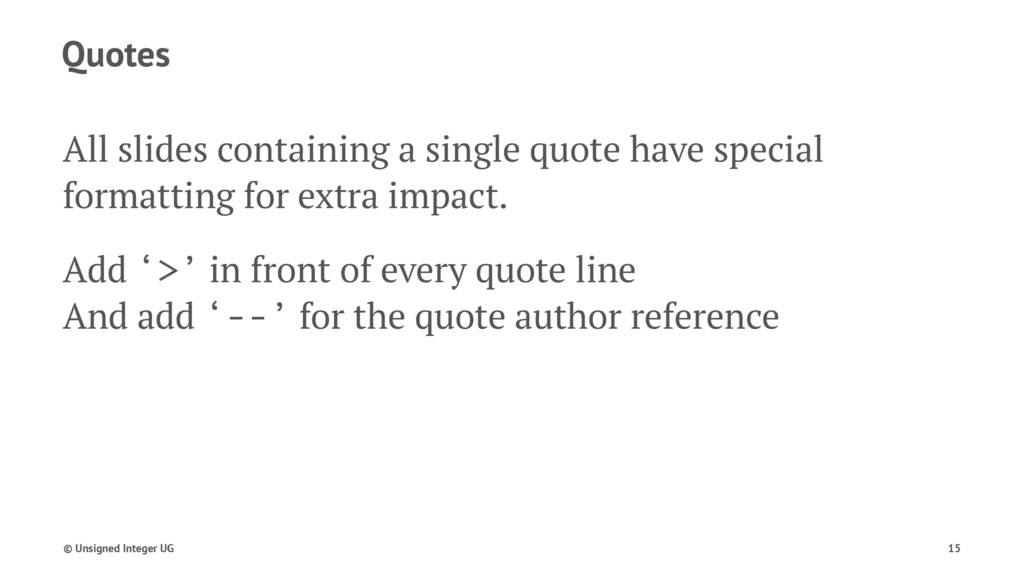
  14. Quotes All slides containing a single quote have special formatting

    for extra impact. Add ‘>’ in front of every quote line And add ‘--’ for the quote author reference © Unsigned Integer UG 15
  15. The best way to predict the future is to invent

    it — Alan Kay © Unsigned Integer UG 16
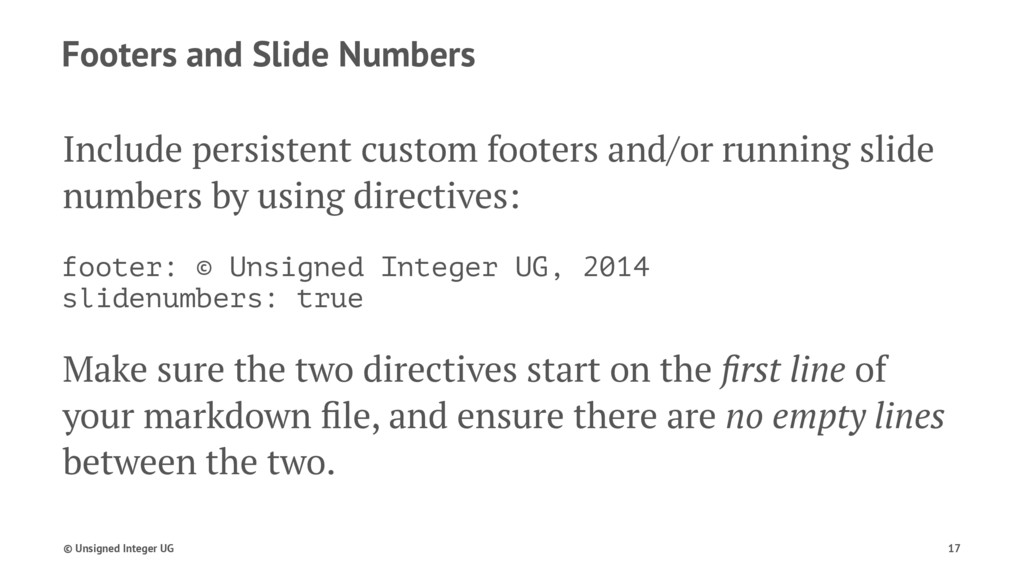
  16. Footers and Slide Numbers Include persistent custom footers and/or running

    slide numbers by using directives: footer: © Unsigned Integer UG, 2014 slidenumbers: true Make sure the two directives start on the first line of your markdown file, and ensure there are no empty lines between the two. © Unsigned Integer UG 17
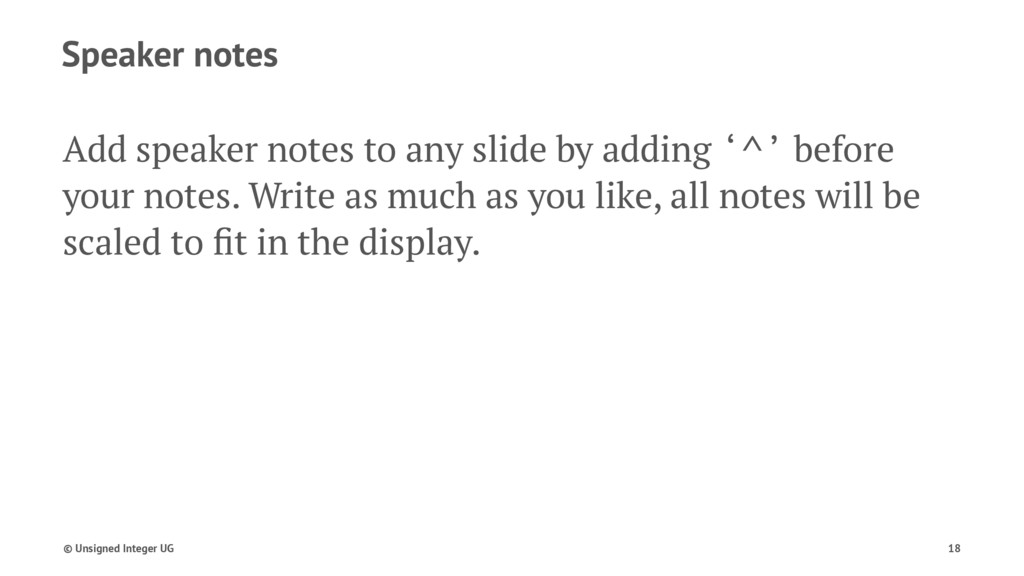
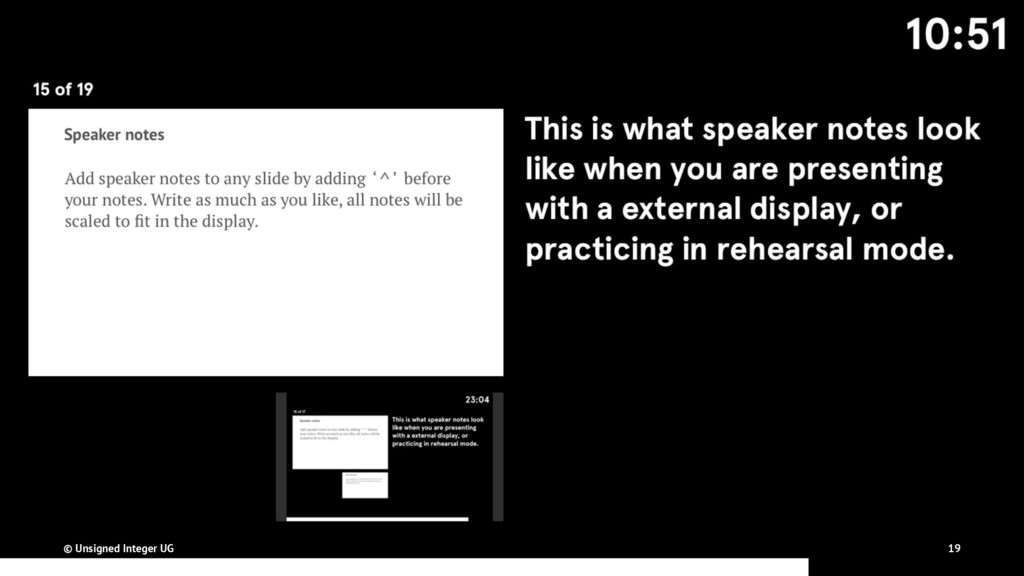
  17. Speaker notes Add speaker notes to any slide by adding

    ‘^’ before your notes. Write as much as you like, all notes will be scaled to fit in the display. © Unsigned Integer UG 18
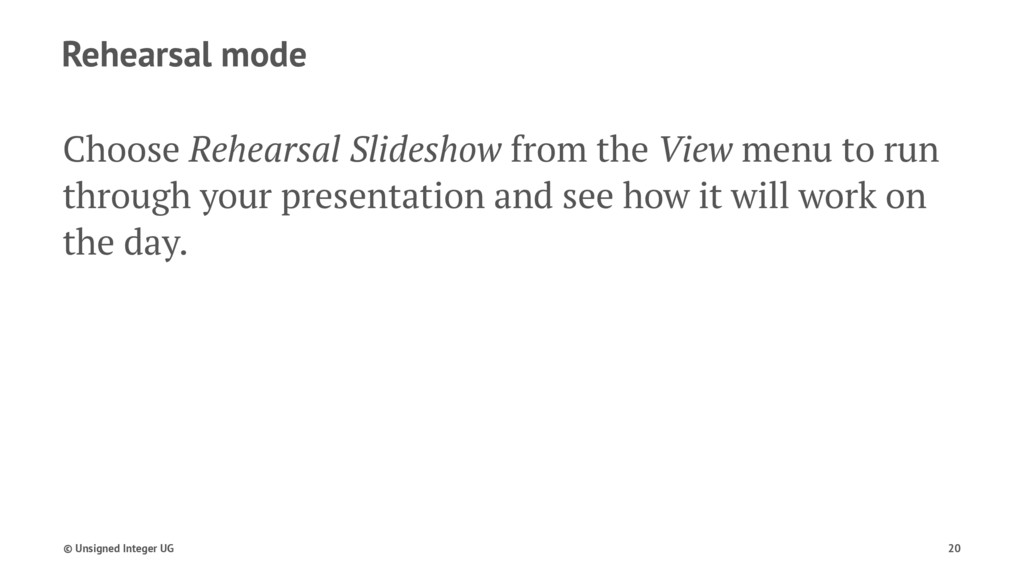
  18. Rehearsal mode Choose Rehearsal Slideshow from the View menu to

    run through your presentation and see how it will work on the day. © Unsigned Integer UG 20
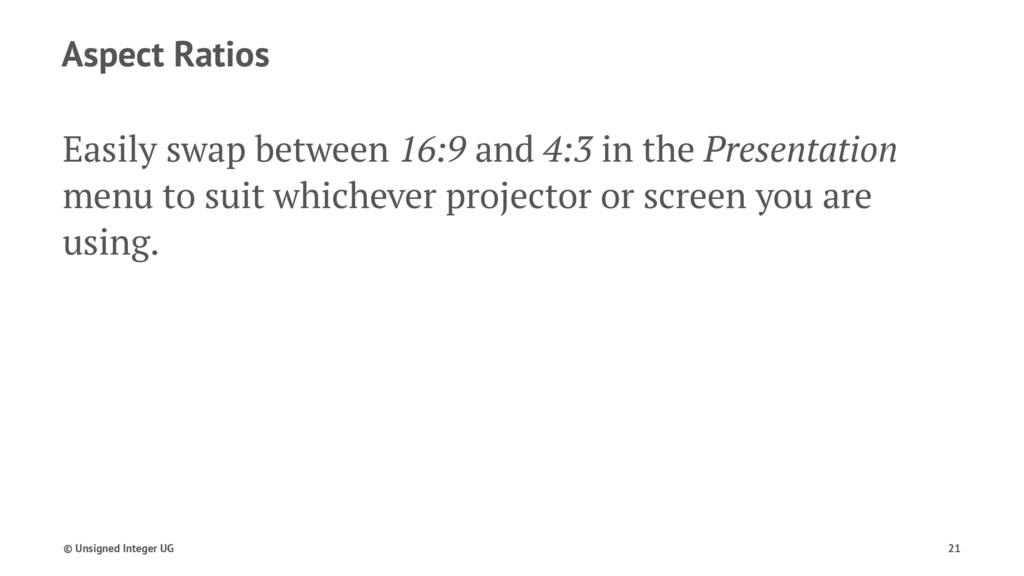
  19. Aspect Ratios Easily swap between 16:9 and 4:3 in the

    Presentation menu to suit whichever projector or screen you are using. © Unsigned Integer UG 21
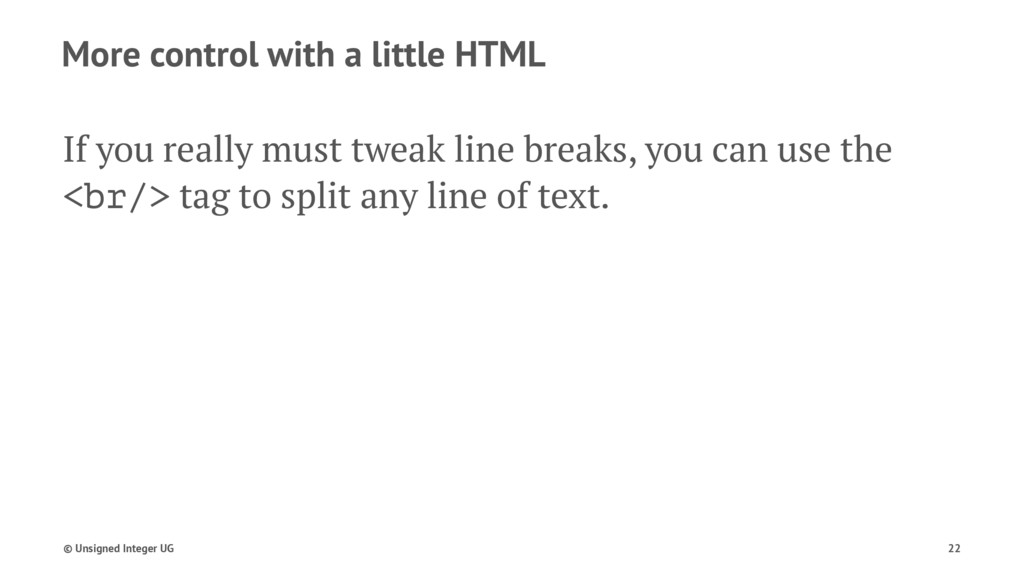
  20. More control with a little HTML If you really must

    tweak line breaks, you can use the <br/> tag to split any line of text. © Unsigned Integer UG 22