Upgrade to Pro — share decks privately, control downloads, hide ads and more …

GeoJSON×SwiftUI:地図を“美しく”描くための技術

Sponsored · SiteGround - Reliable hosting with speed, security, and support you can count on.

 GeoJSON×SwiftUI:地図を“美しく”描くための技術

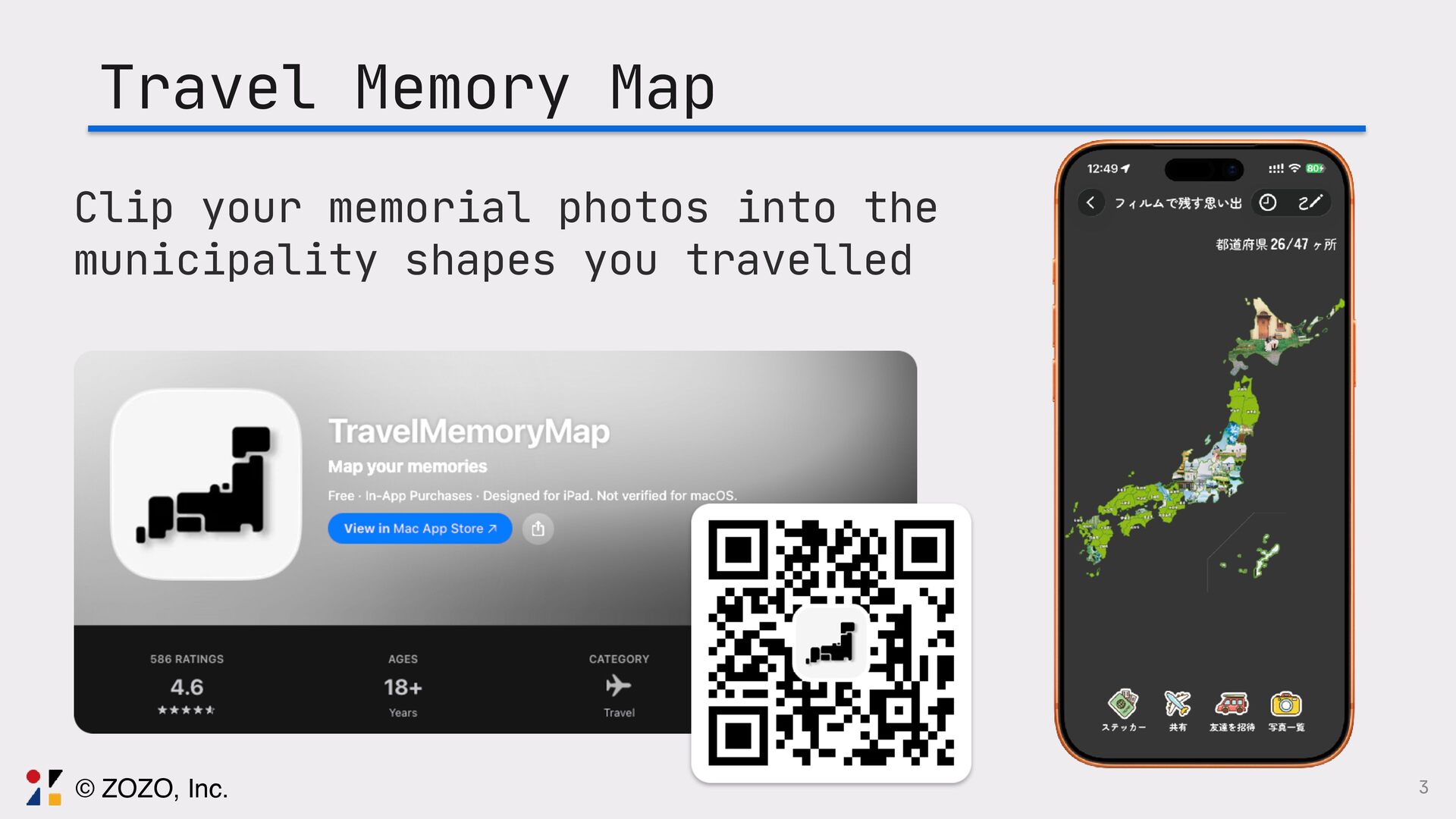
旅行思い出マップという訪れた場所の写真を地図の地形に合わせて切り取り、地図上にパズルのように配置して視覚的に旅の思い出を記録・共有できるアプリを個人で開発しております。
最初は手作業で地図を作っていましたが、ユーザーから市町村レベルの地図が欲しいと要望を受け、手作業だと時間がいくらあっても足りないという悩みを解決するためにGeoJSONを使った地図描画に挑戦しました。
このトークでは、GeoJSONをSwiftUIで描画する方法、また実際に起きる図法由来の違和感をどう捉え、どの図法・変換・描画方法を選ぶことで「自然に見える地図」にしたのか、その設計と実装を実例とともに解説します。

Avatar for Ryo Tsuzukihashi

Ryo Tsuzukihashi

April 14, 2026

More Decks by Ryo Tsuzukihashi

Other Decks in Technology

Transcript

  1. 1 GeoJSON × SwiftUI Techniques for Beautiful Map Rendering Ryo

    Tsuzukihashi / ZOZO, Inc. try! Swift Tokyo 2026
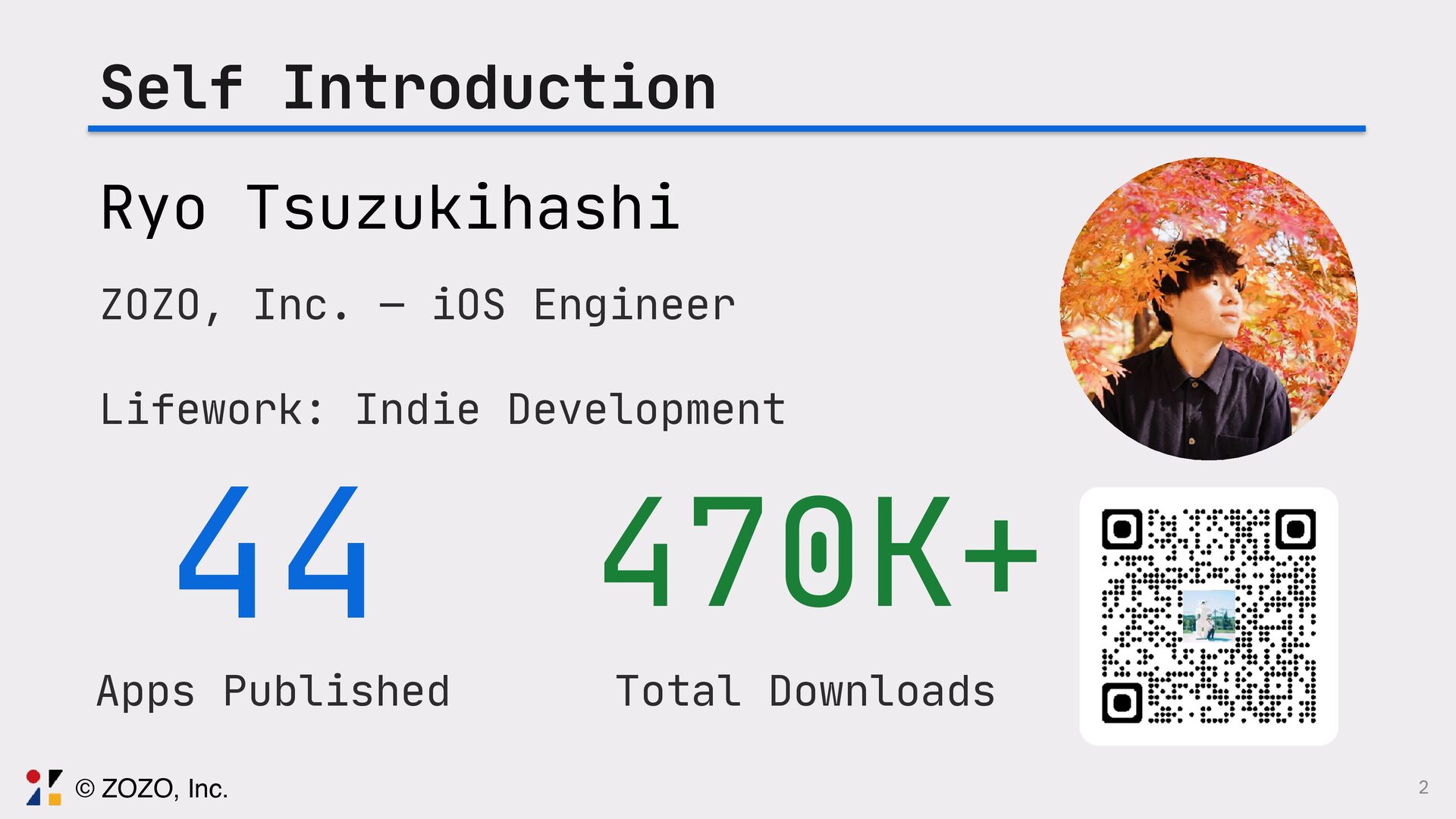
  2. 2 Self Introduction Ryo Tsuzukihashi ZOZO, Inc. — iOS Engineer

    Lifework: Indie Development 44 Apps Published 470K+ Total Downloads © ZOZO, Inc.
  3. 3 Travel Memory Map Clip your memorial photos into the

    municipality shapes you travelled © ZOZO, Inc.
  4. 9 What MapKit Alone Can't Do •Great at displaying maps

    •Clipping photos to municipality shapes isn't supported •No puzzle-like fill effect © ZOZO, Inc.
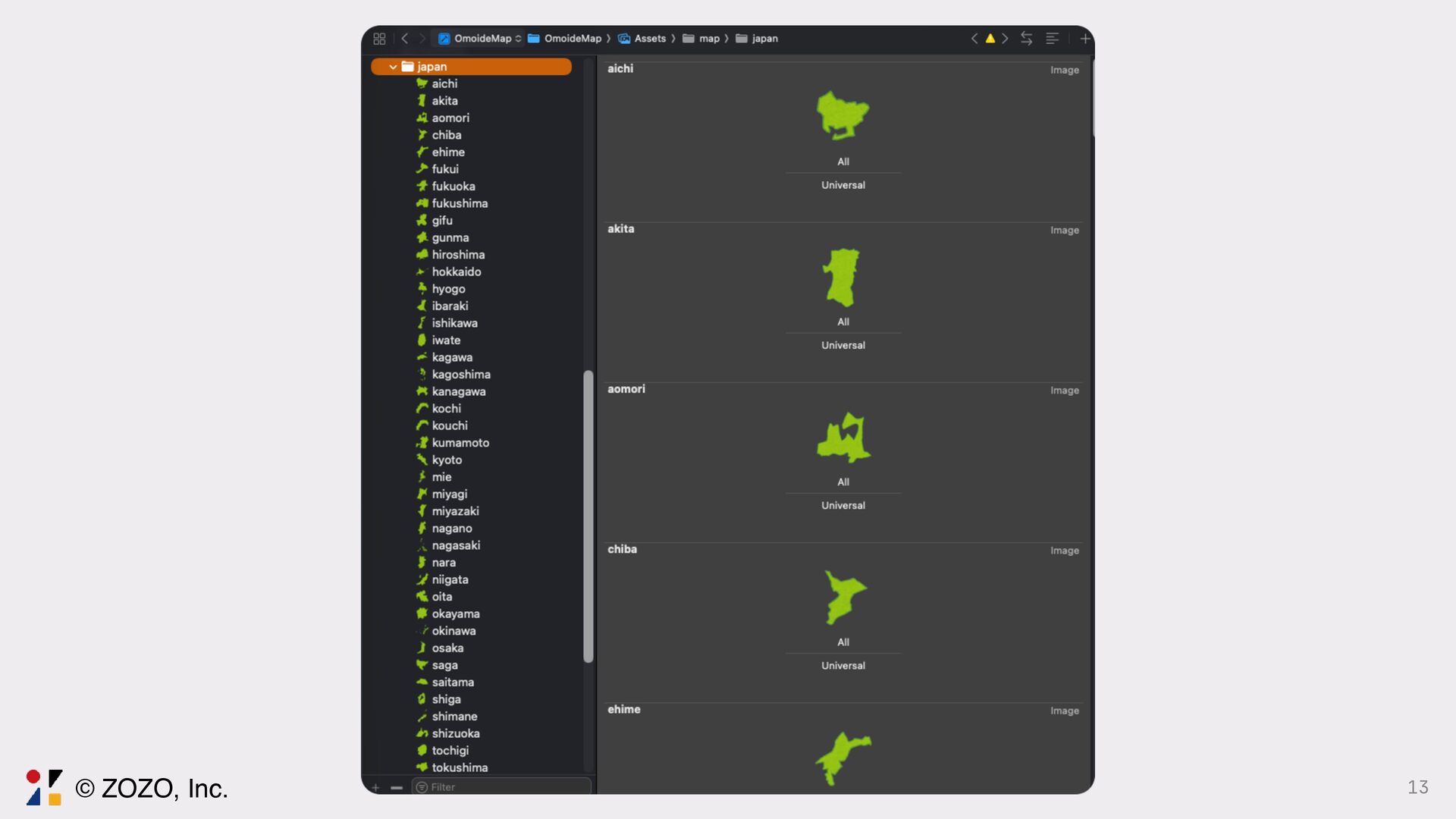
  5. 12 Should I prepare images for all 47 prefectures and

    use SwiftUI mask to clip photos? © ZOZO, Inc.
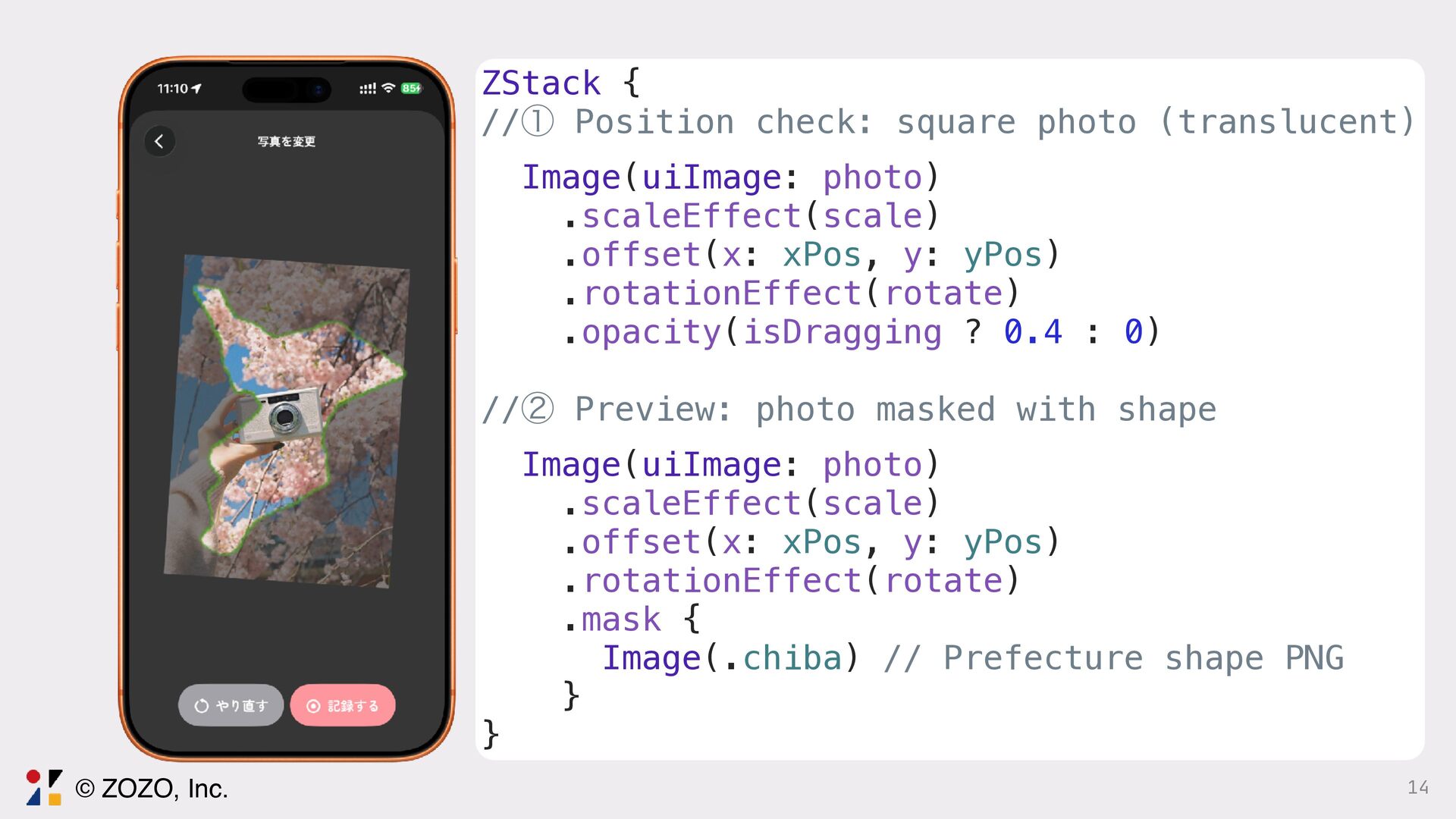
  6. 14 ZStack { //ᶃ Position check: square photo (translucent) Image(uiImage:

    photo) .scaleEffect(scale) .offset(x: xPos, y: yPos) .rotationEffect(rotate) .opacity(isDragging ? 0.4 : 0) //ᶄ Preview: photo masked with shape Image(uiImage: photo) .scaleEffect(scale) .offset(x: xPos, y: yPos) .rotationEffect(rotate) .mask { Image(.chiba) // Prefecture shape PNG } } © ZOZO, Inc.
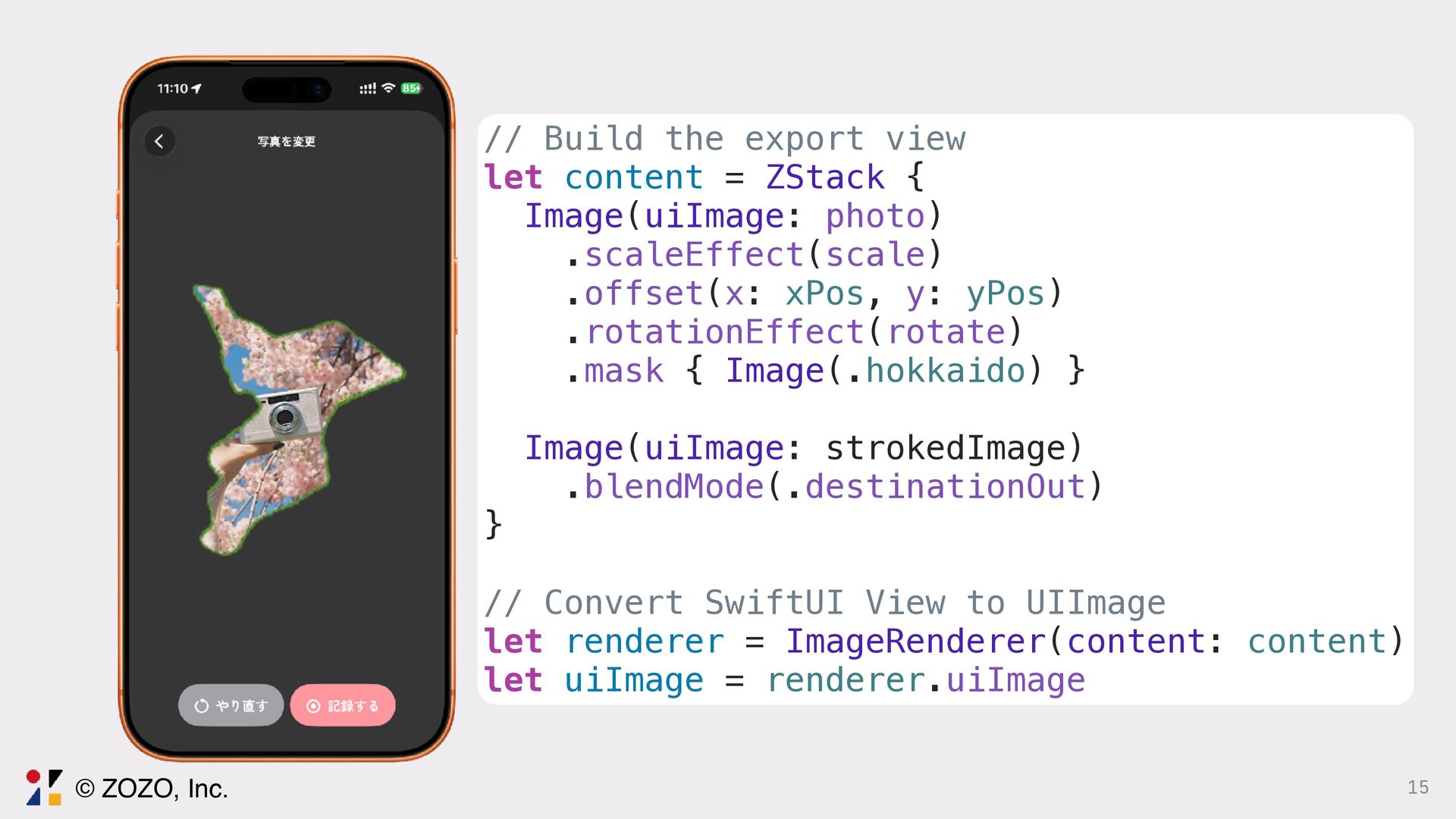
  7. 15 // Build the export view let content = ZStack

    { Image(uiImage: photo) .scaleEffect(scale) .offset(x: xPos, y: yPos) .rotationEffect(rotate) .mask { Image(.hokkaido) } Image(uiImage: strokedImage) .blendMode(.destinationOut) } // Convert SwiftUI View to UIImage let renderer = ImageRenderer(content: content) let uiImage = renderer.uiImage © ZOZO, Inc.
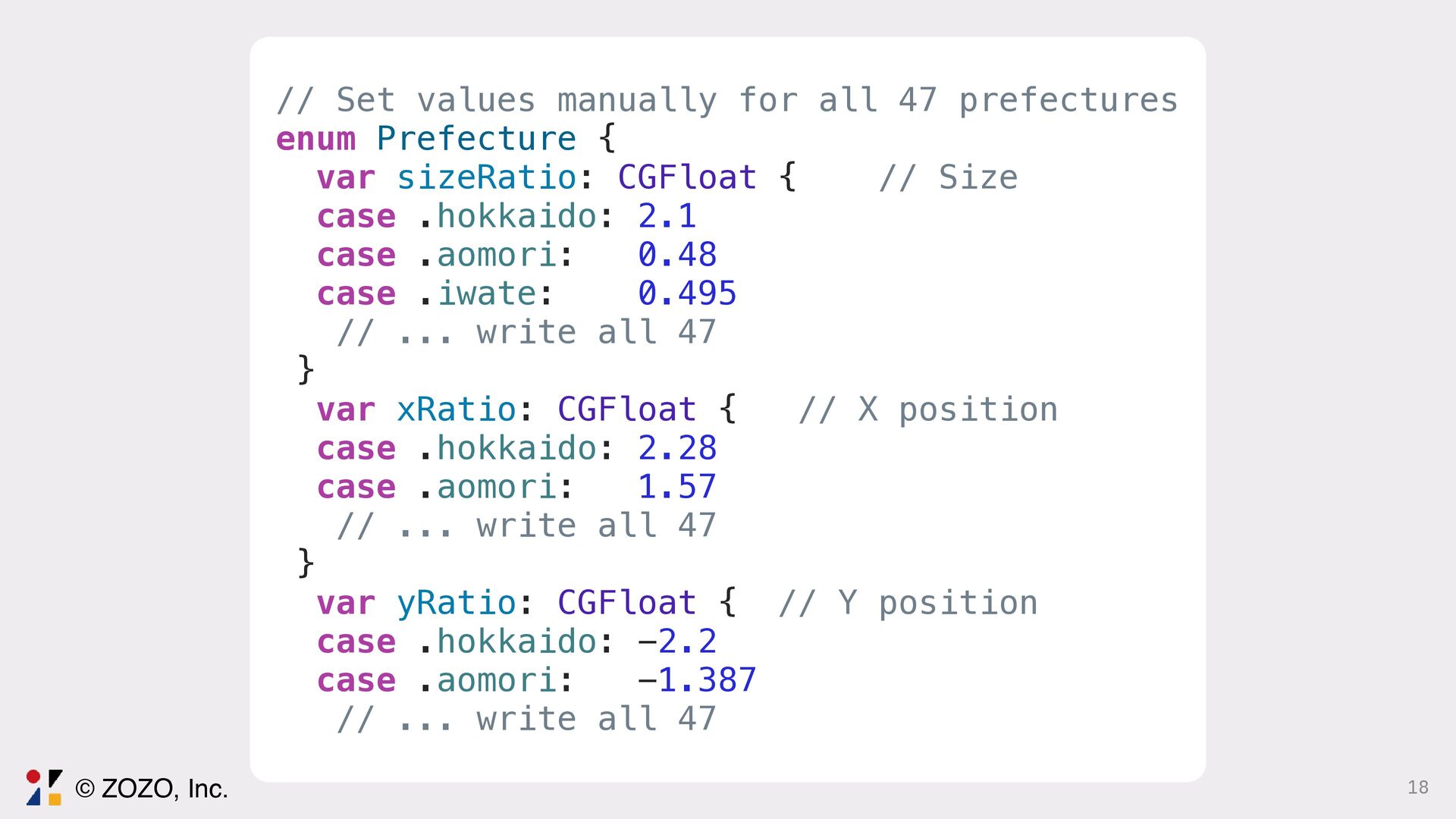
  8. 18 // Set values manually for all 47 prefectures enum

    Prefecture { var sizeRatio: CGFloat { // Size case .hokkaido: 2.1 case .aomori: 0.48 case .iwate: 0.495 // ... write all 47 } var xRatio: CGFloat { // X position case .hokkaido: 2.28 case .aomori: 1.57 // ... write all 47 } var yRatio: CGFloat { // Y position case .hokkaido: -2.2 case .aomori: -1.387 // ... write all 47 © ZOZO, Inc.
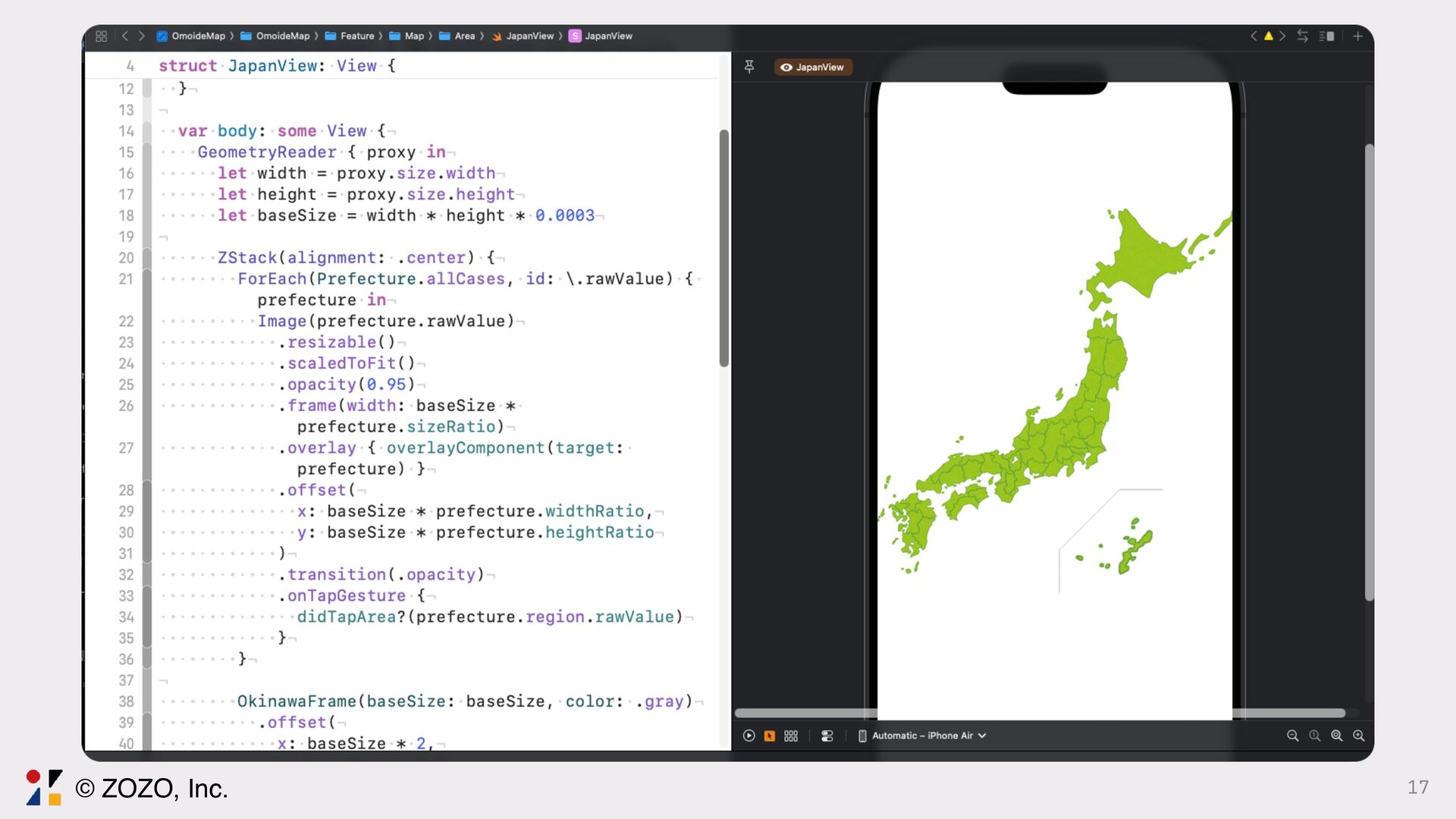
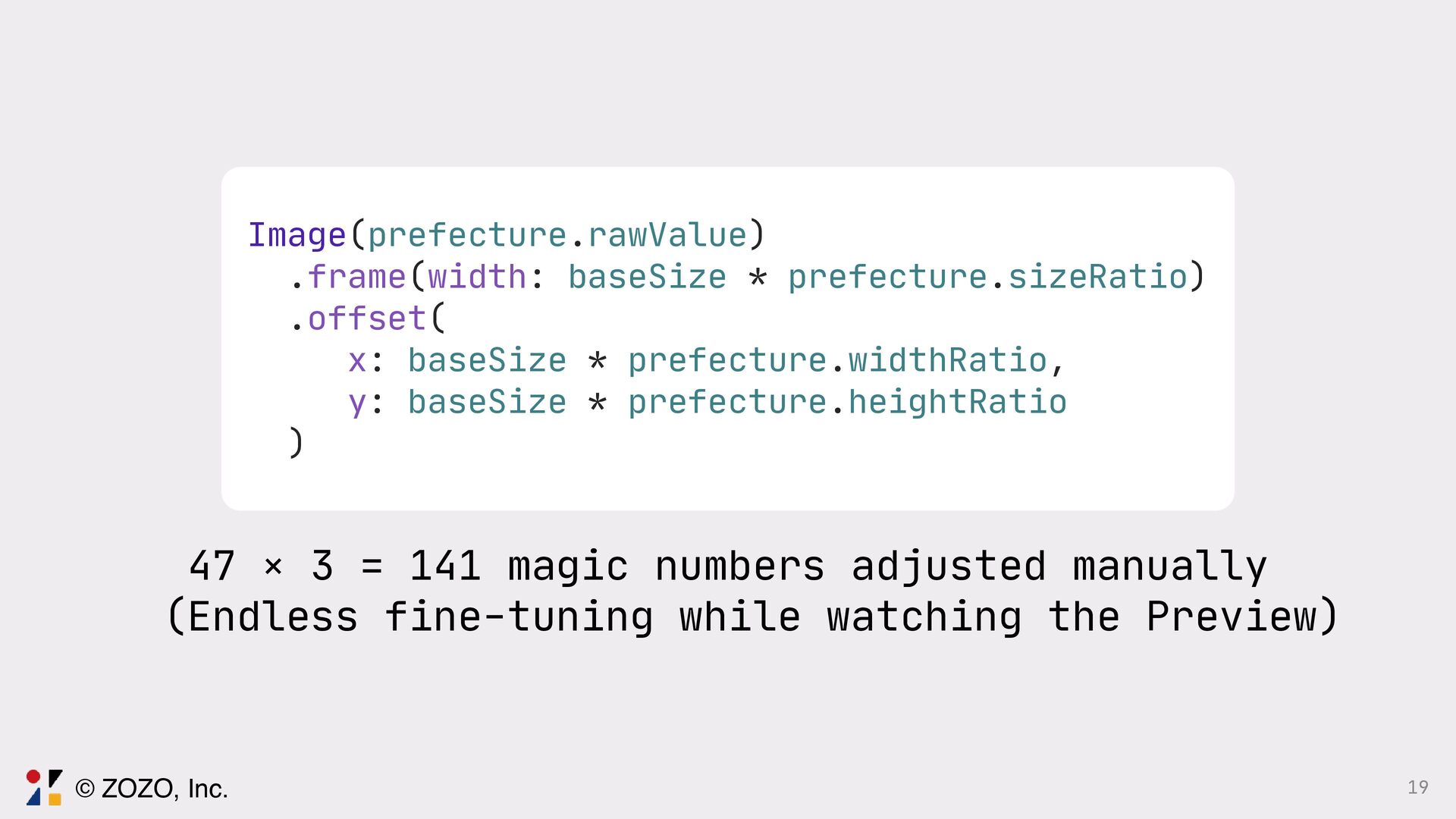
  9. 19 Image(prefecture.rawValue) .frame(width: baseSize * prefecture.sizeRatio) .offset( x: baseSize *

    prefecture.widthRatio, y: baseSize * prefecture.heightRatio ) 47 × 3 = 141 magic numbers adjusted manually (Endless fine-tuning while watching the Preview) © ZOZO, Inc.
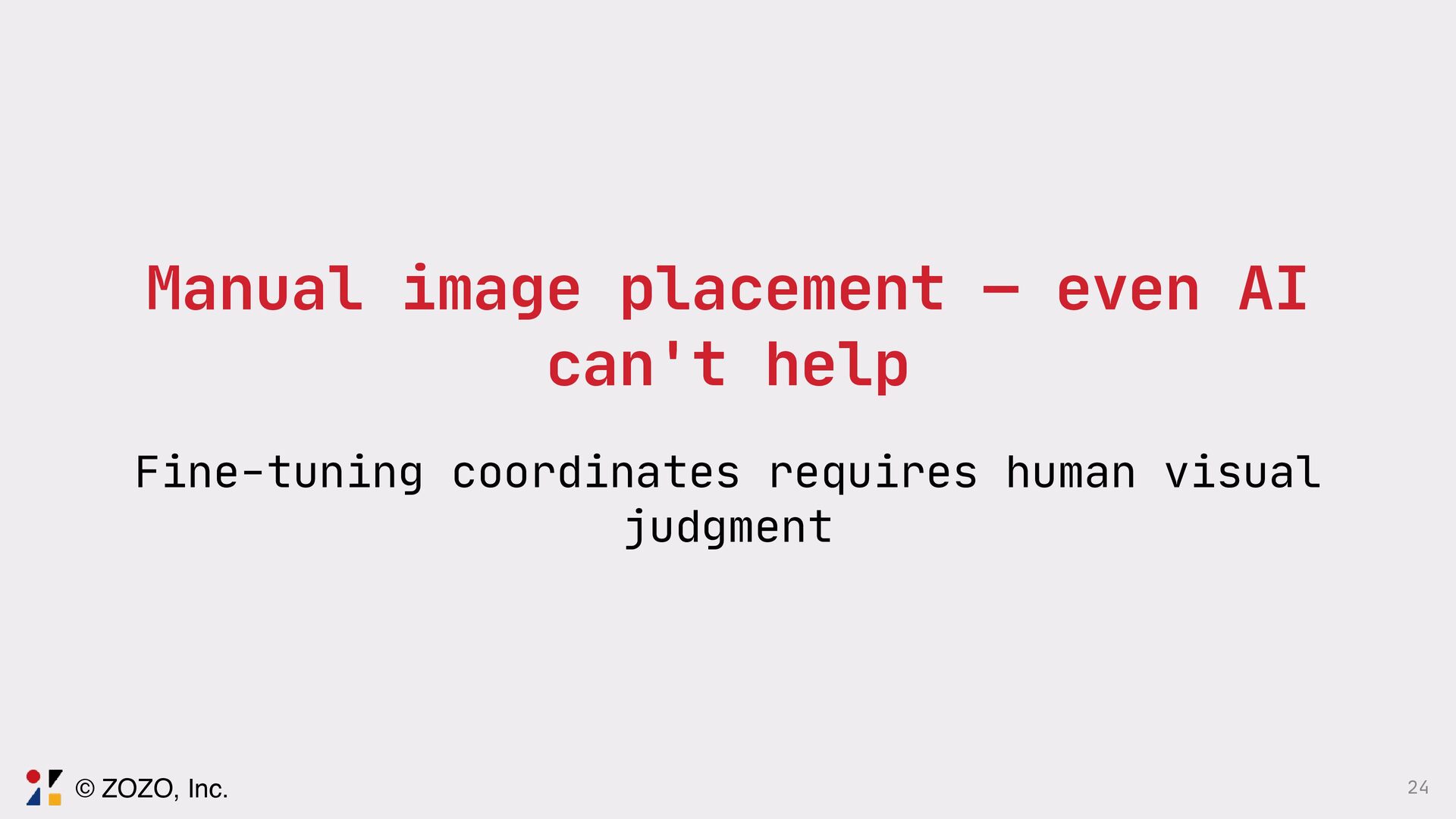
  10. 24 Manual image placement — even AI can't help Fine-tuning

    coordinates requires human visual judgment © ZOZO, Inc.
  11. 26 There must be a better, more technical way to

    solve this easily! © ZOZO, Inc.
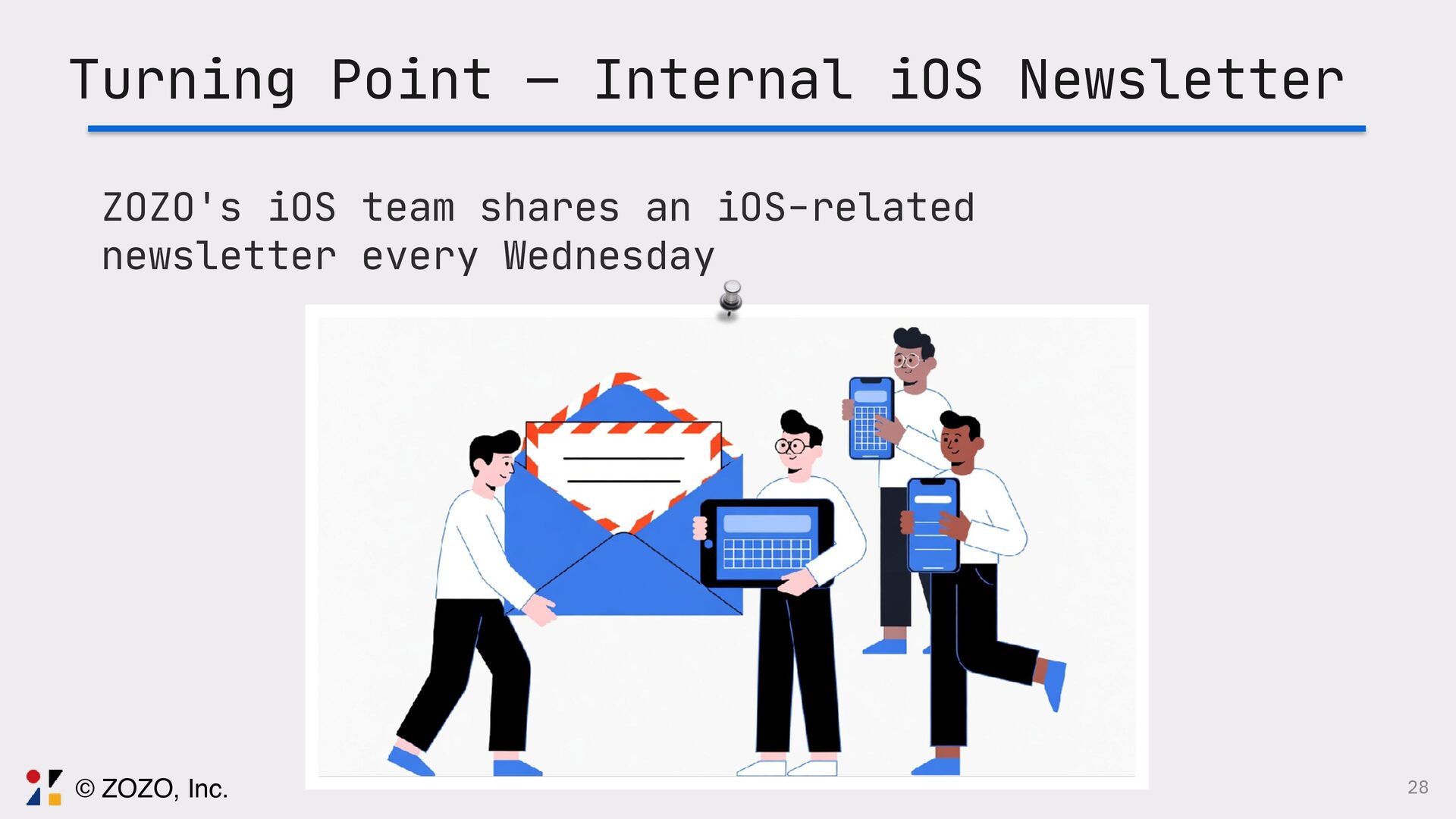
  12. 28 Turning Point — Internal iOS Newsletter ZOZO's iOS team

    shares an iOS-related newsletter every Wednesday © ZOZO, Inc.
  13. 29 Turning Point — Internal iOS Newsletter My colleague laplap

    "Drawing maps with Swift Charts" — Artem Novichkov https: // artemnovichkov.com/blog/drawing-maps-with-swift-charts shared this article © ZOZO, Inc.
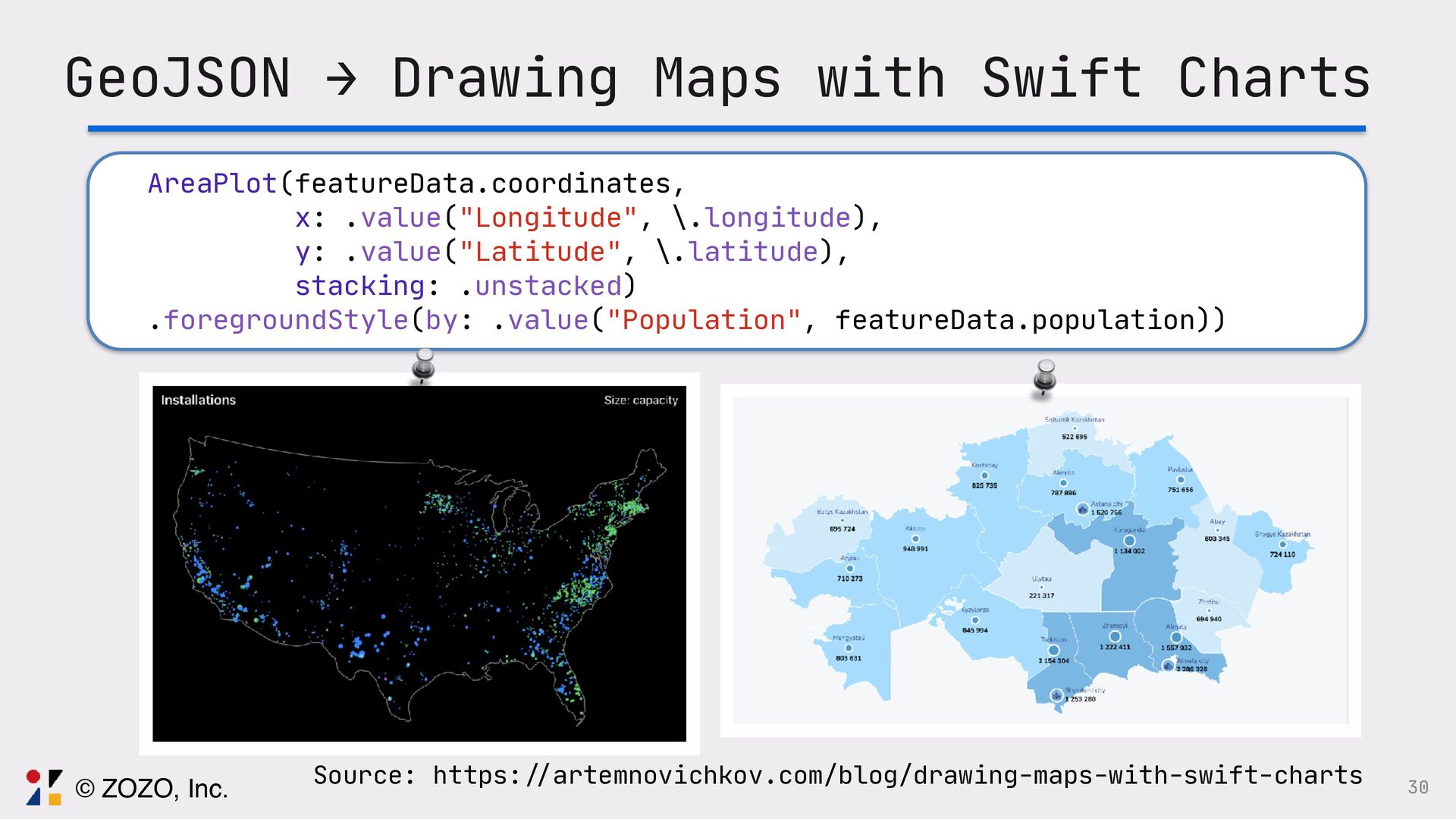
  14. 30 GeoJSON → Drawing Maps with Swift Charts AreaPlot(featureData.coordinates, x:

    .value("Longitude", \.longitude), y: .value("Latitude", \.latitude), stacking: .unstacked) .foregroundStyle(by: .value("Population", featureData.population)) Source: https: // artemnovichkov.com/blog/drawing-maps-with-swift-charts © ZOZO, Inc.
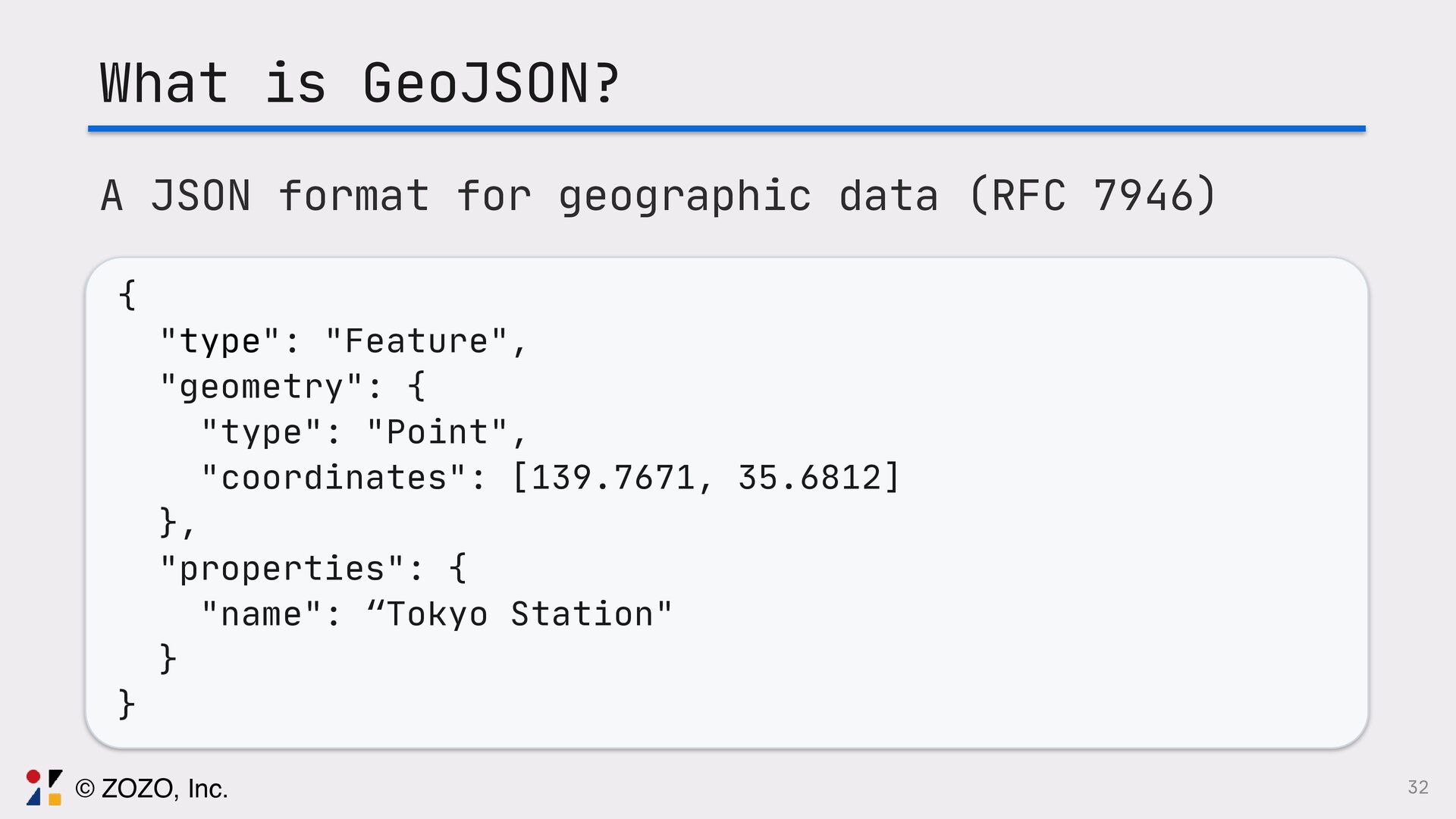
  15. 32 What is GeoJSON? A JSON format for geographic data

    (RFC 7946) { "type": "Feature", "geometry": { "type": "Point", "coordinates": [139.7671, 35.6812] }, "properties": { "name": “Tokyo Station" } } © ZOZO, Inc.
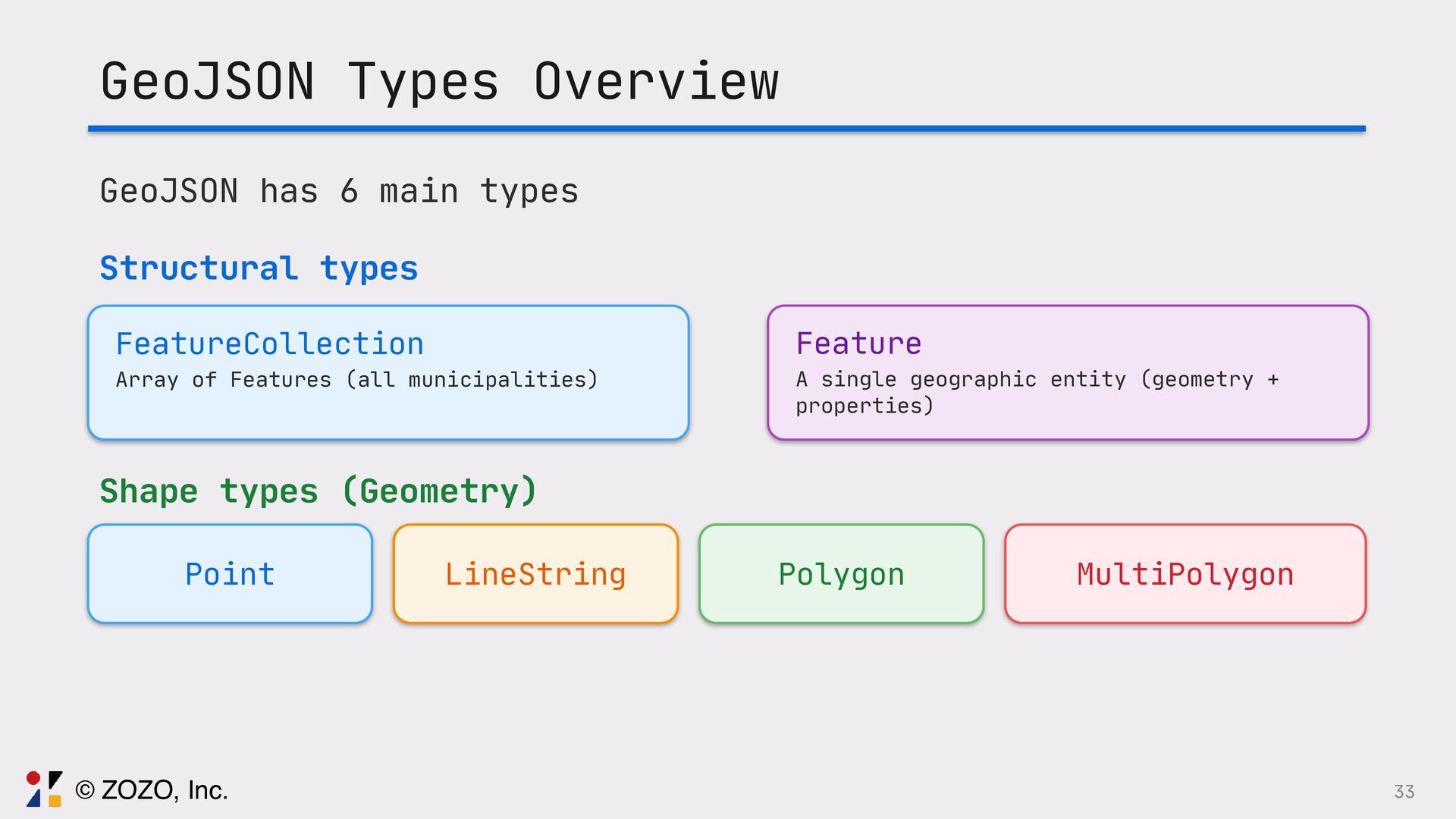
  16. GeoJSON Types Overview GeoJSON has 6 main types Structural types

    FeatureCollection Array of Features (all municipalities) Feature A single geographic entity (geometry + properties) Shape types (Geometry) Point LineString Polygon MultiPolygon 33 © ZOZO, Inc.
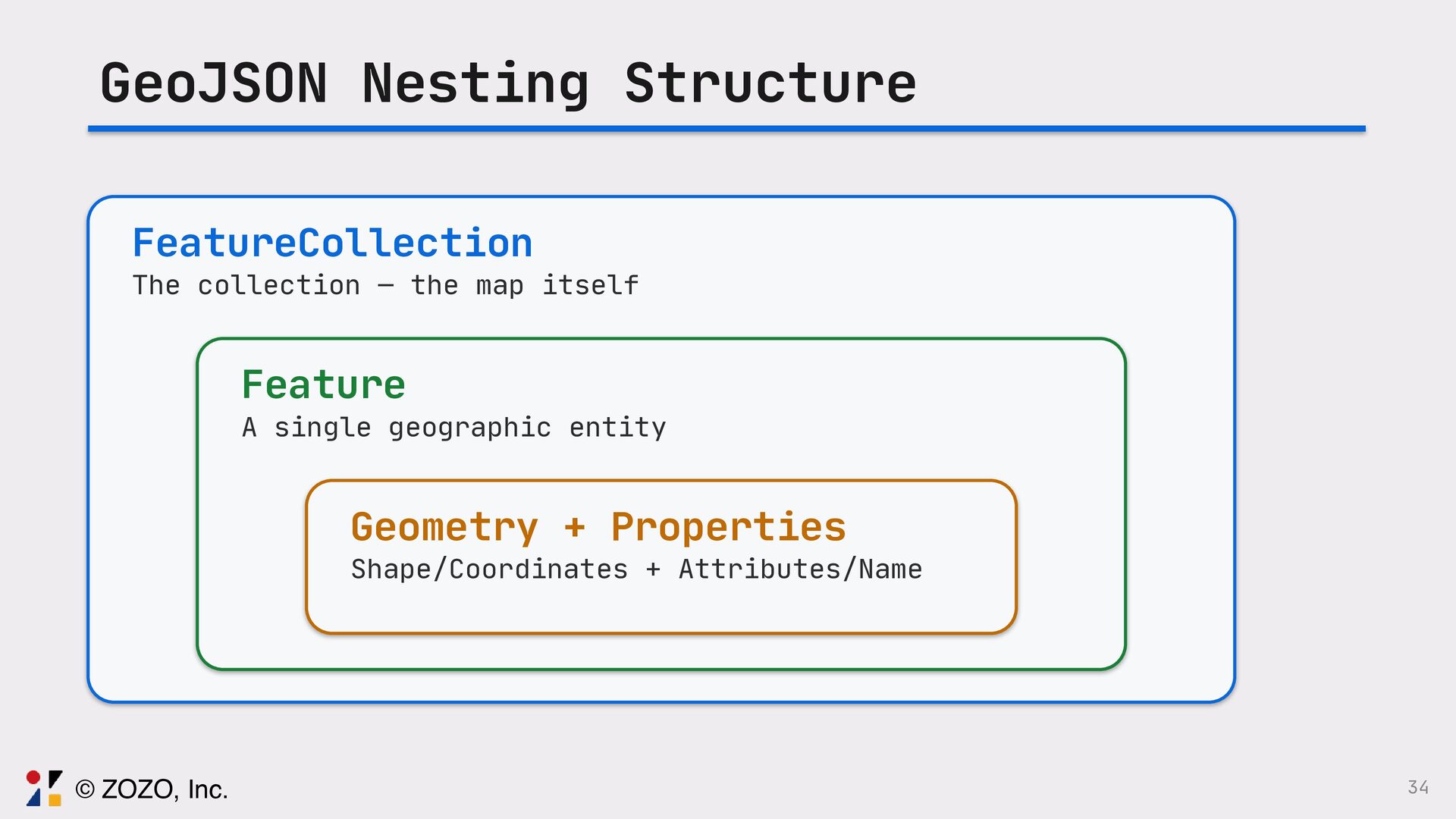
  17. 34 GeoJSON Nesting Structure FeatureCollection The collection — the map

    itself Feature A single geographic entity Geometry + Properties Shape/Coordinates + Attributes/Name © ZOZO, Inc.
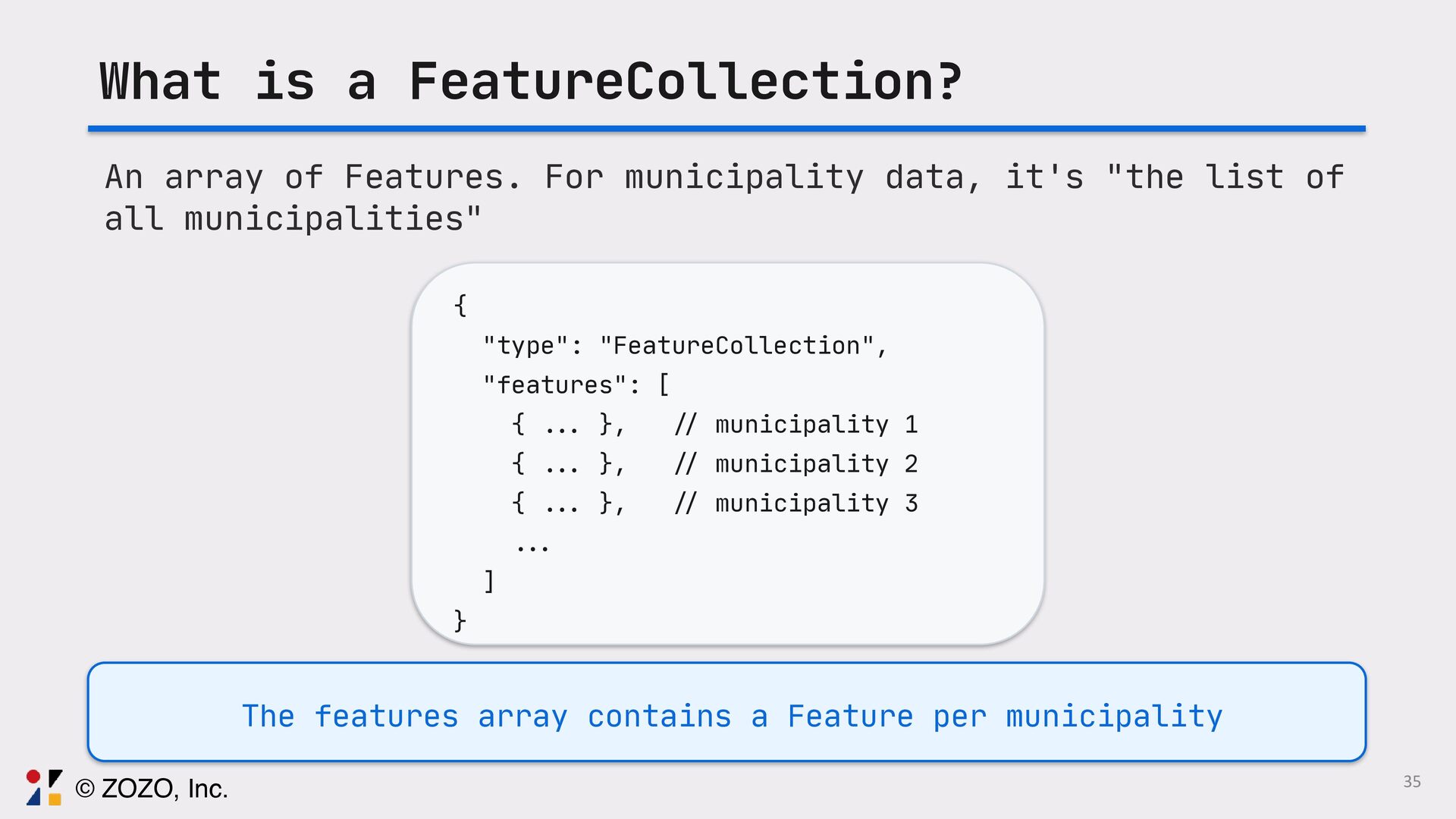
  18. What is a FeatureCollection? An array of Features. For municipality

    data, it's "the list of all municipalities" { "type": "FeatureCollection", "features": [ { ... }, // municipality 1 { ... }, // municipality 2 { ... }, // municipality 3 ... ] } The features array contains a Feature per municipality 35 © ZOZO, Inc.
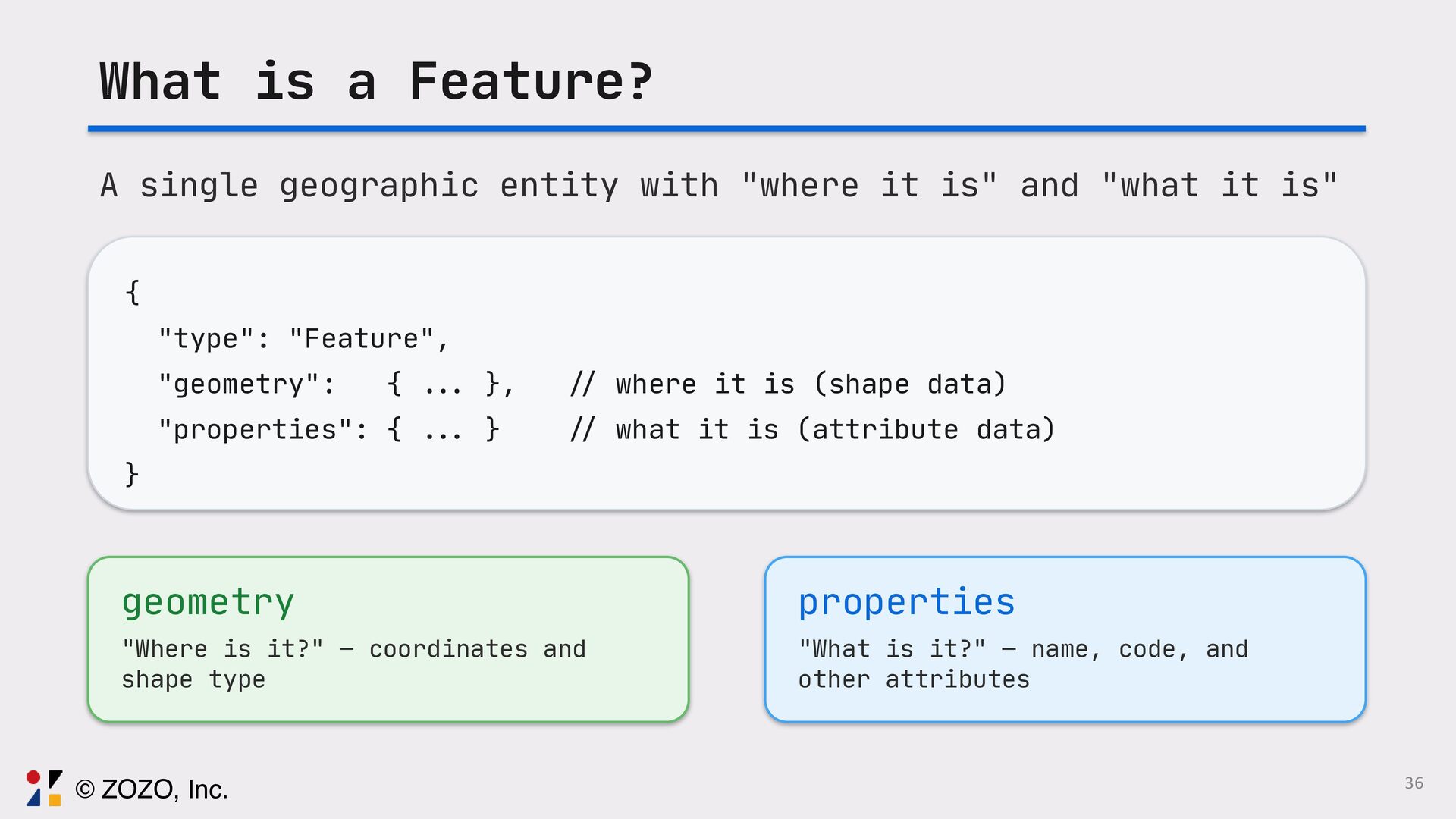
  19. What is a Feature? A single geographic entity with "where

    it is" and "what it is" { "type": "Feature", "geometry": { . .. }, / / where it is (shape data) "properties": { . .. } / / what it is (attribute data) } geometry "Where is it?" — coordinates and shape type properties "What is it?" — name, code, and other attributes 36 © ZOZO, Inc.
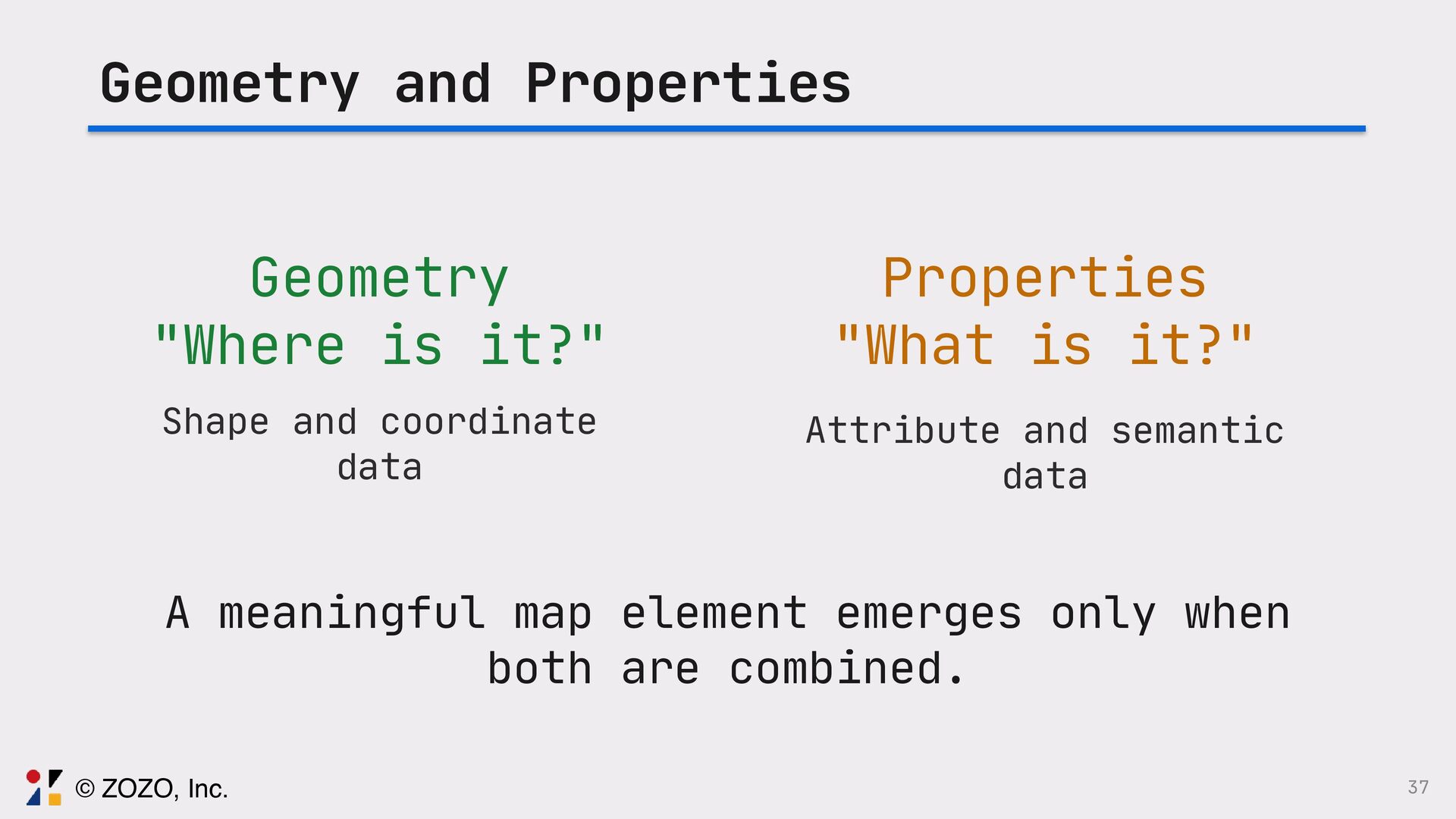
  20. 37 Geometry and Properties Geometry "Where is it?" Shape and

    coordinate data Properties "What is it?" Attribute and semantic data A meaningful map element emerges only when both are combined. © ZOZO, Inc.
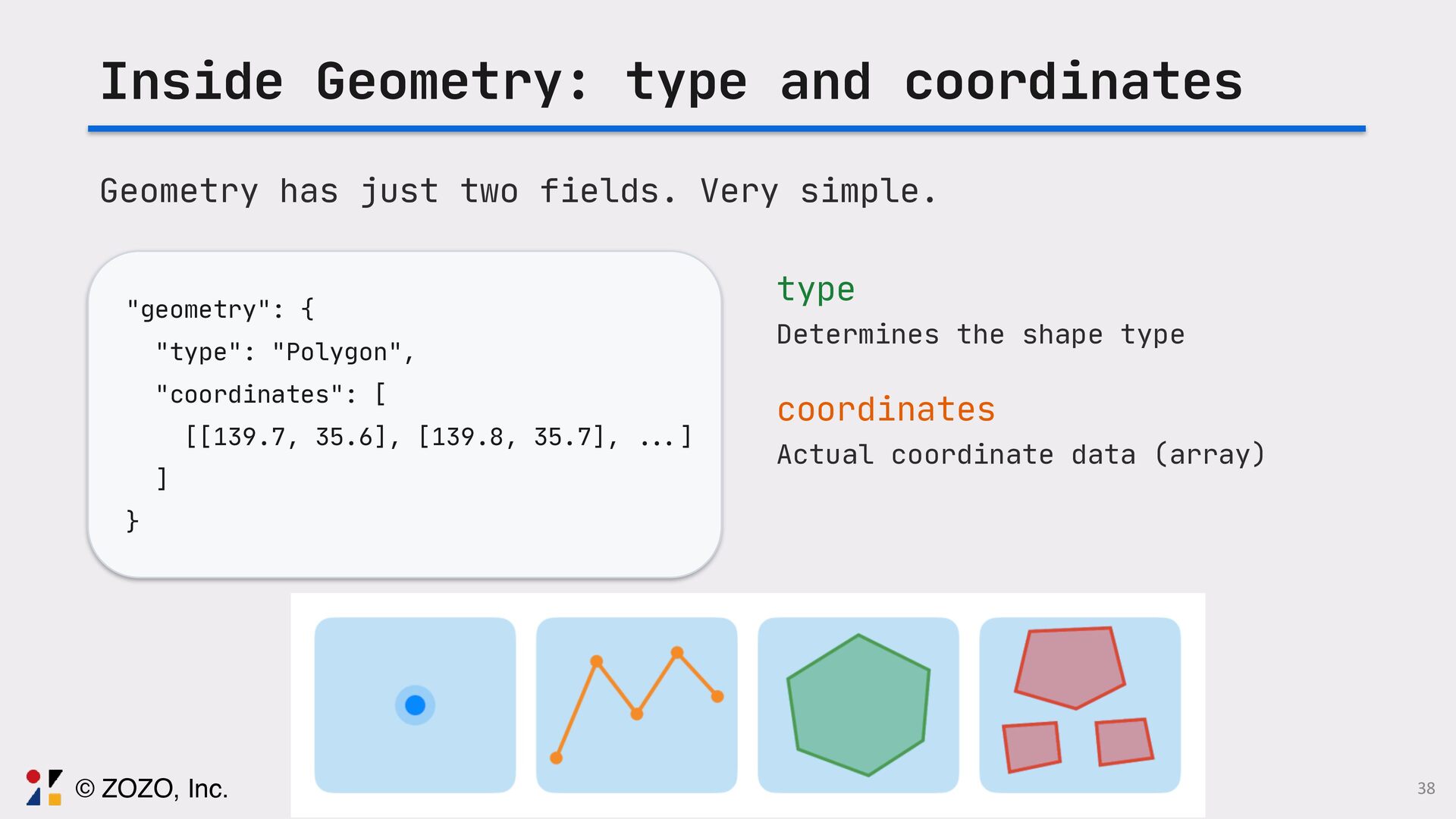
  21. Inside Geometry: type and coordinates Geometry has just two fields.

    Very simple. "geometry": { "type": "Polygon", "coordinates": [ [[139.7, 35.6], [139.8, 35.7], .. . ] ] } type Determines the shape type coordinates Actual coordinate data (array) 38 © ZOZO, Inc.
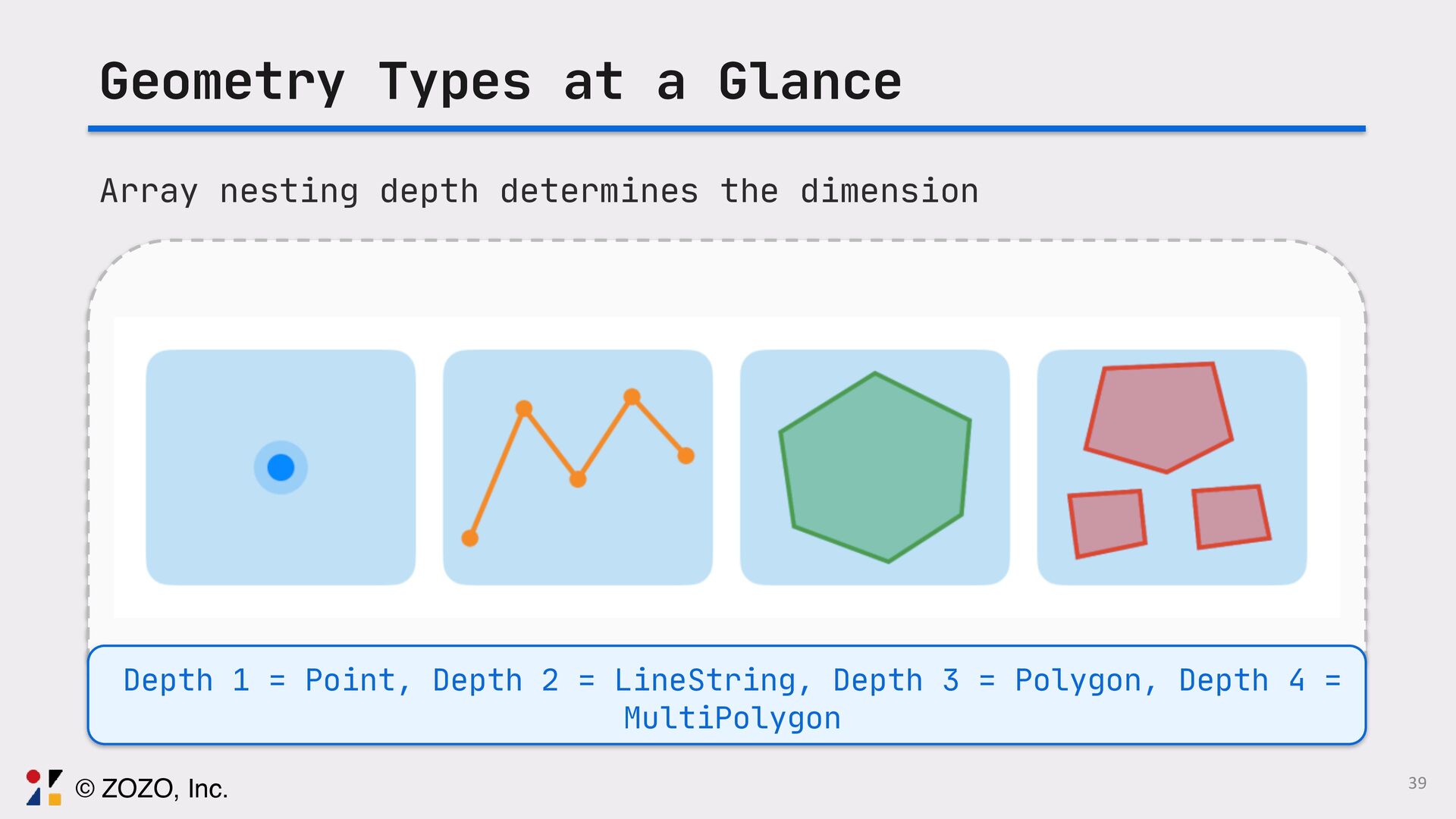
  22. Geometry Types at a Glance Array nesting depth determines the

    dimension Depth 1 = Point, Depth 2 = LineString, Depth 3 = Polygon, Depth 4 = MultiPolygon 39 © ZOZO, Inc.
  23. 40 Gotcha: Coordinate Order [ 138.730, 35.360 ] Longitude /

    X-axis Latitude / Y-axis © ZOZO, Inc.
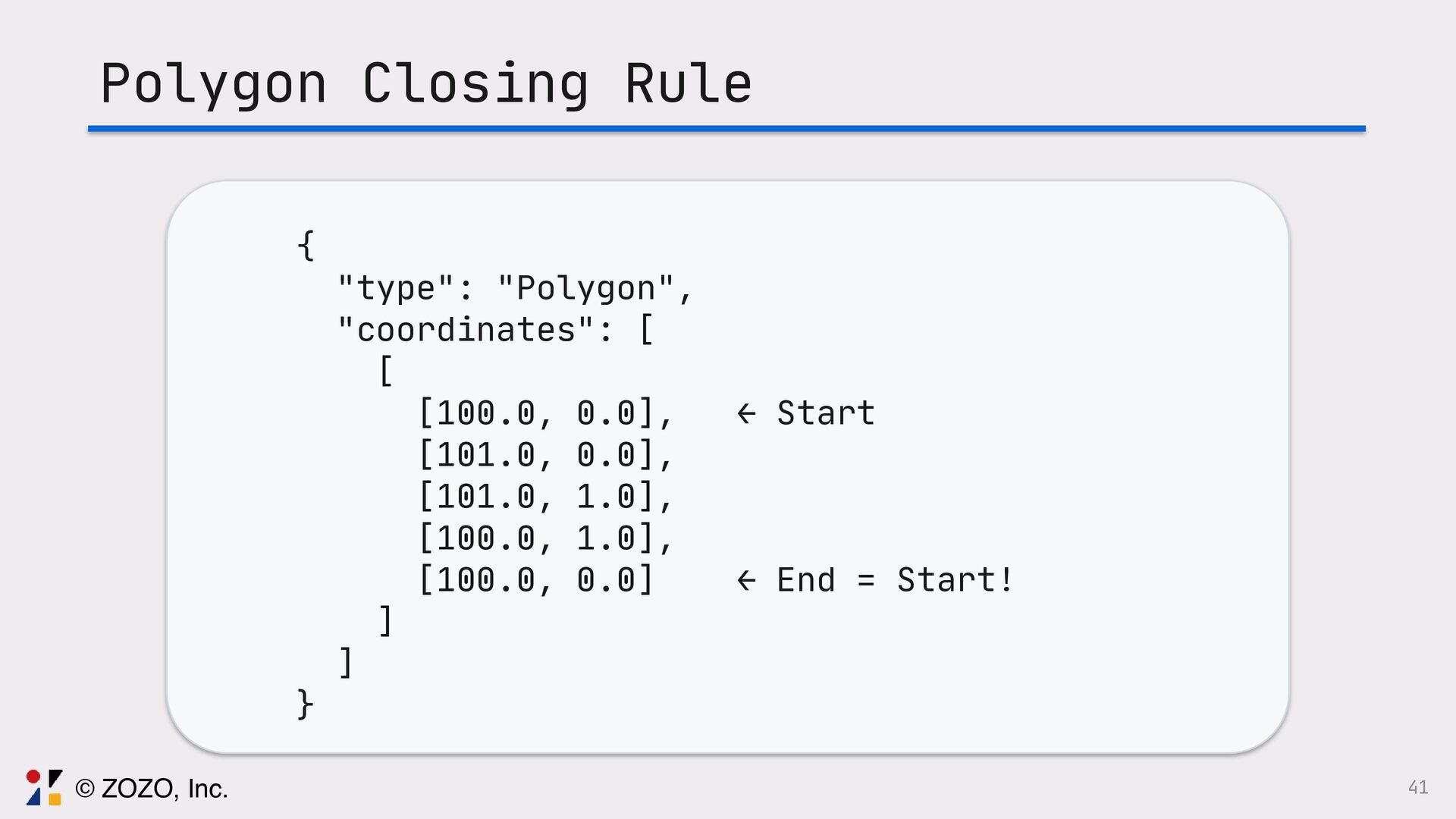
  24. 41 Polygon Closing Rule { "type": "Polygon", "coordinates": [ [

    [100.0, 0.0], ← Start [101.0, 0.0], [101.0, 1.0], [100.0, 1.0], [100.0, 0.0] ← End = Start! ] ] } © ZOZO, Inc.
  25. Now we understand GeoJSON structure. Can we draw it directly

    with Swift Charts? It turns out Swift Charts has GeoJSON support. 42 © ZOZO, Inc.
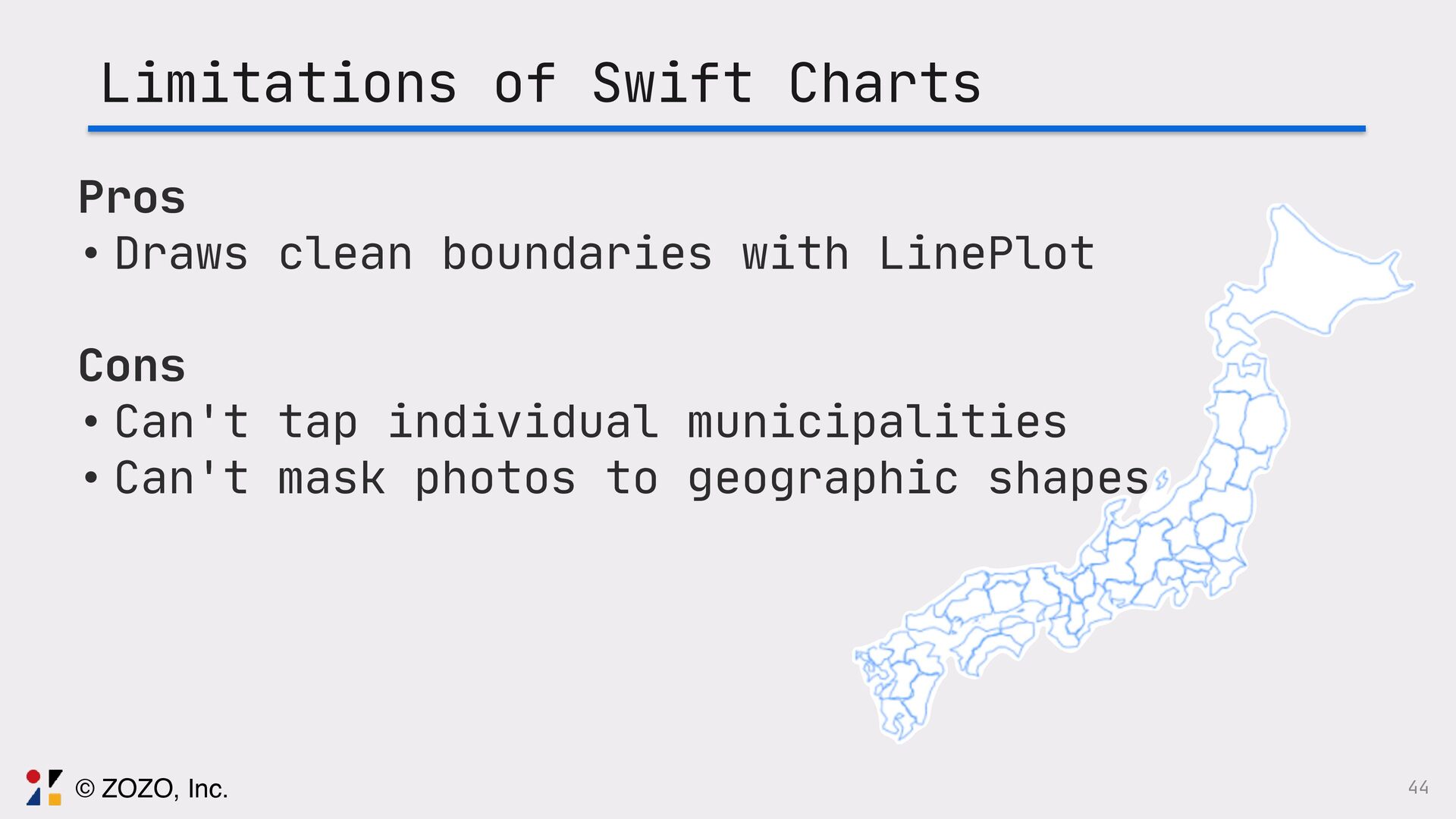
  26. 44 Limitations of Swift Charts Pros • Draws clean boundaries

    with LinePlot Cons • Can't tap individual municipalities • Can't mask photos to geographic shapes © ZOZO, Inc.
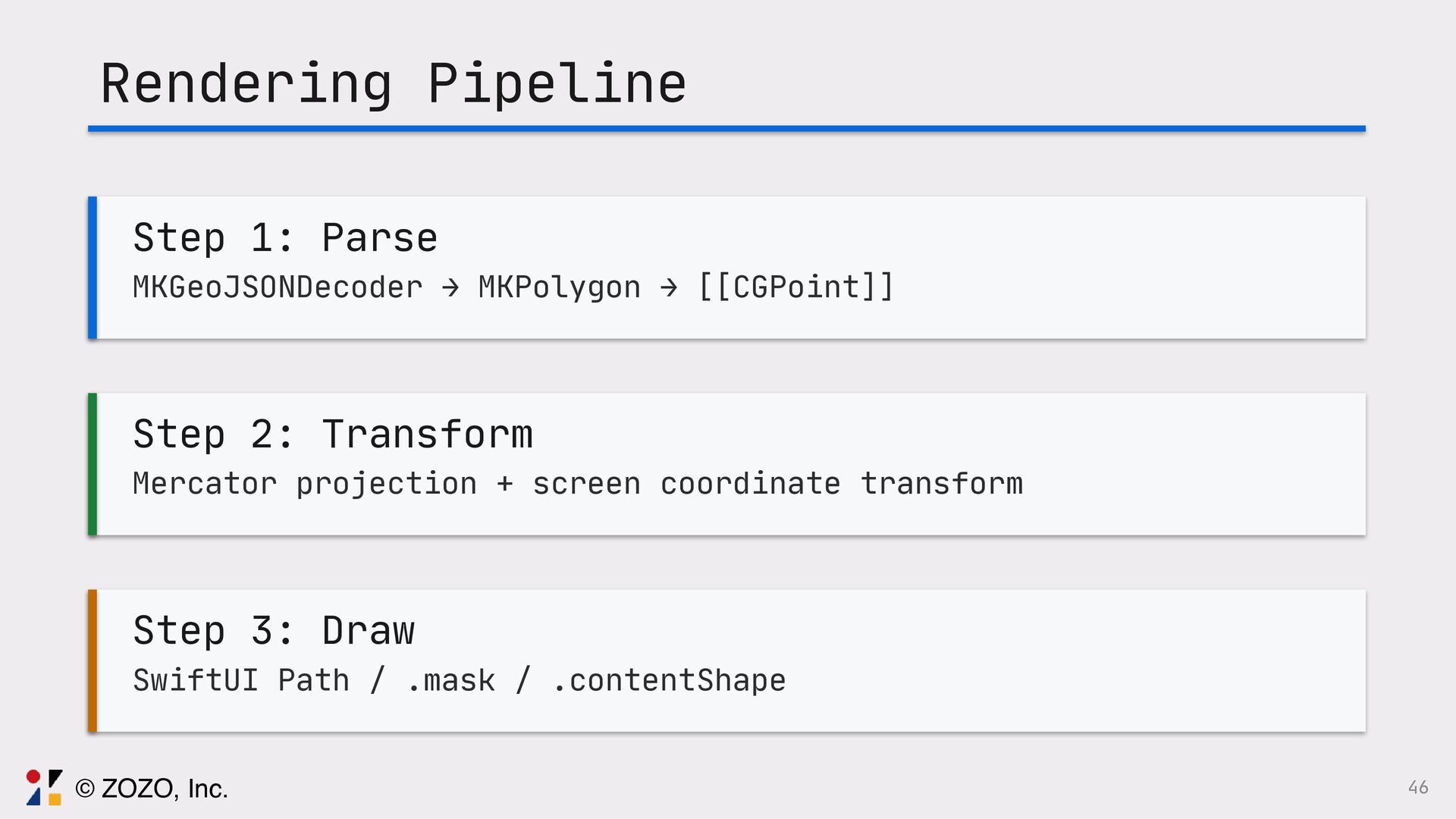
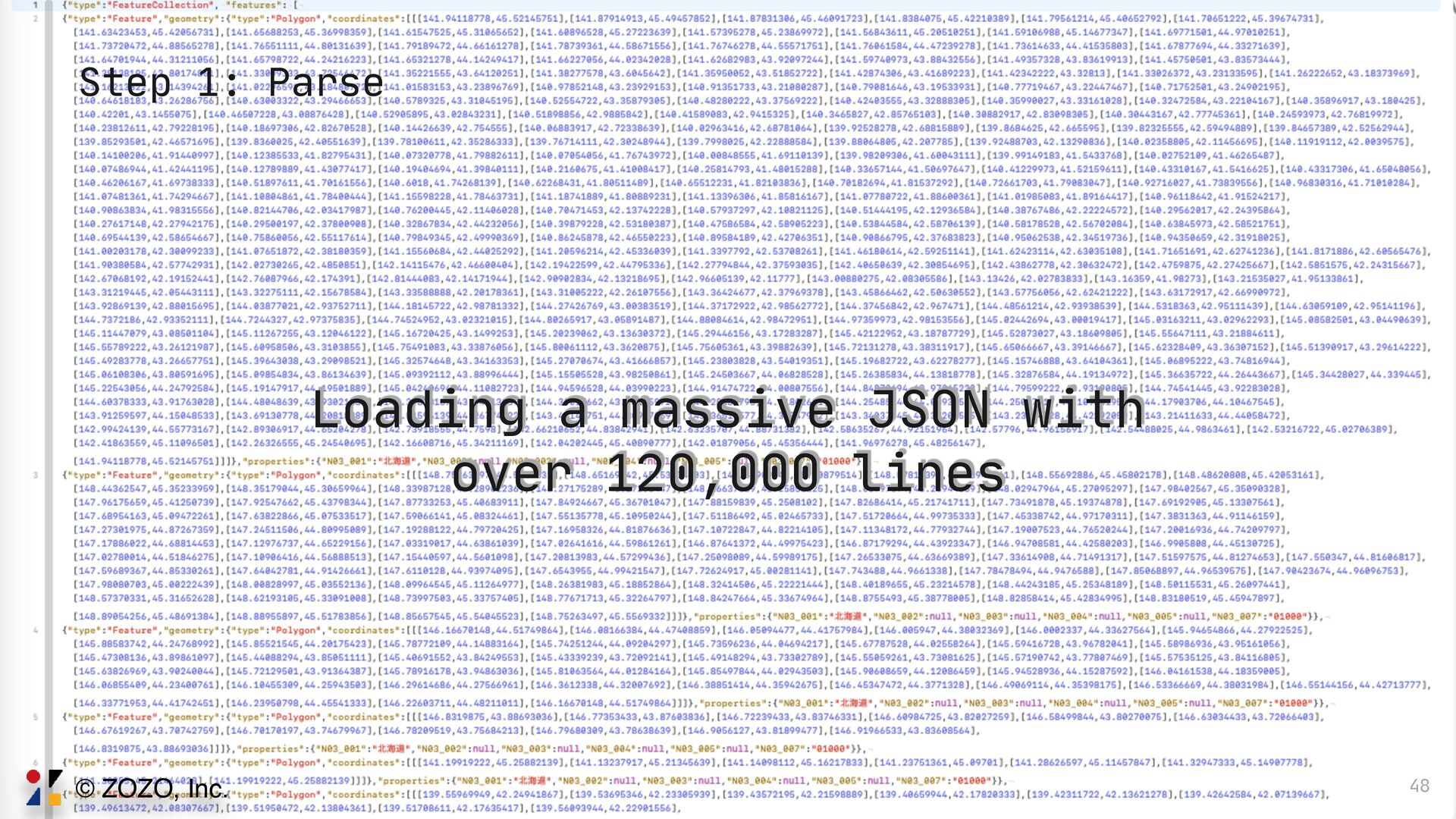
  27. 46 Rendering Pipeline Step 1: Parse MKGeoJSONDecoder → MKPolygon →

    [[CGPoint]] Step 2: Transform Mercator projection + screen coordinate transform Step 3: Draw SwiftUI Path / .mask / .contentShape © ZOZO, Inc.
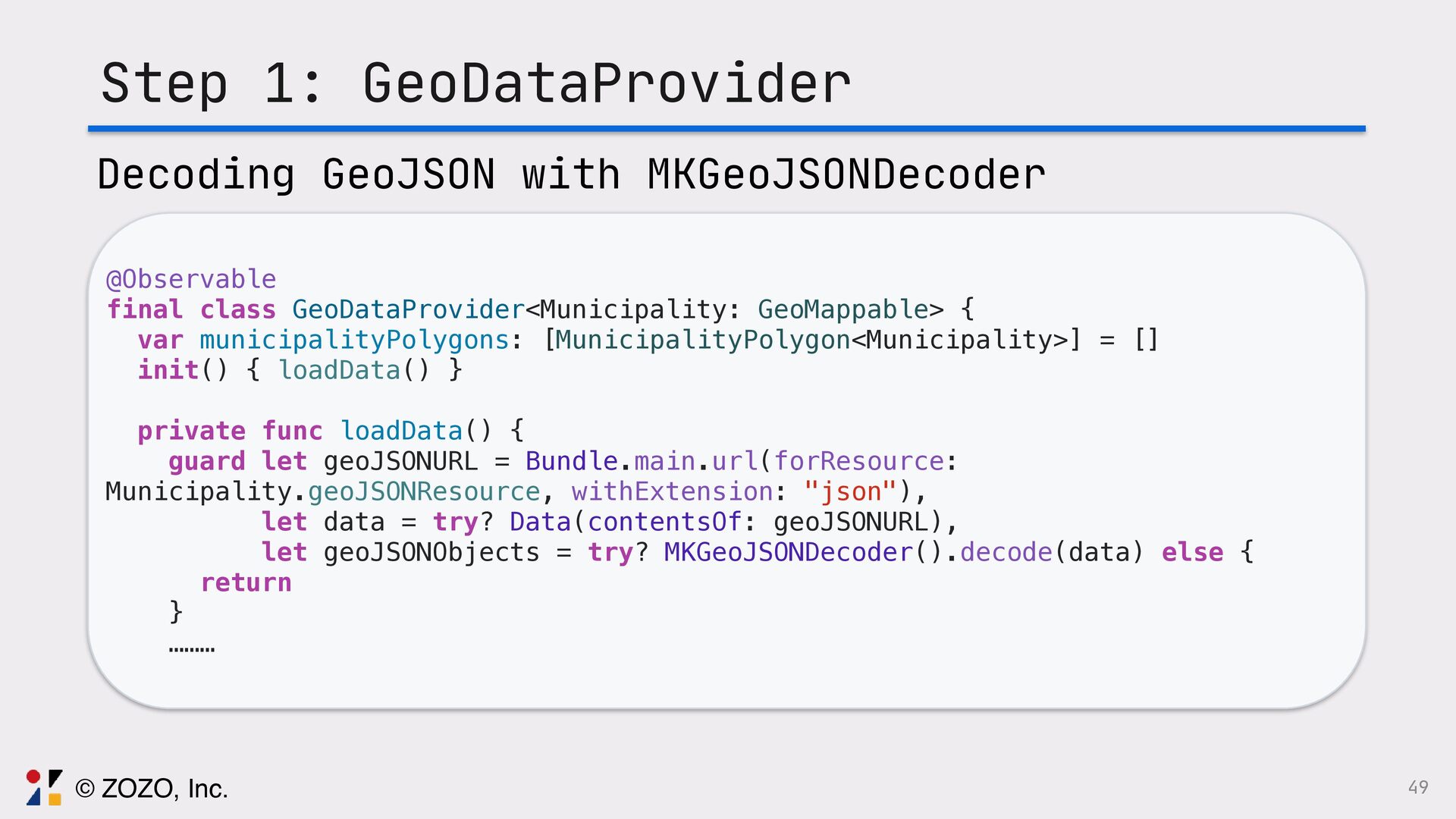
  28. 49 Step 1: GeoDataProvider @Observable final class GeoDataProvider<Municipality: GeoMappable> {

    var municipalityPolygons: [MunicipalityPolygon<Municipality>] = [] init() { loadData() } private func loadData() { guard let geoJSONURL = Bundle.main.url(forResource: Municipality.geoJSONResource, withExtension: "json"), let data = try? Data(contentsOf: geoJSONURL), let geoJSONObjects = try? MKGeoJSONDecoder().decode(data) else { return } ……… Decoding GeoJSON with MKGeoJSONDecoder © ZOZO, Inc.
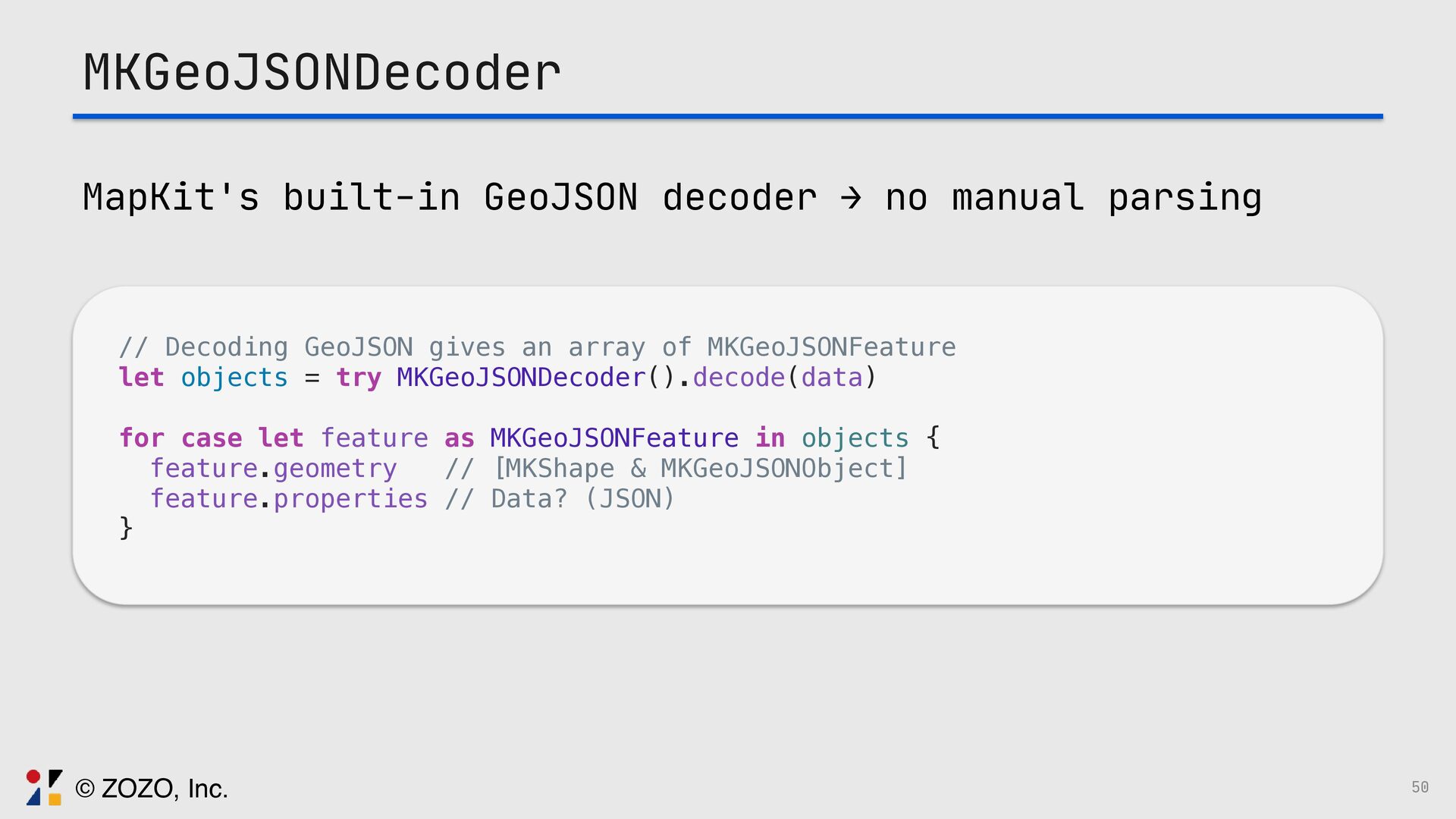
  29. MKGeoJSONDecoder MapKit's built-in GeoJSON decoder → no manual parsing //

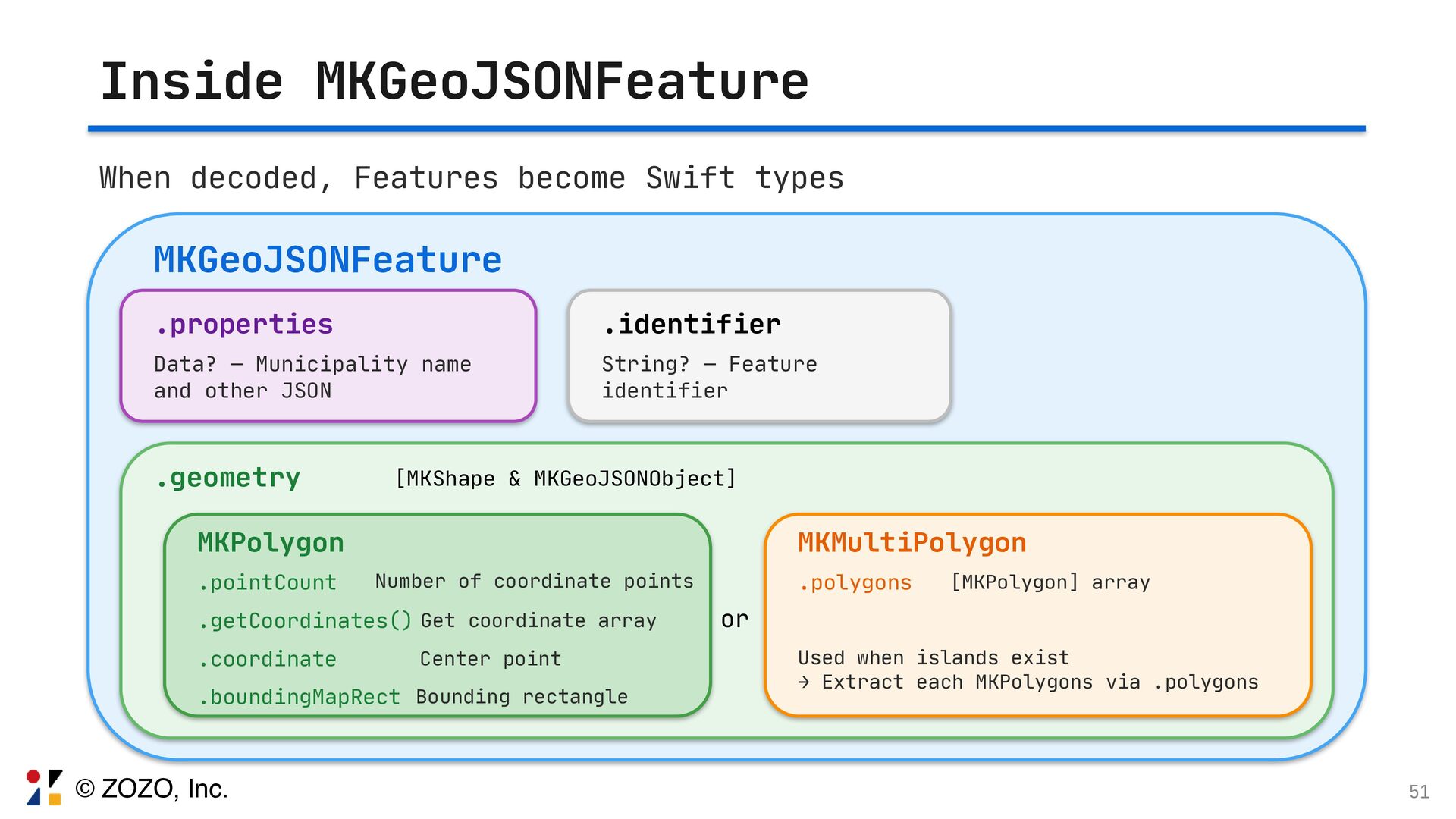
    Decoding GeoJSON gives an array of MKGeoJSONFeature let objects = try MKGeoJSONDecoder().decode(data) for case let feature as MKGeoJSONFeature in objects { feature.geometry // [MKShape & MKGeoJSONObject] feature.properties // Data? (JSON) } 50 © ZOZO, Inc.
  30. Inside MKGeoJSONFeature When decoded, Features become Swift types MKGeoJSONFeature .properties

    Data? — Municipality name and other JSON .identifier String? — Feature identifier .geometry [MKShape & MKGeoJSONObject] MKPolygon .pointCount Number of coordinate points .getCoordinates() Get coordinate array .coordinate Center point .boundingMapRect Bounding rectangle MKMultiPolygon .polygons [MKPolygon] array Used when islands exist → Extract each MKPolygons via .polygons or 51 © ZOZO, Inc.
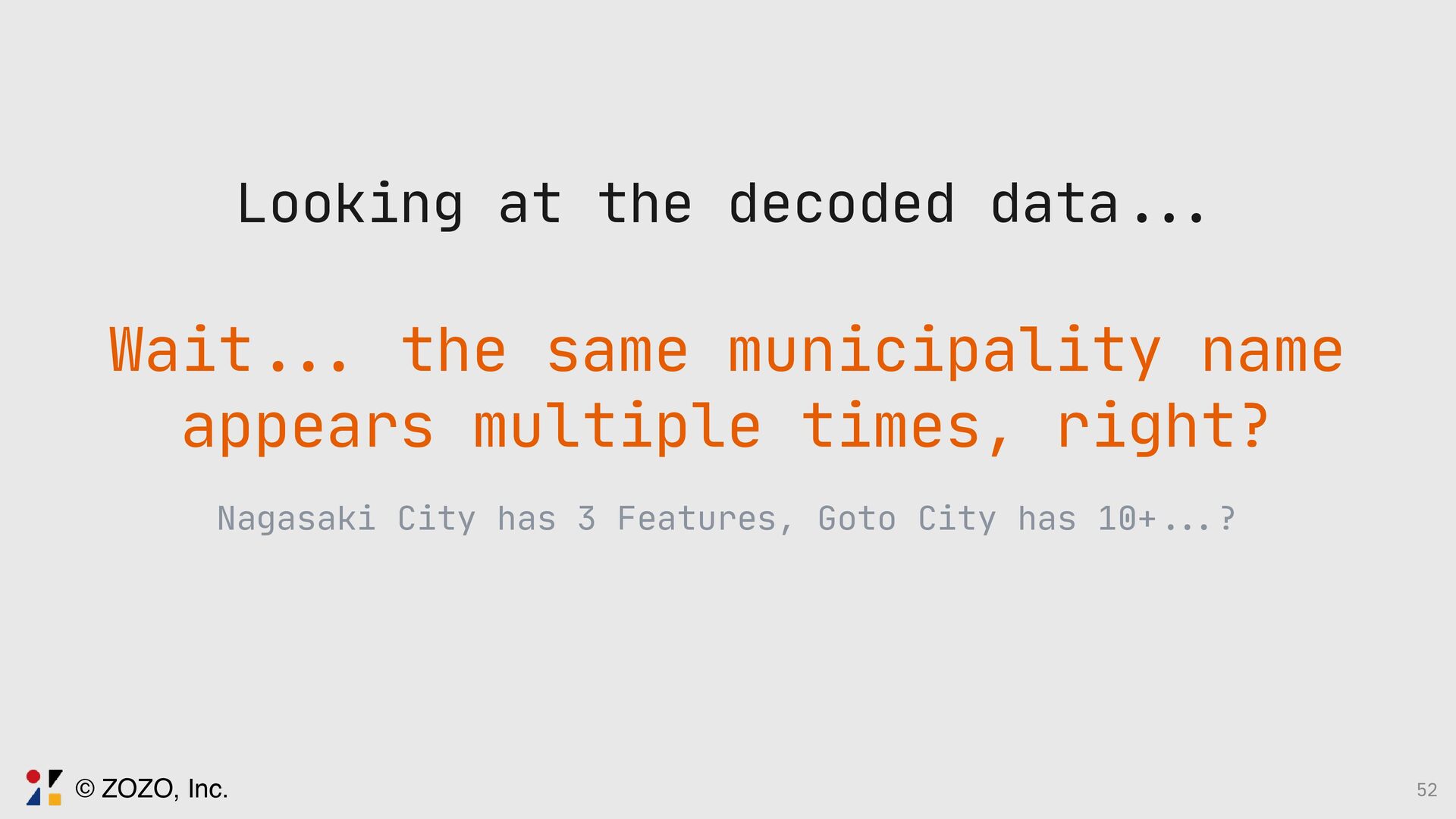
  31. Looking at the decoded data . .. Wait ... the

    same municipality name appears multiple times, right? Nagasaki City has 3 Features, Goto City has 10+ .. . ? 52 © ZOZO, Inc.
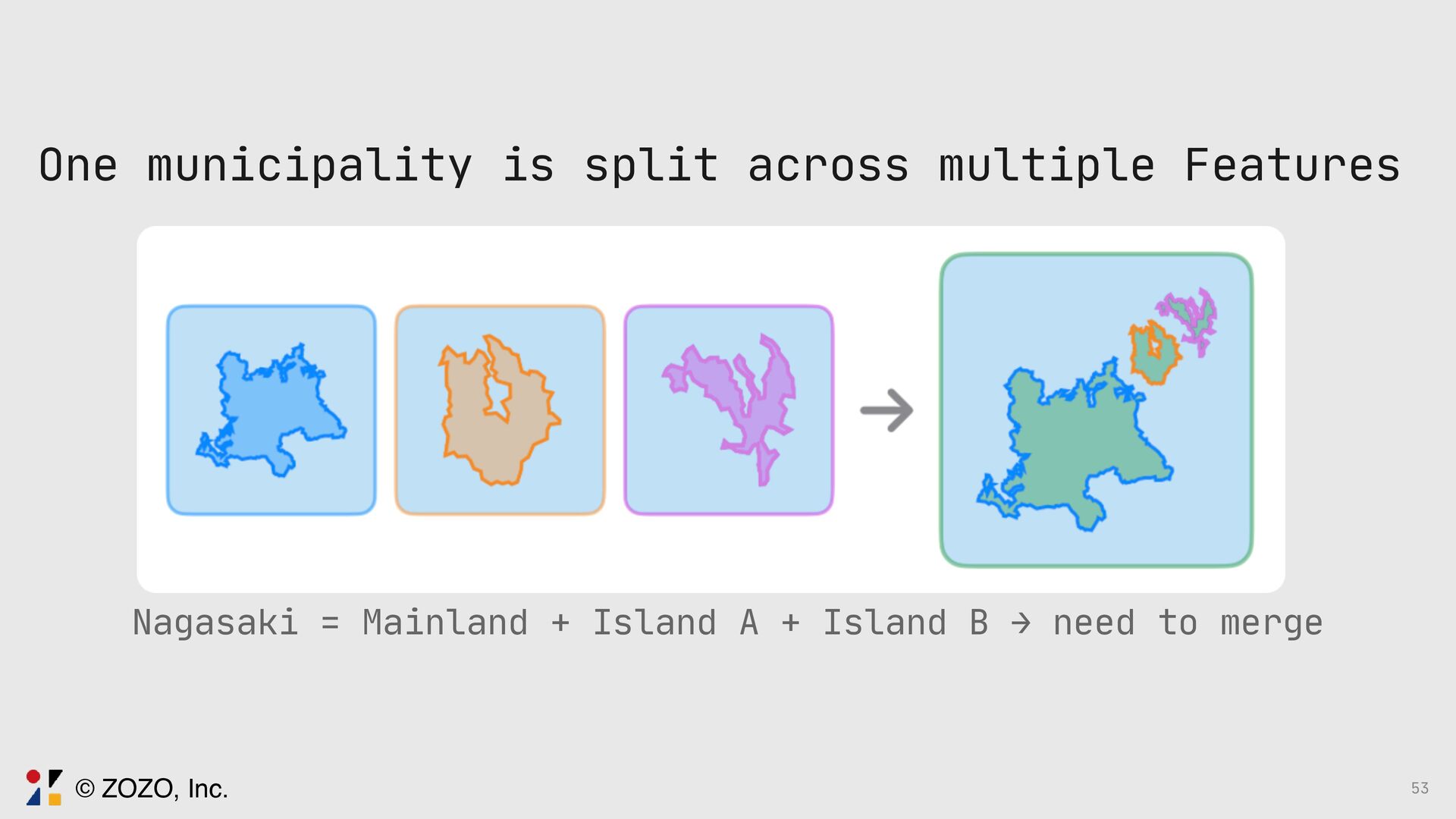
  32. One municipality is split across multiple Features Nagasaki = Mainland

    + Island A + Island B → need to merge 53 © ZOZO, Inc.
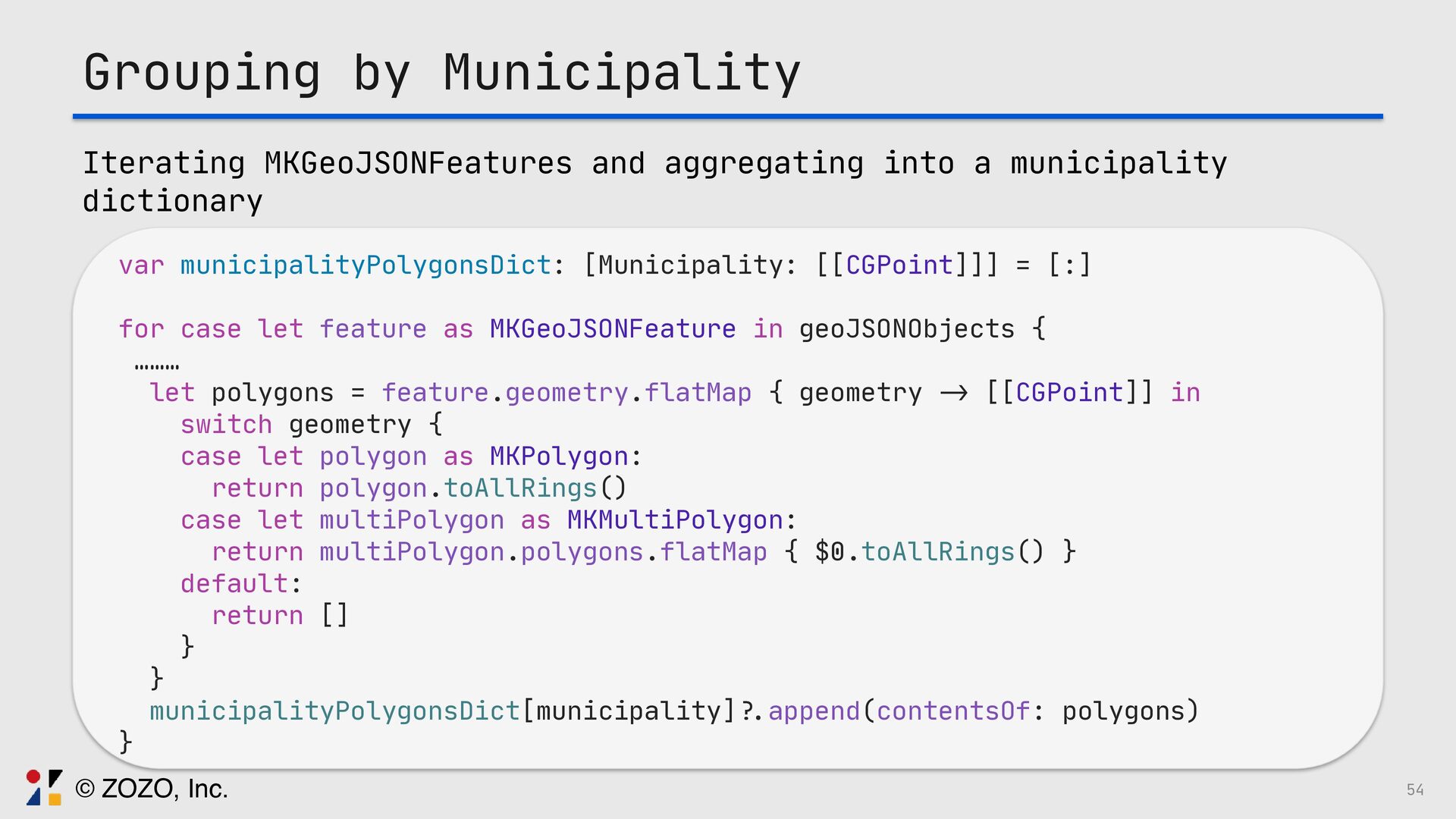
  33. Grouping by Municipality Iterating MKGeoJSONFeatures and aggregating into a municipality

    dictionary var municipalityPolygonsDict: [Municipality: [[CGPoint]]] = [:] for case let feature as MKGeoJSONFeature in geoJSONObjects { ……… let polygons = feature.geometry.flatMap { geometry - > [[CGPoint]] in switch geometry { case let polygon as MKPolygon: return polygon.toAllRings() case let multiPolygon as MKMultiPolygon: return multiPolygon.polygons.flatMap { $0.toAllRings() } default: return [] } } municipalityPolygonsDict[municipality] ?. append(contentsOf: polygons) } 54 © ZOZO, Inc.
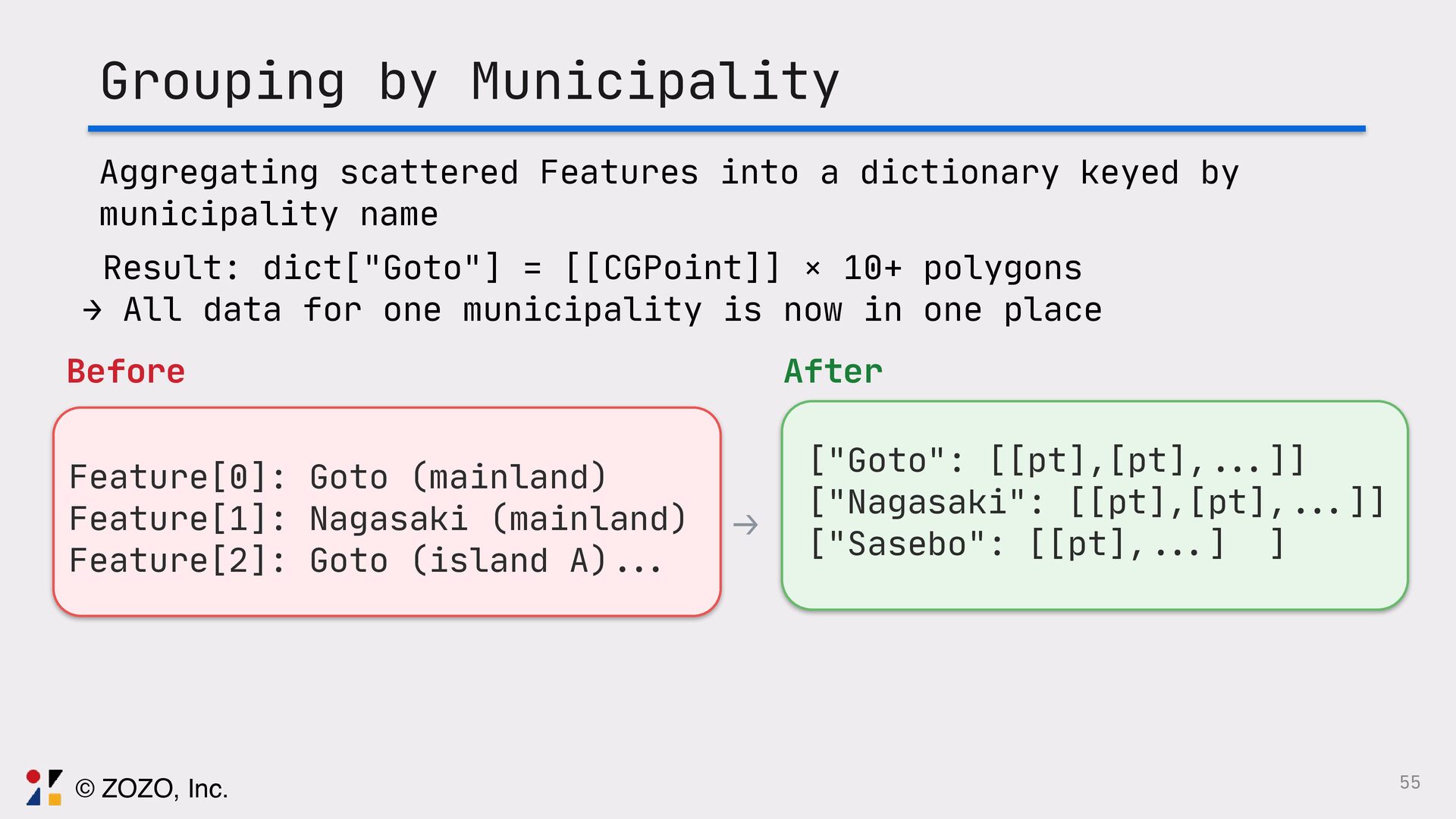
  34. Grouping by Municipality Aggregating scattered Features into a dictionary keyed

    by municipality name Before Feature[0]: Goto (mainland) Feature[1]: Nagasaki (mainland) Feature[2]: Goto (island A) . .. ↓ After ["Goto": [[pt],[pt], ... ]] ["Nagasaki": [[pt],[pt], ... ]] ["Sasebo": [[pt], .. . ] ] Result: dict["Goto"] = [[CGPoint]] × 10+ polygons → All data for one municipality is now in one place 55 © ZOZO, Inc.
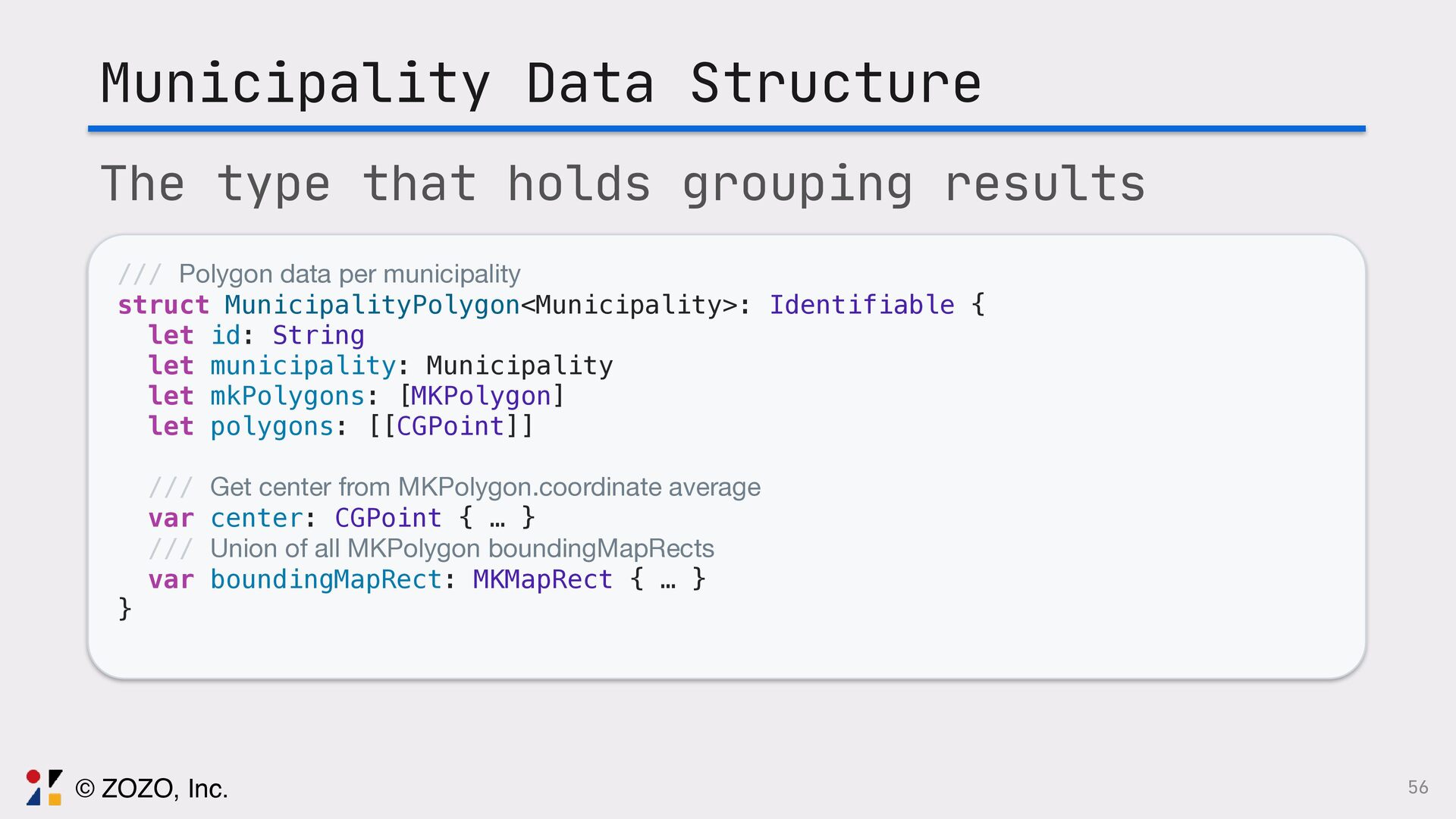
  35. 56 Municipality Data Structure /// Polygon data per municipality struct

    MunicipalityPolygon<Municipality>: Identifiable { let id: String let municipality: Municipality let mkPolygons: [MKPolygon] let polygons: [[CGPoint]] /// Get center from MKPolygon.coordinate average var center: CGPoint { … } /// Union of all MKPolygon boundingMapRects var boundingMapRect: MKMapRect { … } } The type that holds grouping results © ZOZO, Inc.
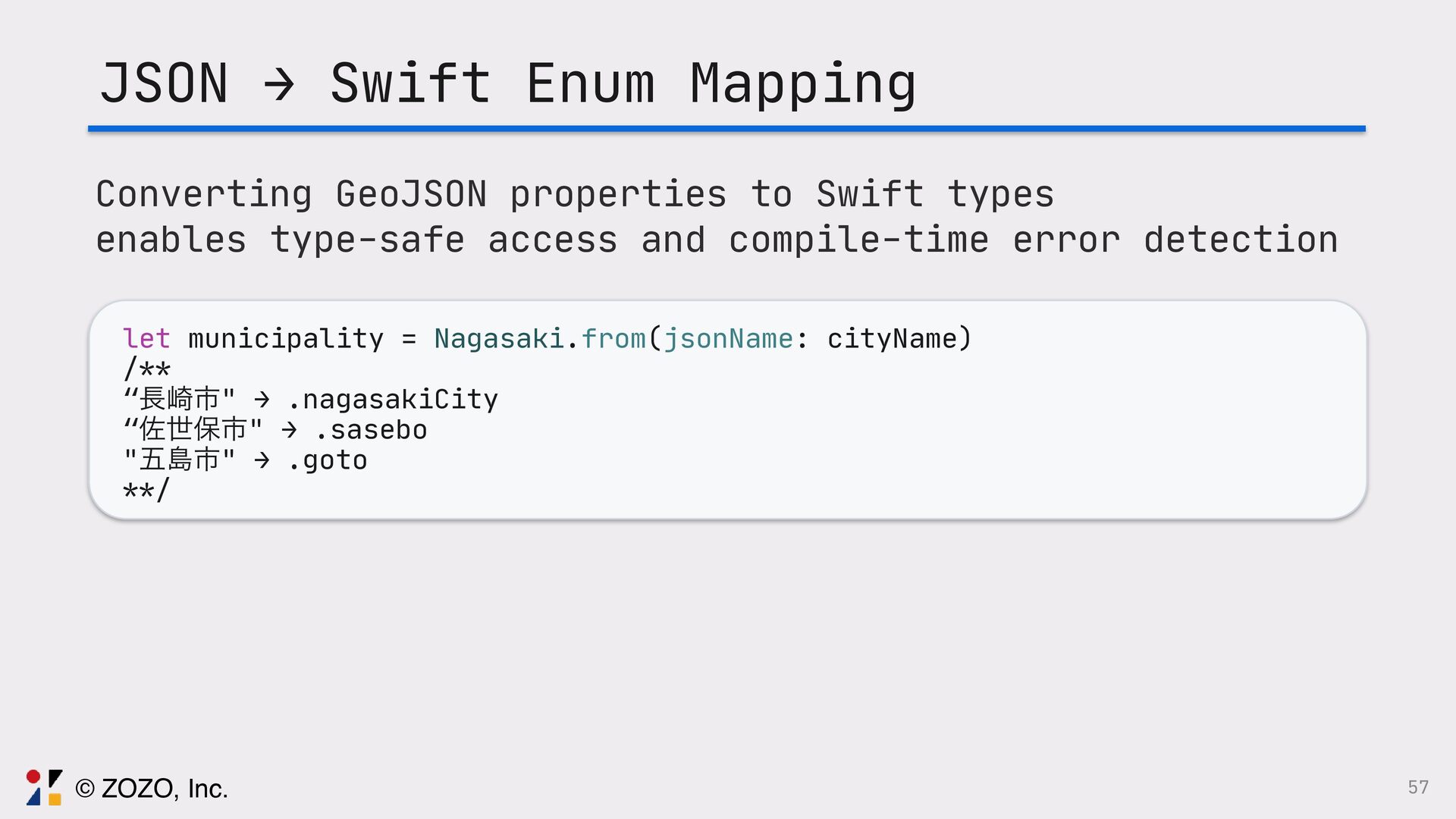
  36. 57 JSON → Swift Enum Mapping let municipality = Nagasaki.from(jsonName:

    cityName) /** “௕࡚ࢢ" → .nagasakiCity “ࠤੈอࢢ" → .sasebo "ޒౡࢢ" → .goto **/ Converting GeoJSON properties to Swift types enables type-safe access and compile-time error detection © ZOZO, Inc.
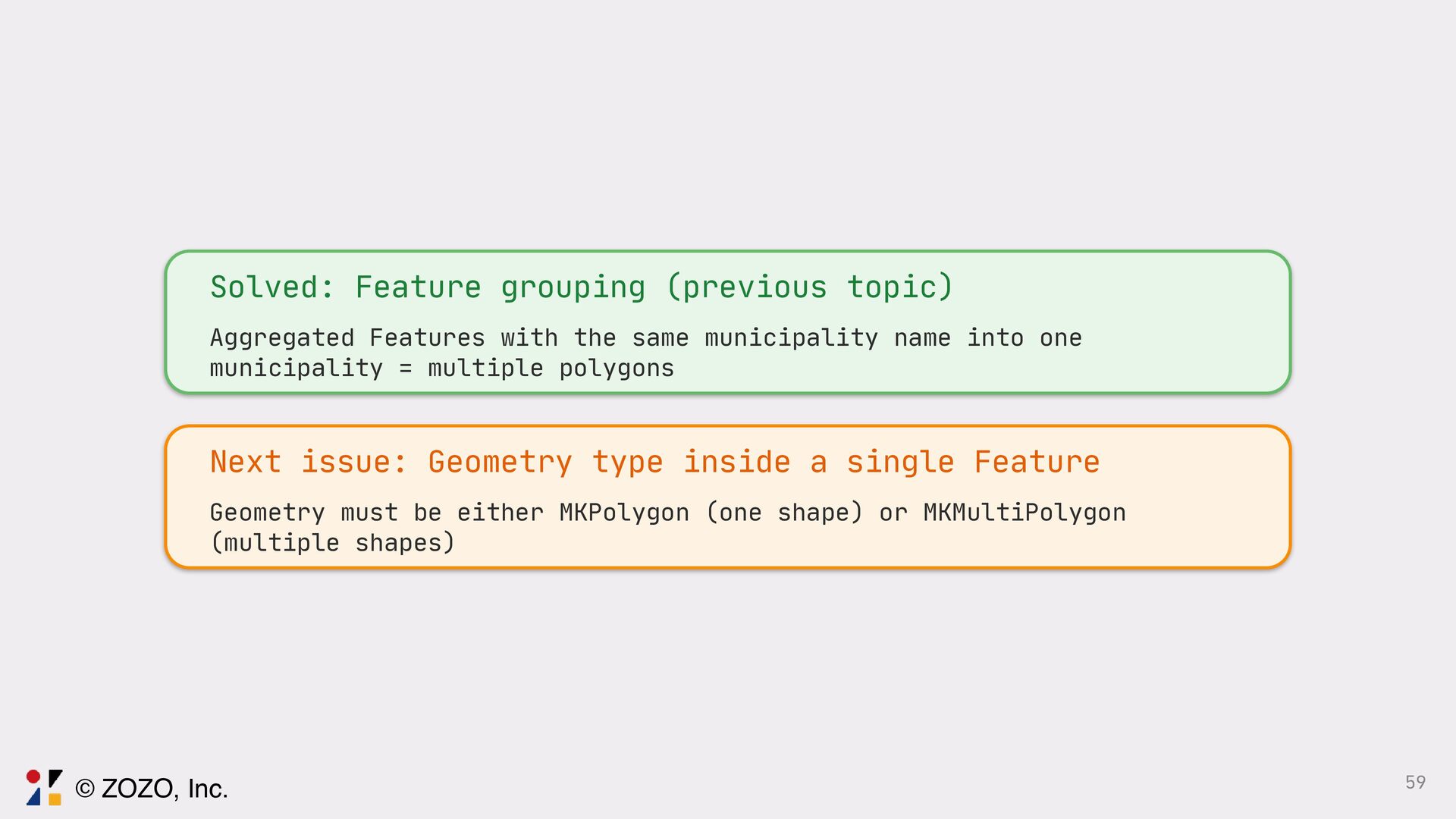
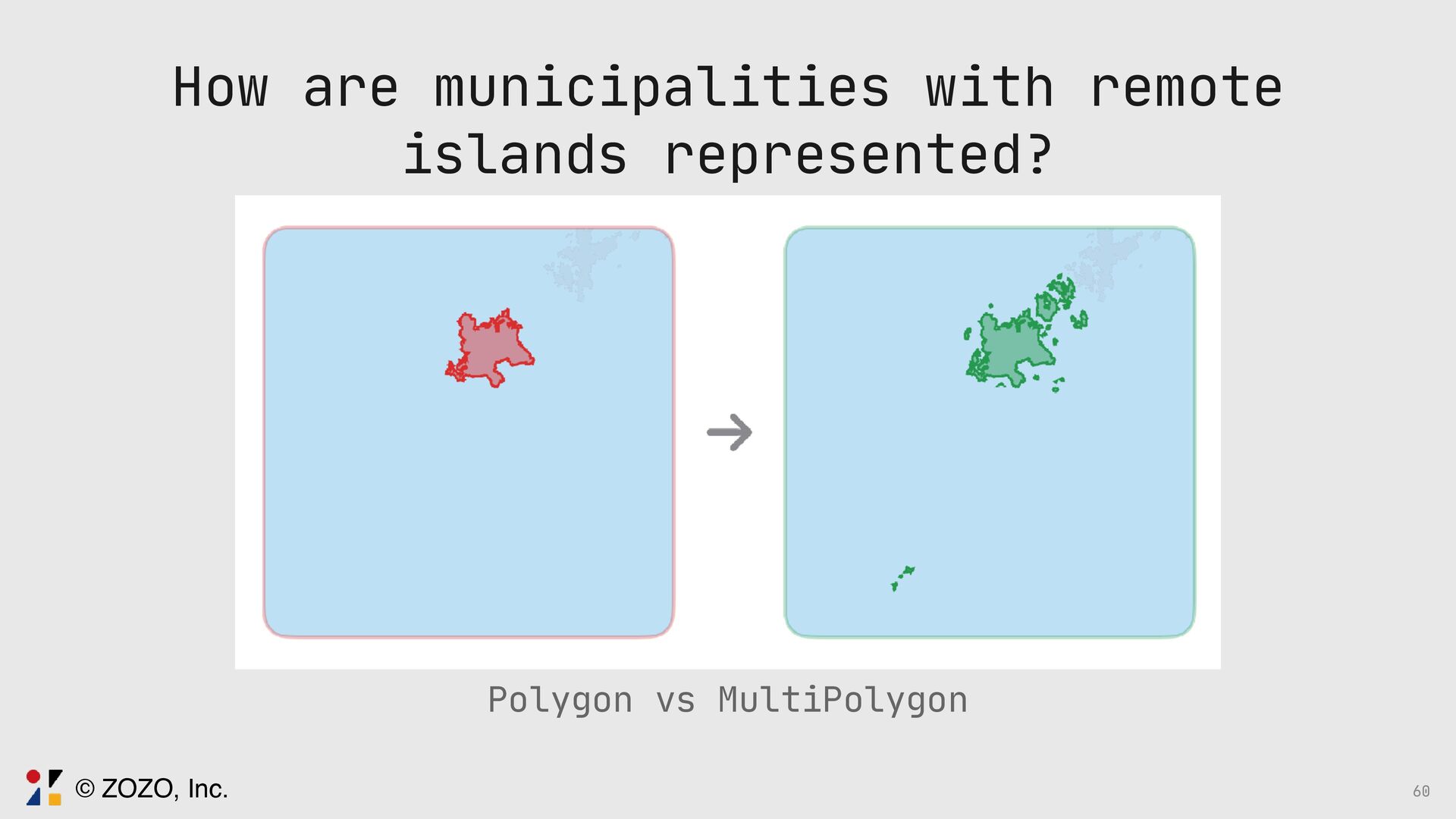
  37. Solved: Feature grouping (previous topic) Aggregated Features with the same

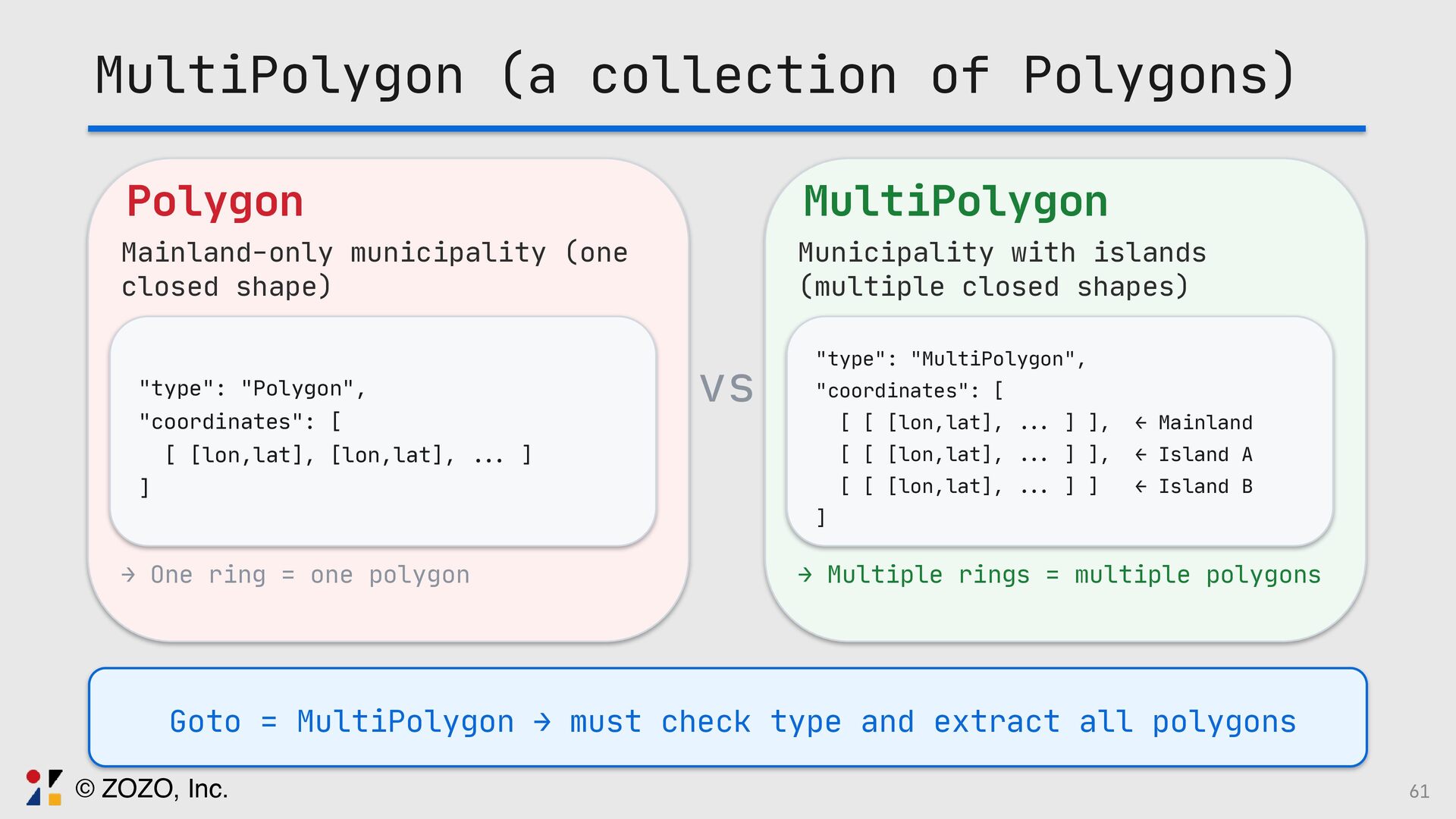
    municipality name into one municipality = multiple polygons Next issue: Geometry type inside a single Feature Geometry must be either MKPolygon (one shape) or MKMultiPolygon (multiple shapes) 59 © ZOZO, Inc.
  38. MultiPolygon (a collection of Polygons) Polygon Mainland-only municipality (one closed

    shape) "type": "Polygon", "coordinates": [ [ [lon,lat], [lon,lat], .. . ] ] → One ring = one polygon MultiPolygon Municipality with islands (multiple closed shapes) "type": "MultiPolygon", "coordinates": [ [ [ [lon,lat], .. . ] ], ← Mainland [ [ [lon,lat], .. . ] ], ← Island A [ [ [lon,lat], .. . ] ] ← Island B ] → Multiple rings = multiple polygons vs Goto = MultiPolygon → must check type and extract all polygons 61 © ZOZO, Inc.
  39. Step 1 Complete GeoJSON → Swift type conversion is done

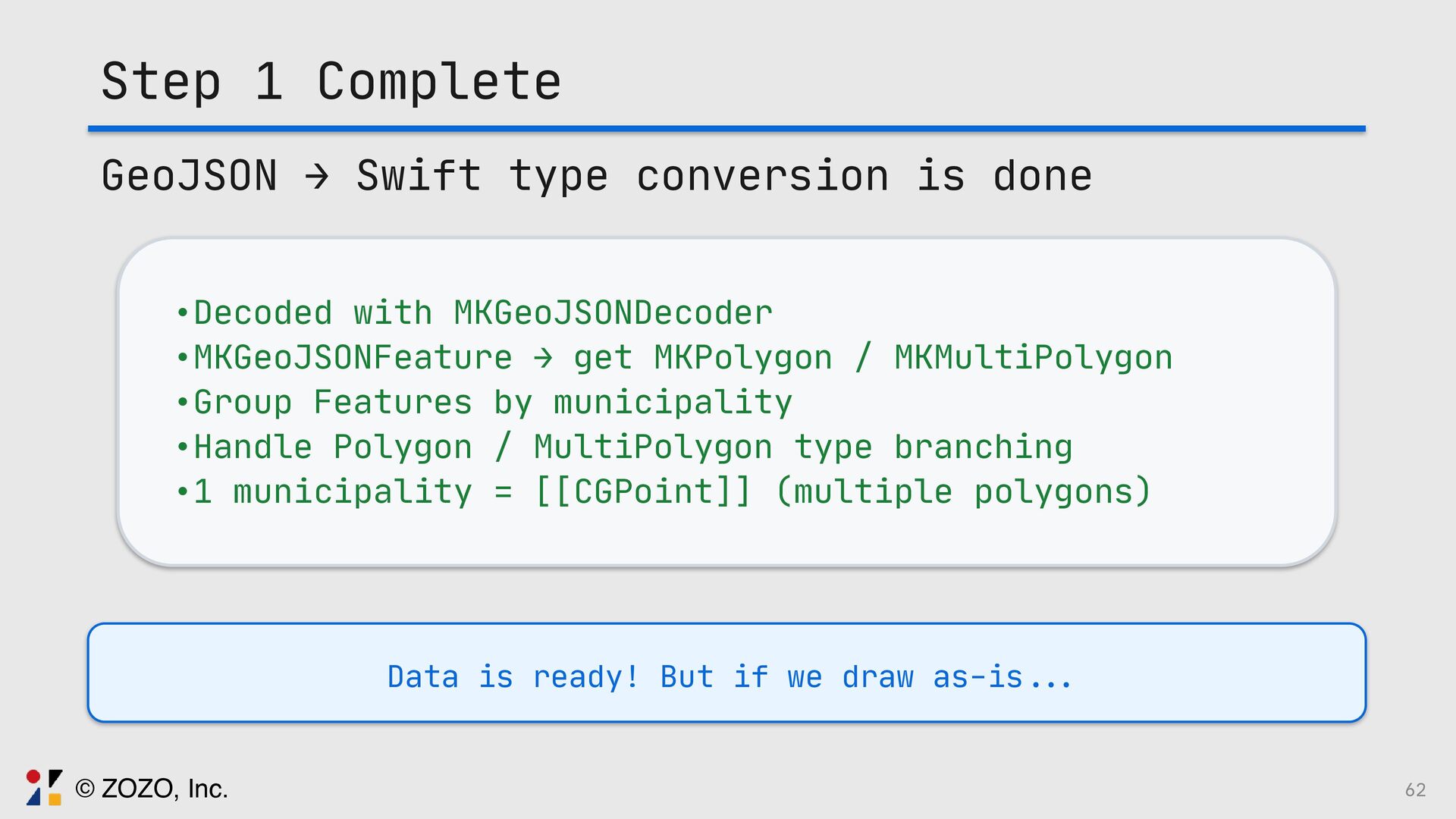
    •Decoded with MKGeoJSONDecoder •MKGeoJSONFeature → get MKPolygon / MKMultiPolygon •Group Features by municipality •Handle Polygon / MultiPolygon type branching •1 municipality = [[CGPoint]] (multiple polygons) Data is ready! But if we draw as-is ... 62 © ZOZO, Inc.
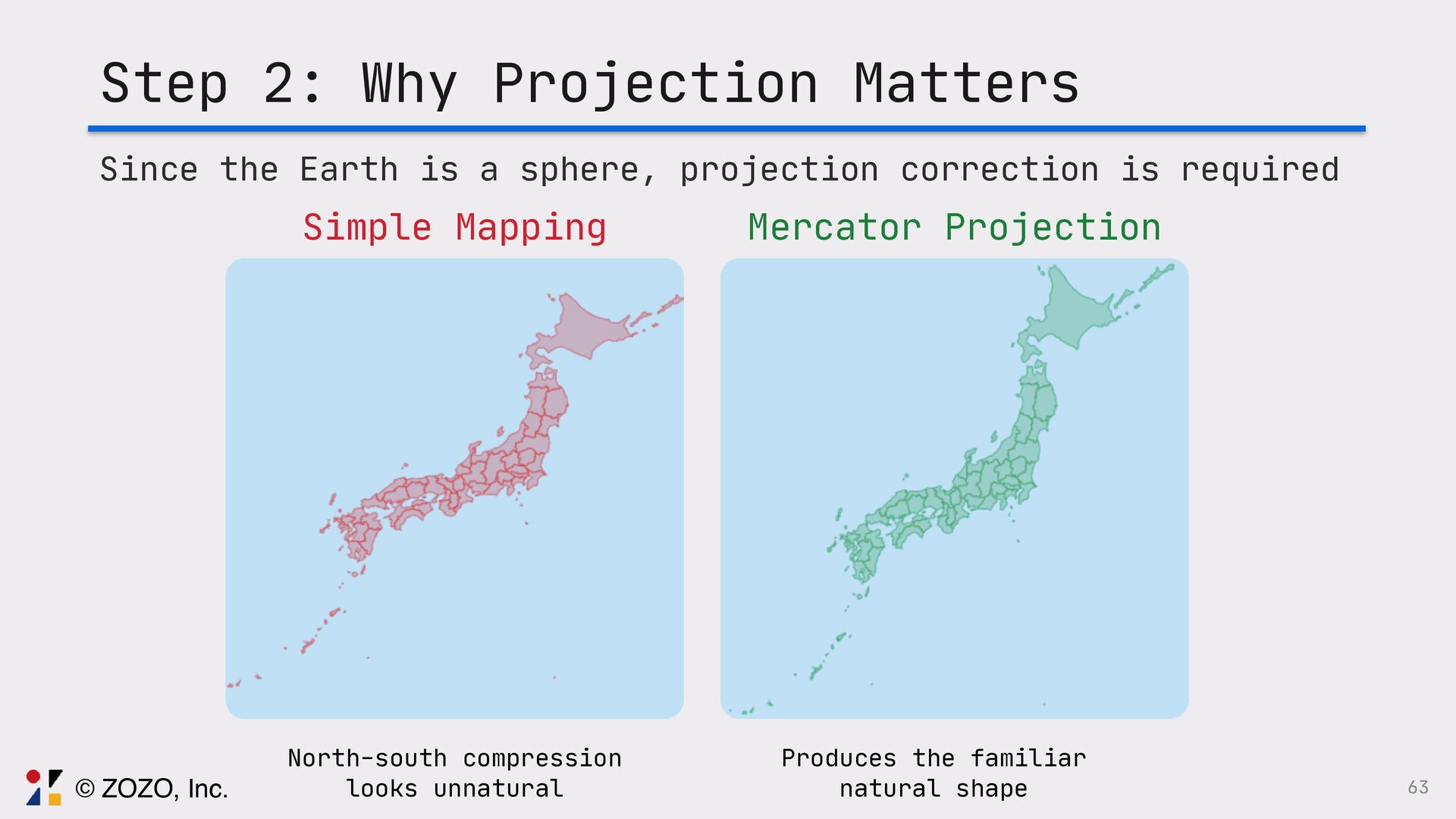
  40. 63 Step 2: Why Projection Matters Simple Mapping North-south compression

    looks unnatural Mercator Projection Produces the familiar natural shape Since the Earth is a sphere, projection correction is required © ZOZO, Inc.
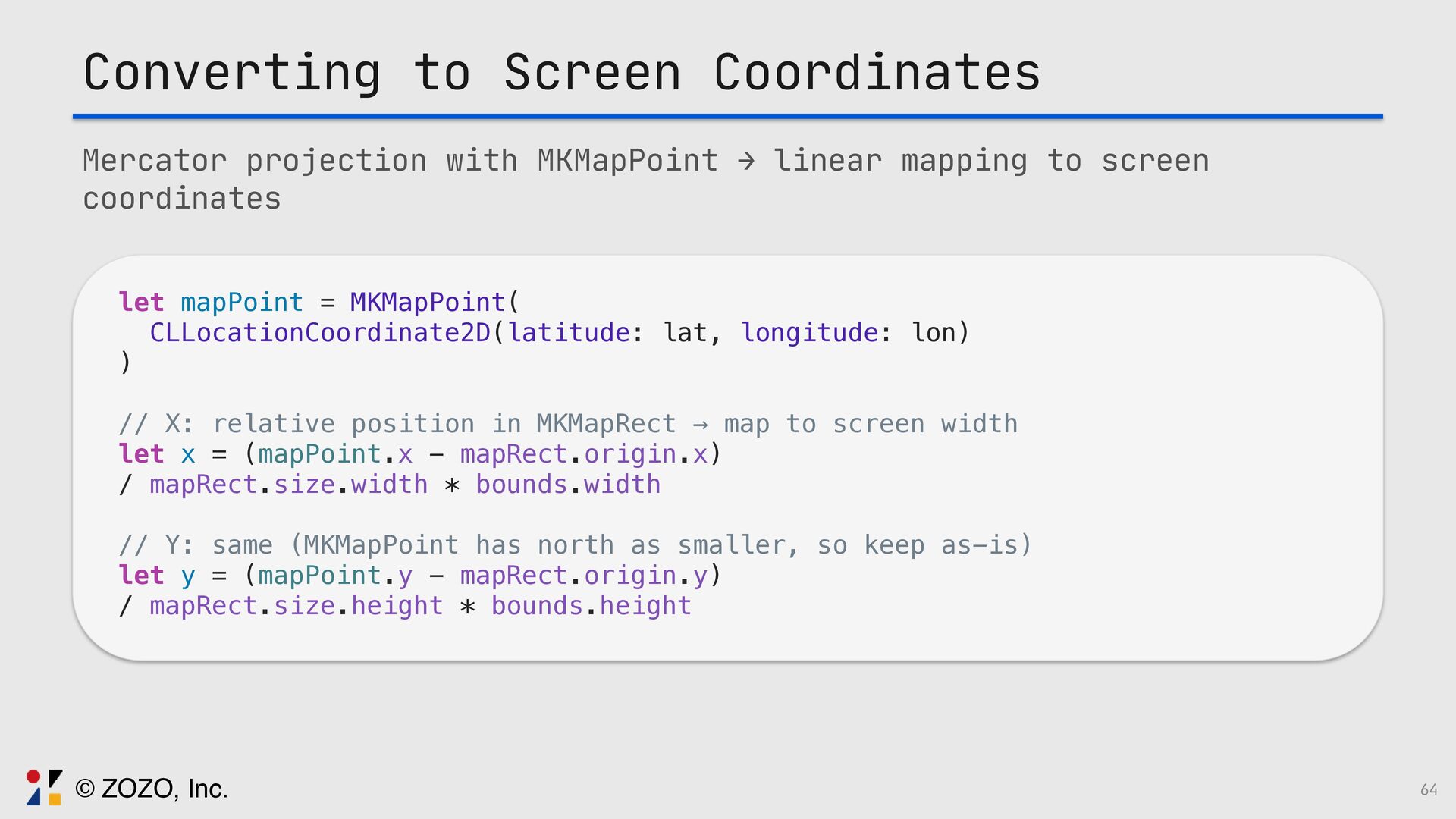
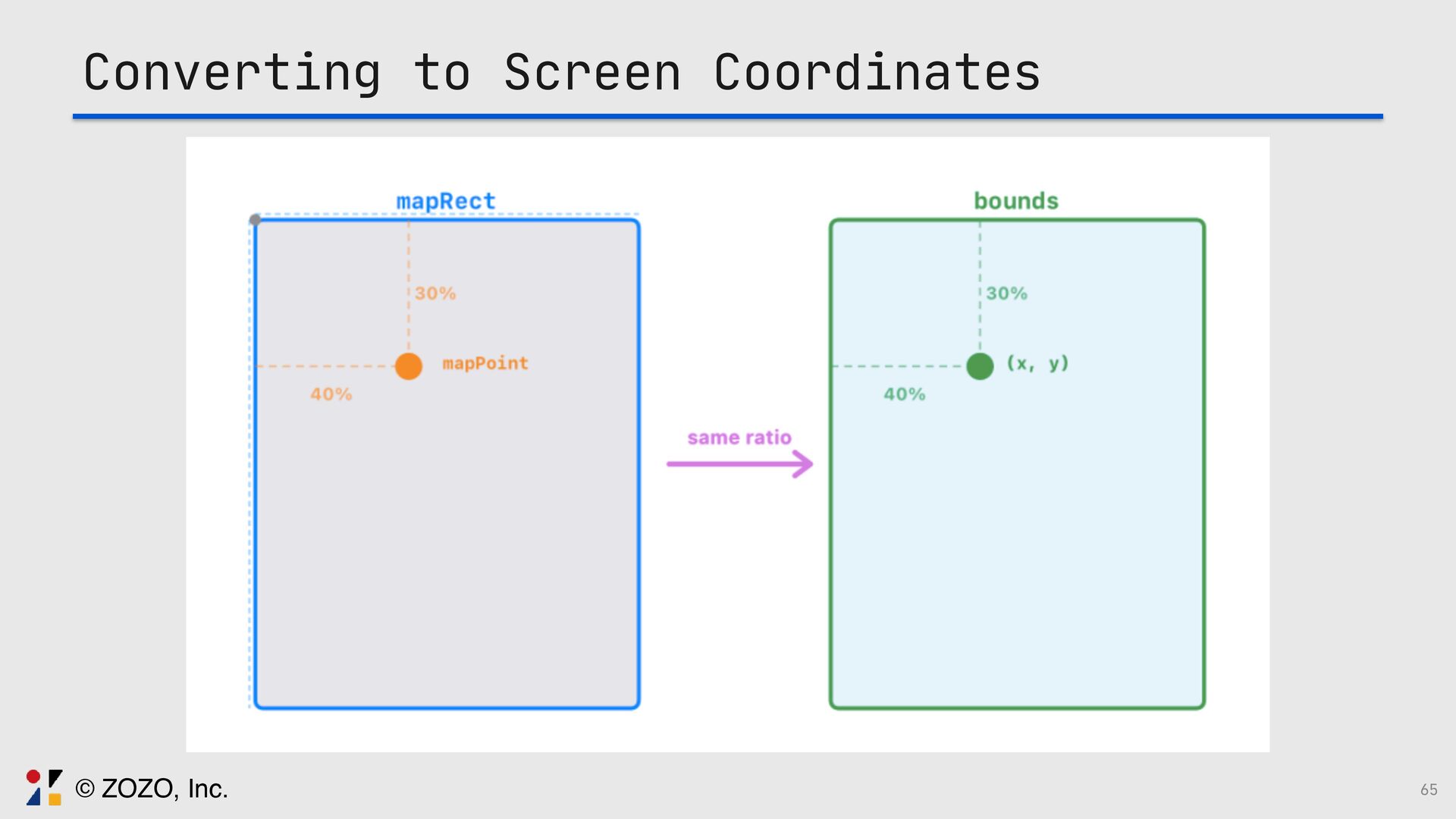
  41. Converting to Screen Coordinates Mercator projection with MKMapPoint → linear

    mapping to screen coordinates let mapPoint = MKMapPoint( CLLocationCoordinate2D(latitude: lat, longitude: lon) ) // X: relative position in MKMapRect → map to screen width let x = (mapPoint.x - mapRect.origin.x) / mapRect.size.width * bounds.width // Y: same (MKMapPoint has north as smaller, so keep as-is) let y = (mapPoint.y - mapRect.origin.y) / mapRect.size.height * bounds.height 64 © ZOZO, Inc.
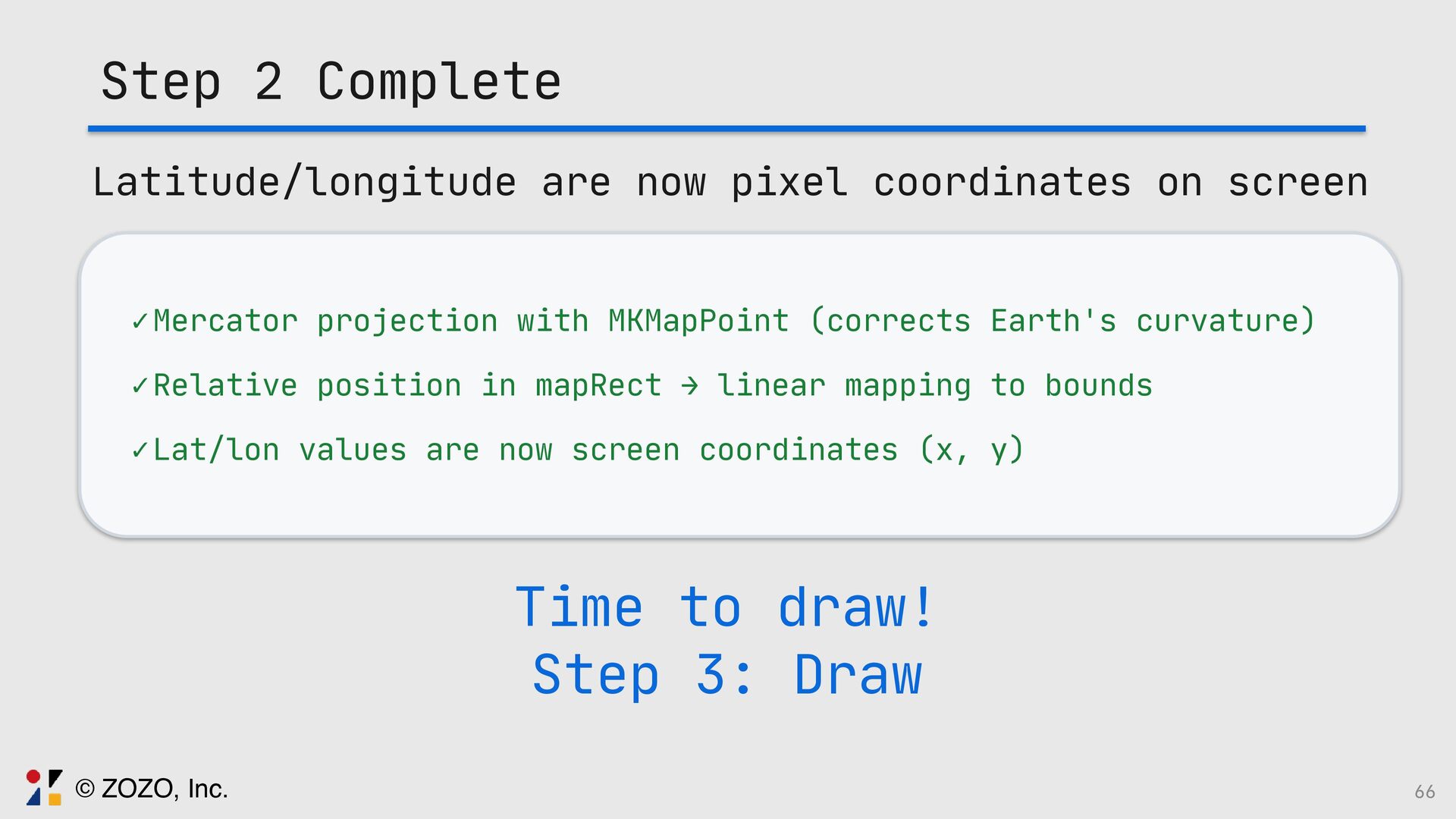
  42. Step 2 Complete Latitude/longitude are now pixel coordinates on screen

    ✓Mercator projection with MKMapPoint (corrects Earth's curvature) ✓Relative position in mapRect → linear mapping to bounds ✓Lat/lon values are now screen coordinates (x, y) Time to draw! Step 3: Draw 66 © ZOZO, Inc.
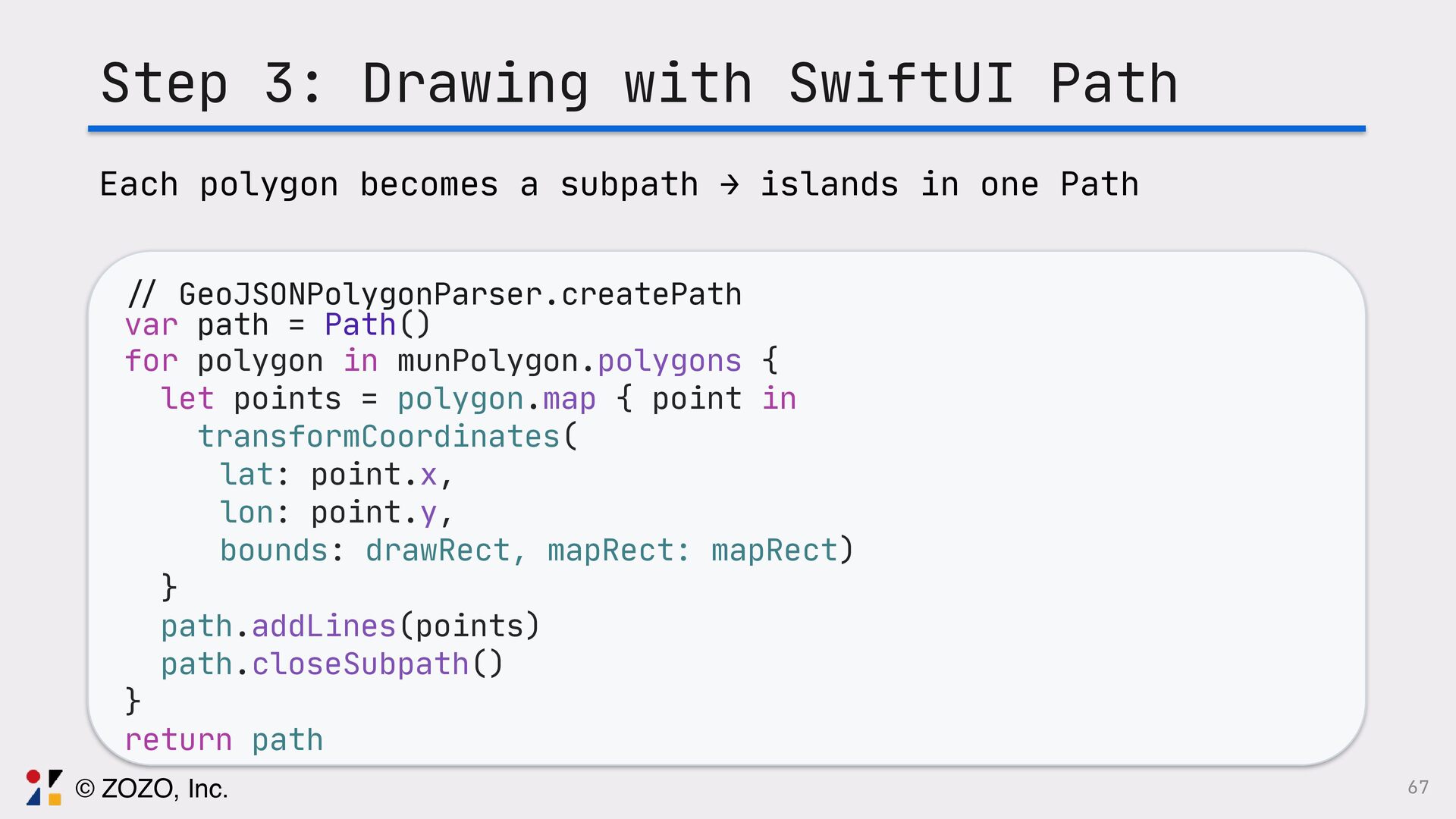
  43. 67 Step 3: Drawing with SwiftUI Path // GeoJSONPolygonParser.createPath var

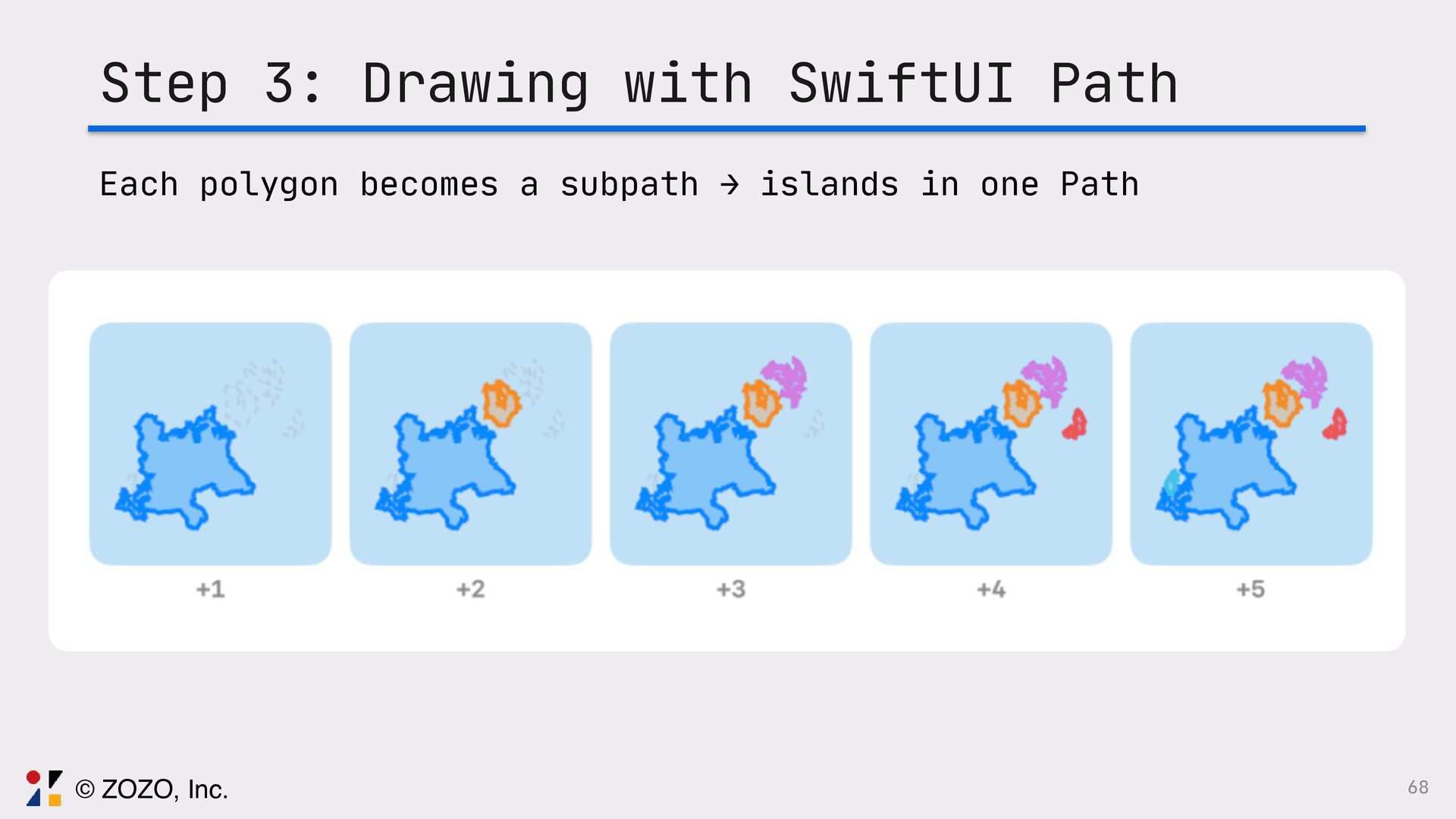
    path = Path() for polygon in munPolygon.polygons { let points = polygon.map { point in transformCoordinates( lat: point.x, lon: point.y, bounds: drawRect, mapRect: mapRect) } path.addLines(points) path.closeSubpath() } return path Each polygon becomes a subpath → islands in one Path © ZOZO, Inc.
  44. 68 Step 3: Drawing with SwiftUI Path Each polygon becomes

    a subpath → islands in one Path © ZOZO, Inc.
  45. Parse, Transform, and Draw in a Single View GeoMapView —

    Generic for all regions 69 © ZOZO, Inc.
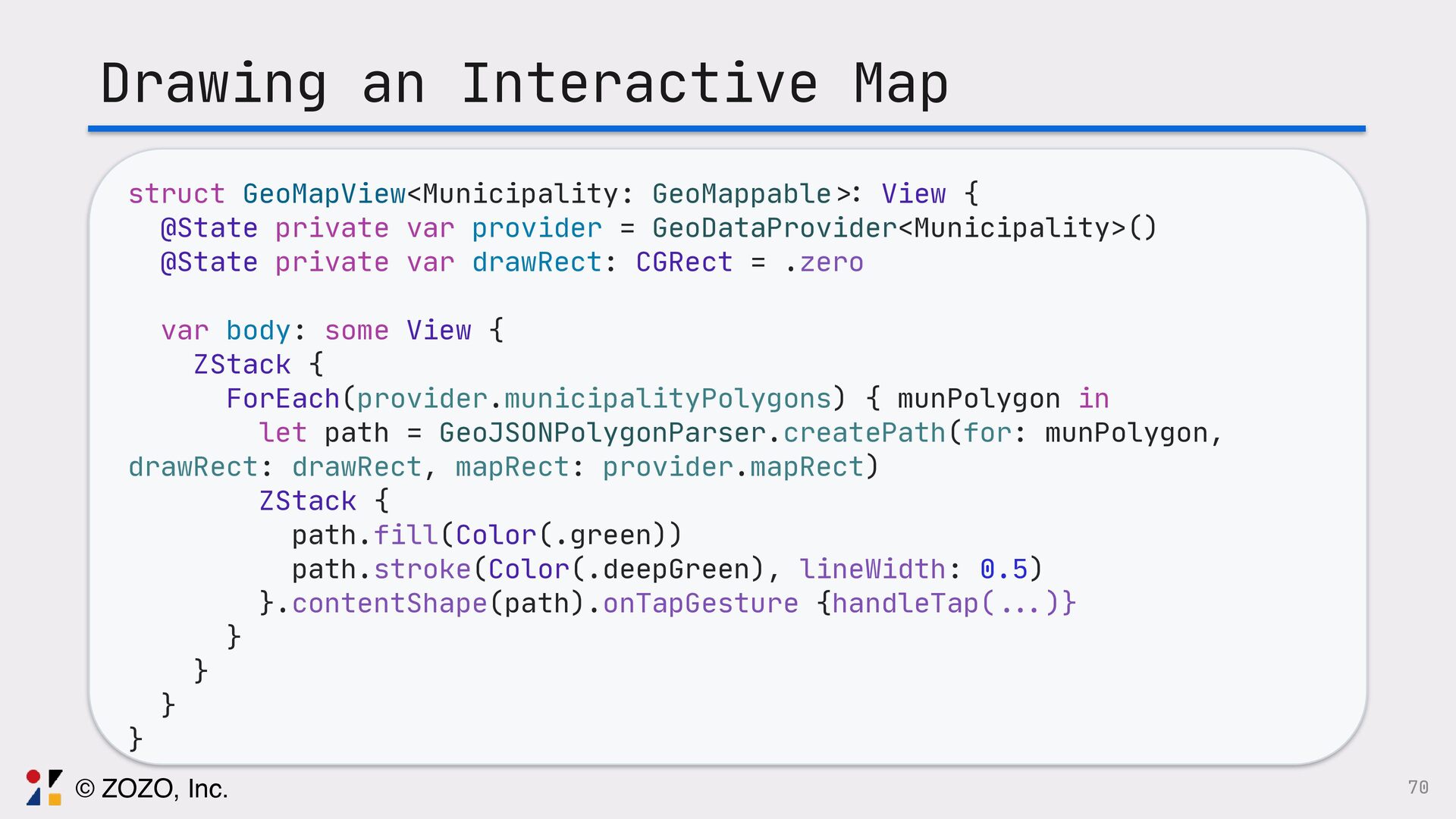
  46. 70 Drawing an Interactive Map struct GeoMapView<Municipality: GeoMappable >: View

    { @State private var provider = GeoDataProvider<Municipality>() @State private var drawRect: CGRect = .zero var body: some View { ZStack { ForEach(provider.municipalityPolygons) { munPolygon in let path = GeoJSONPolygonParser.createPath(for: munPolygon, drawRect: drawRect, mapRect: provider.mapRect) ZStack { path.fill(Color(.green)) path.stroke(Color(.deepGreen), lineWidth: 0.5) }.contentShape(path).onTapGesture {handleTap( . .. )} } } } } © ZOZO, Inc.
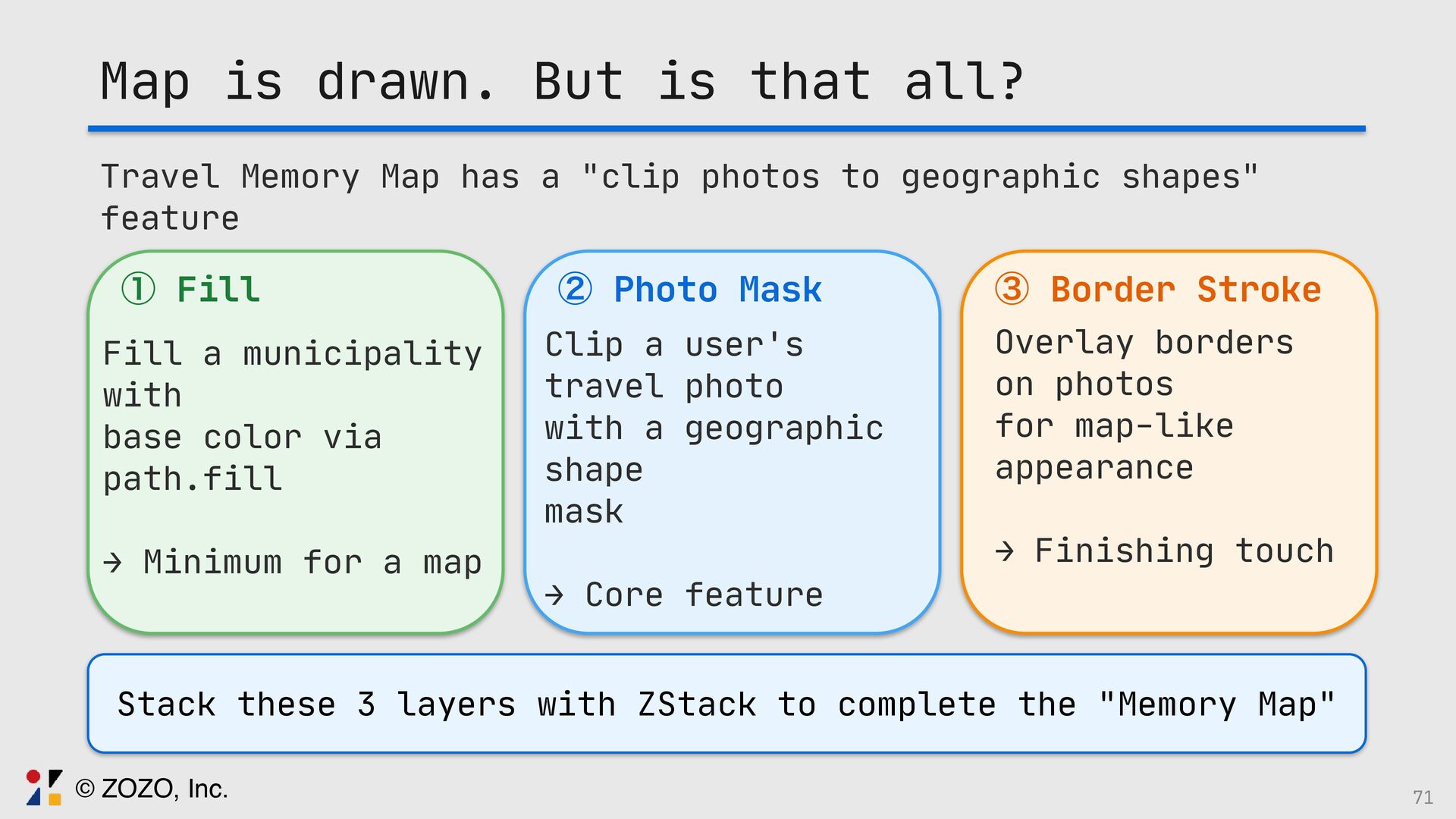
  47. Map is drawn. But is that all? Travel Memory Map

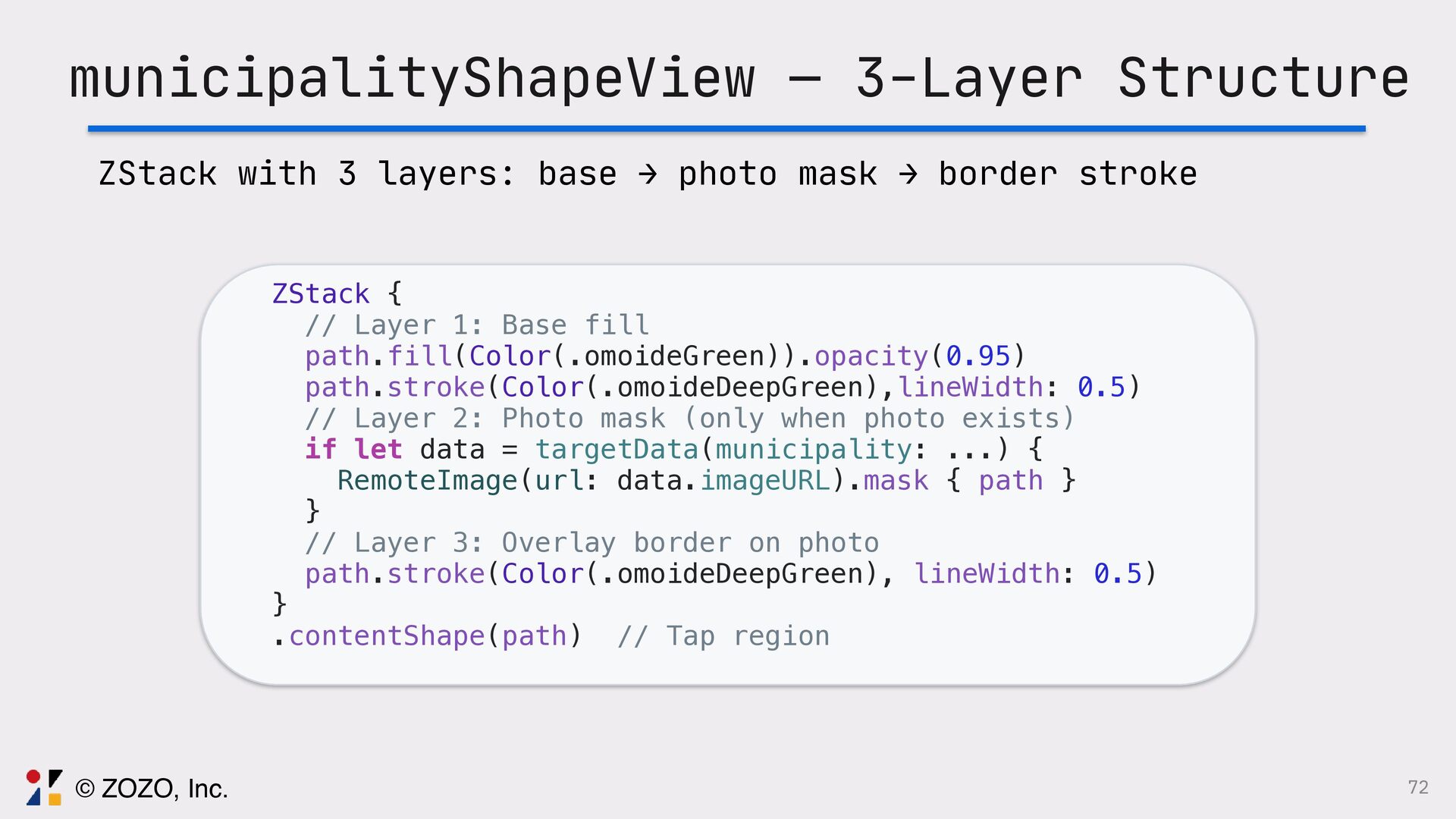
    has a "clip photos to geographic shapes" feature ᶃ Fill Fill a municipality with base color via path.fill → Minimum for a map ᶄ Photo Mask Clip a user's travel photo with a geographic shape mask → Core feature ᶅ Border Stroke Overlay borders on photos for map-like appearance → Finishing touch Stack these 3 layers with ZStack to complete the "Memory Map" 71 © ZOZO, Inc.
  48. 72 municipalityShapeView — 3-Layer Structure ZStack { // Layer 1:

    Base fill path.fill(Color(.omoideGreen)).opacity(0.95) path.stroke(Color(.omoideDeepGreen),lineWidth: 0.5) // Layer 2: Photo mask (only when photo exists) if let data = targetData(municipality: ...) { RemoteImage(url: data.imageURL).mask { path } } // Layer 3: Overlay border on photo path.stroke(Color(.omoideDeepGreen), lineWidth: 0.5) } .contentShape(path) // Tap region ZStack with 3 layers: base → photo mask → border stroke © ZOZO, Inc.
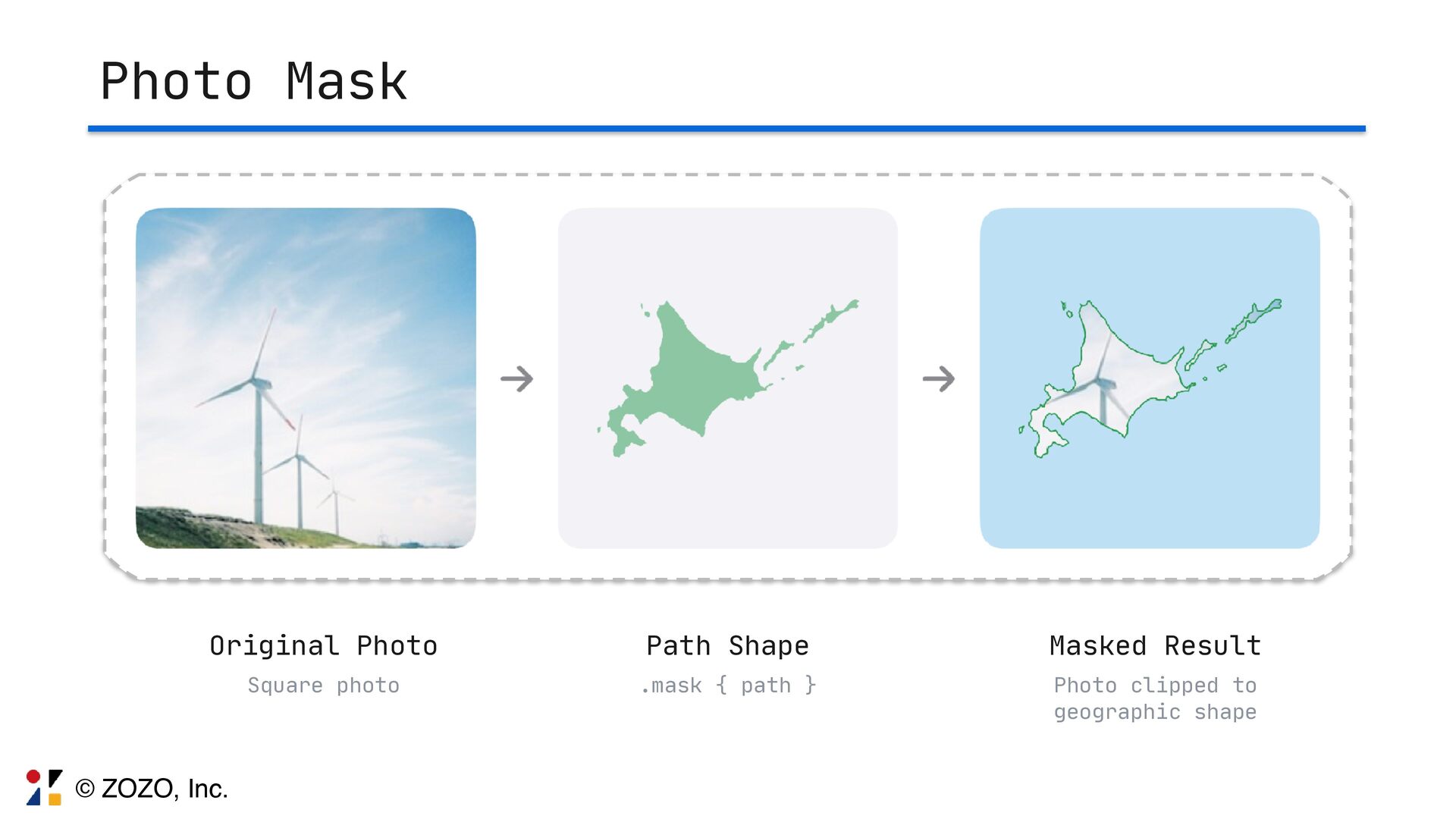
  49. Photo Mask Original Photo Square photo Path Shape .mask {

    path } Masked Result Photo clipped to geographic shape © ZOZO, Inc.
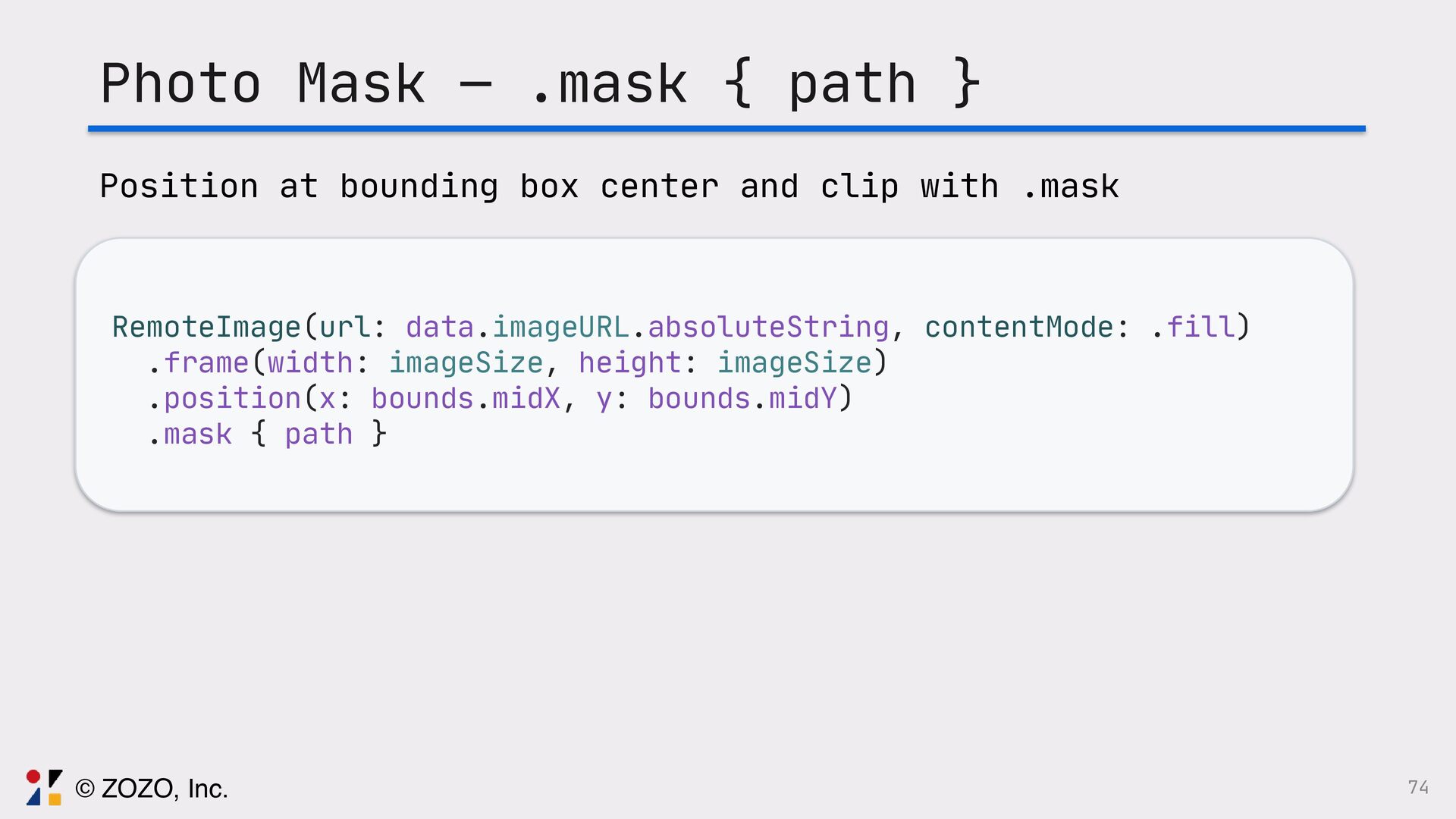
  50. 74 Photo Mask — .mask { path } RemoteImage(url: data.imageURL.absoluteString,

    contentMode: .fill) .frame(width: imageSize, height: imageSize) .position(x: bounds.midX, y: bounds.midY) .mask { path } Position at bounding box center and clip with .mask © ZOZO, Inc.
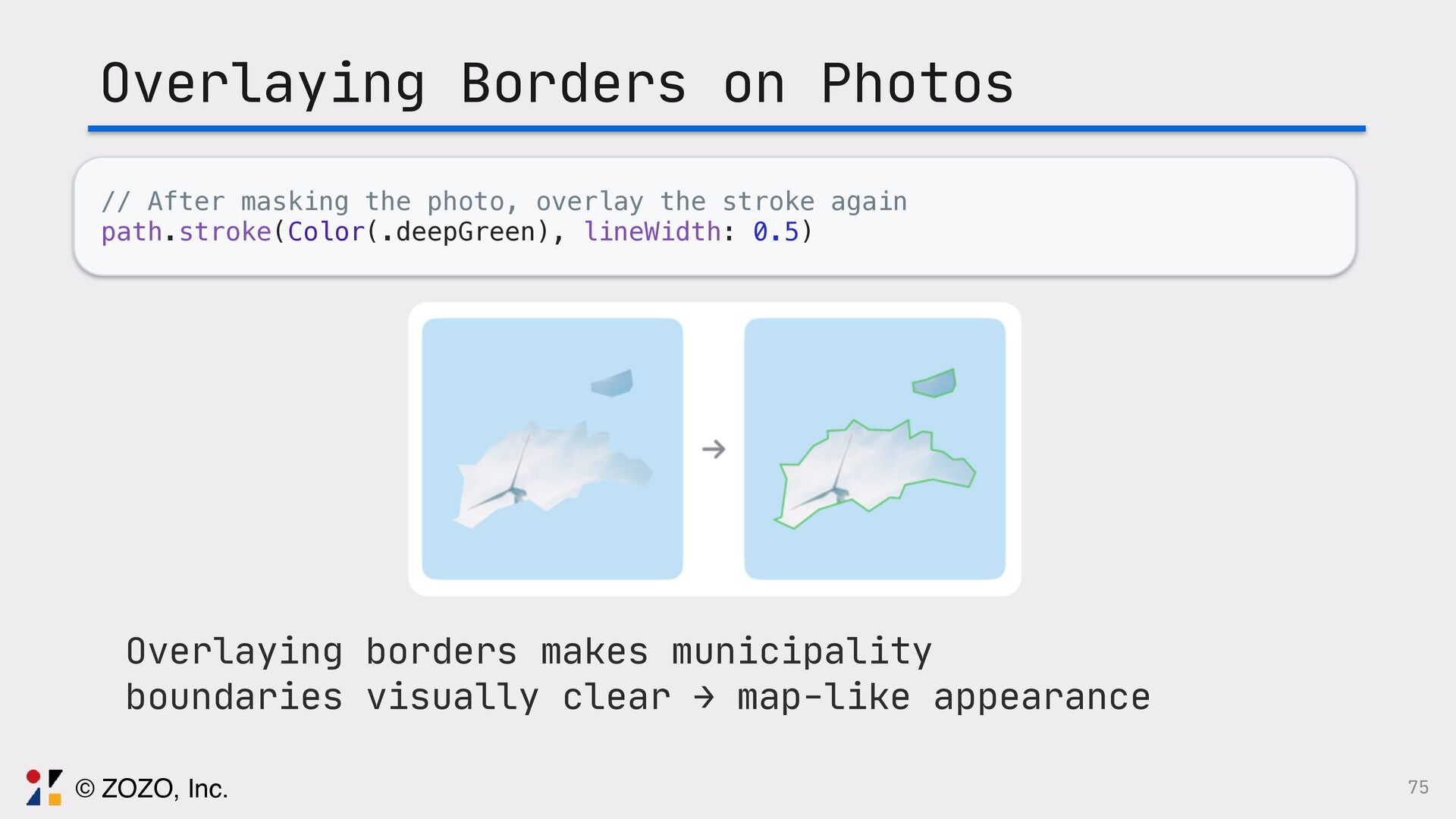
  51. 75 Overlaying Borders on Photos // After masking the photo,

    overlay the stroke again path.stroke(Color(.deepGreen), lineWidth: 0.5) Overlaying borders makes municipality boundaries visually clear → map-like appearance © ZOZO, Inc.
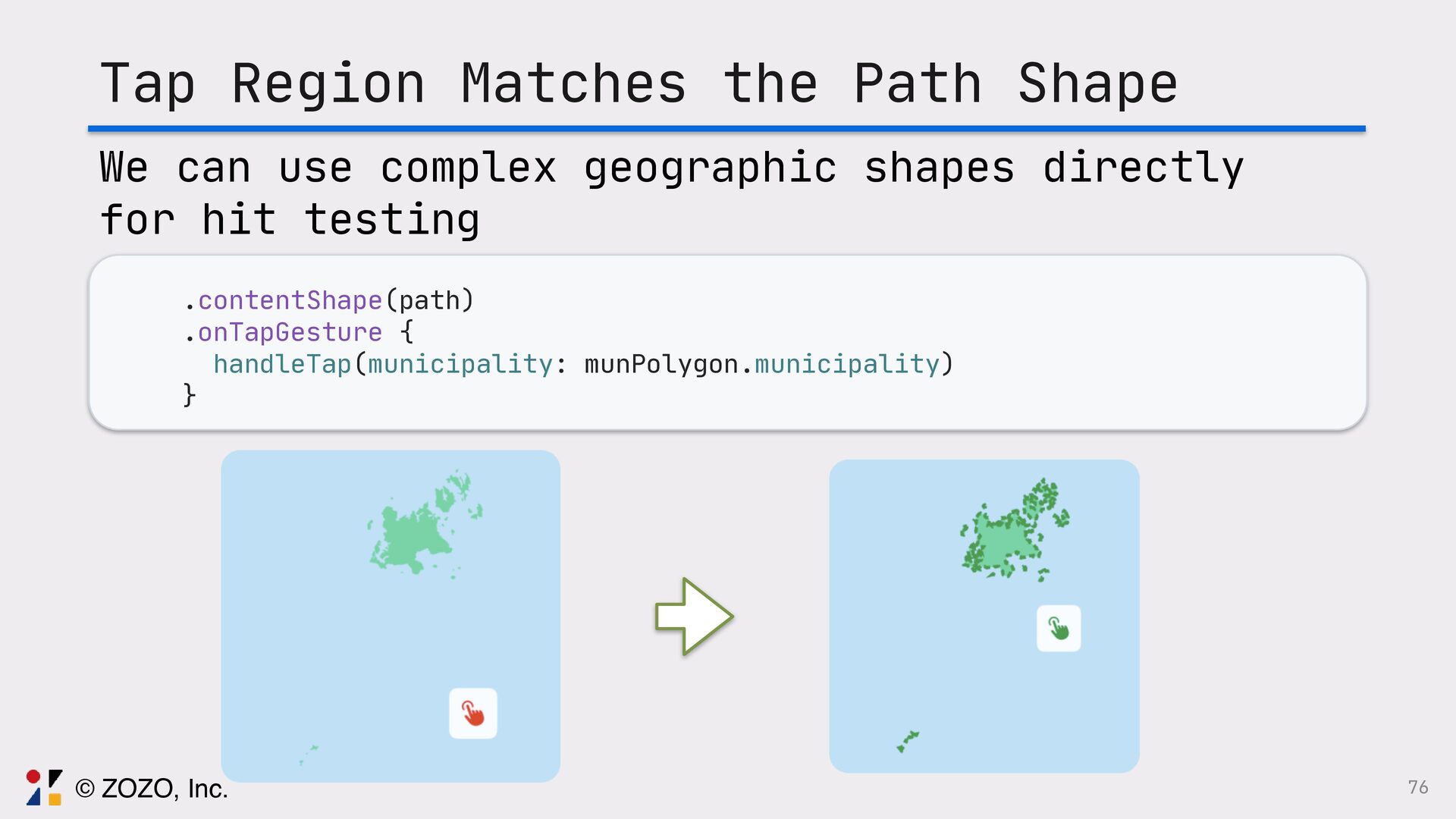
  52. 76 Tap Region Matches the Path Shape .contentShape(path) .onTapGesture {

    handleTap(municipality: munPolygon.municipality) } We can use complex geographic shapes directly for hit testing © ZOZO, Inc.
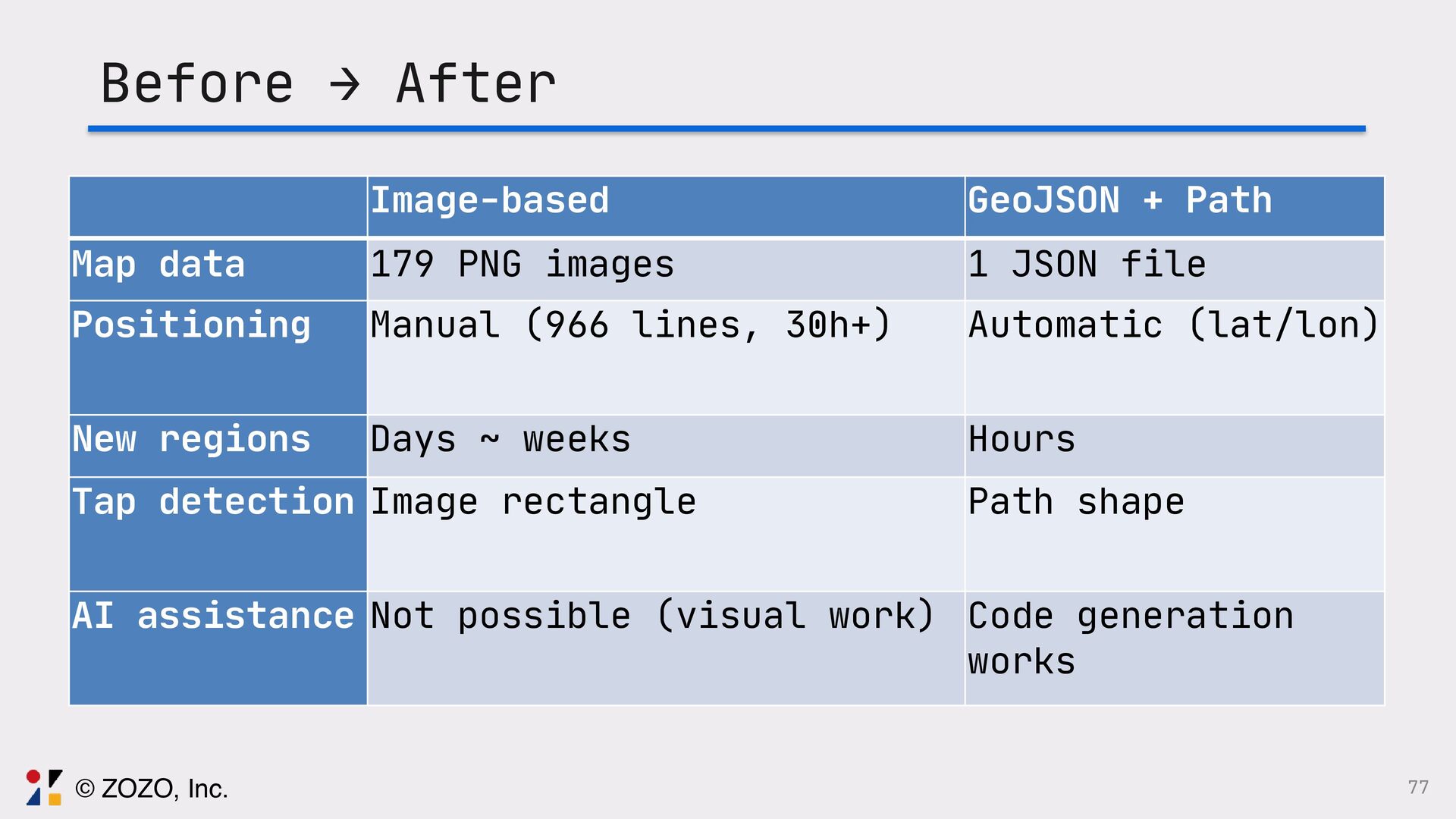
  53. 77 Before → After Image-based GeoJSON + Path Map data

    179 PNG images 1 JSON file Positioning Manual (966 lines, 30h+) Automatic (lat/lon) New regions Days ~ weeks Hours Tap detection Image rectangle Path shape AI assistance Not possible (visual work) Code generation works © ZOZO, Inc.
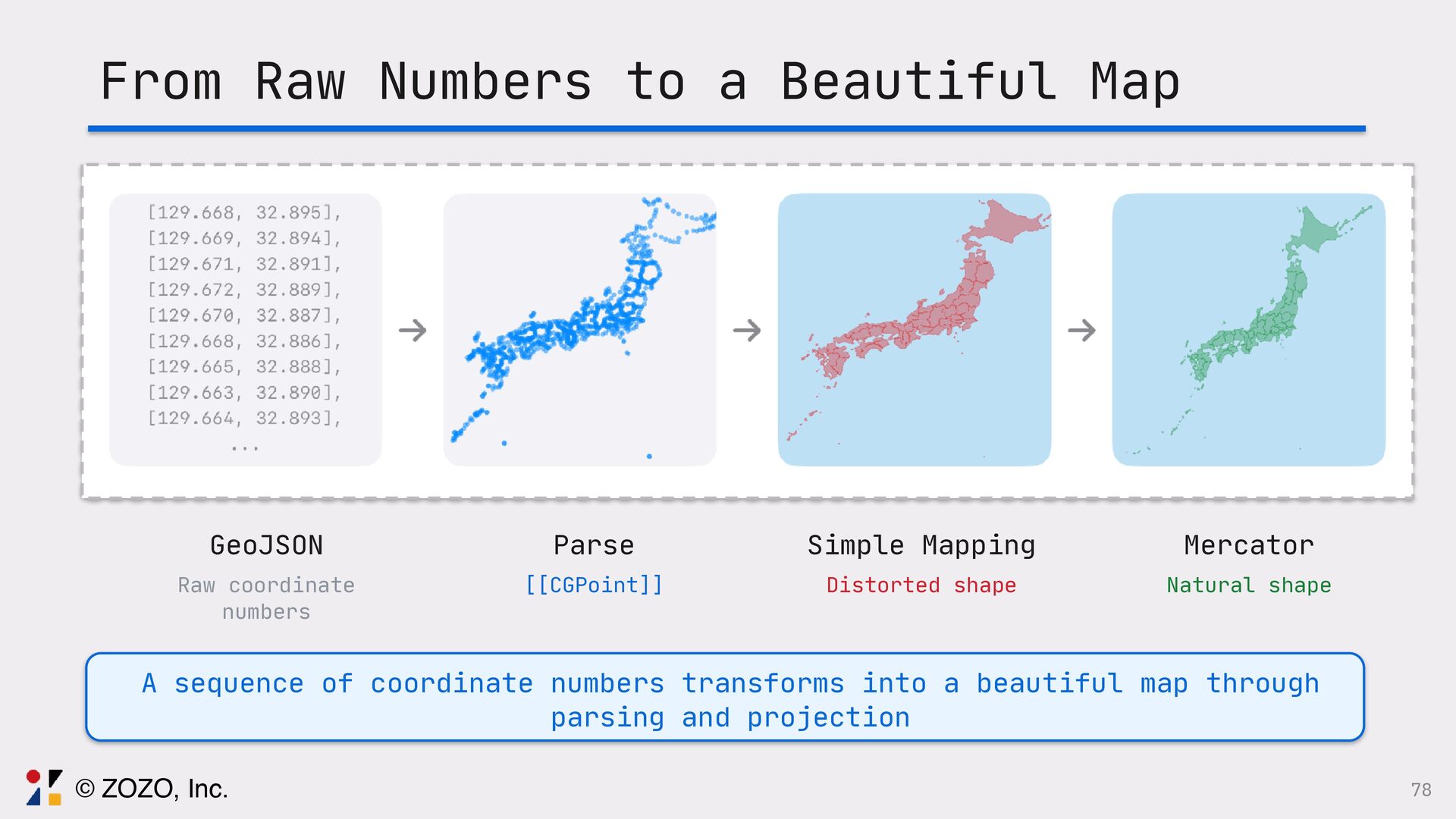
  54. From Raw Numbers to a Beautiful Map GeoJSON Raw coordinate

    numbers Parse [[CGPoint]] Simple Mapping Distorted shape Mercator Natural shape A sequence of coordinate numbers transforms into a beautiful map through parsing and projection 78 © ZOZO, Inc.
  55. 80 Summary GeoJSON × SwiftUI: "Draw Your Own Maps" 1.

    Parse GeoJSON → [[CGPoint]] 2. Auto-project with MKMapPoint 3. Draw with SwiftUI Path © ZOZO, Inc.
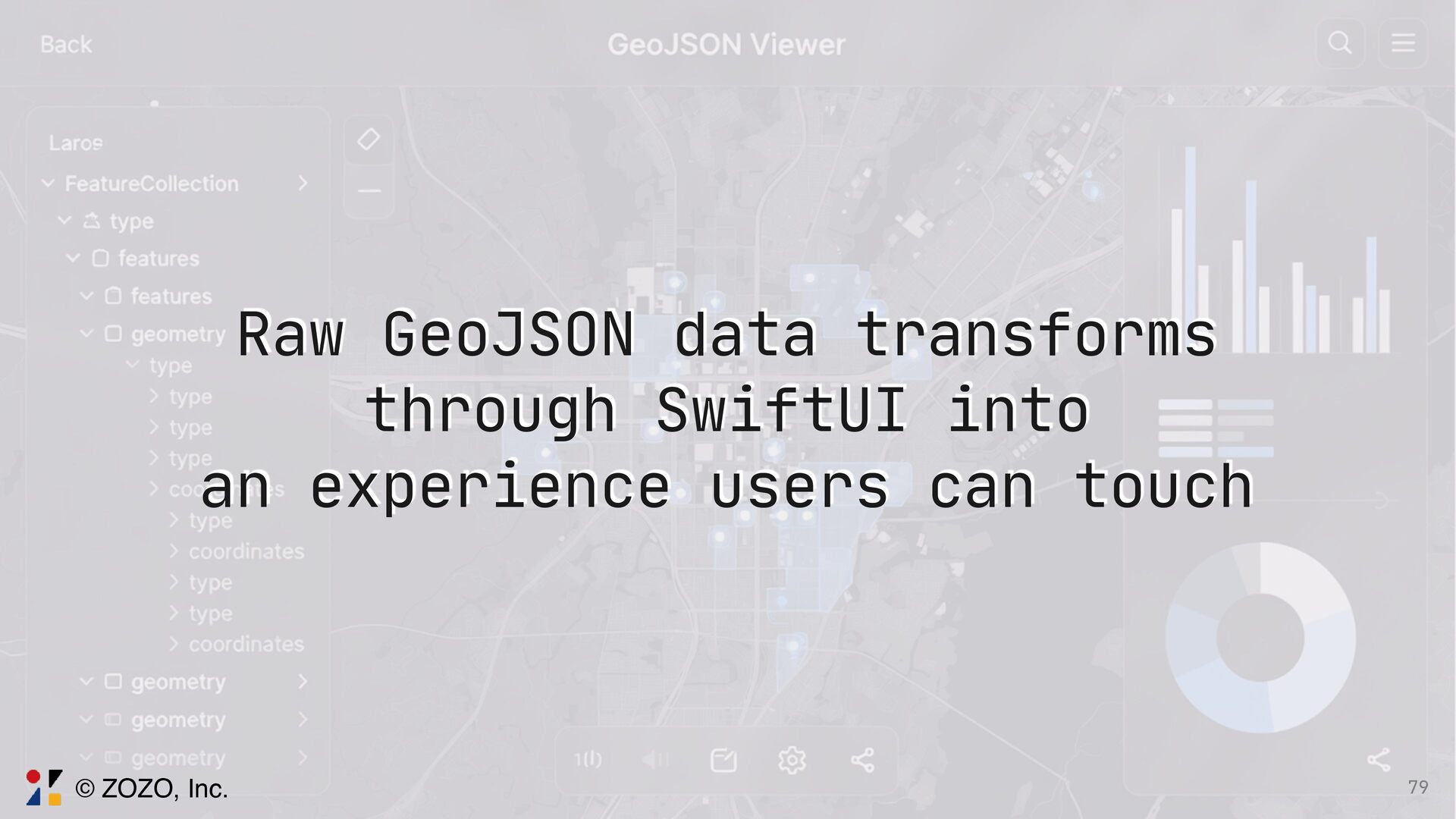
  56. 81 Transforming coordinate sequences into beautiful maps SwiftUI's potential as
    a data visualization tool Please try it in your own projects! © ZOZO, Inc.