Share
Embed
Transcript
39 slides
-
$who am i • ID : bananaapple • 學校科系 :
交通大學網工所 • 年級 : 一年級 • Email: [email protected] 2 -
Outline • Choose your Environment • Virtual Machine • Architecture
of Computer • RAM • OS • i386 and amd64 • Ubuntu • Vim • Bundle • NERDTree • YouCompleteMe • Powerline • Bash Config • Tmux Config • Vim Config • EditorConfig • Tmux • Fast tips 3 -
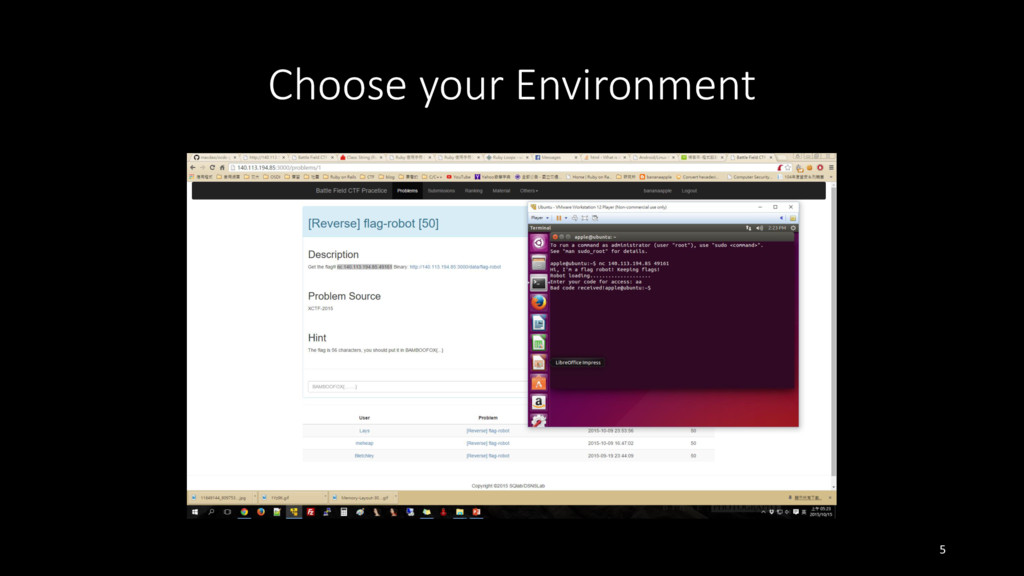
Choose your Environment • 沒有最好的作業系統 • 選擇自己最熟悉、用起來最順手的 • 個人偏愛使用 Windows
搭配虛擬機 Linux • Windows 小算盤 ( 程式設計師模式 ) • Putty 或 Cygwin • 虛擬機請務必安裝 Guest Addition • 才可以方便地使用共用剪貼簿和複製貼上 4 -
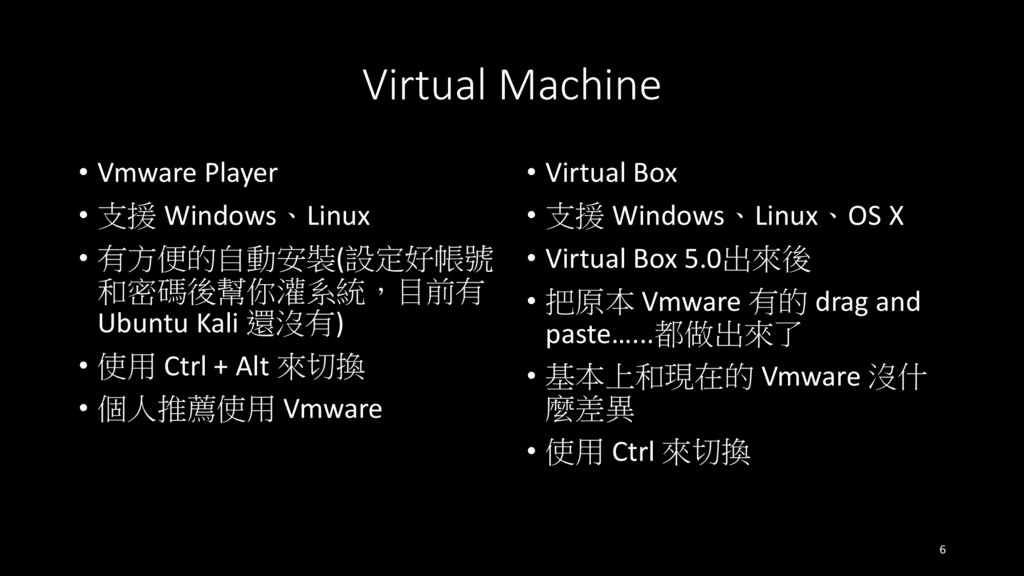
Virtual Machine • Vmware Player • 支援 Windows、Linux • 有方便的自動安裝(設定好帳號
和密碼後幫你灌系統,目前有 Ubuntu Kali 還沒有) • 使用 Ctrl + Alt 來切換 • 個人推薦使用 Vmware • Virtual Box • 支援 Windows、Linux、OS X • Virtual Box 5.0出來後 • 把原本 Vmware 有的 drag and paste…...都做出來了 • 基本上和現在的 Vmware 沒什 麼差異 • 使用 Ctrl 來切換 6 -
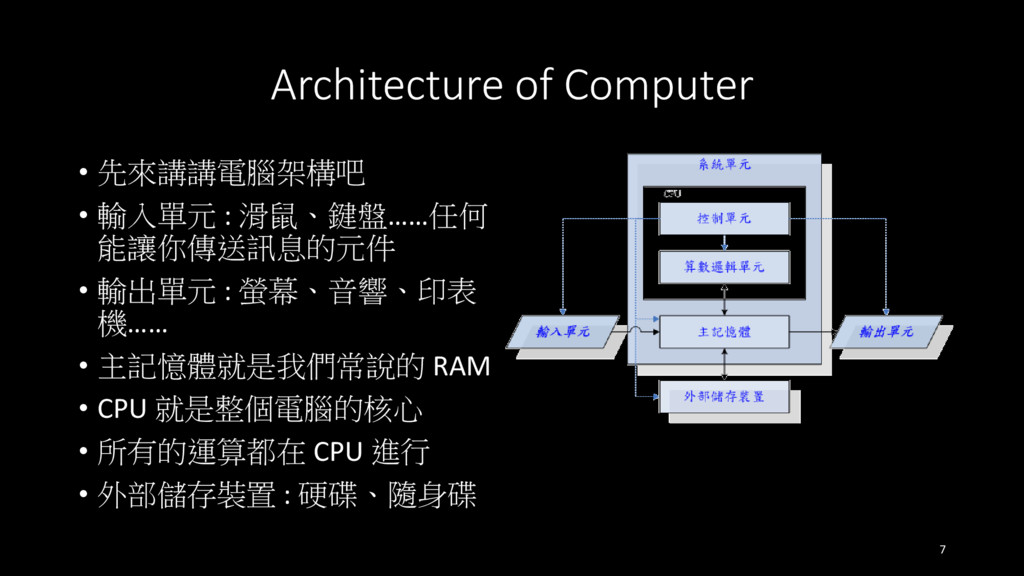
Architecture of Computer • 先來講講電腦架構吧 • 輸入單元 : 滑鼠、鍵盤……任何 能讓你傳送訊息的元件
• 輸出單元 : 螢幕、音響、印表 機…… • 主記憶體就是我們常說的 RAM • CPU 就是整個電腦的核心 • 所有的運算都在 CPU 進行 • 外部儲存裝置 : 硬碟、隨身碟 7 -
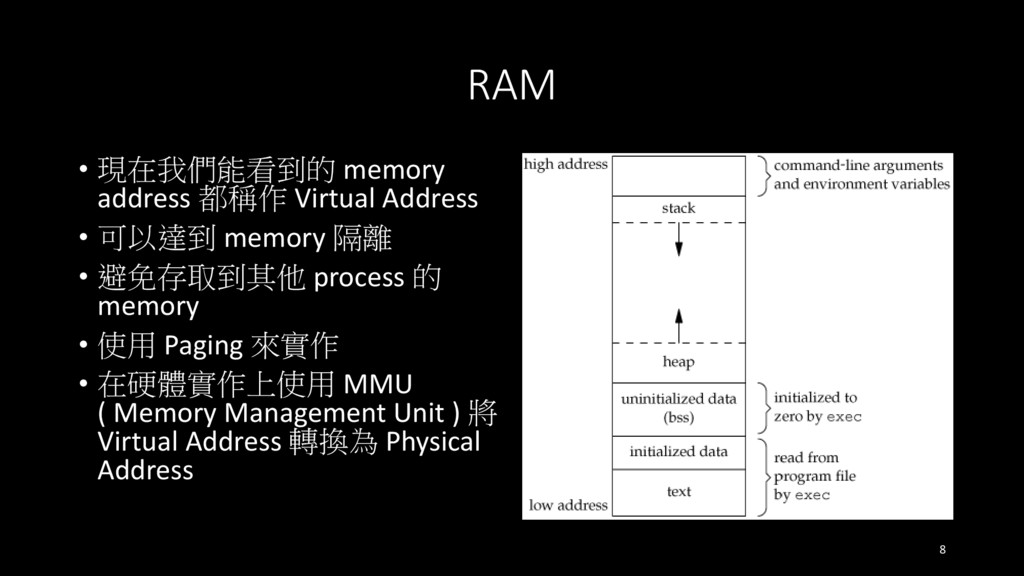
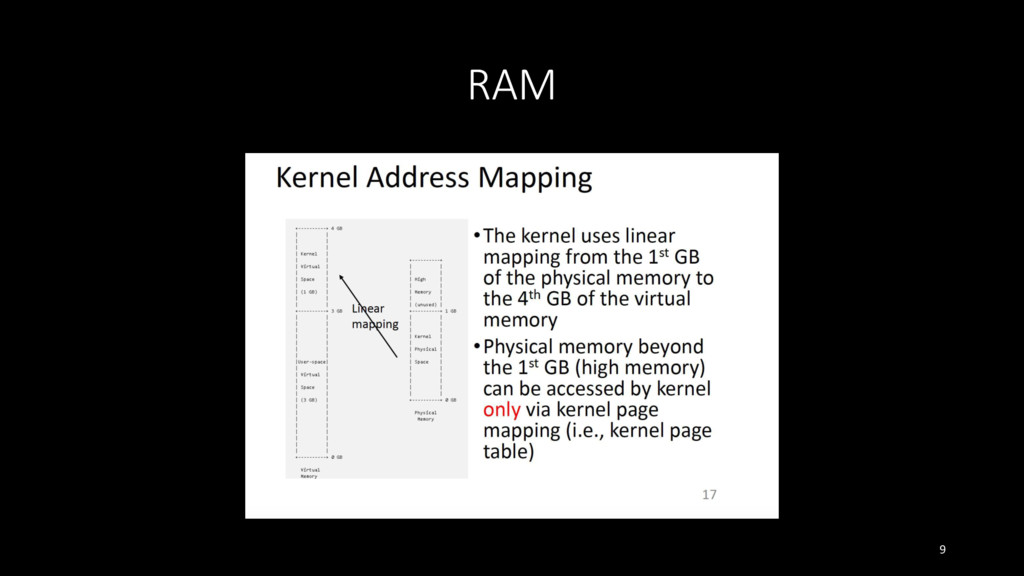
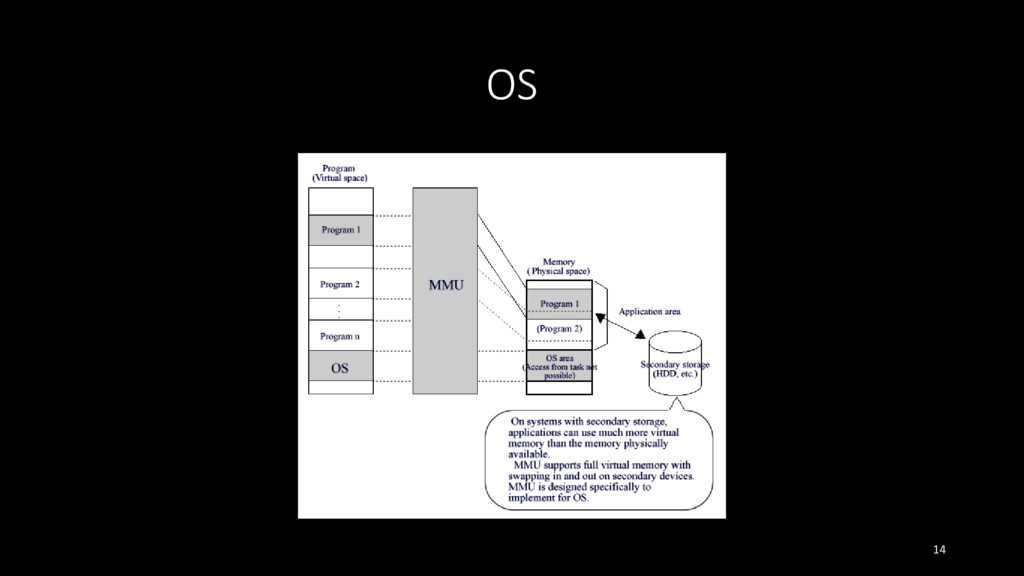
RAM • 現在我們能看到的 memory address 都稱作 Virtual Address • 可以達到
memory 隔離 • 避免存取到其他 process 的 memory • 使用 Paging 來實作 • 在硬體實作上使用 MMU ( Memory Management Unit ) 將 Virtual Address 轉換為 Physical Address 8 -
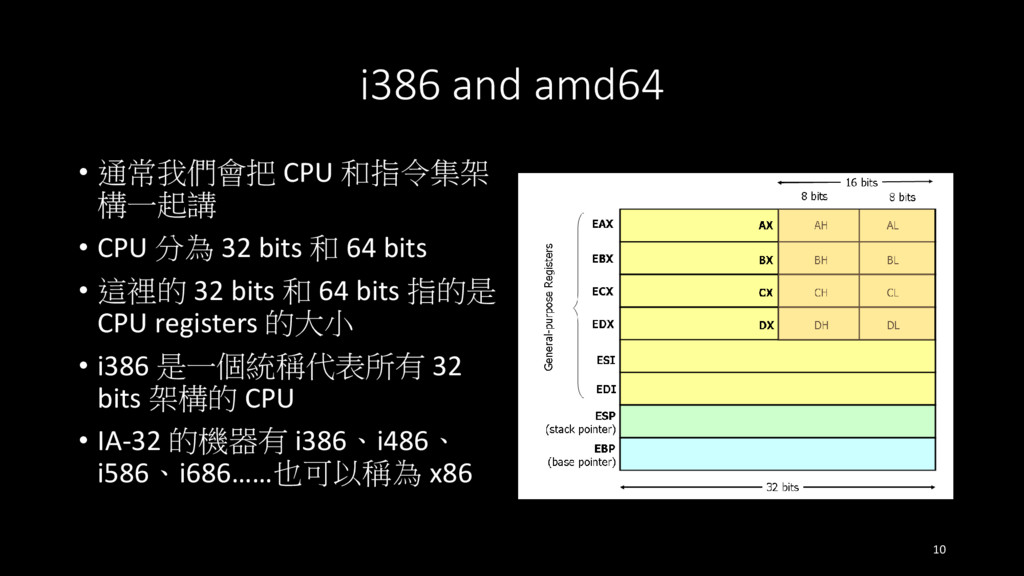
i386 and amd64 • 通常我們會把 CPU 和指令集架 構一起講 • CPU
分為 32 bits 和 64 bits • 這裡的 32 bits 和 64 bits 指的是 CPU registers 的大小 • i386 是一個統稱代表所有 32 bits 架構的 CPU • IA-32 的機器有 i386、i486、 i586、i686……也可以稱為 x86 10 -
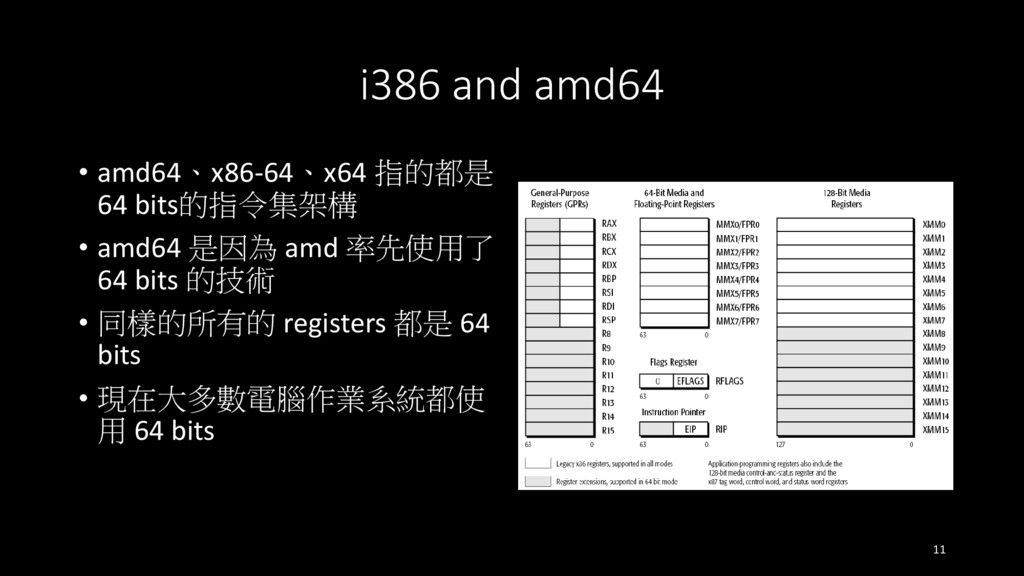
i386 and amd64 • amd64、x86-64、x64 指的都是 64 bits的指令集架構 • amd64
是因為 amd 率先使用了 64 bits 的技術 • 同樣的所有的 registers 都是 64 bits • 現在大多數電腦作業系統都使 用 64 bits 11 -
i386 and amd64 Q&A time • 要是在 32 bits 的
CPU 上插超過 4GB的 RAM 會怎麼樣? 沒有功用因為 x86 的 CPU 只能定址到 2^32 的 memory • Program Files 和 Program Files (x86) 資料夾有什麼差? 因為 x64 的 CPU 也可以執行 32 bits 的程式,所以會把 x86 的程式 安裝在這個資料夾裡 12 -
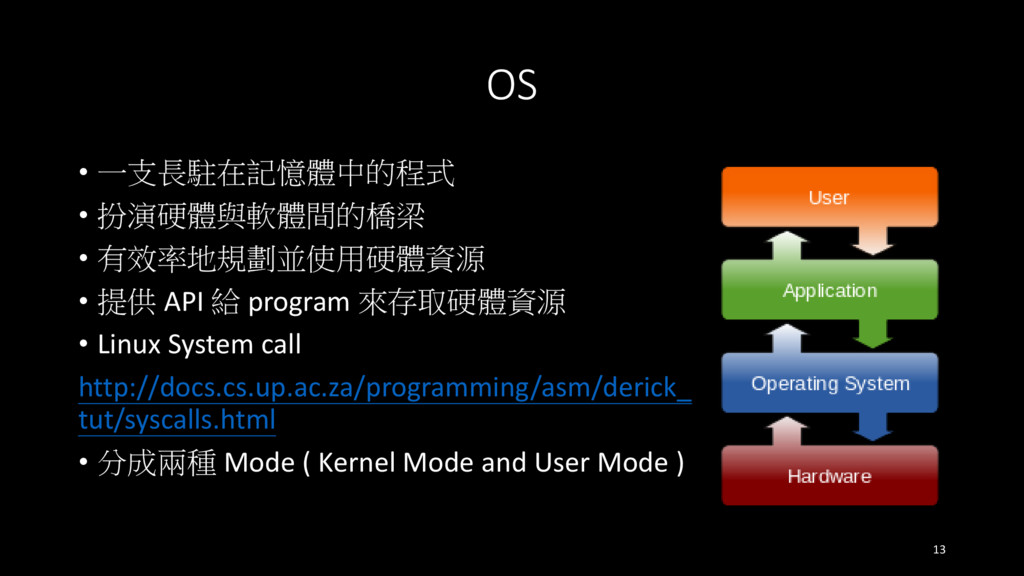
OS • 一支長駐在記憶體中的程式 • 扮演硬體與軟體間的橋梁 • 有效率地規劃並使用硬體資源 • 提供 API
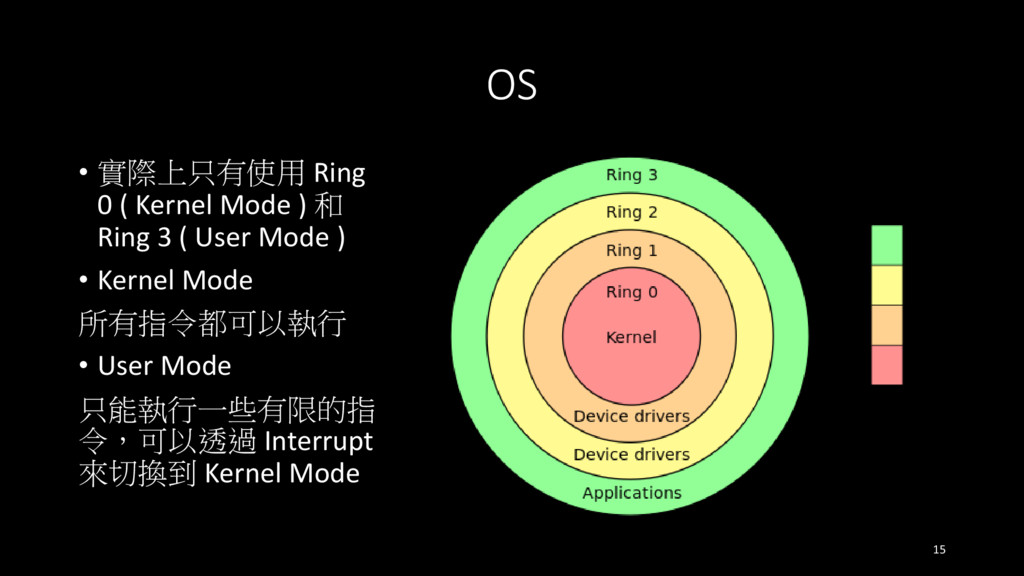
給 program 來存取硬體資源 • Linux System call http://docs.cs.up.ac.za/programming/asm/derick_ tut/syscalls.html • 分成兩種 Mode ( Kernel Mode and User Mode ) 13 -
OS • 實際上只有使用 Ring 0 ( Kernel Mode ) 和
Ring 3 ( User Mode ) • Kernel Mode 所有指令都可以執行 • User Mode 只能執行一些有限的指 令,可以透過 Interrupt 來切換到 Kernel Mode 15 -
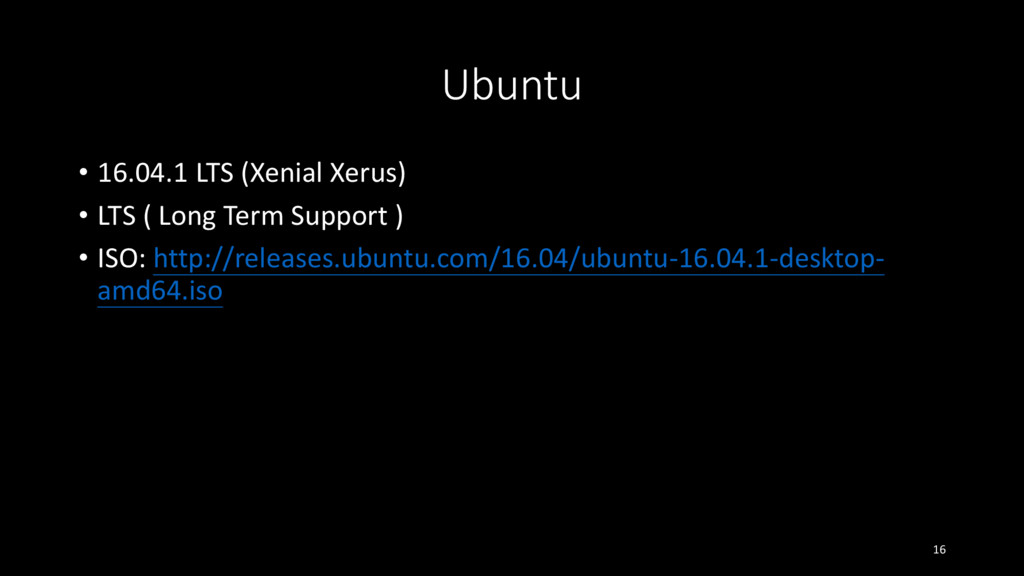
Ubuntu • 16.04.1 LTS (Xenial Xerus) • LTS ( Long
Term Support ) • ISO: http://releases.ubuntu.com/16.04/ubuntu-16.04.1-desktop- amd64.iso 16 -
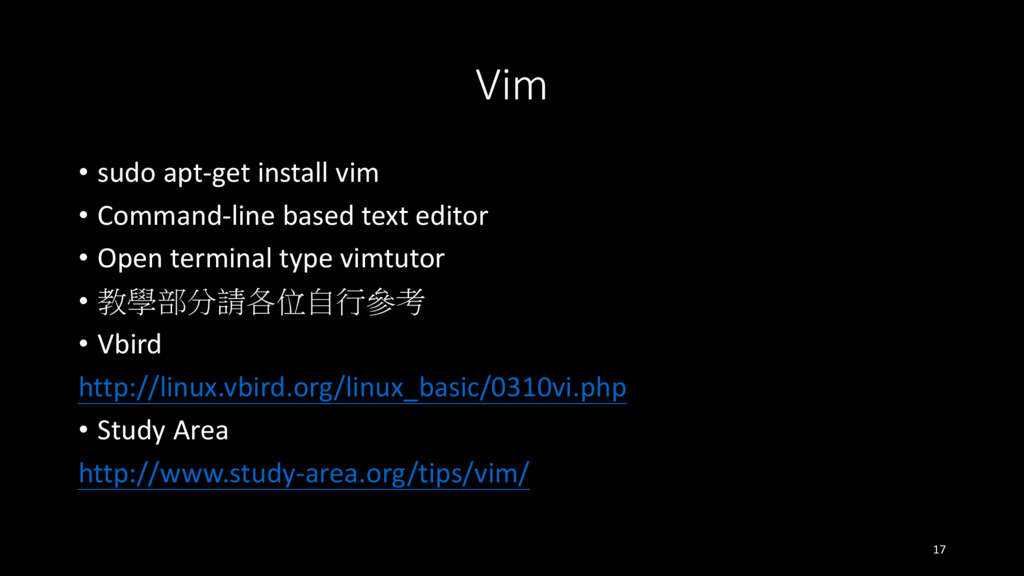
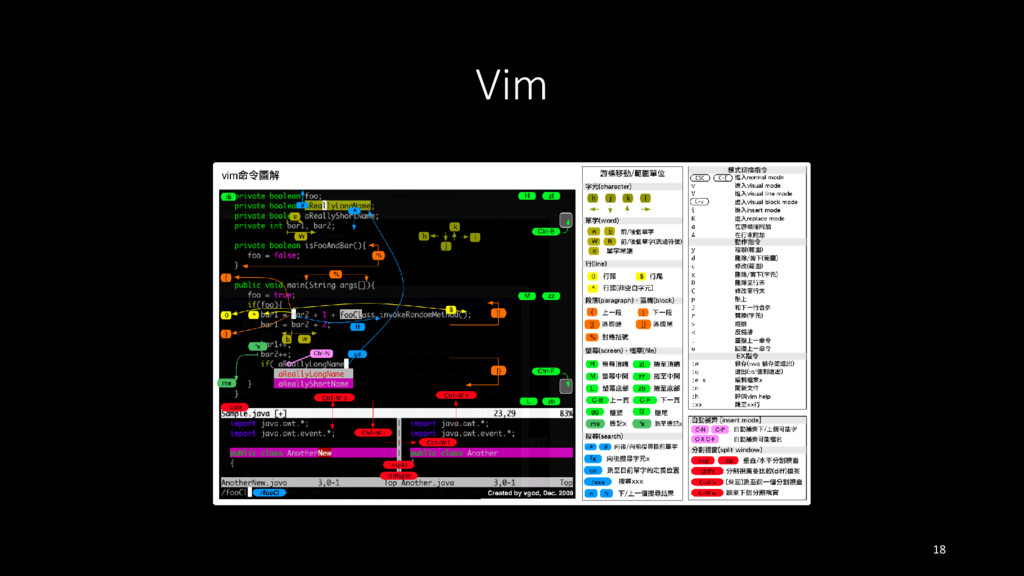
Vim • sudo apt-get install vim • Command-line based text
editor • Open terminal type vimtutor • 教學部分請各位自行參考 • Vbird http://linux.vbird.org/linux_basic/0310vi.php • Study Area http://www.study-area.org/tips/vim/ 17 -
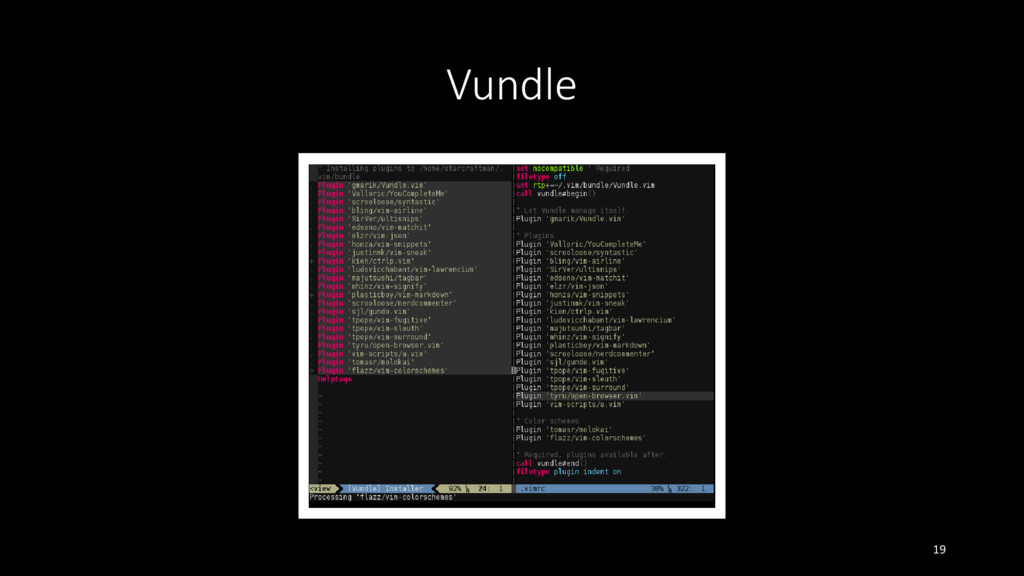
Vundle • Official website: https://github.com/VundleVim/Vundle.vim • Vundle is a Vim
plugin manager • Installation git clone https://github.com/VundleVim/Vundle.vim.git ~/.vim/bundle/Vundle.vim 20 -
Config • ~/.vimrc set nocompatible filetype off set rtp+=~/.vim/bundle/Vundle.vim call
vundle#begin() Plugin 'VundleVim/Vundle.vim' Plugin 'scrooloose/nerdtree' call vundle#end() filetype plugin indent on • vim +PluginInstall +qall 21 -
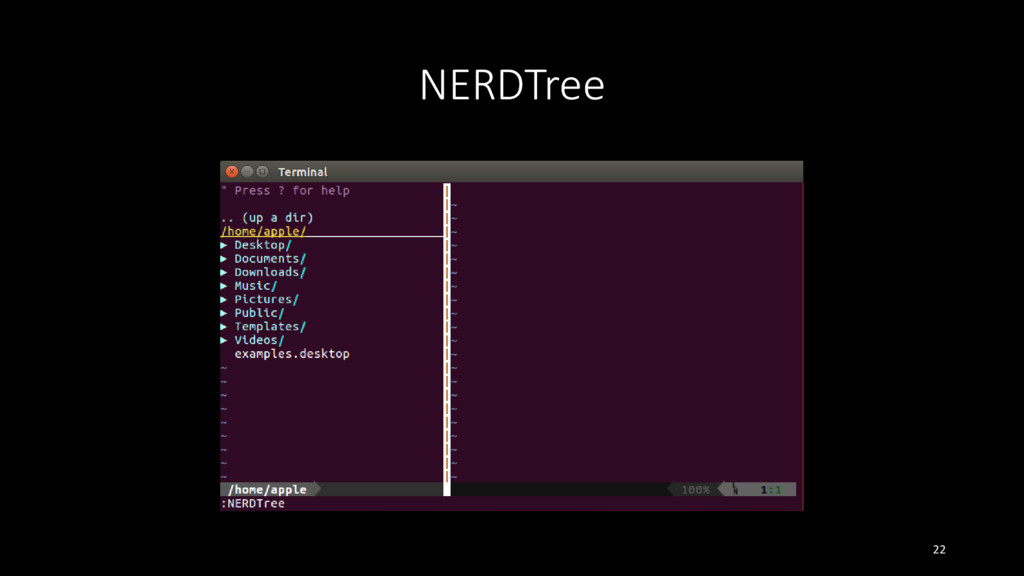
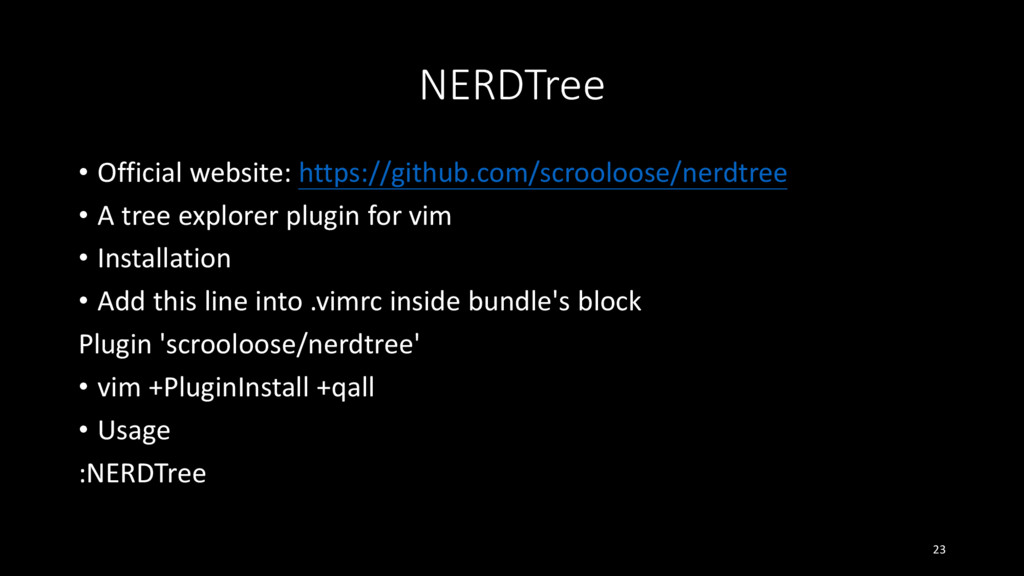
NERDTree • Official website: https://github.com/scrooloose/nerdtree • A tree explorer plugin
for vim • Installation • Add this line into .vimrc inside bundle's block Plugin 'scrooloose/nerdtree' • vim +PluginInstall +qall • Usage :NERDTree 23 -
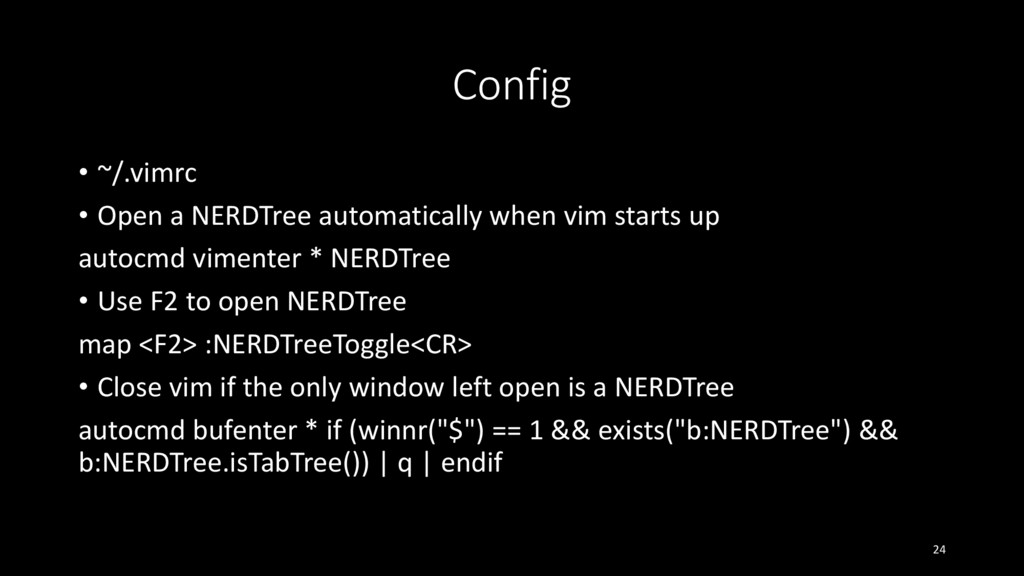
Config • ~/.vimrc • Open a NERDTree automatically when vim
starts up autocmd vimenter * NERDTree • Use F2 to open NERDTree map <F2> :NERDTreeToggle<CR> • Close vim if the only window left open is a NERDTree autocmd bufenter * if (winnr("$") == 1 && exists("b:NERDTree") && b:NERDTree.isTabTree()) | q | endif 24 -
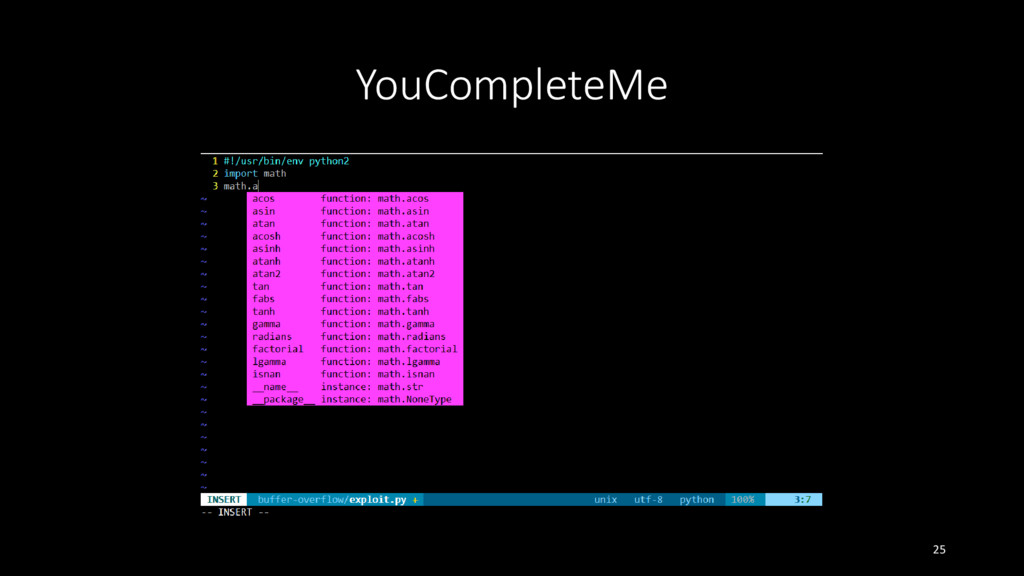
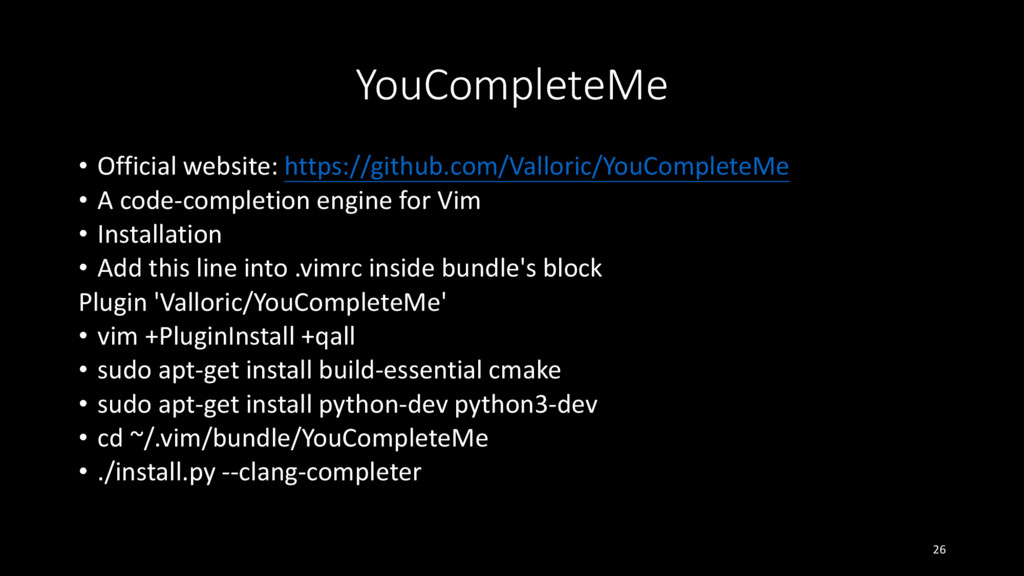
YouCompleteMe • Official website: https://github.com/Valloric/YouCompleteMe • A code-completion engine for
Vim • Installation • Add this line into .vimrc inside bundle's block Plugin 'Valloric/YouCompleteMe' • vim +PluginInstall +qall • sudo apt-get install build-essential cmake • sudo apt-get install python-dev python3-dev • cd ~/.vim/bundle/YouCompleteMe • ./install.py --clang-completer 26 -
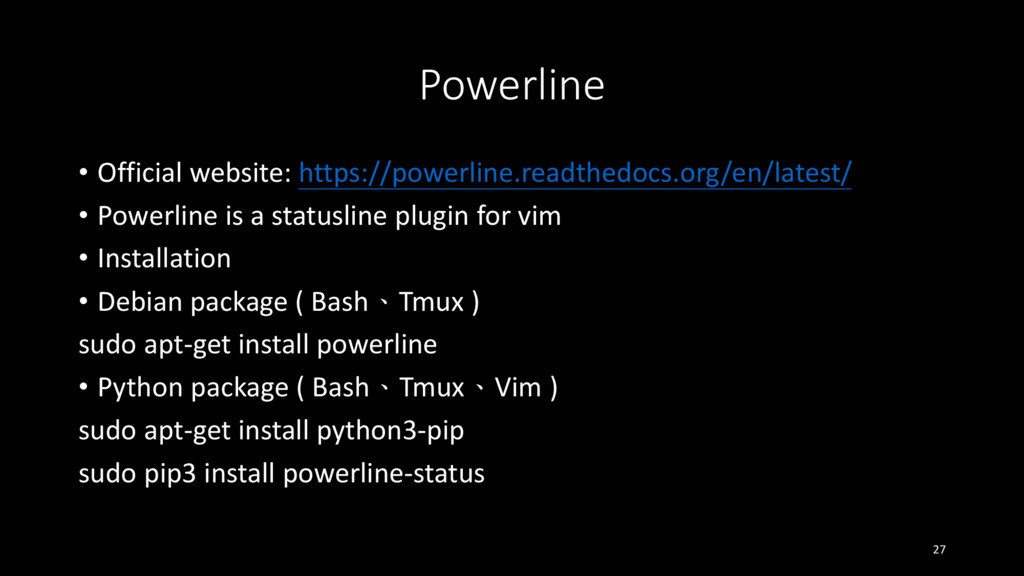
Powerline • Official website: https://powerline.readthedocs.org/en/latest/ • Powerline is a statusline
plugin for vim • Installation • Debian package ( Bash、Tmux ) sudo apt-get install powerline • Python package ( Bash、Tmux、Vim ) sudo apt-get install python3-pip sudo pip3 install powerline-status 27 -
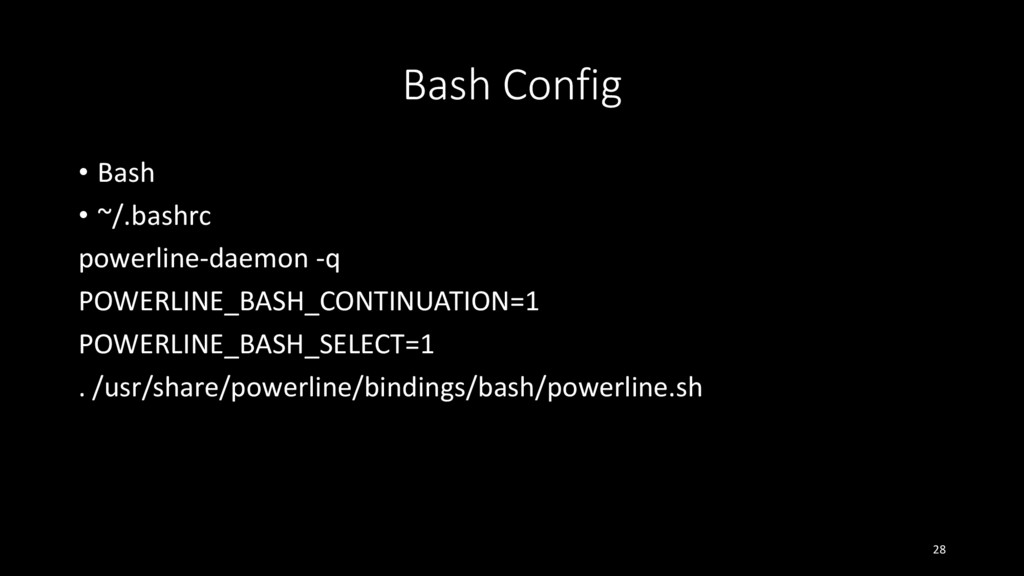
Bash Config • Bash • ~/.bashrc powerline-daemon -q POWERLINE_BASH_CONTINUATION=1 POWERLINE_BASH_SELECT=1
. /usr/share/powerline/bindings/bash/powerline.sh 28 -
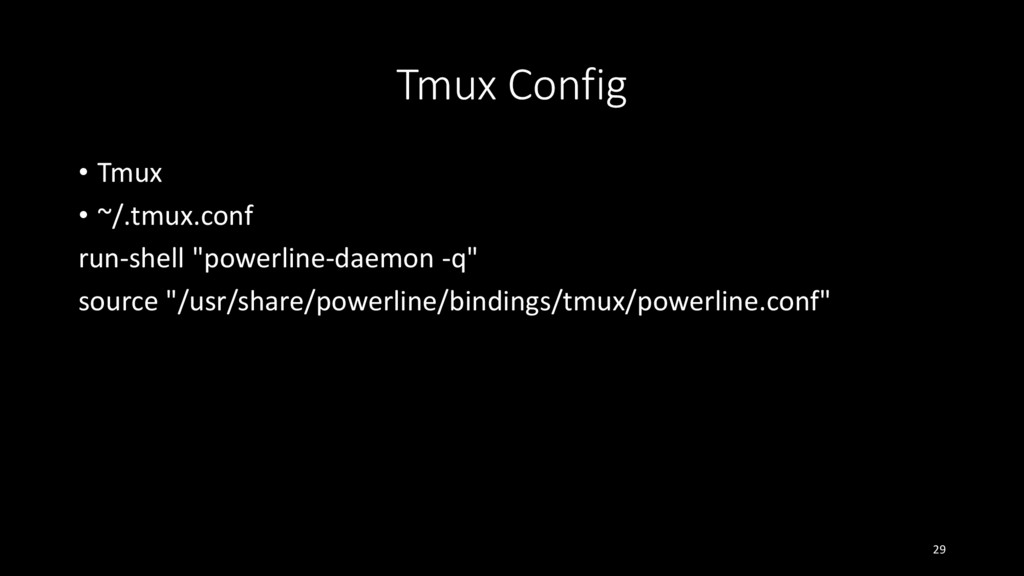
Tmux Config • Tmux • ~/.tmux.conf run-shell "powerline-daemon -q" source
"/usr/share/powerline/bindings/tmux/powerline.conf" 29 -
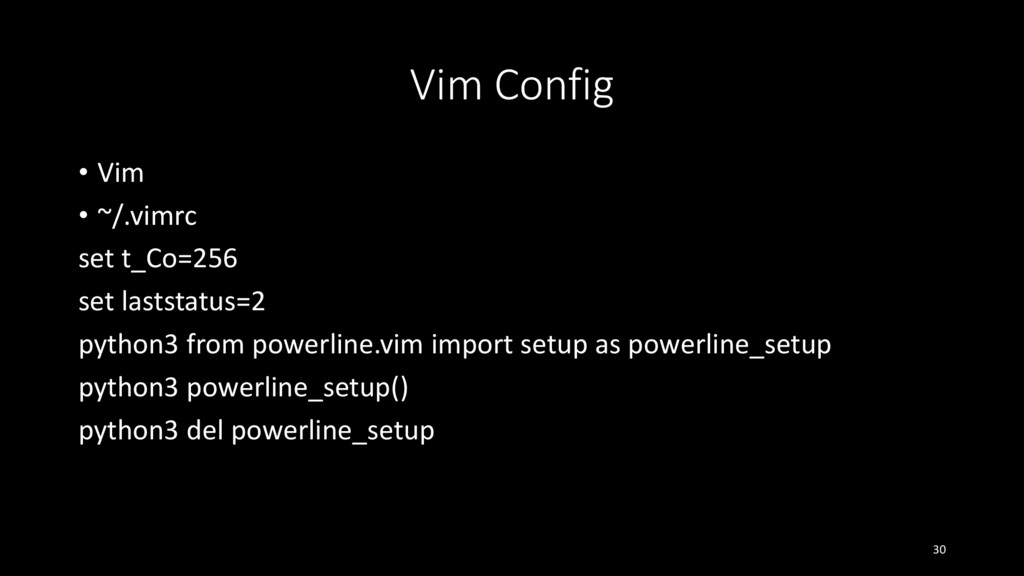
Vim Config • Vim • ~/.vimrc set t_Co=256 set laststatus=2
python3 from powerline.vim import setup as powerline_setup python3 powerline_setup() python3 del powerline_setup 30 -
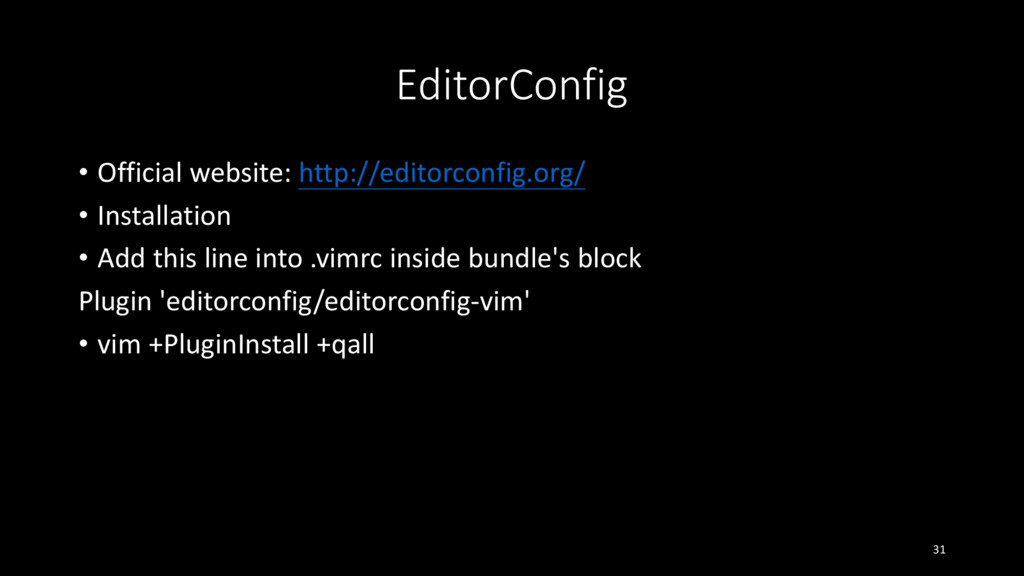
EditorConfig • Official website: http://editorconfig.org/ • Installation • Add this
line into .vimrc inside bundle's block Plugin 'editorconfig/editorconfig-vim' • vim +PluginInstall +qall 31 -
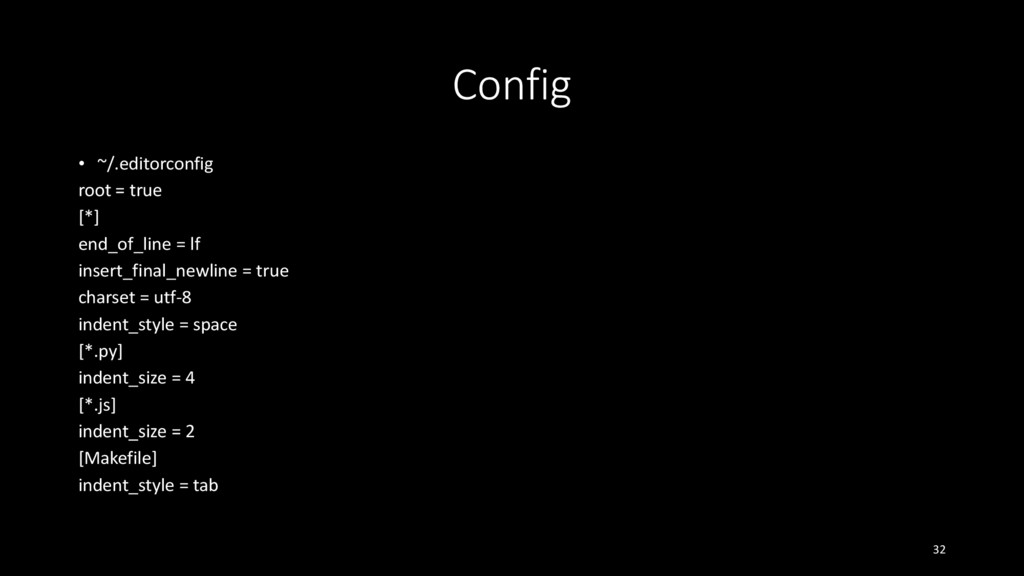
Config • ~/.editorconfig root = true [*] end_of_line = lf
insert_final_newline = true charset = utf-8 indent_style = space [*.py] indent_size = 4 [*.js] indent_size = 2 [Makefile] indent_style = tab 32 -
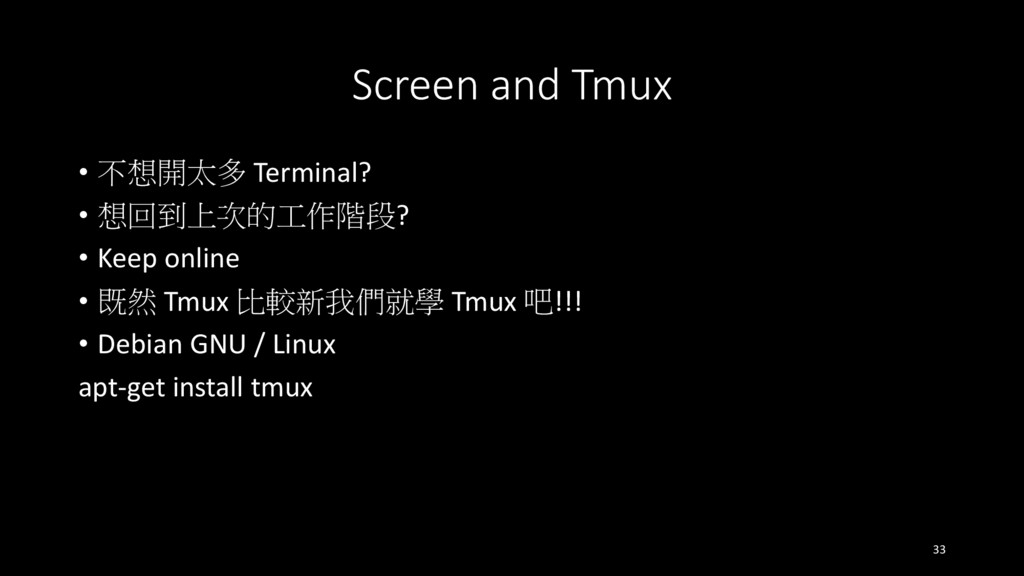
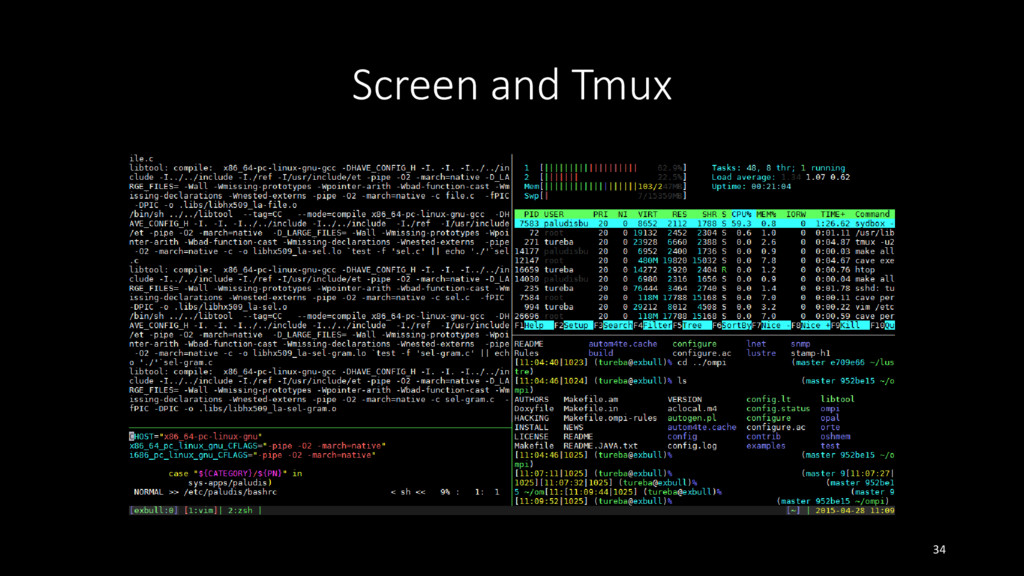
Screen and Tmux • 不想開太多 Terminal? • 想回到上次的工作階段? • Keep
online • 既然 Tmux 比較新我們就學 Tmux 吧!!! • Debian GNU / Linux apt-get install tmux 33 -
Screen and Tmux • Ctrl+b 組合鍵 : Ctrl 按住不放再按b •
Ctrl+b c : 建立新的視窗 • Ctrl+b & : 刪除目前的視窗 • Ctrl+b n : 切換到下一個視窗 • Ctrl+b p : 切換到上一個視窗 • Ctrl+b d : detach 目前的 session • Ctrl+b attach : 回到上次 detach 的 session • Ctrl+b % : 左右分割兩個視窗 35 -
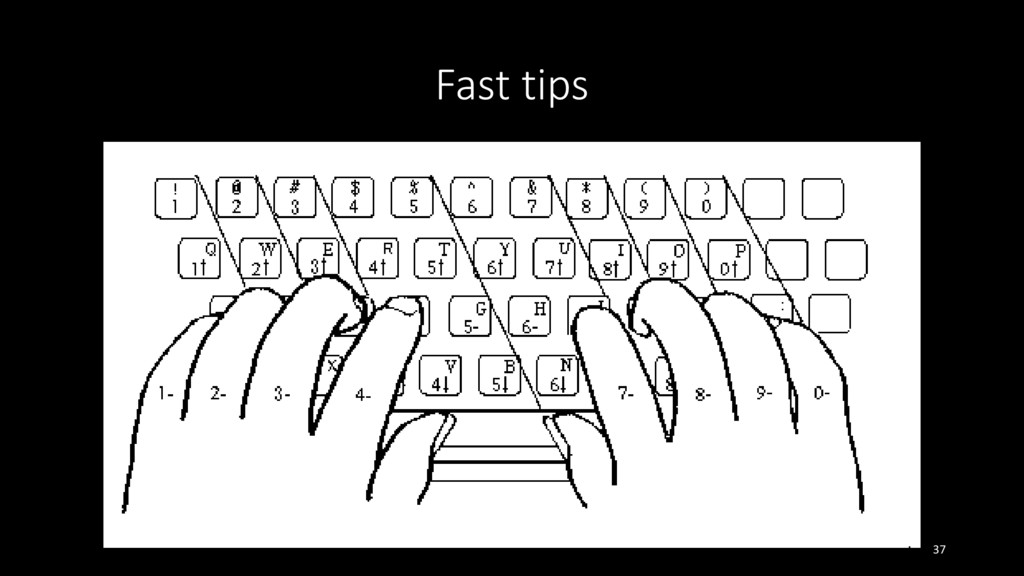
Fast tips • 能不要碰滑鼠盡量不要碰 • Bash 快捷鍵像是 Ctrl + a可以跳到行首
• 熟悉 vim 裡面的 Mode 切換和快捷鍵使用 • 熟悉 nc、wget、cat、echo……指令 • 有現成的工具就用現成的,不要重複去寫需要的功能 • 請盡量保持手型像是下一張投影片這樣 • 左手食指放在 f 右手食指放在 j 上 36 -
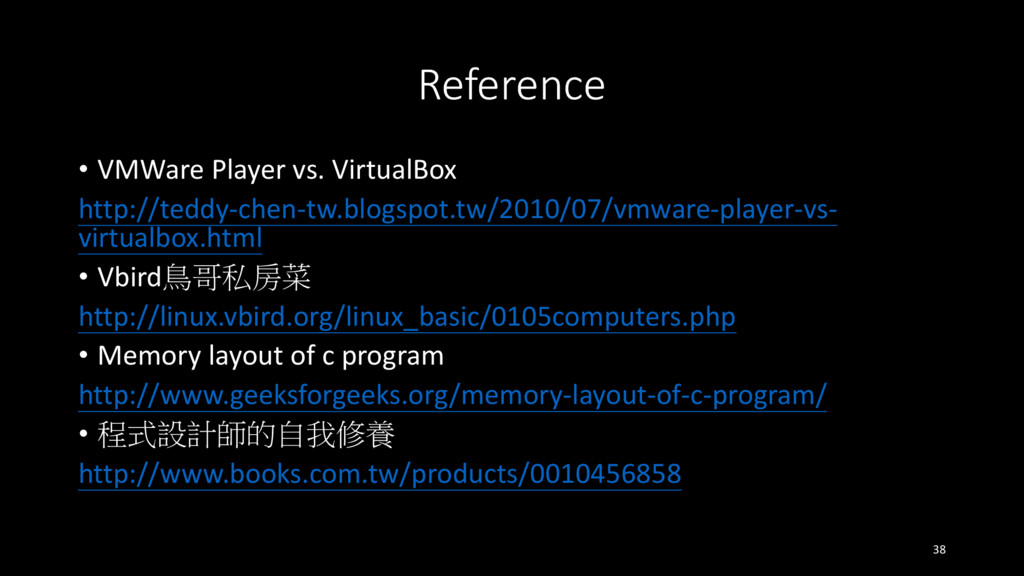
Reference • VMWare Player vs. VirtualBox http://teddy-chen-tw.blogspot.tw/2010/07/vmware-player-vs- virtualbox.html • Vbird鳥哥私房菜
http://linux.vbird.org/linux_basic/0105computers.php • Memory layout of c program http://www.geeksforgeeks.org/memory-layout-of-c-program/ • 程式設計師的自我修養 http://www.books.com.tw/products/0010456858 38 -
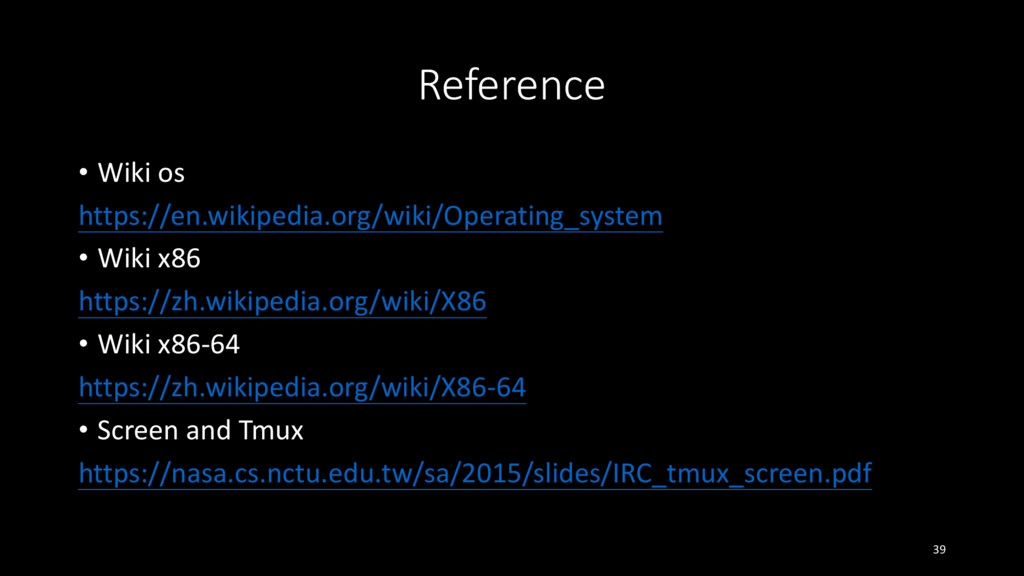
Reference • Wiki os https://en.wikipedia.org/wiki/Operating_system • Wiki x86 https://zh.wikipedia.org/wiki/X86 •
Wiki x86-64 https://zh.wikipedia.org/wiki/X86-64 • Screen and Tmux https://nasa.cs.nctu.edu.tw/sa/2015/slides/IRC_tmux_screen.pdf 39